This section provides an overview of how appraisers can monitor and manage employee goals throughout the appraisal cycle.
The goal sets and weightage displayed in this section are determined by the Goal Library settings defined within the appraisal template.
Prerequisites
- The appraisal must be assigned to the appraisee.
- To edit goals, the action must be performed within the Planning Period (while the appraisal status is "Ongoing").
- Ensure access to add/edit is given in Appraisal Template > Appraisal Form.
"Add/Edit" is for creating and editing goals, "Update" is for updating goal progress.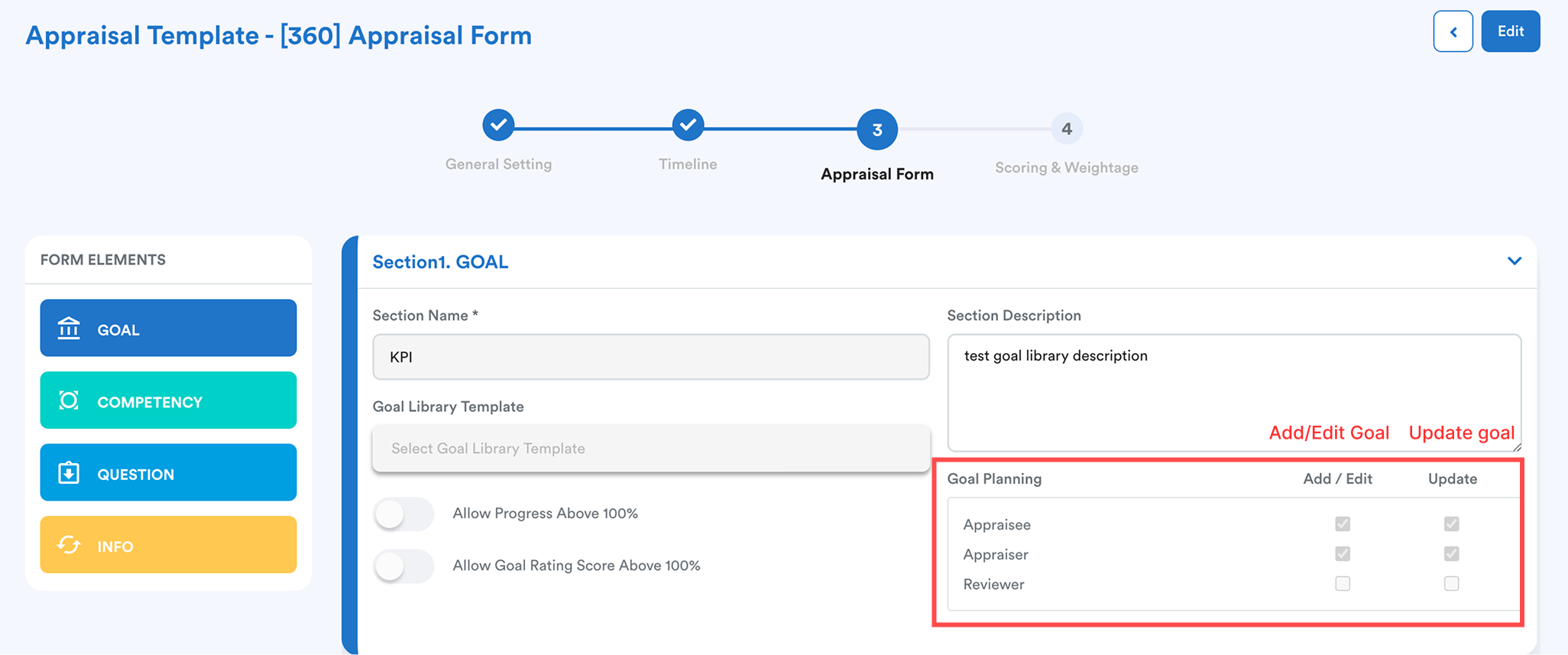
Note:
Staff Goal Summary: Used to view goals by individual employees. (recommended)
Staff Goal Management: Used to view and manage goals by group.
Step 1
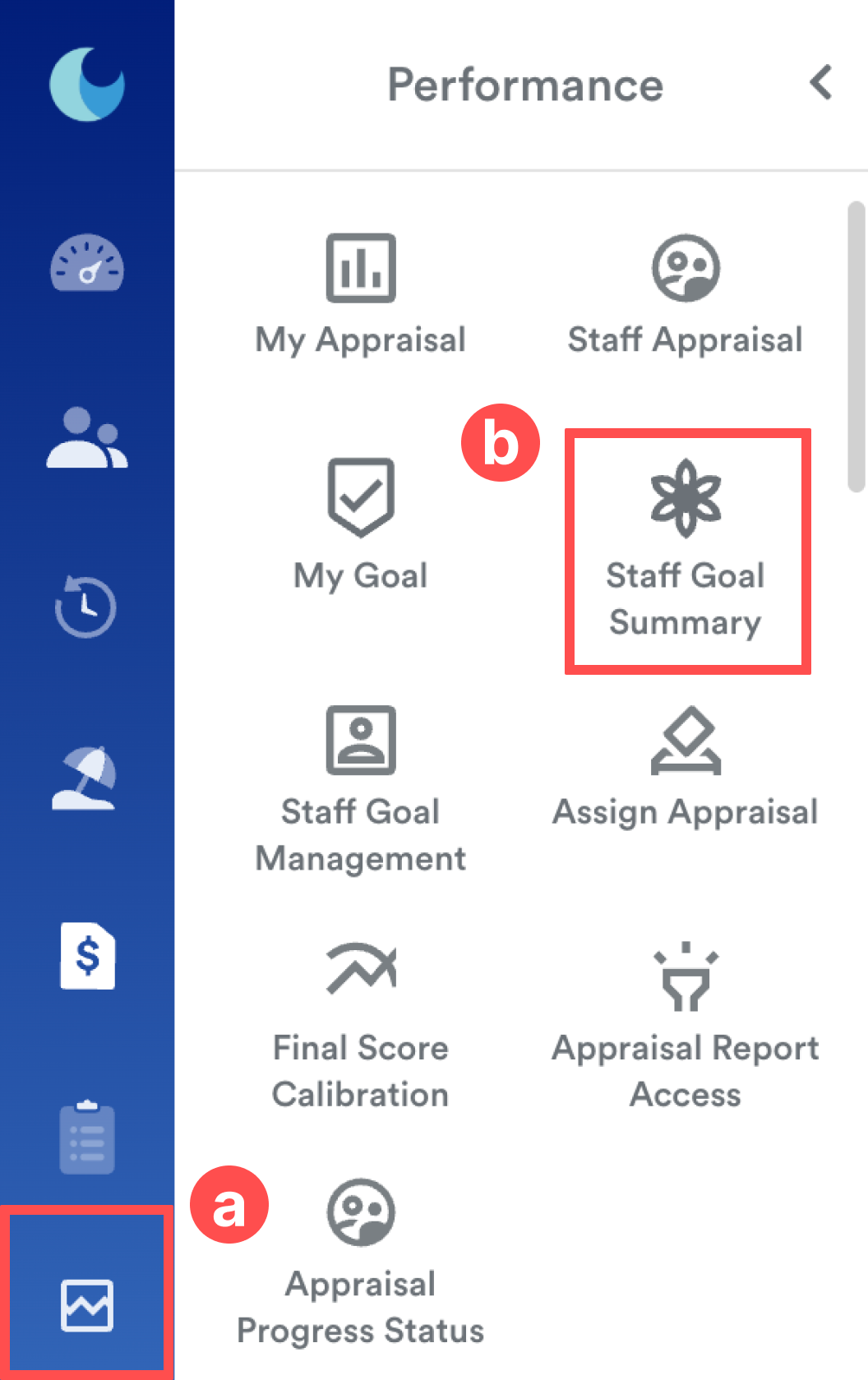
On the left menu, go to Performance (a) > Staff Goal Summary (b).
Step 2
Select the relevant Appraisal Period (Year) and the Employee name. The system will display the employee’s basic employment information.
Step 3
Locate the dropdown menu below the employment information and select the relevant Appraisal Form assigned to the employee.
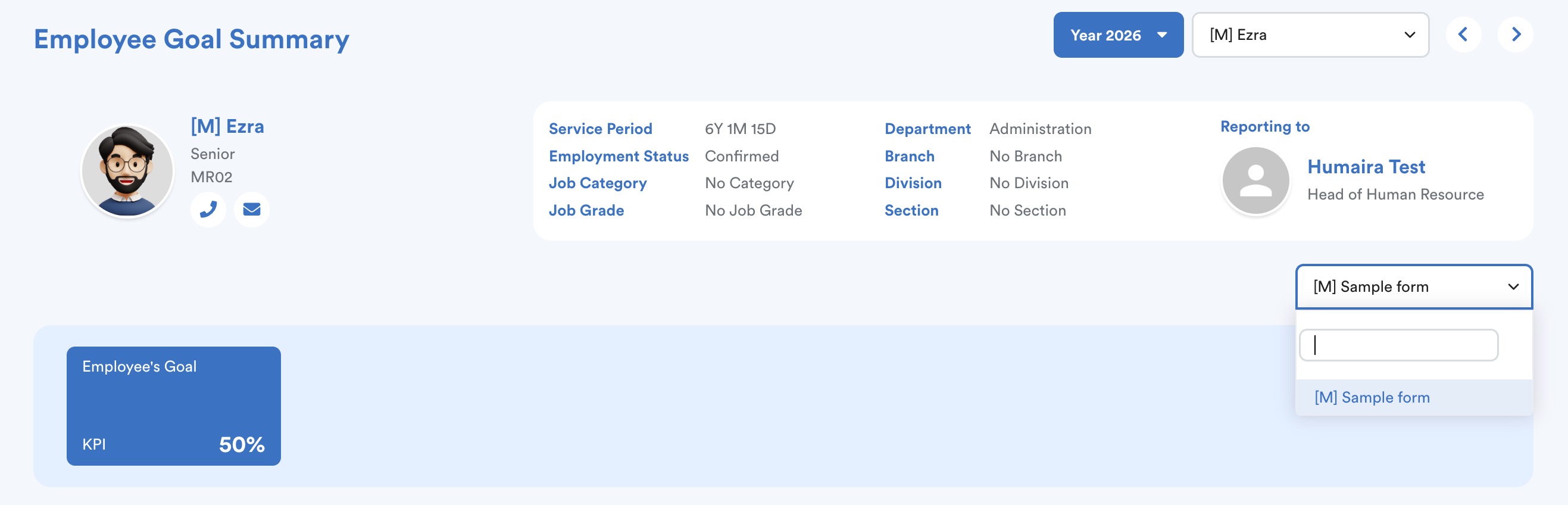
Note: The employee's goal KPIs displayed here is based on the scoring and weightage defined in the Appraisal Template settings.
Goal Status Tabs
Below the goal overview, goals are categorized into several tabs based on their current status:
1. Pending
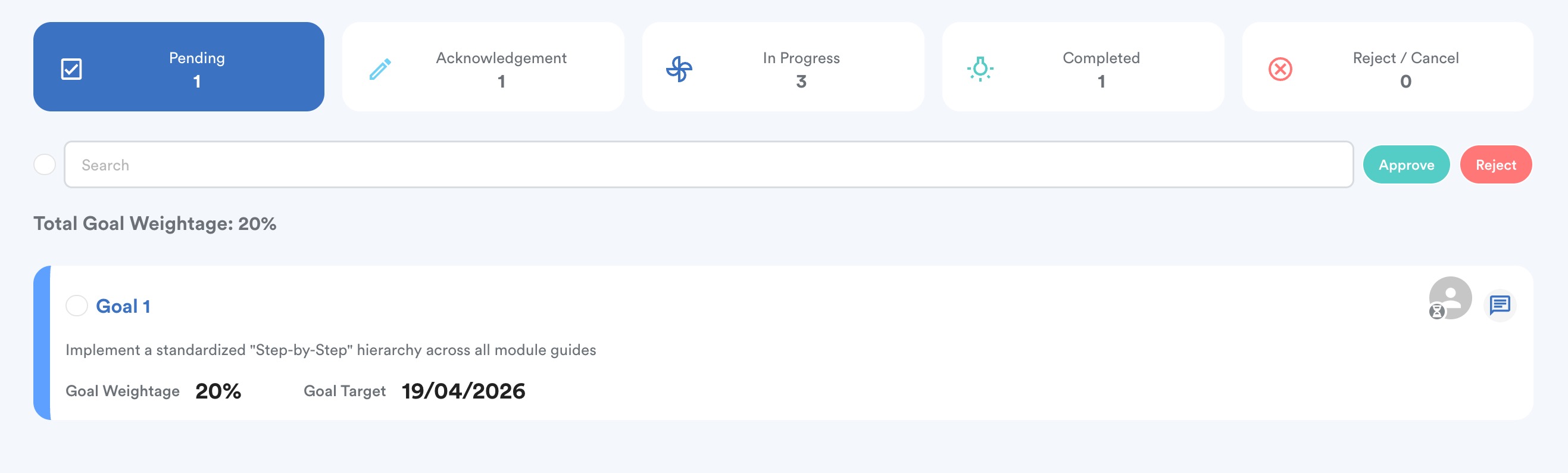
- Displays newly created or edited goals by the appraisee via the My Goal section.
- Appraisers can select these goals to either Approve or Reject them.
2. Acknowledgement
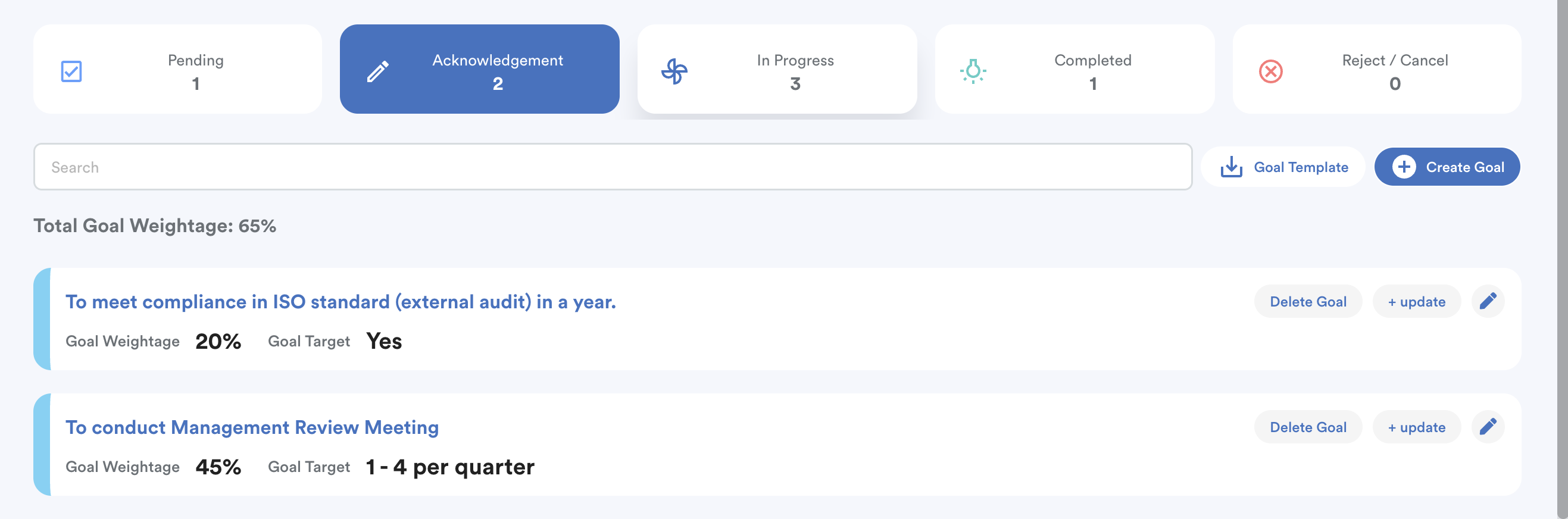
- Displays updated or additional goals by the appraiser that require appraisee acknowledgement.
- The employee must click the Acknowledge button under the Progress tab in My Goal.
- Goals created from this tab will also appear in the appraisee’s My Goal > In Progress tab for their acknowledgement.
3. In Progress
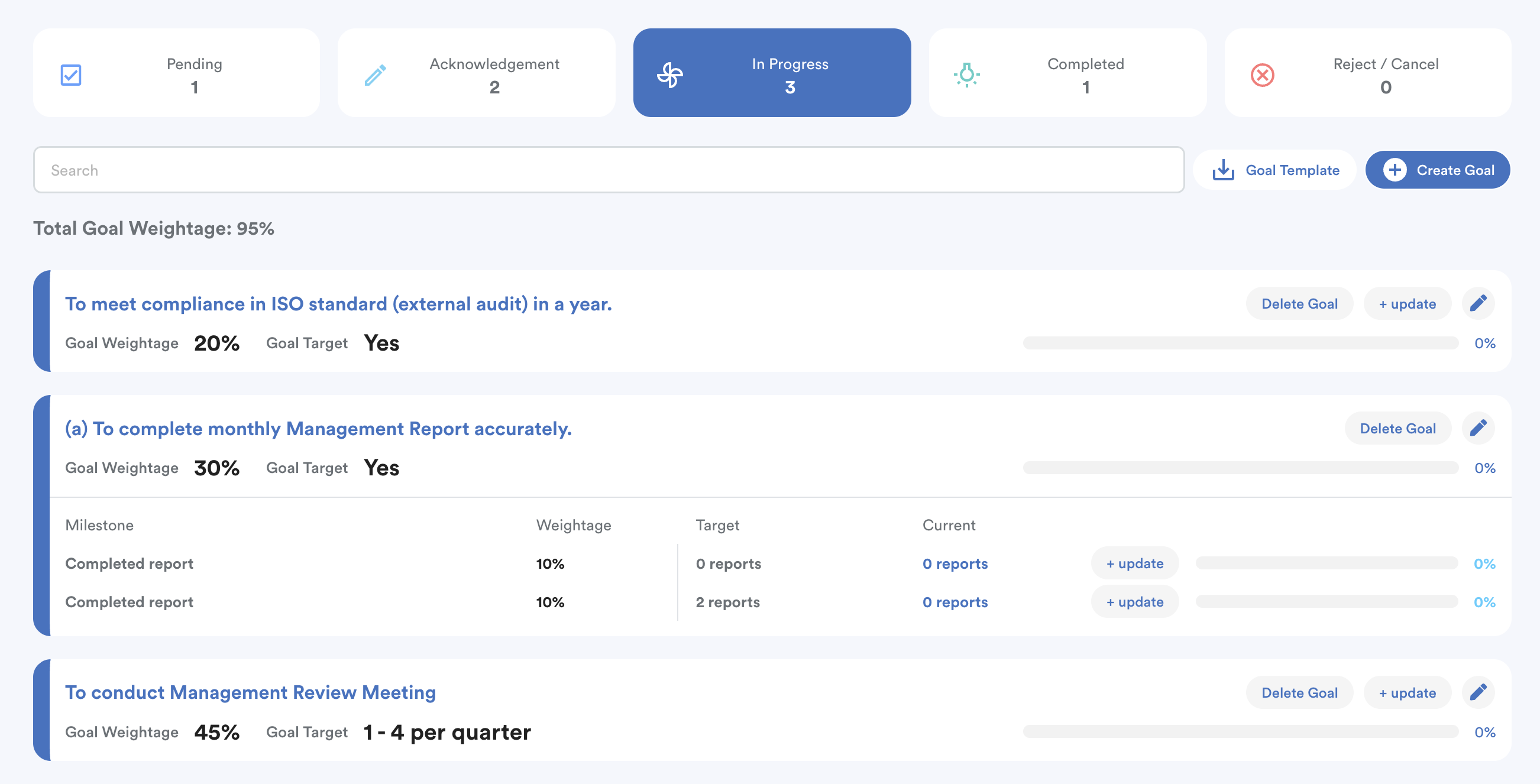
- Contains all approved and acknowledged goals for the current appraisal.
- Goals preset in the appraisal template > appraisal form will show in "In Progress" directly.
- Goals created directly from this tab will also require appraisee acknowledgement, which will add a counter in the "Acknowledgement" tab also.
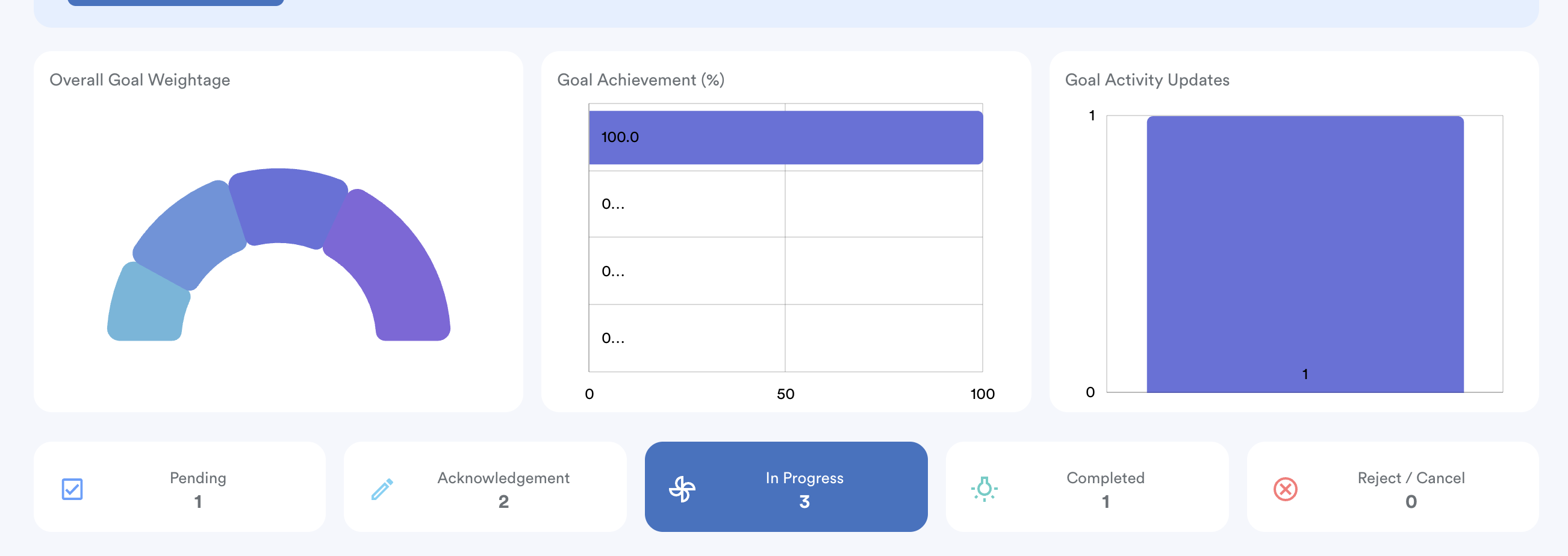
- This tab includes charts for Overall Goal Weightage, Goal Achievement (%), and Goal Activity Updates.
4. Completed
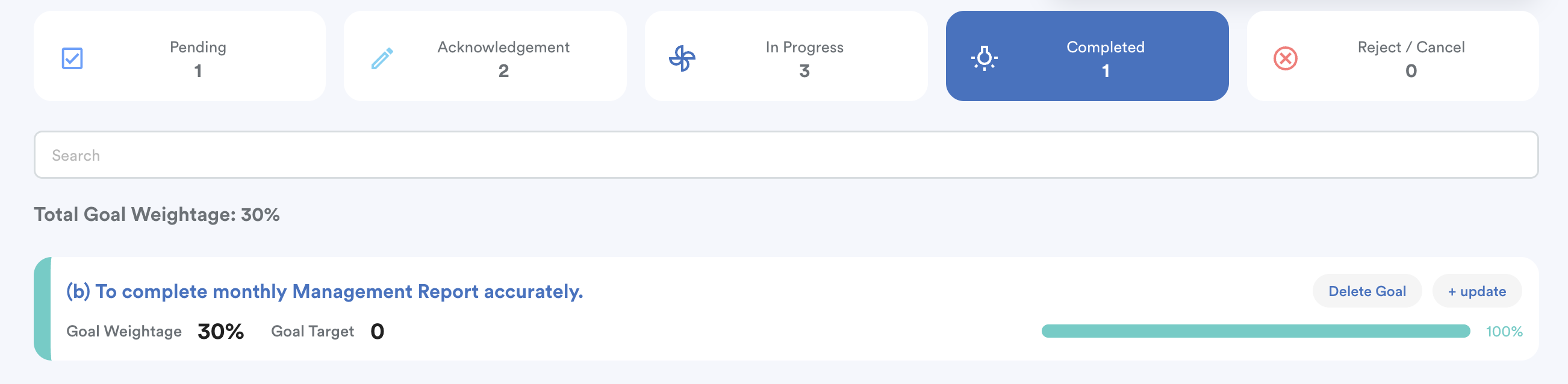
- Goals automatically move here once the appraisee updates their progress and reaches the defined target.
- Adjustment: Appraisers maintain the ability to Update or Delete goals even after they are marked as completed.
5. Reject / Cancel
Displays goals that were not approved during the pending stage or were manually cancelled. These goals are excluded from the active appraisal calculation.
We hope this clarifies the matter. If you require further assistance, do not hesitate to contact our support team.
Was this article helpful?
That’s Great!
Thank you for your feedback
Sorry! We couldn't be helpful
Thank you for your feedback
Feedback sent
We appreciate your effort and will try to fix the article