Step 1
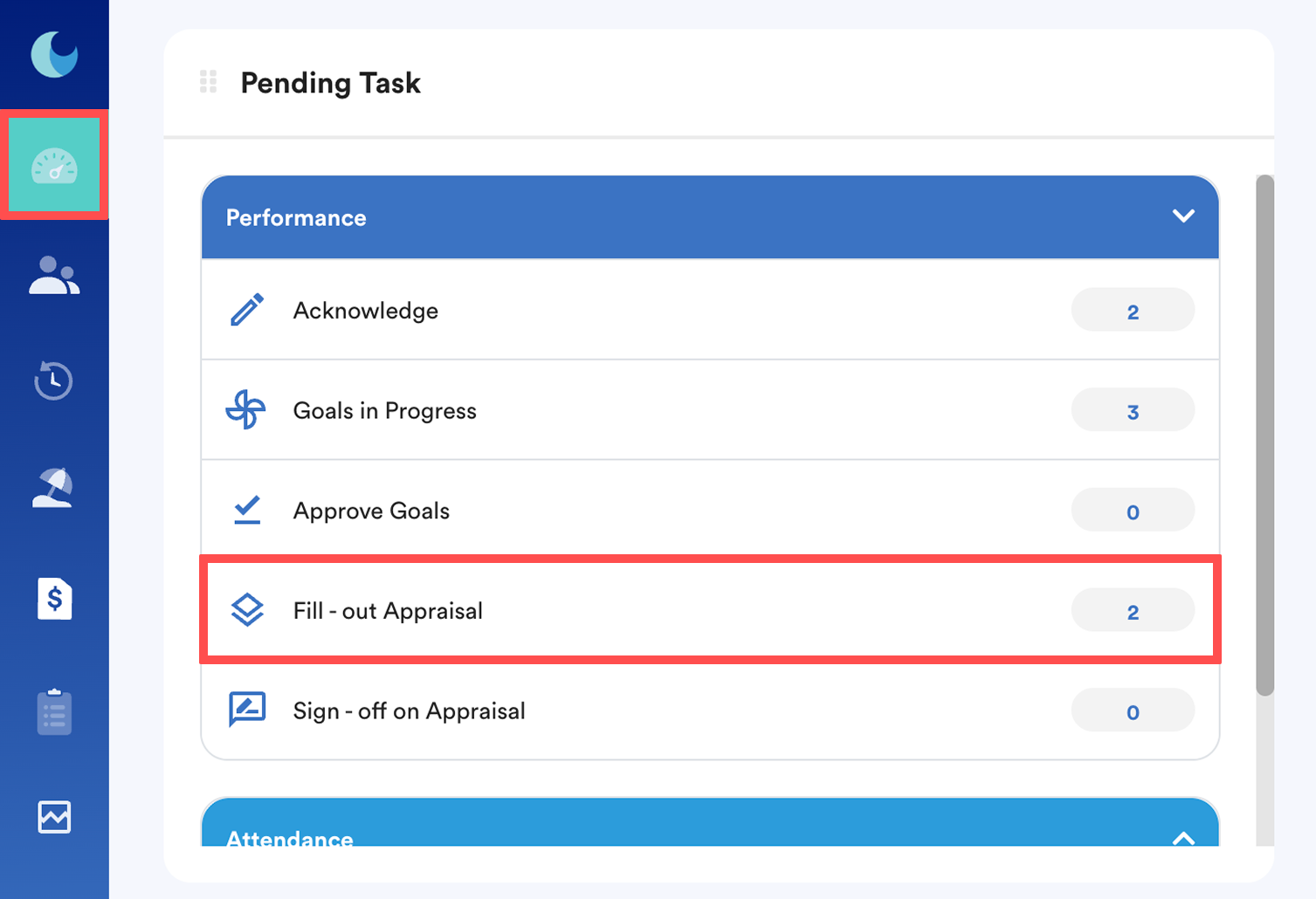
Log in to your dashboard and navigate to Pending Task (a) > Performance (b) > Fill-Out Appraisal (c).
or
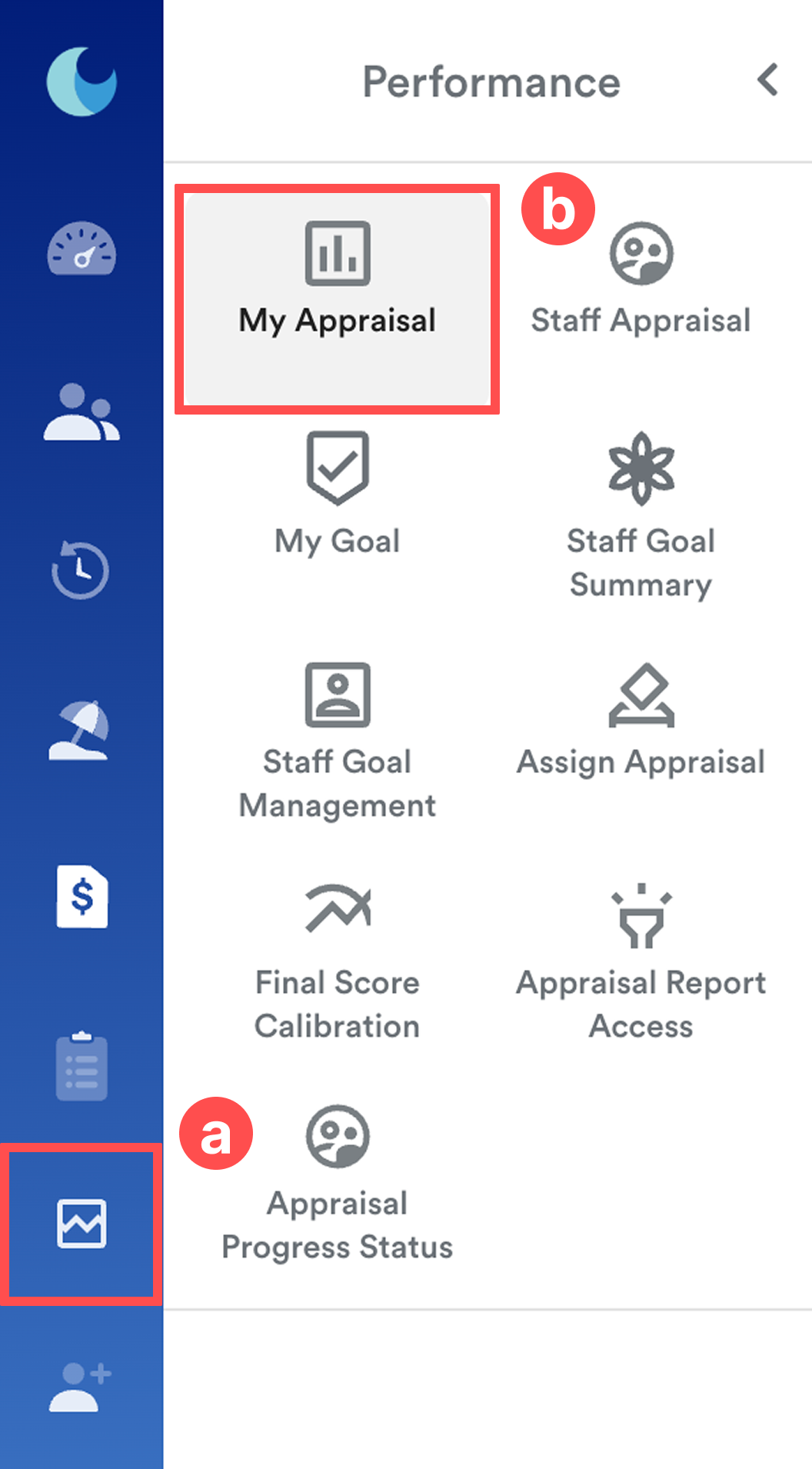
On the left menu, go to Performance (a) > My Appraisal (b).
Step 2
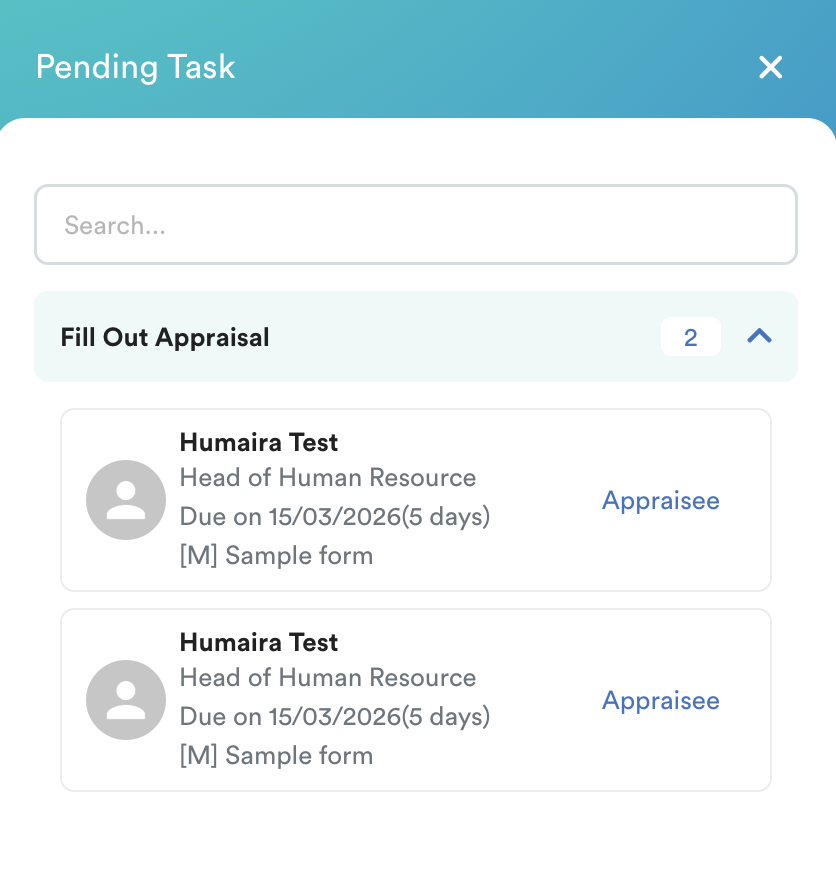
From the list of available appraisals, select your name to begin.
or
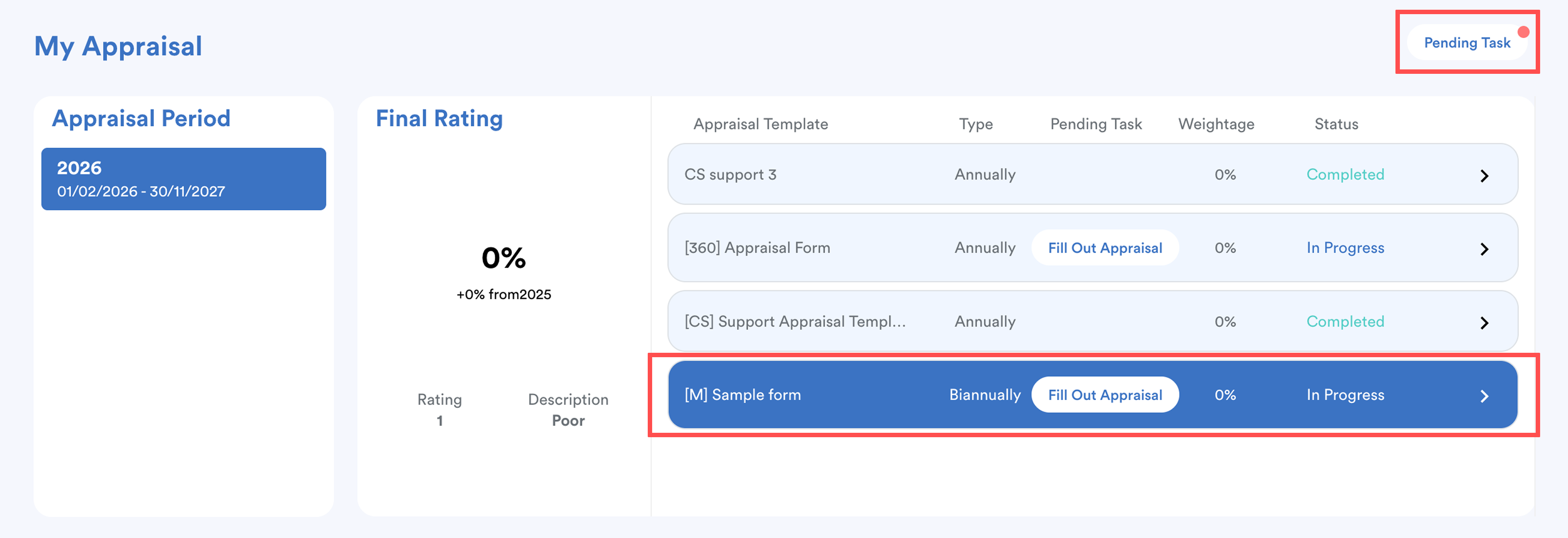
from the My Appraisal screen, select the relevant Appraisal Template that shows a pending task for "Fill-out Appraisal." You may also click Pending Task button at the top right of the screen.
Step 3
Once redirected to the Appraisal Form, you will need to fill out all required sections.
Example:

Note on the tab colors:
- Blue: Indicates the current section is in progress.
- Green/Turquoise: Indicates the section is completed.
- Yellow/Orange: Indicates the section is incomplete.

The system will prevent you from submitting the form if any tabs remain yellow/orange. Ensure all tabs are green before proceeding.
Step 4
The final tab is the Overall Summary. This section automatically aggregates your ratings and calculates a final score based on the active Rating Library for this cycle.
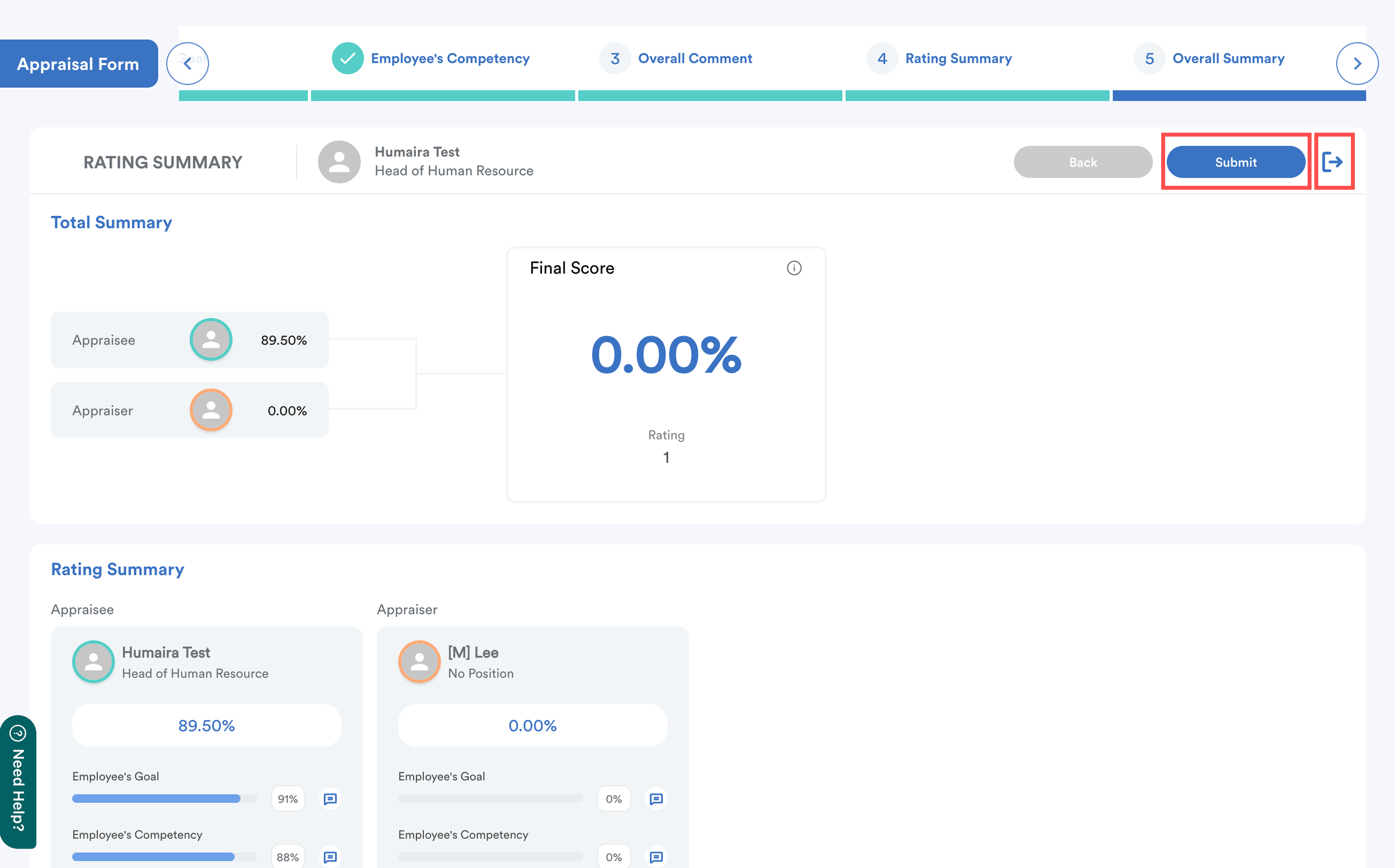
Click Back to review your self-evaluation comments and ratings.
- Submit: Click Submit if you are confident in your ratings and comments. Once submitted, no further changes can be made.
- Save for later: Click the Exit icon if you wish to save your progress and return to the form at another time.
We hope this explanation clarifies the matter. If you require further assistance, please don't hesitate to contact our support team.
Was this article helpful?
That’s Great!
Thank you for your feedback
Sorry! We couldn't be helpful
Thank you for your feedback
Feedback sent
We appreciate your effort and will try to fix the article