Step 1
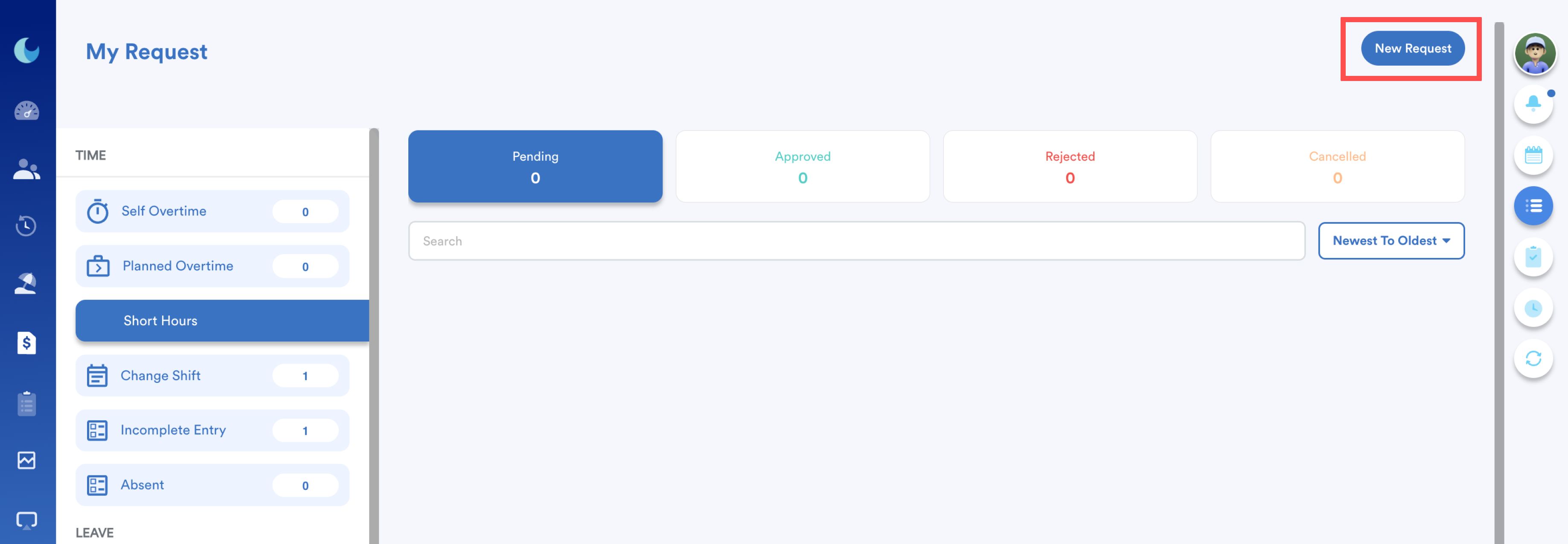
On the right menu, go to My Request. Then, click Short Hours.

Step 2
To make a new short-hour request, click New Request.
Step 3
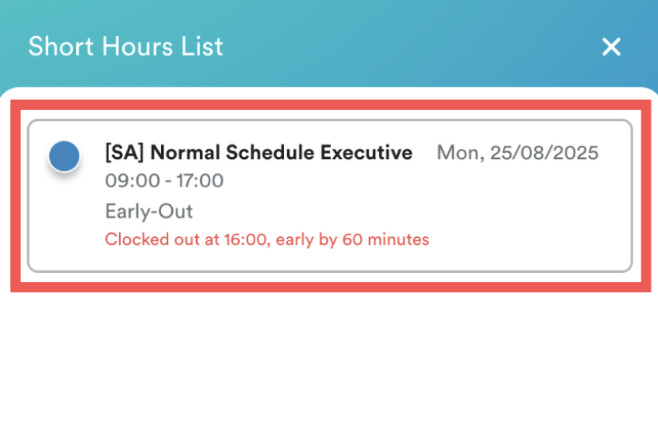
The Short Hour List will appear, showing dates with late in or early out from your assigned working hours.
Step 4
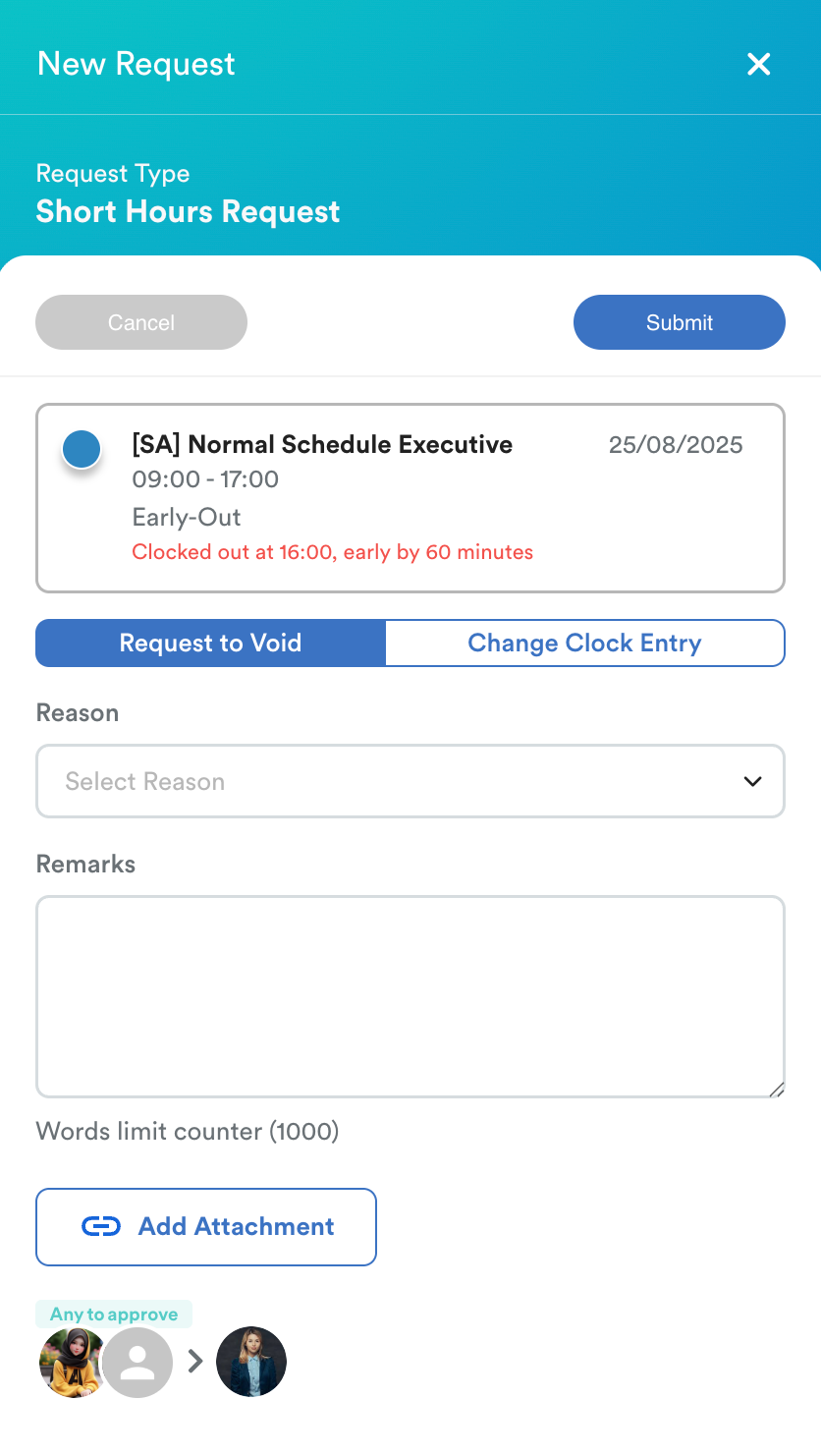
Click the date that you wish to make a request for. Once clicked, you'll be able to see two options: Request to Void or Change Clock Entry.
Option 1: Request to void
Choose relevant Reasons or add any Remarks and click Submit.
Option 2: Change clock entry
- Adjust the Clocking Entry based on your record.
- Fill in any required fields (e.g. reason, remarks, or attachment if applicable).
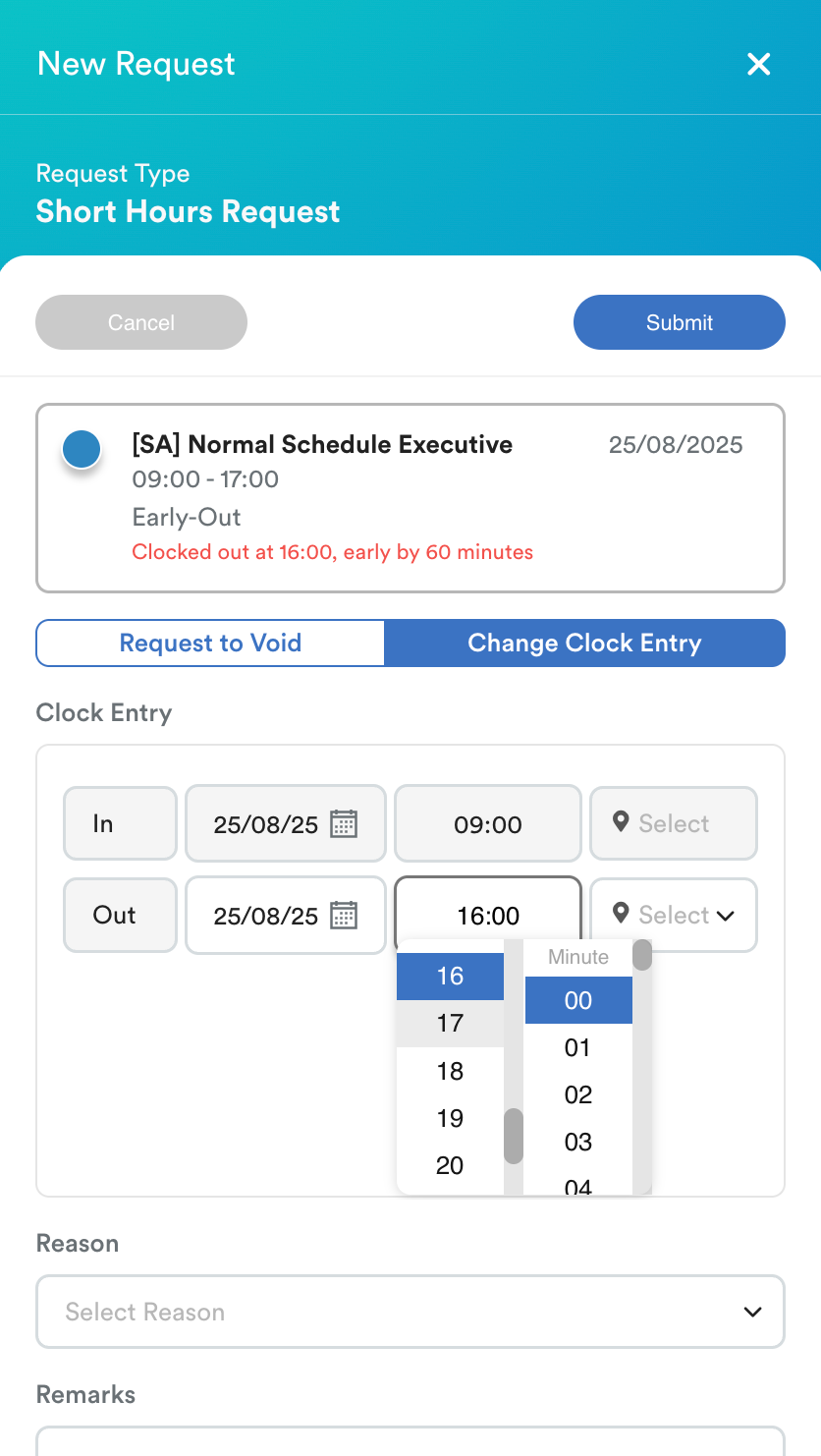
Review the entered details for accuracy. Click Submit to complete the request.
Your submitted request will appear under the Pending tab. Once approved or rejected by your superior, it will move to the Approved or Rejected tab.
Video Tutorial
The video below demonstrates how to submit a short hours request via the mobile interface.
We hope this explanation clarifies the matter. If you require additional assistance, do not hesitate to contact our support team.
Was this article helpful?
That’s Great!
Thank you for your feedback
Sorry! We couldn't be helpful
Thank you for your feedback
Feedback sent
We appreciate your effort and will try to fix the article