Schedule with shift is important for attendance and the leave module. Without assigning a schedule, your staff won't be able to clock in, and they cannot apply any leave.
Quick Links
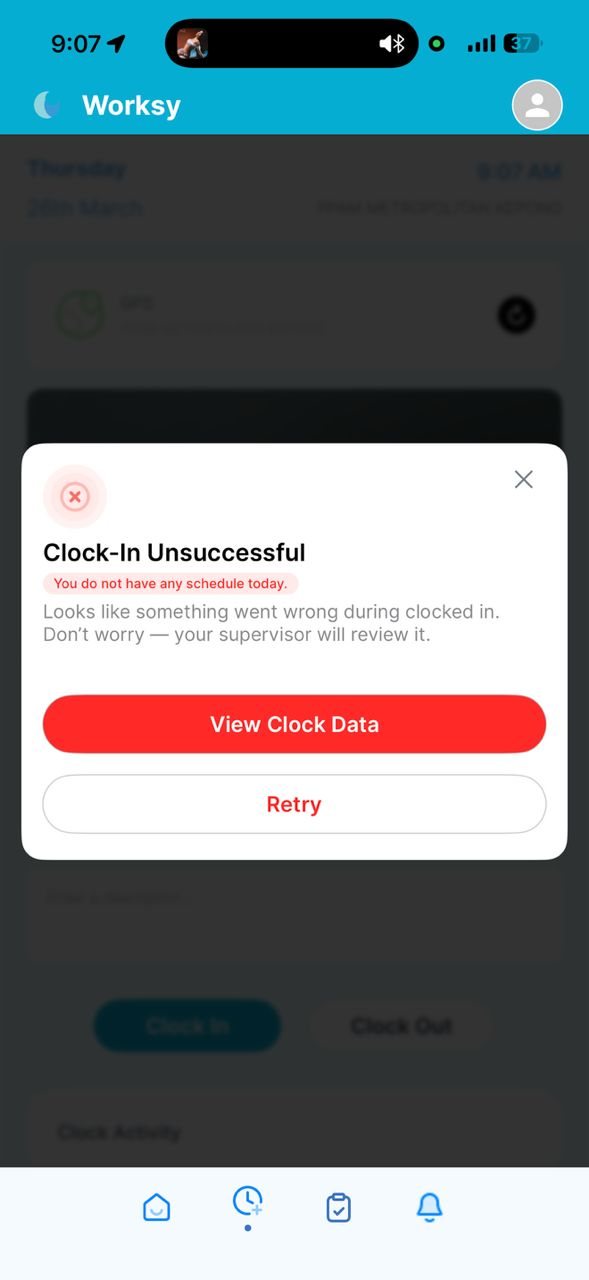
Error 1: "You do not have any schedule today".
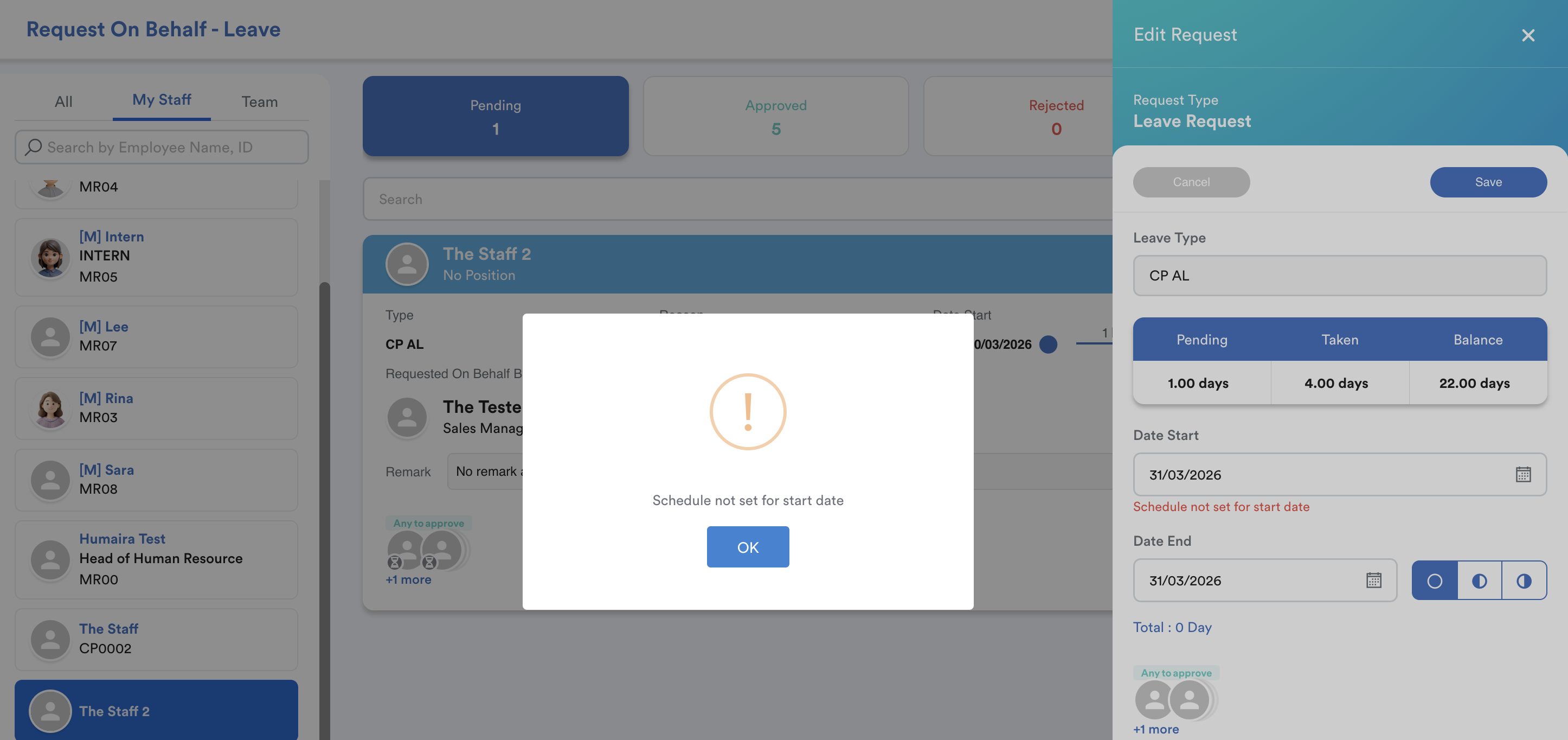
Error 2: "Schedule not set for start date".
Error 1: You do not have any schedule today.
The employee will see this error when doing clock-in. "You do not have any schedule today".
Error 2: Schedule not set for start date.
If there is no shift assigned, the employee will see this error "Schedule not set for start date".
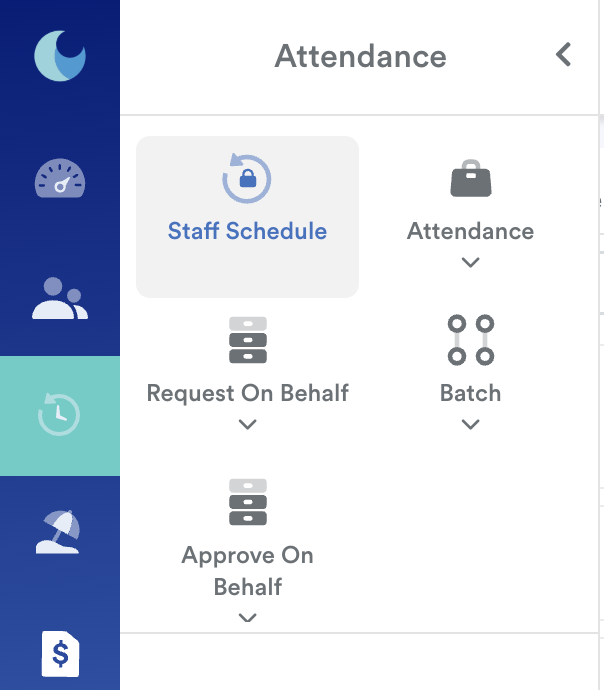
Step 1
On the left menu, go to Attendance. Then, click Staff Schedule.
Step 2
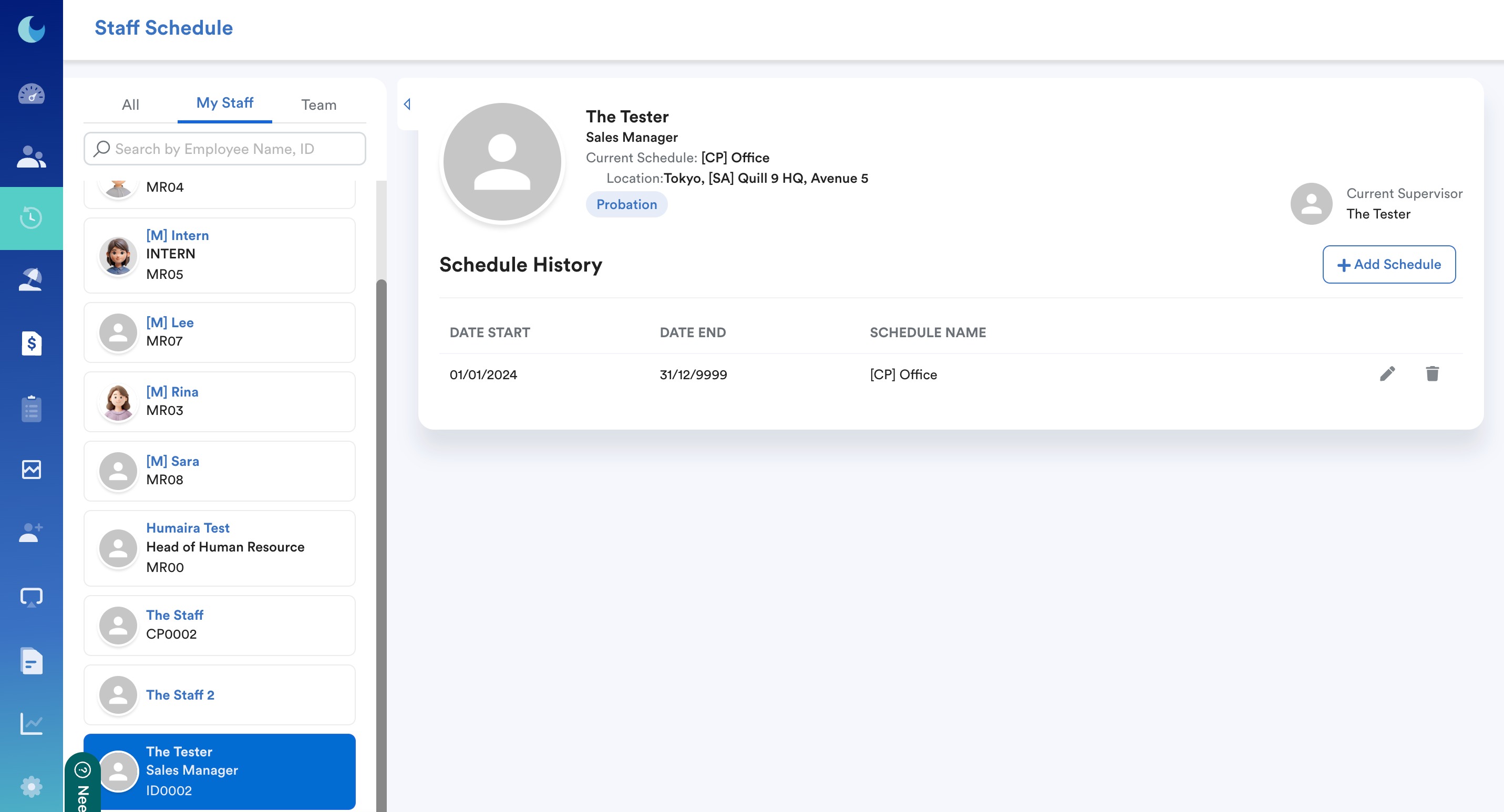
Start by searching for your staff name. You will be able to see the selected staff schedule.
Step 3
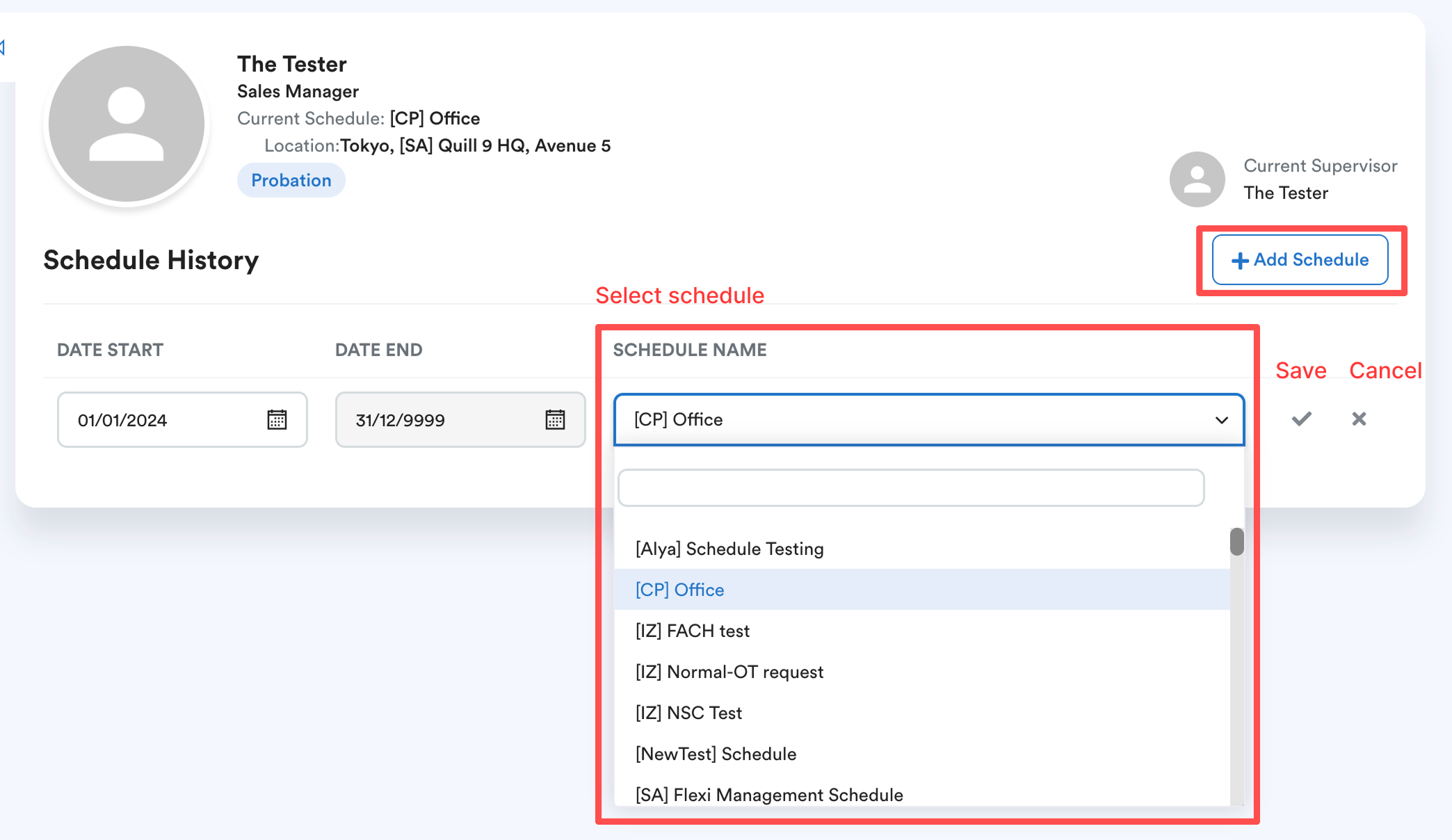
You can change the schedule from the drop-down list. And then, click the tick button to save the changes and the "x button" to discard the changes.
If you want to add a new schedule, click Add Schedule.
We hope this clarifies the matter. If you require further assistance, do not hesitate to contact our support team.
Was this article helpful?
That’s Great!
Thank you for your feedback
Sorry! We couldn't be helpful
Thank you for your feedback
Feedback sent
We appreciate your effort and will try to fix the article