There are several reasons why the overtime request submission fails.
If you have an approved planned overtime:
3. Exceed Allowable Overtime Limit in Schedule Setting
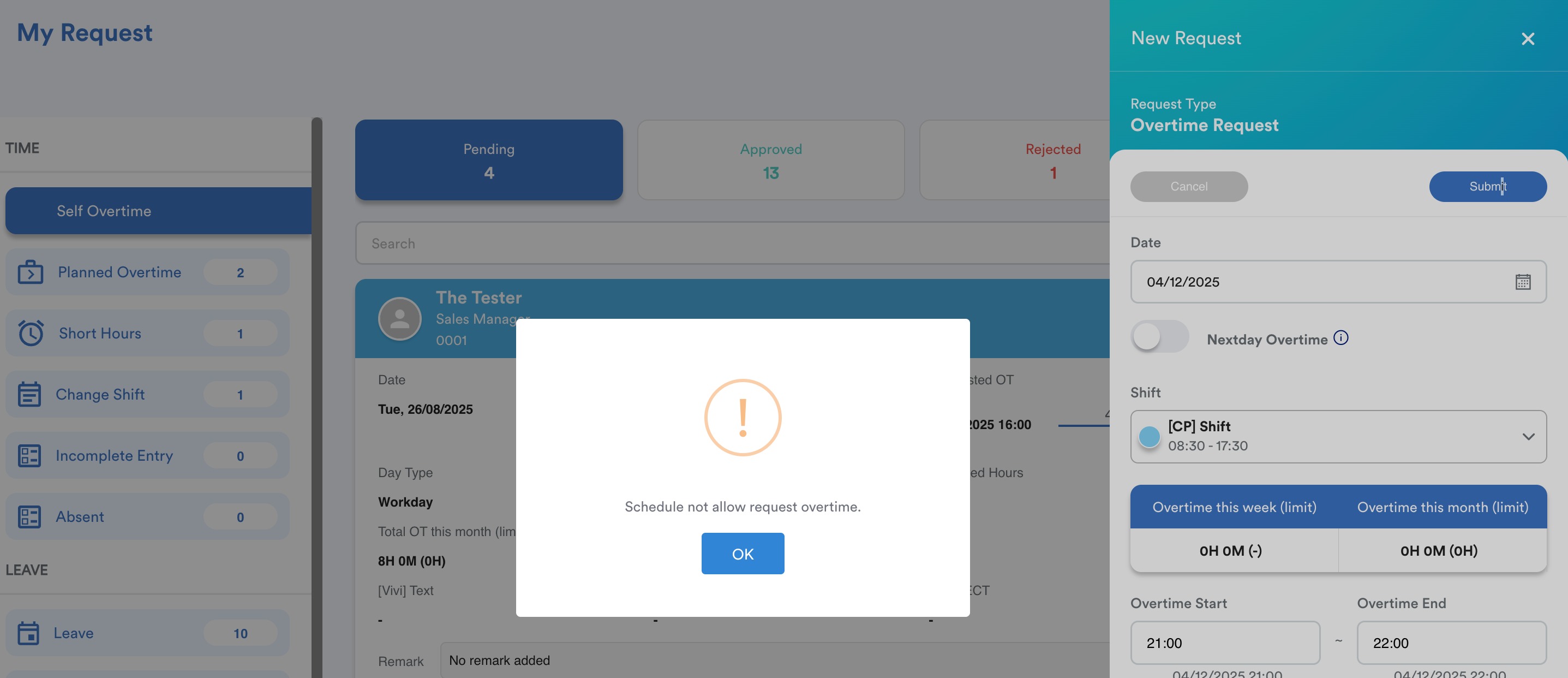
1. Enable Ovetime in Schedule
If your staff is not allowed to submit OT, please have a look at the assigned schedule settings. Make sure overtime is enabled.
2. Overlapping in Time Frame
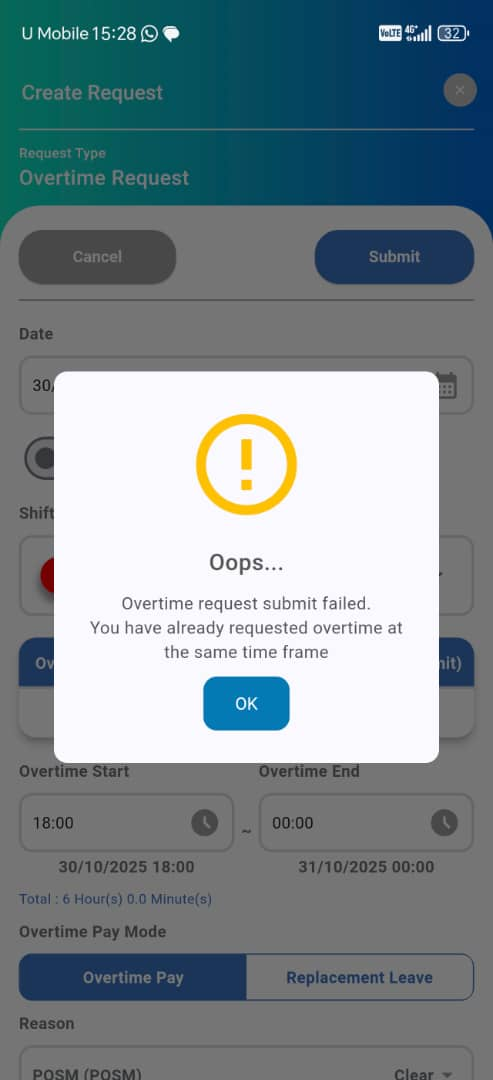
When you see this prompt " You have already requested overtime at the same time frame", it means
- you have pre-approved OT in shift setting OR
- you have approved overtime request OR
- you have assigned a shift in OD, RD, PH OR
- you have a planned overtime
Rule: No Overlapping Pre-approved OT (Refer to How to Get Pre-Approved Overtime?)
If a shift already includes pre-approved overtime (e.g., OT set in the shift setting), employees cannot submit overlapping OT requests.
Example: If pre-approved OT is set from 17:30 to 19:30 for 2 hours, an overtime request starting at 19:00 will not be accepted.
In such cases, the system will prompt the error message:
"Shift already has pre-approved OT."
If you have an approved planned overtime:
The existing approved planned overtime request needs to be cancelled. You can choose either of the following methods:
- Ask the supervisor to go to their approved overtime request.
- Click the Cancel button.
- The cancellation will then need to be approved by the approver to be considered a complete cancellation.
- Go to Attendance > Request On Behalf > Self Overtime.
- Search for the supervisor's name and go to the Approved section.
- Scroll down to find the request and click Cancel.
- Then, go to Attendance > Approve On Behalf > Self Overtime.
- Search for the approver's name and approve on behalf of the cancellation request.
After planned overtime has been cancelled, staff is allowed to submit a new overtime request.
In short, the system will block overtime submission if there is overlapping of the time frame.
3. Exceed Allowable Overtime Limit in Schedule Setting
When you see this prompt, " Requested OT hour has exceeded maximum allowable hour limit (4h Hours 0 Minutes)", it means you (Admin) need to update the maximum allowable overtime hours in the schedule settings.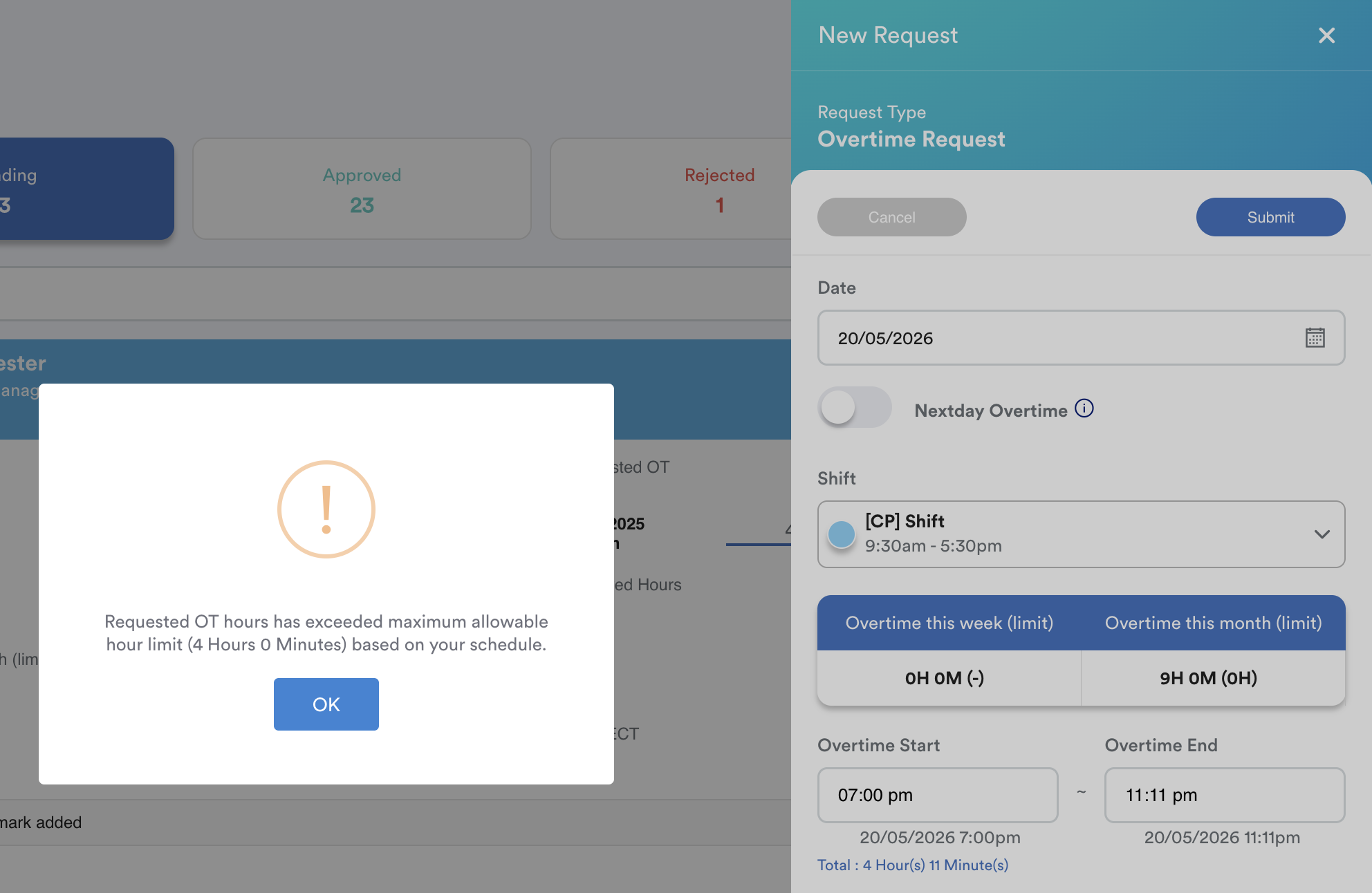
Go to Settings> Attendance > Schedule > Overtime tab, update the maximum overtime hours for all the day types. 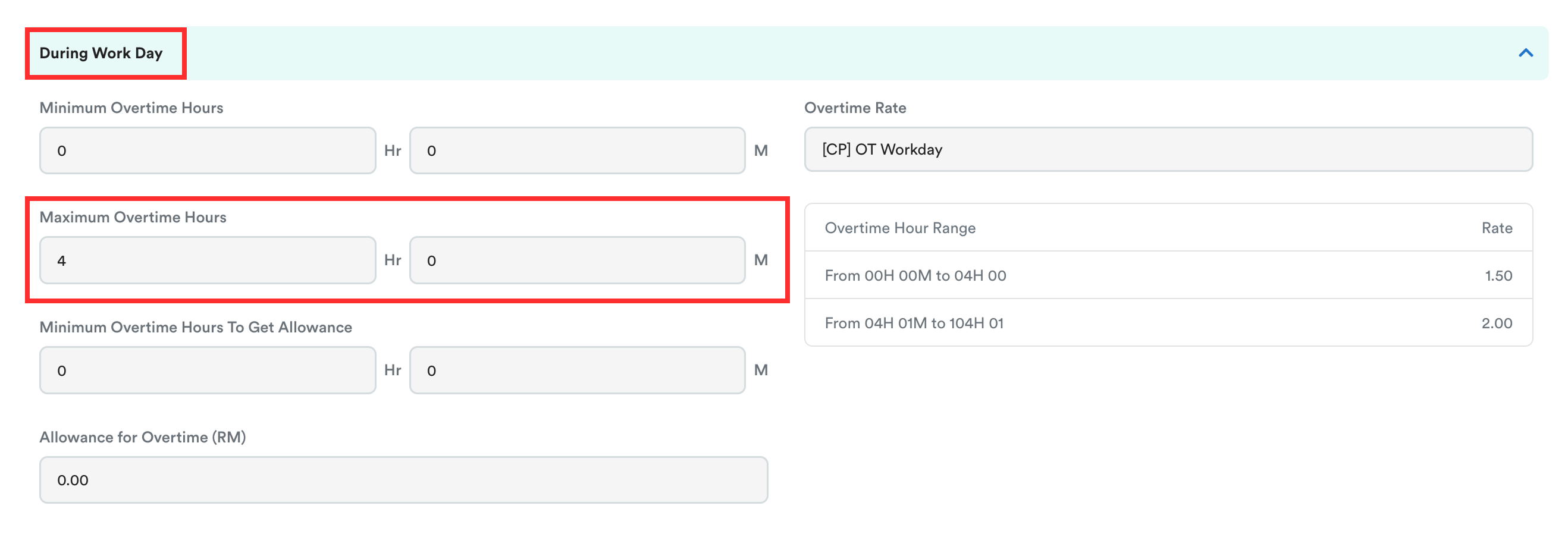
We hope this explanation clarifies the matter. If you require additional assistance, do not hesitate to contact our support team.
Was this article helpful?
That’s Great!
Thank you for your feedback
Sorry! We couldn't be helpful
Thank you for your feedback
Feedback sent
We appreciate your effort and will try to fix the article