This article guides you how to configure an employee's hourly salary and process payroll using an Hourly Payroll Policy.
It also covers how attendance records and shift schedule settings affect hourly salary calculations to ensure accurate payroll results.
TABLE OF CONTENTS
a. Set Hourly Salary
Prerequisite
Ensure you have configured an Hourly Payroll Policy beforehand. Refer to this article: Payroll Policy - General Settings
Step 1
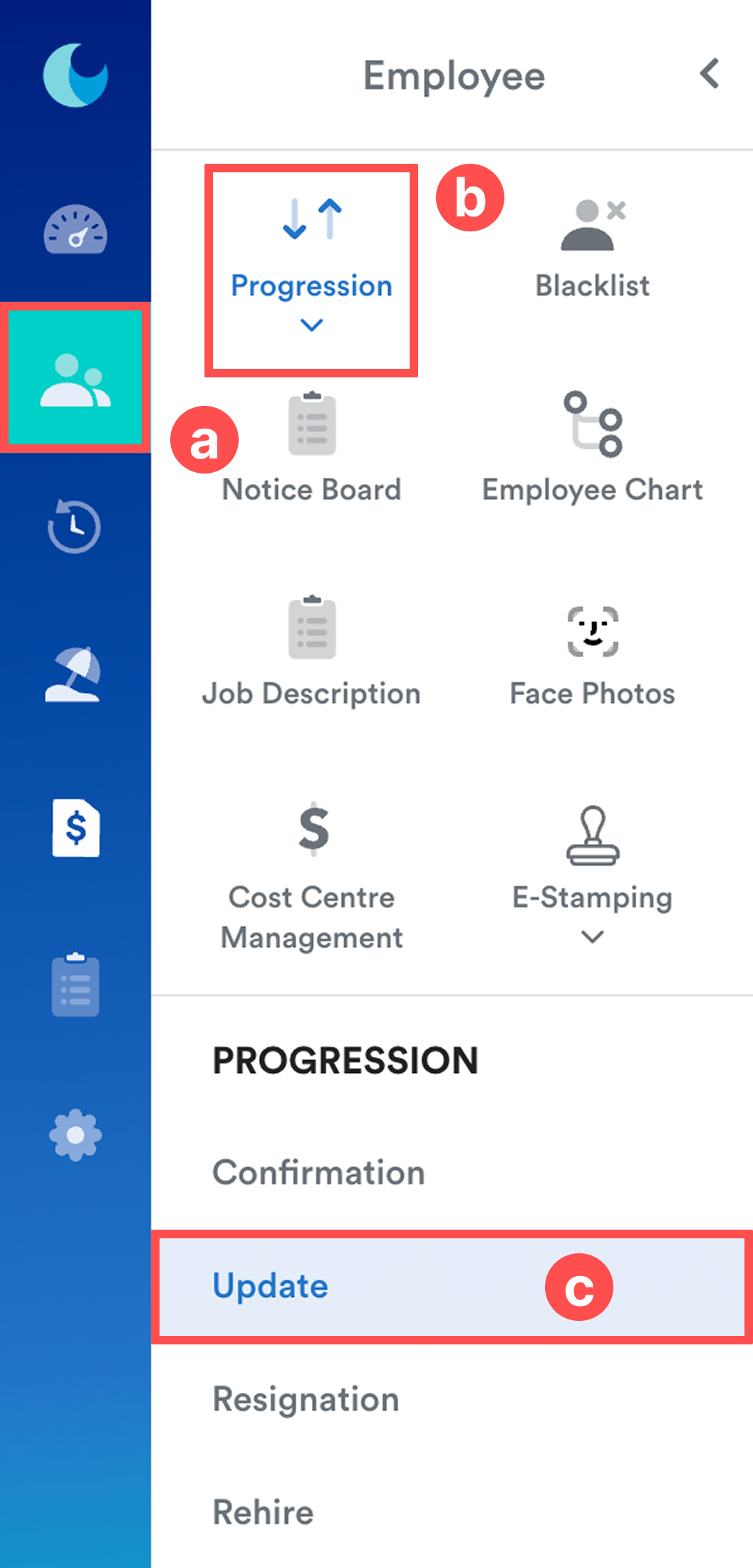
Go to Employee > Progression > Update, then select an employee.
Step 2
Set the Effective Date.
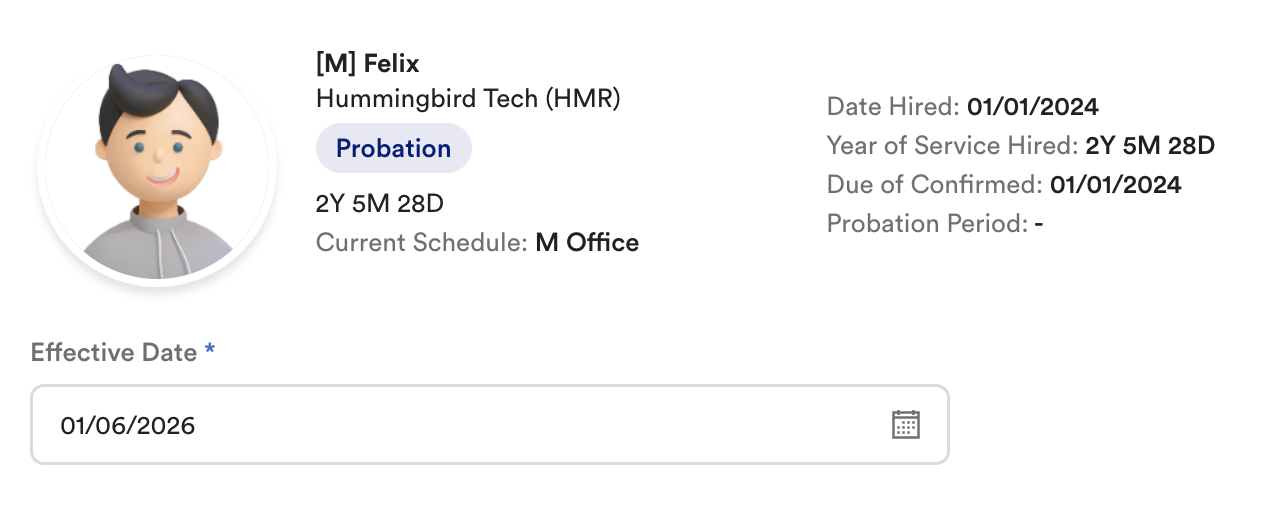
Ensure the effective date is correct, as it determines when the hourly salary takes effect and is used during payroll calculation.
Step 3
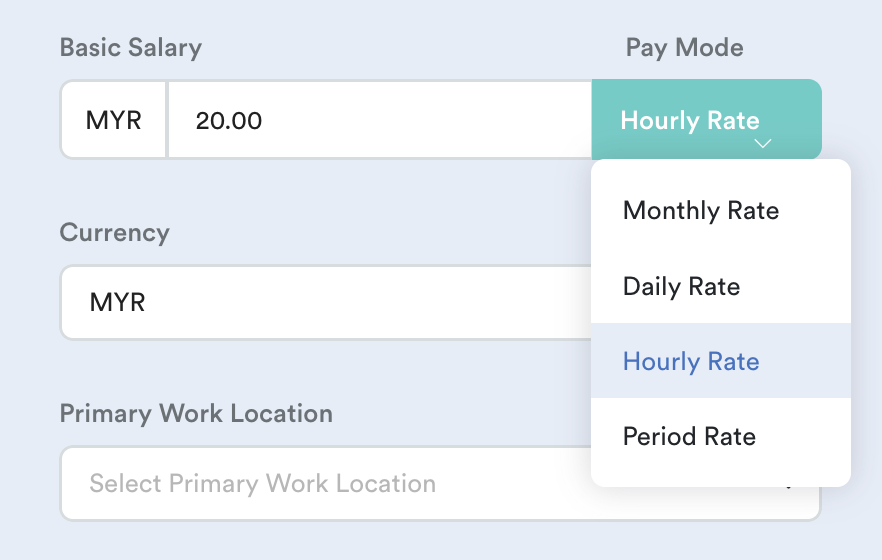
Under the New column, scroll to Basic Salary.
- Set Pay Mode to Hourly.
- Enter the employee's hourly rate.
Step 4
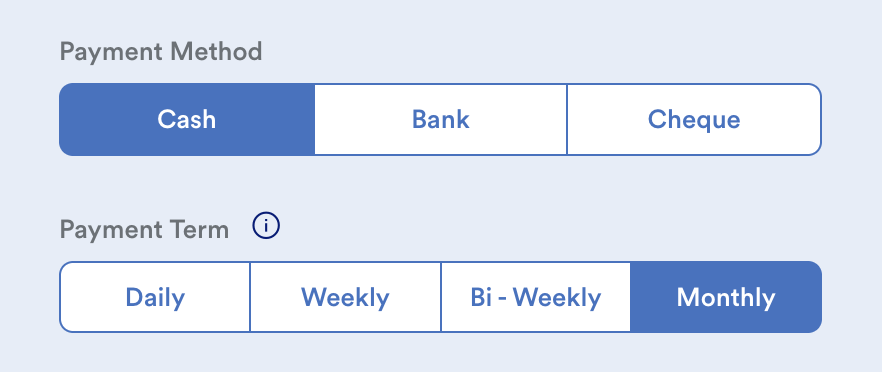
Update the following payment details if required:
- Payment Method: Cash / Bank / Cheque
- Payment Term: Daily / Weekly / Bi-Weekly / Monthly
Click Save to apply the changes.
b. Process Hourly Salary
Step 1
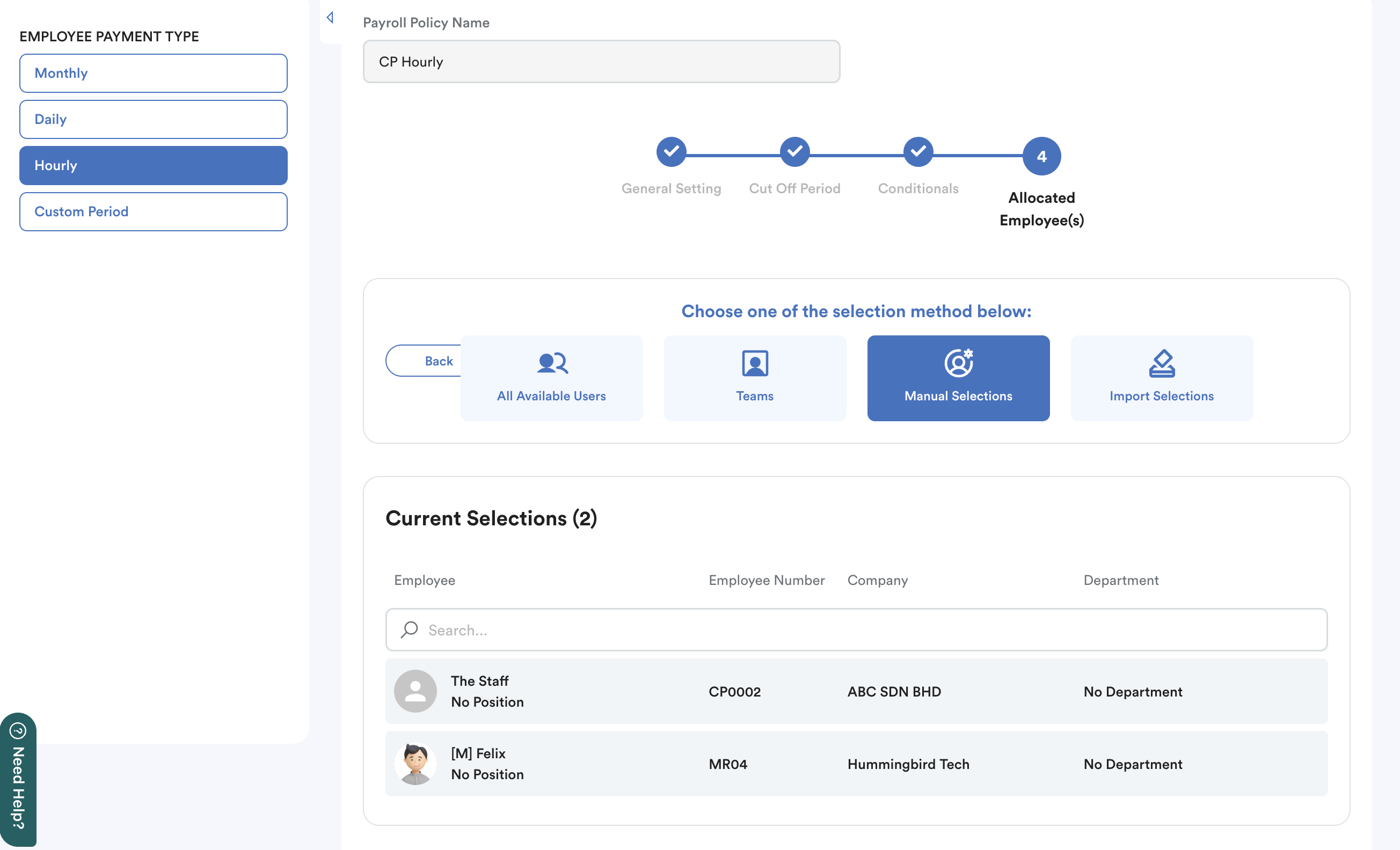
Ensure the employee is assigned to the Hourly Payroll Policy. If they aren't included, it will cause unsuccessful payroll process for them.
Step 2
Go to Payroll > Process.
Select the payroll period based on the employee's Payment Term (Monthly / Custom Period).
Then:
- Tick "Pull Attendance Data" so the system retrieves attendance records for salary calculation.
Note: If Pull Attendance Data is not selected, the system will not calculate the employee's hourly salary.
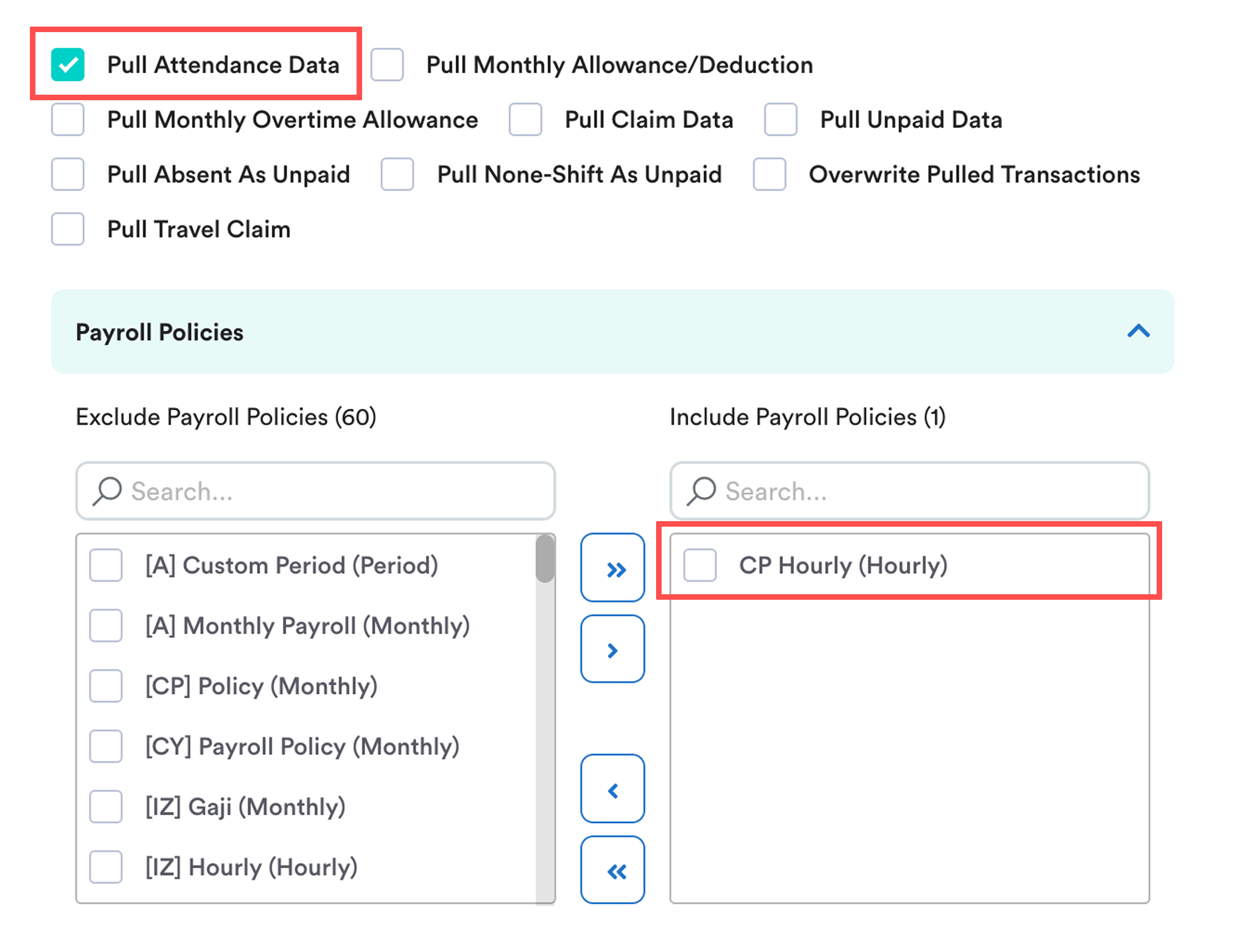
- Select the Hourly Payroll Policy to calculate payroll using the hourly salary rate.
c. Attendance Calculation
The salary calculation depends on the "Only Pull Hours Within Shift Schedule" setting in the Hourly Payroll Policy.
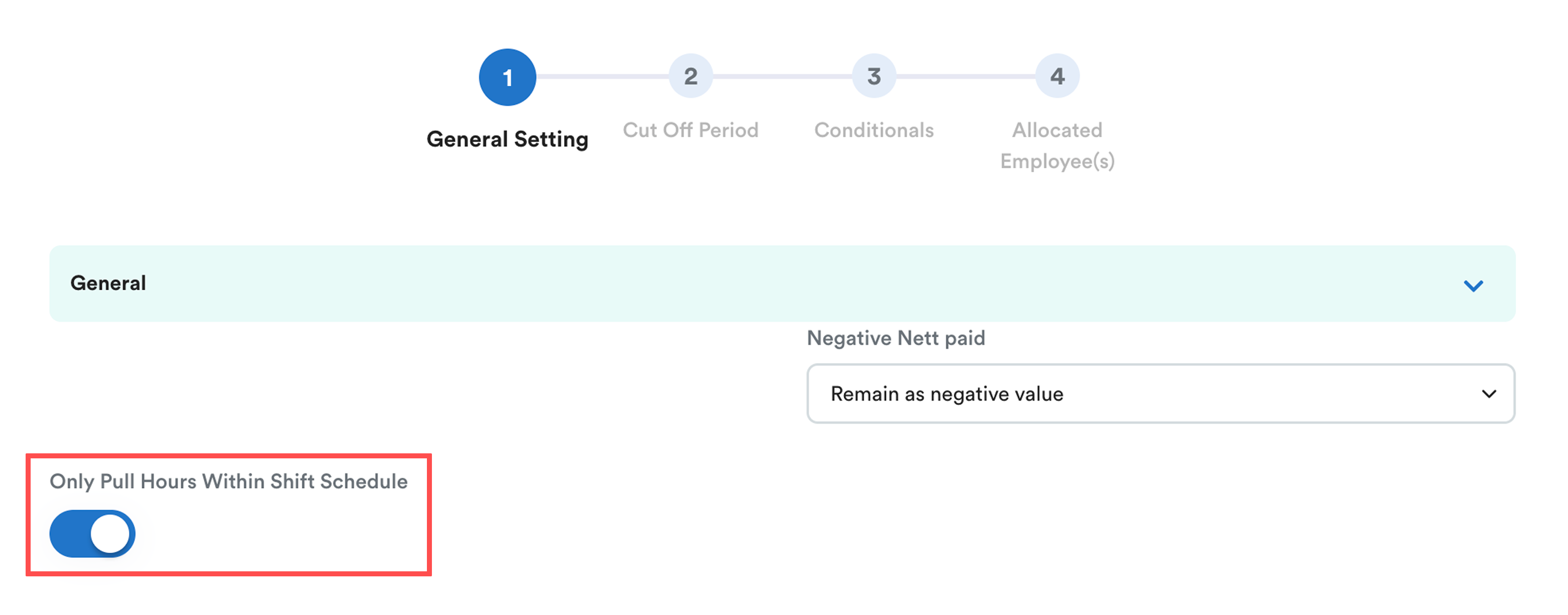
If the option is enabled:
- The system only calculates hours that fall within the employee's assigned shift schedule (roster).
- Hours worked outside the scheduled shift are excluded from the hourly salary calculation.
Enable this option if you want the payslip to reflect only the hours worked according to the employee's roster.
If the option is disabled:
- The system calculates salary based on the employee's actual clocking records.
- All worked hours are included, regardless of the scheduled shift.
Important: Ensure employees complete all clock in/out records accurately, including break clockings (if applicable), as payroll is calculated based on the total recorded working hours.
We hope this explanation clarifies the matter. If you require additional assistance, do not hesitate to contact our support team.
Was this article helpful?
That’s Great!
Thank you for your feedback
Sorry! We couldn't be helpful
Thank you for your feedback
Feedback sent
We appreciate your effort and will try to fix the article