When processing payroll, the final screen will display the status of each employee’s payroll. Sometimes, the status shows “Skipped” with the message “No Transaction.”
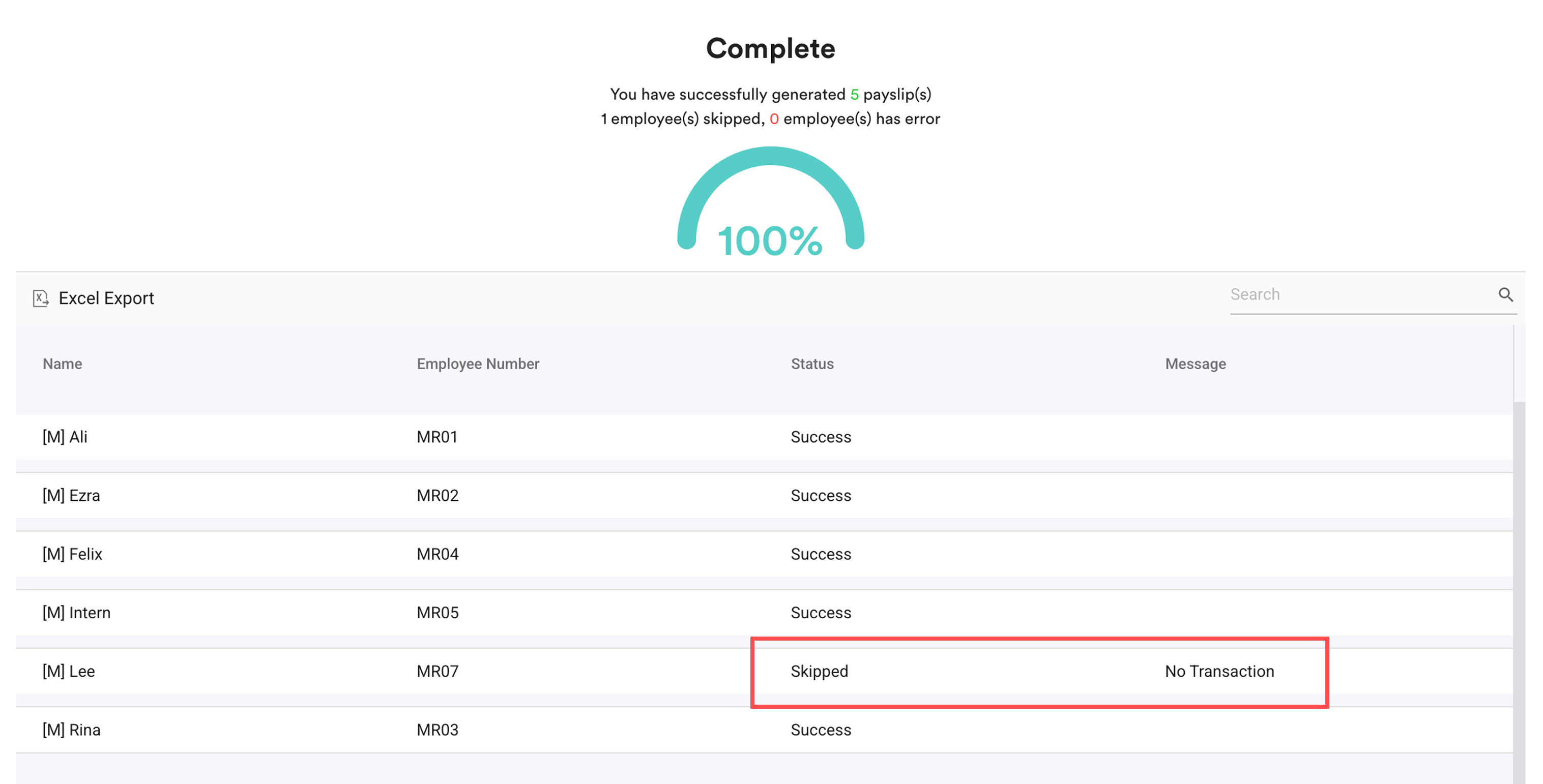
This article explains common reasons why this issue occurs and how to resolve it.
A. No Basic Salary in Employee's Profile
B. Resigned Employee without Individual Transaction
C. Not Assigned to a Work Schedule for Daily Rated and Hourly Rated Employees
A. No Basic Salary in Employee's Profile
Basic salary is required for the system to generate payroll. This issue commonly occurs for newly added employees whose salary details have not yet been configured.
If an employee does not have a basic salary set, the system will skip the employee and display the “No Transaction” message.
Solution: Ensure the employee’s basic salary is correctly set in their profile.
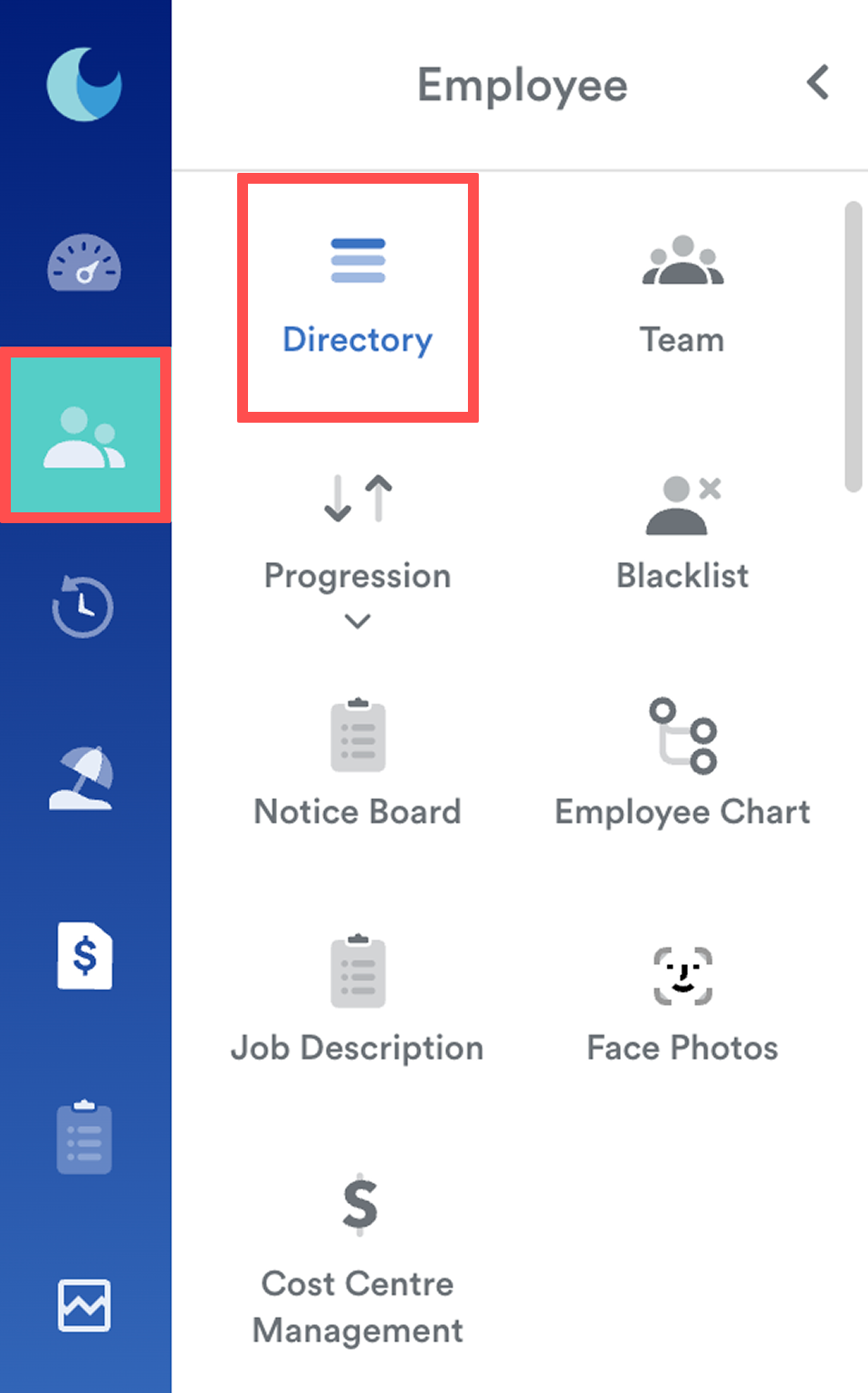
- Go to Employee (a) > Directory (b) and select the employee.
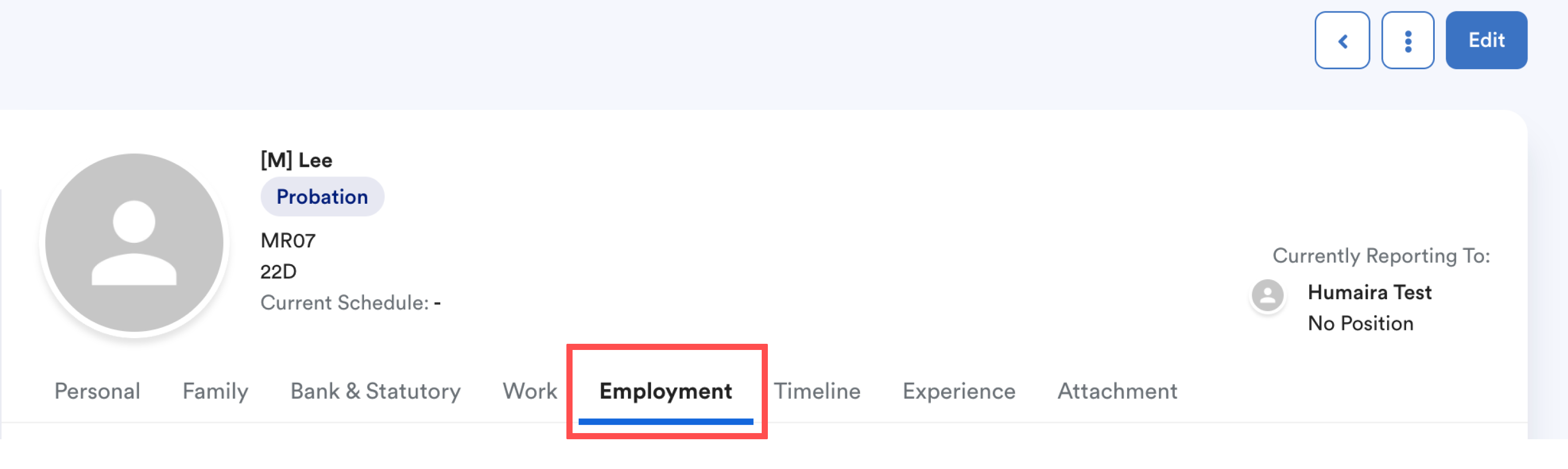
- Go to the Employment tab, click Edit, then scroll to Basic Salary.
- Select the currency, enter the salary amount, and choose the correct pay mode.
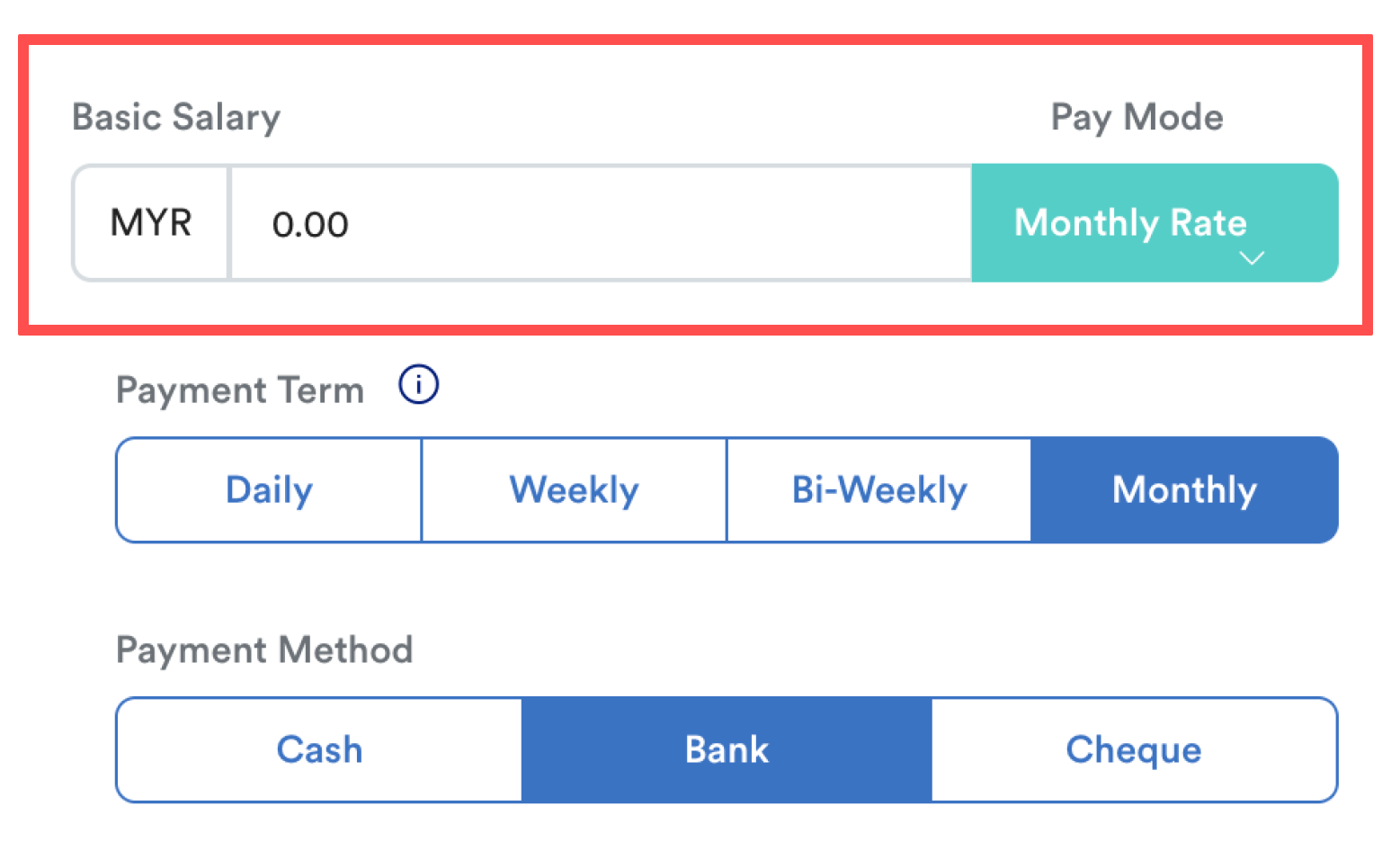
Click Save to confirm changes and try to process payroll for the employee again.
Note: Please ensure the effective date for this update aligns with your payroll period.
B. Resigned Employee without Individual Transaction
Once you update the resignation date in the system, the employee will get none shift in individual attendance from the resignation date onwards.
Solution: Ensure you manually input a transaction for the resigned employee.
Go to Payroll > Transaction > Individual Transaction, and check if there is a transaction after the payroll run. 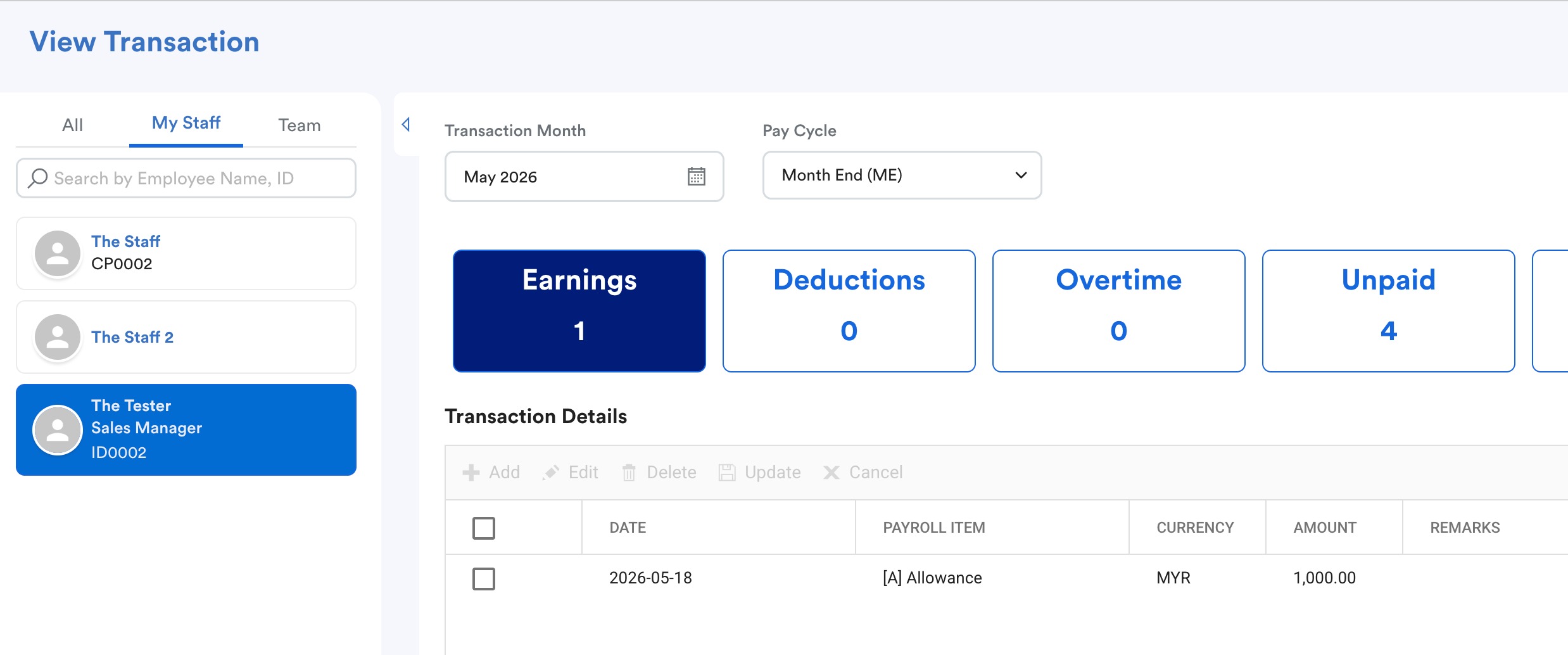
Note: Ensure you tick the relevant checkbox in the payroll run with correct pay cycle and , for example: pull attendance data, refer to Payroll Process - Monthly.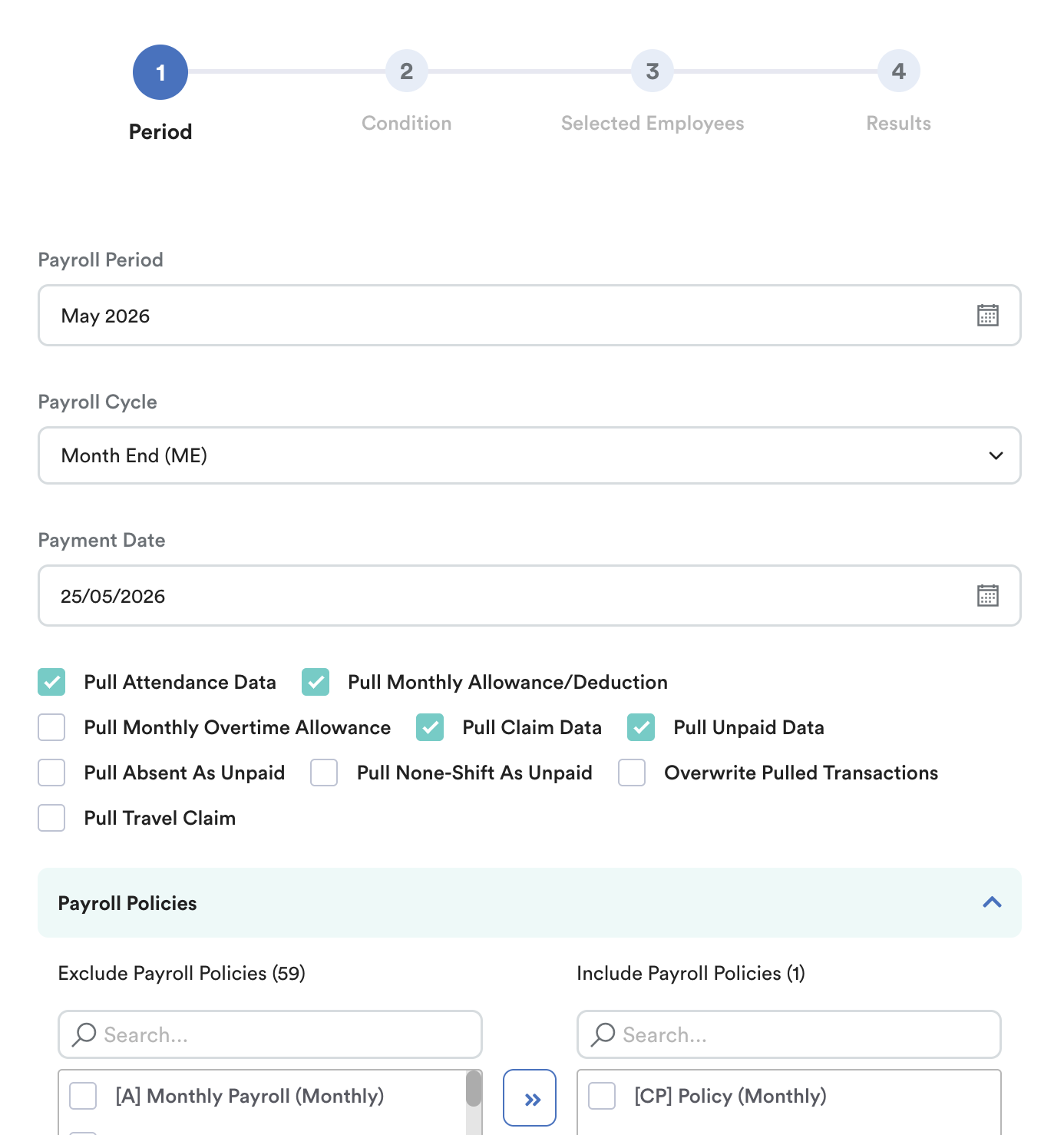
Note: Please make sure the pay cycle for the above transactions matches your pay cycle in payroll processing and payroll policy. Wrong pay cycle will result in "no transaction" detected. 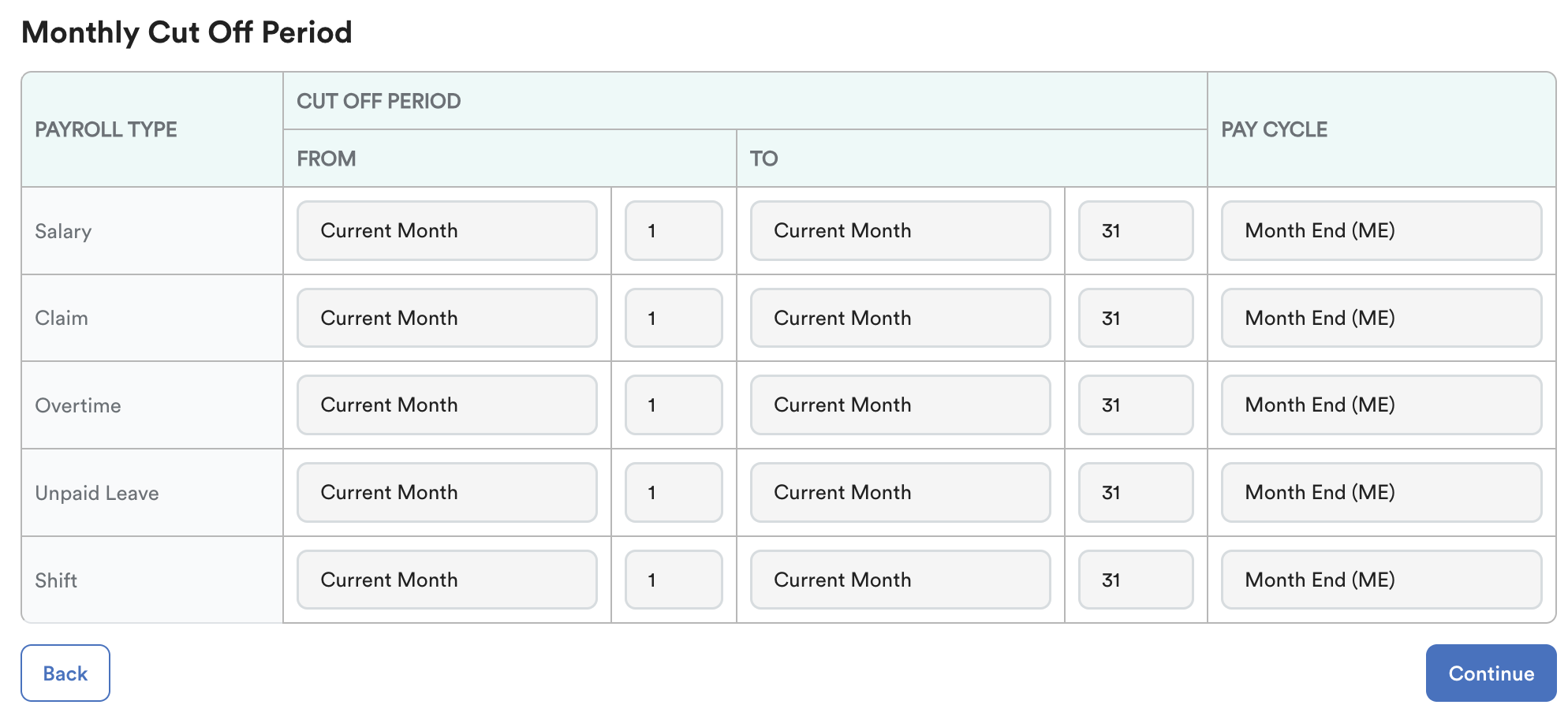
C. Not Assigned to a Work Schedule for Daily Rated and Hourly Rated Employees
The system requires an assigned work schedule to detect attendance and generate payroll transactions for both daily rated and hourly rated employees.
If a daily-rated and an hourly-rated employee have "None Shift", the system will not detect any attendance records and will skip the employee.
Solution: Ensure the employee has been assigned to a work schedule.
- Go to Attendance > Staff Schedule.
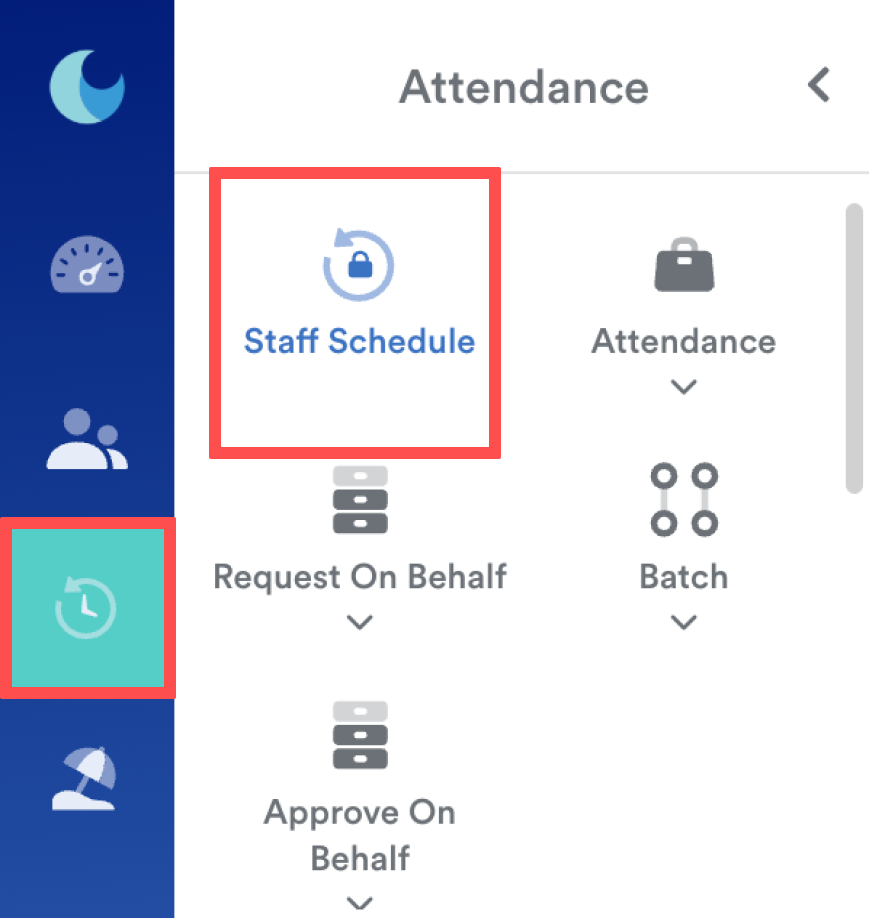
- Select the employee and click Add Schedule to assign the appropriate schedule.
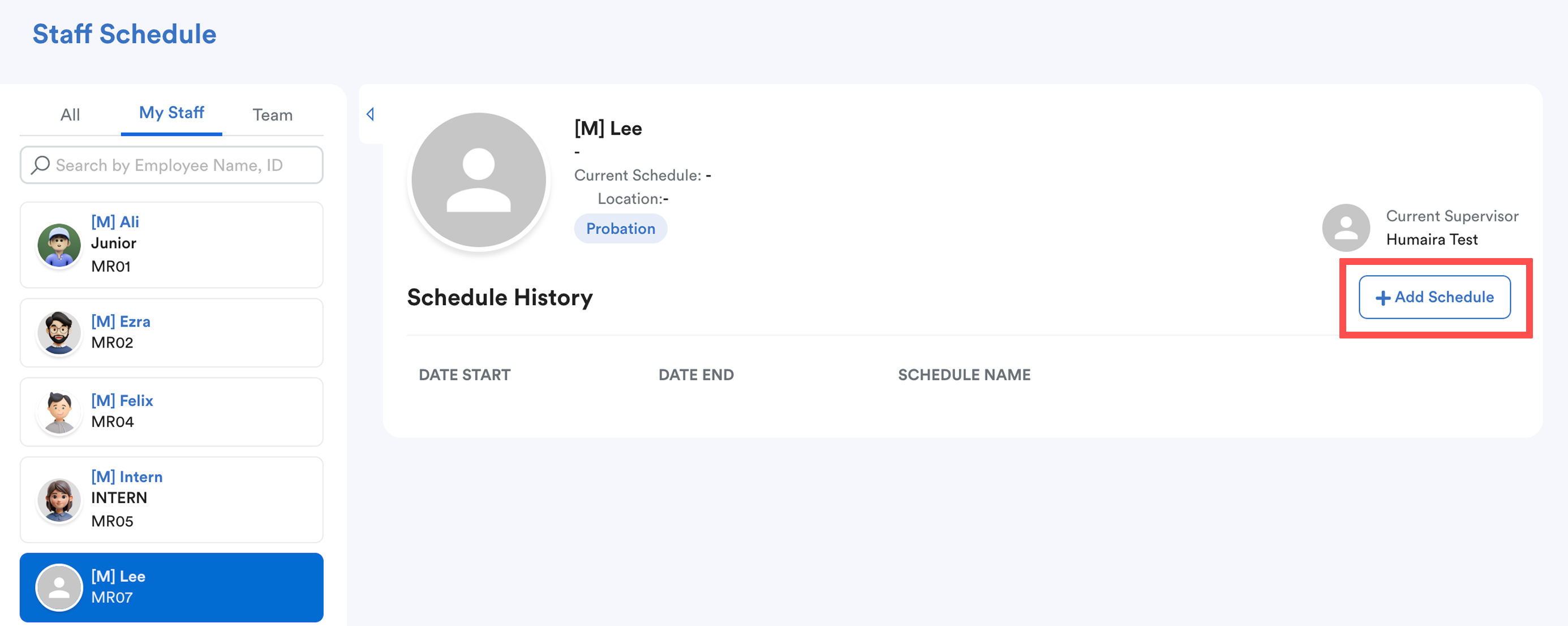
And ensure there is a shift in the individual attendance. Below is an example of "none shift".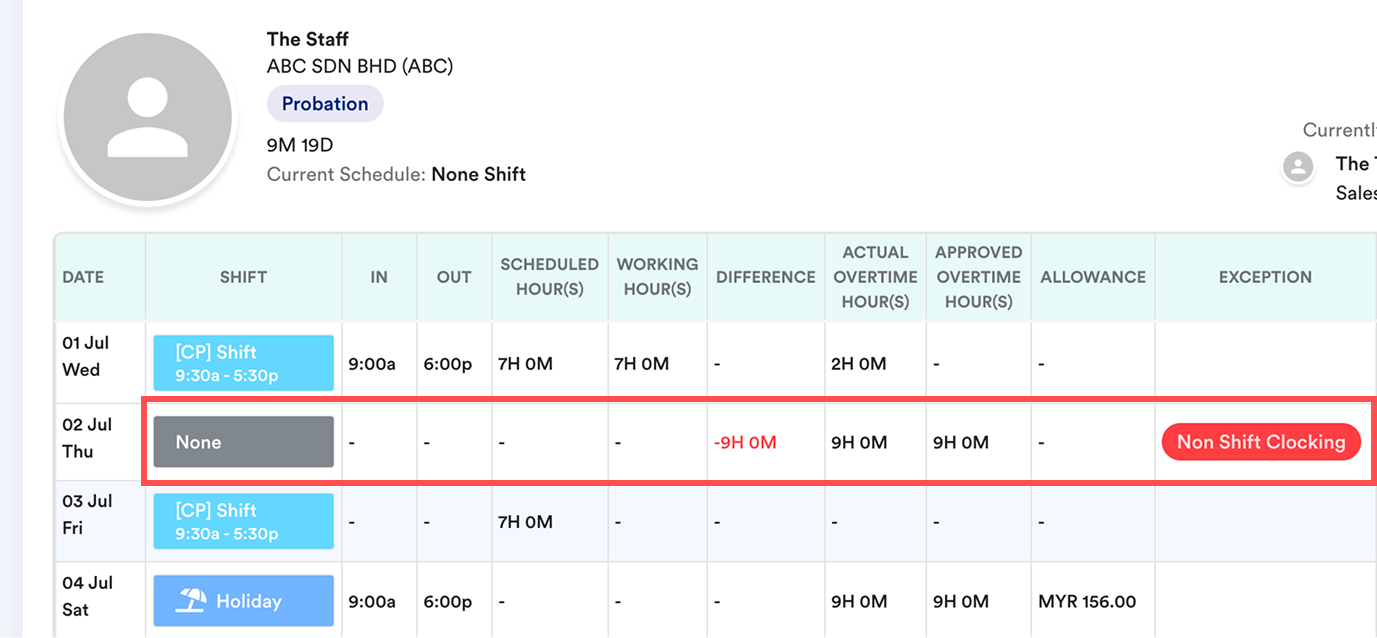
Related: How to Fix “Policy Not Match” During Payroll Processing
We hope this explanation clarifies the matter. If you require further assistance, please don't hesitate to contact our support team.
Was this article helpful?
That’s Great!
Thank you for your feedback
Sorry! We couldn't be helpful
Thank you for your feedback
Feedback sent
We appreciate your effort and will try to fix the article