You can deduct employee lateness accurately by linking Unpaid Time Off with Payroll Policy. This guide shows you how to set it up and understand the deduction calculation.
If there is a late in, but it was not marked as late in, you may refer to Clock-in Late but Not Marked as Late In. To ensure accurate calculation for lateness.
Step 1
Create an Unpaid Time Off.
On the left menu, go to Settings > Leave > Unpaid Leave > Unpaid Time Off. Click Add New to create.


Step 2
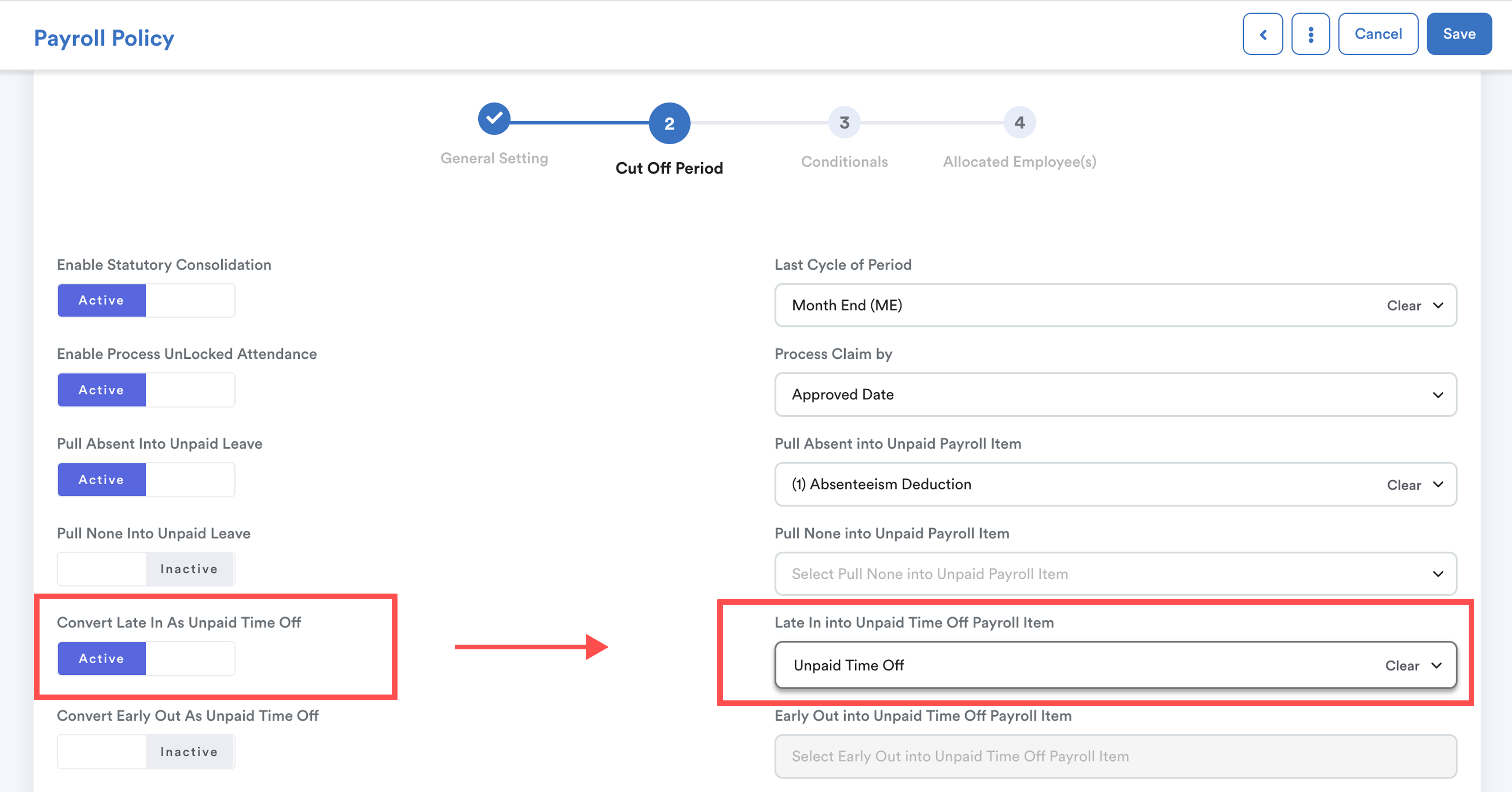
Go to Settings > Payroll > Payroll Policies.
Enable "Convert Late In As Unpaid Time Off", then select the same Payroll Item you linked in Step 1.
Step 3
When processing payroll, any Late In records will be automatically calculated as Unpaid Time Off and deducted from the employee’s salary.
Example:
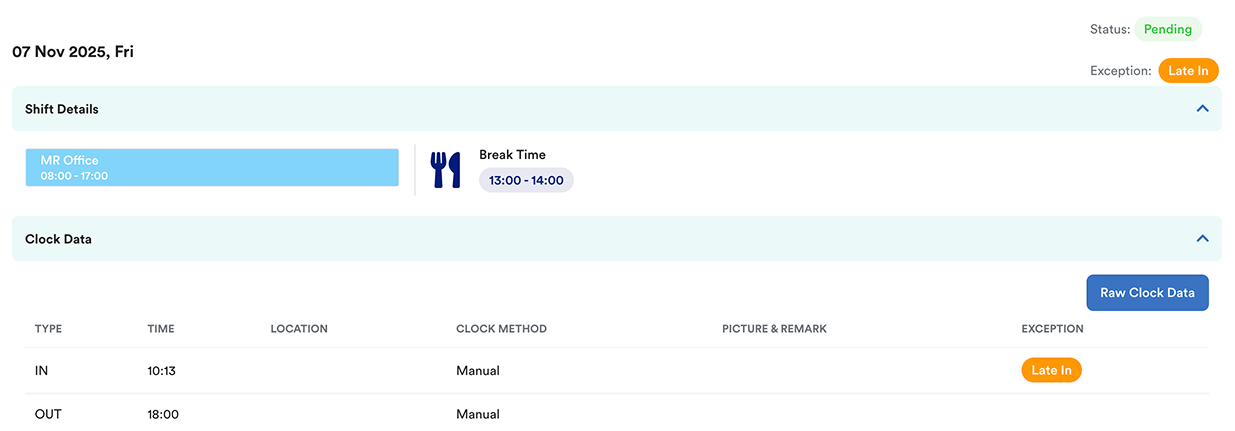
Lateness = Clock In – Shift Start
= 10:13 – 08:00
= 2 hours 13 minutes (shown as 2.22 hours in the system)
The deduction amount is based on the Unpaid Time Off formula in your Payroll Policy.
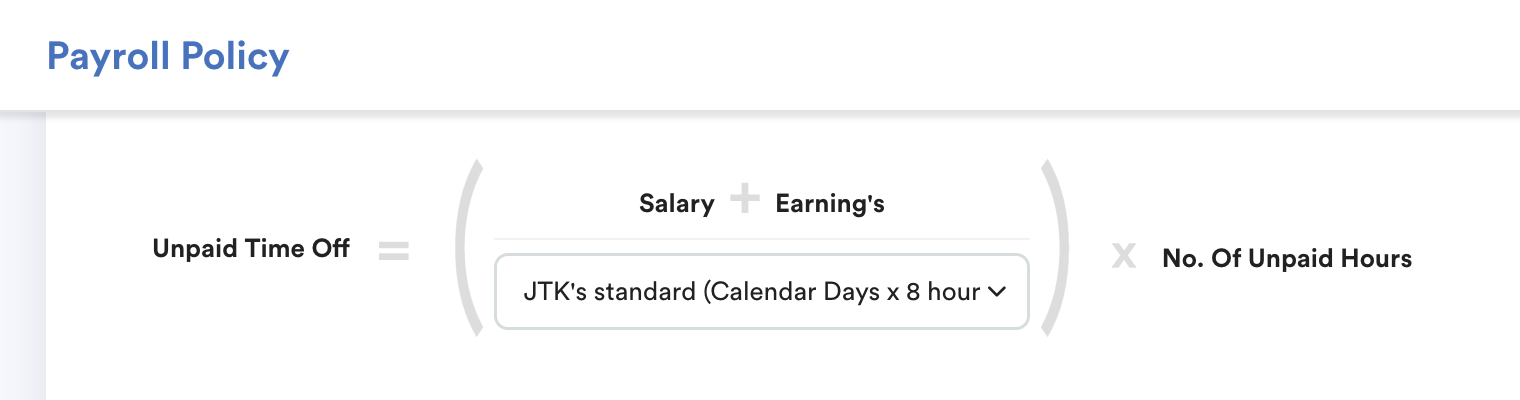
Employee A
- Basic Salary: RM 4,700
- Hourly Rate = 4700 ÷ (30 x 8) = 19.58/hour
- Deduction = 19.58 × 2.22 = RM43.47
To understand calendar days and attendance schedule in payroll policy, refer to Working Day in and Payroll Policy and Payslip.
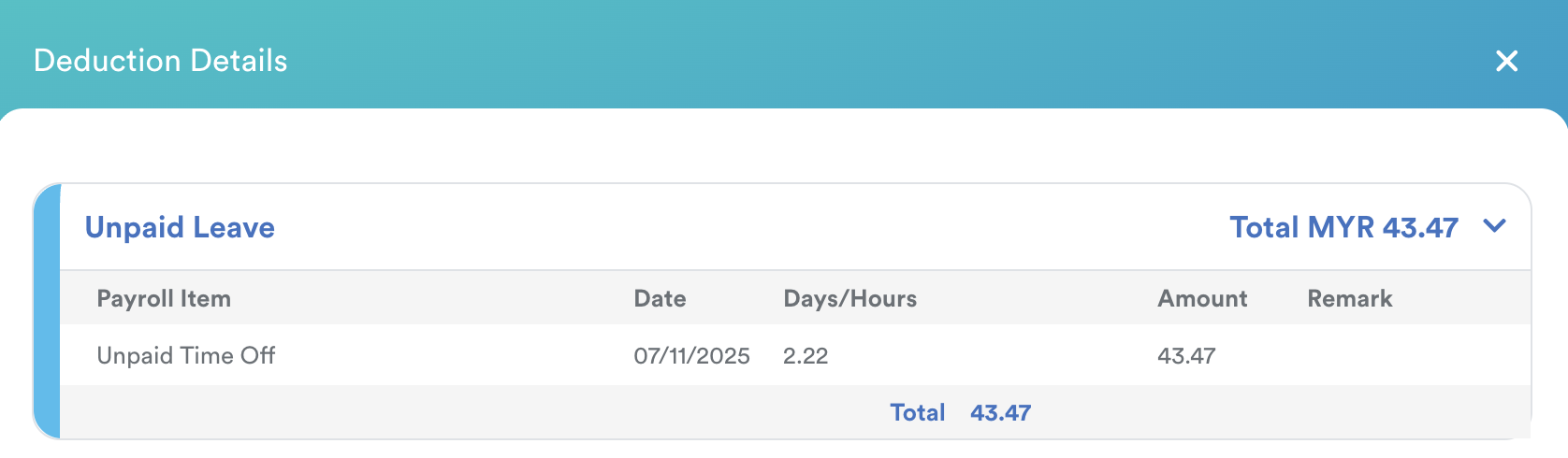
Path: Payroll > Payroll Review > Individual Payroll > Select employee.
The employee's payslip shows RM 43.47 under Unpaid Time Off as the deduction for this lateness.
We hope this clarifies the matter. If you require further assistance, do not hesitate to contact our support team.
Was this article helpful?
That’s Great!
Thank you for your feedback
Sorry! We couldn't be helpful
Thank you for your feedback
Feedback sent
We appreciate your effort and will try to fix the article