The Business Alert feature allows you to automatically notify specific recipients via email or push notifications when an employee meets certain absenteeism threshold. Follow these steps to configure an absent reminder.
Step 1
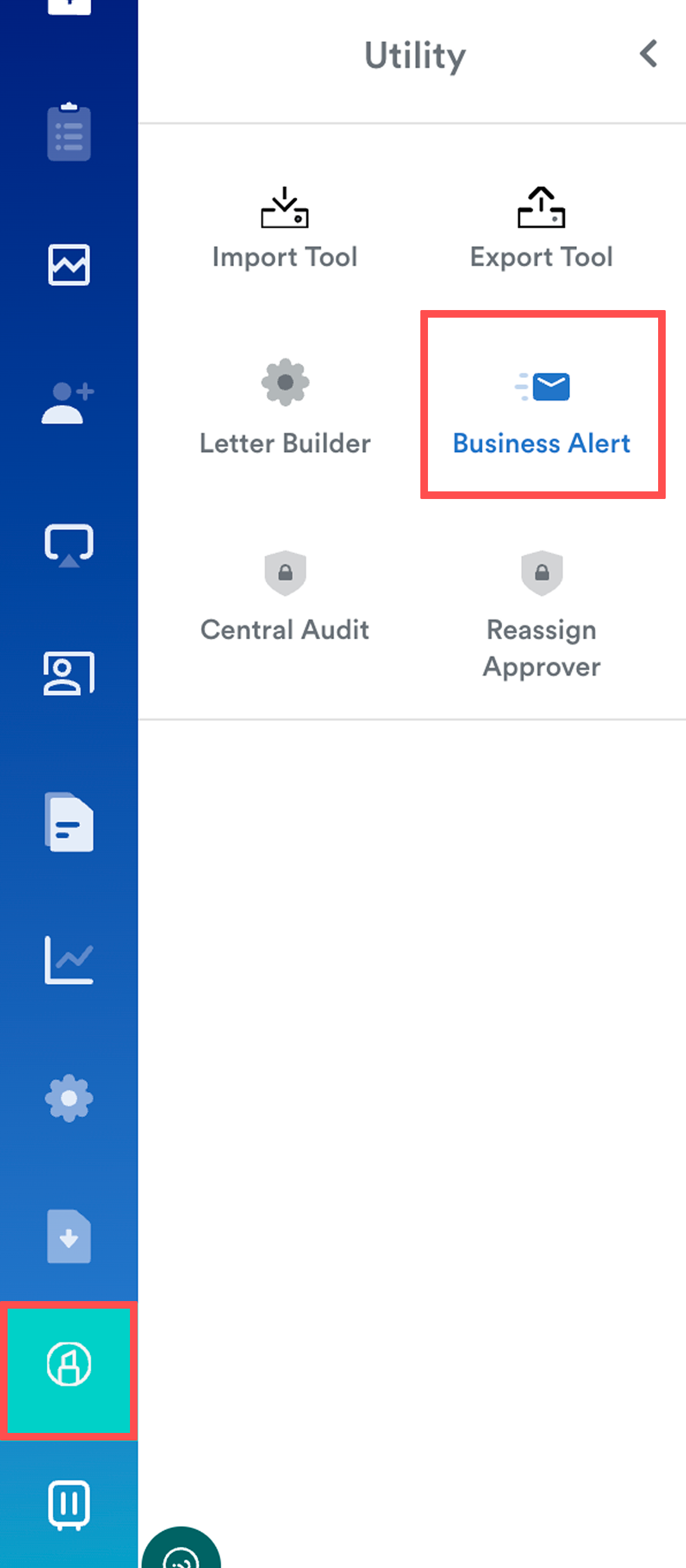
Go to Utility > Business Alert
Step 2
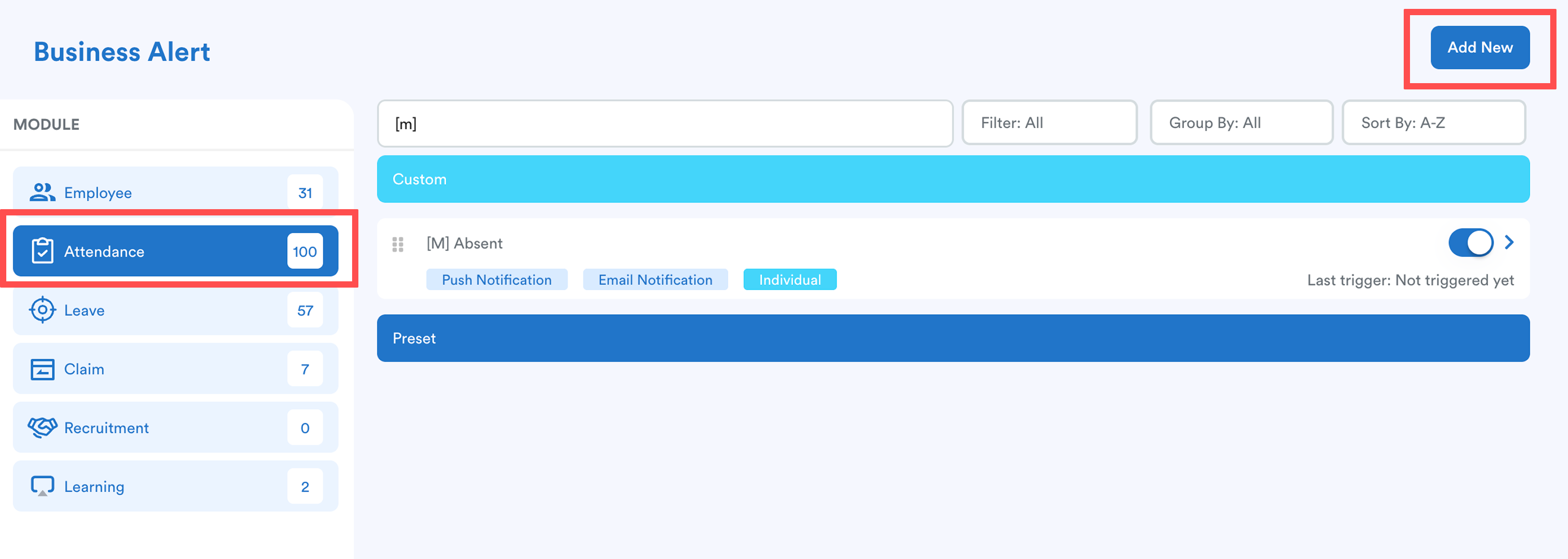
Choose Attendance, click Add New.
Step 3
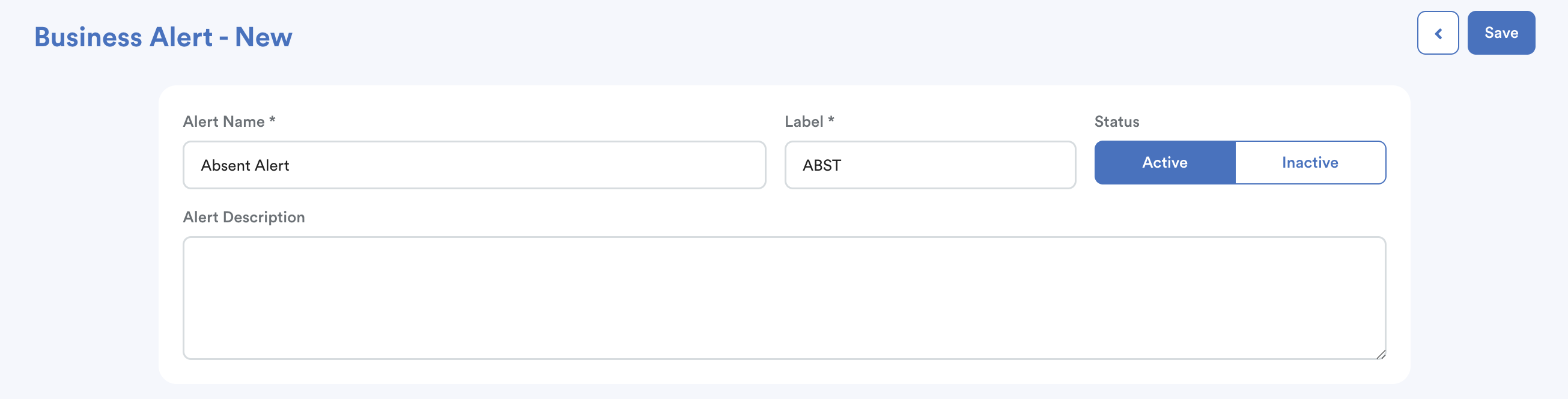
Fill in the Name, Label, and Description for your reference. Set the status to Active (or Inactive if you want to save it as a draft/hidden).
Step 4
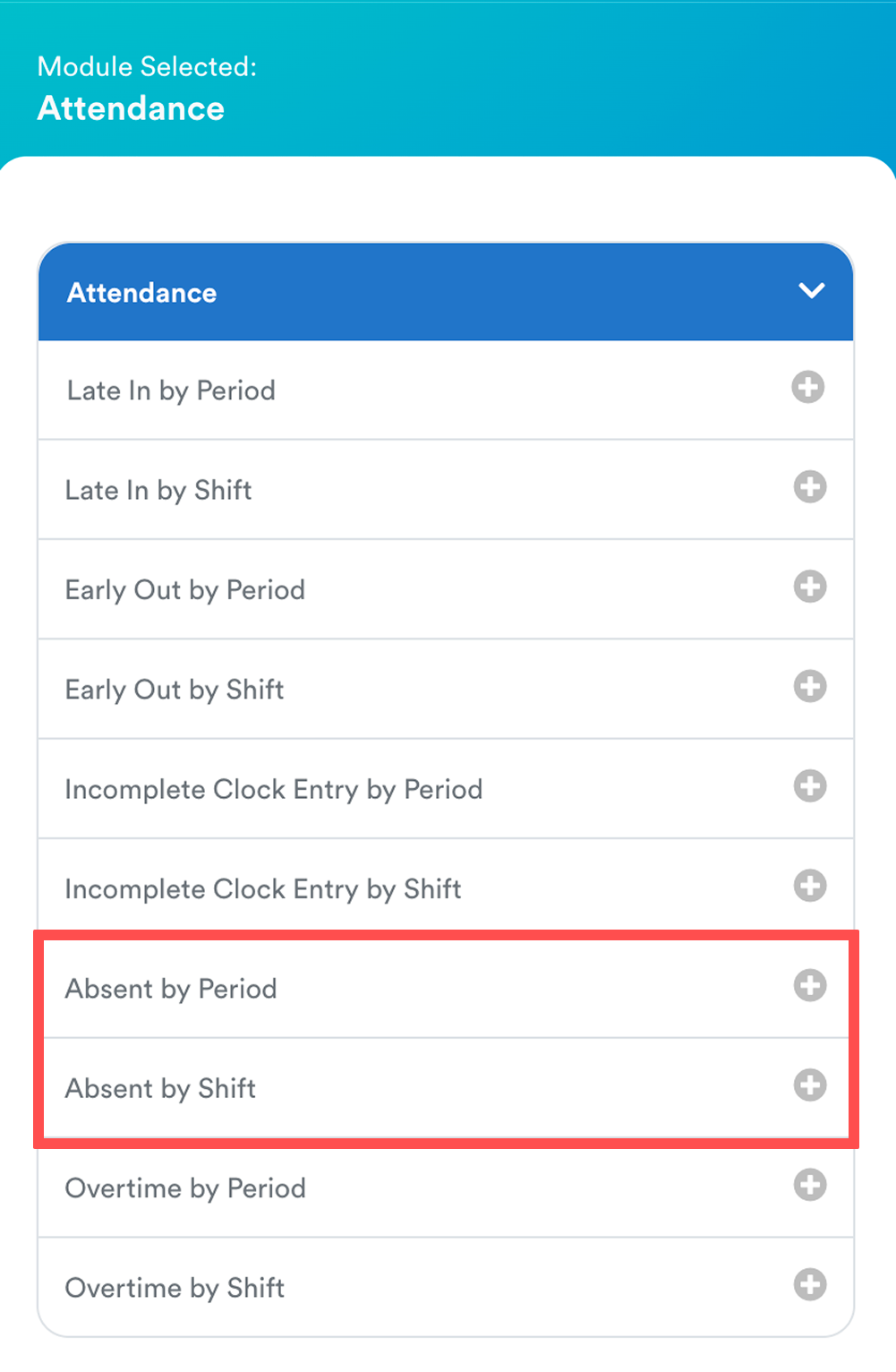
In the Alert Trigger Condition section, click Insert Criteria and choose one of the following methods: Absent by Period / Absent by Shift.
Absent by Period
Triggers based on the total number of absences within a selected timeframe. Example:
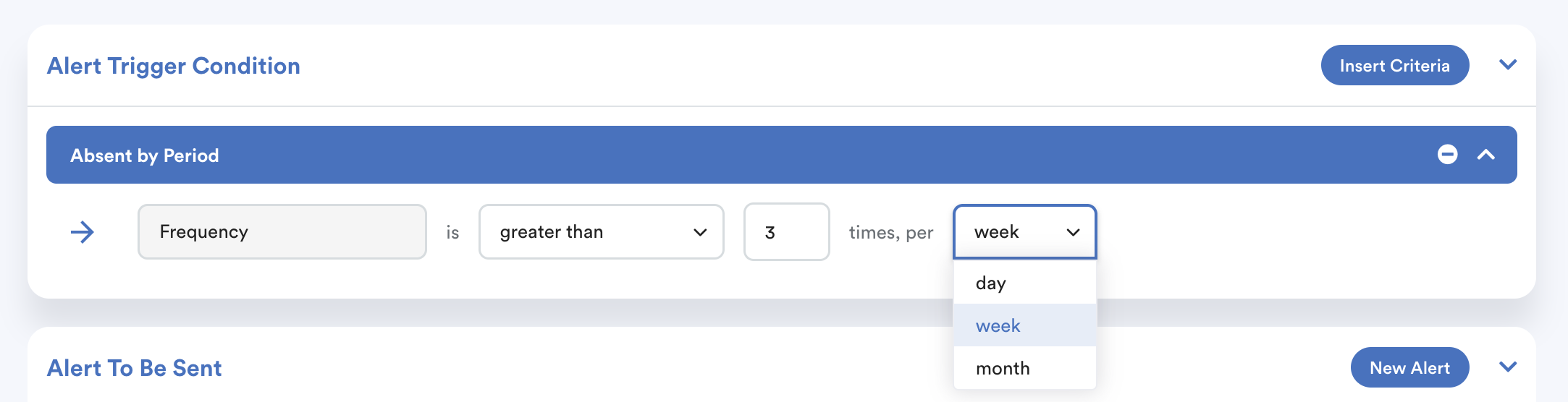
- Day: Total absences within a single day.
- Week: Total absences within a single week.
- Month: Total absences within a single month.
Absent by Shift
Triggers based on the number of absences for each shift during a selected timeframe, system triggers absent notification when any shift meets the condition. Example:
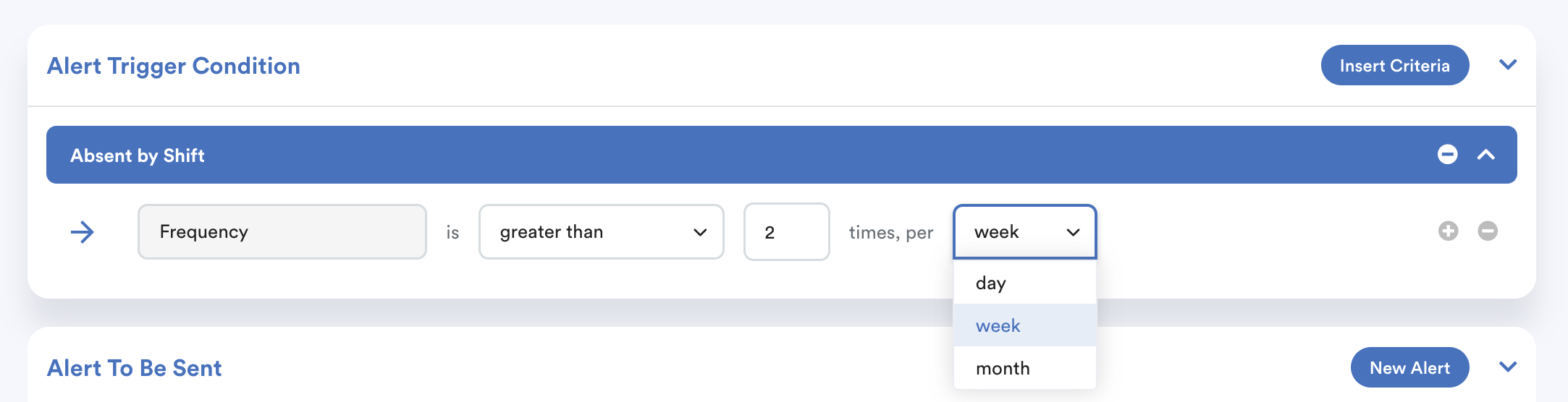
- If you set the condition to greater than 2 times per week, and an employee is assigned to both Shift A and Shift B that week, the system will check if the absence occurrences for any shift meet 3 times in a week.
- If the employee is absent for 3 times for Shift A, the condition is met. The system triggers an absence notification when a shift has 3 absences in a week.
Step 5
In the Alert To Be Sent section, click New Alert to define how and to whom the reminder will be sent.

- Choose either Email Notification or Push Notification.
- Enter an Alert Description and set the status to Active (or Inactive if you want to save it as a draft/hidden).
- Email Type & Recipients - Select whether the email type is Individual or Group, then click Add Recipient to choose who will receive the notification.
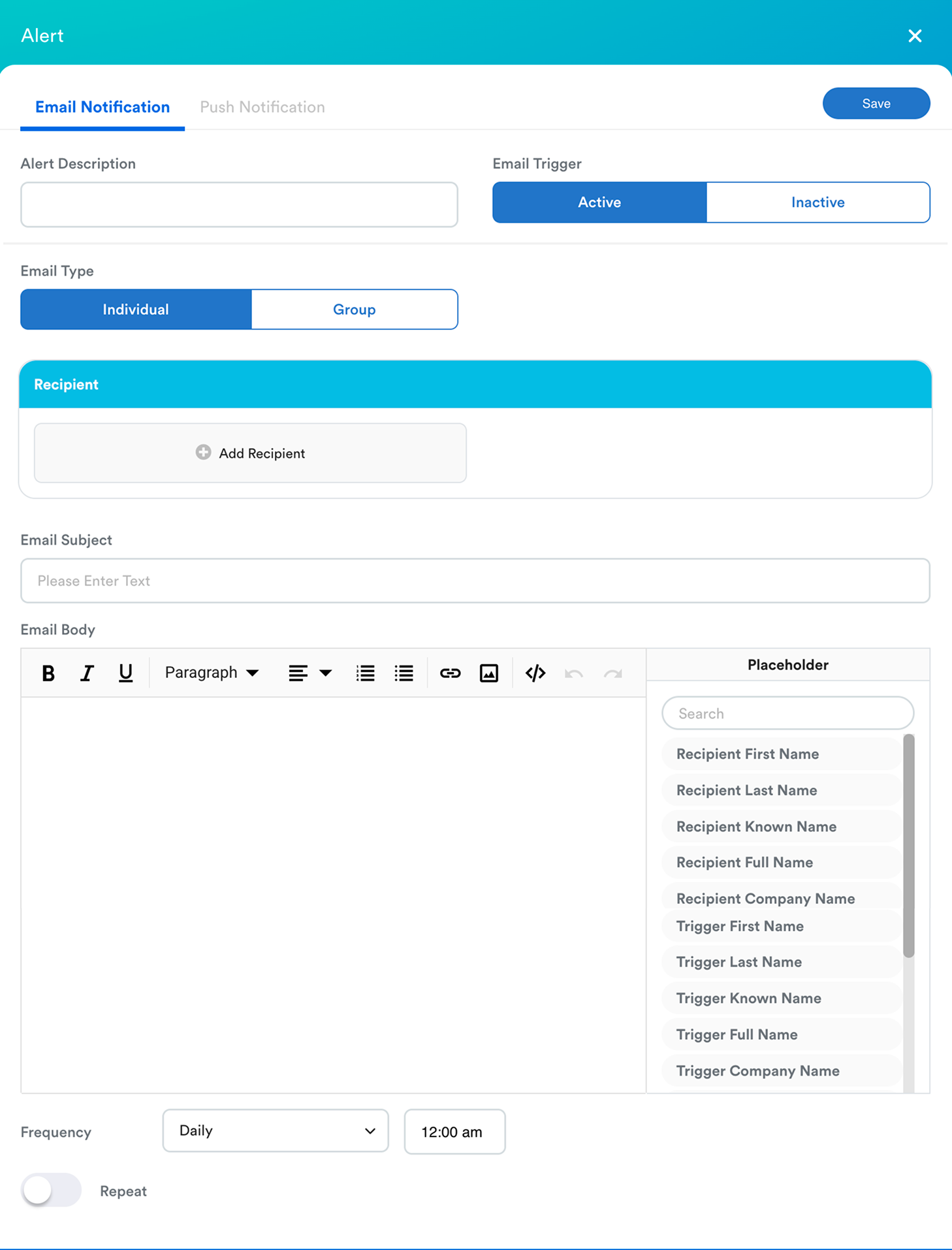
Email Content
- Enter an Email Subject.
- Compose the Email Body. You can use the formatting tools and placeholders on the right panel (e.g., [Recipient First Name], [Recipient Full Name]) to dynamically automate the content.
- Frequency: Define how often the system should run this check and send the alert.
Once completed, click Save.
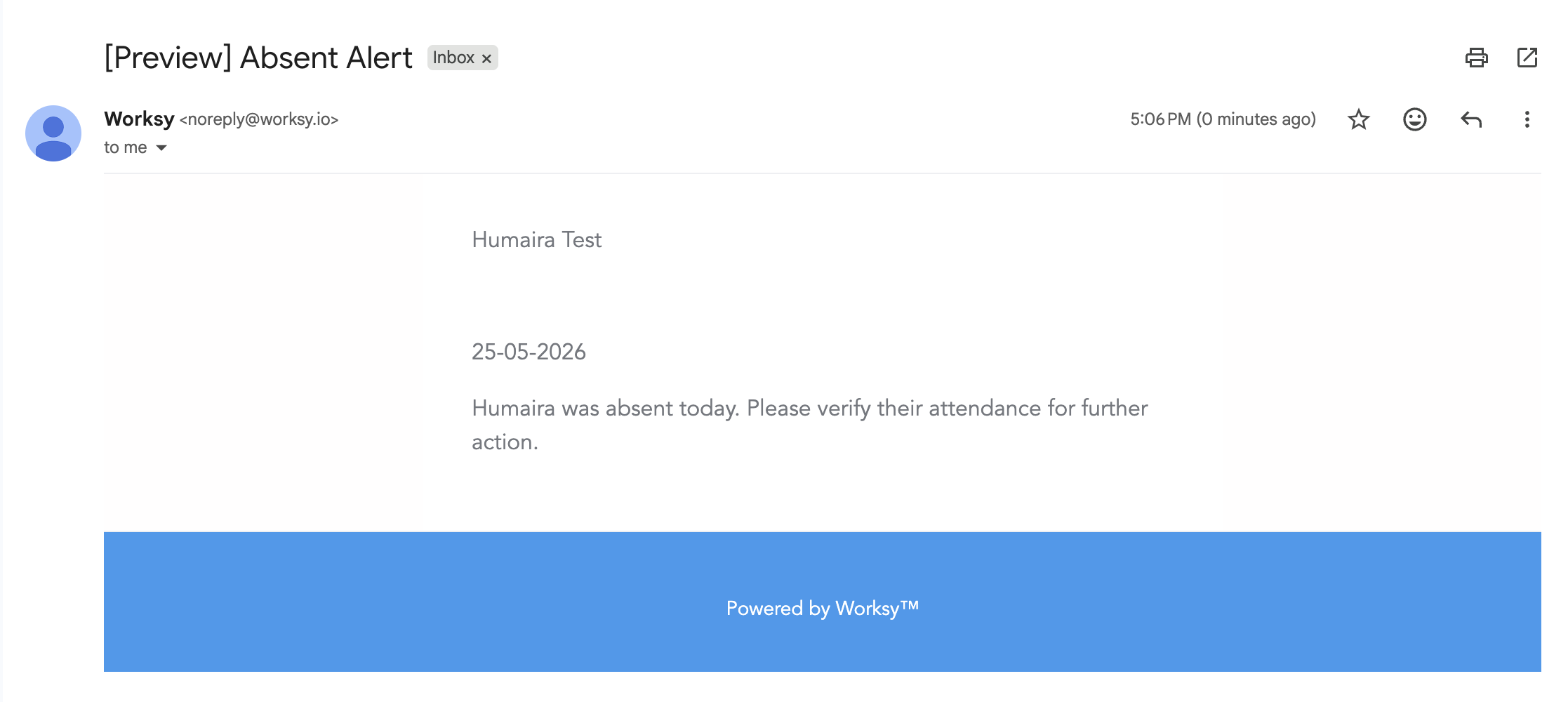
You can click Send Test Alert to get a preview how the email will look like.
Example:
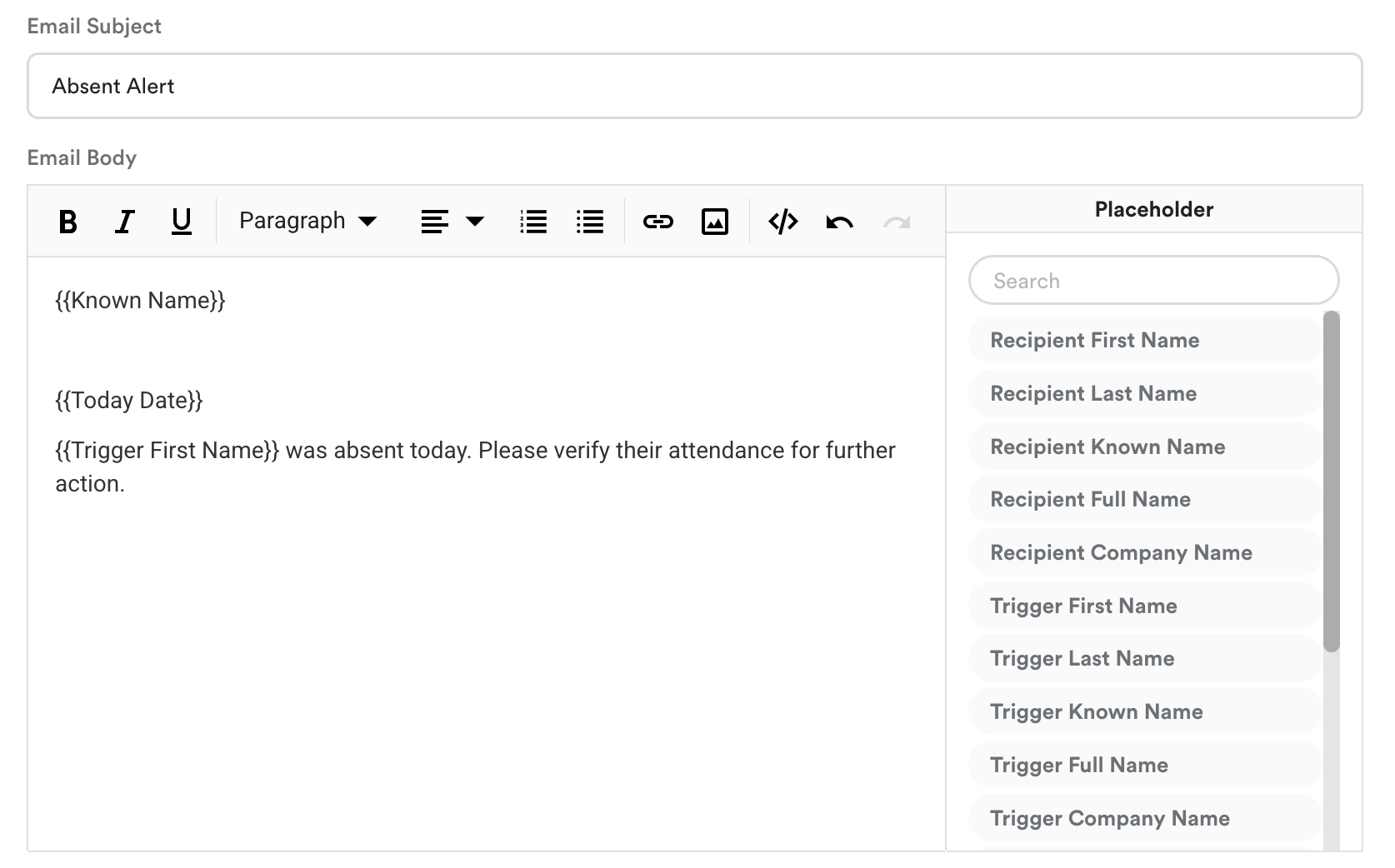
Test Alert Email:
Step 6
Under the Alert Can Be Triggered By section, select the employees, departments, or groups who will be monitored by this alert.
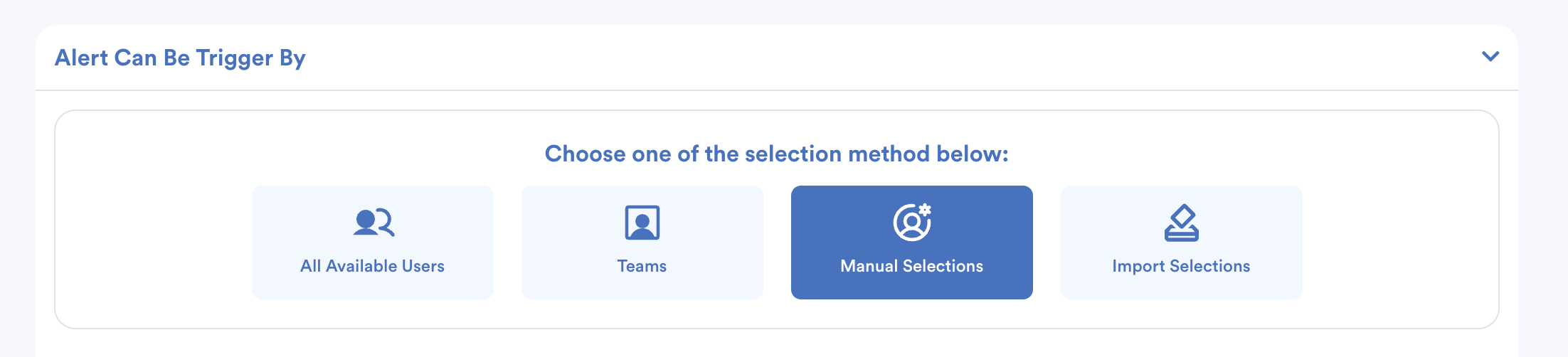
If any individual within this selection meets the trigger conditions set in Step 4, the system will automatically send the notification to your designated recipients.
We hope this explanation clarifies the matter. If you require additional assistance, do not hesitate to contact our support team.
Was this article helpful?
That’s Great!
Thank you for your feedback
Sorry! We couldn't be helpful
Thank you for your feedback
Feedback sent
We appreciate your effort and will try to fix the article