Aside from submitting a requisition request, administrators or managers with the necessary access can create a new requisition directly from the Requisition Listing screen.
Step 1
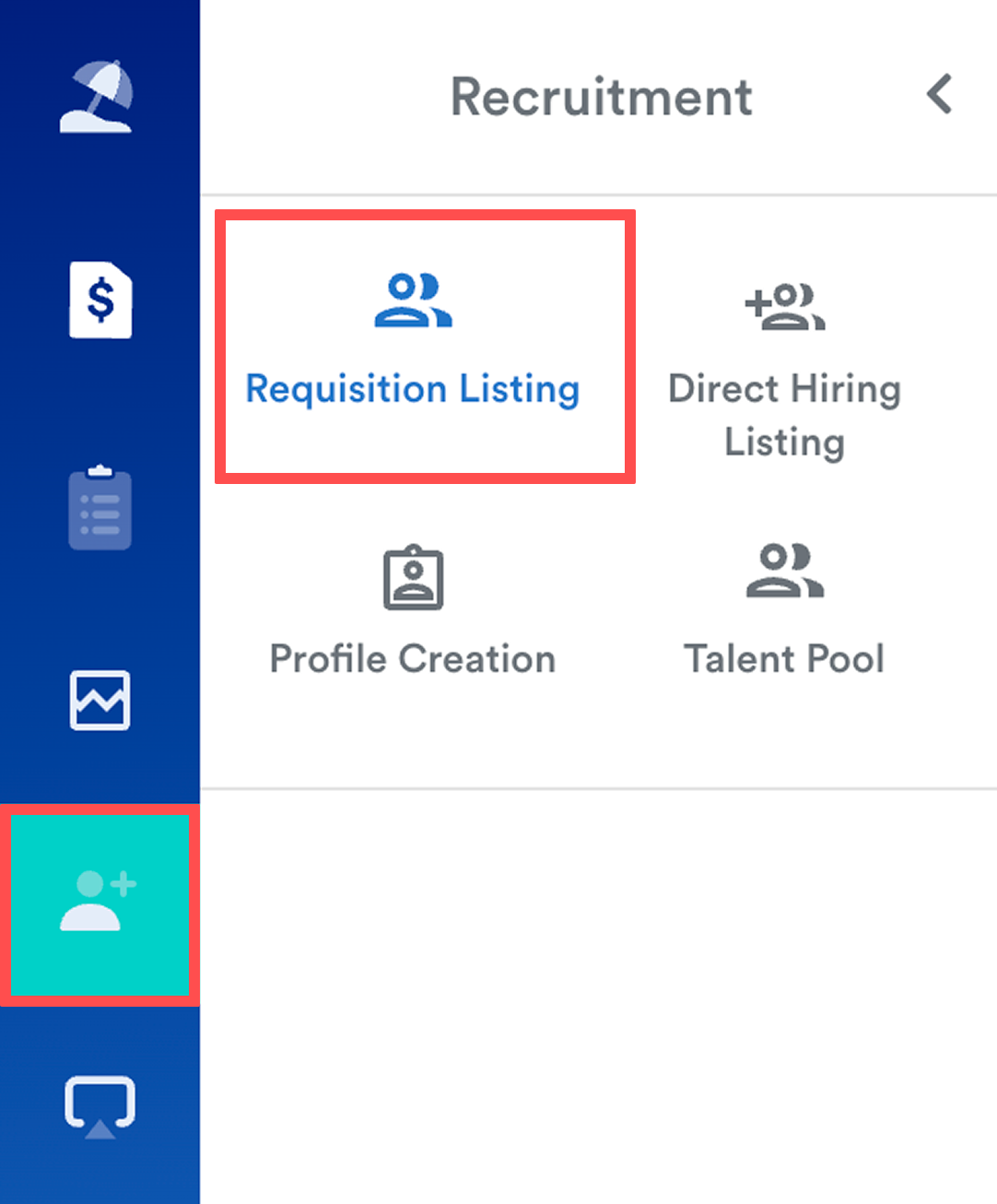
Go to Recruitment > Requisition Listing.
Step 2
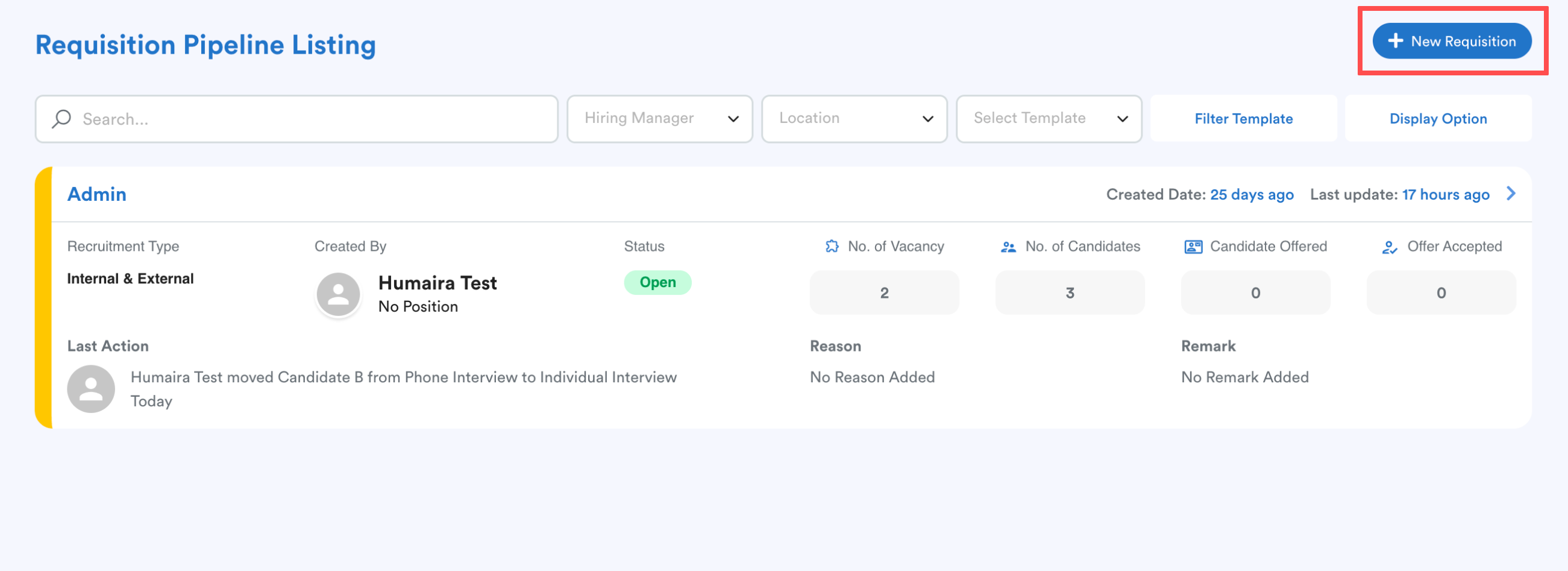
On the Requisition Pipeline listing screen, click the New Requisition button at the top right corner.
Step 3
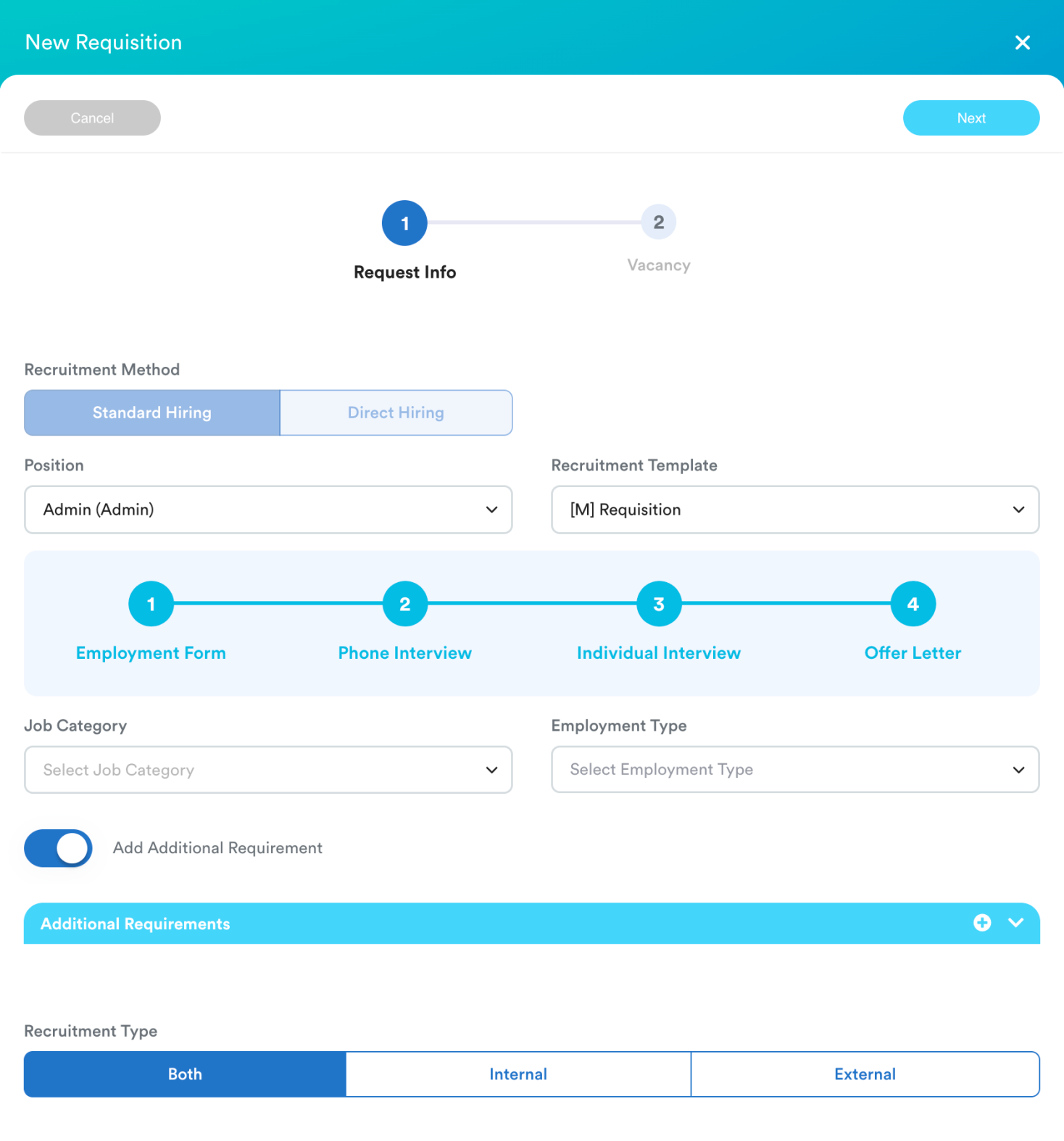
The Request Info panel will appear.
Note: When using this direct creation method, the recruitment method is set to Standard Hiring by default. If you require Direct Hiring, please submit a requisition request instead.
Fill in the following details:
- Position: Select the job title for the requisition. If you cannot find the position you want, create it under system label > employee > position, refer to Managing System Labels.
- Recruitment Template: Choose a template. The system will automatically display the requisition flow based on this selection. If you could not see any template for the selected position, ensure the position is added to one of the recruitment templates. Refer to How to Create Requisition Template.
- Job Category & Employment Type: Categorize the role accordingly.
- Additional Requirement: Toggle this on if you need to include specific criteria for the position.
- Recruitment Type: Select Both, Internal, or External.
Once all fields are completed, click Next.
Step 4
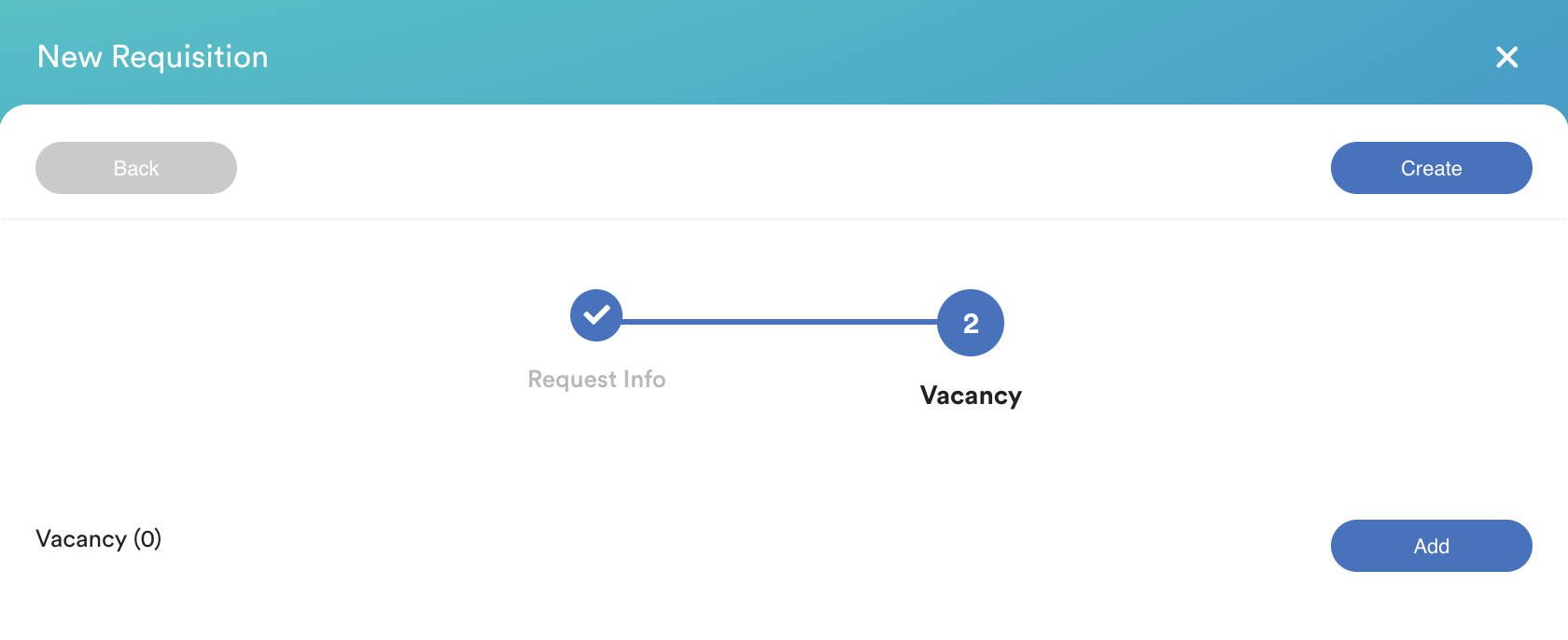
You will be directed to the Vacancy tab. Click Add to begin defining the vacancy specifications.
Step 5
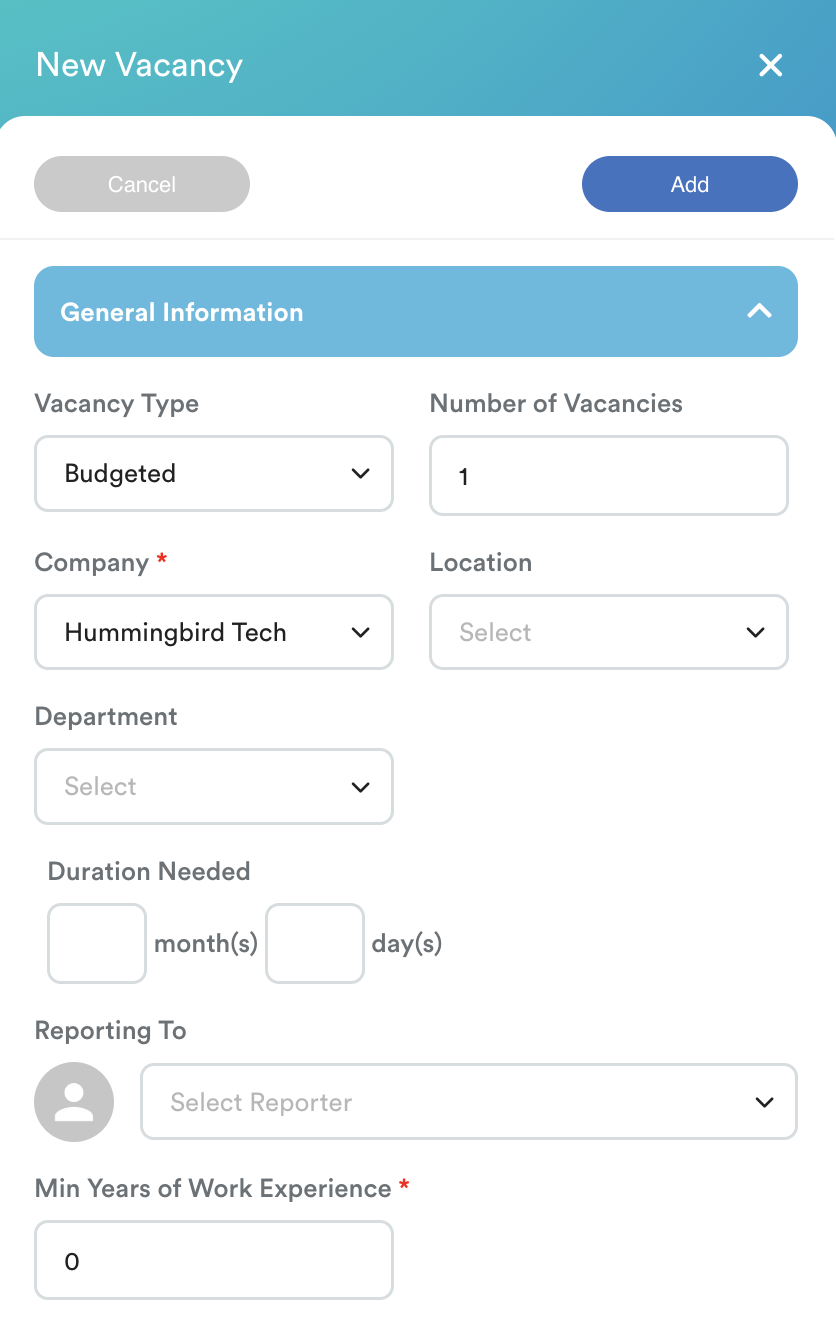
The New Vacancy tab contains four sections:
- General Information: Complete all mandatory fields marked with an asterisk (*), including Company, Location, and Min. Years of Work Experience.
- Career Level: Select the applicable professional levels for this position.
- Budget: Select a pay band or select Custom to define a currency, minimum and maximum value.
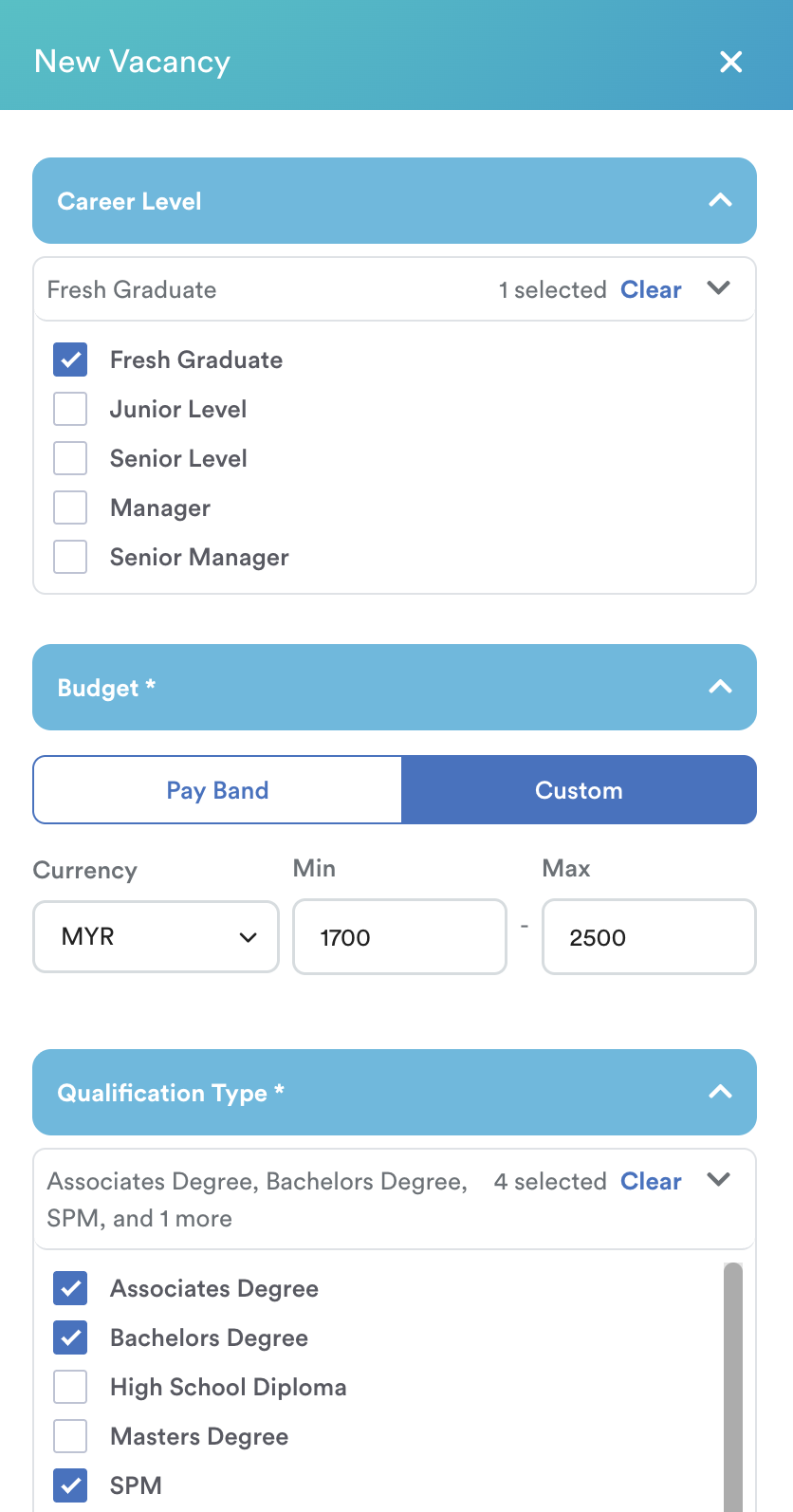
- Qualification Type: Select the required educational background for the role.
Once the information is confirmed, click Add.
The screen will now display the created vacancy. You can manage the entry using the following icons:
- Pencil: Edit the vacancy details.
- Trash bin: Delete the vacancy.
- Add: Create additional vacancies with different specifications if necessary.
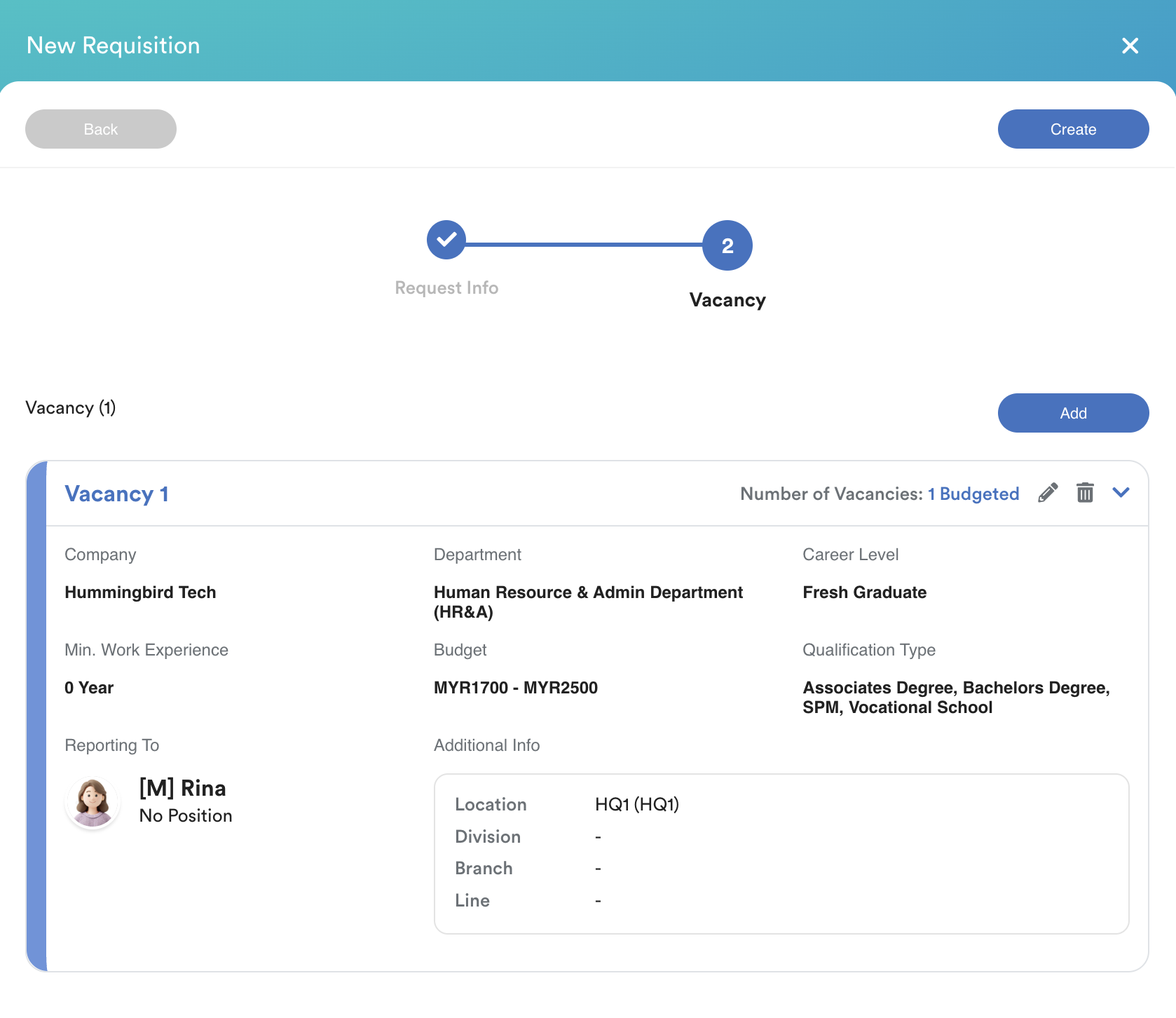
Review all details and click Create to finalize the process.
We hope this explanation clarifies the matter. If you require further assistance, please don't hesitate to contact our support team.
Was this article helpful?
That’s Great!
Thank you for your feedback
Sorry! We couldn't be helpful
Thank you for your feedback
Feedback sent
We appreciate your effort and will try to fix the article