The Requisition Listing serves as the central hub for tracking all approved vacancies. It is the main place to check the status of your hiring and manage job posts.
Note: By default, only Managers and Requisition Requesters can see these listings. If you grant the "Requisition (All Listing)" access, this user role can see all the listings, even if they are not the manager or creator. 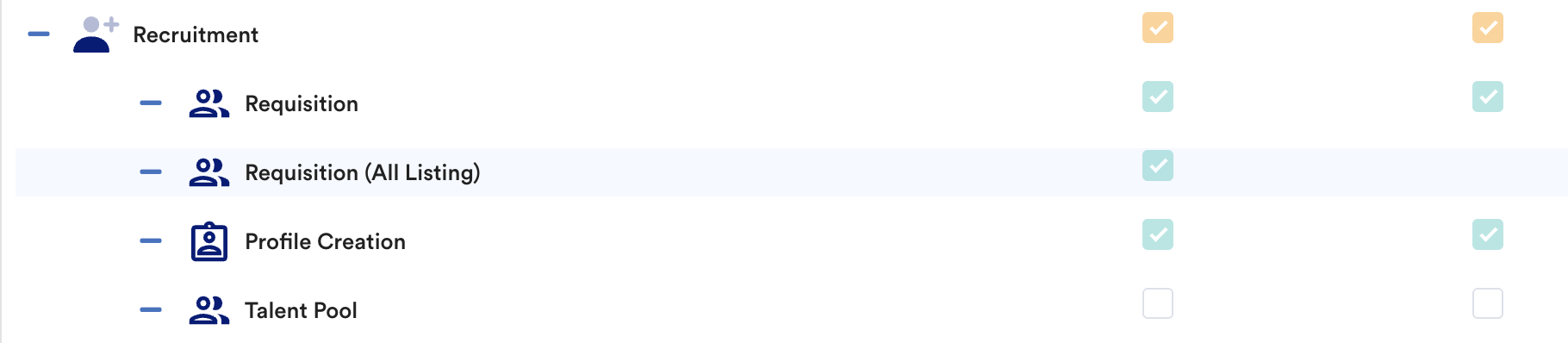
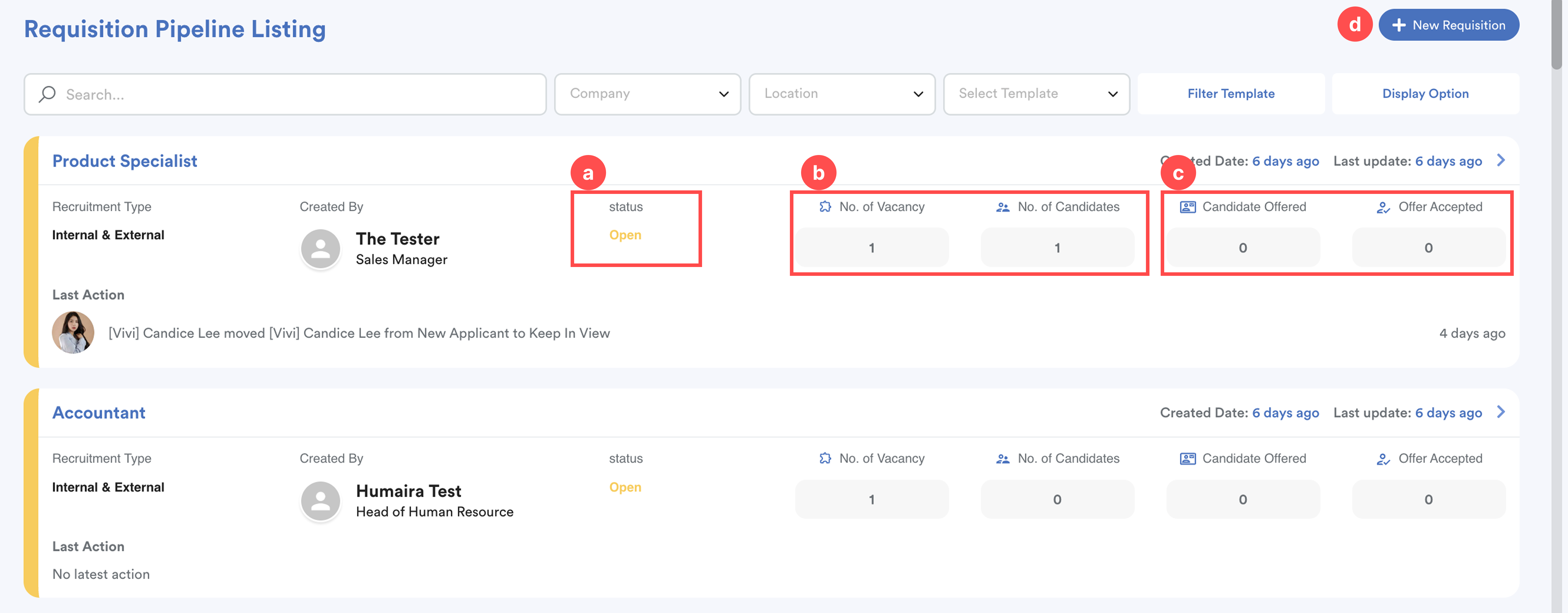
What you can see:
- Recruitment Status: Check if a job is Open or Close.
- Position Overview: See the total number of vacancies and how many candidates have applied or been offered.
- Hiring Progress: Track how candidates progress through the stages.
- Add New Requisition: You can also create a new job request directly from this screen.
Granting Interviewers Access
If you want other employees (e.g., the interviewer) to see the list, you must update their permissions by following the steps below.
Without granting the access, as an interviewer, he/she will receive email notifications when the interview schedule is set.
Step 1
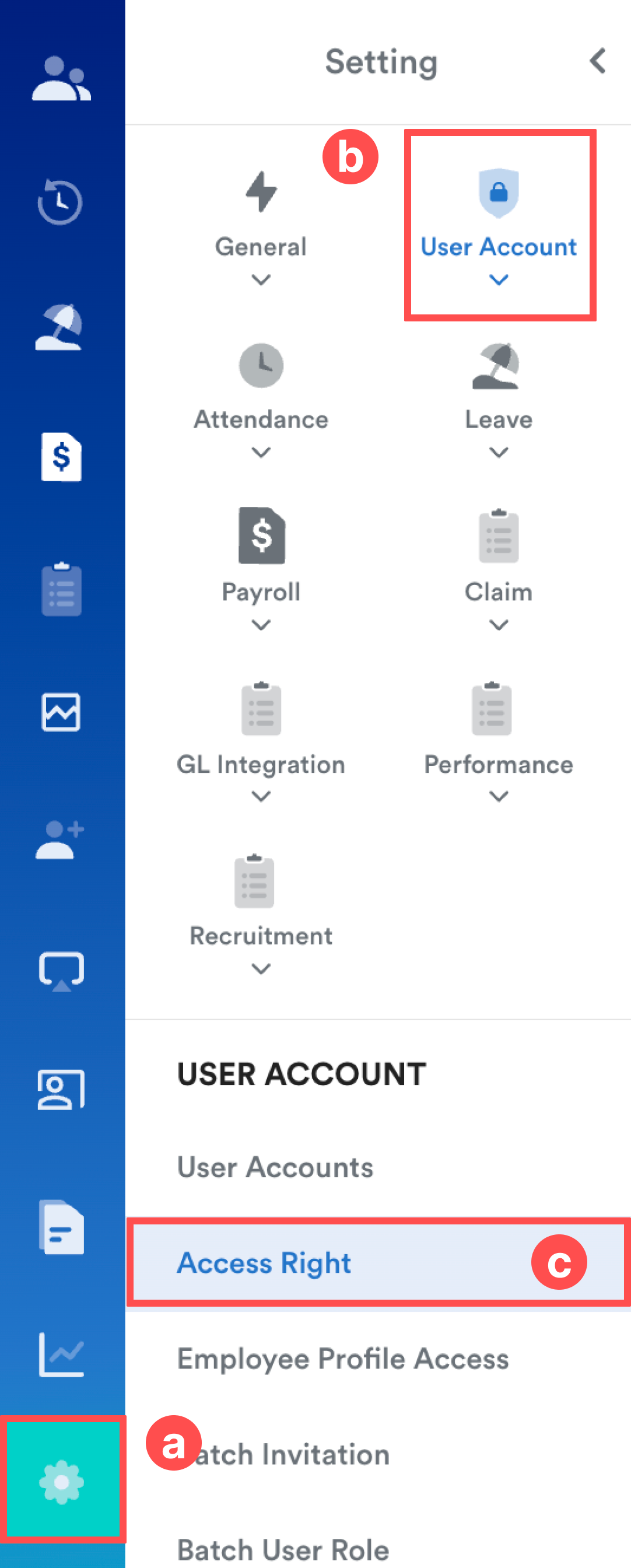
Go to Settings (a) > User Account (b) > Access Rights (c).
Step 2
Select the correct User Role.
In the Menu Permissions list, click the plus sign (+) next to Recruitment.
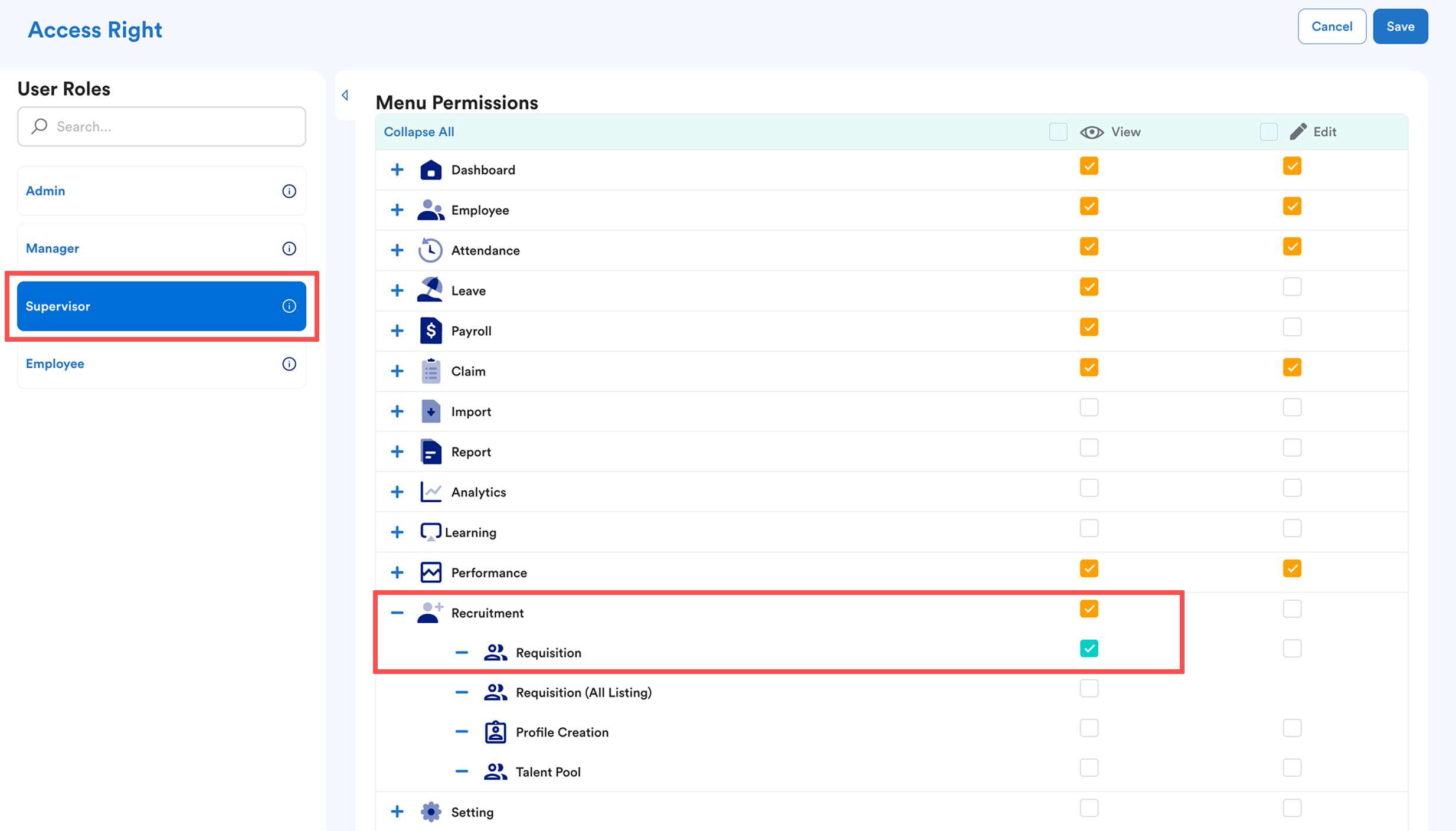
Tick the View box for Requisition. Click Save.
Important: Make sure all other boxes under Recruitment are not ticked to keep other data private.
Step 3
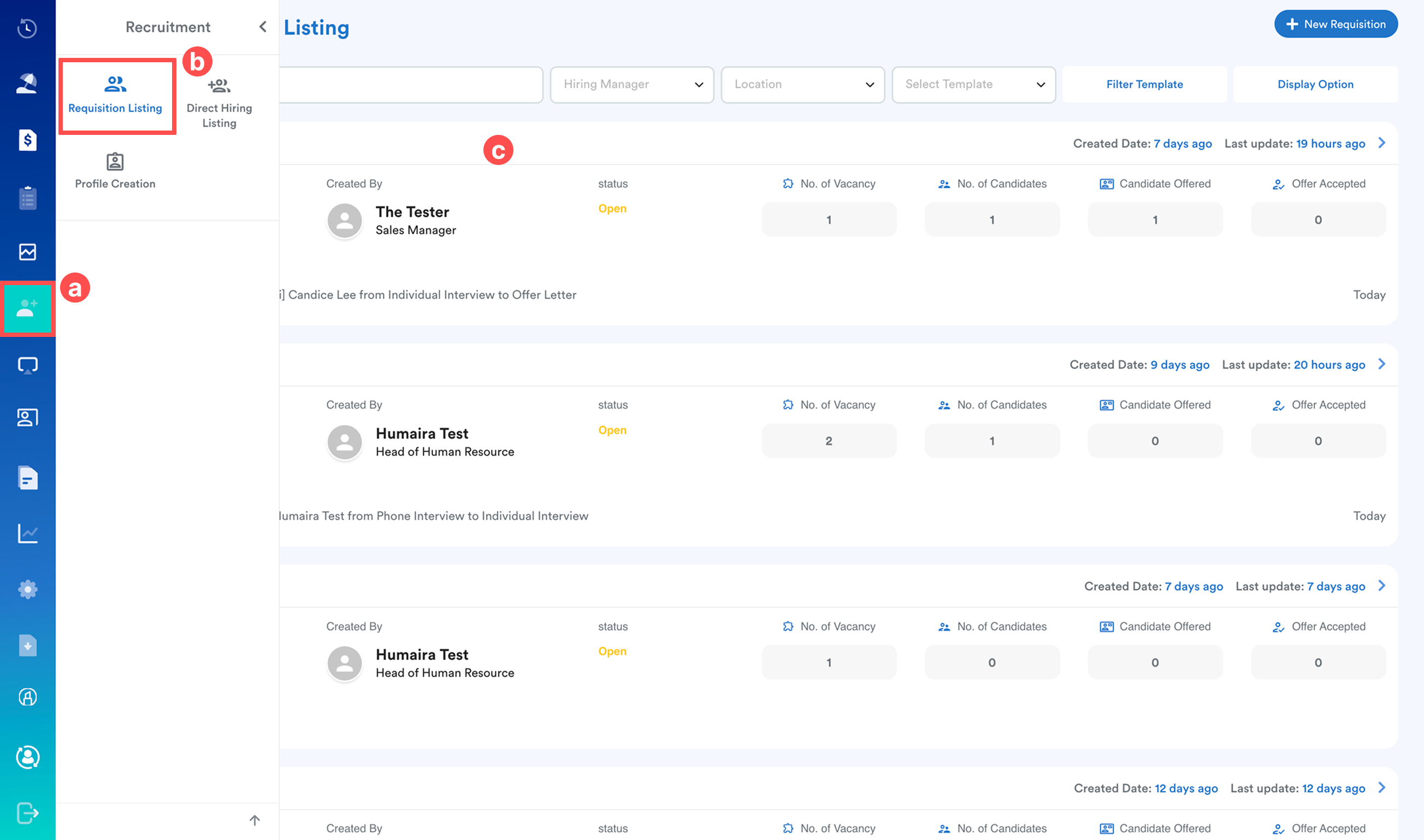
On the left menu, go to Recruitment (a) > Requisition Listing (b). Select the listing (c) you want the employee to see.
Step 5
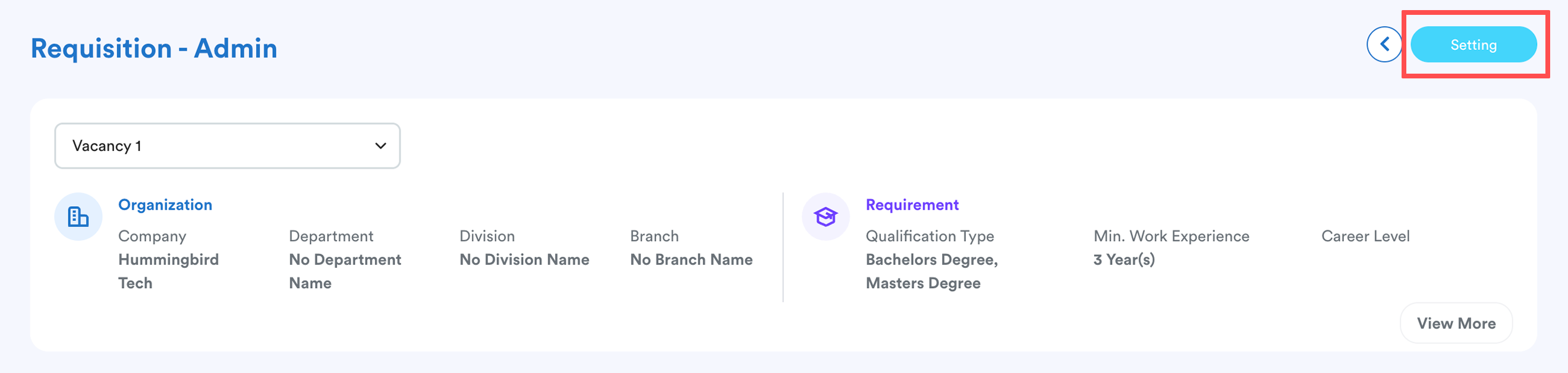
Click Settings at the top right-side of the screen.
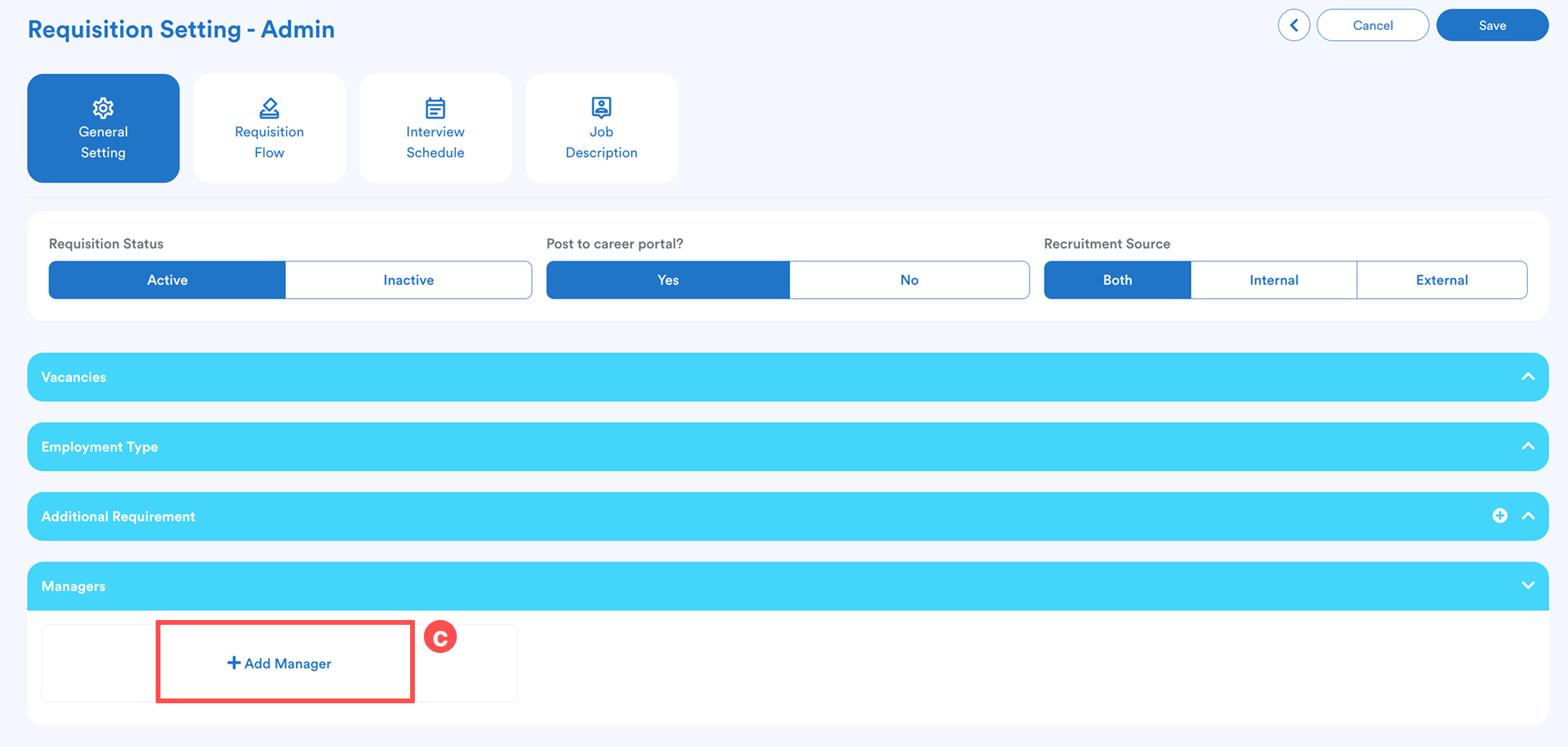
Under the General Settings tab (a) > click Edit (b).

Scroll down to the Managers section (c) and click Add Manager.
Step 6
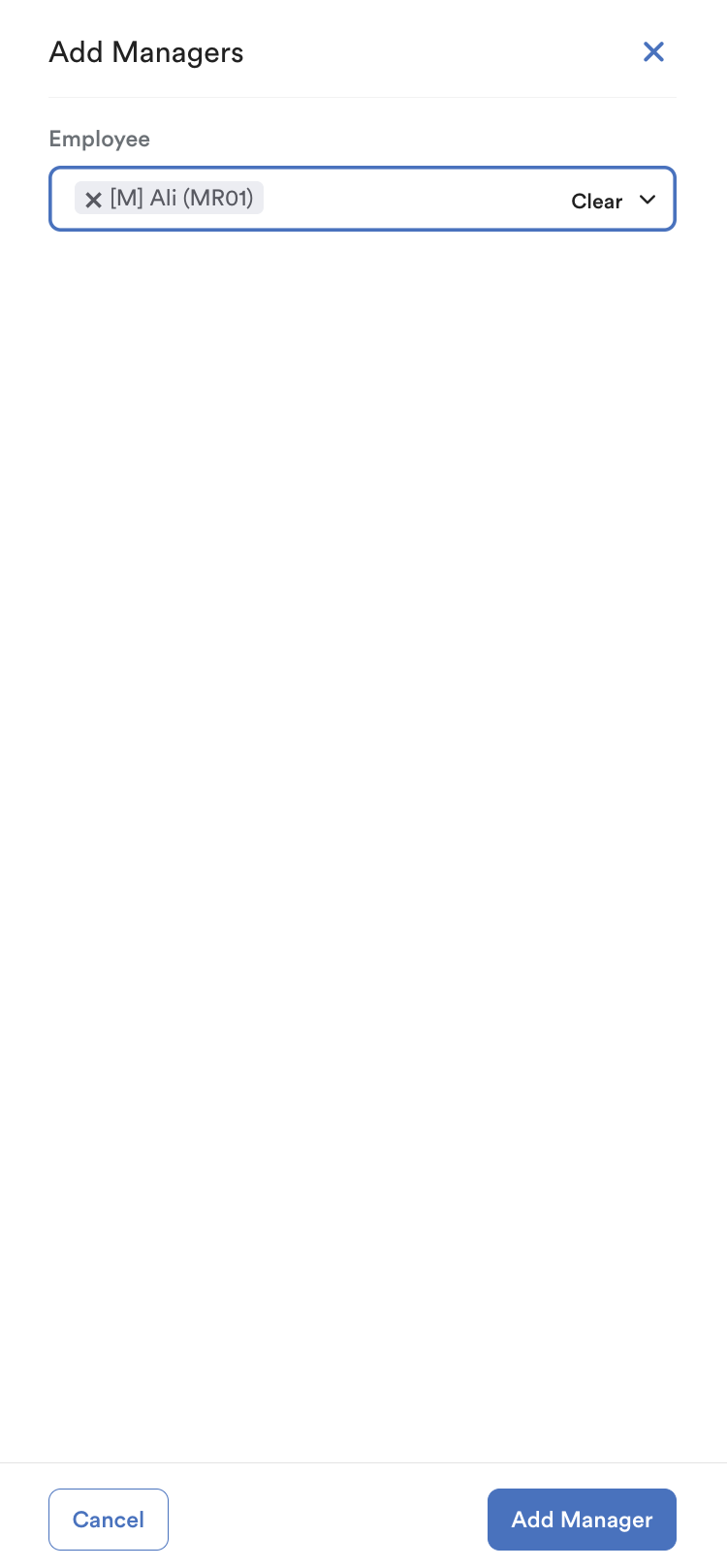
Enter the employee’s name and click Add Manager to confirm.
Click Save at the top right-side of the screen.
The added employee will now see that specific job title appear in their Requisition Listing the next time they refresh their page or log in.
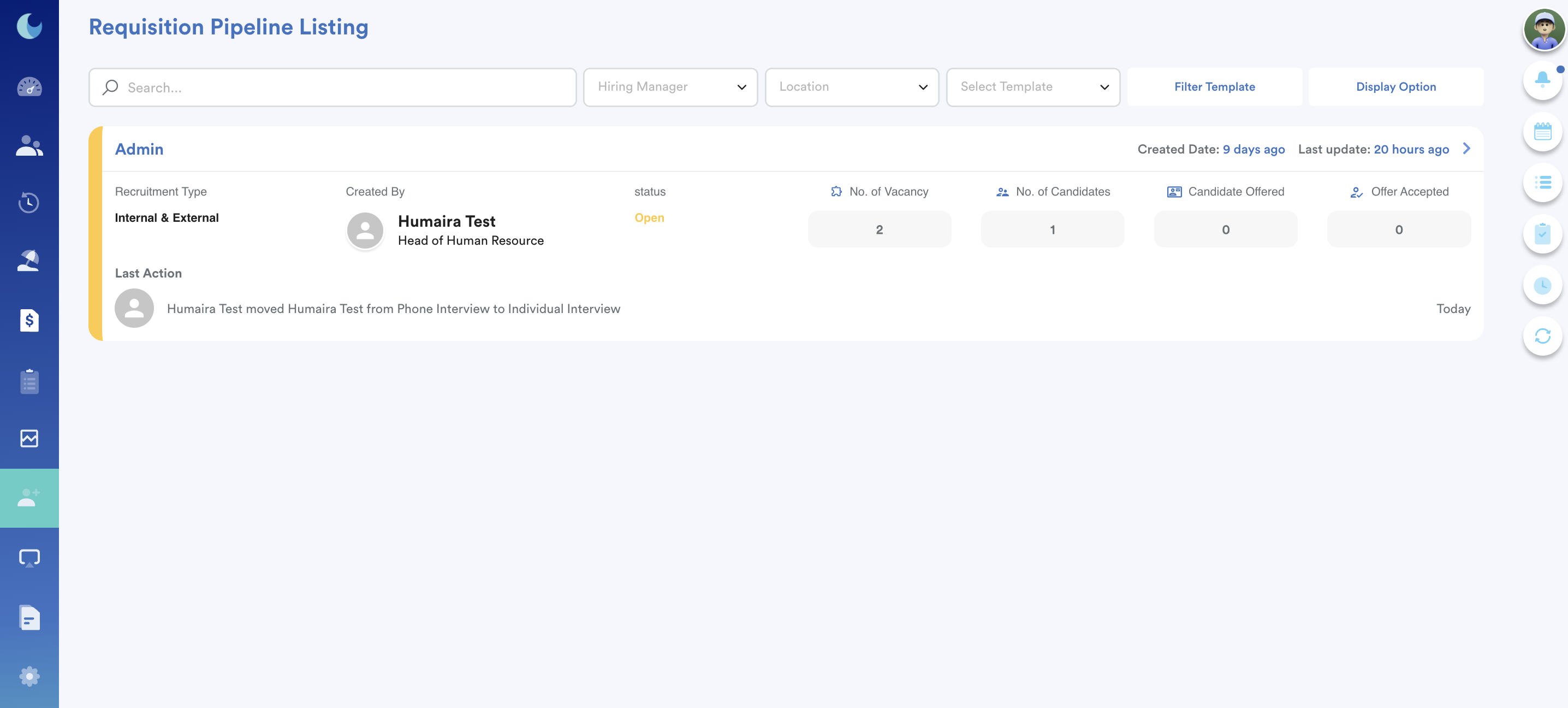
They can click into that position to view candidate profiles, track recruitment movements, and see the number of vacancies. They still cannot see any other job positions in the list unless they are also added as a manager for those specific roles.
We hope this explanation clarifies the matter. If you require further assistance, please don't hesitate to contact our support team.
Was this article helpful?
That’s Great!
Thank you for your feedback
Sorry! We couldn't be helpful
Thank you for your feedback
Feedback sent
We appreciate your effort and will try to fix the article