This article will guide you on setting up a hybrid Overtime Pattern to compensate employees with Replacement Leave (RL) or Time Off instead of, or in addition to monetary pay based on overtime hours worked.
TABLE OF CONTENTS
Step 1
Set up the Overtime Pattern.
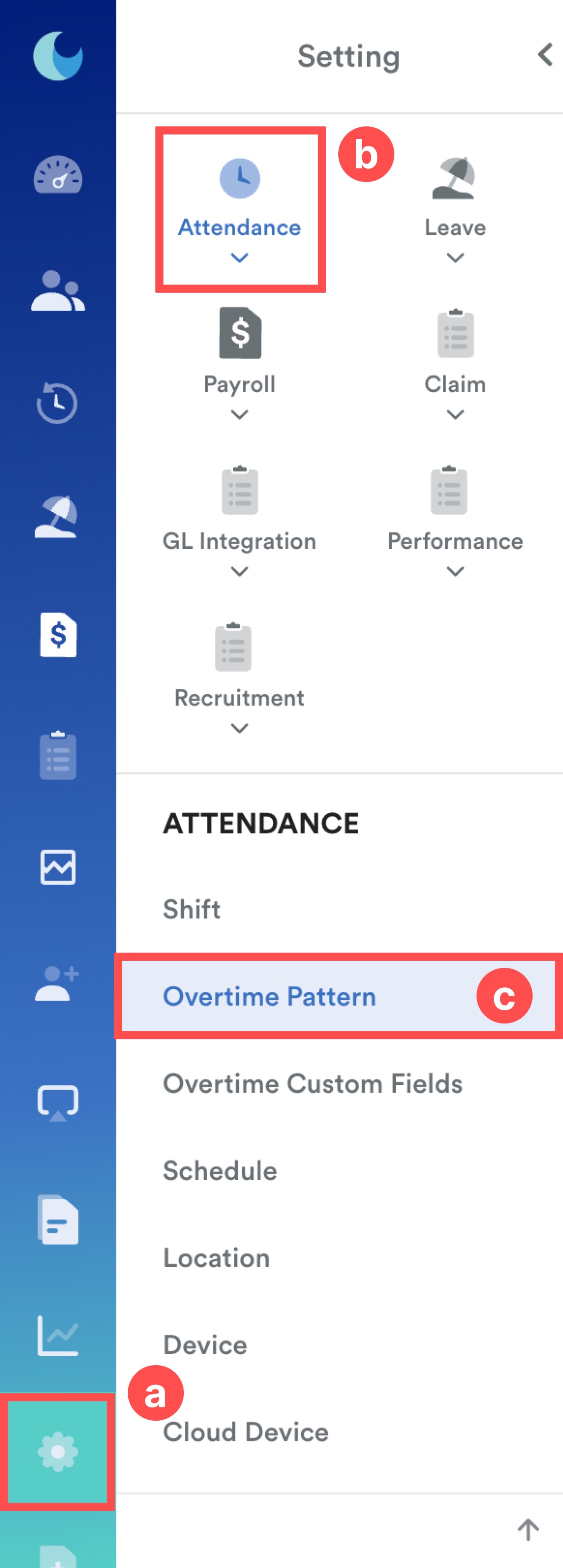
On the left menu, go to Settings (a) > Attendance (b) > Overtime Pattern (c).
Step 2
To create an overtime pattern, click the blue Add New button in the top right corner.

Or choose any existing overtime patterns from the list.
Step 3
Set the general setting to create the overtime pattern.
Step 4
Define the Overtime Range.
4.a) Pay Mode - Overtime Pay
- Define the range (e.g. 0hr 0min to 4hr 0min), click Add to create more rows.
- Set Rate Pattern to Variable or Fixed.
- Set the multiplier (e.g. 2.0).

4.b) Pay Mode - Replacement Leave
- Define the range (e.g. 0hr 0min to 4hr 0min), click Add to create more rows.
- Set Rate Pattern to Leave or Time Off.

When you select Leave or Time Off as the pattern, the requirements change:
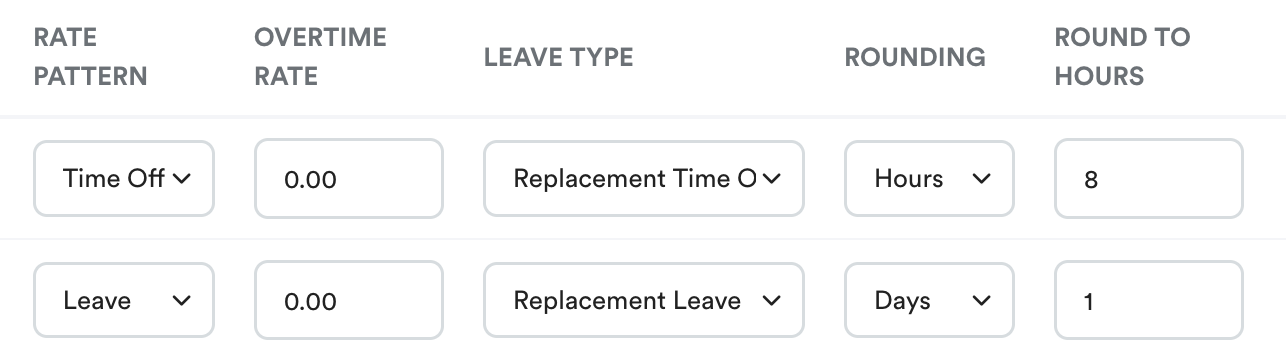
- Overtime Rate: Set this to 0.00 (since the compensation is leave, not cash).
- Leave Type: Choose the Replacement Leave Type or Time Off Type from the dropdown menu.
- Rounding:
- Time Off: Choose Hours. For "Round to Hours," enter the number of hours to be credited.
- Leave: Choose Days. For "Round to Days," enter the amount of leave earned.
Step 5
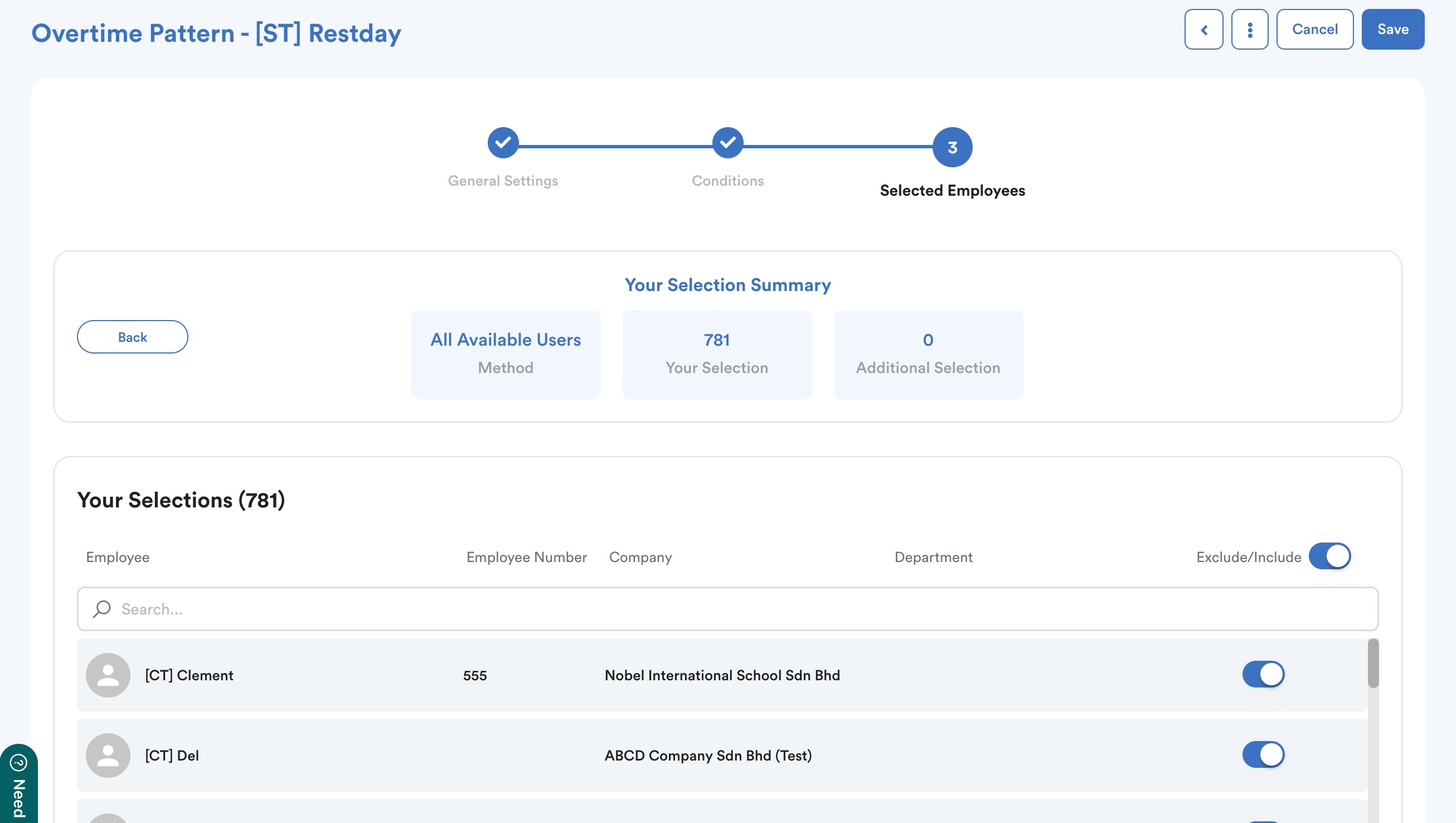
After completing the above steps, choose any of the selection methods to assign employees under this rate.
Review the employee list and click Save to apply this overtime pattern.
Step 6
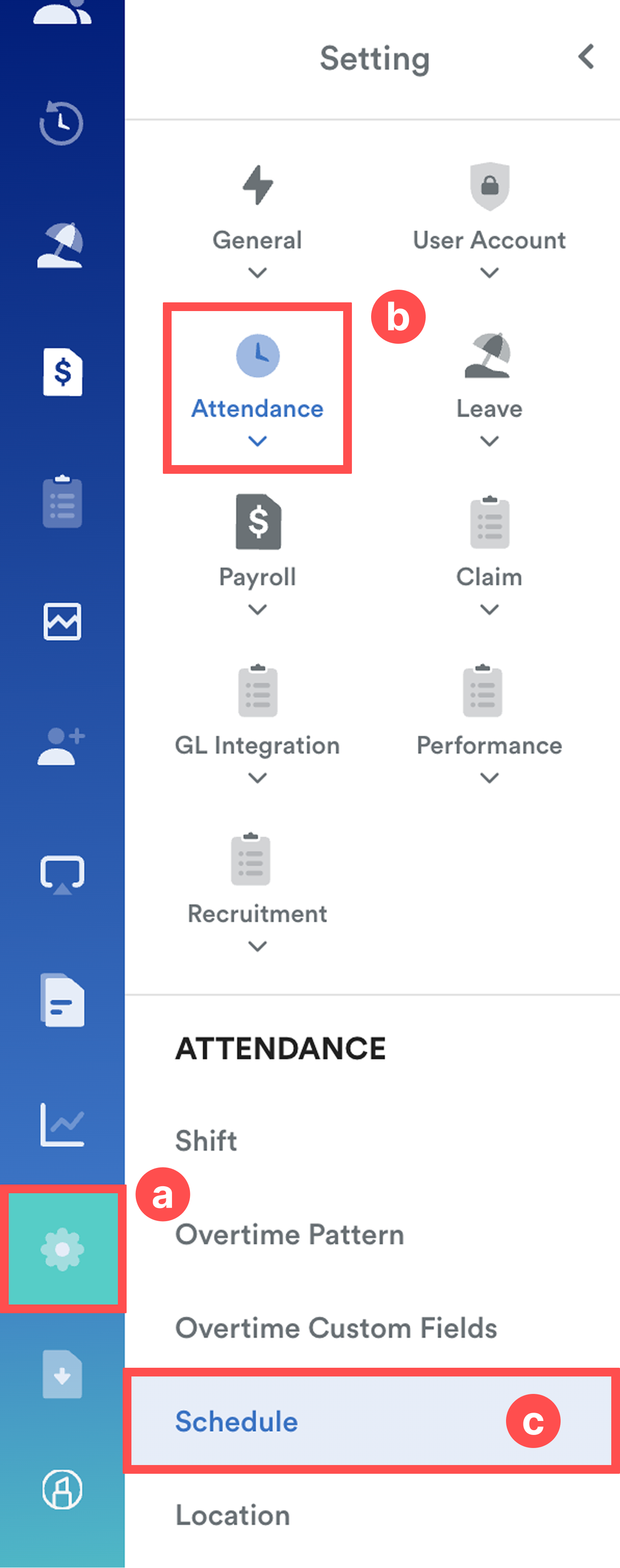
Link the Overtime Pattern with the relevant day type under a schedule.
Go to Settings > Attendance > Schedule. Select the relevant schedule, and go to Overtime tab.
Step 7
Assign your new Overtime Pattern to the relevant Day Type (e.g. Public Holiday).
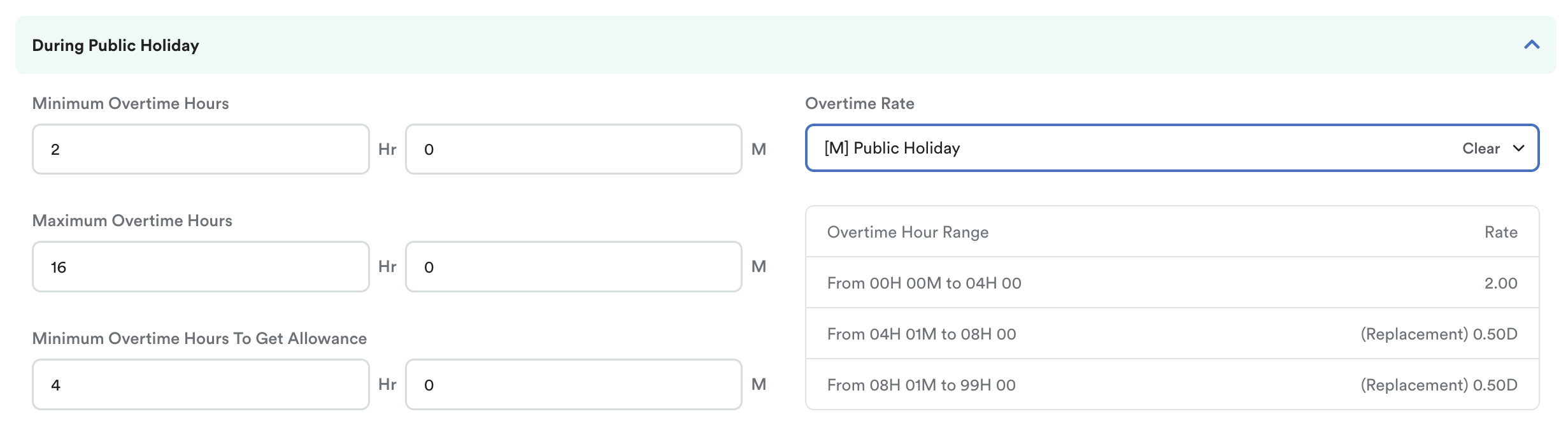
The system will display the ranges you configured. Click Save.
Example Scenario: Public Holiday (PH) Overtime Compensation
The Goal:
- First 4 Hours: Employee gets 2x hourly pay.
- 4 hours 1 min to 8hrs: Employee earns 0.5 hours of Replacement Leave
- 8hrs 1 min to 99hrs: Employee earns 0.5 hours of Replacement Leave
Setup:
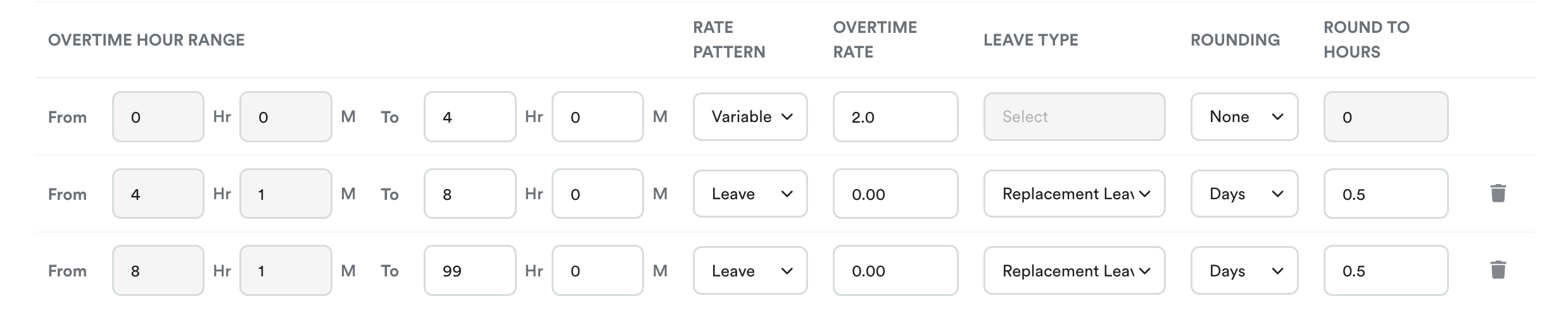
The Result:
The system tracks the total hours worked and shows Overtime Pay Mode "Both" (Pay + Leave).
a. First 4 hours: The employee is paid 4 hours of Overtime at the 2.0 rate.
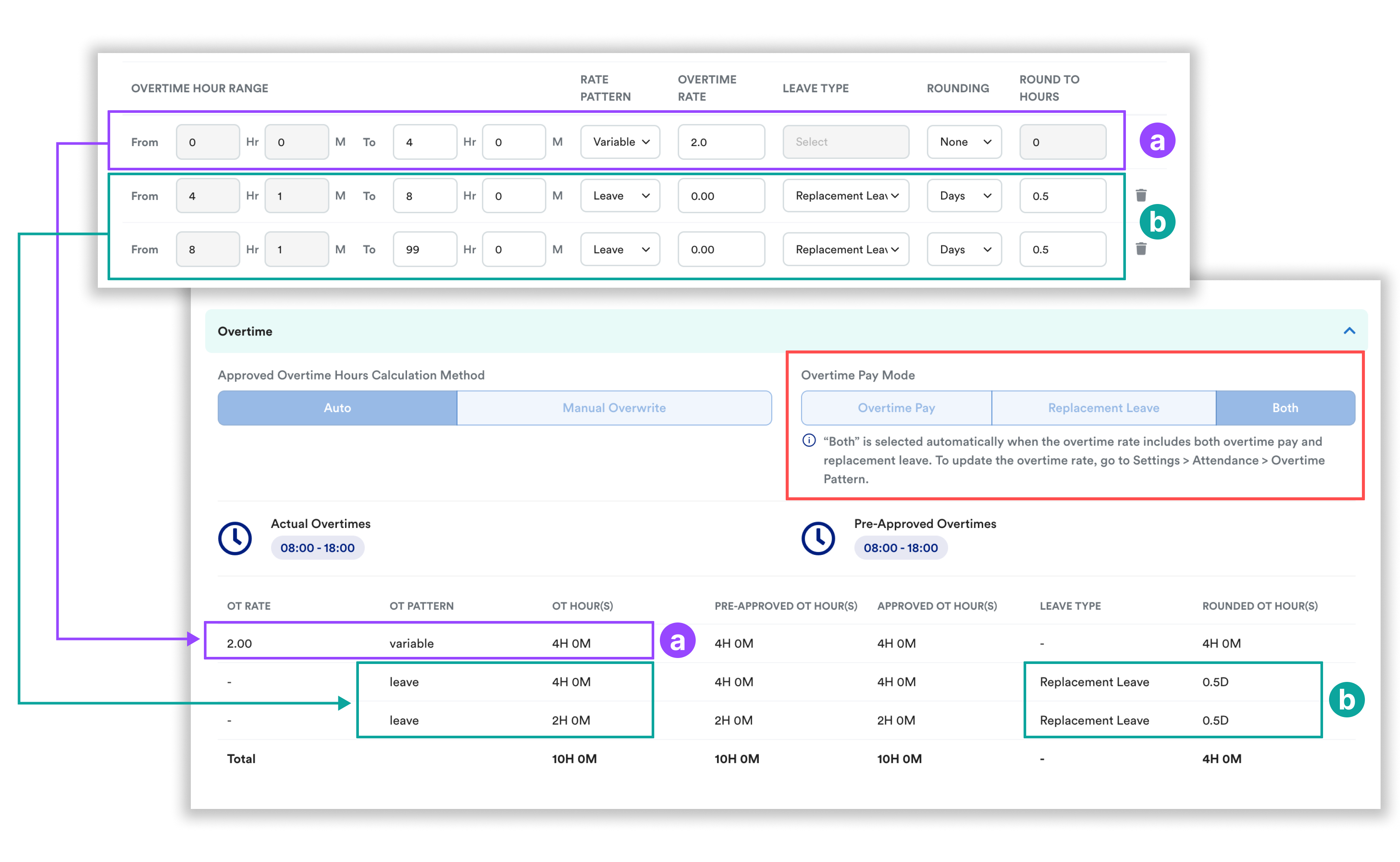
b. Remaining 6 hours: Since the total time (10 hours) reaches the final range, the system triggers the leave credit. The employee earns 1.0 day of Replacement Leave (0.5 day from the first tier + 0.5 day from the second tier).
Total Compensation for this shift:
- 4 Hours of OT Pay (2.0x) + 1.0 Day of Replacement Leave
Replacement Leave Balance:
The 0.5 + 0.5 day = 1 day is credited to the employee’s Replacement Leave record after leave is generated.
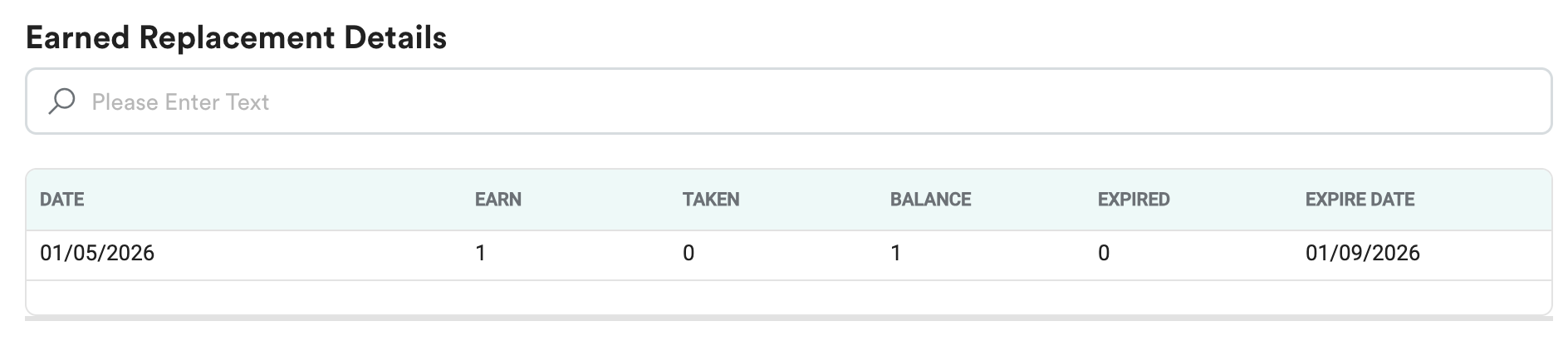
To enable auto credit replacement leave, please refer to Earn Replacement Leave Outside of Work Shift Automatically
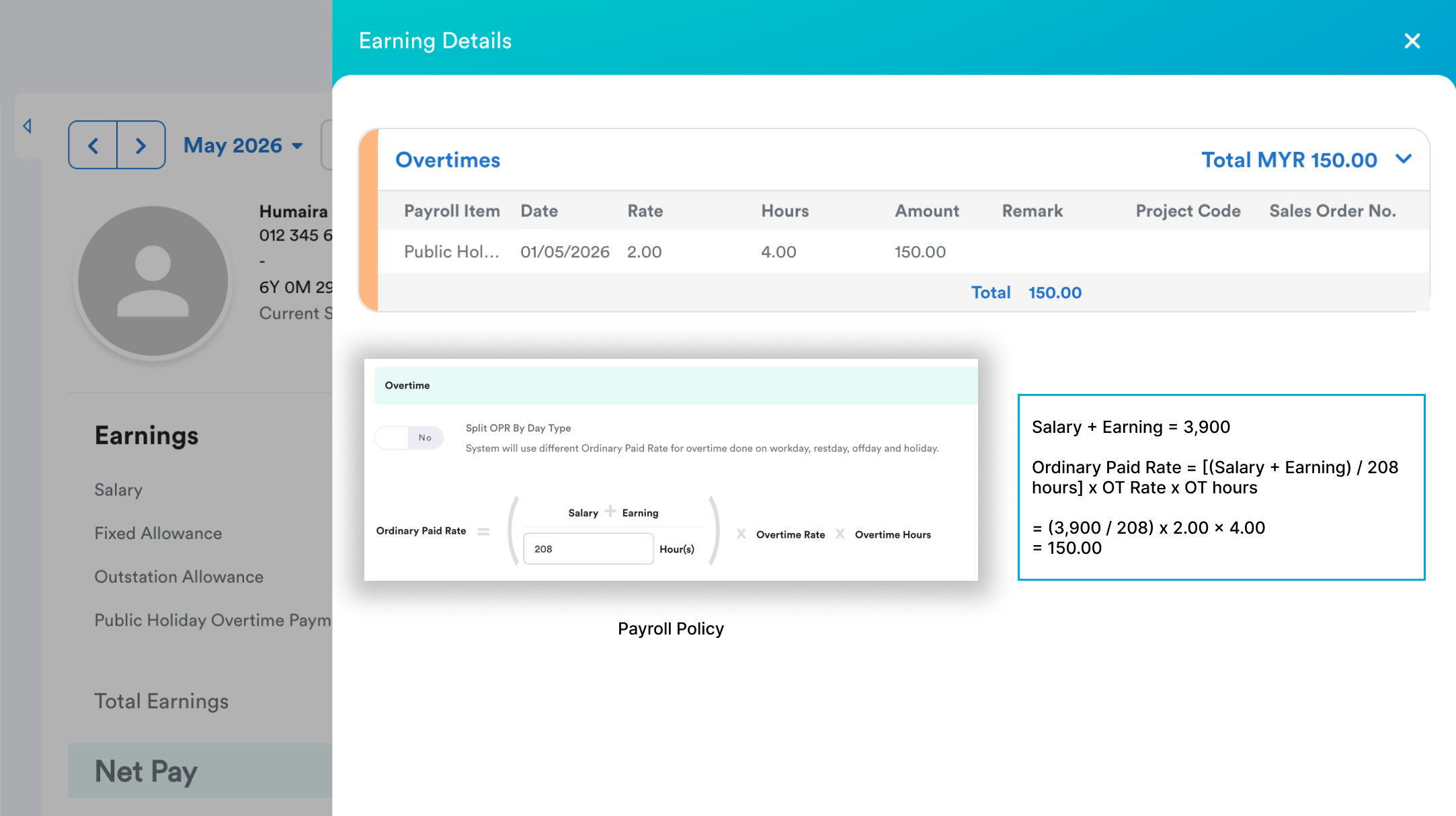
Overtime Pay:
The employee will see a line item for the 4 hours of monetary OT pay.
We hope this explanation clarifies the matter. If you require further assistance, please don't hesitate to contact our support team.
Was this article helpful?
That’s Great!
Thank you for your feedback
Sorry! We couldn't be helpful
Thank you for your feedback
Feedback sent
We appreciate your effort and will try to fix the article