The Employment Form mirrors the fields in an employee’s profile within the Worksy system.
This is because when an applicant creates a profile via the Career Portal, their information will automatically be transferred into your company directory once they are hired. As a result, the form questions are pre-built based on profile fields.
You can control which questions appear during the job application by selecting them in the requisition template setup. Refer to How to Create Requisition Template
Step 1
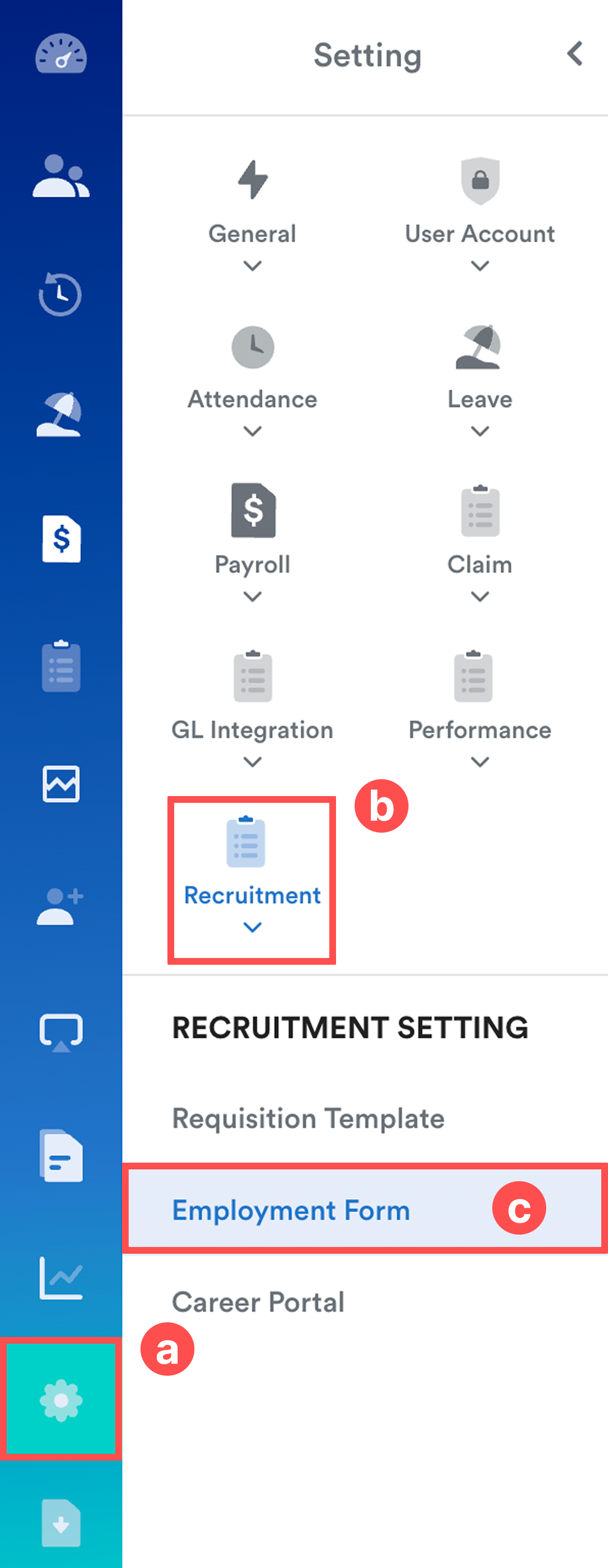
Go to Settings (a) > Recruitment (b) > Employment Form (c).
Step 2
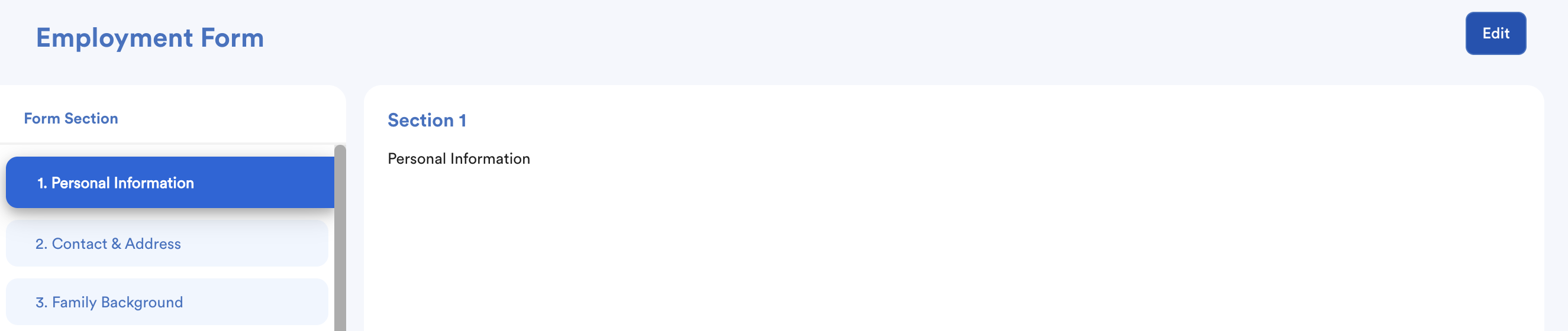
You will see that the questions are pre-built based on employee profile fields. These default questions cannot be deleted or edited. However, you can:
- Add new sections
- Add custom questions
- Edit additional questions
Click Edit to proceed.
Step 3
Click Add Section.
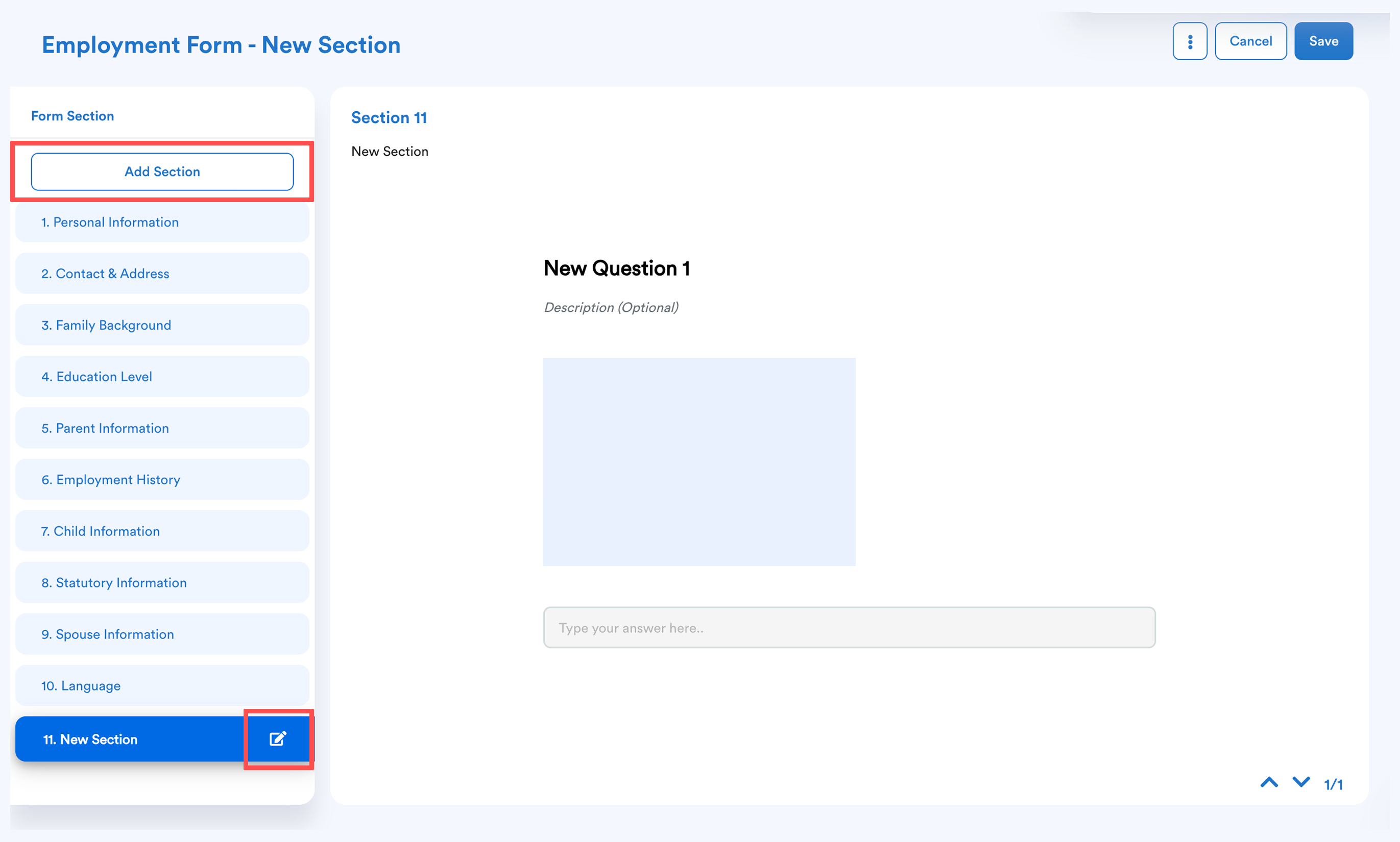
A new section will appear at the bottom of the form. Click the pencil icon to edit the section.
To delete a section, click on the three dots menu on the top right-side of the screen. Then, click Delete.

Step 4
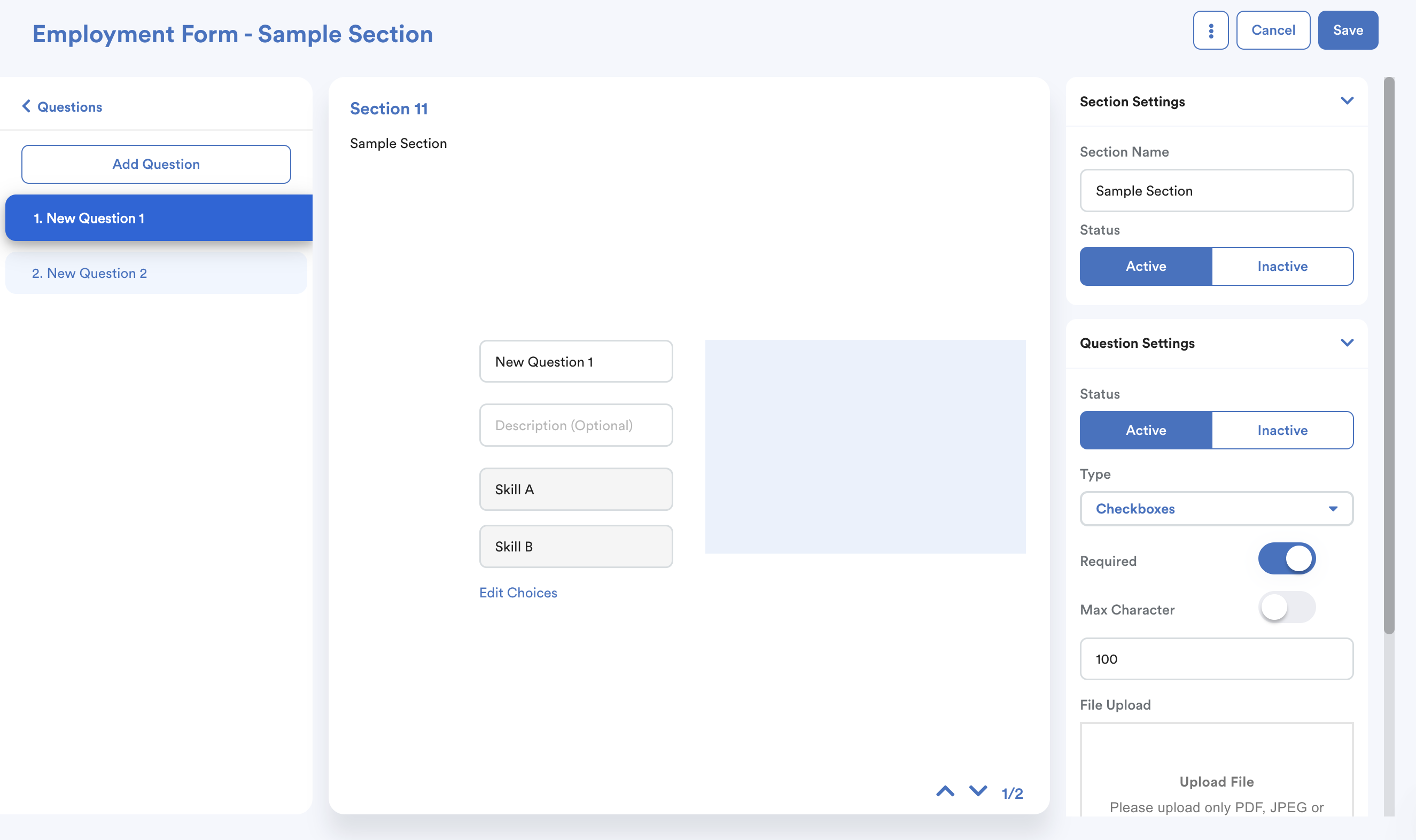
After clicking the pencil icon, you'll be directed into the section setup page, where you can edit the section and add questions.
Section Settings
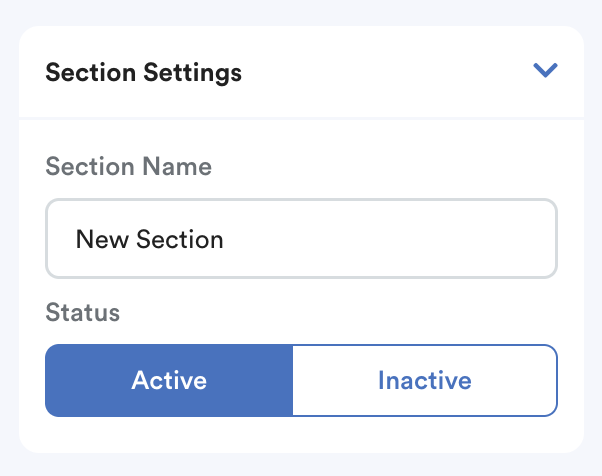
- Section Name - Enter a title for the category of questions.
- Status - Set to Active or Inactive. If inactive, this section will not appear for selection when setting up a Requisition Template.
Adding Questions
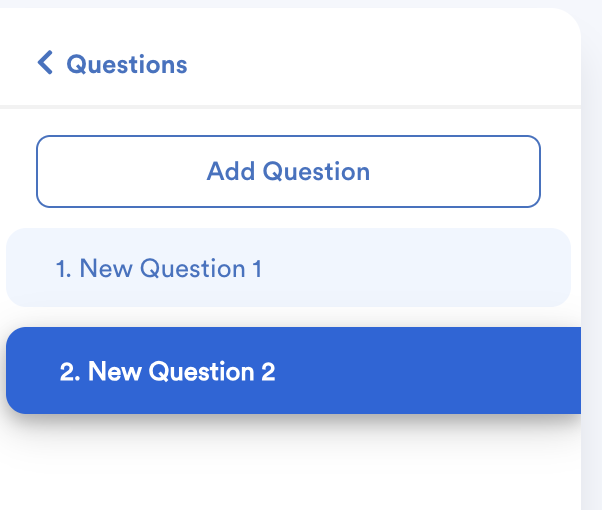
Click Add Question, type your question text, and use the Question Settings panel on the right to configure the following:
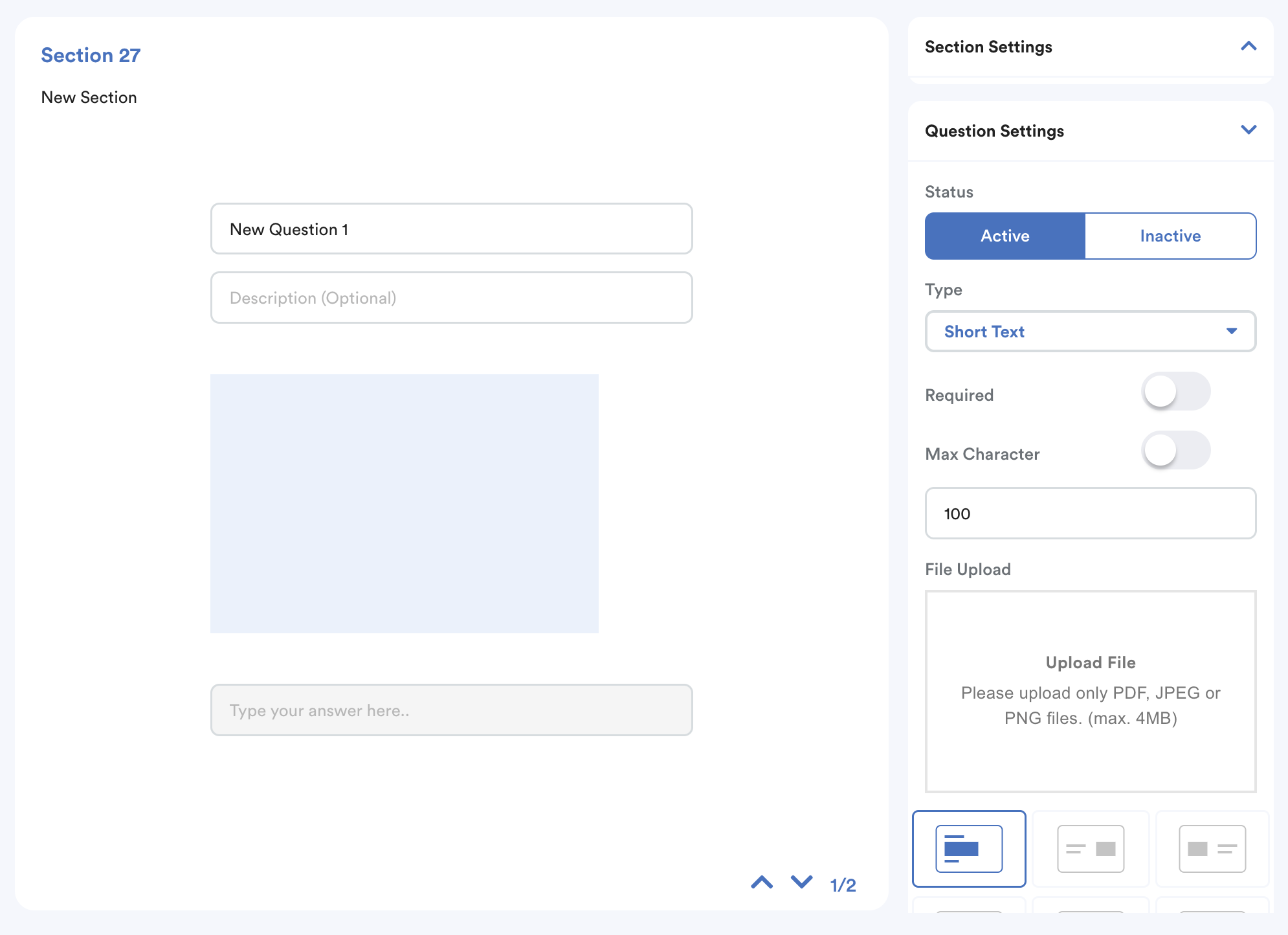
| Status | Set to Active or Inactive. If Inactive, the question will not be visible in the Requisition Template |
| Type | Select the format for the answer (e.g. Short/Long Text, Multiple Choice, Checkboxes, Dropdowns, Date, File Upload, etc.). |
| Required | Toggle on to make the question mandatory for applicants. |
| Max Character | Toggle on to set a limit on the length of the response. |
| File Upload | You can upload reference images or documents and select the preferred layout for how they appear alongside the question. |
Note: If you notice, there are two status controls, one is for the section, the other is for question, "inactive" will hide the section or question from the requisition template and reflect on career portal.
Once you have finished adding your sections and questions, click Save. These custom fields will now be available for selection during the Requisition Template setup.
To delete a question, click on the three dots menu on the top right-side of the screen. Then, click Delete.

We hope this explanation clarifies the matter. If you require additional assistance, do not hesitate to contact our support team.
Was this article helpful?
That’s Great!
Thank you for your feedback
Sorry! We couldn't be helpful
Thank you for your feedback
Feedback sent
We appreciate your effort and will try to fix the article