Refer to 25th Jan 2026 (v2.6.0) Release, the employer's HRDF column has been removed and replaced by HRDC Base.
To view the Employer HRDF amount, you may retrieve it in the Monthly Details Interactive Report via the Generate CSV function.
Follow the steps below to access the details.
Step 1
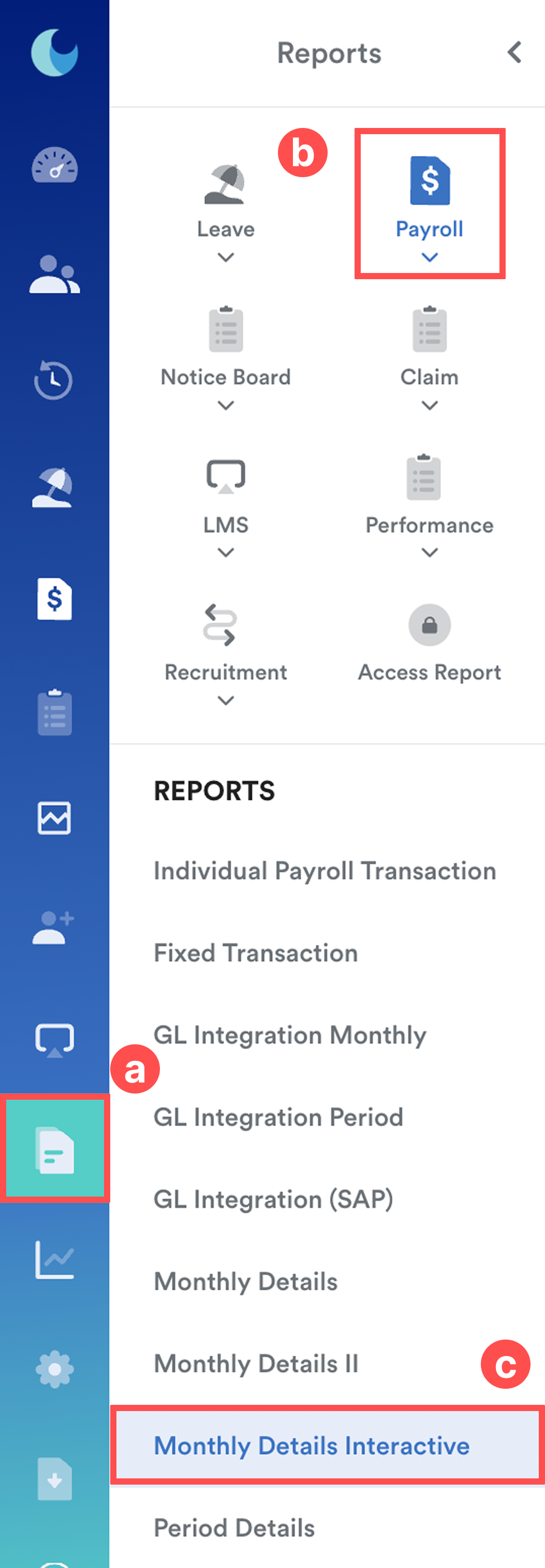
Go to Reports (a) > Payroll (b) > Monthly Details Interactive Report (c).
Step 2
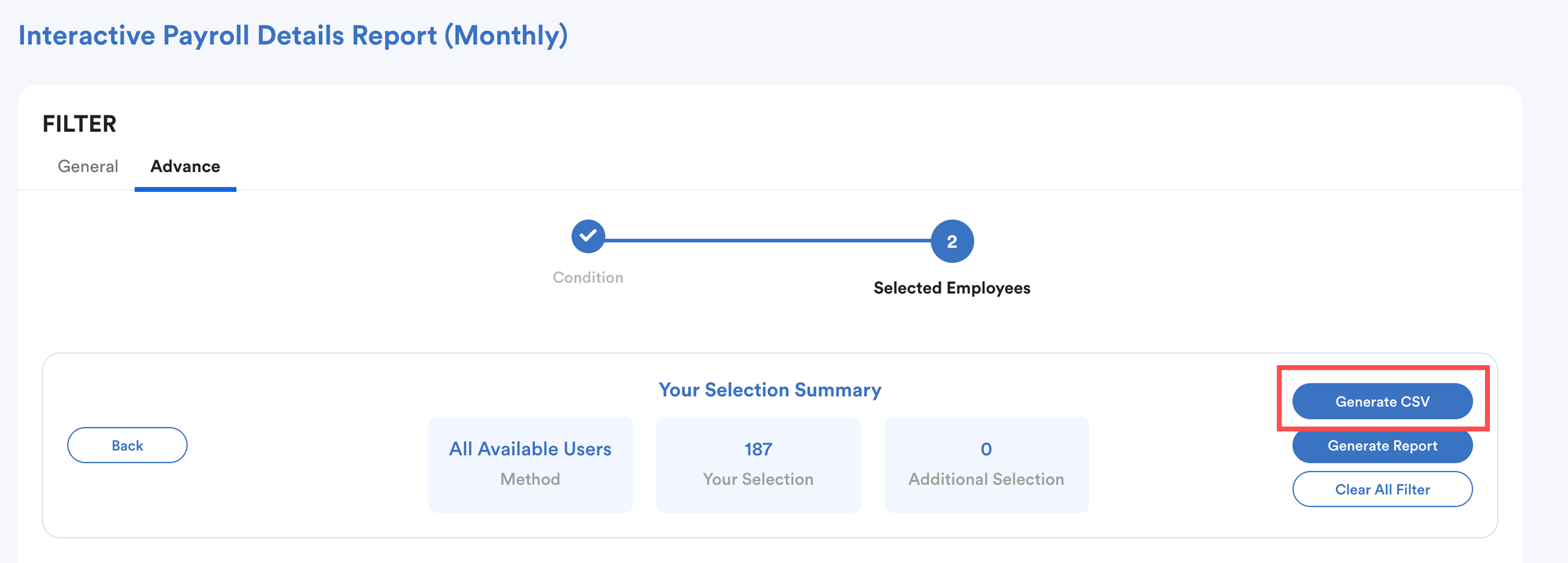
Select the relevant Payroll Period, View and Advance filters (if needed). Then, click Generate CSV.
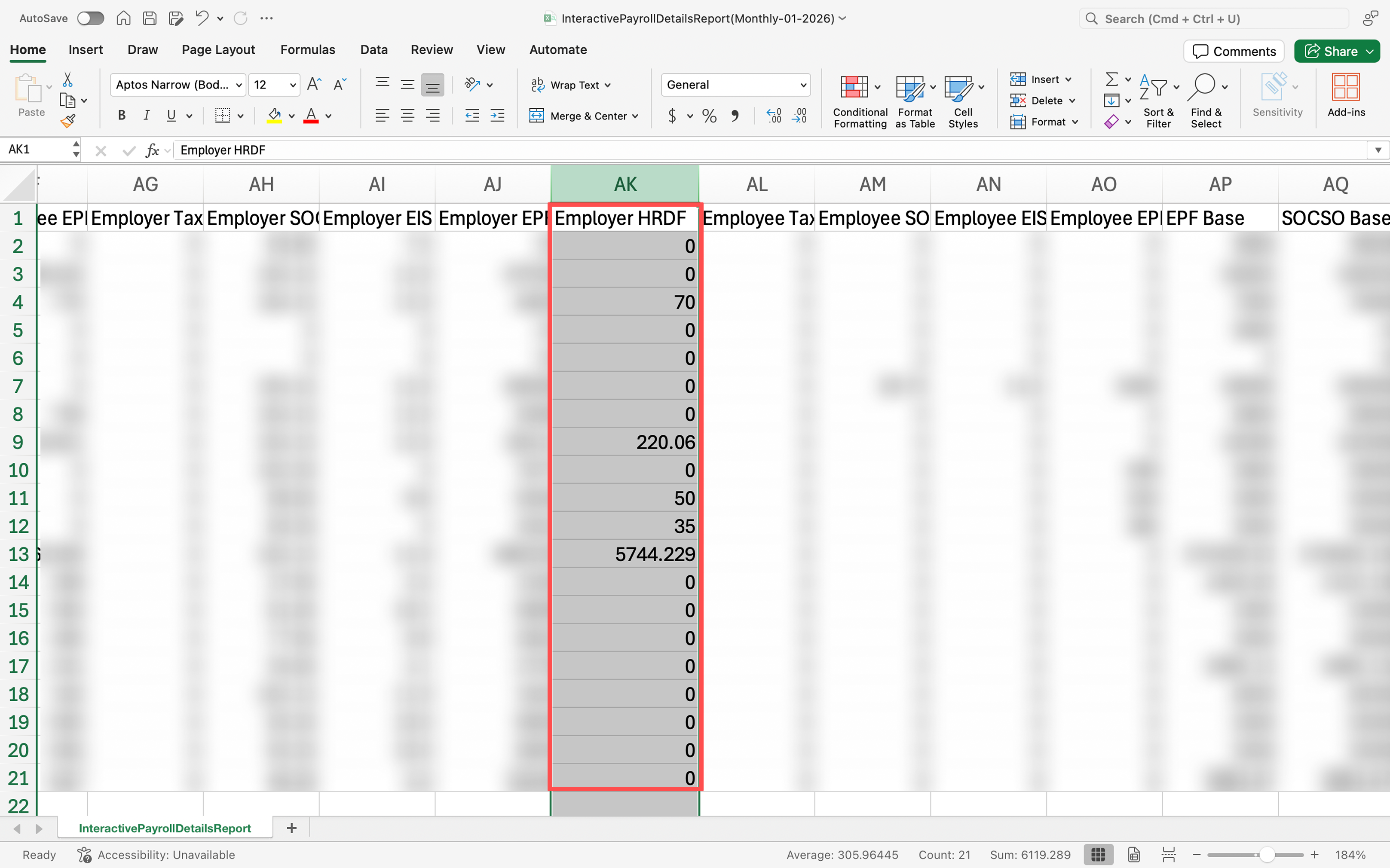
An Excel CSV file will be downloaded automatically.
Open the file and locate the Employer HRDC column to view the amount.
We hope this explanation clarifies the matter. If you require additional assistance, do not hesitate to contact our support team.
Was this article helpful?
That’s Great!
Thank you for your feedback
Sorry! We couldn't be helpful
Thank you for your feedback
Feedback sent
We appreciate your effort and will try to fix the article