This article explains how to configure User Security Settings in Worksy to enhance account security and protect user privacy. This will affect both web and mobile versions.
Path : Go to Settings > General > User Security.
If you cannot find this screen, make sure the access is enabled for your role: Go to Settings > User Account > Access Rights. Enable User Interface.
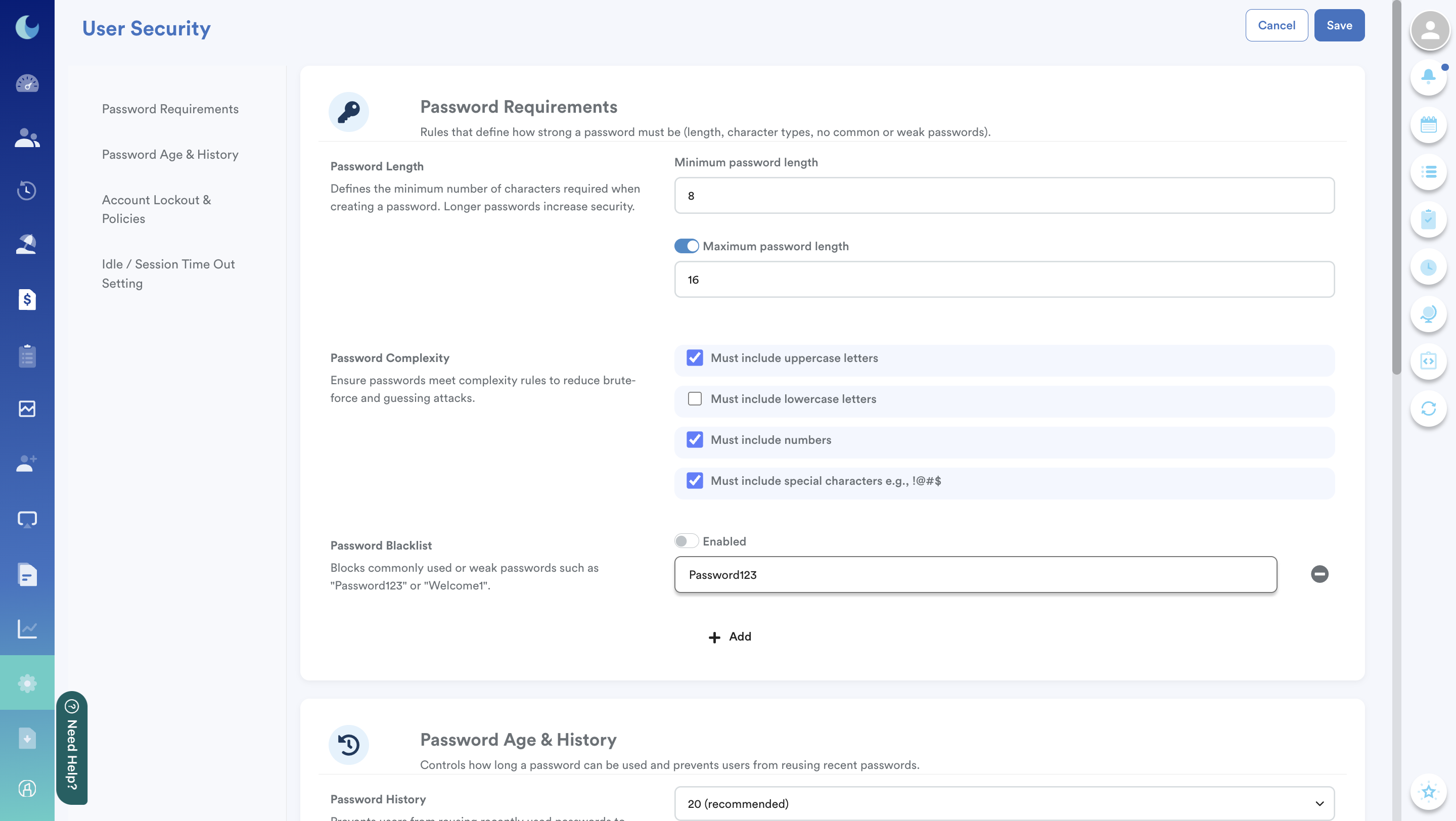
These settings allow administrators to enforce stronger passwords, control password reuse and expiry, apply account lockout policies, and manage idle session timeouts.
1. Password Requirements
Configure the rules that define how strong a password must be.
Password Length

- Enable Minimum Length to define the minimum number of characters.
- Toggle on Maximum Length if you want to limit the maximum number of characters.
Password Complexity
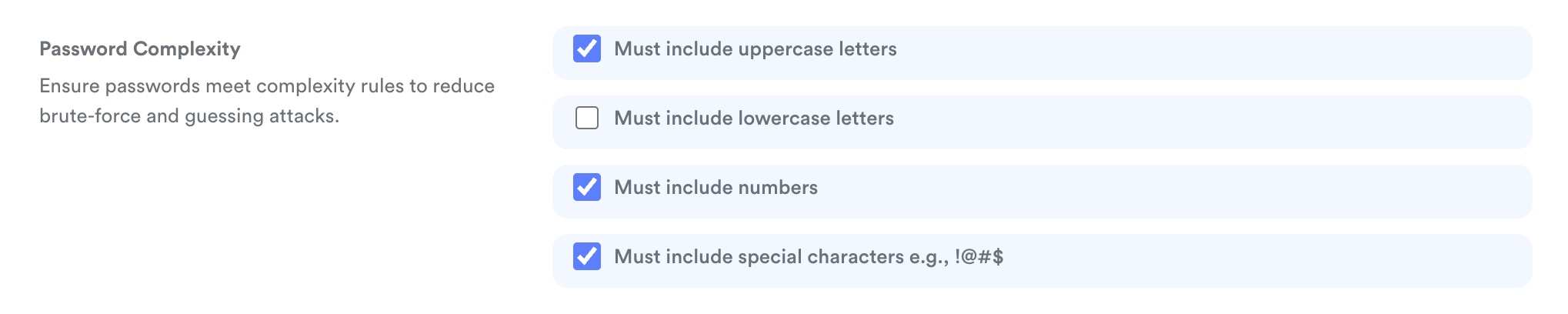
Enable one or more options to reduce brute-force and guessing attacks.
- Must include uppercase letters
- Must include lowercase letters
- Must include numbers
- Must include special characters (e.g.
! @ # $)
Password Blacklist

Blocks commonly used or weak passwords such as “Password123” or “Welcome1”.
- Toggle on Password Blacklist to enable this feature.
- Click the (+) button to add blocked keywords.
- Click the (–) button to remove keywords.
2. Password Age & History
Control how long a password can be used and prevent users from reusing previous passwords.
Password History

- Prevents users from reusing recently used passwords.
- Available options: Disabled / 5 times / 10 times / 20 times (recommended) / 25 times
Minimum Password Age

- Defines how long a user must wait before changing their password again. This prevents password cycling.
- Available options: Disabled / 1 day / 7 days / 30 days (recommended)
Password Expiry
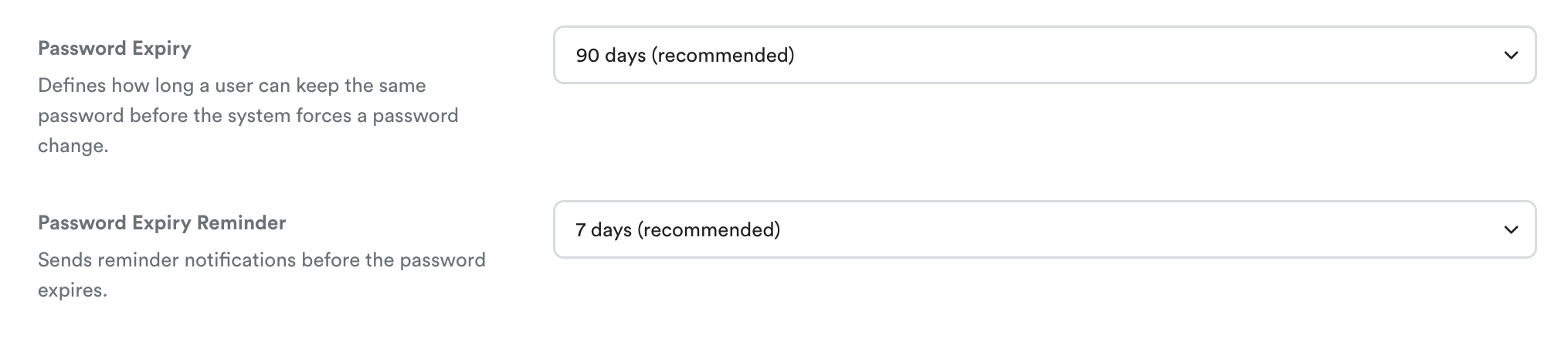
- Forces users to change their password after a certain period.
- Available options: Never / 30 days / 60 days / 90 days (recommended) / 180 days / 365 days
When this setting is enabled, Password Expiry Reminder will appear.
Use this option to configure when reminder notifications should be sent before the password expires.
3. Account Lockout & Policies
Locks user accounts after repeated failed login attempts to prevent unauthorized access.
Account Lockout Threshold

- Number of failed login attempts allowed before the account is locked.
- Available options: 3 times (recommended) / 5 times / 7 times / Disabled
Account Lockout Duration

- How long the account remains locked after reaching the threshold.
- Available options: 5 minutes / 10 minutes / 15 minutes / 30 minutes / Until admin resets
Reset Lockout Counter After

- If no failed attempts occur within this duration, the failed login counter will reset.
- Available options: 15 minutes / 30 minutes / 60 minutes (recommended) / 120 minutes
4. Idle / Session Timeout Settings
Automatically logs users out or locks the screen after inactivity to protect unattended devices.
Idle Screen Lock

- Locks the screen after a period of inactivity (for desktop or kiosk usage).
- Available options: 5 minutes / 10 minutes / 15 minutes (recommended) / 30 minutes
Idle Session Timeout / Auto Logout

- Automatically logs the user out after inactivity.
- Available options: 5 minutes / 10 minutes / 15 minutes (recommended) /30 minutes
Important:
Idle Screen Lock and Idle Session Timeout cannot be set to the same duration, if you enabled both.
The session timeout/ auto logout must always be longer than the screen lock duration.
We hope this explanation clarifies the matter. If you require additional assistance, do not hesitate to contact our support team.
Was this article helpful?
That’s Great!
Thank you for your feedback
Sorry! We couldn't be helpful
Thank you for your feedback
Feedback sent
We appreciate your effort and will try to fix the article