This guide provides step-by-step instructions for Admins to create LMS user groups and assign roles.
In the LMS, there are 5 roles:
- Admin – Full access: can set up Courses, User Groups, Live, and Class.
- Author – Can set up Courses, Live sessions, and Classes, and manage content and live sessions.
- Instructor – Can manage Courses, add Classes, view class activities, monitor learner progress, grade, and view results.
- Enrollment Officer – Usually supervisors who can approve learners’ requests (for their subordinates).
- Learner – Can self-request, self-enroll, complete activities, and view their progress.
Step 1
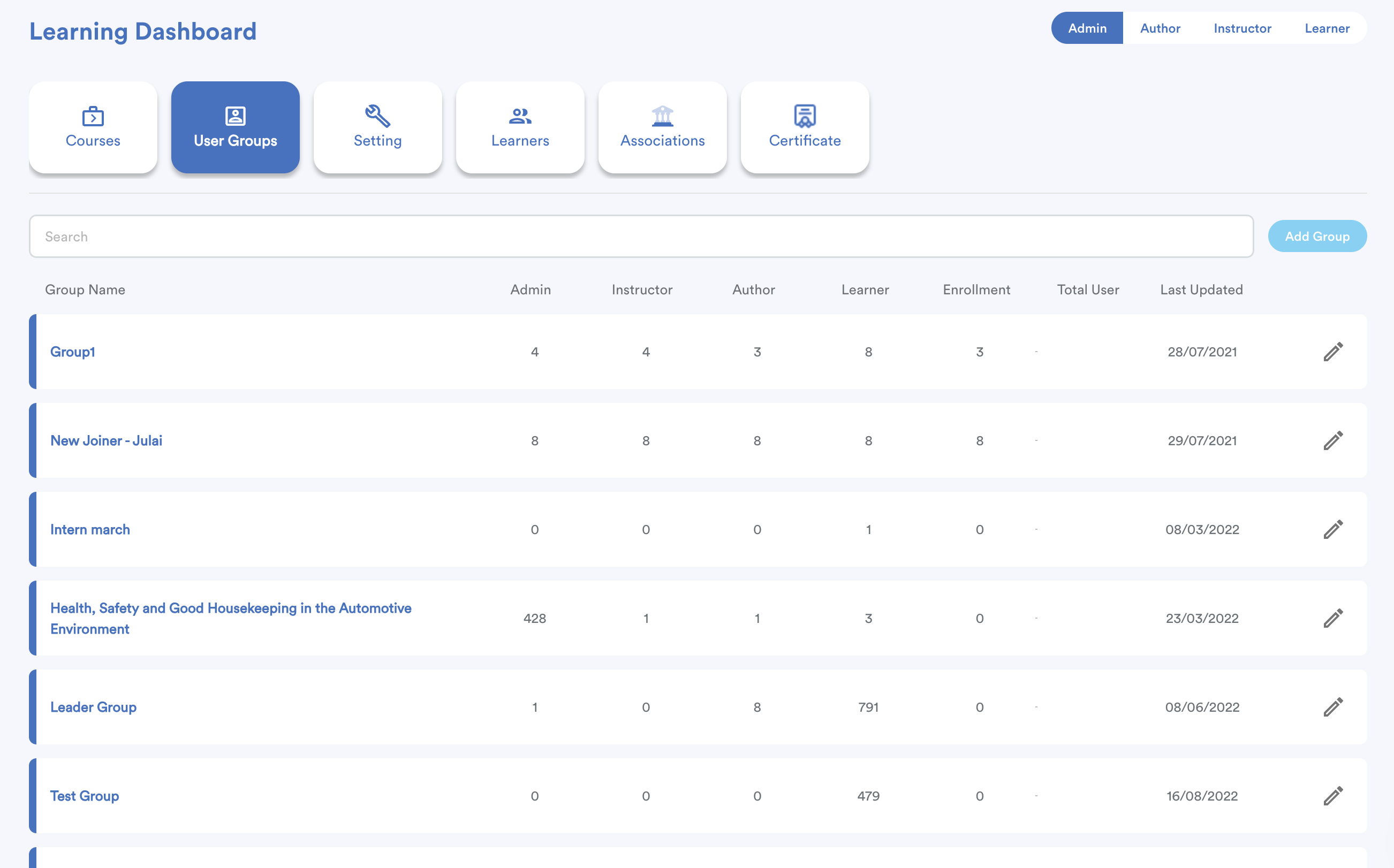
Go to the Learning module dashboard. Then, navigate to the User Groups tab.
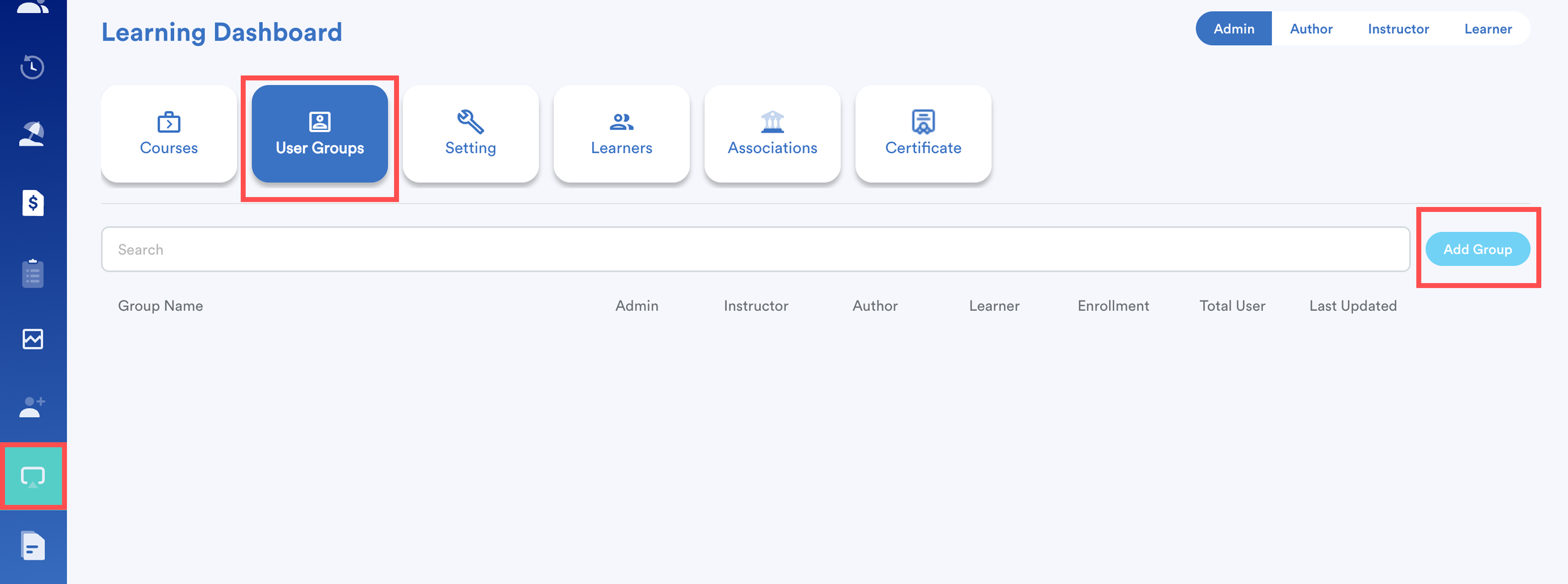
Click Add Group.
Step 2
Enter a Group Name and a Group Label.
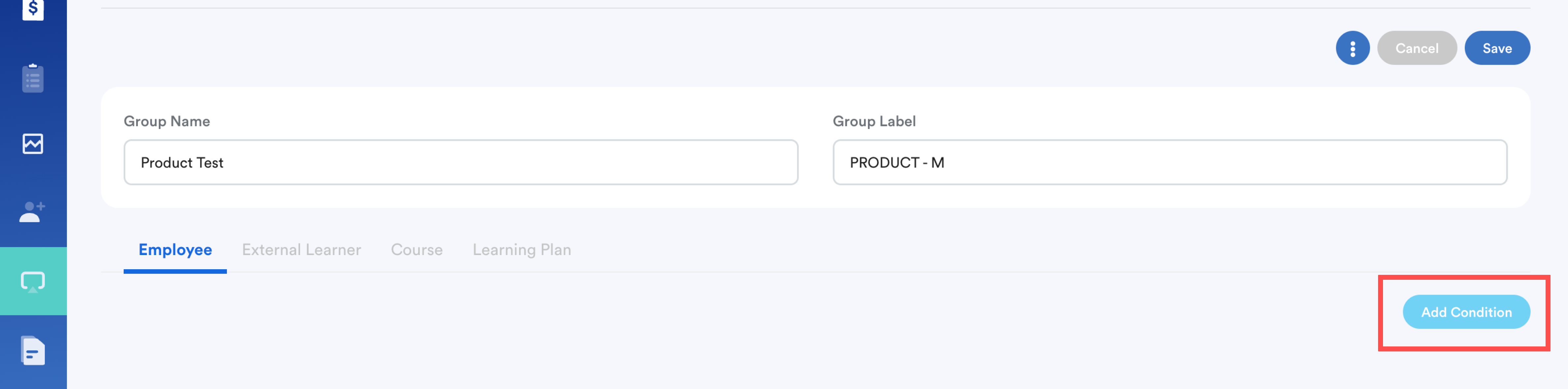
Below this section, you’ll see four tabs:
- Employee - to create users in different user roles
- External Learners - to select external learners
- Course - to define the course that can be enrolled in by this user group
- Learning Plan - to define the learning plan that can be enrolled in by this user group
Stay on the Employee tab. Click Add Condition.
Step 3
Then, define a Conditional Group Name.
Select Admin from the role dropdown. (You can add multiple roles, but for basic setup, start with one)
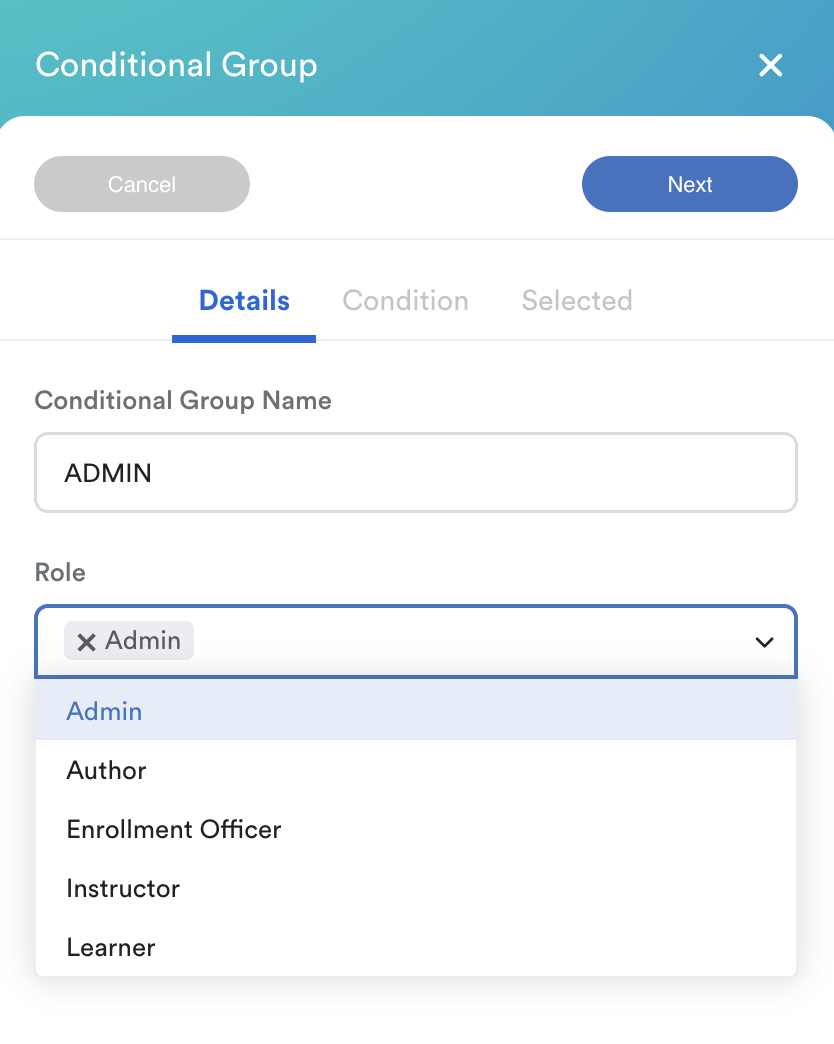
Proceed to Condition by choosing users from any of the methods. Once confirmed, click Submit.
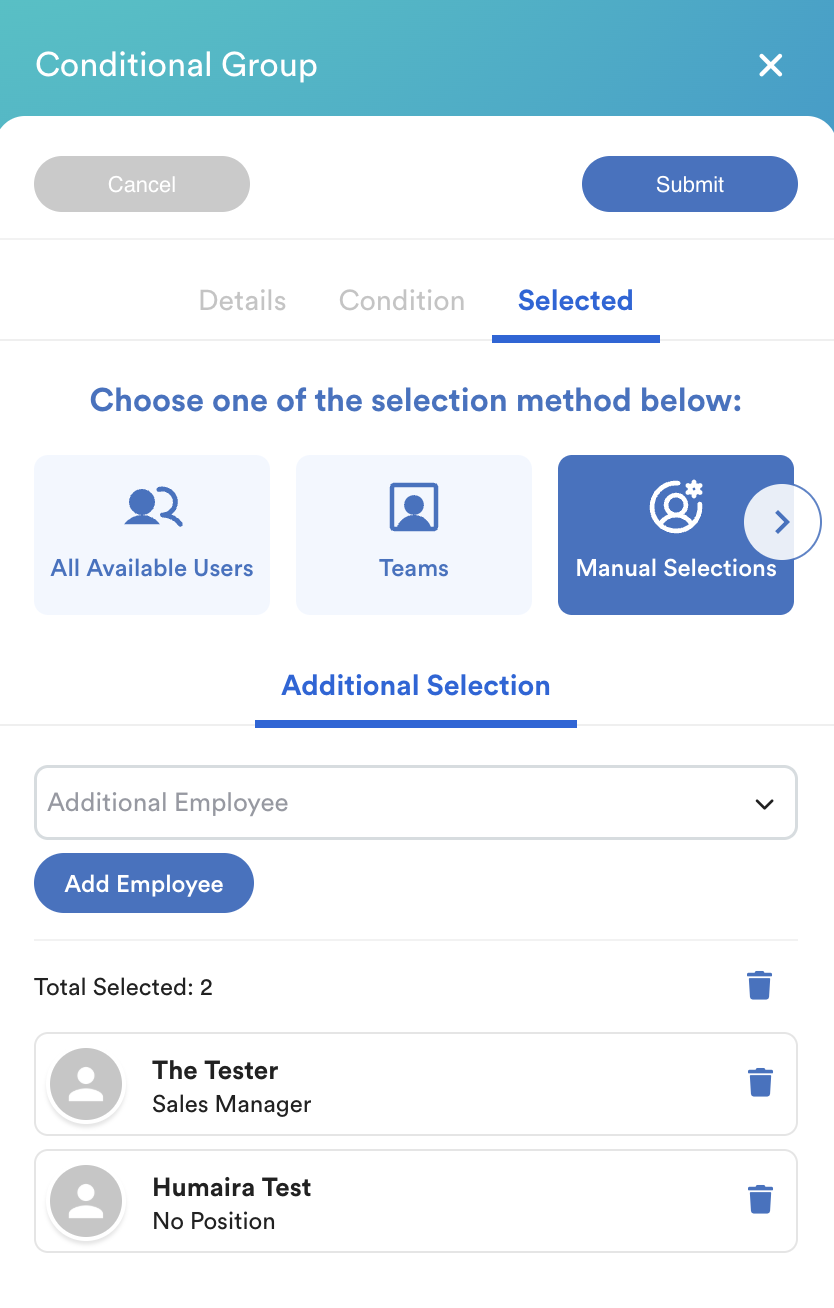
Then, the screen will display the newly created user group and the users assigned to it.
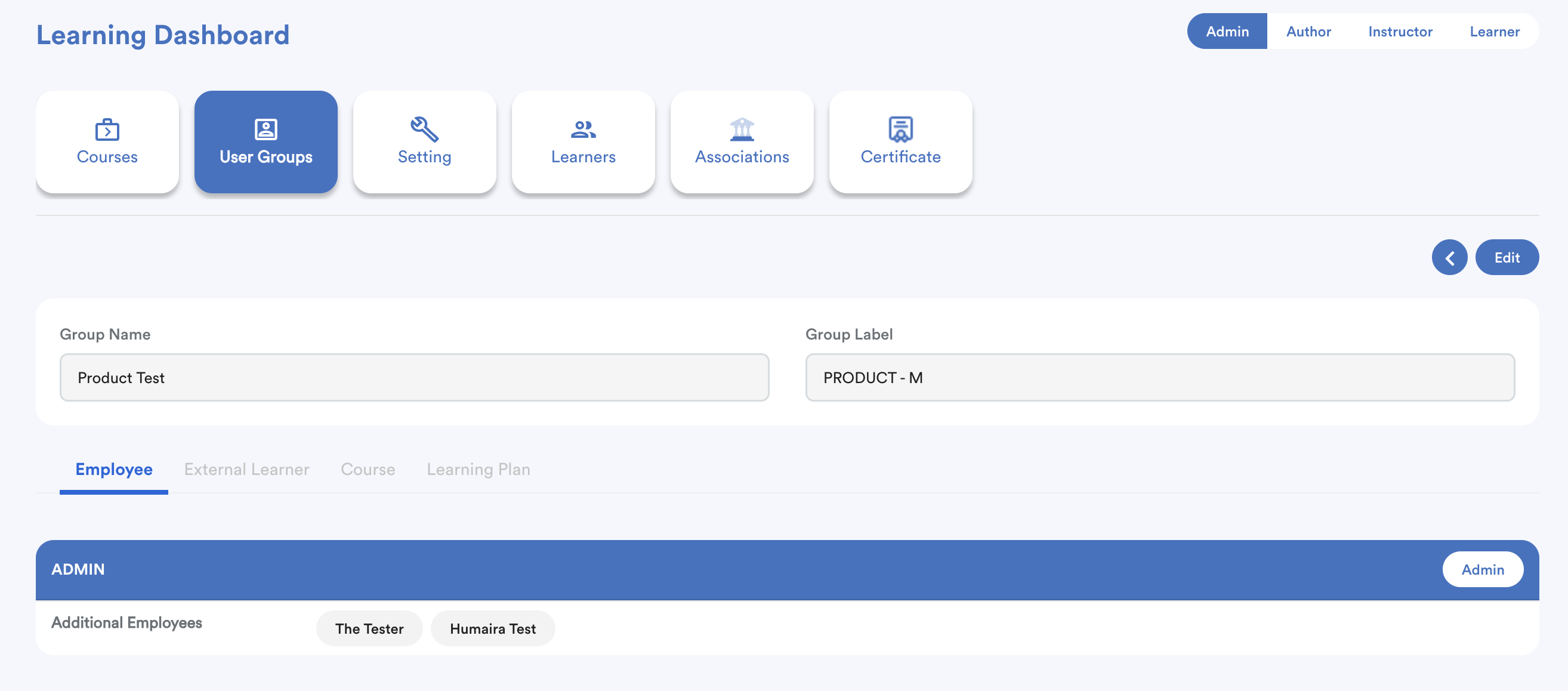
Step 4
Follow the same steps to create user roles for Author, Instructor, Enrollment Officer, and Learner roles.
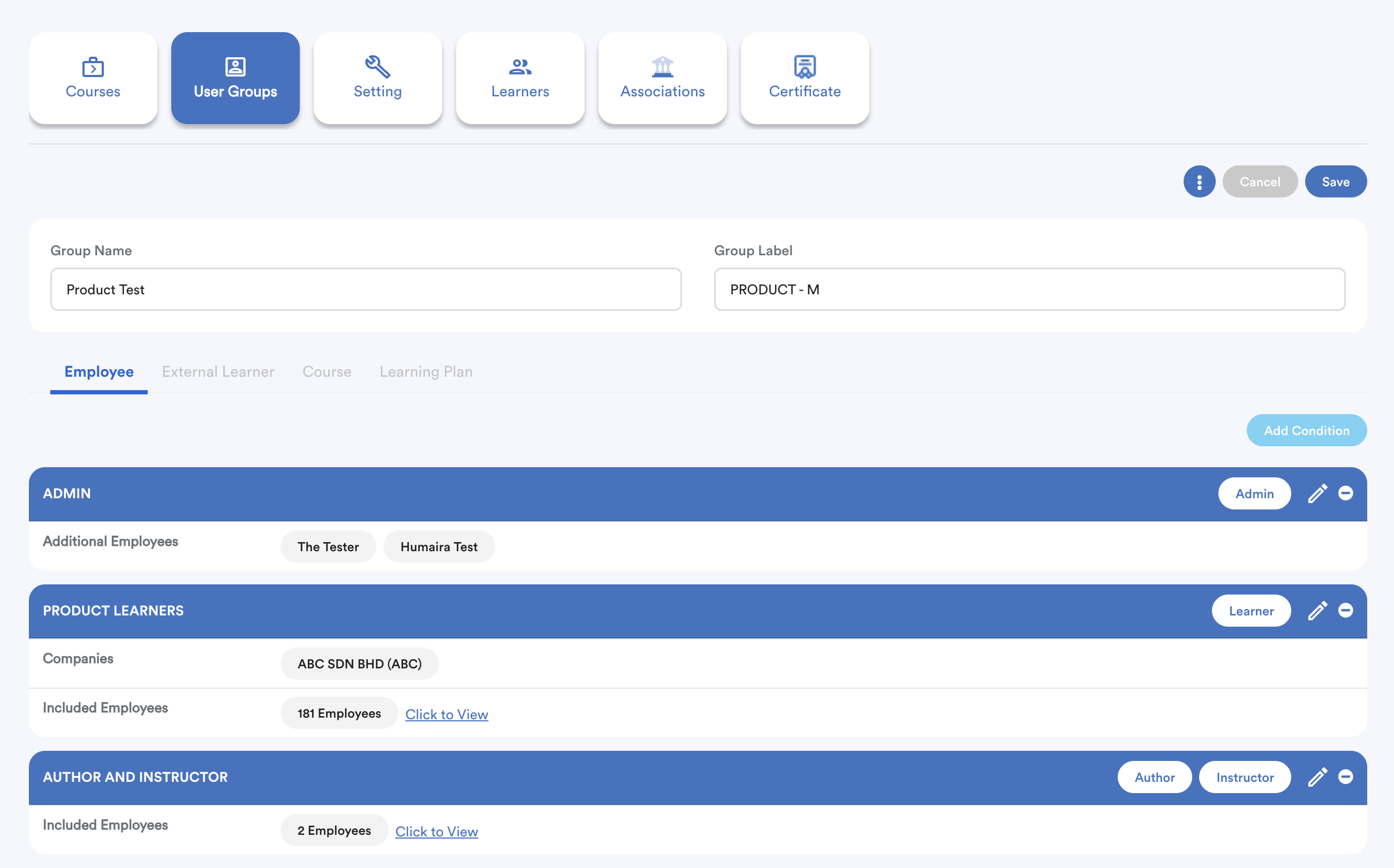
Click Save to return to the main User Groups screen.
Step 5
Enable Courses or Learning Plans for this user group by toggling on the options in their respective tabs, depending on your company's needs.
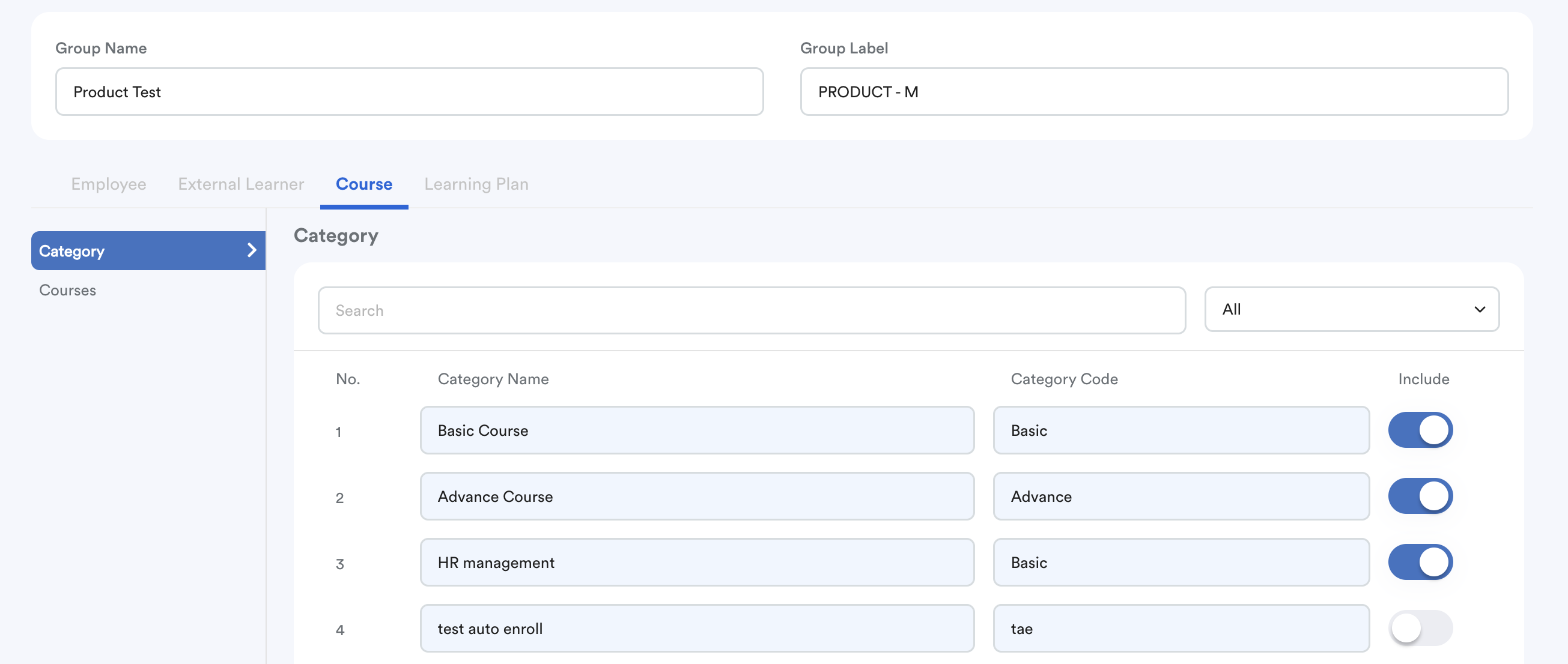
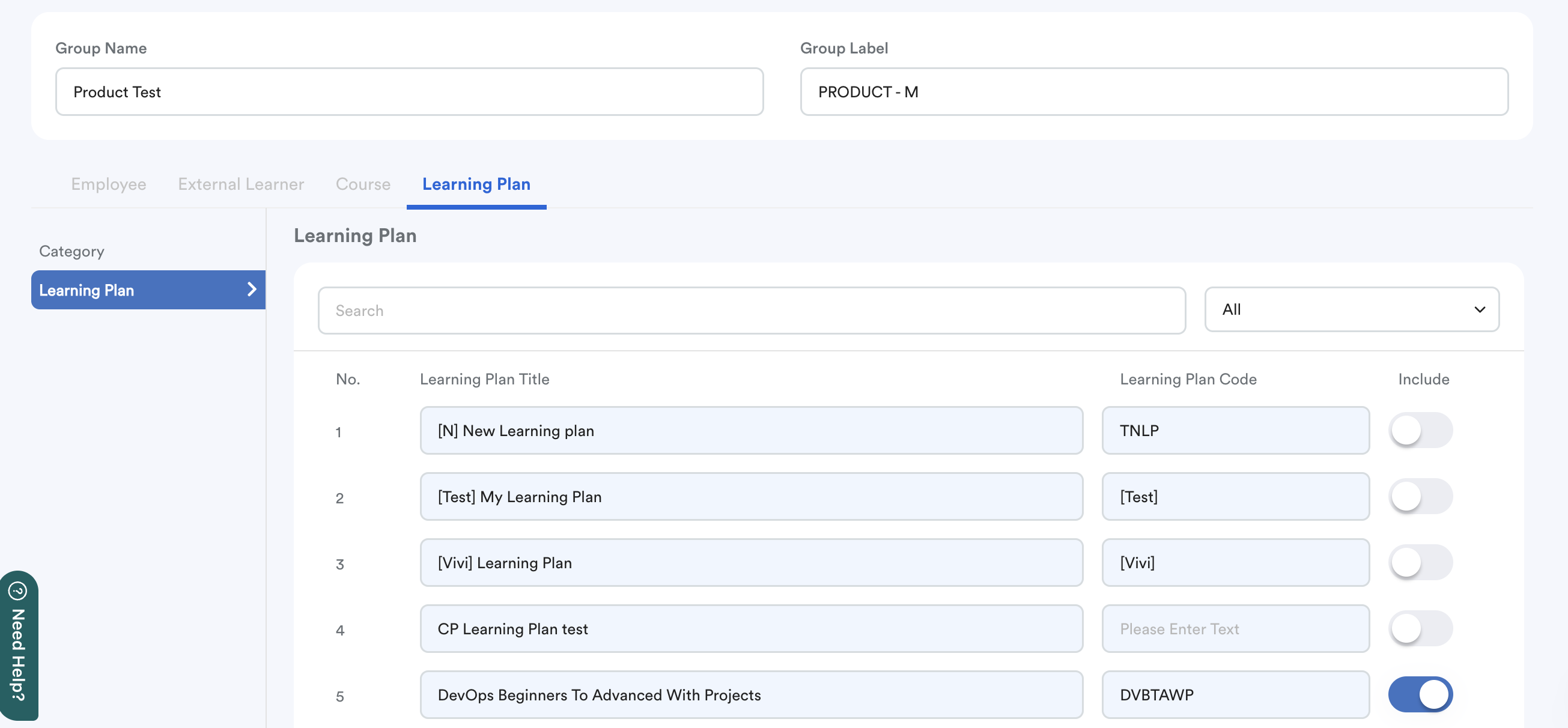
Note: This step must be completed before enrolling learners from this user group into any Course or Learning Plan. If there is no user group assigned to course/learning plan, you will not be able to enroll learners.
Step 6
All user groups are listed here. To edit or delete a group, click the pencil icon inside the group rows.
Related: Assign Course/ Learning Plan to User Groups
We hope this explanation clarifies the matter. If you require additional assistance, do not hesitate to contact our support team.
Was this article helpful?
That’s Great!
Thank you for your feedback
Sorry! We couldn't be helpful
Thank you for your feedback
Feedback sent
We appreciate your effort and will try to fix the article