When an employee goes through the resignation and rehire process, they may sometimes be unable to log in to the system after being rehired. This usually happens if their account status is not correctly updated.
TABLE OF CONTENTS
2. Check Auto-Deactivation Settings
3. Ensure Rehiring Progression is Complete
1. Check Account Status
Step 1
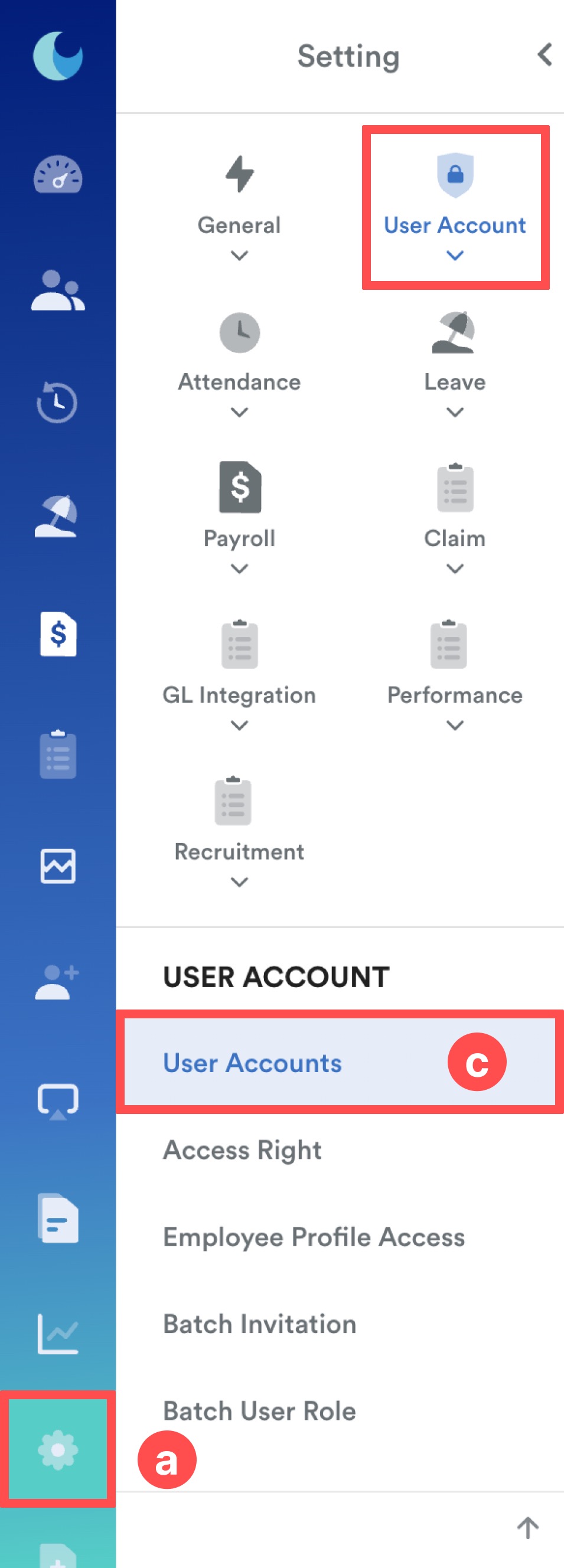
On the left menu, go to Settings (a) > User Account (b) > User Accounts (c).
Step 2
Search for the employee’s name, and check the Active toggle:
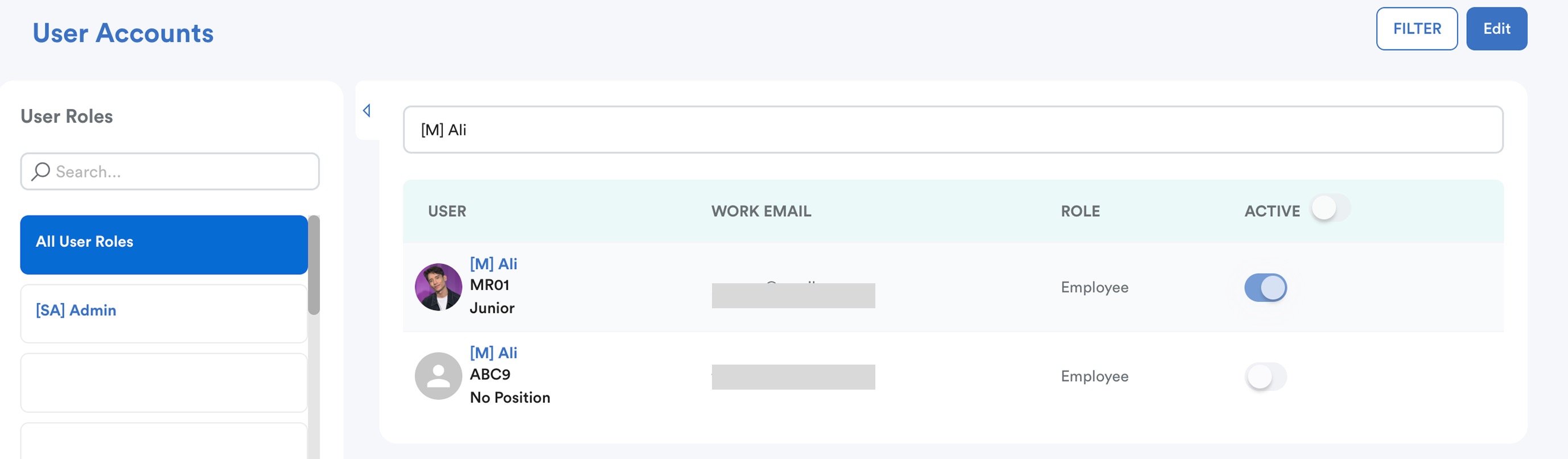
Confirm that their Active button is toggled on and click Save.
2. Check Auto-Deactivation Settings
If the "Auto Deactivate User After Resignation" option was enabled for the company the employee belonged to, the account may have been automatically disabled.

Step 1
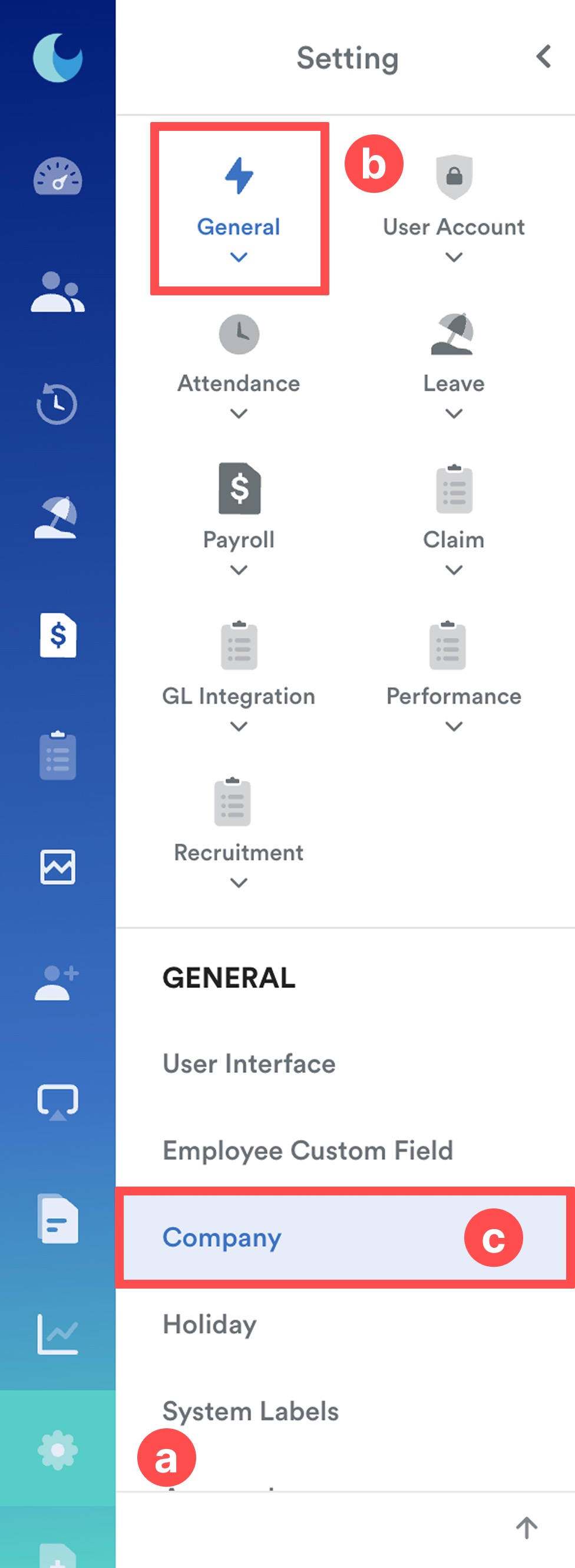
On the left menu, go to Settings (a) > General (b) > Company (c).
Step 2
From the company list, select the company the employee belongs to.
Step 3
At the General tab, Click Edit and scroll to Account Activation section to temporarily disable "Auto deactivate user after resignation."
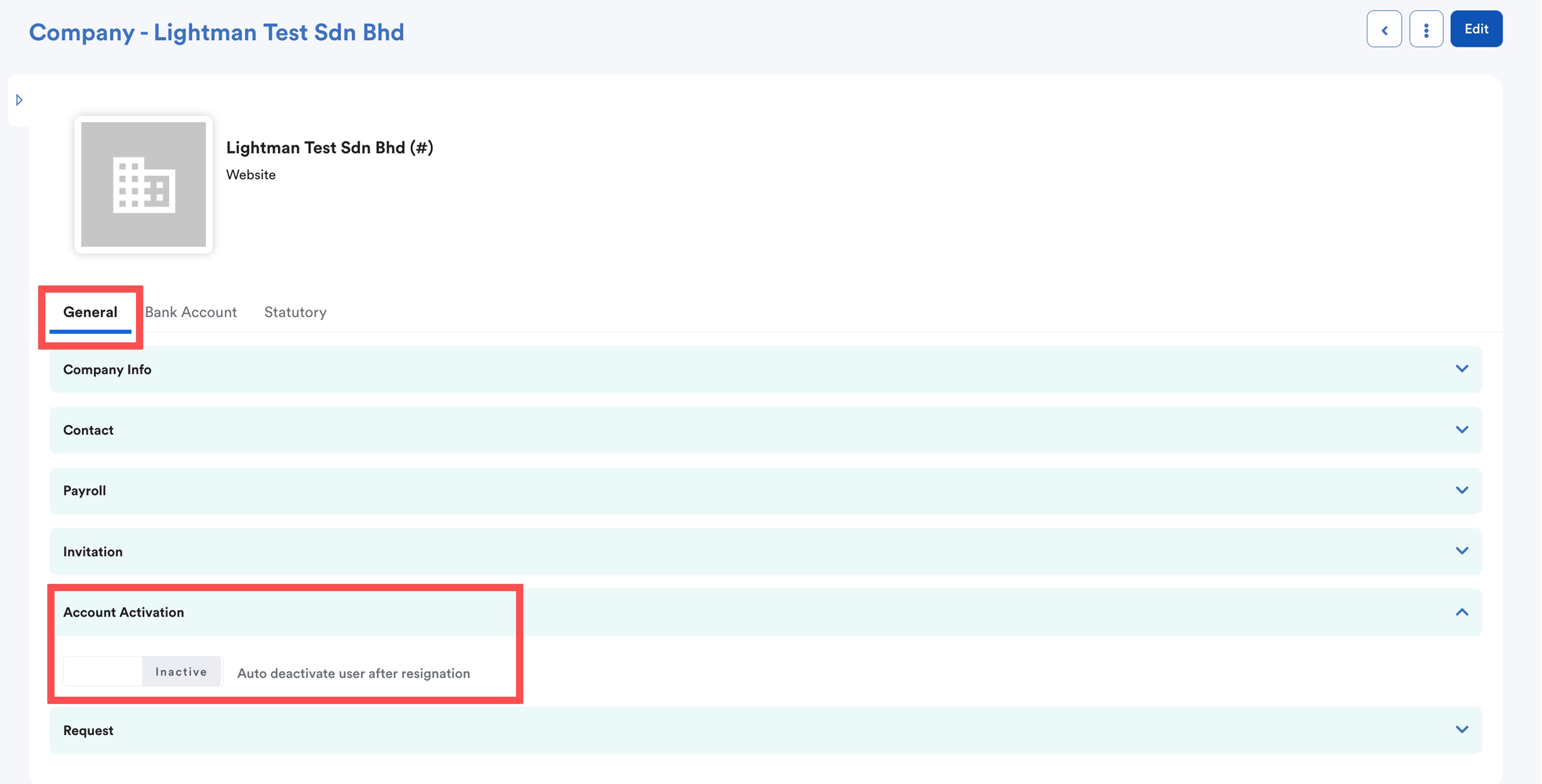
Toggle the button to Inactive and click Save.
3. Ensure Rehiring Progression is Complete
Verify that all required details have been filled in, especially the correct rehired date and company.
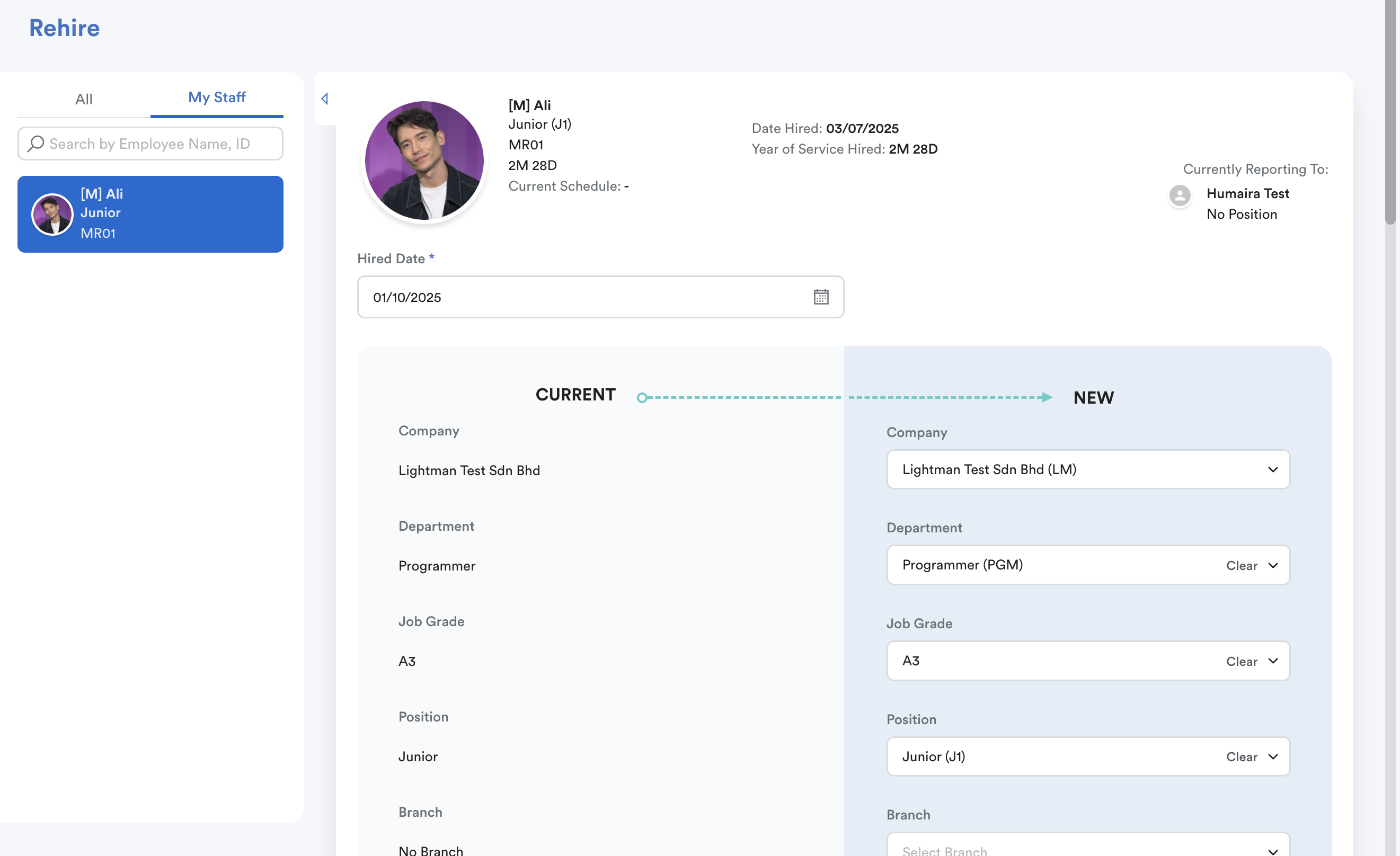
Once complete, click Rehire Employee to finalize the process.
For detailed rehiring steps, refer: Rehiring an Employee (Career Progression)We hope this explanation clarifies the matter. If you require further assistance, please don't hesitate to contact our support team.
Was this article helpful?
That’s Great!
Thank you for your feedback
Sorry! We couldn't be helpful
Thank you for your feedback
Feedback sent
We appreciate your effort and will try to fix the article