Use Letter Builder to create reusable letter templates for different purposes, such as offer letters, confirmation letters, warning letters, and other HR documents. Templates can include dynamic fields that automatically populate employee information when the letter is generated.
Step 1
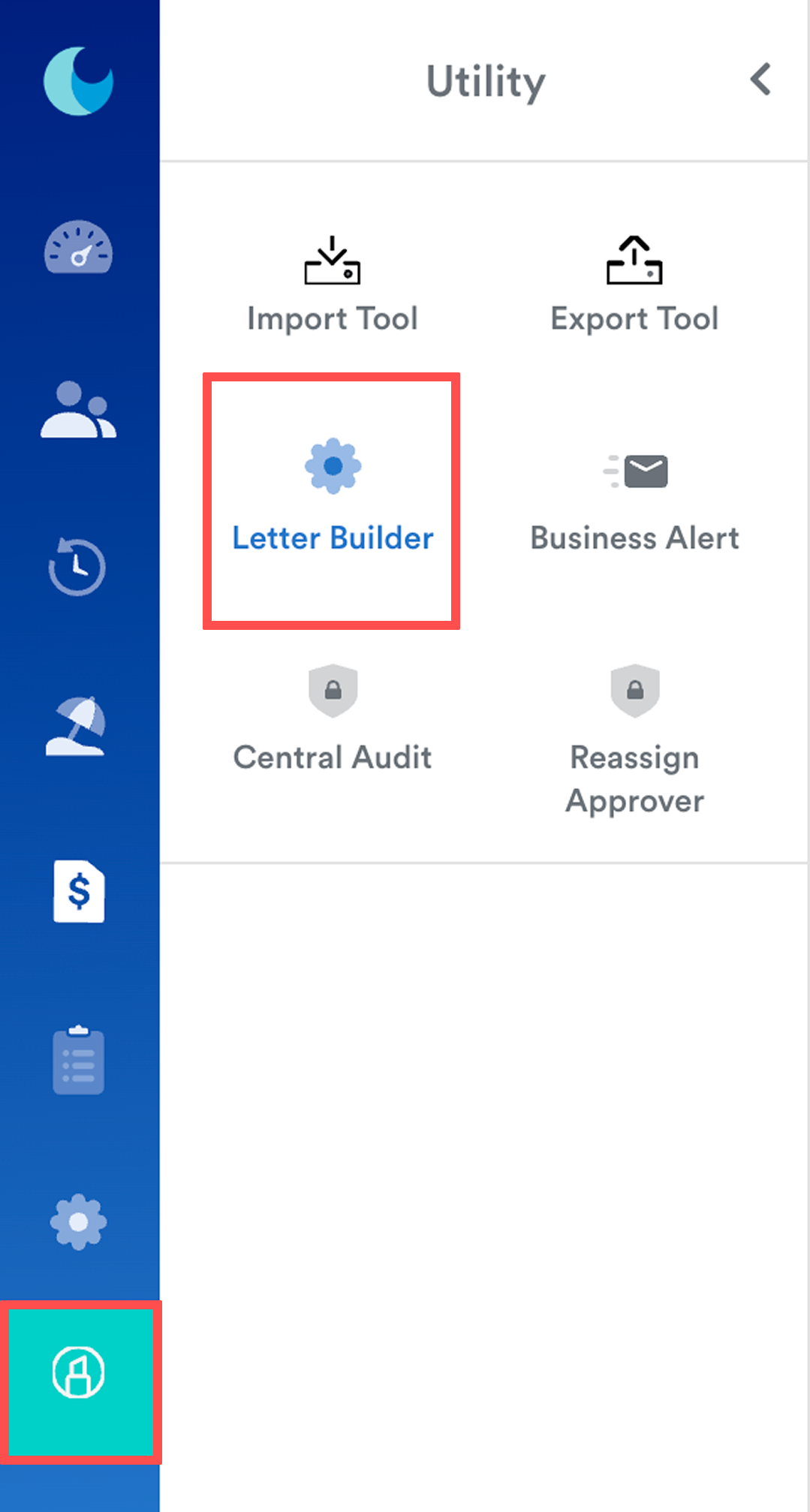
On the left menu, go to Utility > Letter Builder.
Step 2
Select the desired Letter Type from the Category column on the left.
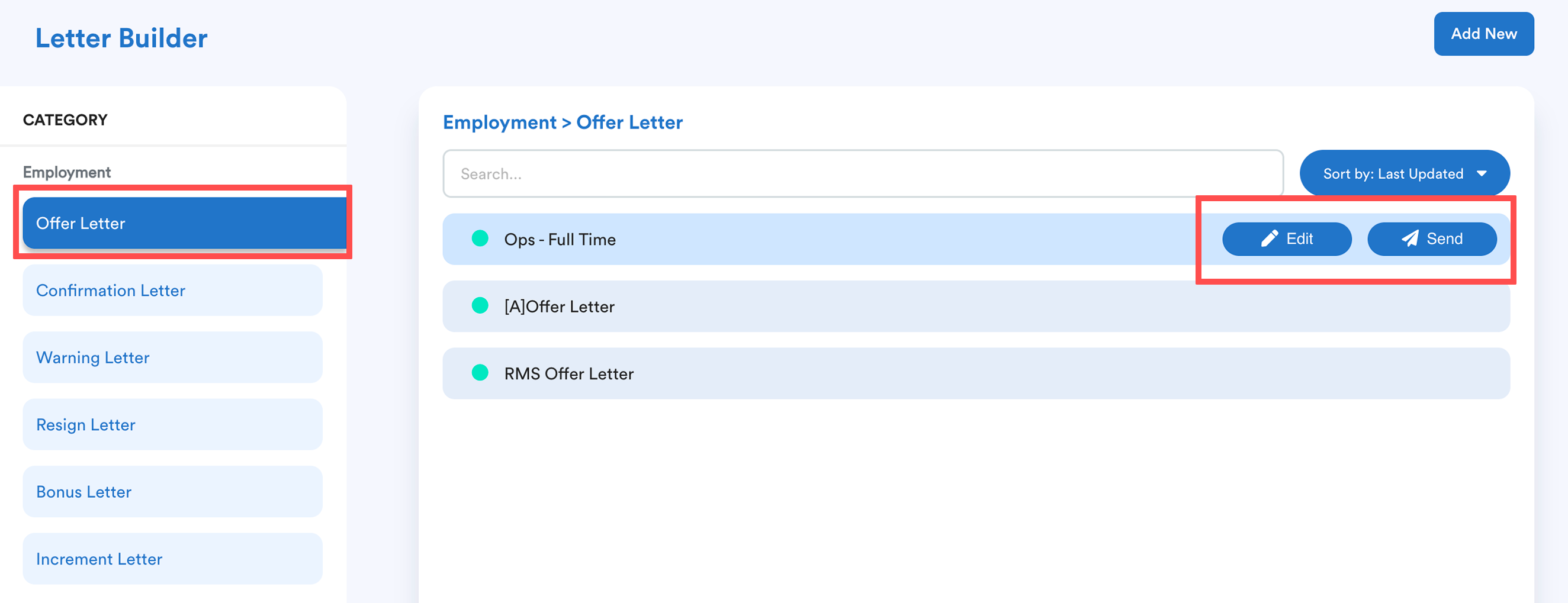
- Click Add New to create a new template.
- Click Edit to modify an existing template.
Step 3
Template Settings
Complete the following information:
- Name – Enter a name for the template.
- Status – Choose whether the template is Active or Inactive.
Template Details
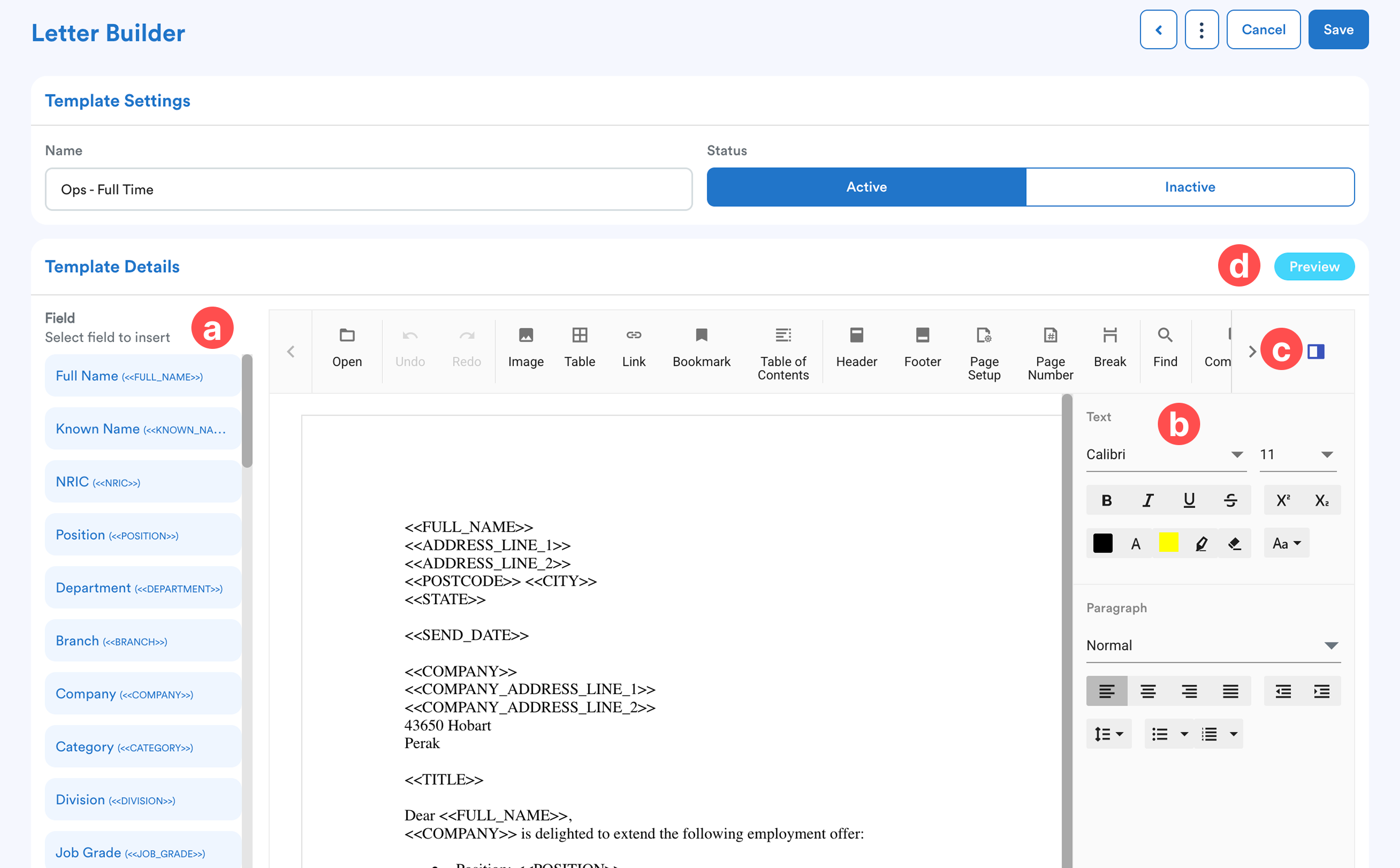
Use the editor to design your offer letter.
- Field List – Select and insert available fields into the template. The dynamic fields (such as Employee Name, Position, or Salary) will automatically populate employee information when generating the offer letter.
- Editor – Enter your letter content and customize the formatting, such as font style, font size, paragraph alignment, and more.
- Properties – Configure additional settings for the selected element, such as header, footer, images, where applicable.
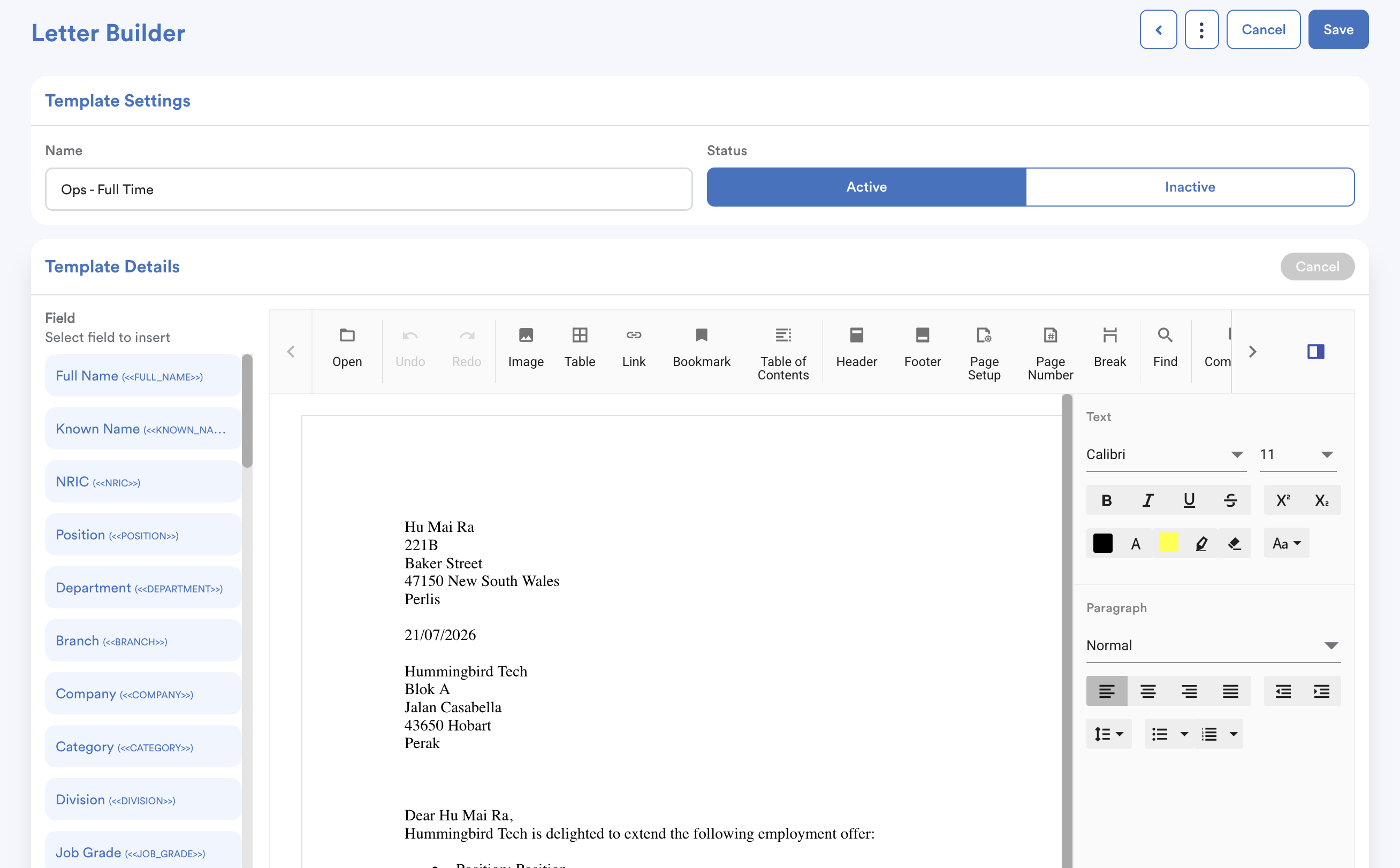
- Preview – Click Preview to see how the letter will appear from the employee's perspective.
Note: Word uploads currently support text content only. If your Word file contains images in the header or footer, the upload may cause the page to remain stuck on Loading.
To upload a letter with header or footer images:
- Remove the images from the header and footer of the Word file.
- Save the header and footer images separately.
- Upload the Word file containing the text content to Letter Builder.
- Add the saved header and footer images manually in Letter Builder.
This ensures the file can be uploaded successfully while allowing the header and footer images to appear correctly in the generated letter.
Step 4
After saving the template, you can use it when sending letters to employees.
For the next steps, refer to How to Send a Letter Using Letter Builder
We hope this explanation clarifies the matter. If you require additional assistance, do not hesitate to contact our support team.
Was this article helpful?
That’s Great!
Thank you for your feedback
Sorry! We couldn't be helpful
Thank you for your feedback
Feedback sent
We appreciate your effort and will try to fix the article