Use Letter Builder to send letters to one or more employees. The selected template will automatically populate employee information using dynamic fields, and a copy of each sent letter will be saved to the employee's Profile under the Attachment tab for future reference.
Before You Begin
Before sending a letter, you must first create a letter template.
For instructions, refer to How to Create Offer Letter Using Letter Builder
How to Send a Letter
Step 1
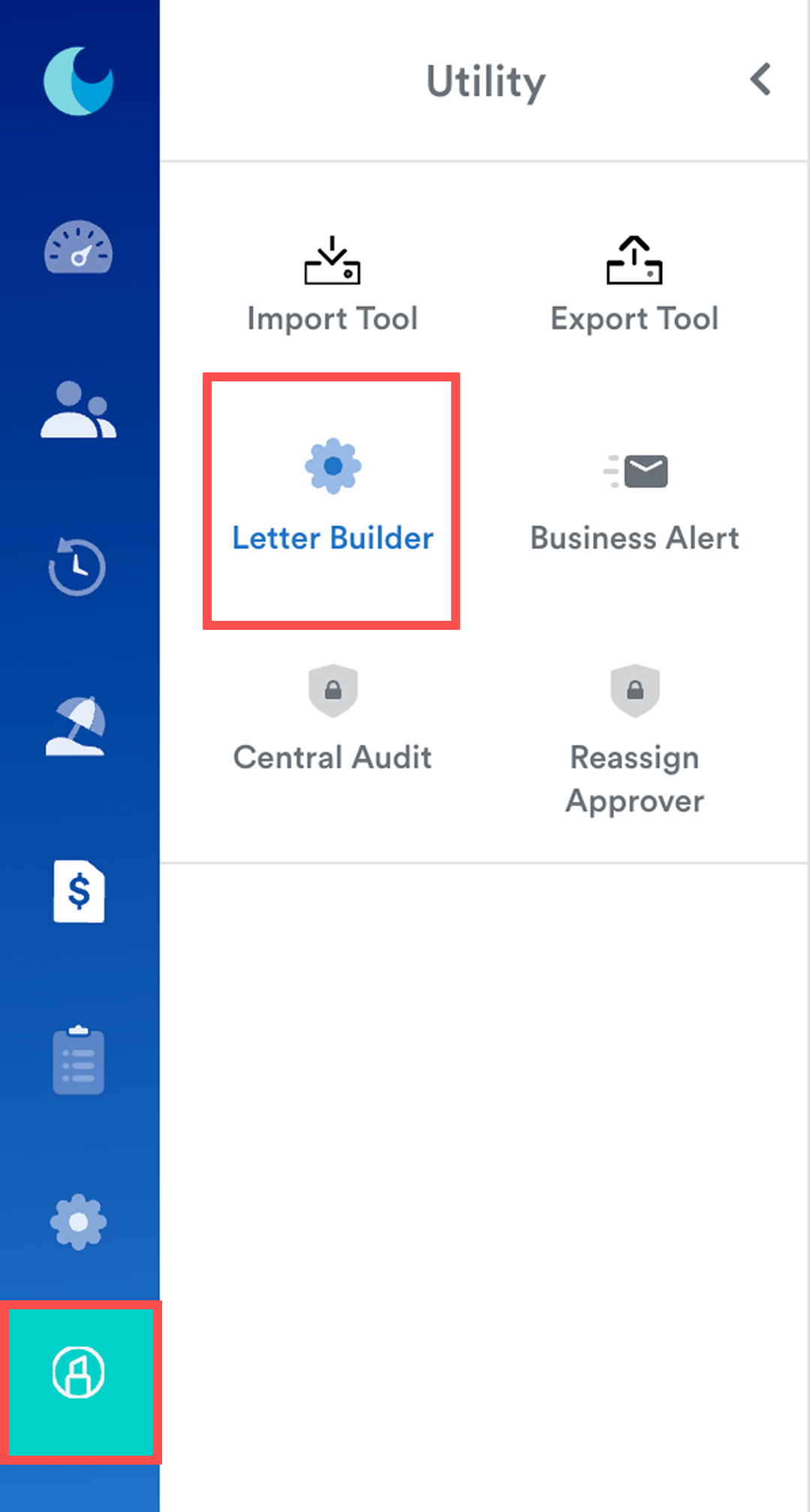
On the left menu, go to Utility > Letter Builder.
Step 2
Select the letter template that you want to use.
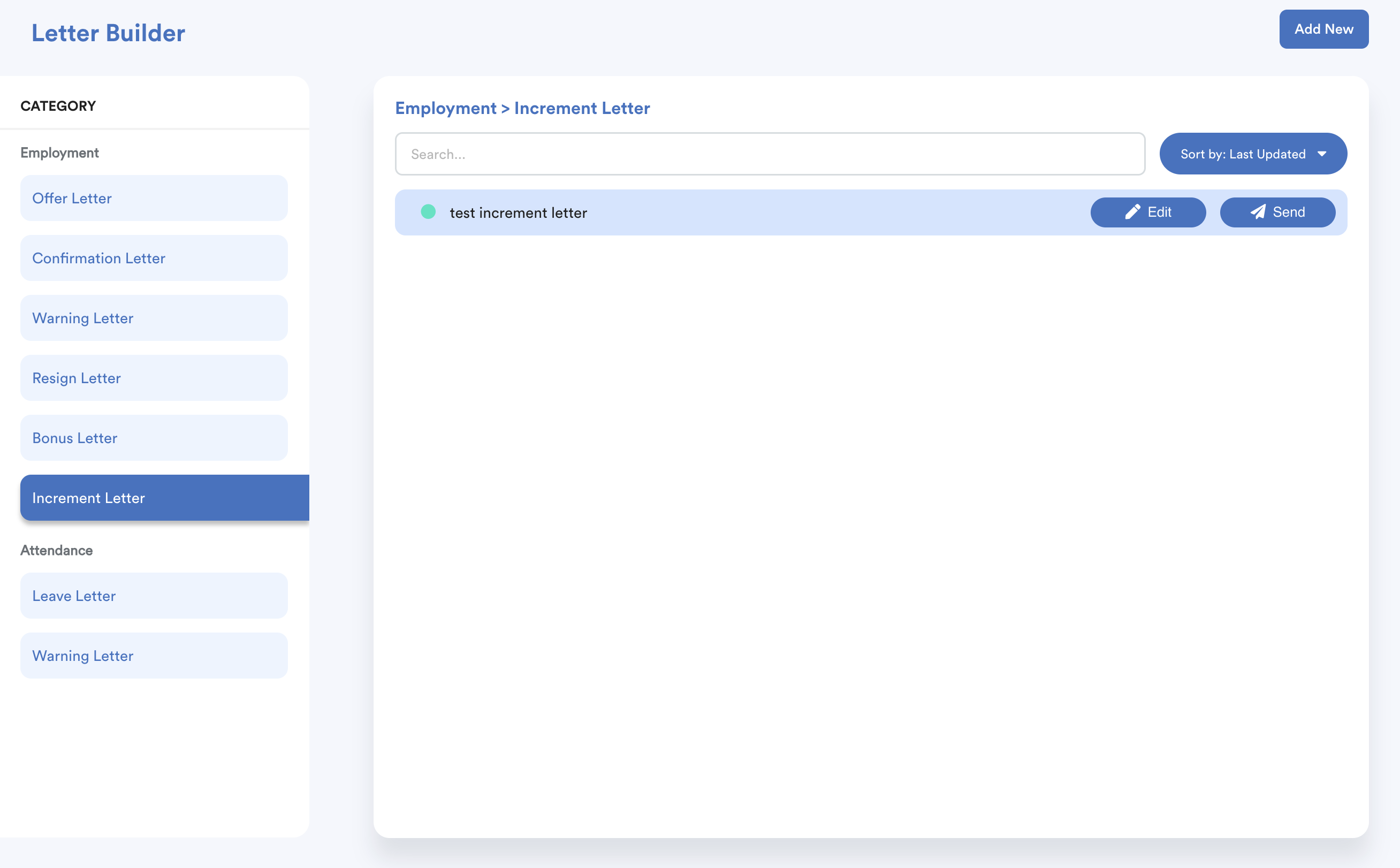
If necessary, click Edit to make changes to the template before sending it.
Step 3
Click Send to begin the sending process.
You will be guided through the following four tabs:
1. Recipient Selection – Select the candidate(s) who will receive the letter.
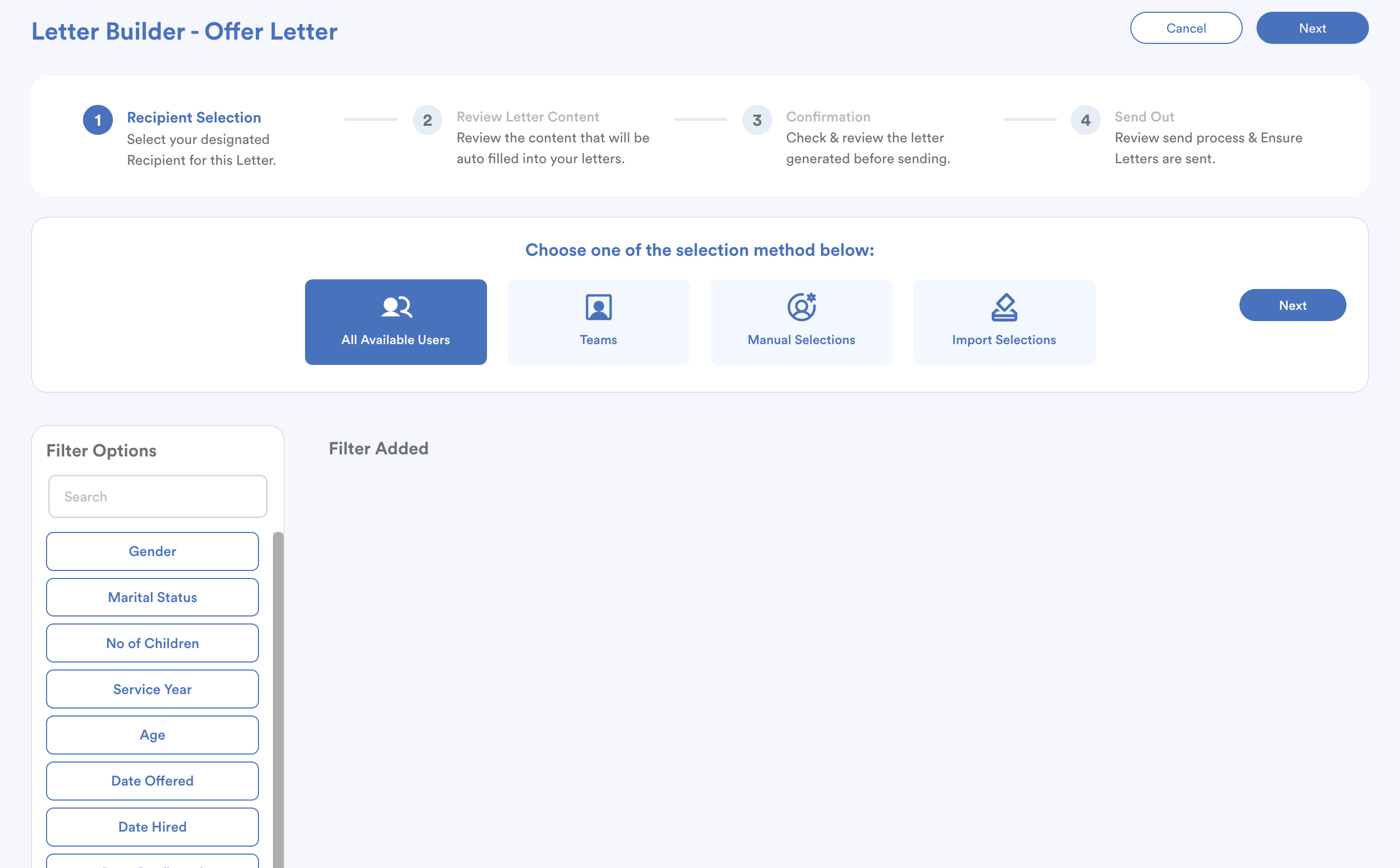
Click Next to proceed.
2. Review Letter Content – Review the letter content that has been automatically populated using the dynamic fields in your template.
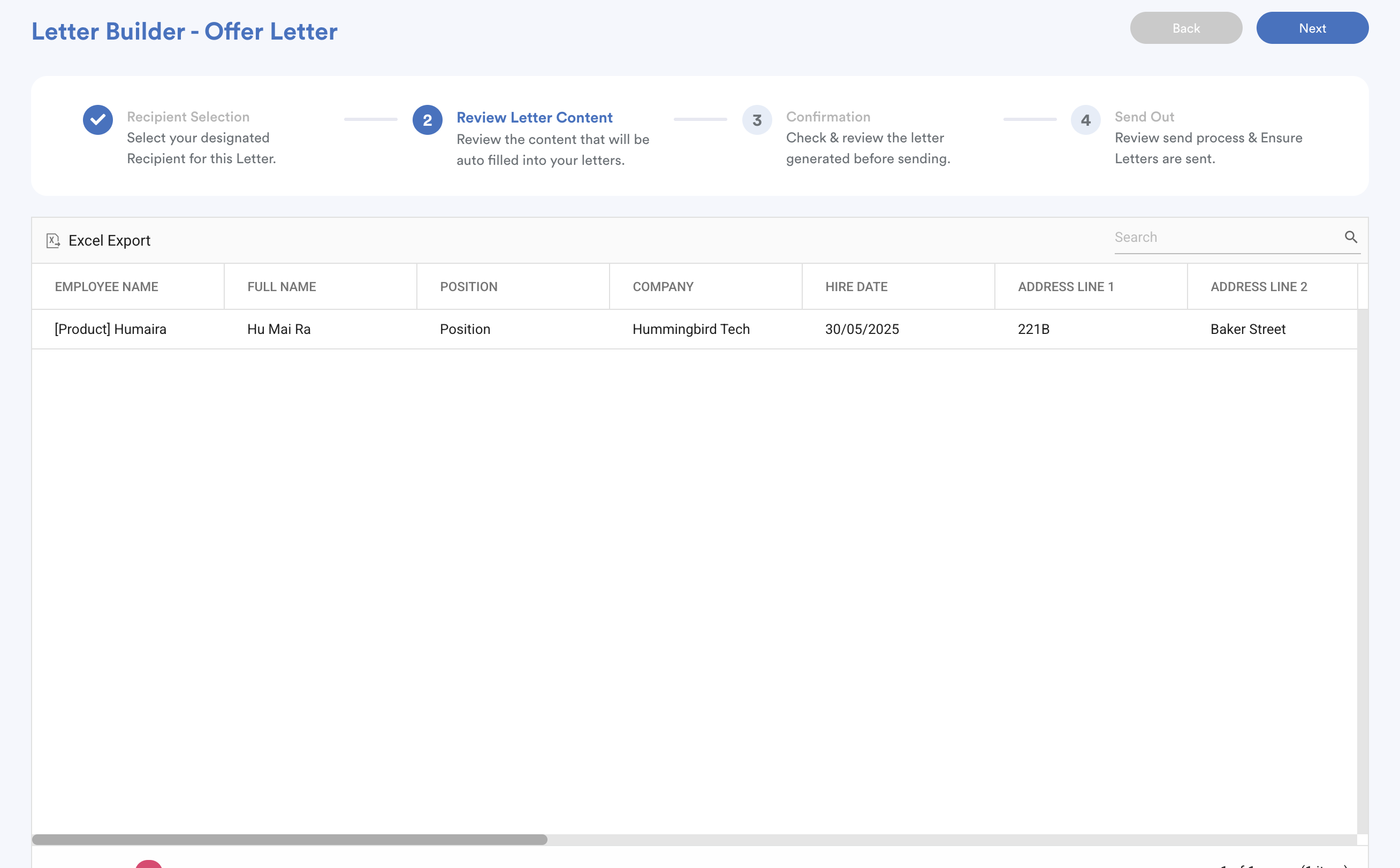
Verify that the candidate information has been filled in correctly before proceeding. Otherwise, the field will appear empty in the letter.
Click Next to proceed.
3. Confirmation – Preview the generated letter before sending. Click a candidate's name to preview their letter.
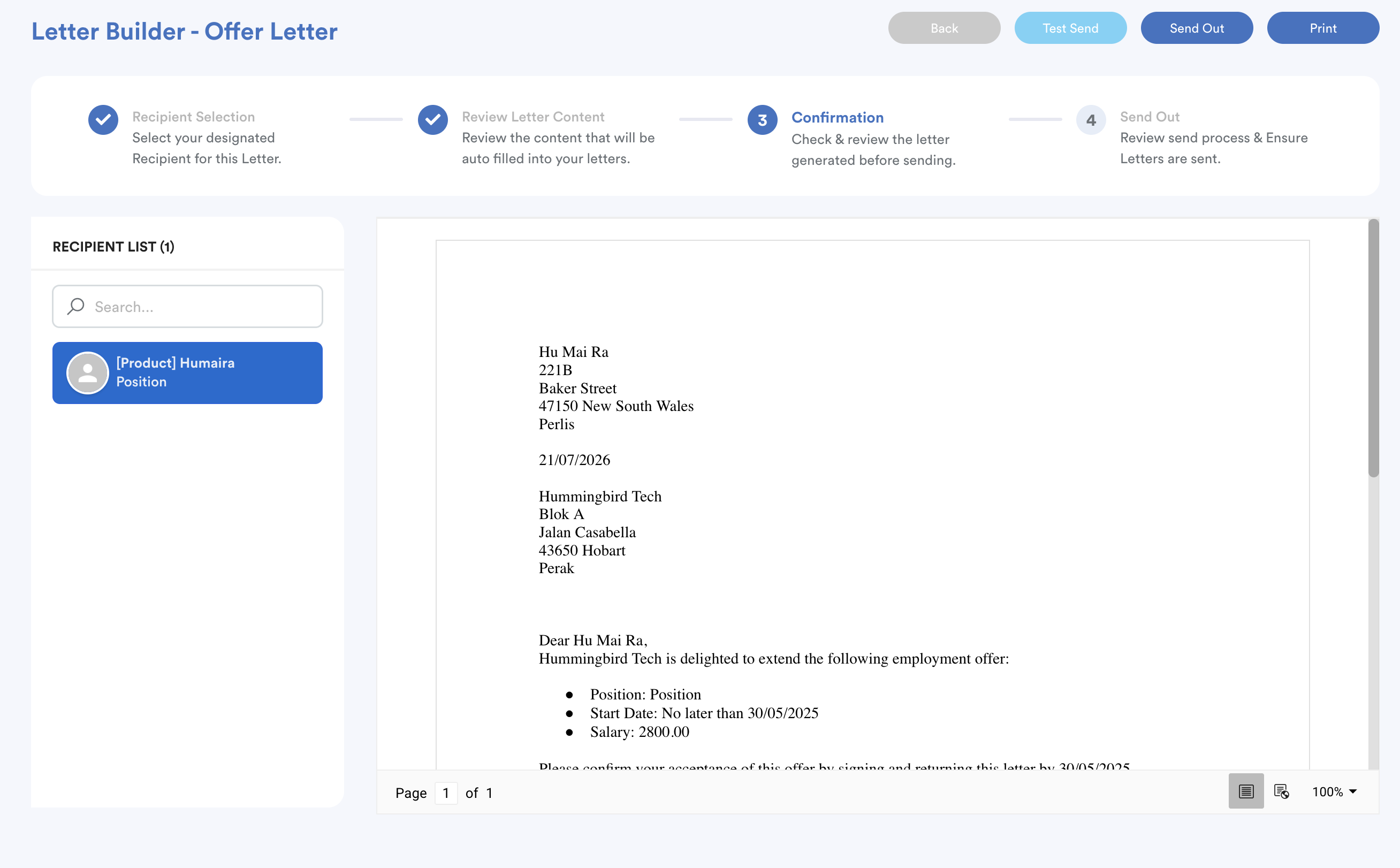
You can:
- Click Test Send to receive a copy of the letter in your own email for review.
- Click Print if you need a printed copy.
- Click Send Out once you are ready to send the letter to the selected candidate(s).
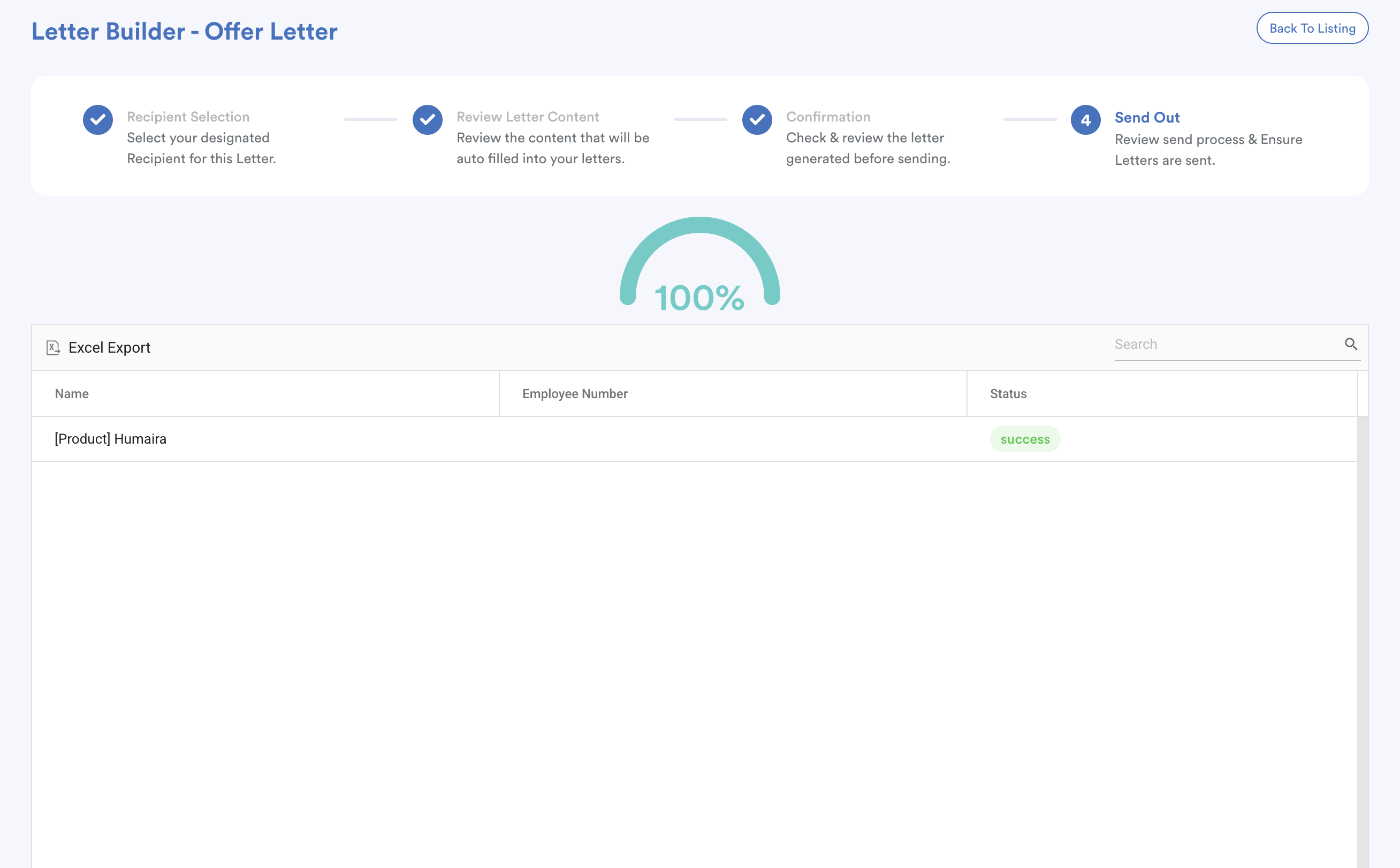
4. Send Out – View the delivery status for each candidate after the letters have been sent.
Step 4
After the offer has been sent:
- The candidate will receive the letter via email.
- A copy of the letter will automatically be saved to the employee's Profile under the Attachment tab.
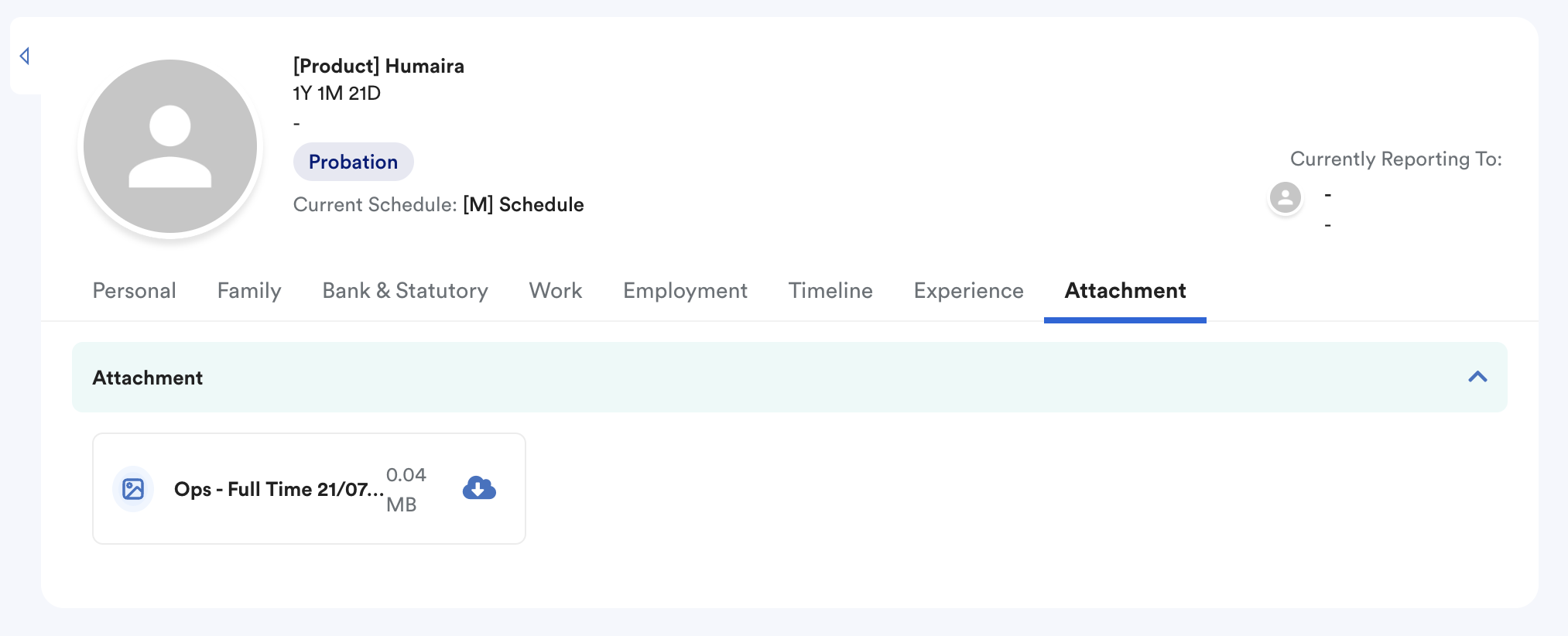
Letters are automatically attached to the employee profile only after it has been successfully sent. This provides a centralized record for future reference.
We hope this explanation clarifies the matter. If you require additional assistance, do not hesitate to contact our support team.
Was this article helpful?
That’s Great!
Thank you for your feedback
Sorry! We couldn't be helpful
Thank you for your feedback
Feedback sent
We appreciate your effort and will try to fix the article