Use Letter Builder to prepare and send a bonus letter based on the bonus amount processed through payroll.
Unlike other letter templates, a bonus letter requires the Bonus field in the template and the selection of the relevant Payroll Period, Pay Cycle, and Payroll Item when sending the letter. These details allow the system to retrieve the bonus amount from the employee's processed payroll record.
Create the Bonus Letter Template
Before preparing the bonus letter, refer to: How to Create a Letter Template Using Letter Builder
Use the editor to design your bonus letter.
- Field List: Select and insert the available fields into the template. Dynamic fields, such as Employee Name, Position, and Salary, automatically populate the relevant employee information when generating the letter.
Select Bonus to include the bonus amount processed for the employee through payroll.
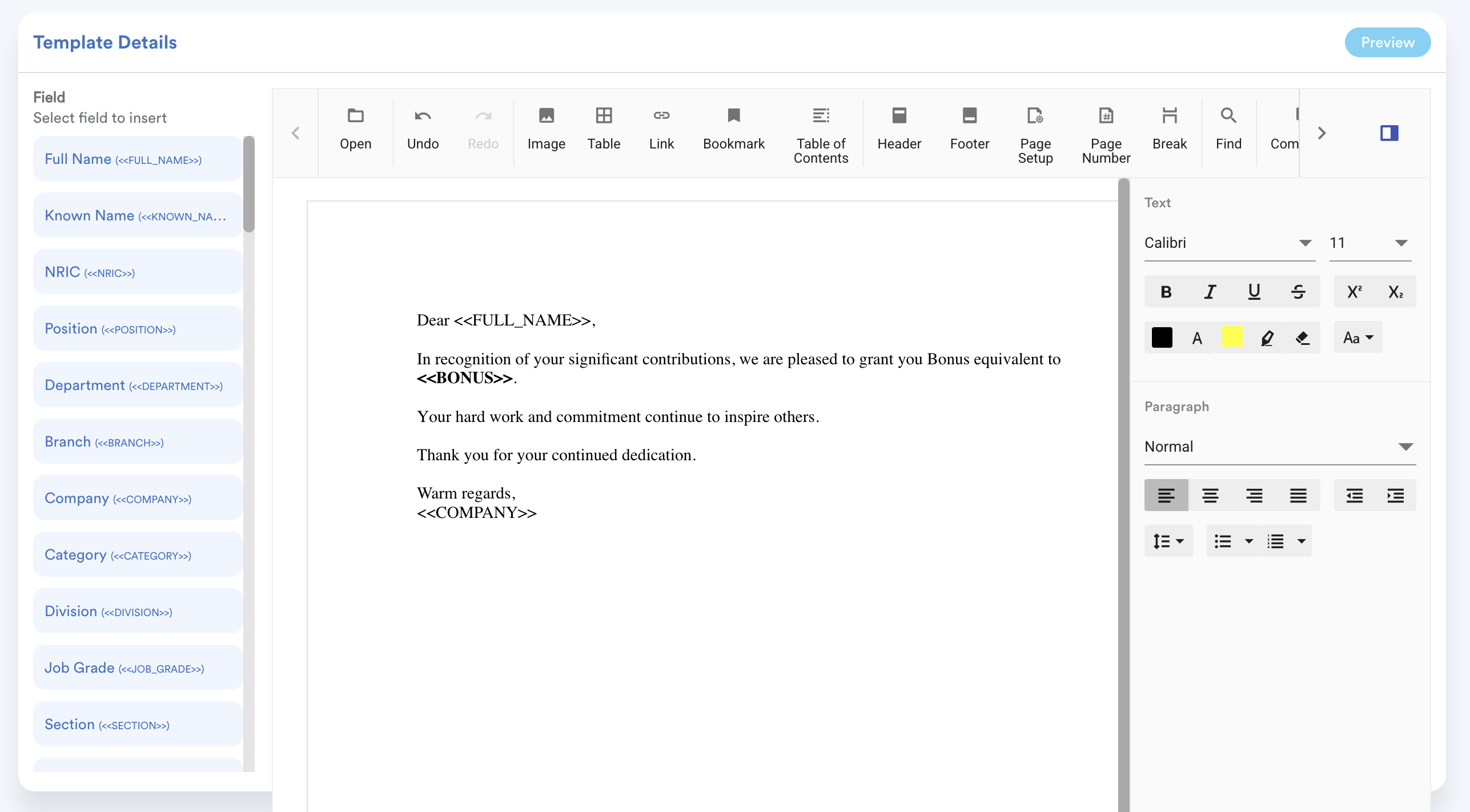
Note: The Bonus field retrieves the bonus amount from a processed payroll record. The bonus amount is not manually entered in the Letter Builder.
- Editor: Enter your letter content and customize the formatting, such as font style, font size, paragraph alignment, and more.
- Properties: Configure additional settings for the selected element, such as header, footer, and images, where applicable.
- Preview: Click Preview to see how the letter will appear from the employee's perspective.
Note - Make sure the selected Pay Cycle and Payroll Item correspond to the bonus payment you want to include in the letter.
Send the Bonus Letter
After completing the letter template, follow the steps in How to Send a Letter Using Letter Builder to generate and send the bonus letter to the selected employees.
When sending a template that includes the Bonus field, you must select the following before selecting the recipients:
- Payroll Period – Select the payroll period containing the processed bonus.
- Pay Cycle – Select the relevant pay cycle.
- Payroll Item – Select the payroll item used to process the bonus.
The system uses the selected Payroll Period, Pay Cycle, and Payroll Item to retrieve the bonus amount from the processed payroll record and automatically populate the letter for each selected employee.
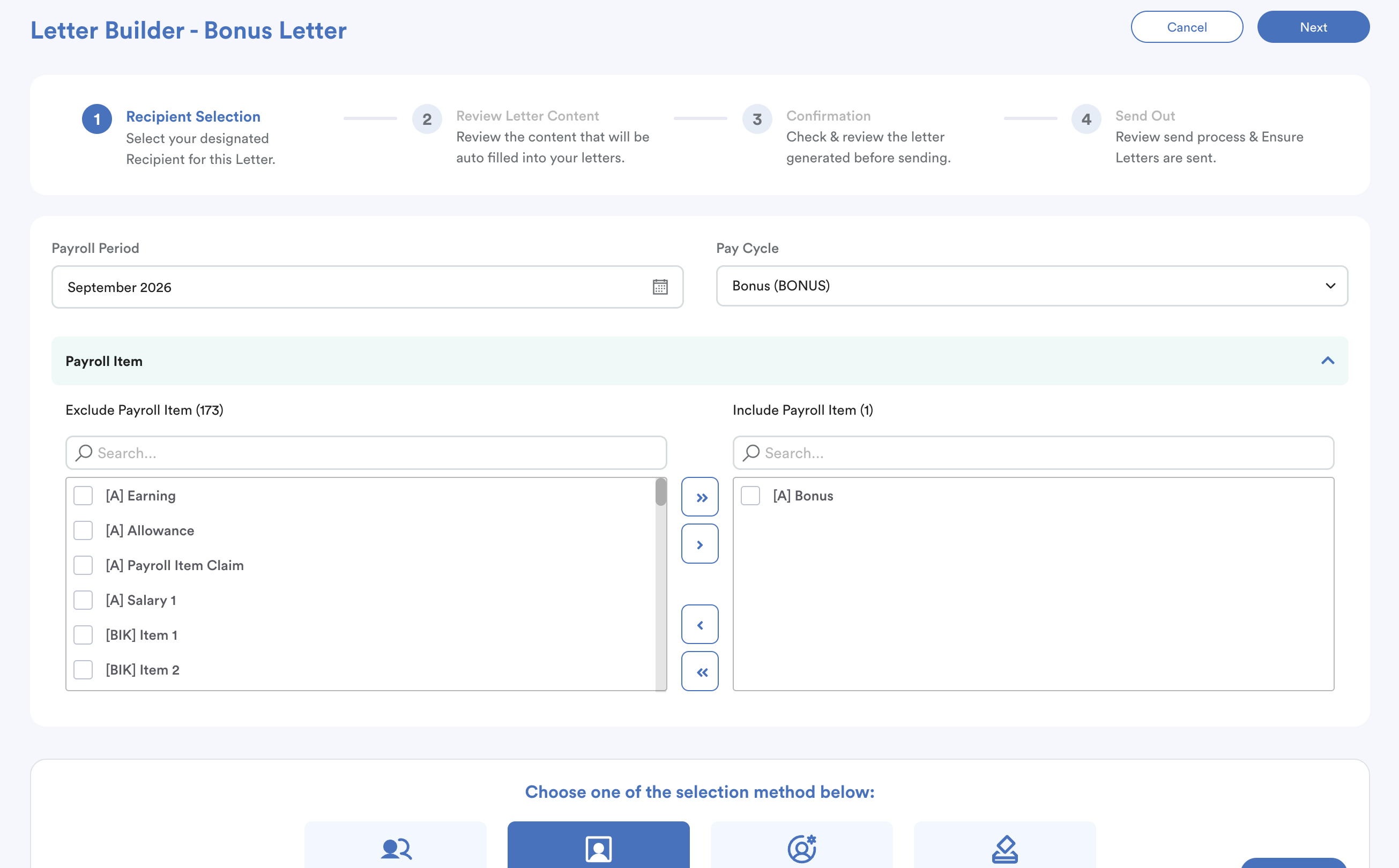
Note: Make sure the selected payroll details correspond to the bonus payment you want to include in the letter.
Verify the Bonus Letter
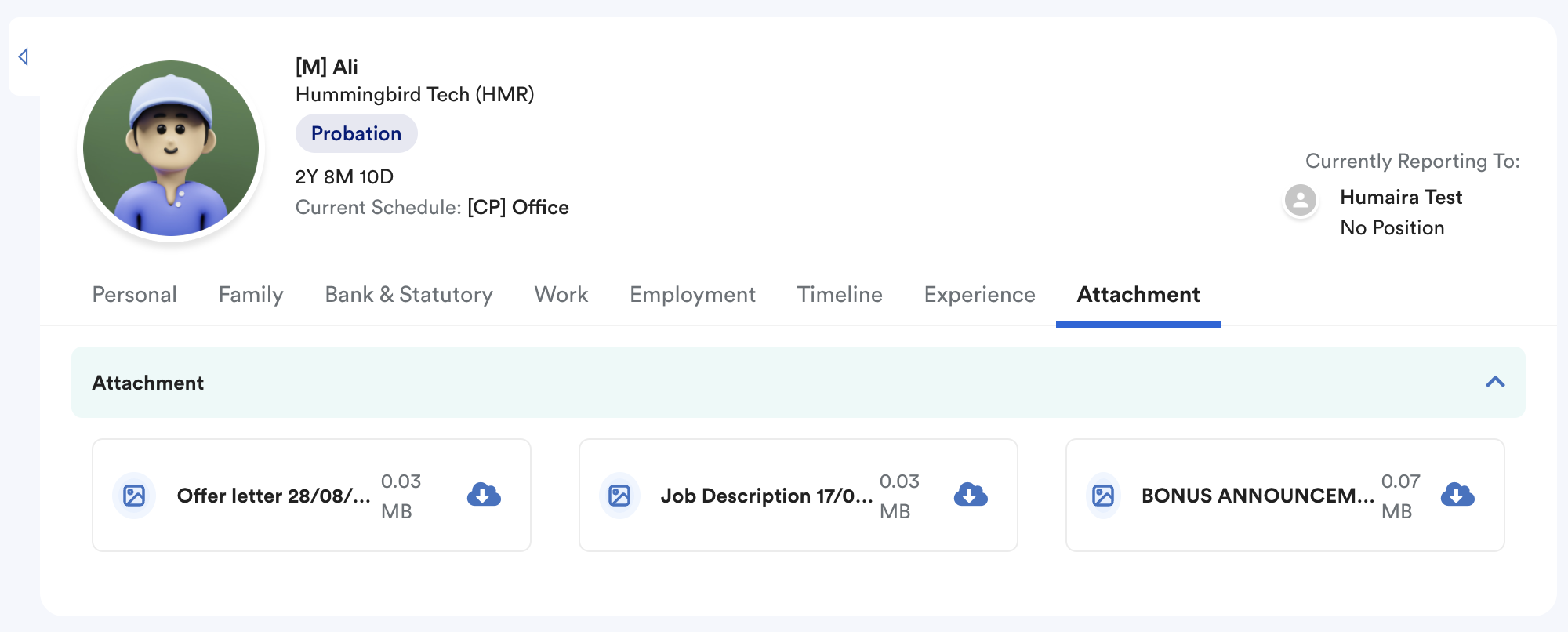
After sending the letter, check the Attachment section under the employee's profile.
If the bonus letter is available in the Attachment section, this indicates that the Letter Builder has successfully generated and sent the letter to the employee.
We hope this explanation clarifies the matter. If you require additional assistance, do not hesitate to contact our support team.
Was this article helpful?
That’s Great!
Thank you for your feedback
Sorry! We couldn't be helpful
Thank you for your feedback
Feedback sent
We appreciate your effort and will try to fix the article