If an employee’s overtime (OT) hours are missing from their payslip, it is typically due to schedule settings, pending approvals, policy limitations, or unlocked attendance records. Follow the checklist below to troubleshoot the issue.
Note: Ensure TICK the "Pull Attendance Data" to pull the overtime hours for payroll calculation.
TABLE OF CONTENTS
- Overtime Is Disabled in the Assigned Schedule
- Overtime Request is Still Pending
- Overtime Rate
- Auto Overtime Approval Method Is Set to “Intersect Actual and Pre-Approved”
- Overtime Has Reached the Monthly Maximum Hours
- Salary Eligibility Thresholds
- Attendance Status is Still Pending
1. Overtime Is Disabled in the Assigned Schedule
The OT may not be captured if overtime is disabled in the employee’s assigned work schedule.
Path: Settings > Attendance > Schedule. Select the relevant schedule, and go to the Overtime tab.
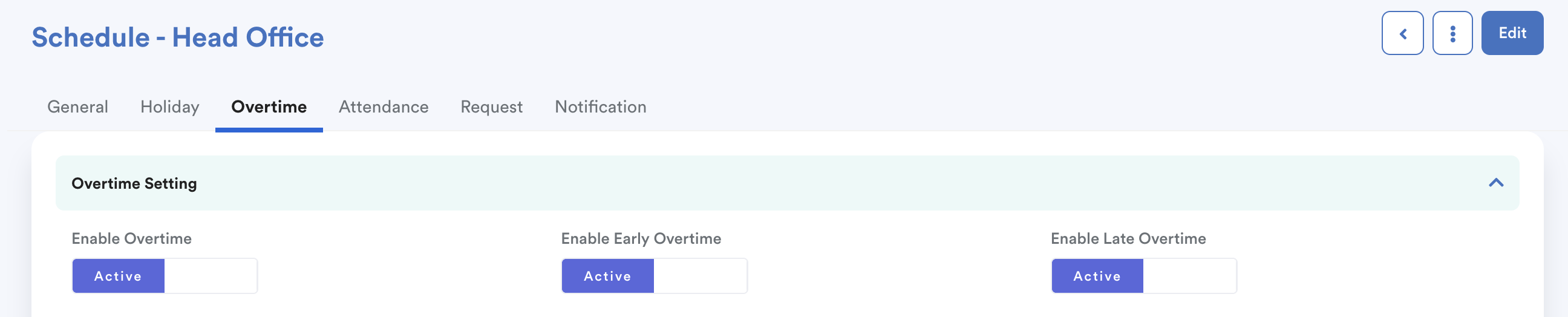
Check whether Enable Overtime is activated in the relevant schedule.
2. Overtime Request is Still Pending
Check whether the OT request has been fully approved. Only OT requests under the Approved tab will be captured in payroll.
Go to the Overtime module and confirm whether the request is still under the Pending tab or has moved to Approved.
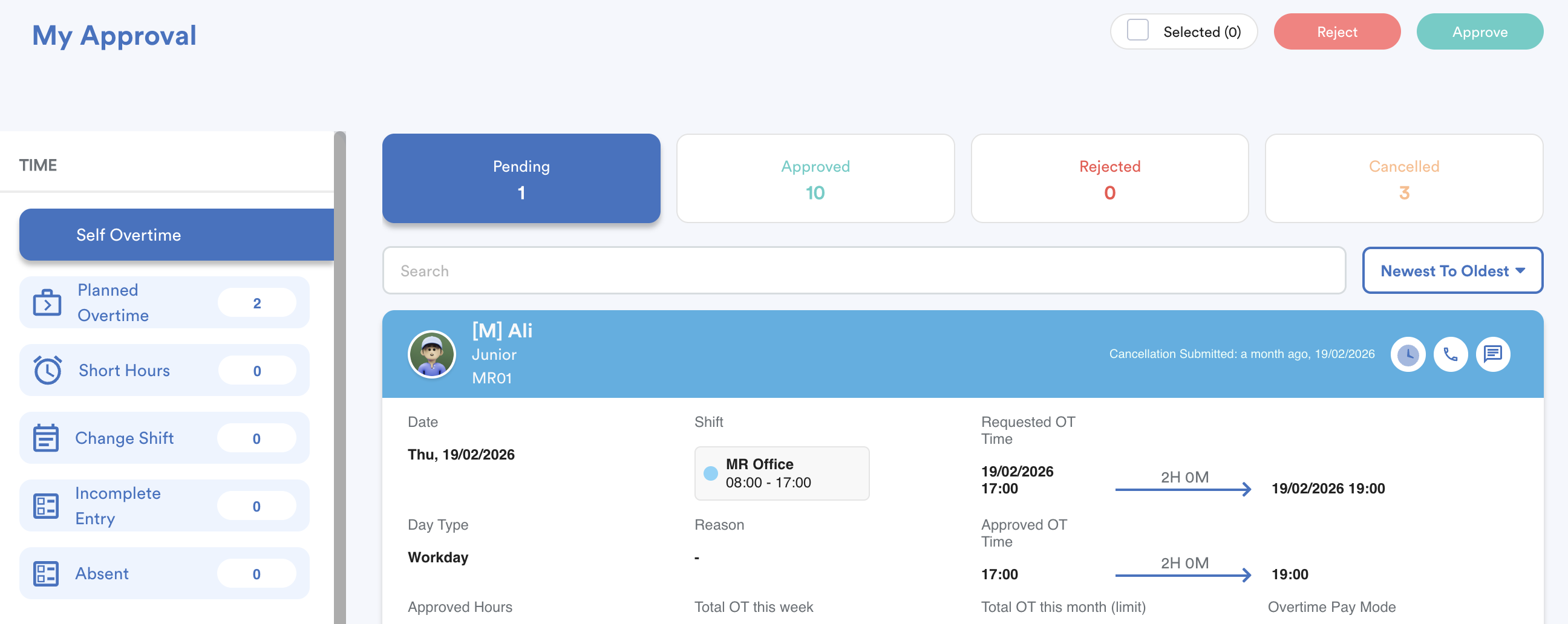
Some OT requests may require multiple approval levels, so ensure that all approvers have completed their approval before payroll is processed.
3. Overtime Rate
The OT may not appear or calculated lower in the payslip even though the full overtime duration is correctly captured in attendance.
This usually happens when the Overtime Rate includes a specific time range with an OT rate of 0.00. In this setup, the system will still record the full approved OT duration, but only the payable OT hours based on the configured rate tiers will be reflected in payroll and the payslip.
Path: Settings > Attendance > Overtime Pattern > Overtime Rates
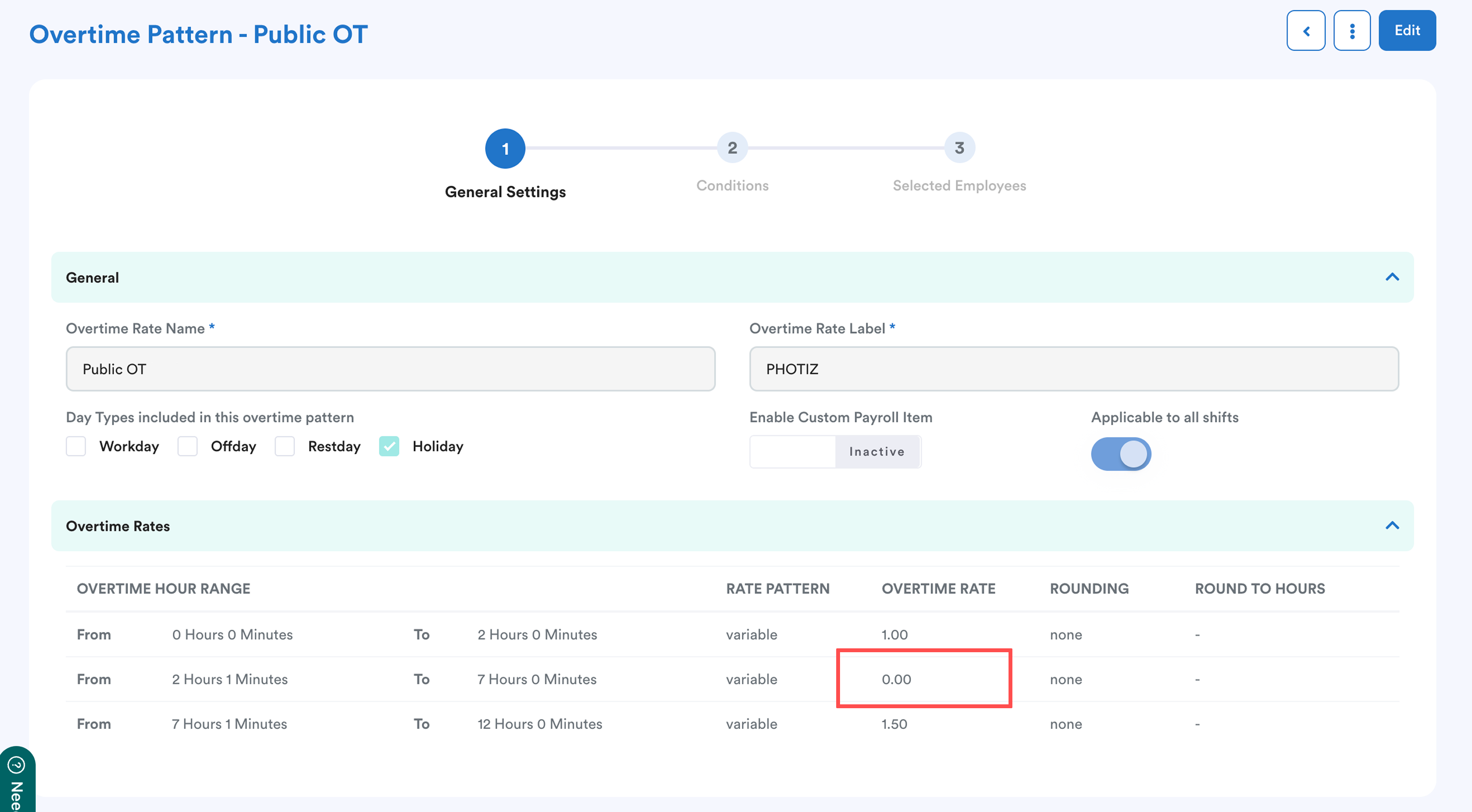
Review the OT pattern assigned to the employee and check whether any of the OT rate tiers are configured with a 0.00 rate.
In the above example, when an employee works on a holiday for a duration of 2h 1 min -7 h will not be paid.
4. Auto Overtime Approval Method Is Set to “Intersect Actual and Pre-Approved”
If overtime is recorded in the system but does not appear on the payslip, it may be due to the Auto Overtime Approval Method set in your schedule settings.
When the system is configured to "Intersect Actual and Pre-Approved," it only validates overtime that overlaps between the employee's clocking records and their submitted request.
Path: Settings > Attendance > Schedule. Check the Auto Overtime Approval Method configured in the employee’s assigned schedule.
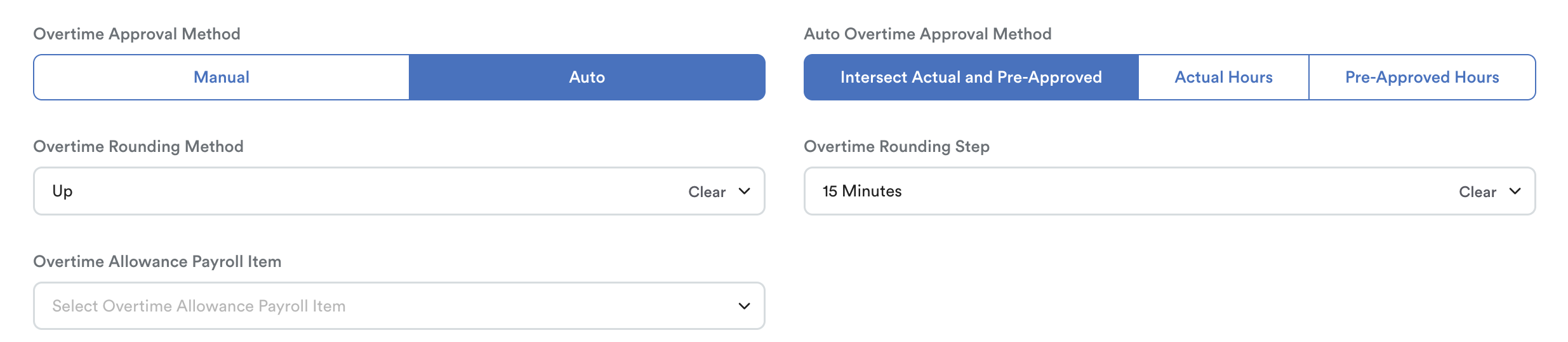
If this method is selected:
- OT hours outside the overlapping period will not be approved
- Approved OT may be less than the requested OT
- If either the actual attendance record or the pre-approved OT request is missing, the system may return 0 approved OT hours
As a result, no OT or fewer OT hours may be pulled into payroll.
Read more here: Auto Overtime Approval Methods
Note: If you did not see the actual overtime, this might be due to nextday overtime and manual earliest in and latest out settings.
5. Overtime Has Reached the Monthly Maximum Hours
Check whether a maximum OT hours limit has been enabled in the Payroll Policy.
Path: Settings > Payroll > Payroll Policies > General Settings > Overtime. Find "Enable Maximum Overtime Hours".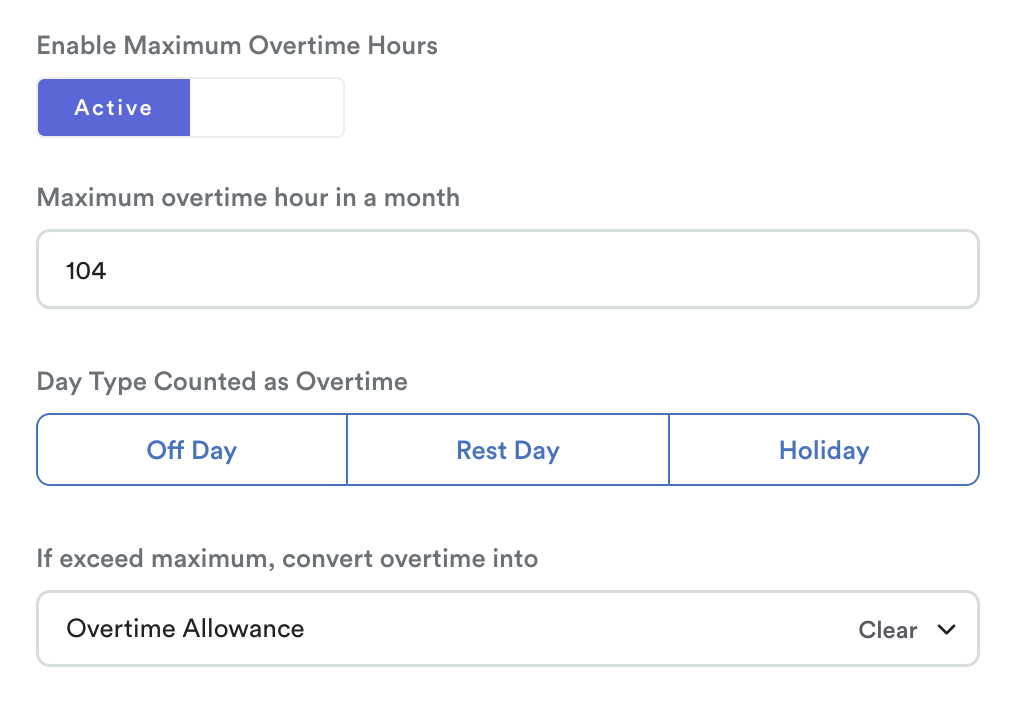
According to Employment (Limitation of Overtime Work) Regulations 1980, the maximum number of overtime hours an employee can work per month is 104 hours.
According to Section 60A(3) of the Act (page 57), "overtime work" is strictly defined as hours worked in excess of the normal daily working hours. Because of this distinct legal framing, work performed during rest days and public holidays is treated differently under the law. To comply with this, system default setting excludes these day types towards this maximum overtime hours limit.
If you want to add overtime hours worked on rest days, public holidays, or substituted paid holidays to this maximum overtime, please select the day types.
If this setting is enabled, the system will only capture OT up to the configured monthly limit.
Any overtime hours beyond the limit will be converted into your selected payroll item; in this case, overtime hours exceeding 104 will be converted into "Overtime Allowance".
If there is no selected payroll item for exceeding the maximum, the payslip will only process 104h OT, and the rest will be ignored.
However, the excess hours will still be recorded in the employee’s individual Transaction for further management.
Read more here: How to Manage and Convert Overtime Hours Above the Monthly Limit
6. Salary Eligibility Thresholds
The system may exclude OT if an employee’s compensation exceeds the limits defined in your policy.
Check these two settings under Settings > Payroll > Payroll Policies > General Settings > Overtime:
- Entitle Overtime if Salary is not more than: The OT will not capture if the employee's "Basic Salary + Earning" is higher than this value.
- Maximum (Salary + Earning) Amount for Overtime Formula: This amount will be used for overtime calculation in Payroll Policy > General > Overtime section.
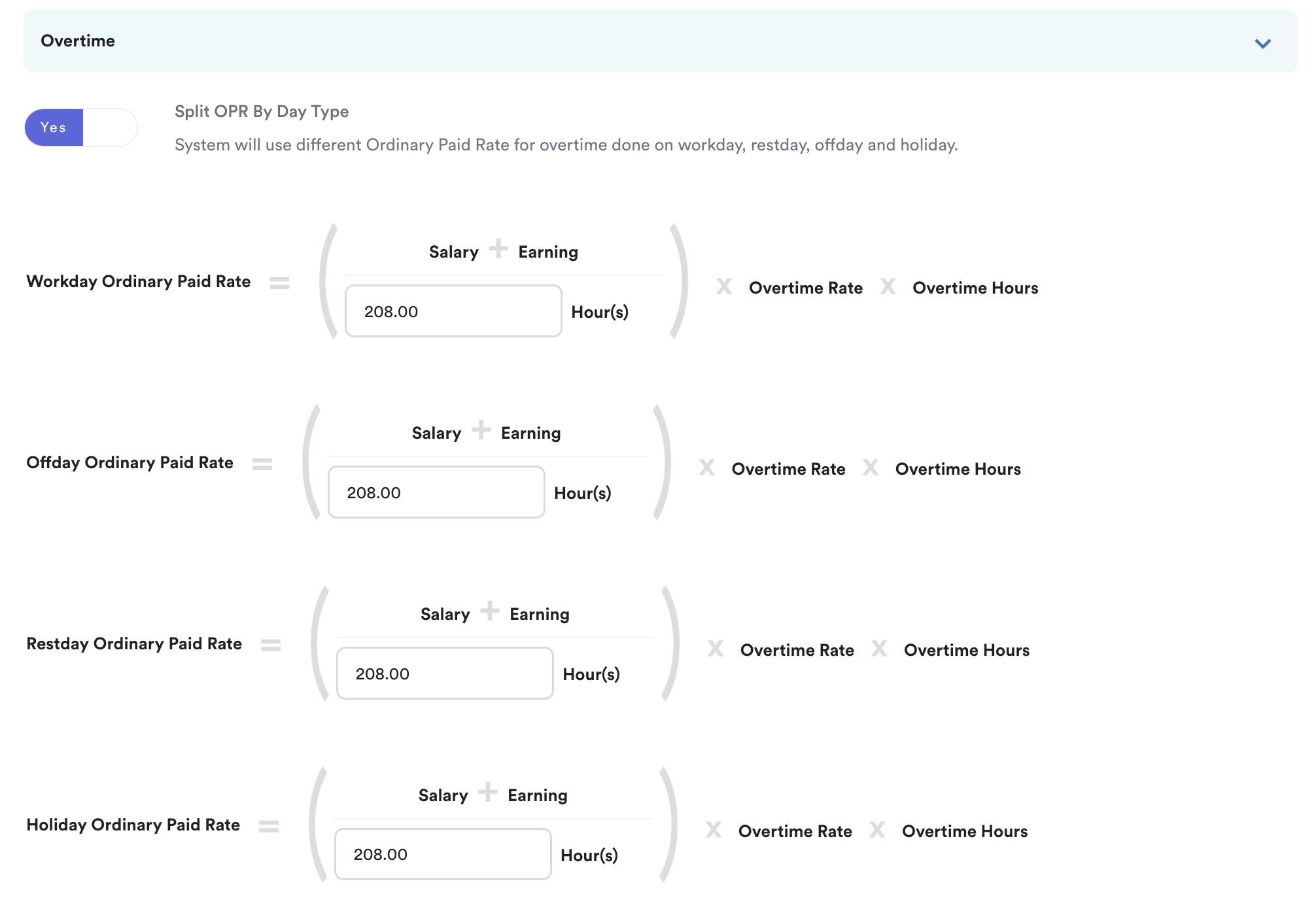
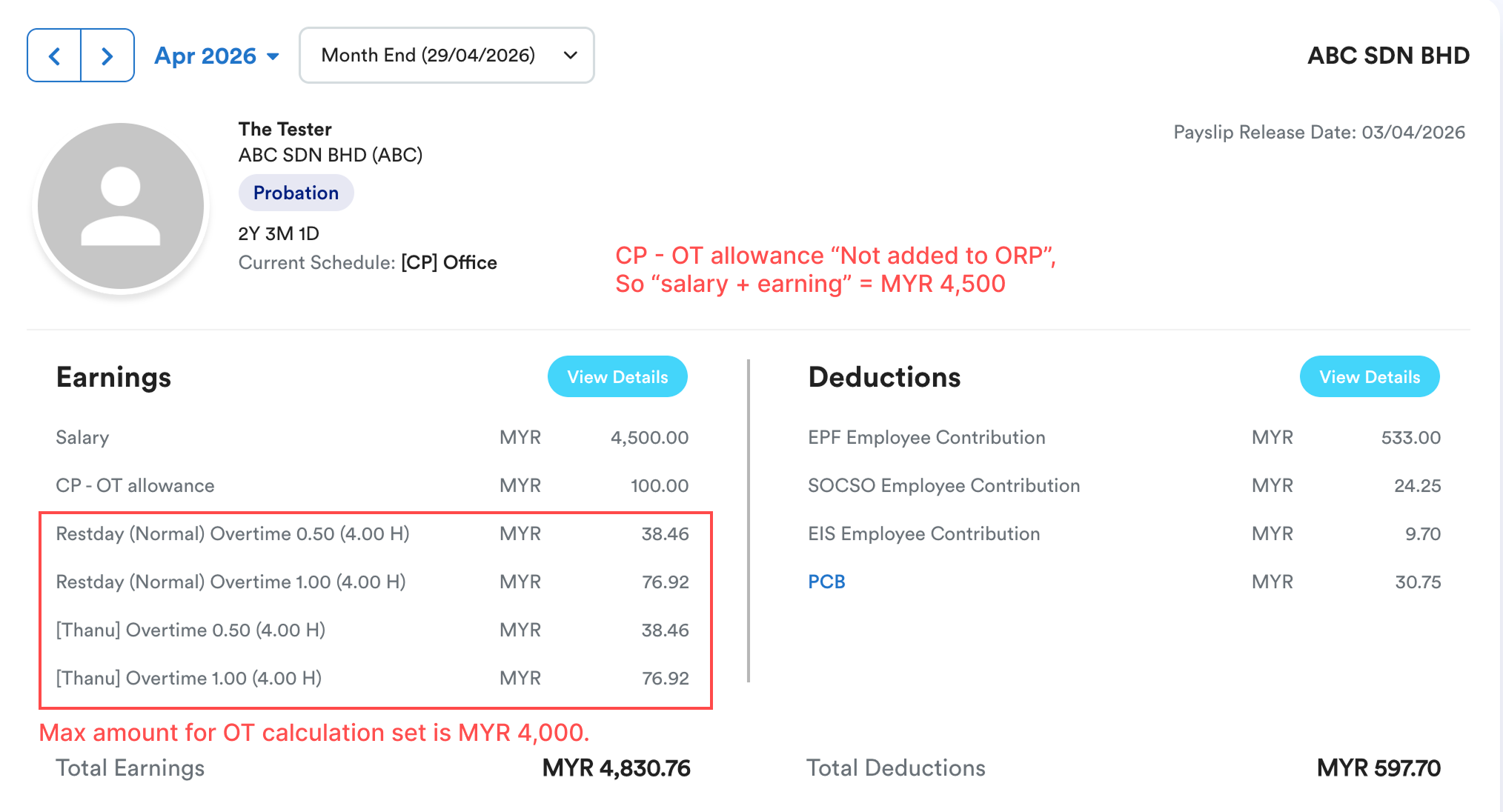
Example:
1. Employee will get OT pay if the "Salary + Earning" is not more than MYR 5000.
Earnings will be determined from the payroll item setting if you have checked the add ORP calculation into overtime. Refer to Creating/Edit Payroll Items Step 3 viii)
2. Even though this employee "Salary + Earning" is MYR 4,500, the maximum amount used for the overtime formula is MYR 4,000.

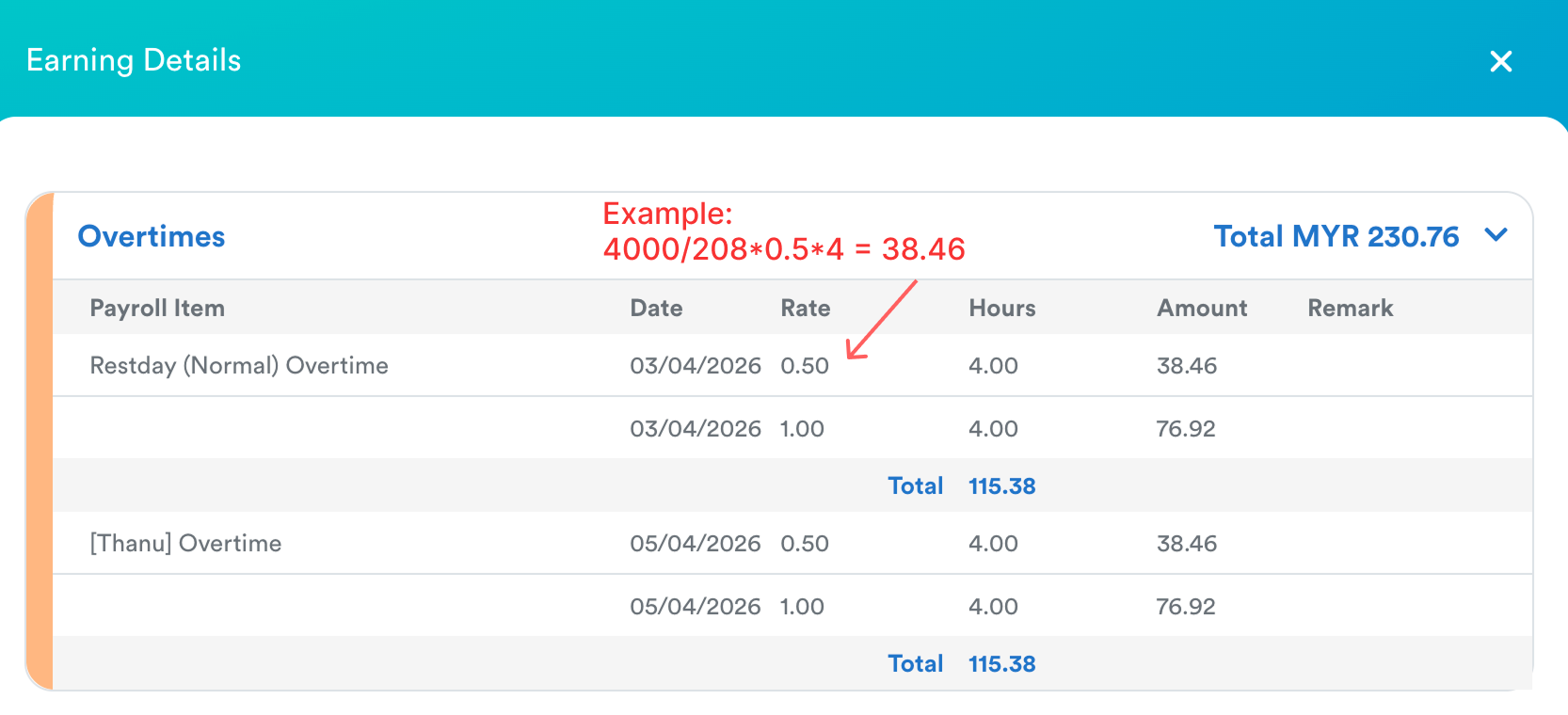
Overtime calculation follows Payroll Policy > General > Overtime section.
7. Attendance Status is Still Pending
OT may also not be pulled into payroll if the related attendance record is still in Pending status.
If the setting in payroll policy > Cut Off > "Enable Process Unlocked Attendance" is Inactive, you need to lock the attendance to process payroll.
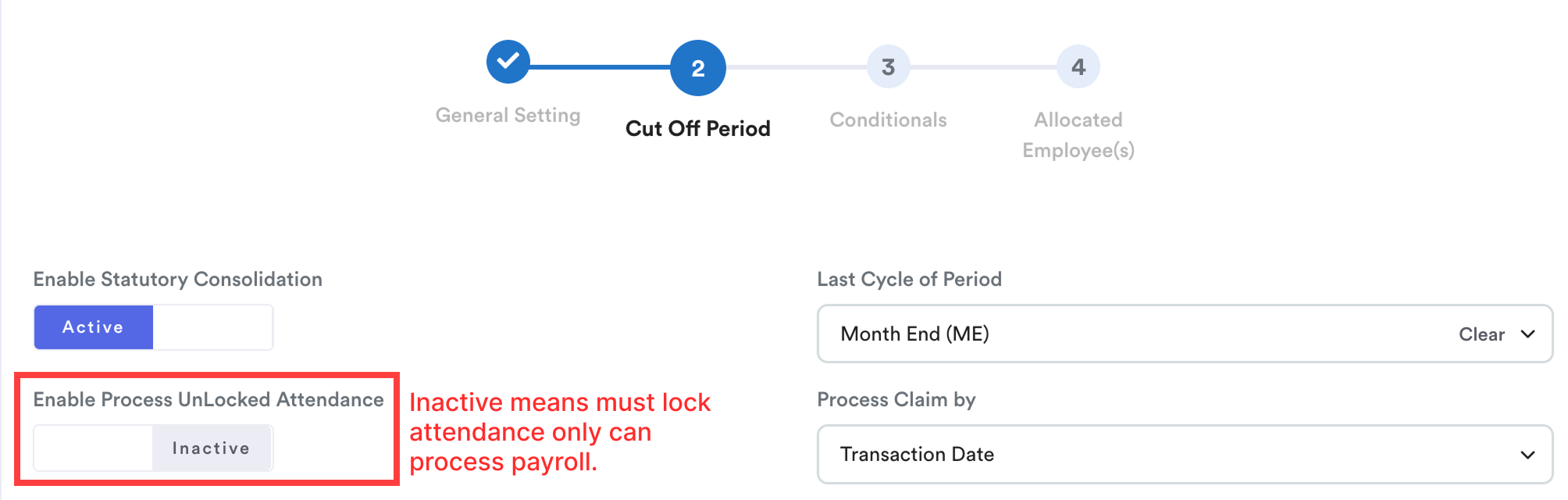
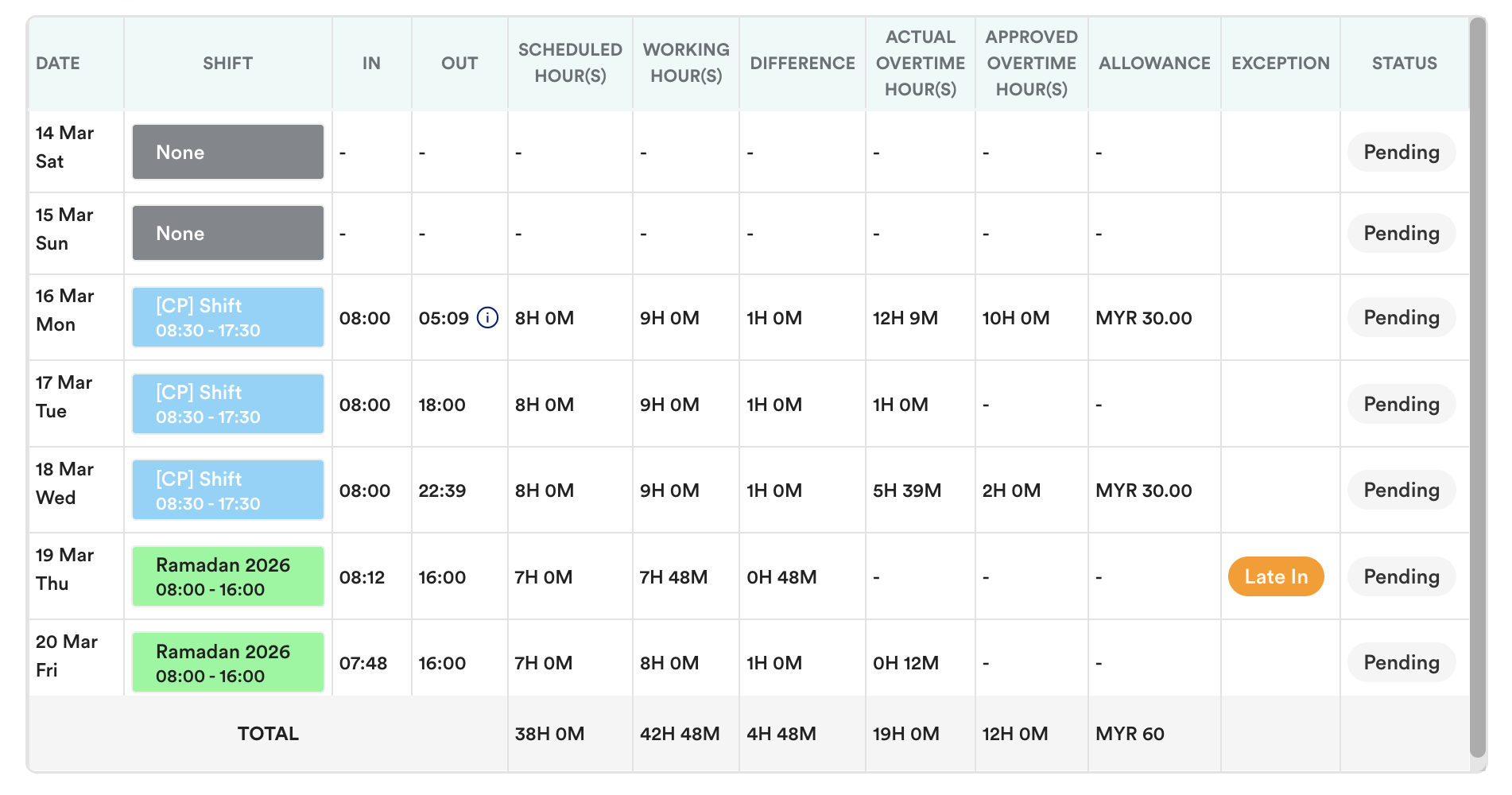
To resolve this, use the Batch Lock Shift feature or manually lock the required attendance records.
Refer to this guide: Lock Attendance by Batch Lock ShiftOnce the attendance is locked, the OT can be successfully captured into payroll.
We hope this clarifies the matter. If you require further assistance, do not hesitate to contact our support team.
Was this article helpful?
That’s Great!
Thank you for your feedback
Sorry! We couldn't be helpful
Thank you for your feedback
Feedback sent
We appreciate your effort and will try to fix the article