Under the Overtime section in Payroll Policy, you can find the field "Maximum overtime hour in a month".
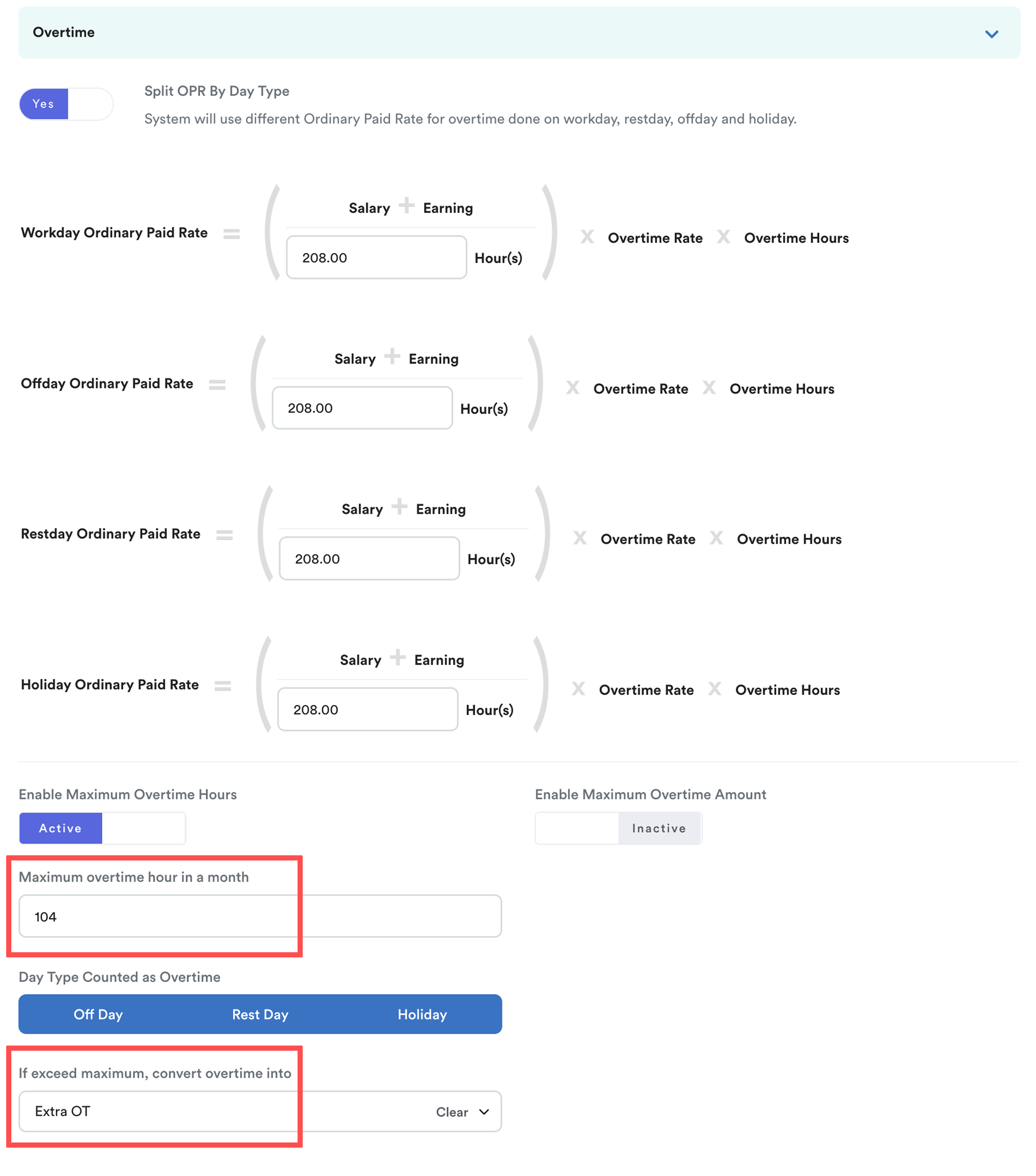
This setting determines how the system handles any overtime hours that exceed the limit.
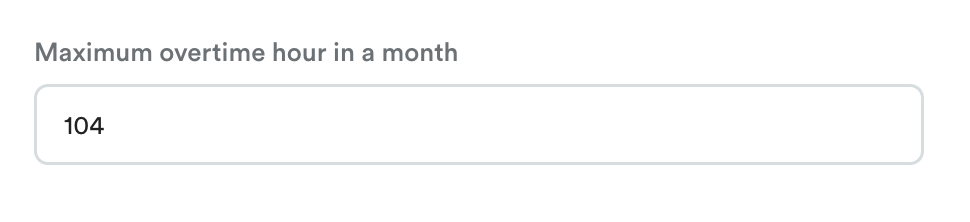
According to Employment (Limitation of Overtime Work) Regulations 1980, the maximum number of overtime hours an employee can work per month is 104 hours.
According to Section 60A(3) of the Act (page 57), "overtime work" is strictly defined as hours worked in excess of the normal daily working hours. Because of this distinct legal framing, work performed during rest days and public holidays is treated differently under the law. To comply with this, system default setting excludes these day types towards this maximum overtime hours limit.
This change ensures that the 104-hour maximum overtime will be calculated for overtime on Working Days only.
If you want to add overtime hours worked on rest days, public holidays, or substituted paid holidays to this maximum overtime, please select the day types.
Below this setting, you will find the field "If exceed maximum, convert overtime into".
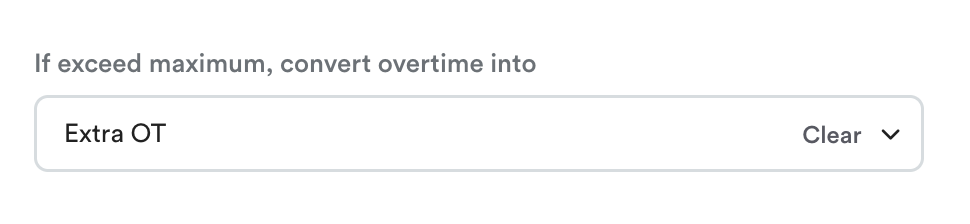
This allows you to decide how excess hours are processed by converting them into a specific payroll item.
Example:
If you select "Extra OT" as your conversion payroll item, any hours exceeding the monthly limit of 104 hours will still be pulled into the payslip, but will be labeled separately from your default overtime payroll item.
Scenario: An employee works 12 hours of OT, but the Maximum overtime hour in a month is set to 10 hours.
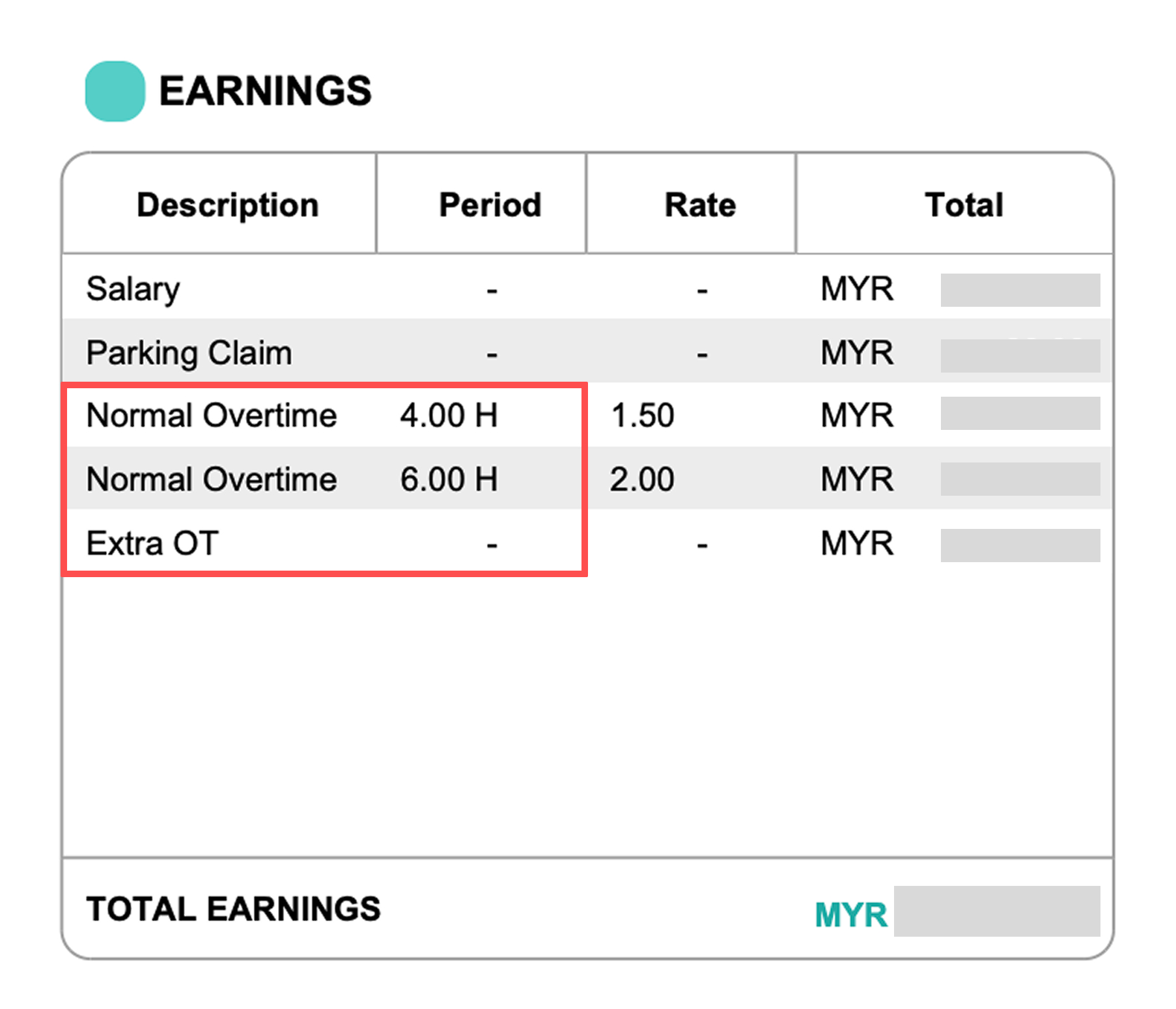
Result: The payslip will capture the first overtime 10 hours as "Normal Overtime" (or relevant overtime payroll item) and the remaining 2 hours automatically converted to "Extra OT."
Disabling Overtime Conversion
If you prefer that overtime hours are not reflected in the payslip at all:
Step 1
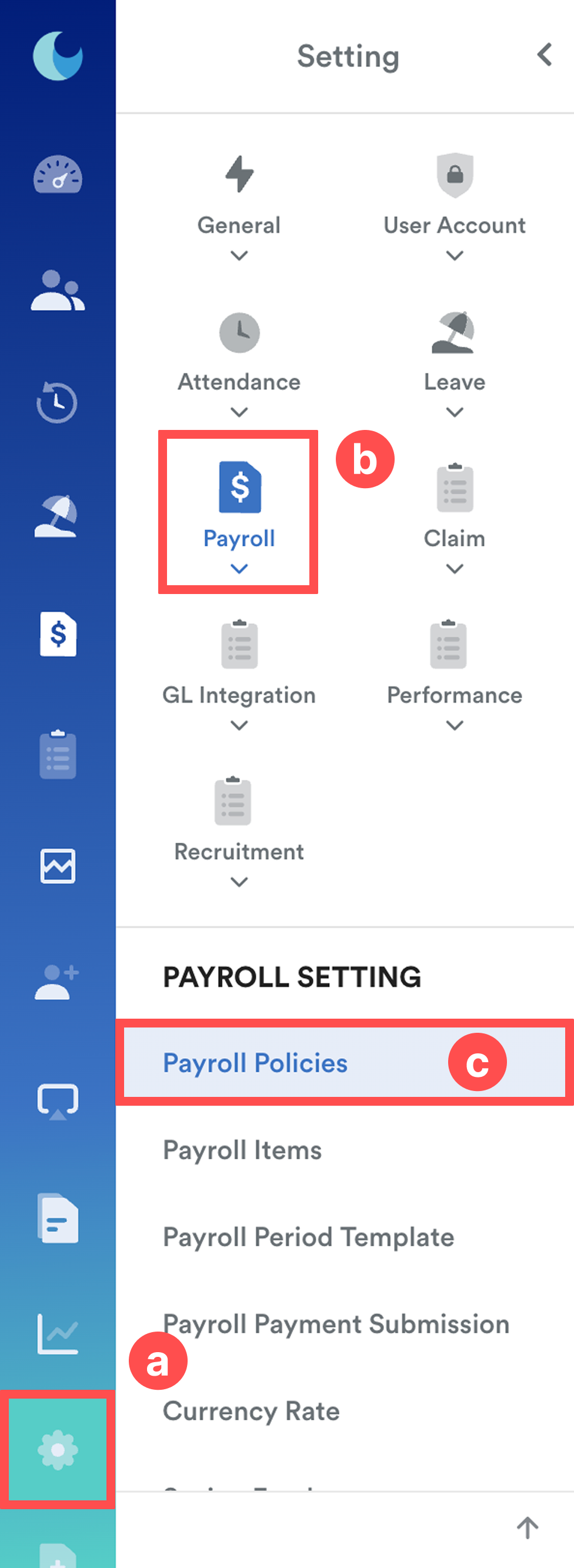
On the left menu, go to Settings (a) > Payroll (b) > Payroll Policies (c).
Step 2
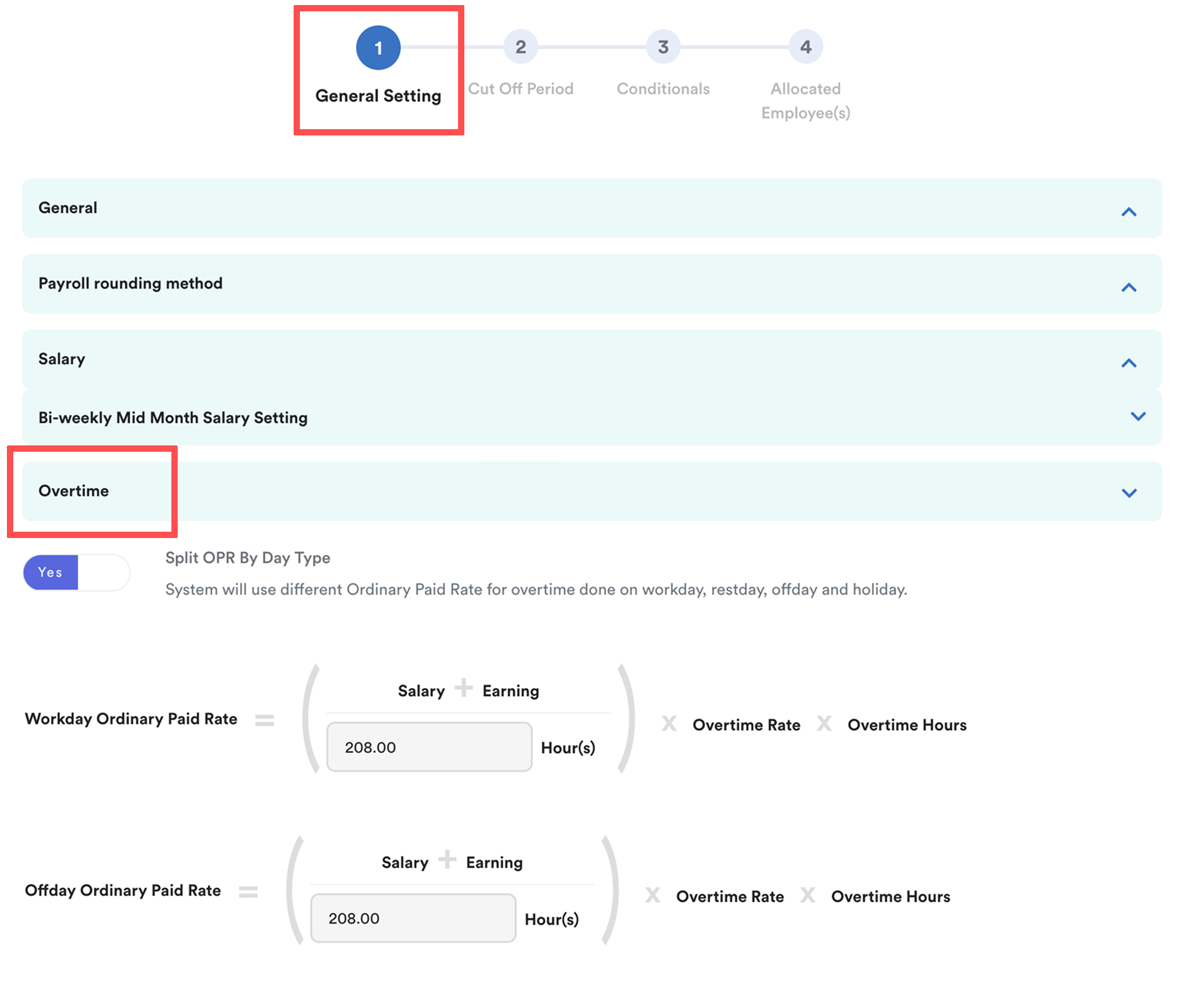
Select the relevant payroll policy from the list. Under the General Setting tab, scroll down to Overtime section. Find "If exceed maximum, convert overtime into".
Step 3
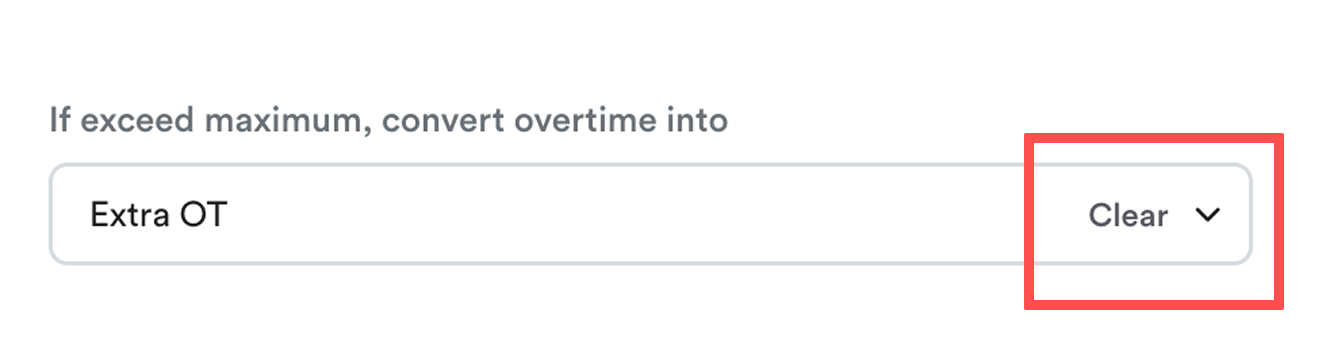
Click Clear to remove the assigned payroll item. This will disable the exceeded maximum overtime conversion.
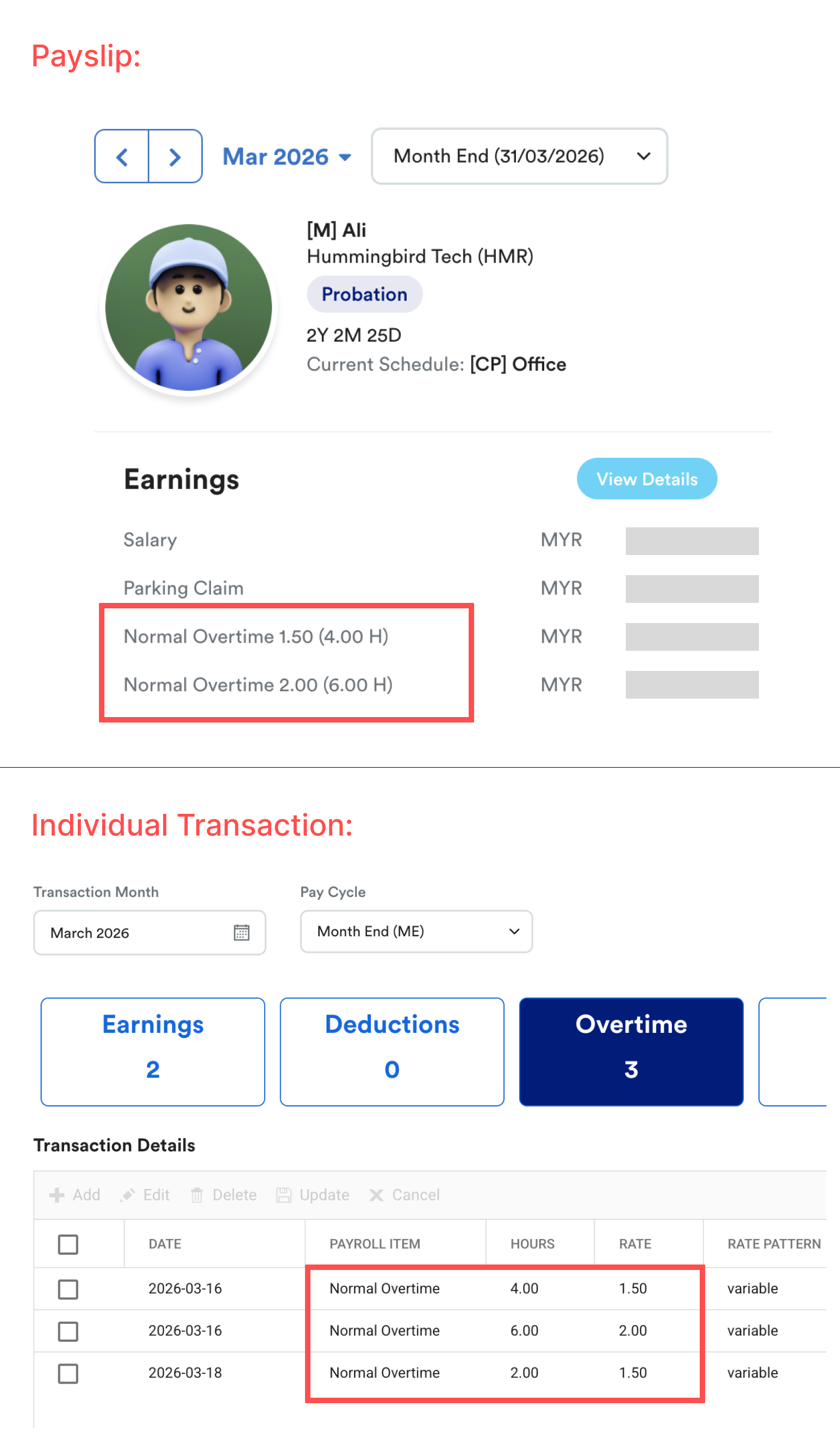
Once disabled, any overtime beyond the monthly maximum will not be captured in the payroll. However, these hours will still be recorded under Individual Transaction.
We hope this clarifies the matter. If you require further assistance, do not hesitate to contact our support team.
Was this article helpful?
That’s Great!
Thank you for your feedback
Sorry! We couldn't be helpful
Thank you for your feedback
Feedback sent
We appreciate your effort and will try to fix the article