The purpose of the Calibration page is to allow administrators to review and adjust final appraisal scores. This article will guide you on how to do final result calibration.
Step 1
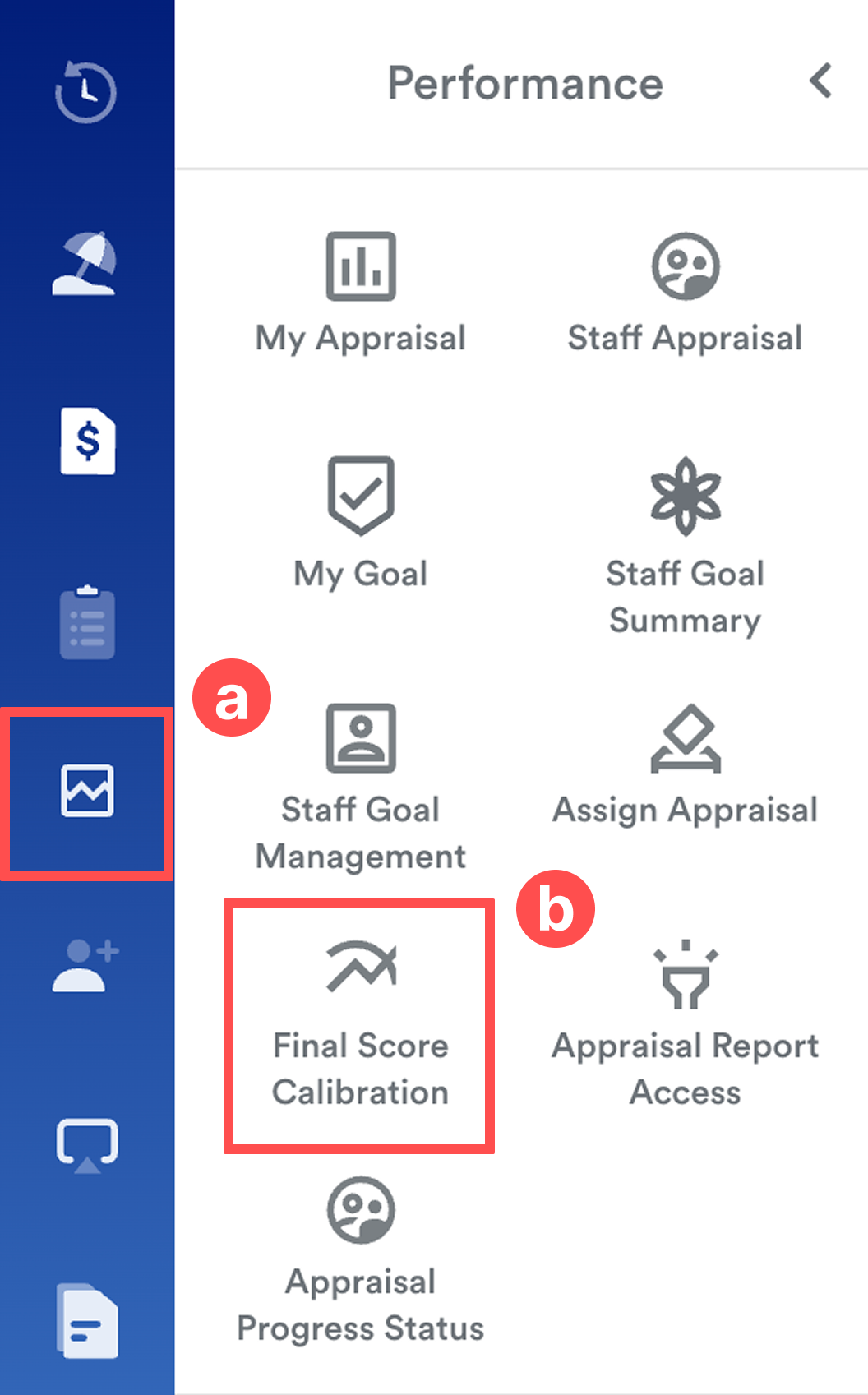
On the left menu, go to Performance (a) > Final Score Calibration (b).
Step 2
Select the relevant Appraisal period by clicking the Year (a) button at the top right-side of the screen.
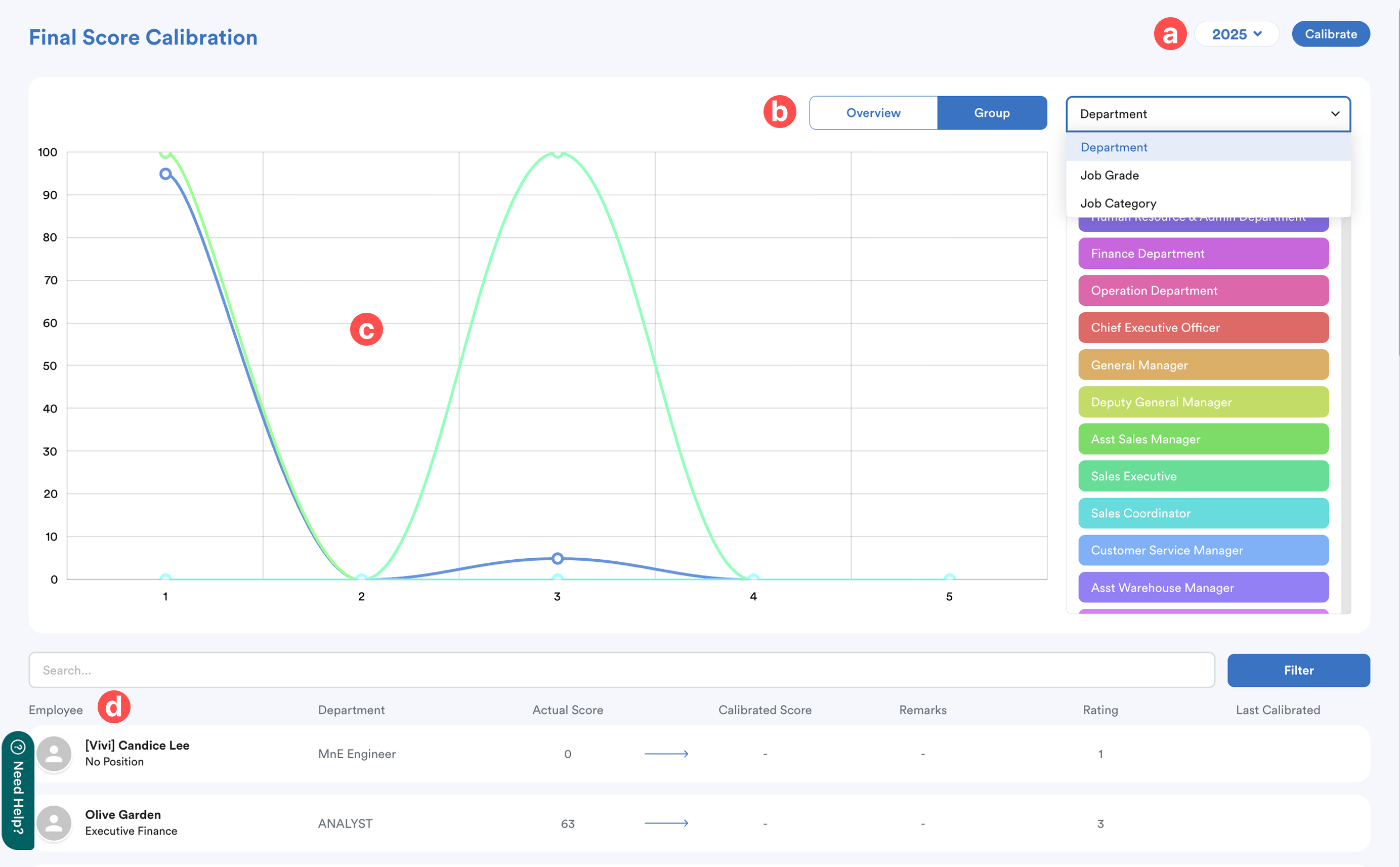
b. Bell Curve Display: The center of the screen visualizes the rating distribution for the selected period.
c. View by: Select to view by Overview or Group. If Group is selected, you can further filter the display by Department, Job Grade, or Job Category.
d. Employee List: Displays all appraisees who have completed their assessments and are contributing to the current scores.
Step 3
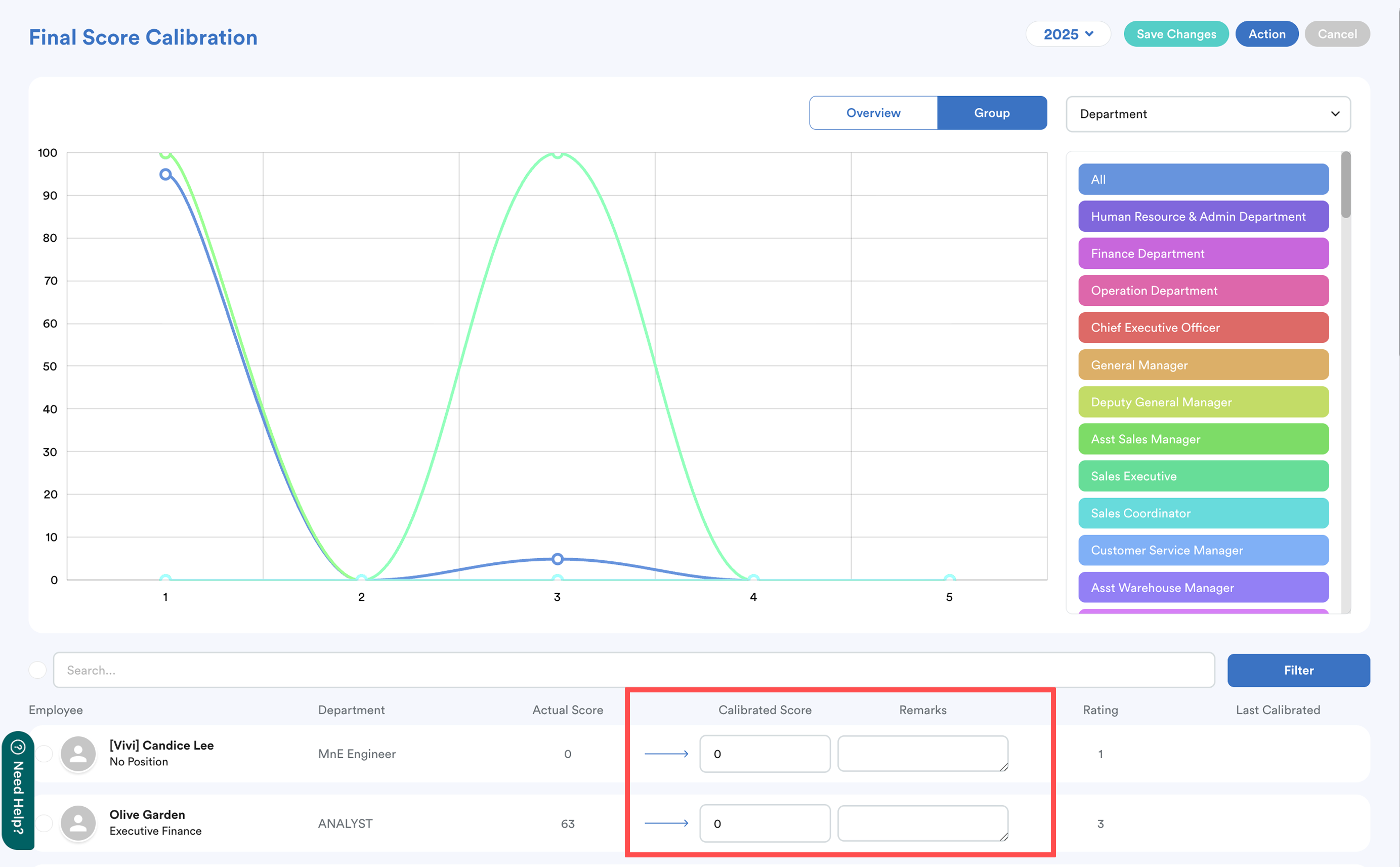
Click the Calibrate button at the top right-side of the screen to enter edit mode.

You can adjust scores using two methods:
a. Individual Adjustment
Manually enter a new value in the calibrated score field next to an individual’s name. Use the Search bar or the Filter button to quickly locate specific employees.
b. Auto Calibration
Click the Action button to open the side panel.

Step 4
From the Action side panel, select one of the following options:
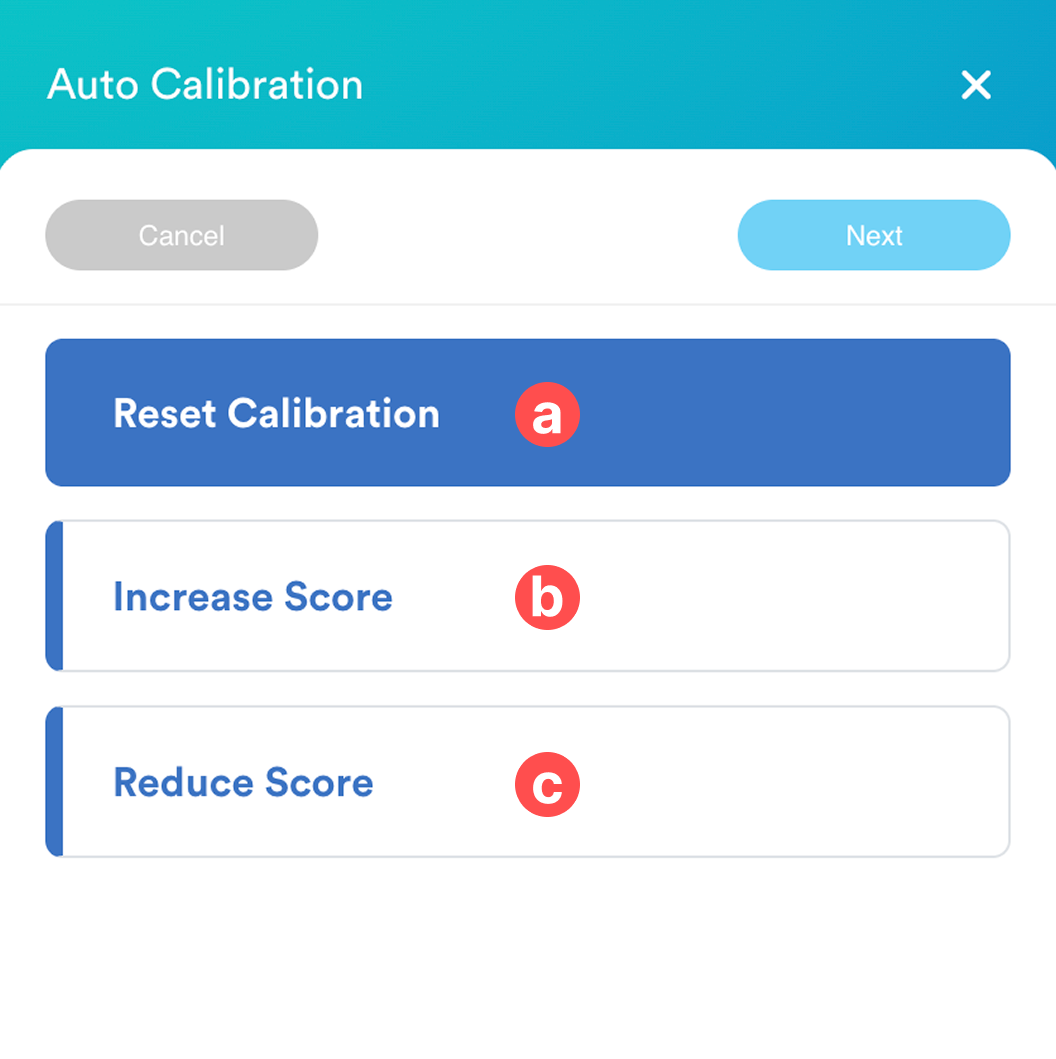
- Reset Calibration: Clear all previously entered calibrated scores.
- Increase Score: Raise the scores for selected employees based on your defined criteria.
- Reduce Score: Lower the scores for selected employees based on your defined criteria.
Example:
Increase Score
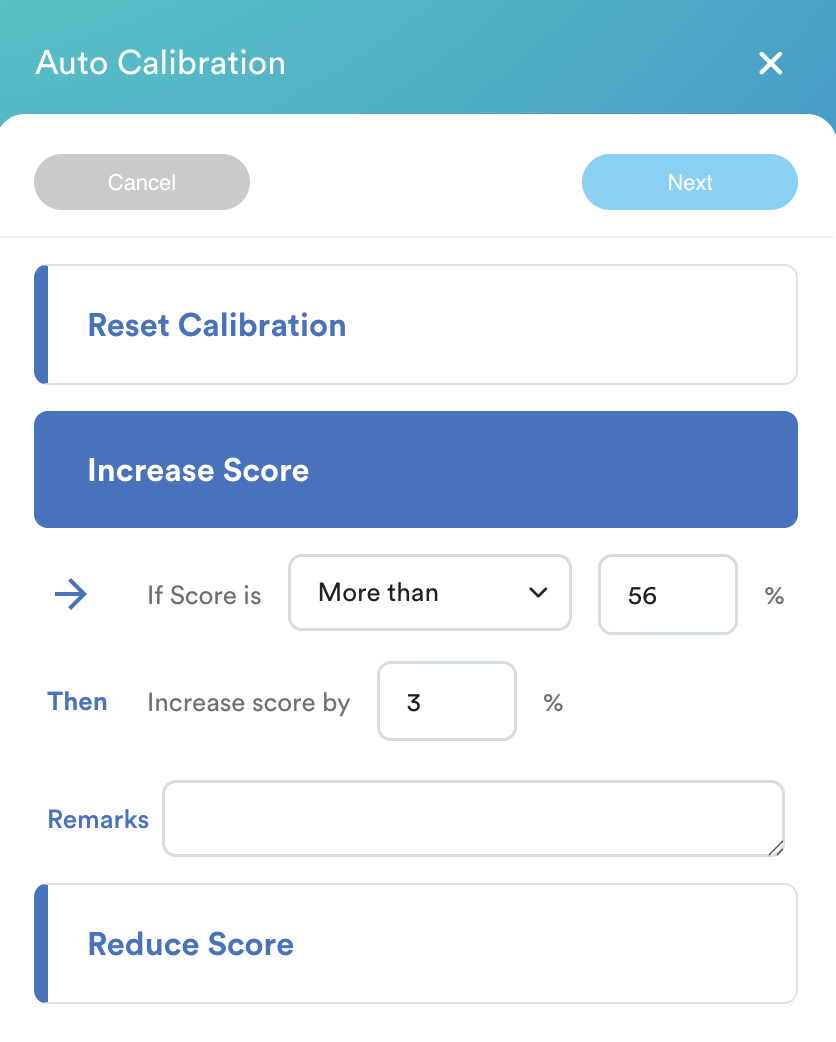
Define your adjustment criteria, click Next to validate the affected employees
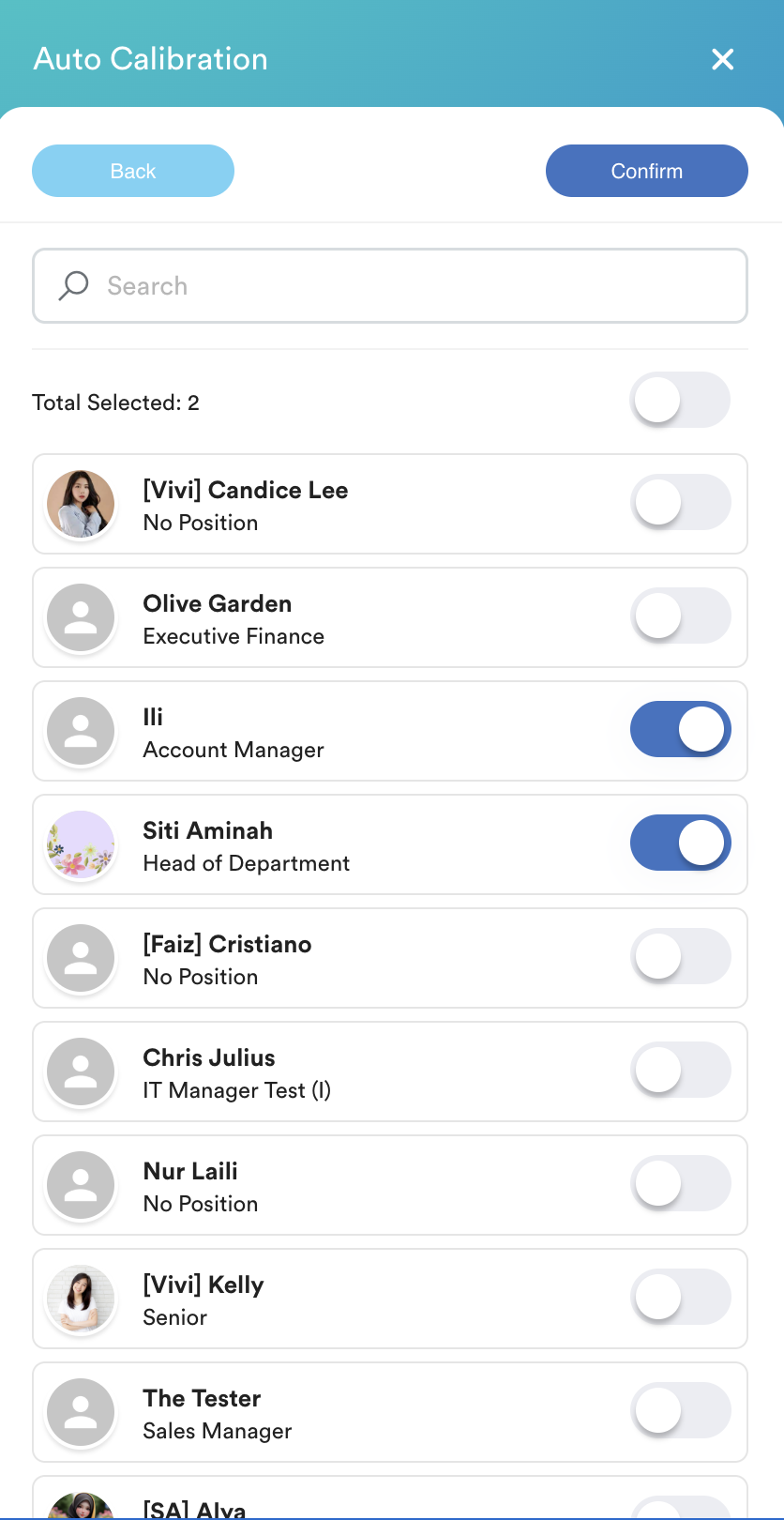
Click Confirm.
Step 5
Review the updated bell curve to ensure the distribution meets your requirements. Once satisfied, click Save at the top right corner to finalize the calibrated scores.
We hope this explanation clarifies the matter. If you require further assistance, please don't hesitate to contact our support team.
Was this article helpful?
That’s Great!
Thank you for your feedback
Sorry! We couldn't be helpful
Thank you for your feedback
Feedback sent
We appreciate your effort and will try to fix the article