The Final Rating Scale is used to calculate the Appraisal Assessment Score. It allows the system to determine and display the final score based on the scale defined in this settings.
Step 1
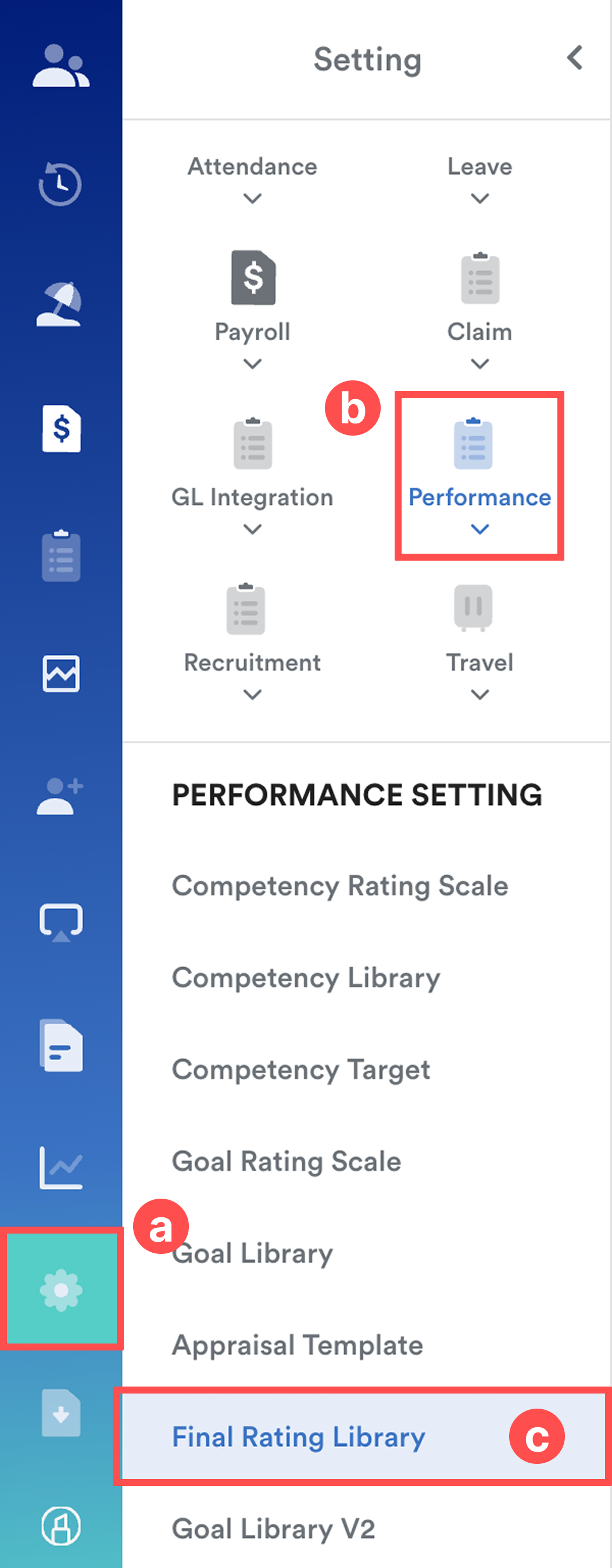
On the left menu, go to Settings (a) >Performance (b) > Final Rating Library (c).
Step 2
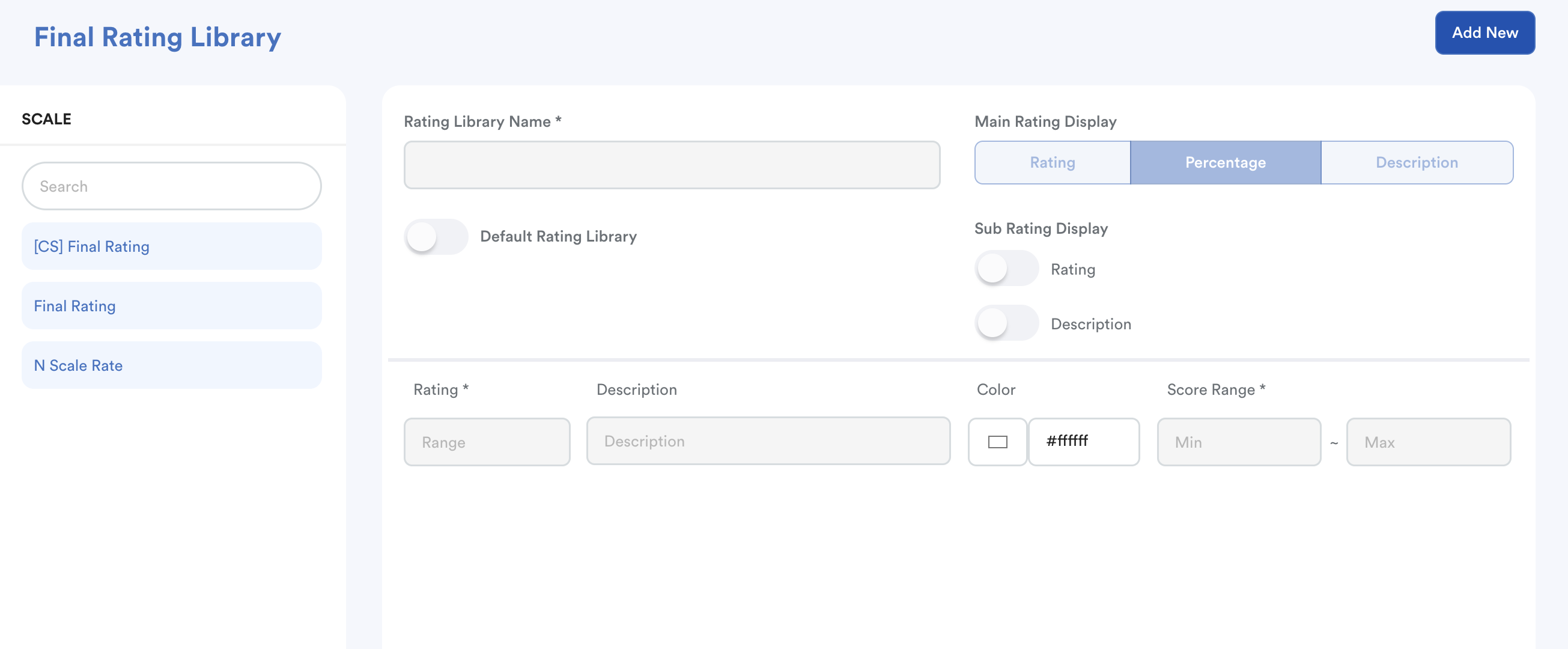
Once you arrived on the Final Rating Library screen, click Add New or select an existing scale from the list on the right to Edit.
Step 3
Configure the rating library settings.
1. Basic Information
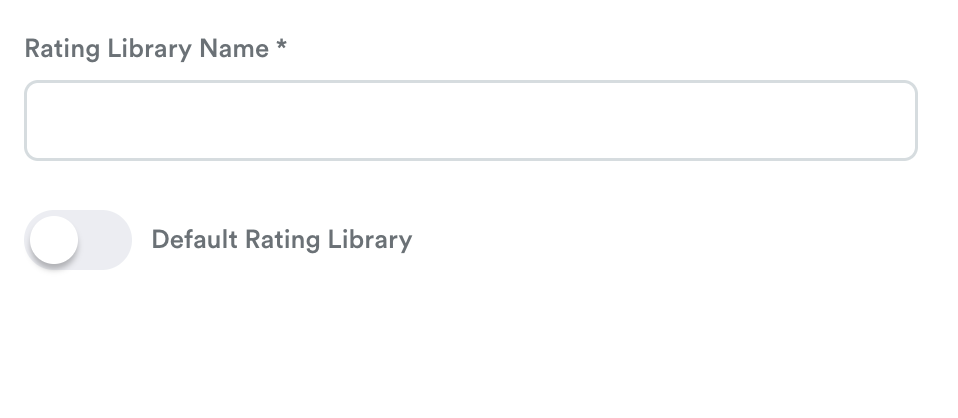
- Rating Library Name – Enter a name for the scale.
- Default Rating Library– Toggle this on if you want this to be the default rating.
The default rating library will be used when an appraisee is assigned multiple assessments or templates.
2. Rating Display Settings
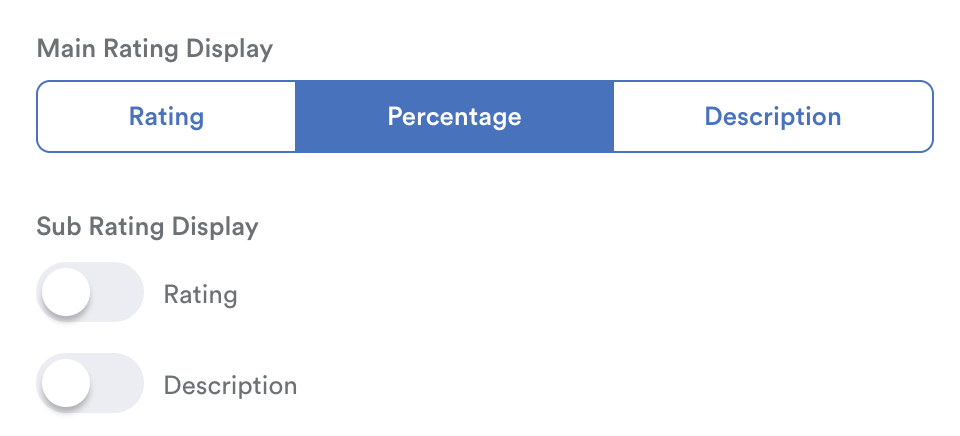
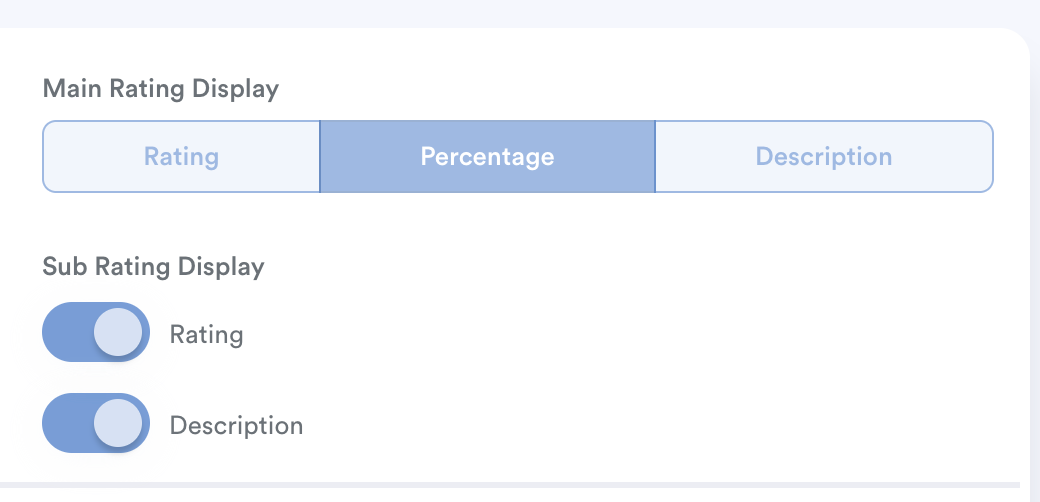
- Main Rating Display – Choose how the final rating will be displayed:
- Rating
- Percentage
- Description
- Sub Rating Display (Optional) – Toggle this on to display additional rating information.
The available options will depend on the Main Rating selected.
(Example: If Main is Percentage, the Sub options will be Rating or Description.)
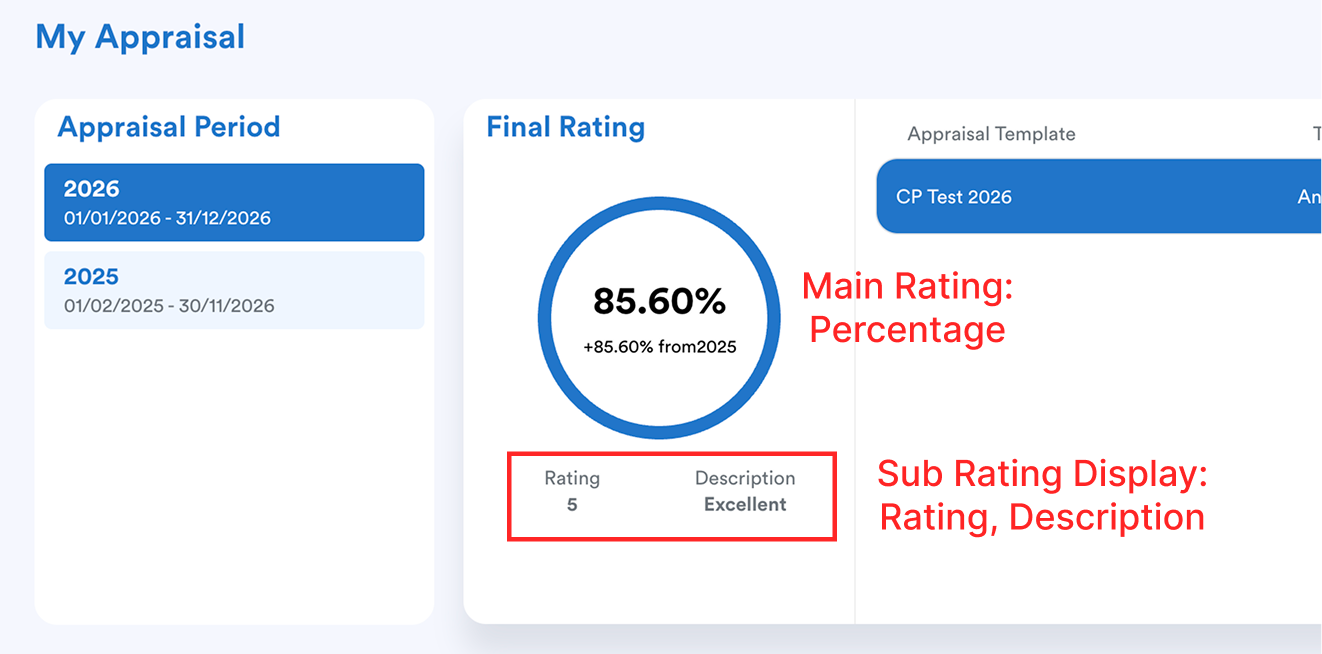
This setting determines how final ratings appear in the "My Appraisal" and "Staff Appraisal" and what information is visible to the appraisee.
Example of setting:
Main Rating Display: Percentage
Sub Rating Display: Rating, Description
3. Add Rating Scales
In the rating section below, define each scale by clicking + to add rating levels or – to remove them.

- Rating – The label shown to both Appraisee and Appraiser when completing the appraisal form.
- Description – A definition that explains what the rating means.
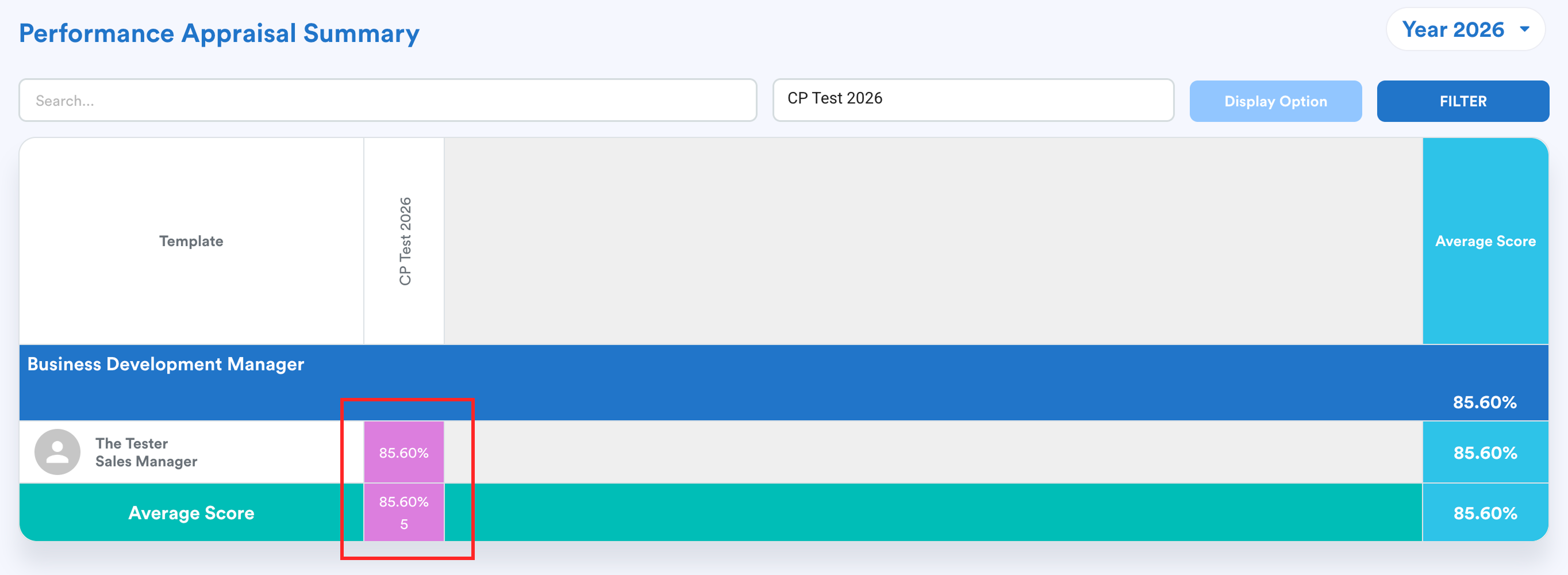
- Color – Used for report display purposes.
- Score Range – Defines the scores required to receive the specific rating.
Example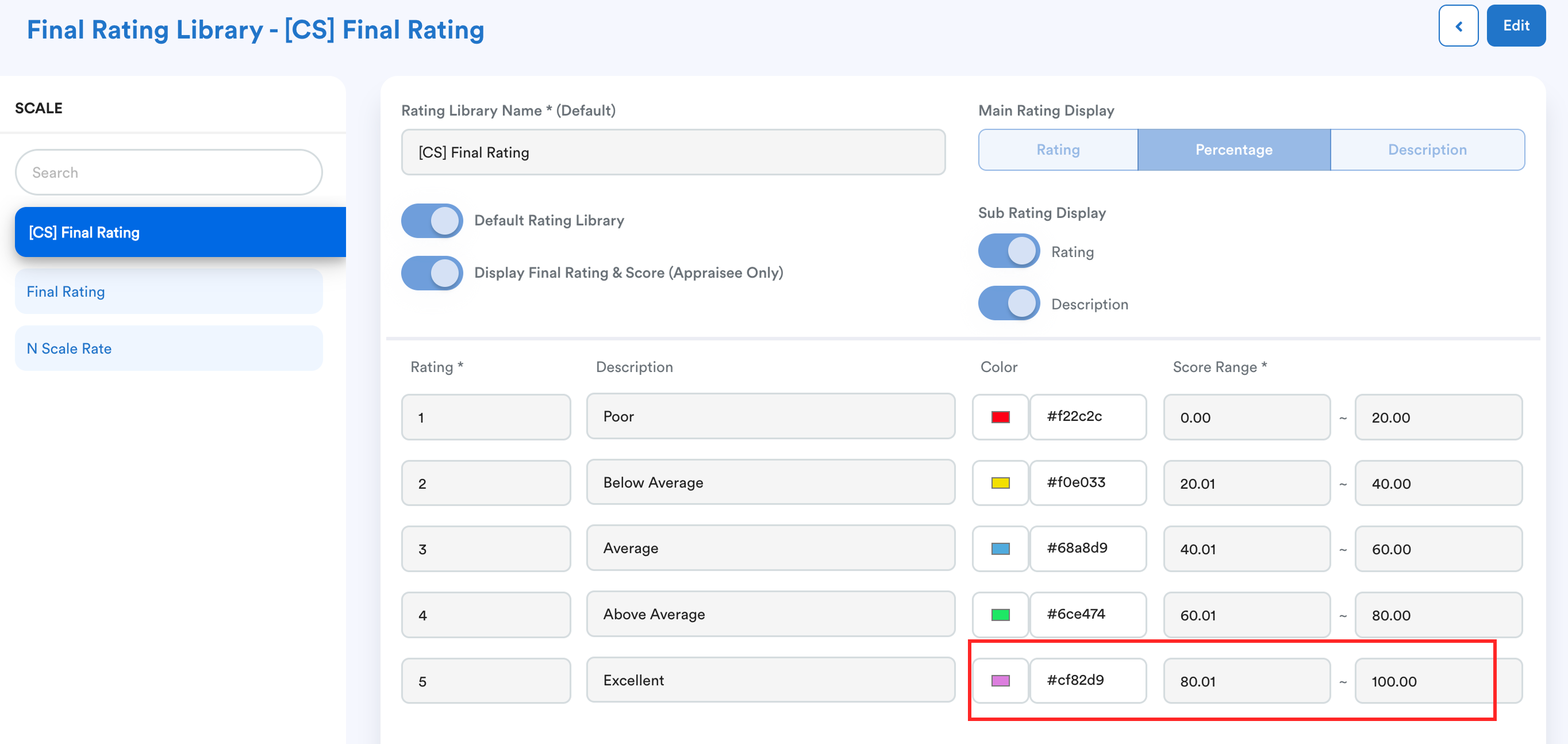
Define all necessary rating levels according to your organization’s appraisal framework.
These colors will appear in Report > Performance > Performance Appraisal Summary
Step 3
Once completed, click Save at the top right corner of the screen to apply the changes.
We hope this explanation clarifies the matter. If you require further assistance, please don't hesitate to contact our support team.
Was this article helpful?
That’s Great!
Thank you for your feedback
Sorry! We couldn't be helpful
Thank you for your feedback
Feedback sent
We appreciate your effort and will try to fix the article