The purpose of the Competency Library is to create a centralized list of competencies that will be evaluated during appraisal.
Before setting up the Competency Library, ensure that the Competency Rating Scale has already been created. The rating scale configured earlier will be used in this setup.
Step 1
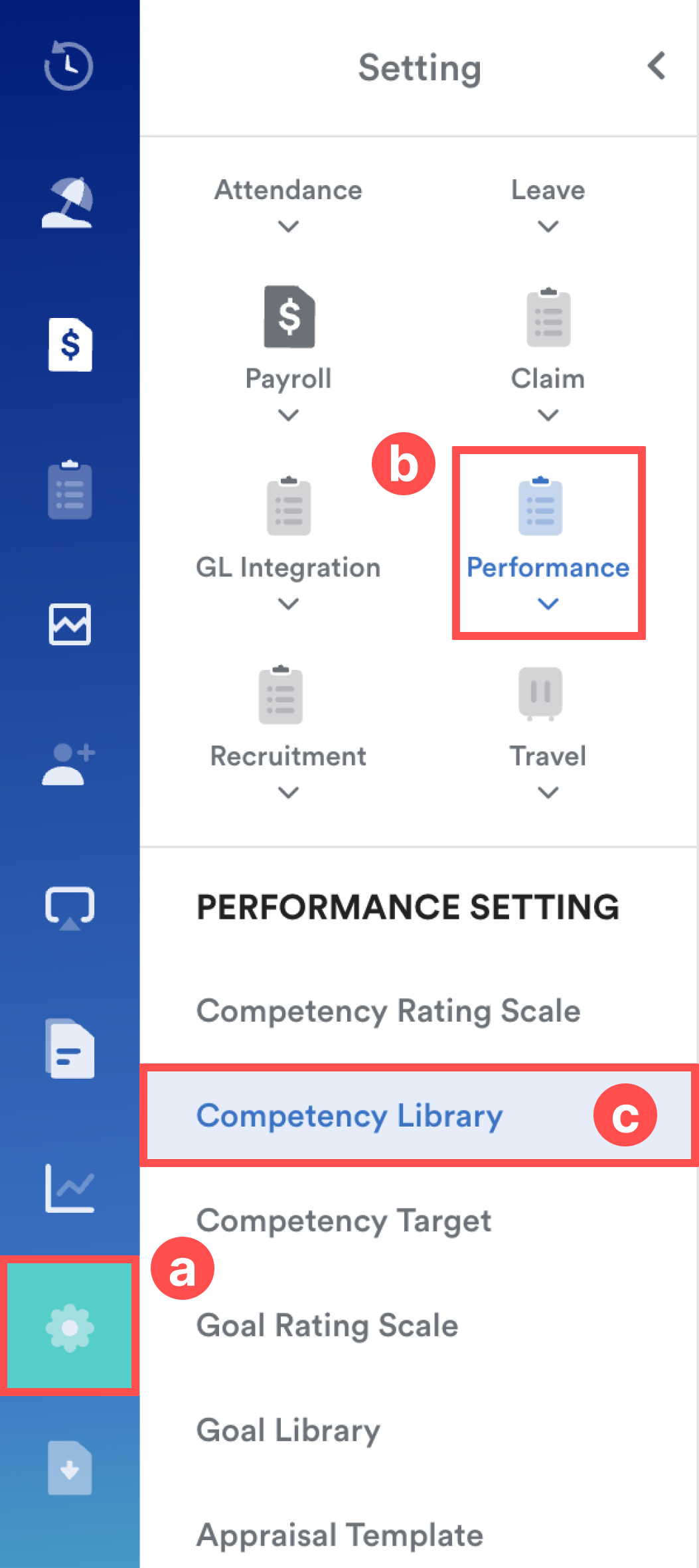
Go to Settings (a) > Performance (b) > Competency Library (c).
Step 2
Click Add New to create a new Competency Set, or select an existing Goal Set from the list to edit.

Step 3
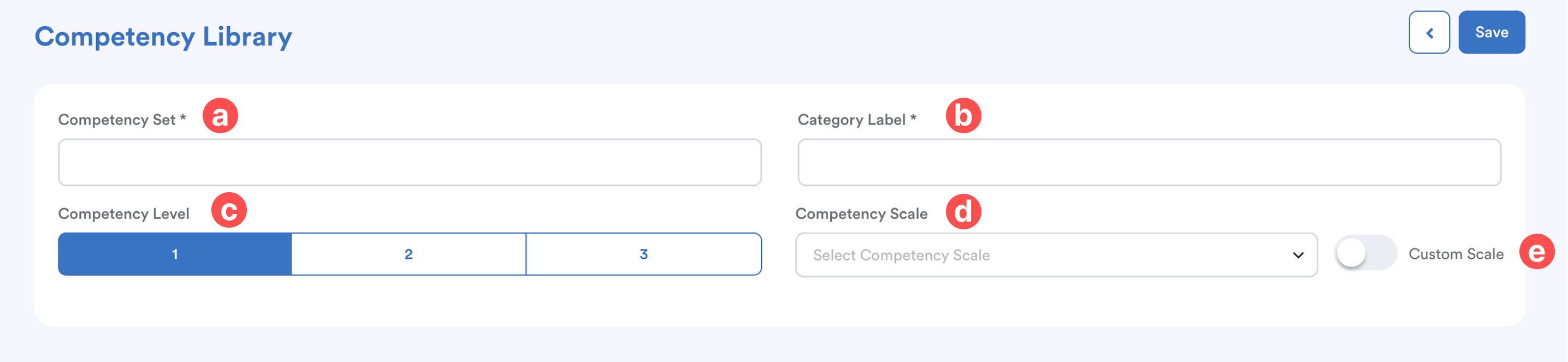
a. Competency Set Name
Enter a clear and identifiable name for this competency set.
b. Category Label
Define the category for grouping purposes (e.g. Technical, Behavioral, Leadership).
c. Competency Level
Select the number of hierarchy levels (1 / 2 / 3). The levels determine how competencies are structured:
- Level 1 – Core Competency (main category)
- Level 2 – Sub-Competency (key component under Level 1)
- Level 3 – Element / Indicator (detailed measurable behavior or skill)
Example structure:
- Level 1: Customer Service
- Level 2: Communication Skills
- Level 3: Active Listening
d. Competency Scale
Select the Rating Scale that will be used to measure this competency set.
The available options are based on the Competency Rating Scales that have been created earlier.
e. Optional: Custom Scale
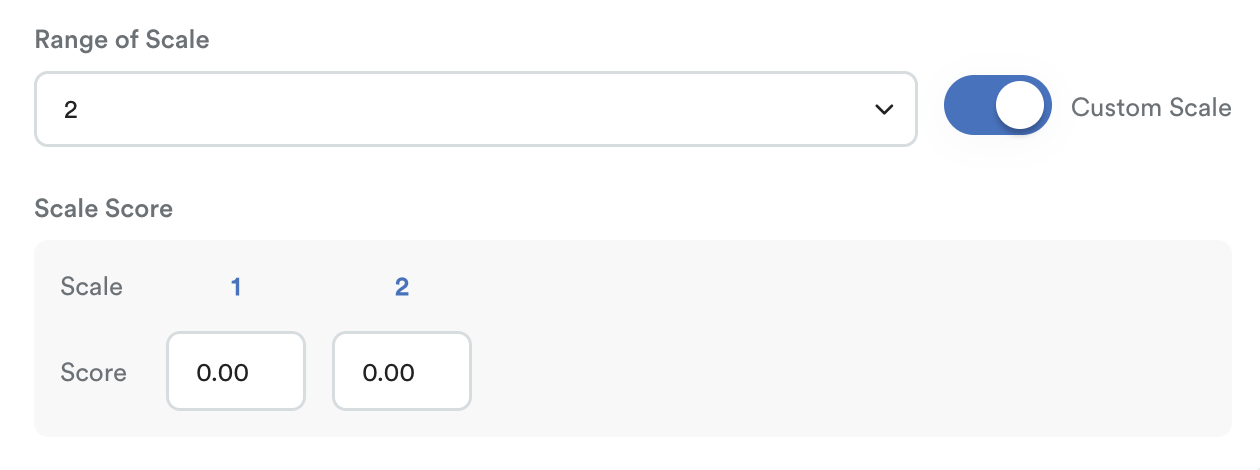 Toggle this on if you want to define a unique rating scale specifically for this competency set instead of using an existing one. When enabled, you can select Range of Scale and define the scale scores based on your framework.
Step 4
There are two tabs available:
- Competency
- Description
Competency Tab
This tab is where you define the list of competencies and their weightage.
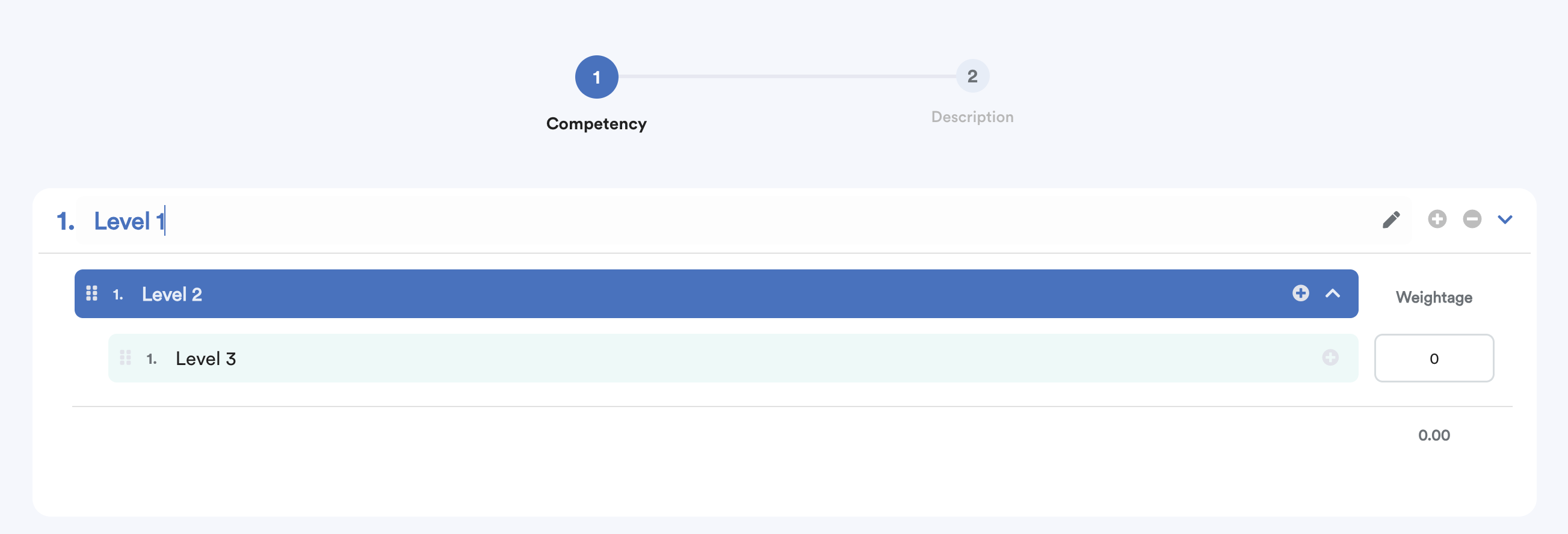
The levels will appear based on the Competency Level selected earlier.
- Click on Level 1 (and subsequent levels, if applicable) to enter the competency name.
- Click the + button to add additional competency rows.
- Enter the Weightage for the competency.
Step 5
Description Tab
This tab allows you to define detailed explanations and rating guidance for each competency.
Left Panel
Displays the list of competencies you have created, sorted by levels. Click the arrow button to switch between competencies and define them individually.
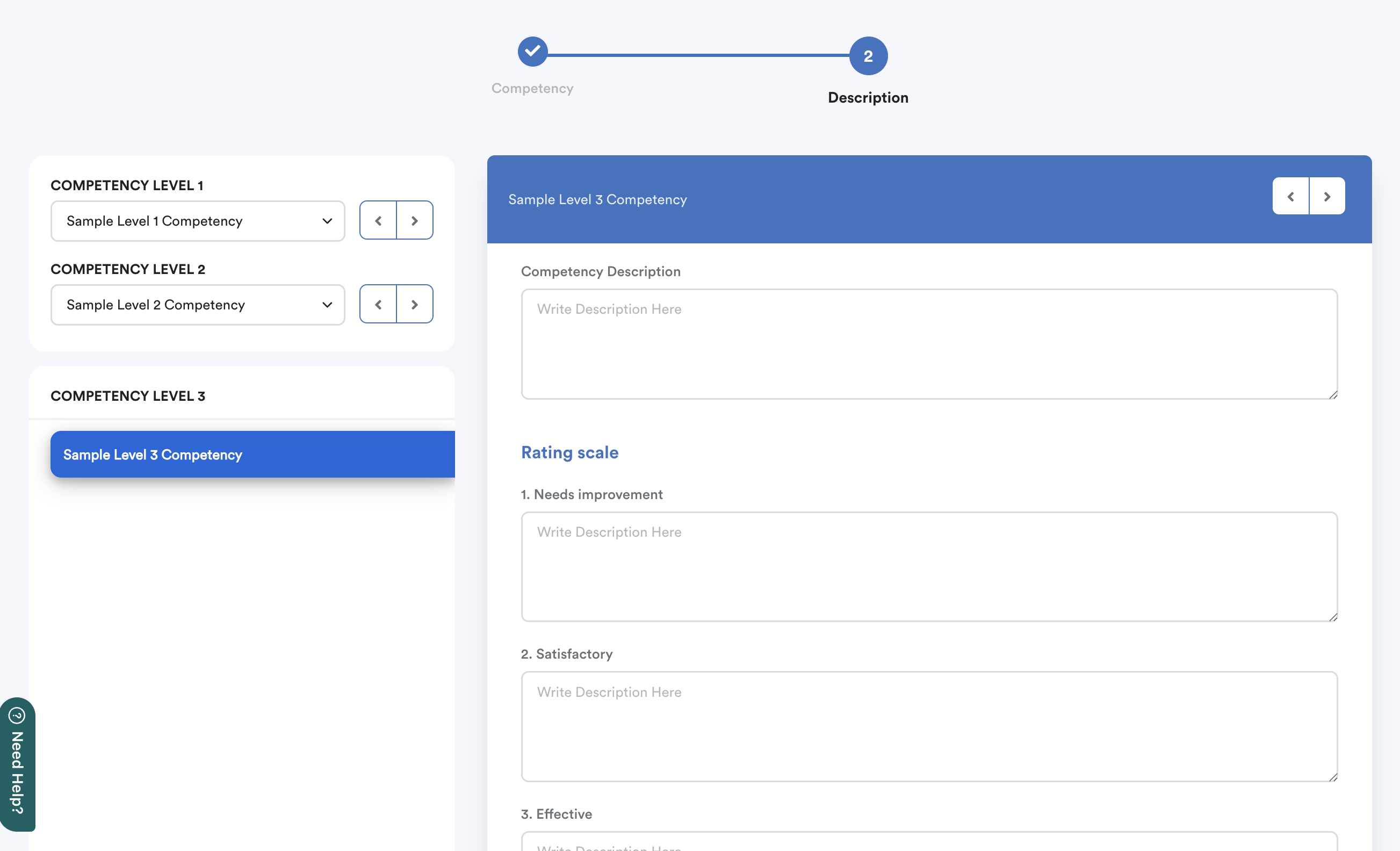
Right Panel
Allows you to add descriptions for the lowest level competency (e.g. if 3 levels are selected, description and rating will be done at Level 3).
Define the following:
a. Competency Description
Provide a clear and concise description of the competency. This helps both the appraiser and appraisee understand what is being assessed.
b. Rating Scale Description
Based on the selected rating scale, the scale values will appear here. Define what each rating represents.
Repeat this process until all competencies have been fully configured.
Step 6
After completing all setups, click Save at the top right corner of the screen to save your changes.
Important:
If this Competency Library has already been assigned to an Appraisal Form Template, any changes made will not automatically reflect in ongoing appraisals. You must reset the appraisal form for the appraisee in order for the updates to take effect.
We hope this explanation clarifies the matter. If you require further assistance, please don't hesitate to contact our support team.
Was this article helpful?
That’s Great!
Thank you for your feedback
Sorry! We couldn't be helpful
Thank you for your feedback
Feedback sent
We appreciate your effort and will try to fix the article