Step 1
Go to Leave on the left menu. Then click Leave History.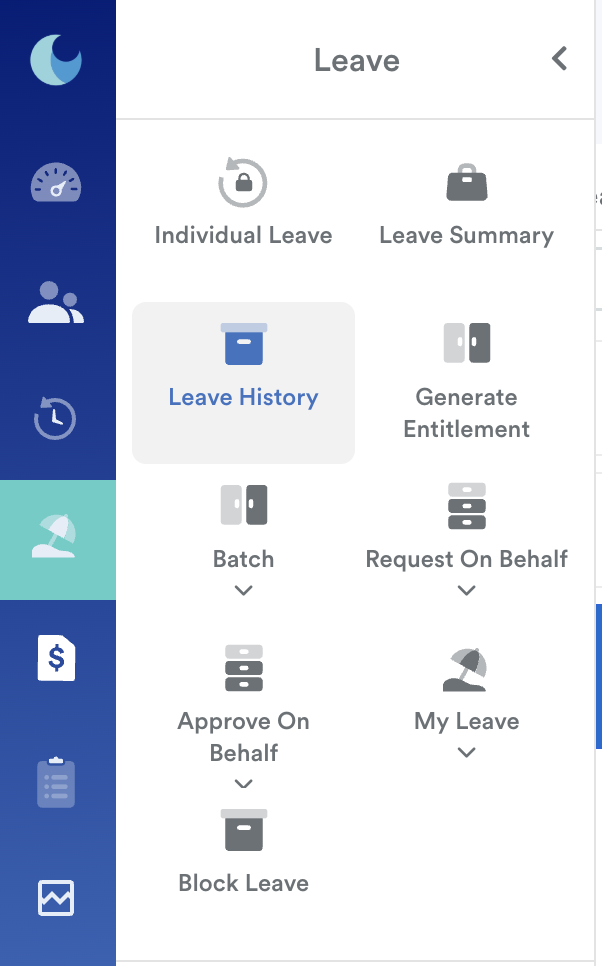
Step 2
Start by choosing your staff name.
Step 3
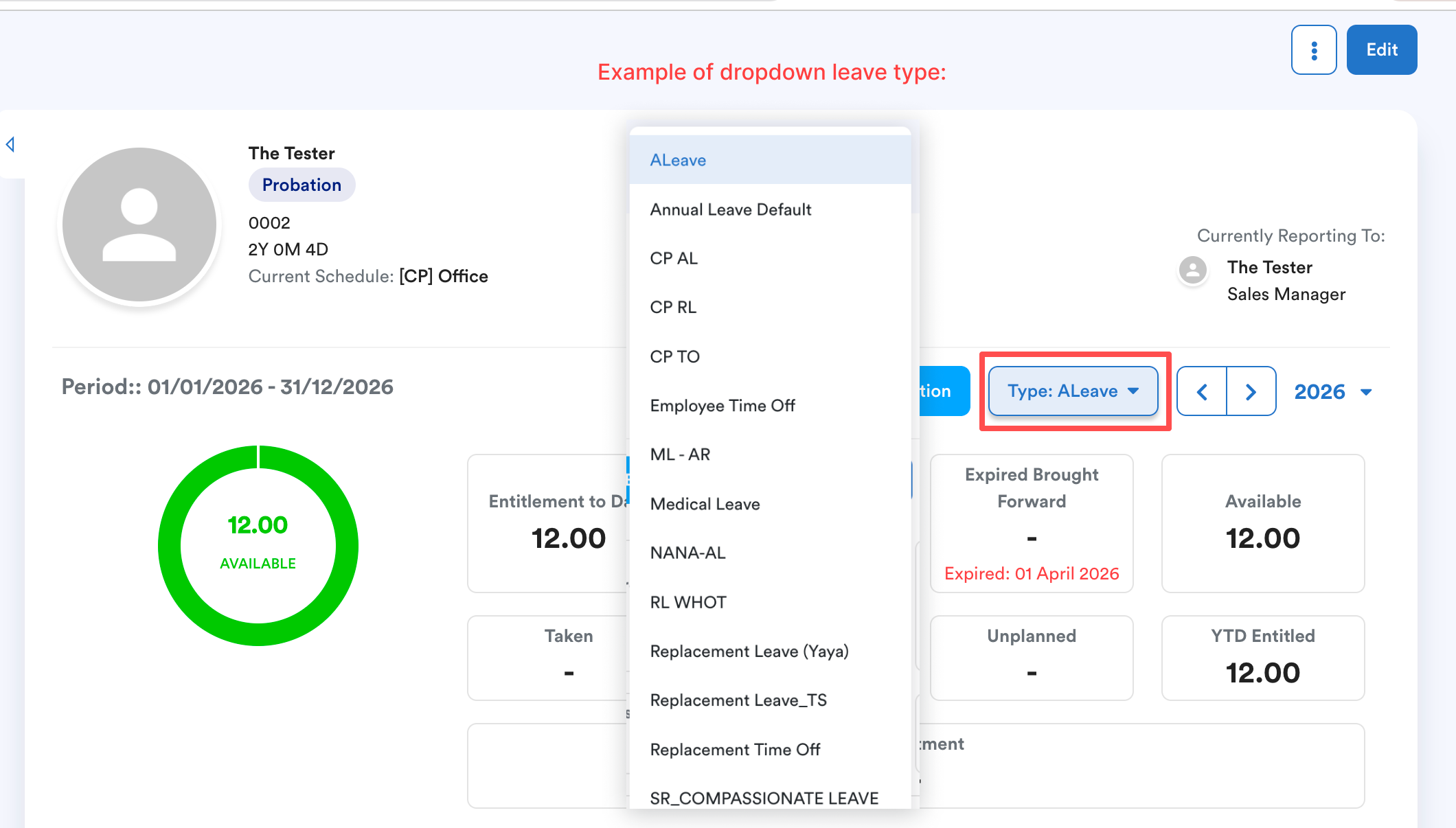
You will be redirected to a page shown below. Choose a leave type from the drop-down list.
Step 4
Click on the “3 dots” icon. And then click Delete.

Step 5
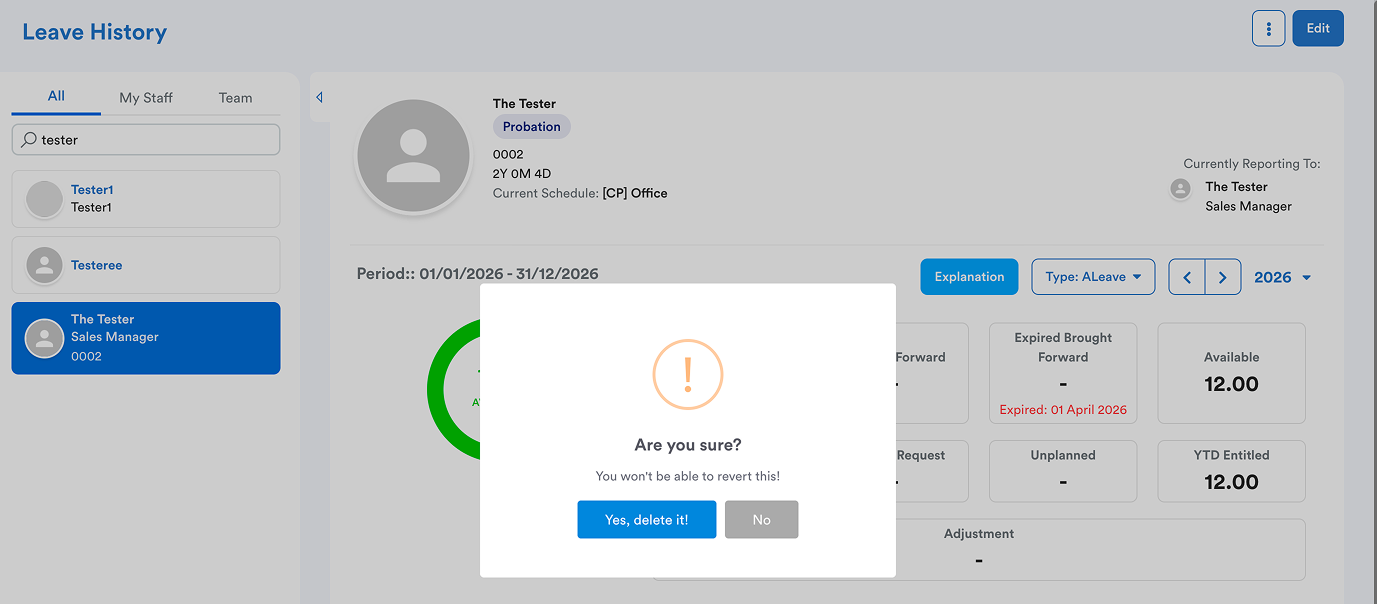
You will be prompted by a dialogue box as shown below. Click “Yes, Delete it” option.
You no longer can find the leave type that has been deleted. Check in the drop-down leave type list to double-check. The 'ALeave' from the first row has now been deleted.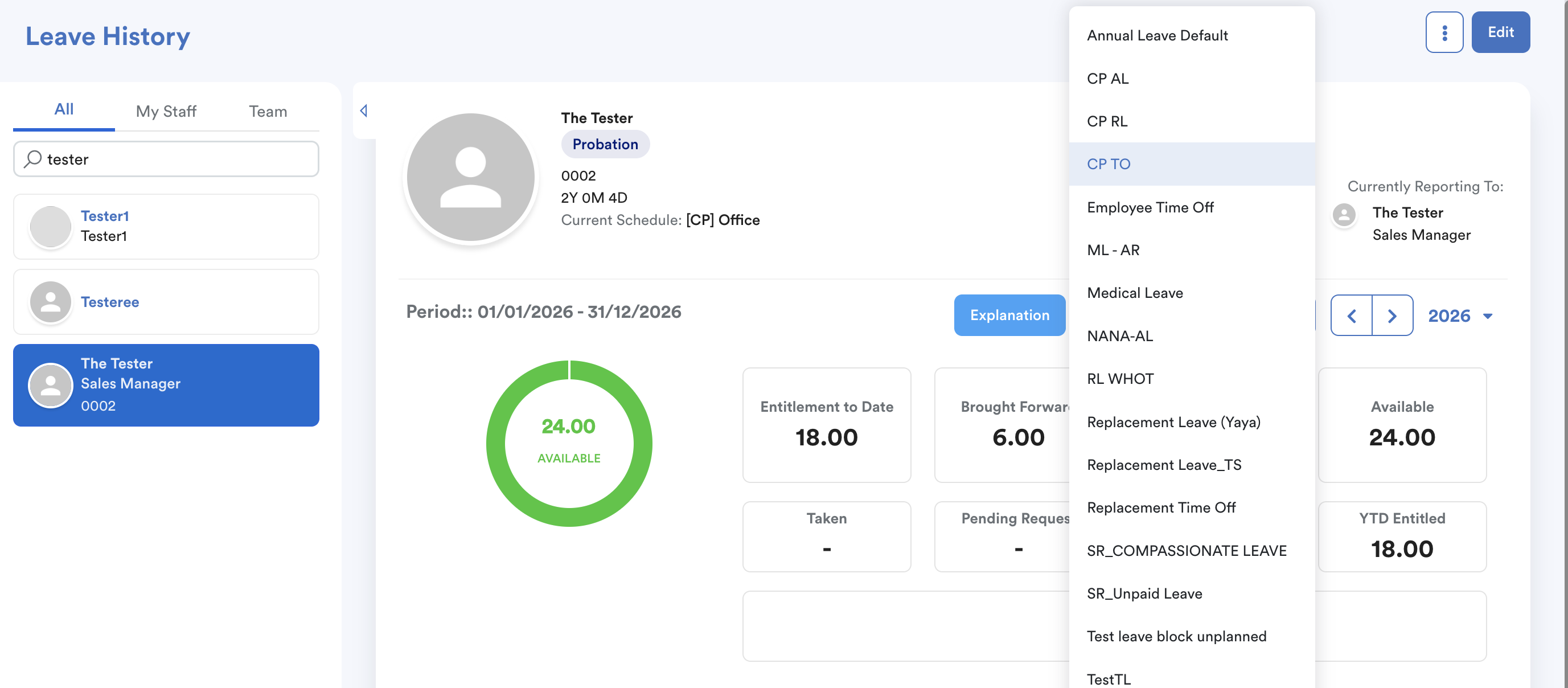
Note: Ensure the scheduler is disabled if you do not want to generate automatically for staff. Otherwise, you will see some leave types appear again after the scheduler runs.
We hope this explanation clarifies the matter. If you require additional assistance, do not hesitate to contact our support team.
Was this article helpful?
That’s Great!
Thank you for your feedback
Sorry! We couldn't be helpful
Thank you for your feedback
Feedback sent
We appreciate your effort and will try to fix the article