You can edit the leave record and earned replacement leave in the leave history.
Edit Leave Record
Step 1
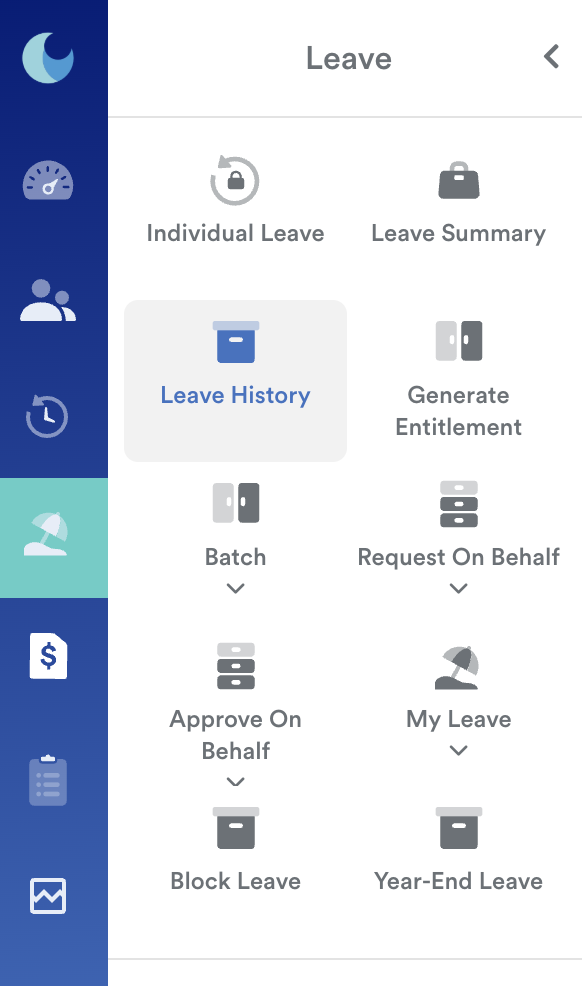
On the left menu, go to Leave. Then, click on Leave History.
Step 2
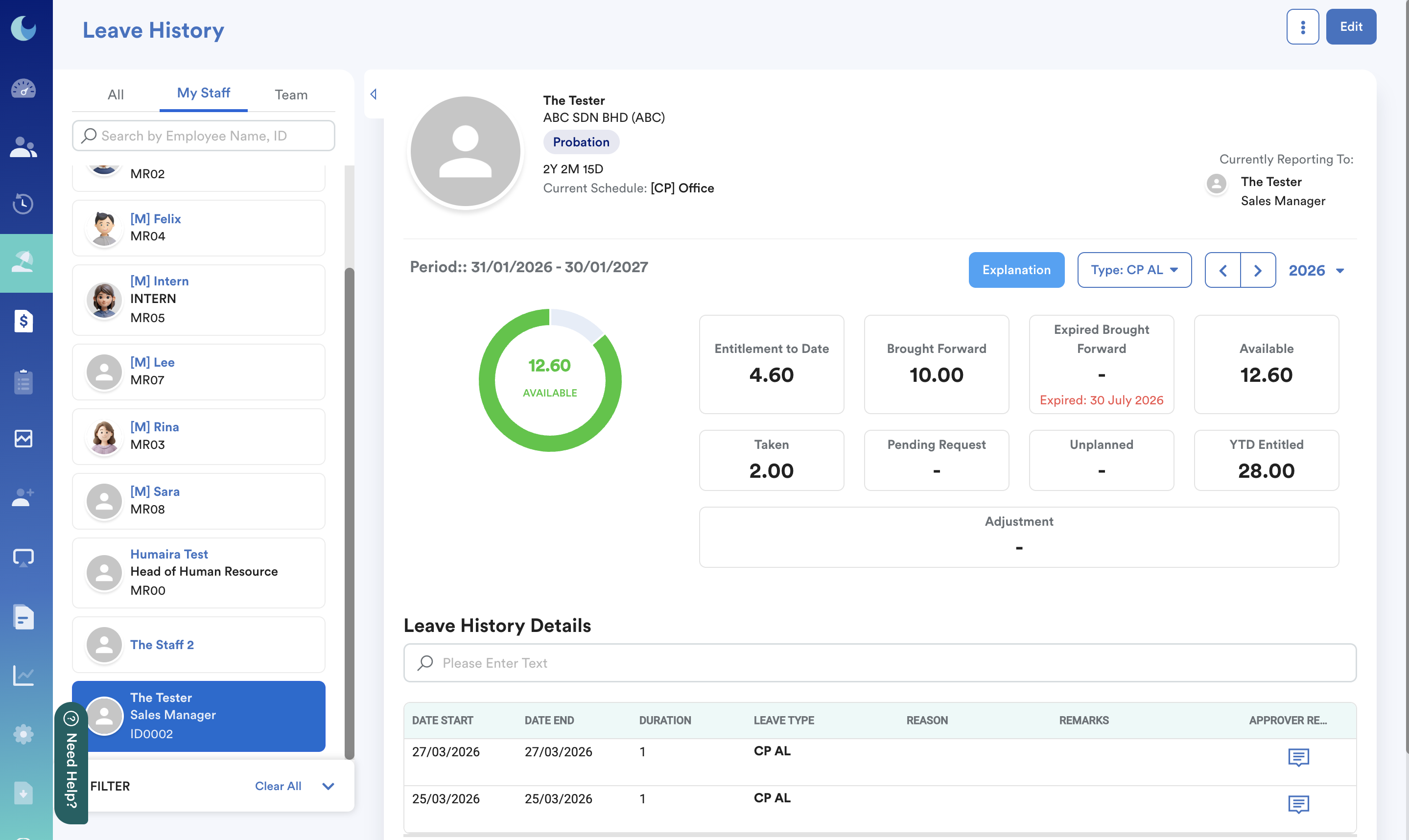
Once clicked, you will be brought into the employee’s leave history details page as shown below. Select an employee to view the relevant leave history records.
Step 3
To edit a leave record for an employee, click Edit on the top right corner of the page. Then, on the top part of the page, select the leave type that you wish to amend by clicking on the “Type" box.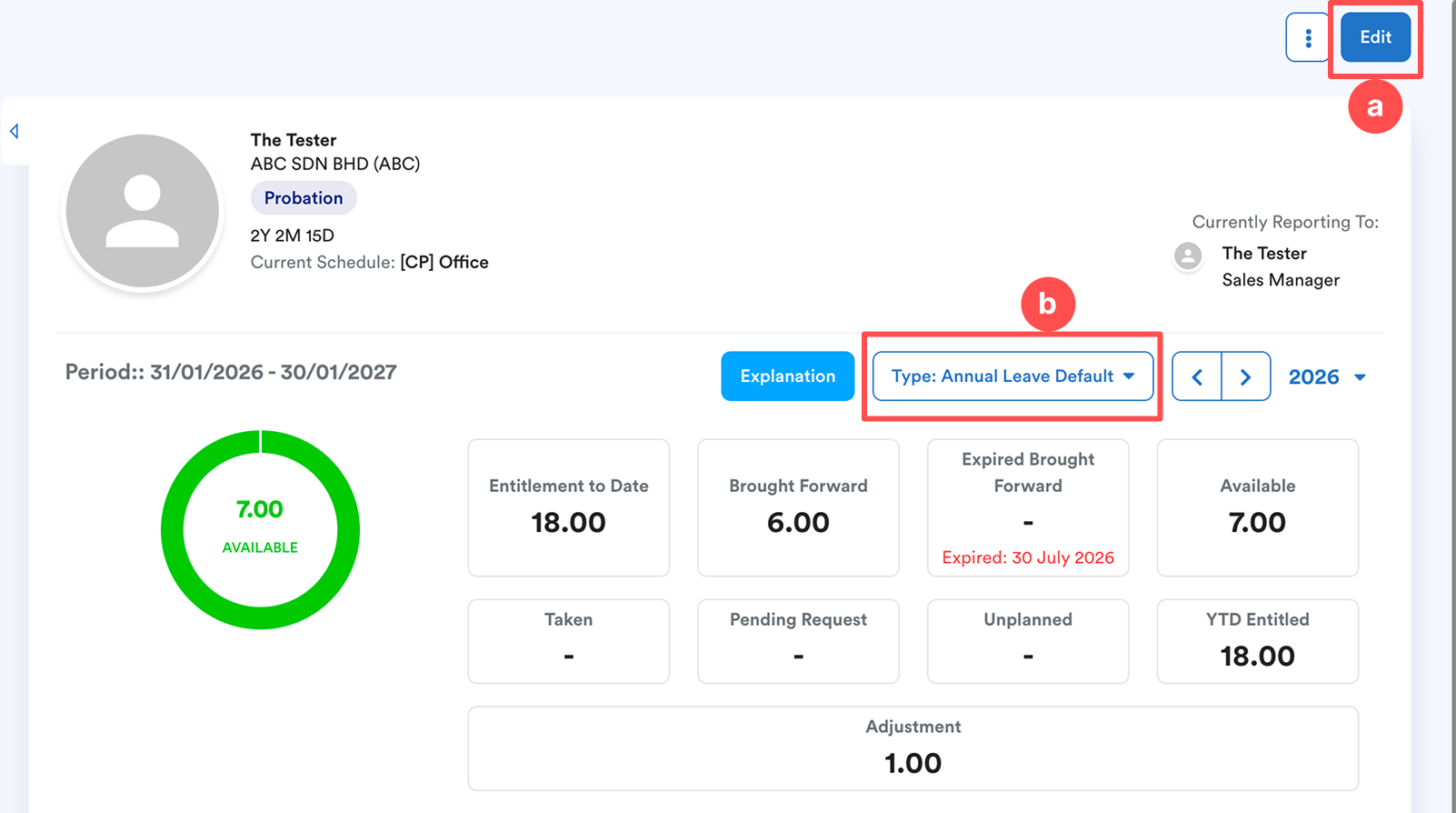
Step 4
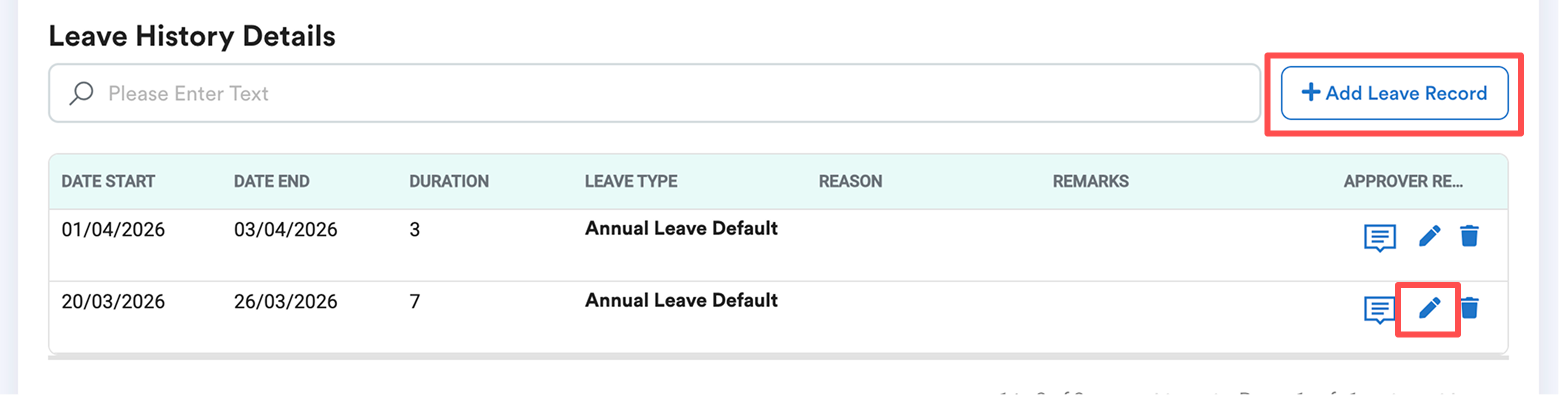
As you scroll down, you will be able to see the leave history details section.
To edit an employee’s leave history record, click on the pencil icon under approver remarks as shown below.
To add a new record, click "Add Leave Record".
Step 5
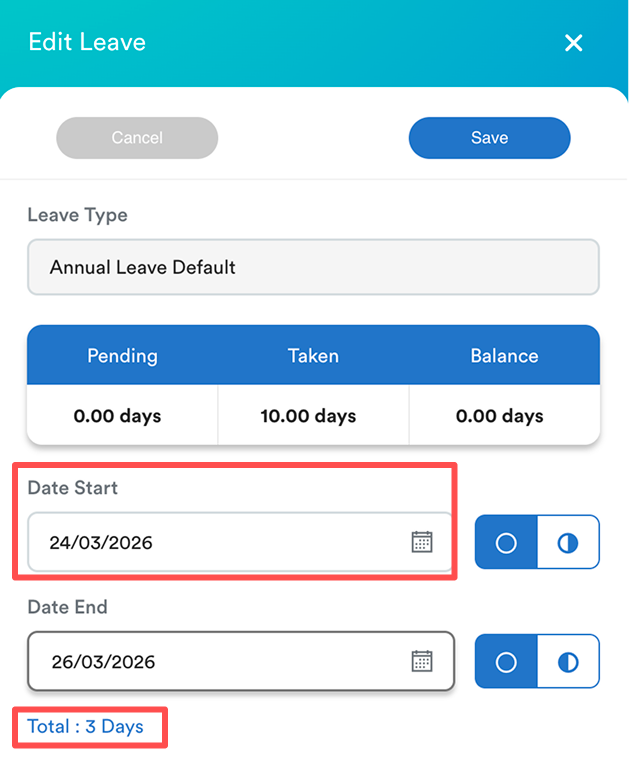
Example of editing the start date of leave record from 20 March (Friday) to 24 March (Tuesday). Total duration is updated from 7days to 3 days. Click "Save".
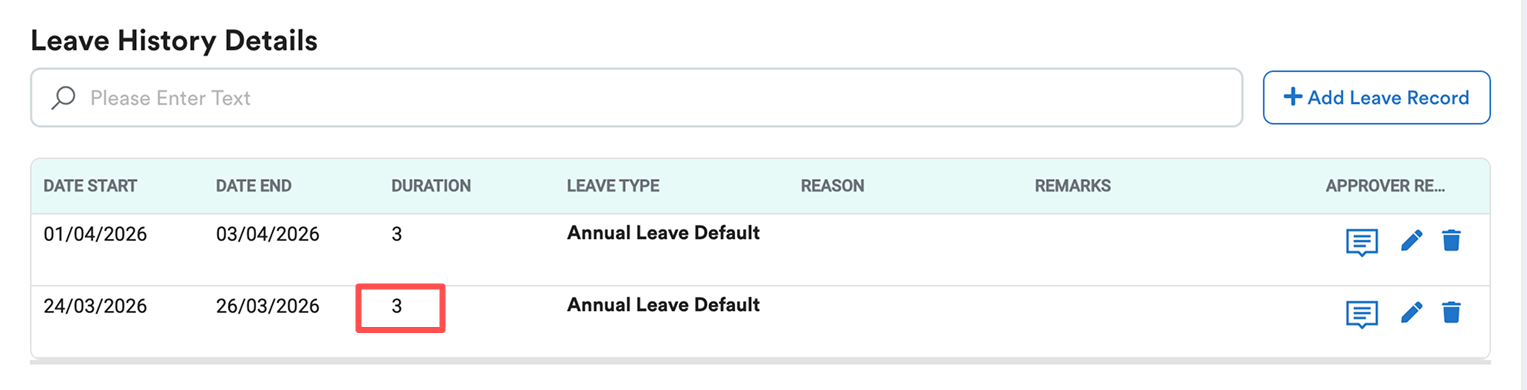
After "Save", leave history details are being updated as well.
In individual attendance, you will see this updated leave (24-26 March 2026) as well automatically.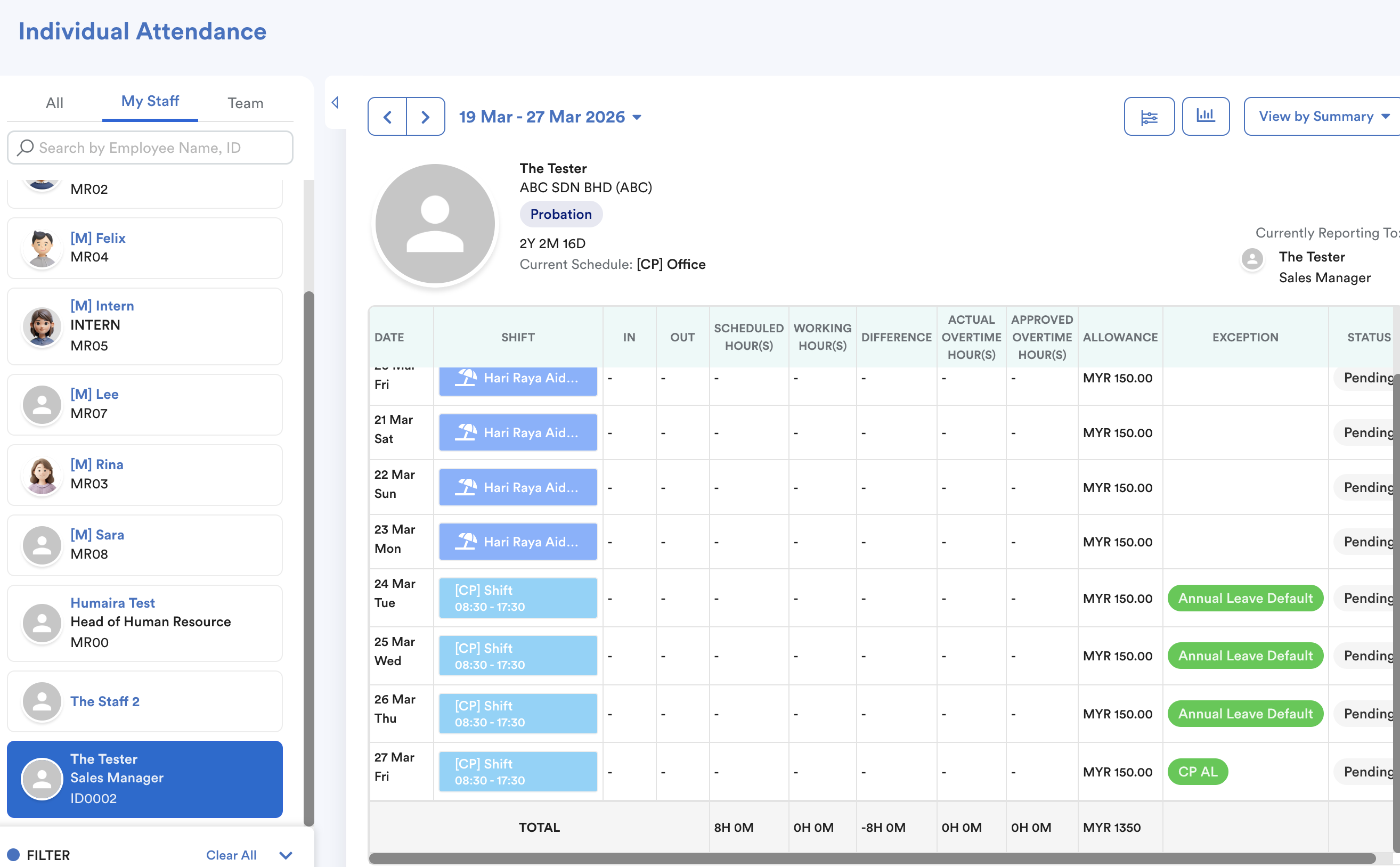
Edit Earned Replacement
You can manually edit the expiry date here.
Note: If your leave is normal earn, not brought forward or batch adjustment, then the scheduler run will update the expiry date based on the latest replacement leave setting. Scheduler run will not affect brought forward and batch adjustment earned leave.
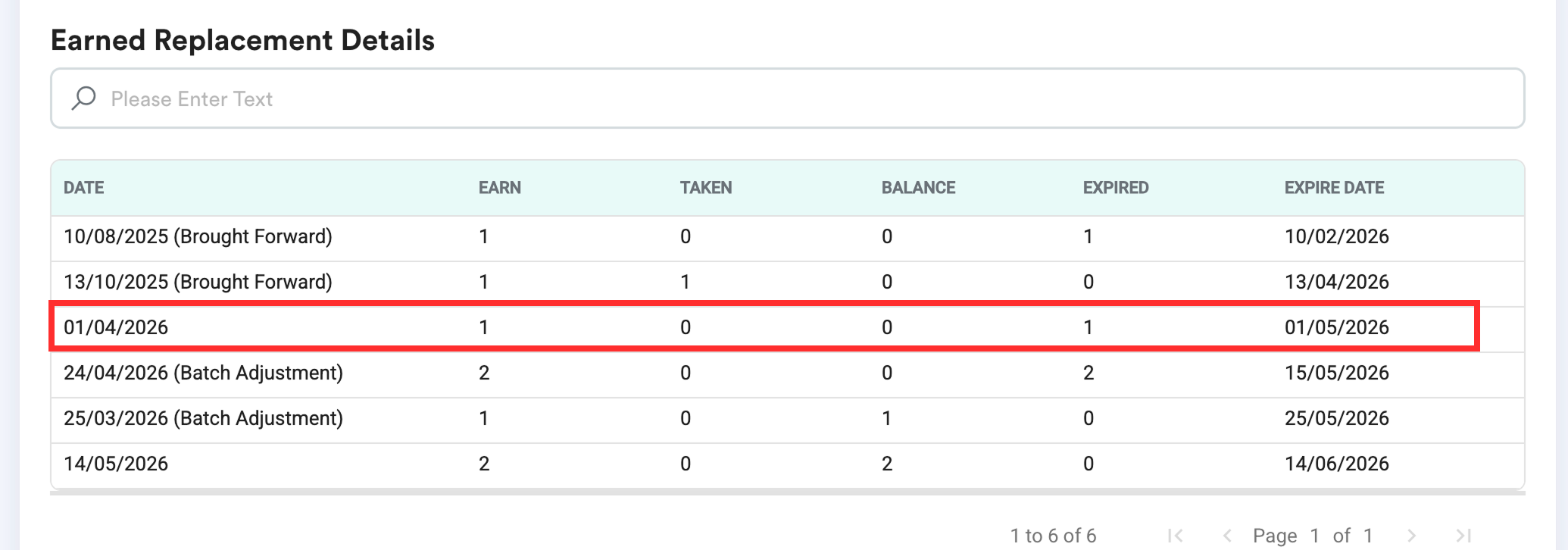
Example: You manually edited the expiry date to 01/10 /2026. In your latest replacement setting, leave has a 1-month expiry date after leave is credited. 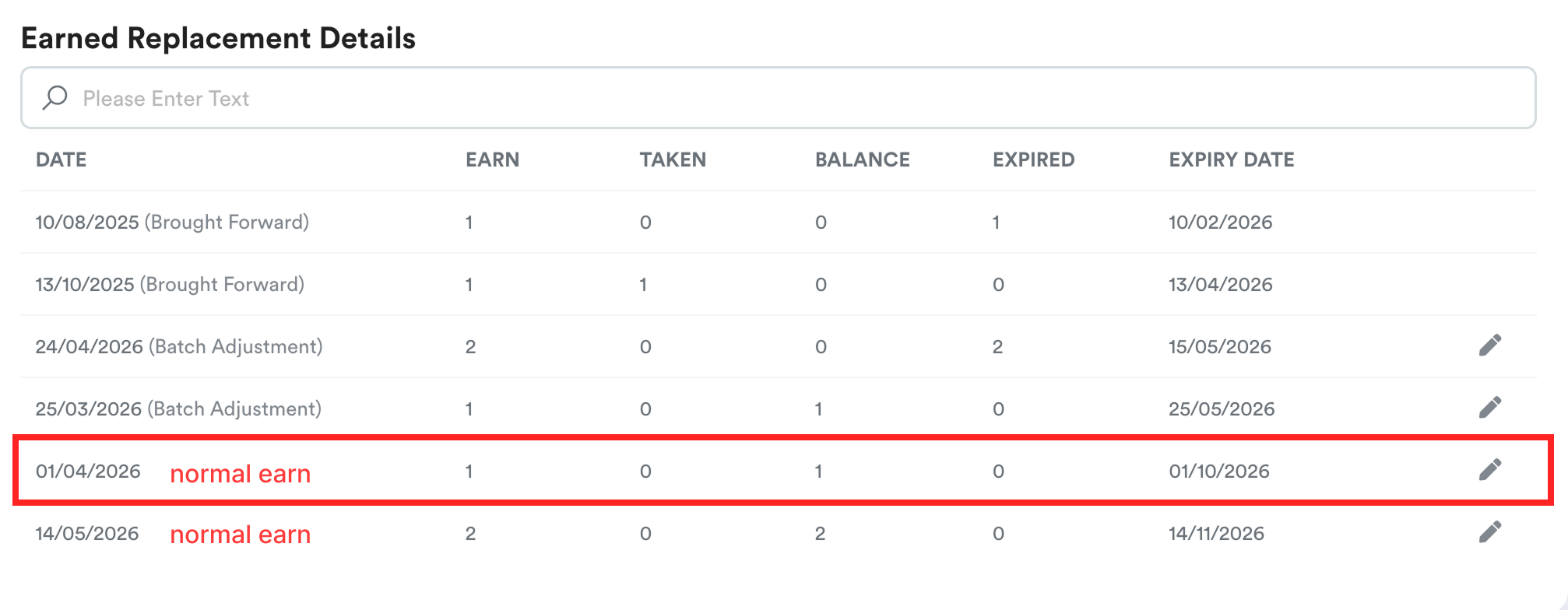
After the daily scheduler run, this leave's expiry date will be updated to 01/05/2026 based on your replacement leave setting.
We hope this explanation clarifies the matter. If you require additional assistance, do not hesitate to contact our support team.
Was this article helpful?
That’s Great!
Thank you for your feedback
Sorry! We couldn't be helpful
Thank you for your feedback
Feedback sent
We appreciate your effort and will try to fix the article