There are three methods to view your leave balance and history.
Method 1: Individual Leave (Recommended)
Display Logic
1. Individual Leave
Individual Leave (Leave Balance as of Today) - display entitlement which today's date is included in range of entitlement period.
e.g. today is 27/1/2026
leave A : 15/1/2025 - 14/1/2026 (NOT display, before 27/1/2026)
leave B : 1/6/2025 - 31/5/2026 (Display)
leave C : 1/2/2026 - 31/1/2027 (NOT Display, after 27/1/2026)
2. Leave History / Leave Summary
By default, display current year's leave entitlement; you can change the selected year.
3. Dashboard Leave Widget
By default, display current year's leave entitlement. This will not display last year entitlement that cross over to current year.
eg: current year is 2026.
entitlement period: 4/2025 - 3/2026.
This will not be displayed in the widget.
Method 1: Individual Leave (Recommended)
Step 1
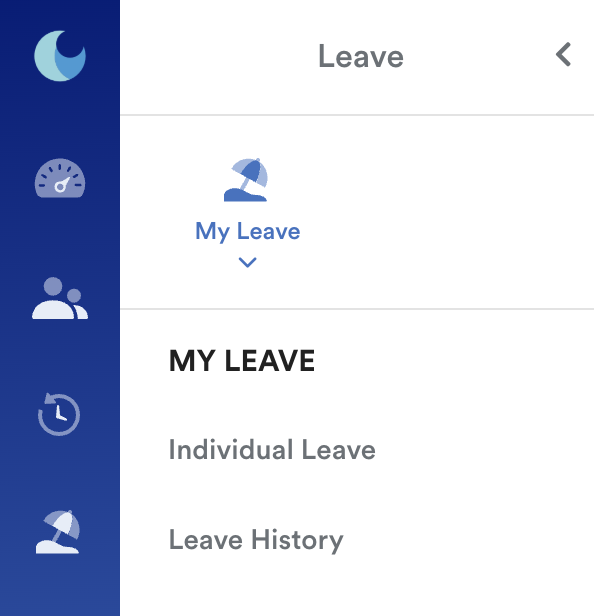
On the left menu, click Leave, then select My Leave > Individual Leave.
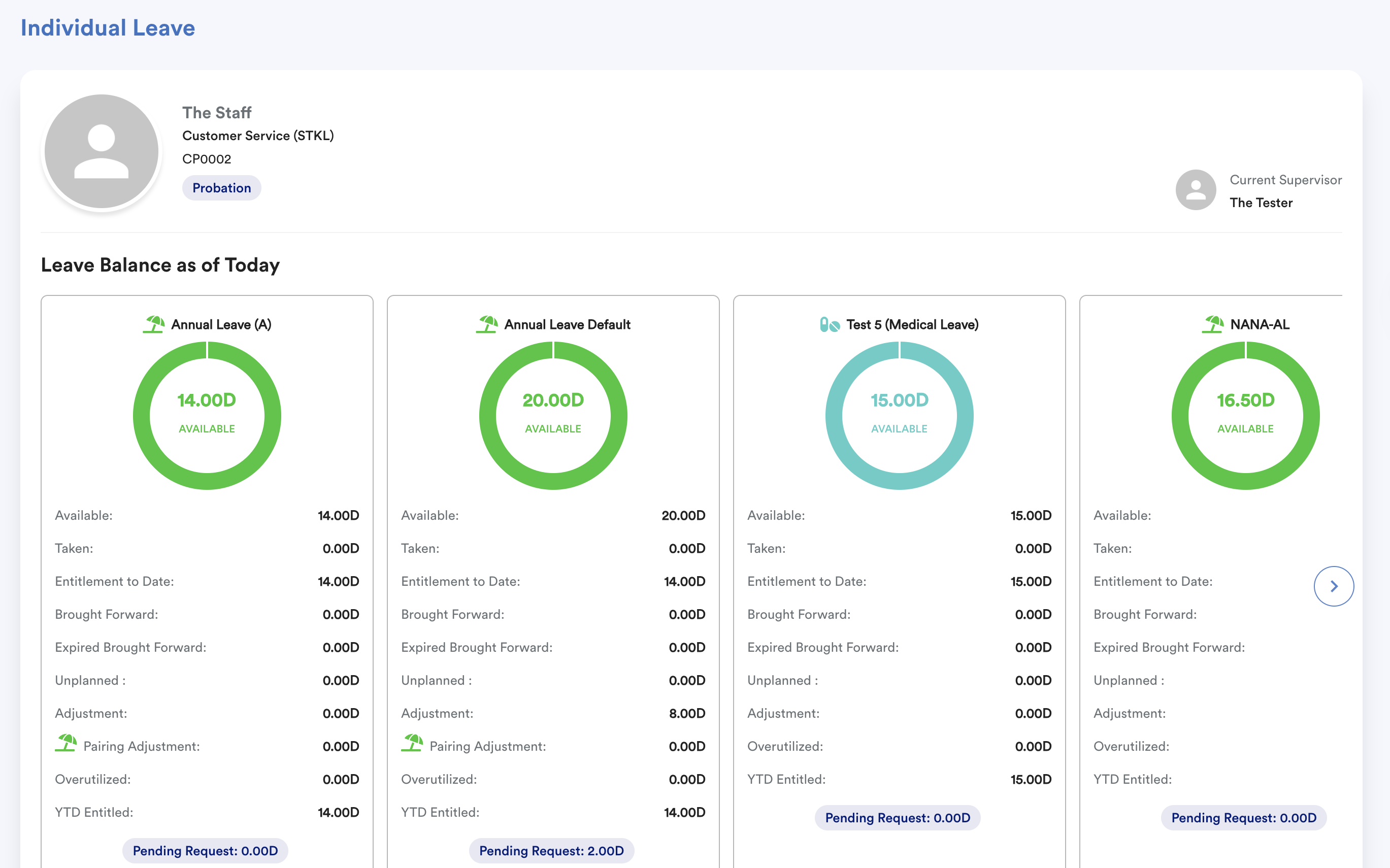
The order of this screen depends on Settings > Leave > Leave Ranking.
Leave Balance
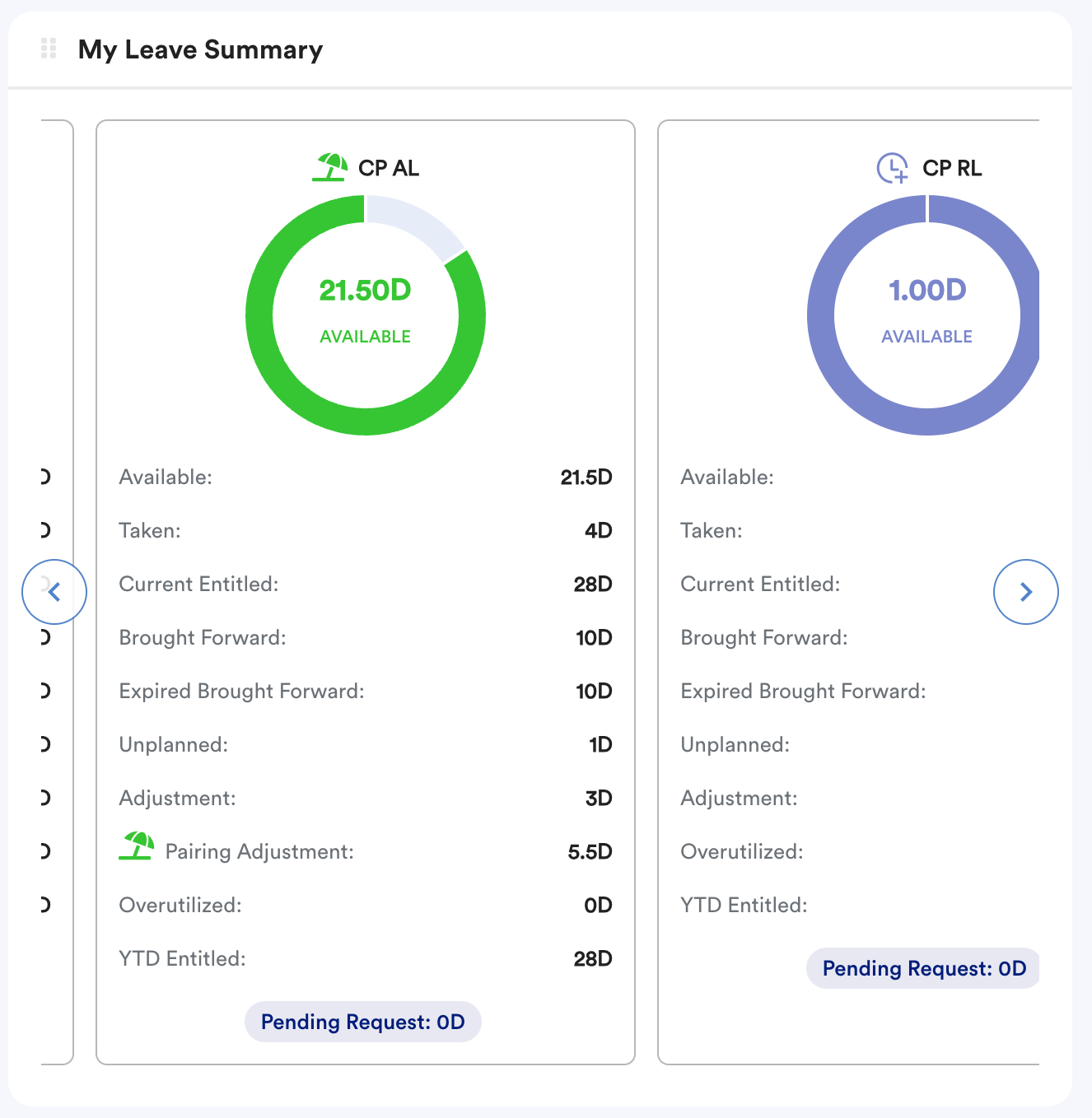
- Available = Entitled + Brought Forward – Brought Forward Expired – Taken – Pending ± Adjustment - Encashment (Year End Management)
- Taken: The approved leaves that have already been deducted in the past
- Entitlement to Date: This entitlement to date depends on your earning method (Refer: Leave Earning Method)
- Brought Forward: The addition of leave balance brought forward from the previous year
- Expired Brought Forward: Brought Forward leave days expired
- Unplanned: This is unplanned leave that did not meet the short notice set in leave type setting; this is included in Taken Leave. (Refer: Worksy Unplanned Leave Behavior)
- Adjustment: The addition or deduction of leave amount on top of the original entitlement
- Pairing Adjustment: The leave amount that is deducted from a paired leave
- Overutilized: This refers to leave taken that exceeds the employee’s available balance. (Refer: Carry Forward Negative Leave)
- YTD Entitled: Total entitlement of the year.
- Pending Request: The total number of leave days your staff is currently requesting.
In Worksy, leave taken/deduction priority follows this order:
- BF with expired date
- BF no expired
- earn/adjustment with expired date
- earn/adjustment no expired date
Step 2
Leave History – You will be able to find the number of days taken for each type of leave by your staff. You may click on any of these records, and it will show you the Leave Details below.
Leave History Details – In this section, you will be able to see more details about the taken leaves (duration, reason, remarks, etc.)
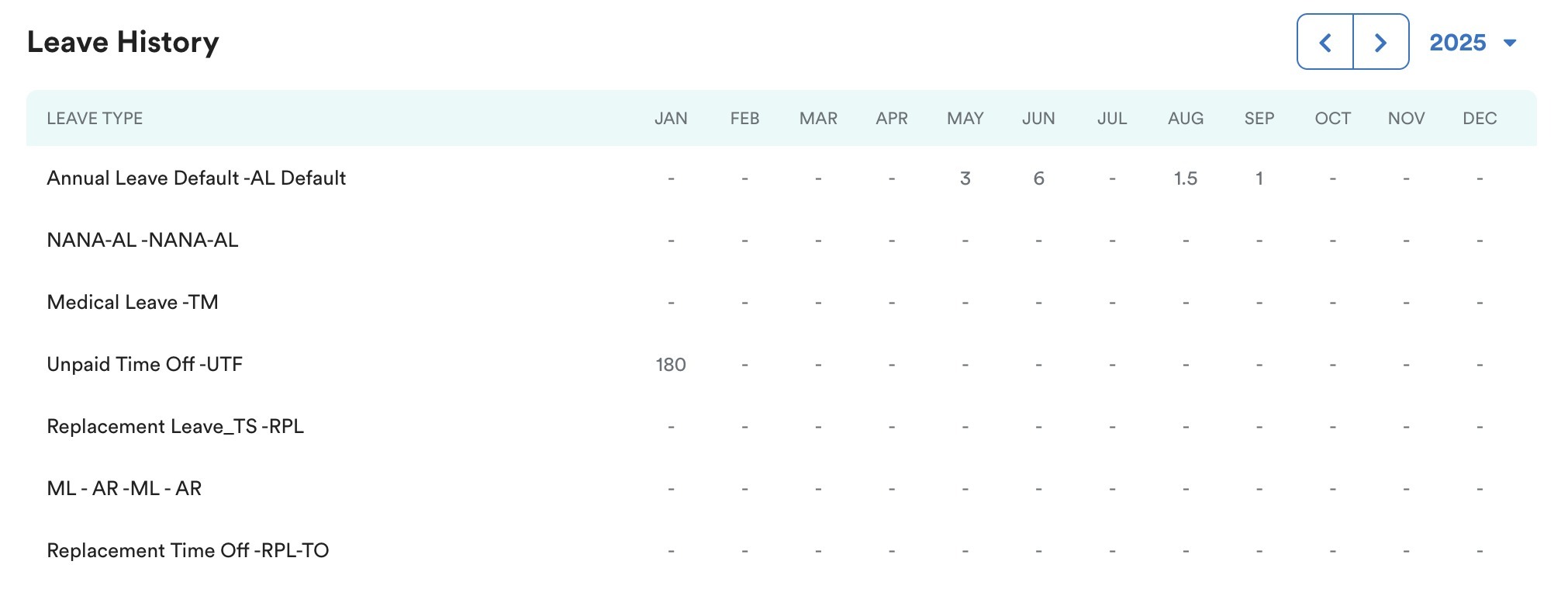
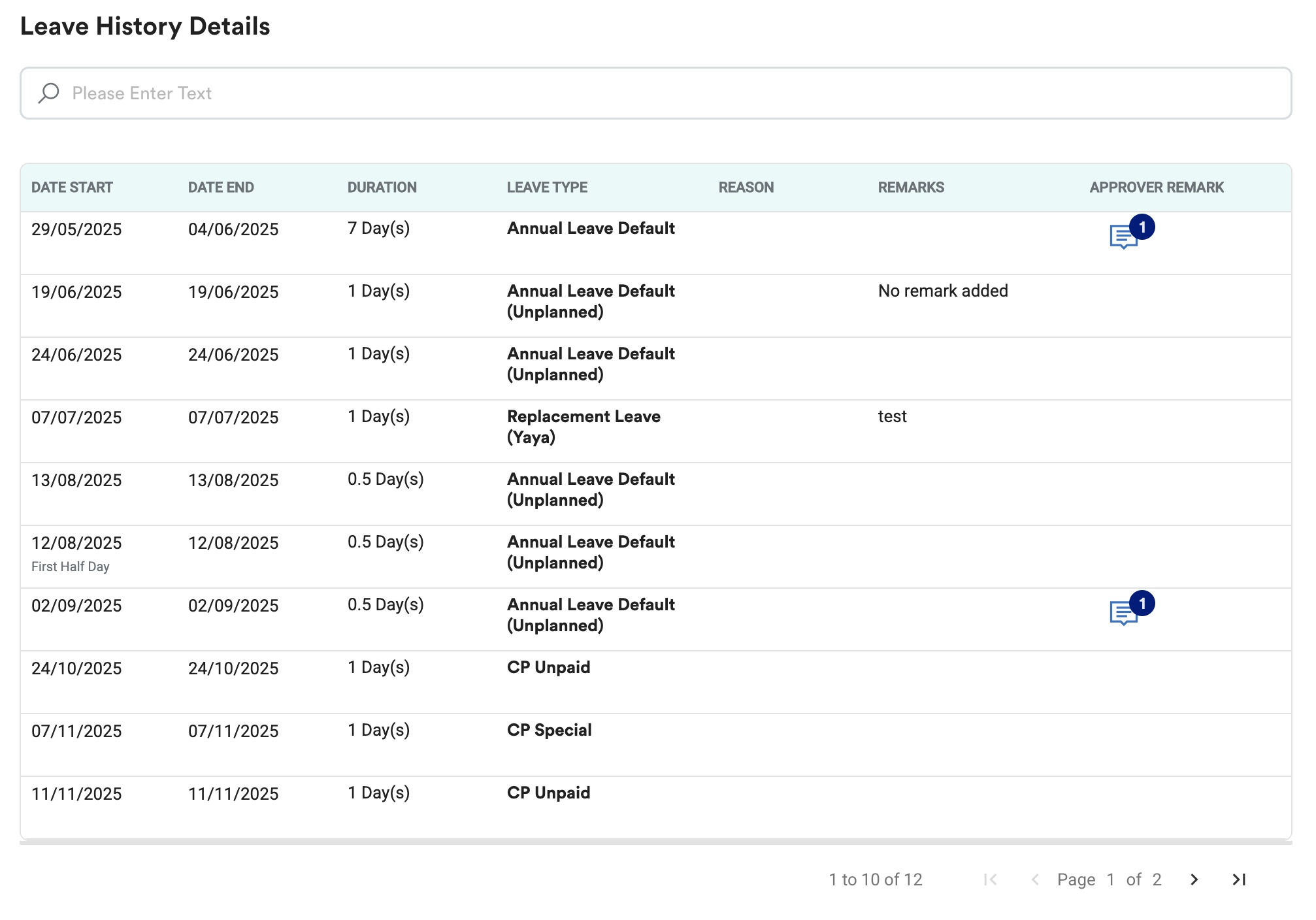
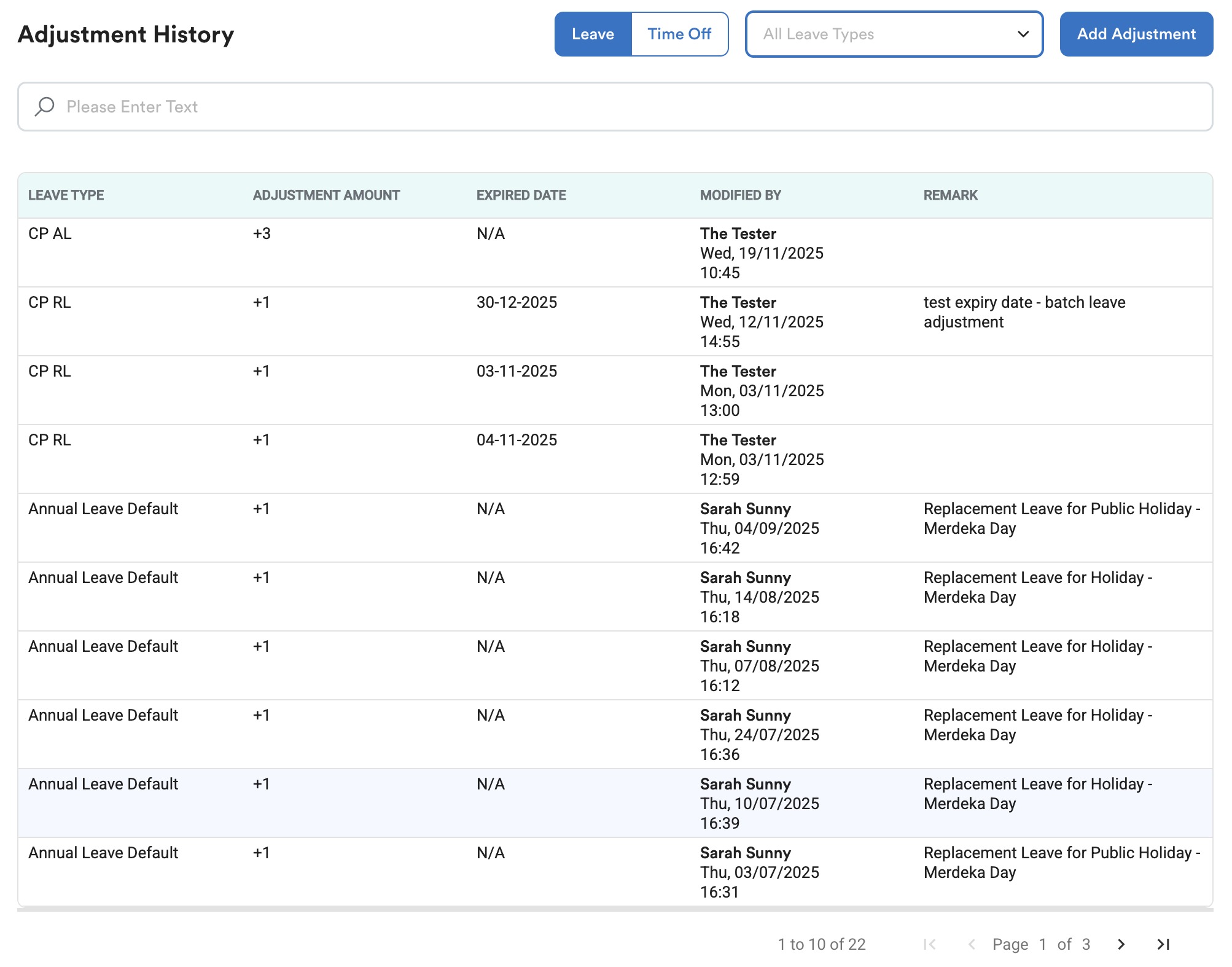
Scroll further down, you will see Adjustment History.
Method 2: Leave History
Step 1
On the left menu, go to Leave > My Leave. Then, click Leave History. 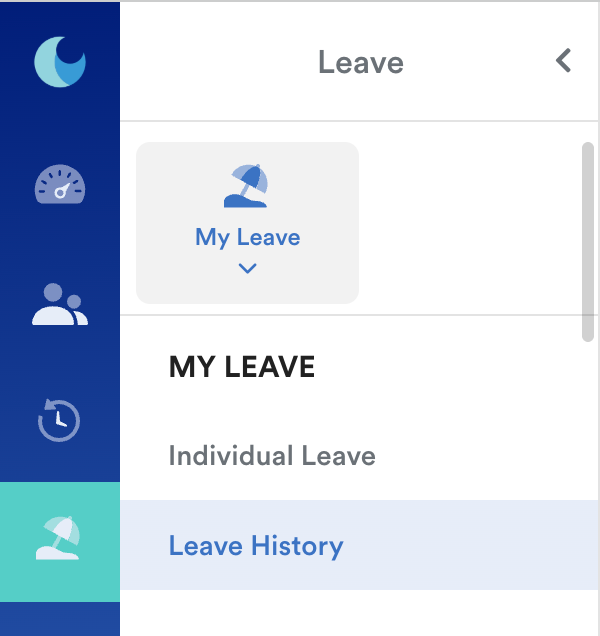
Step 2
You may select different leave type and check the detail.
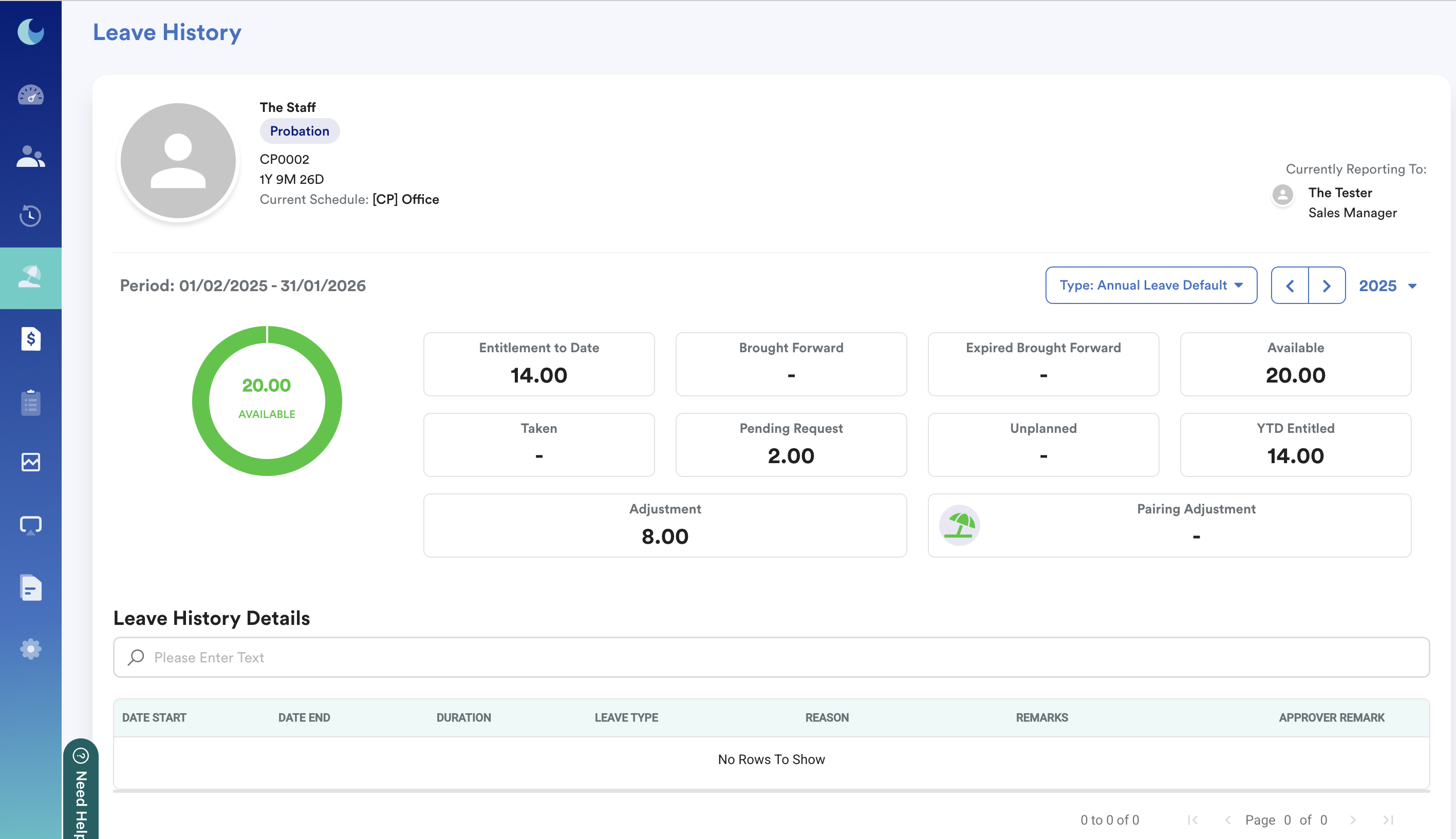
Footnote: The keywords of both individual leave and leave history pages are the same. Individual Leave is used to refer to the current year's leave entitlement while the Leave History page can check the current and all the previous year's leave entitlements.
Method 3: Dashboard Widget
Go to the Dashboard and click Settings on the top right corner of your page as shown below. Turn on "My Leave Summary" and "My Leave Summary + Aging".
(Provided you have been granted access to widget settings by your HR)
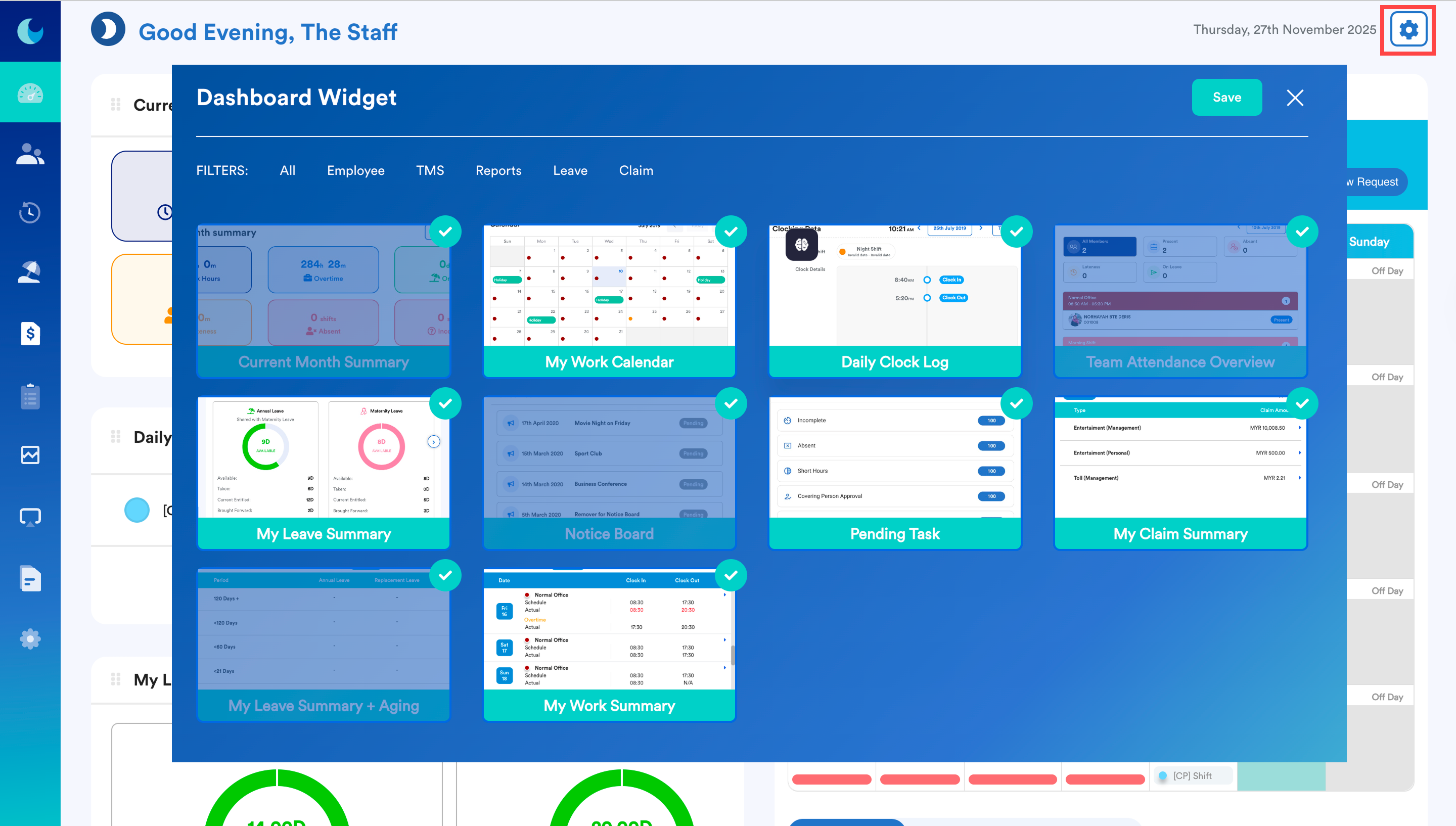
This is "My Leave Summary". Click on the left and right arrows to move the cards to see your entitled leaves and their details.
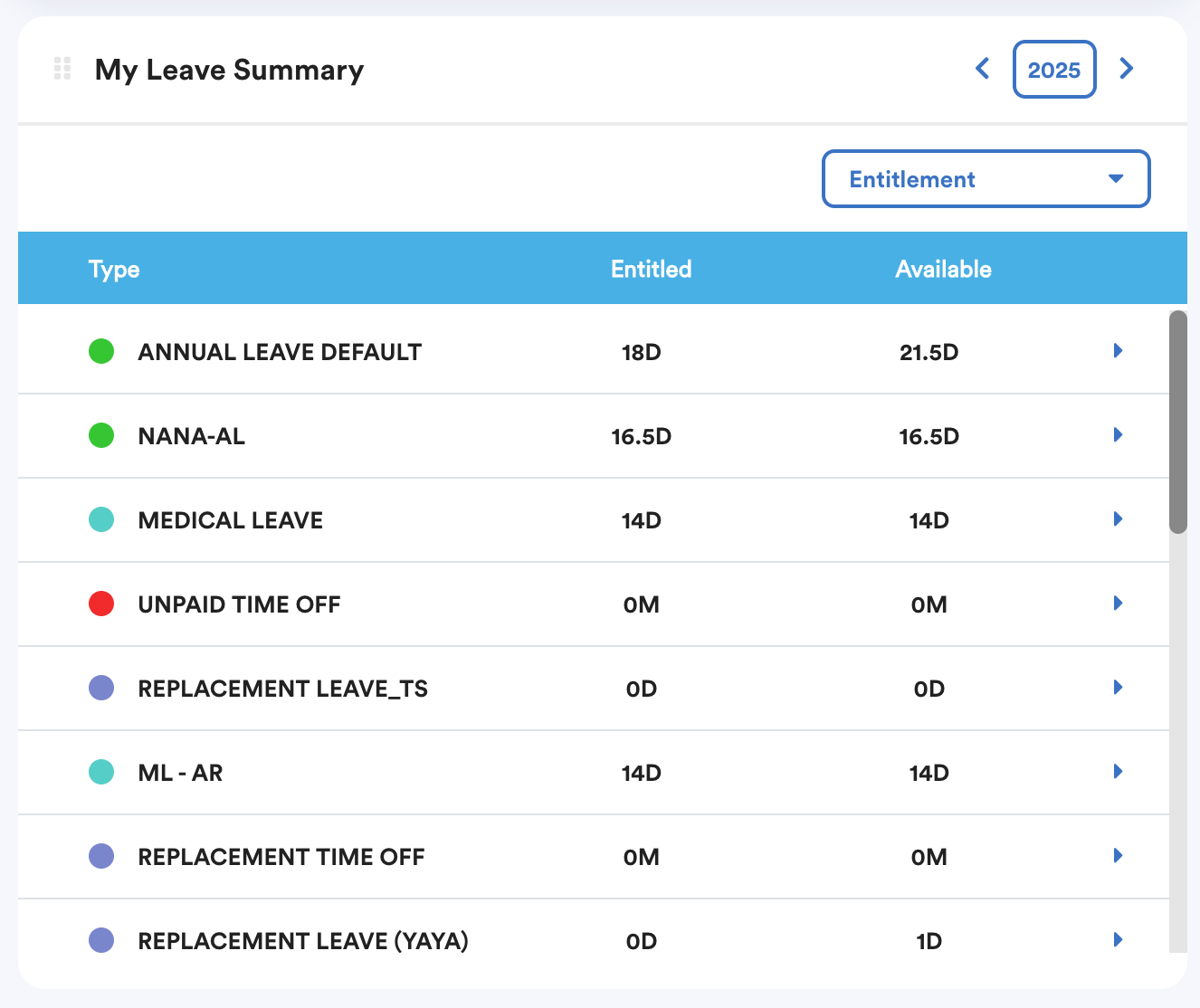
This is "My Leave Summary + Aging".
We hope this explanation clarifies the matter. If you require additional assistance, do not hesitate to contact our support team.
Was this article helpful?
That’s Great!
Thank you for your feedback
Sorry! We couldn't be helpful
Thank you for your feedback
Feedback sent
We appreciate your effort and will try to fix the article