This feature allows you to amend the EA Form figures without reprocessing the payslip.
To understand the difference of PFTO and PEFTO, refer to Payroll Figures Take On (PFTO) & Previous Employment Figures Take On (PEFTO).
Note on commencement date and date of cessation:
Kindly be informed that the Date of Commencement is based on the Hired/Rehired date that is less than a year from the remuneration date.
For examples:
i) Staff A was hired and resigned in the same year, the Commencement Date and Date of Cessation can be displayed.
ii) Staff B was hired in 2024 and therefore is considered to be working a complete year in 2025, there is no resignation in 2025. So there will be no commencement date and date of cessation.
iii) Staff C was hired in November 2025, which is less than a year; the date of commencement is displayed.
Step 1
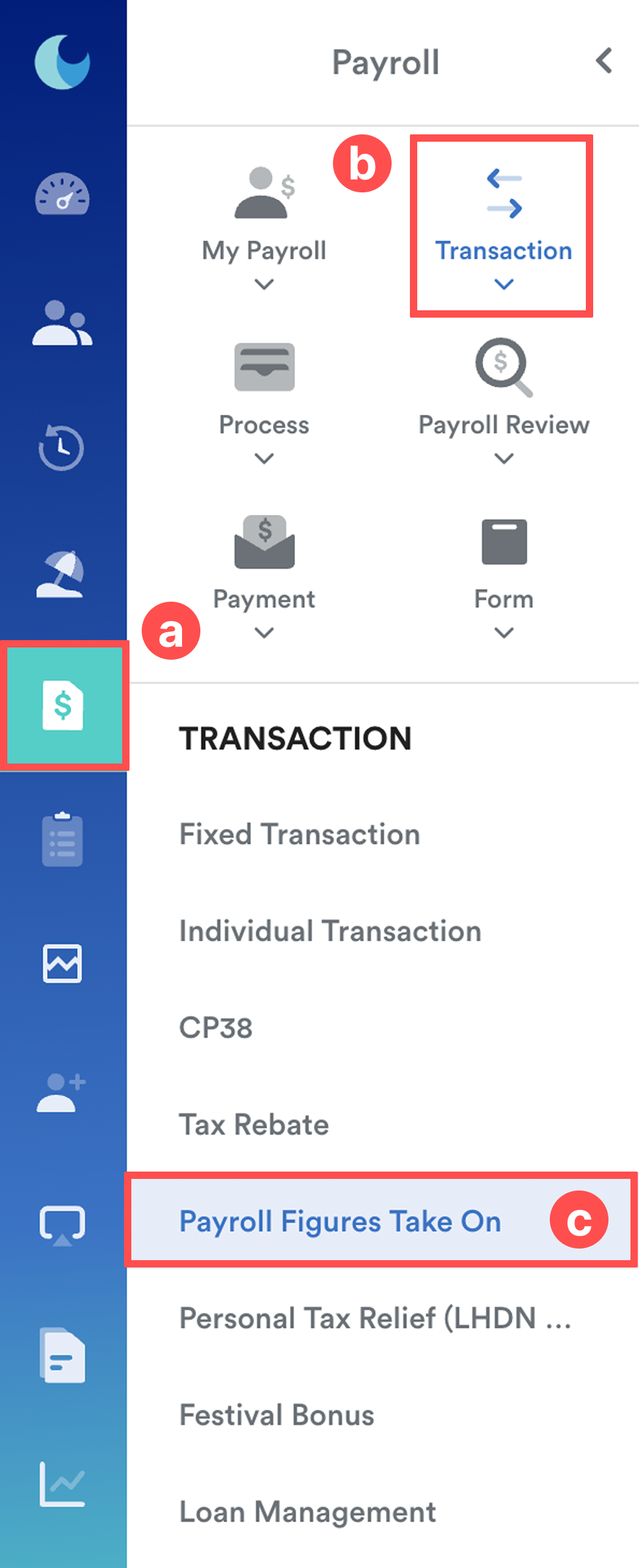
On the left menu, go to Payroll (a) > Transactions (b) > Payroll Figures Take On (c).
Step 2
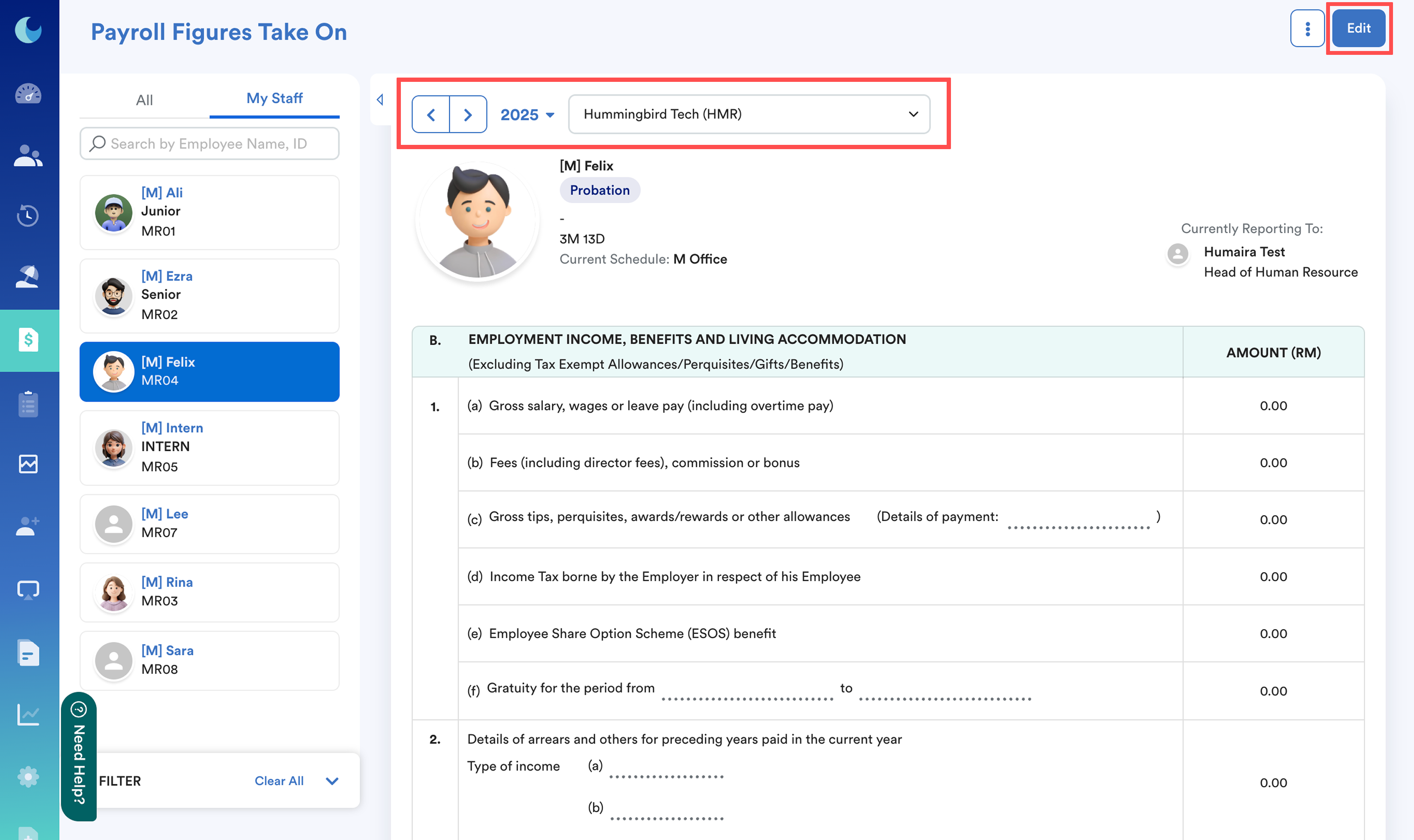
Choose the employee, year, and relevant company. Click Edit.
Step 3
Enter the additional amount in the relevant field on the right side.
Click Save to apply changes.
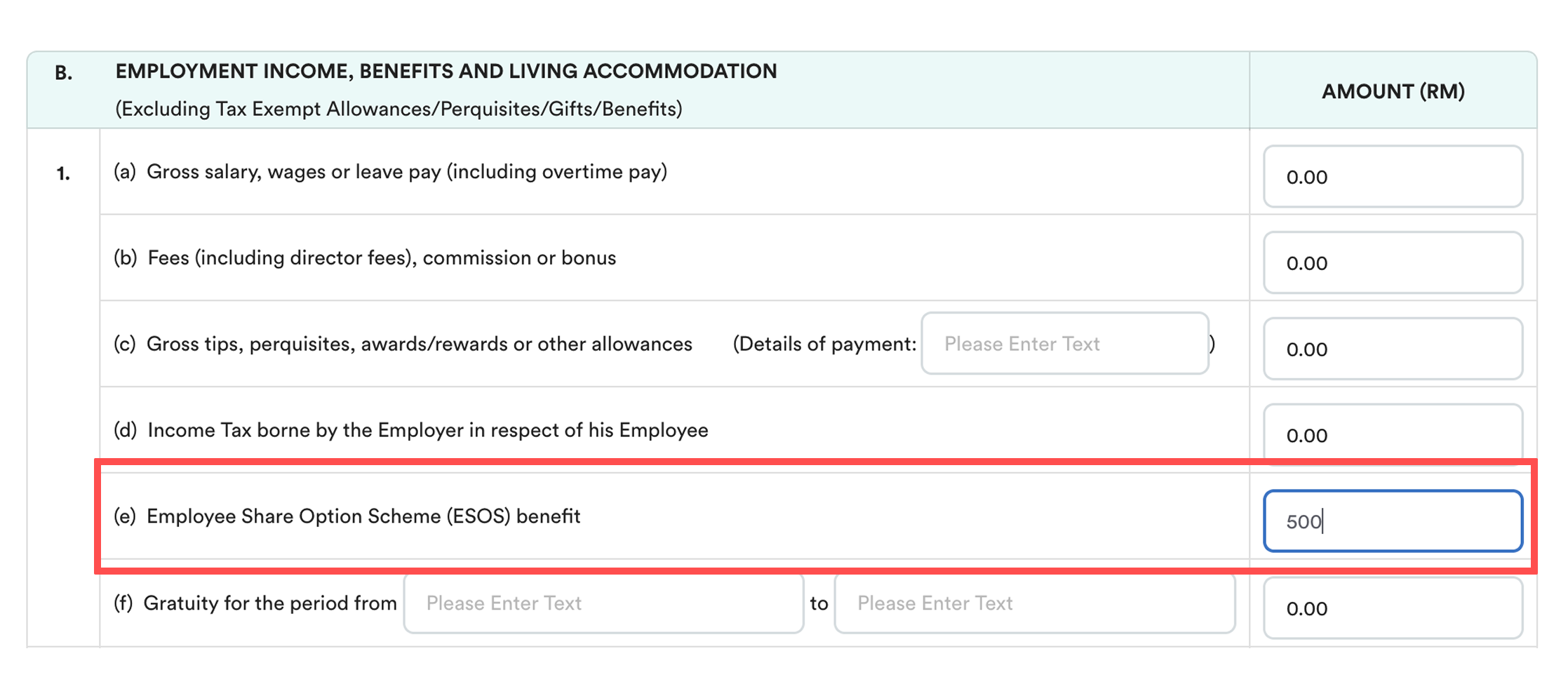
Note: Enter only the difference from the payroll-processed amount.
Example
If the ESOS benefit processed is RM1,000 and the correct amount is RM1,500 → just enter the additional RM500 in the field under B.1(e). The EA Form will automatically reflect the updated total.
Step 4 (Optional)
To clear all data at once without editing line by line, click the ⋮ icon at the top-right (next to Cancel) and click Delete.

How to Verify
Go to Payroll > Payroll Review > EA Form
You will see the updated figures reflected in the employee’s EA Form for the selected year.
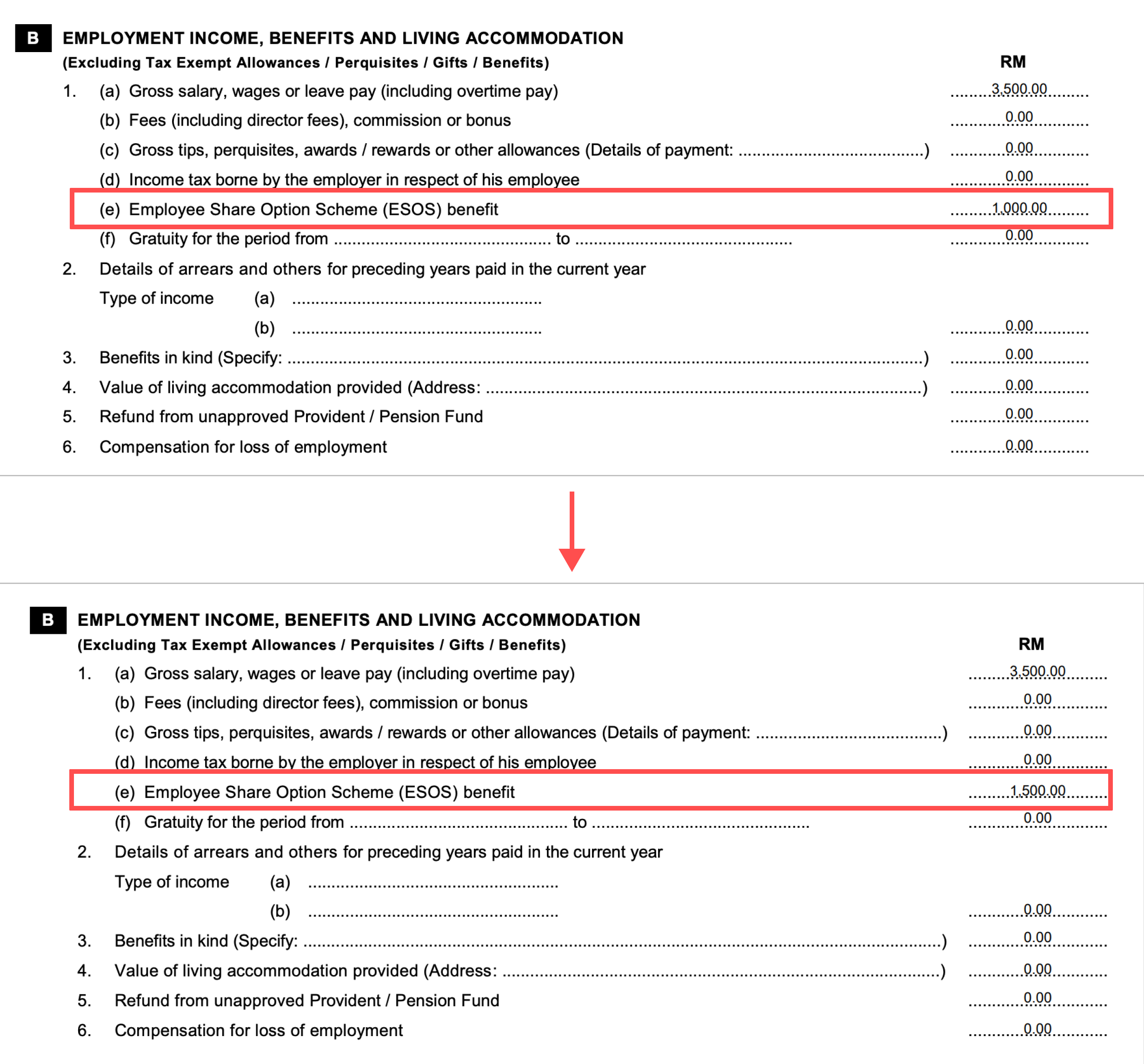
Try to refresh this screen if the amount doesn't change.
We hope this explanation clarifies the matter. If you require additional assistance, do not hesitate to contact our support team.
Was this article helpful?
That’s Great!
Thank you for your feedback
Sorry! We couldn't be helpful
Thank you for your feedback
Feedback sent
We appreciate your effort and will try to fix the article