Step 1
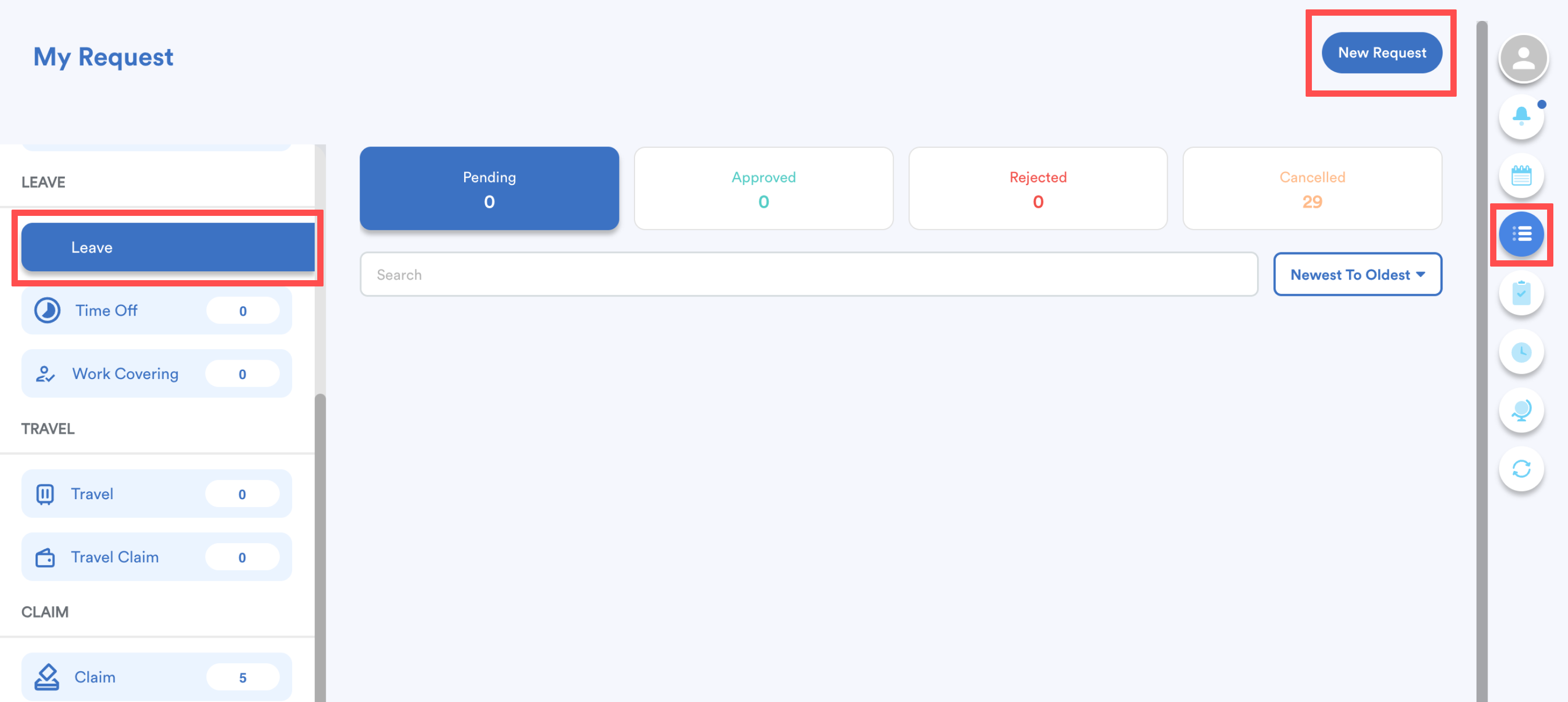
On the right-side menu, go to My Request > Leave. Click New Request.
Step 2
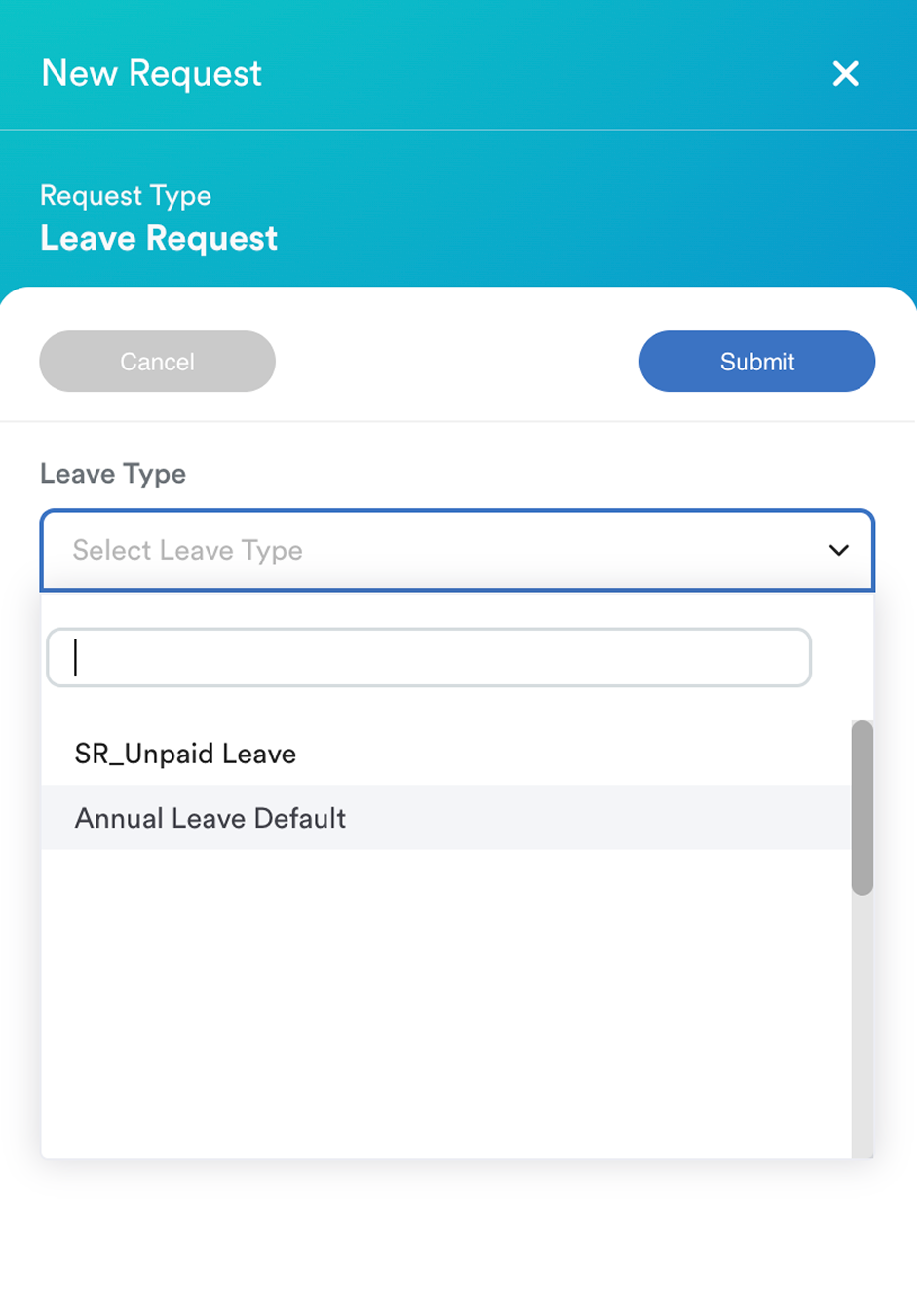
Select the Leave Type you want to apply for from the drop-down list.
Note: The leave types shown are those you are currently entitled to. If the leave you need is not listed, please contact your HR or Person-in-Charge (PIC) regarding your leave entitlement.
Step 3
You can view your entitled days, days taken, and remaining balance.
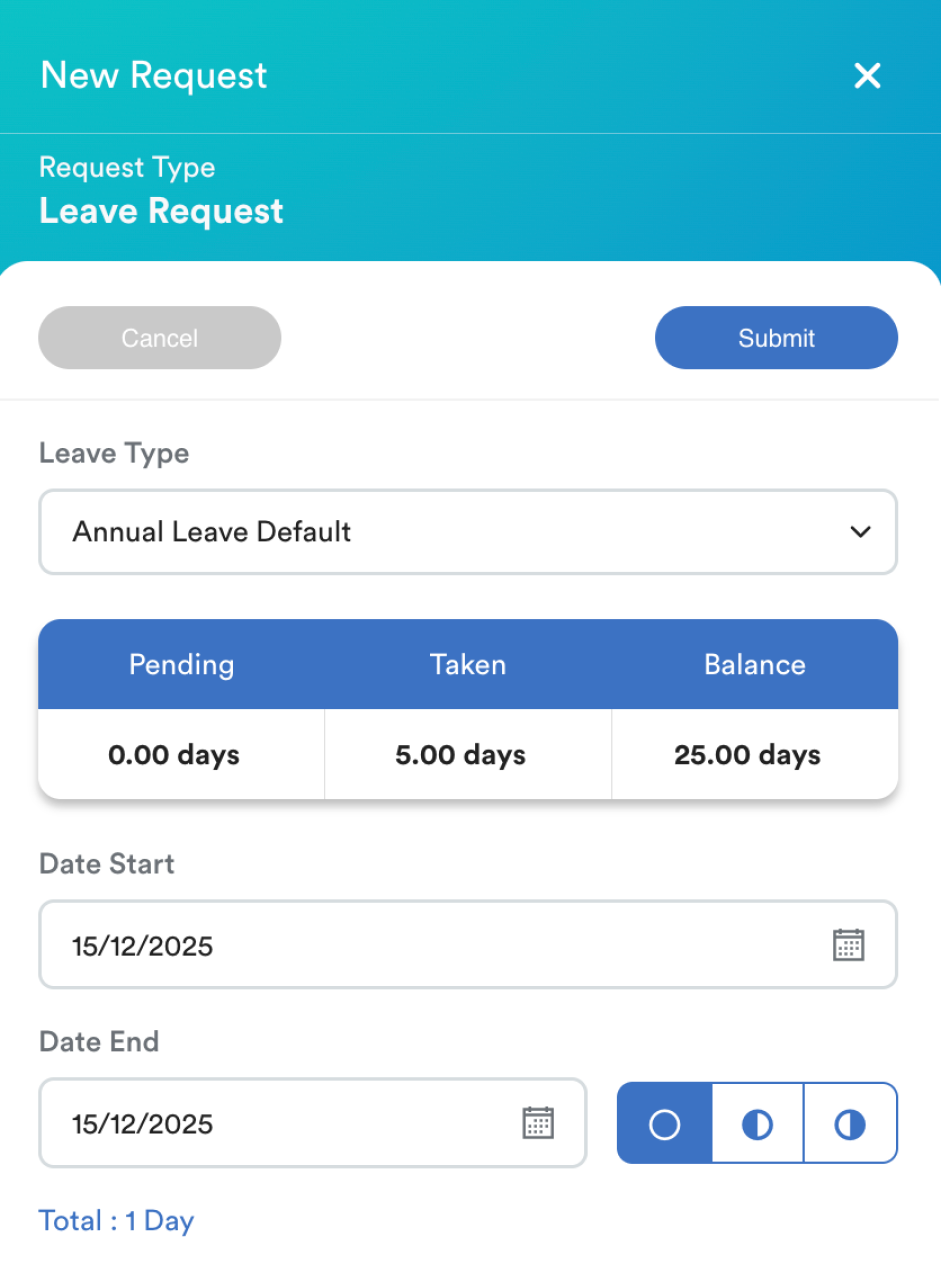
The displayed balance depends on the leave settings configured by the admin. If it is not visible, the admin may have disabled it.
Step 4
Select the date range for your leave period.
- The Date Start must be earlier than or the same as the Date End.
- Choose the leave duration by selecting Full Day (a), First Half of the Day (b), or Second Half of the Day (c).
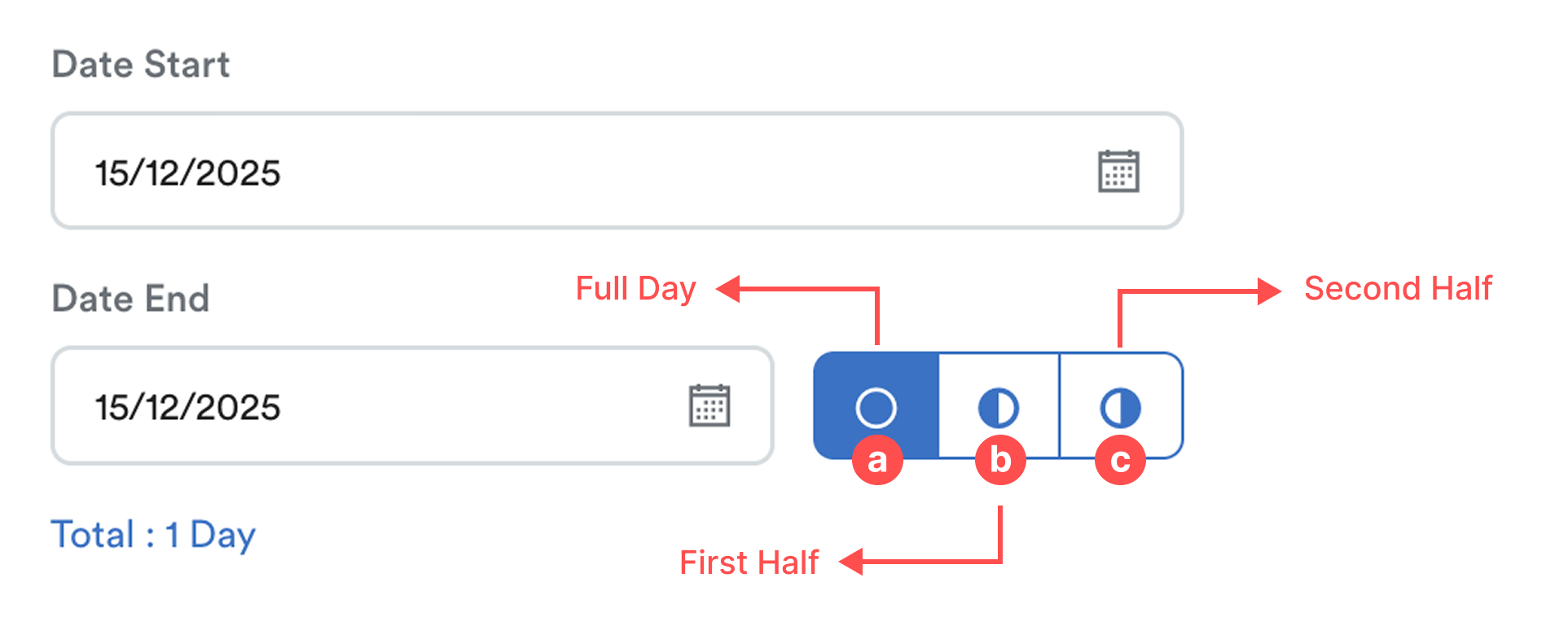
The system will show the total of days requested.
Step 5
If a covering person is required for the leave, select a team member who will cover your duties during your leave by clicking Covering Person.
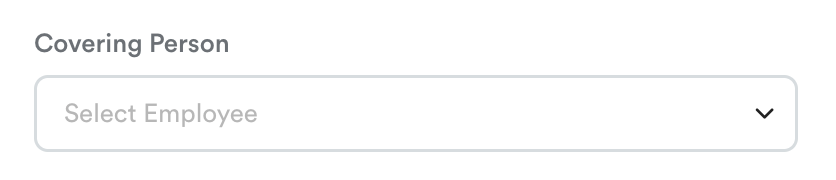
Note: The selected covering person will be added to your leave approval workflow and must approve your request before it is escalated to higher-level approvers.
Step 6
Select a Reason for your leave from the drop-down list.
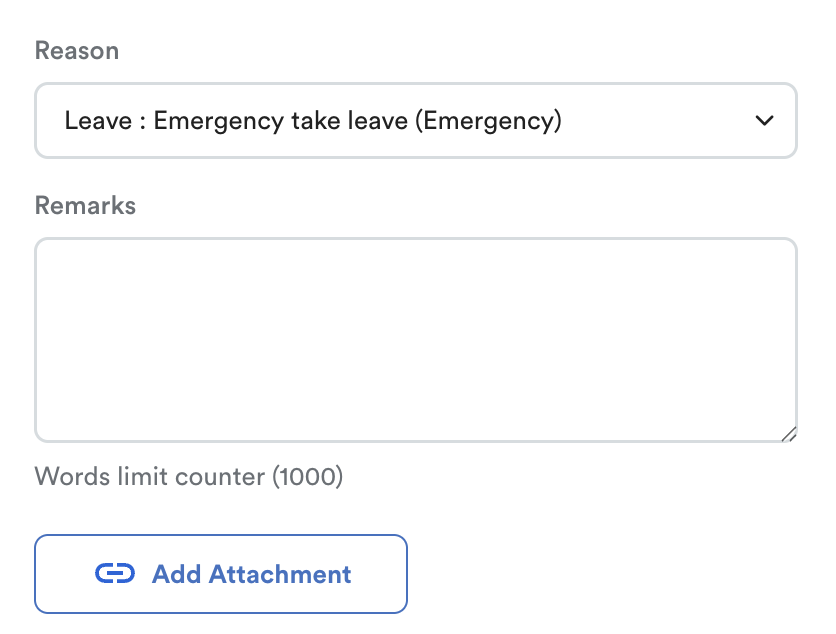
If required, upload any supporting documents by clicking Add Attachment.
Lastly, click Submit button at the top right.
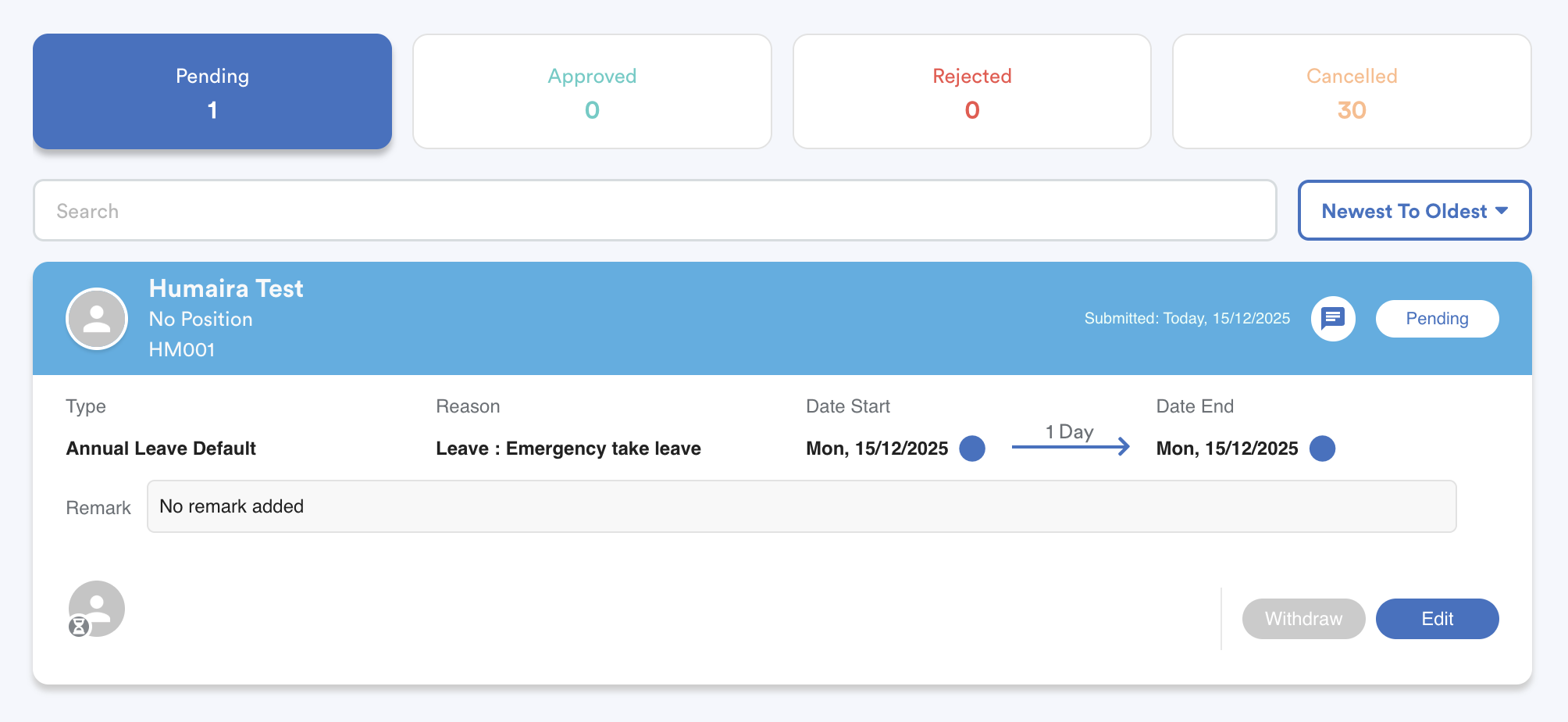
Once submitted, your leave request will appear under the Pending tab. After approval by your superior, it will be moved to the Approved tab.
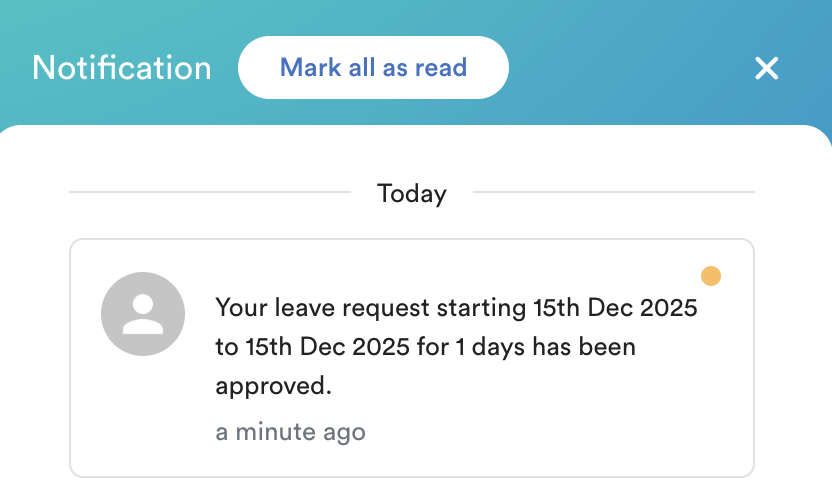
Alternatively, you may check the status of your request via the notification box.
Related:
We hope this explanation clarifies the matter. If you require additional assistance, do not hesitate to contact our support team.
Was this article helpful?
That’s Great!
Thank you for your feedback
Sorry! We couldn't be helpful
Thank you for your feedback
Feedback sent
We appreciate your effort and will try to fix the article