Step 1
Log in to the Worksy mobile app. Once logged in, you will see the menu bar at the bottom of the screen.
Tap Request (a).
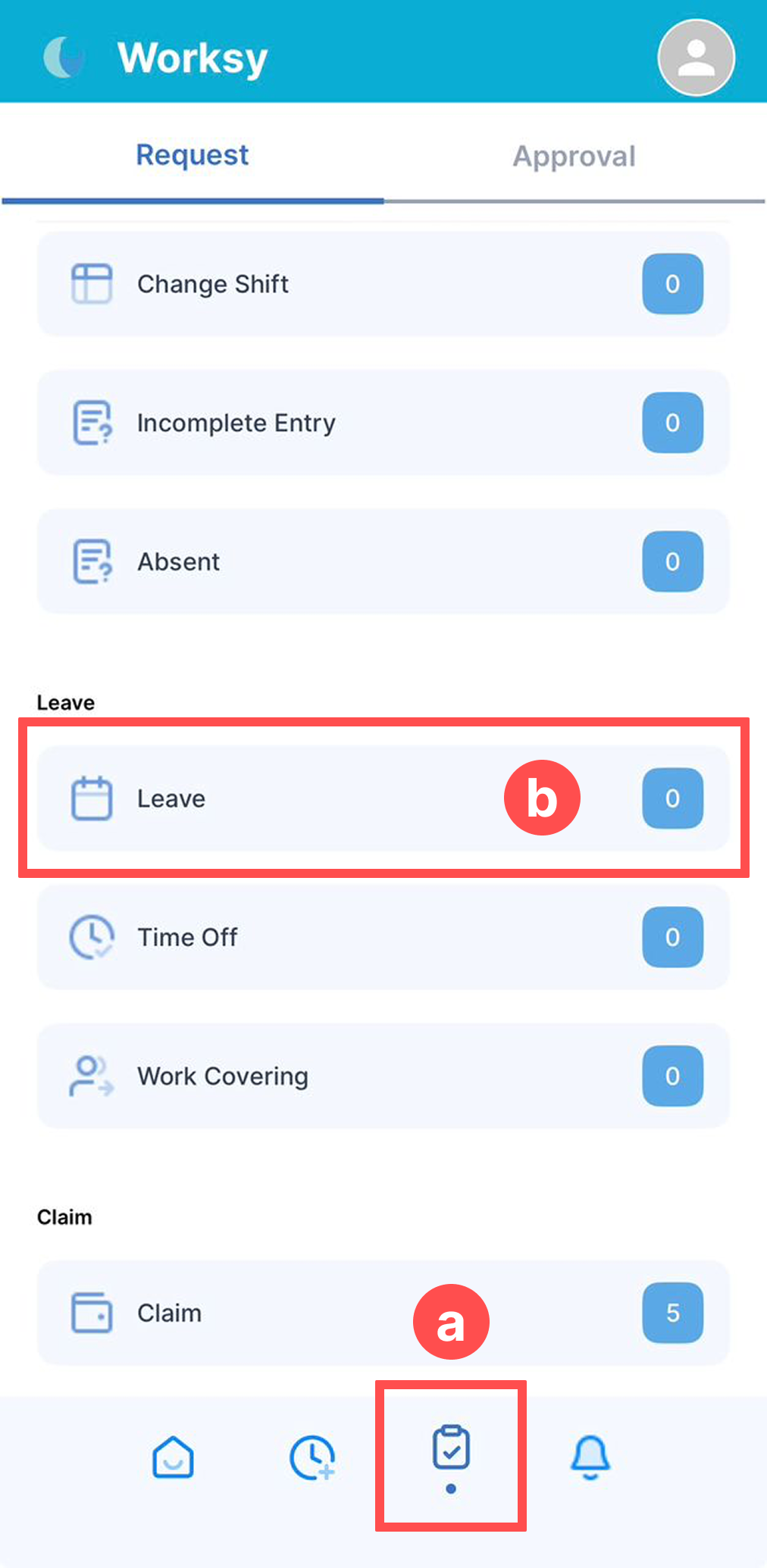
You will be redirected to the My Request screen, where you can view a list of request types such as Attendance, Leave, and Claim.
Tap Leave (b).
Step 2
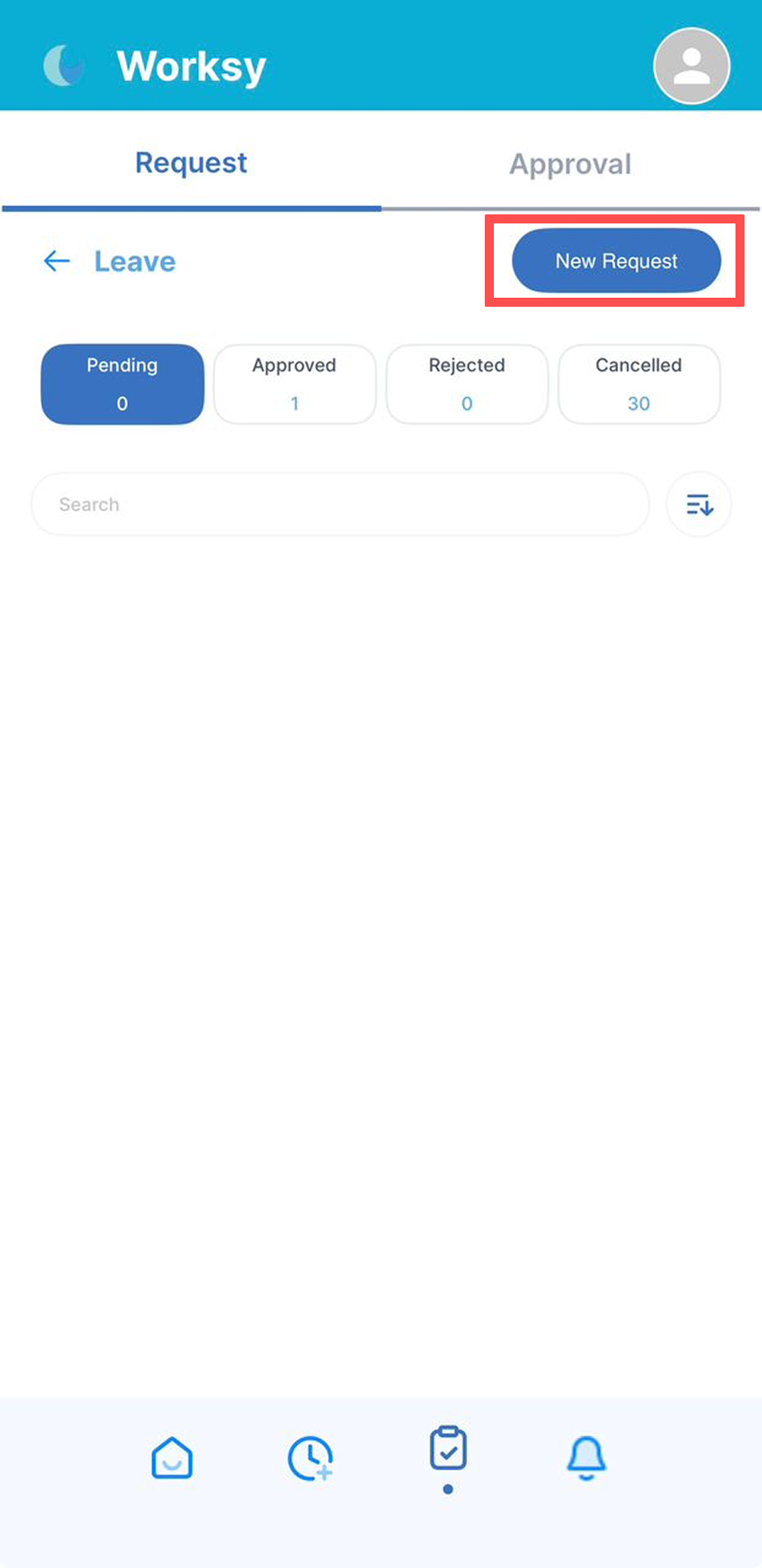
Tap New Request to submit a leave application.
Step 3
Select the Leave Type you wish to apply for from the drop-down list.
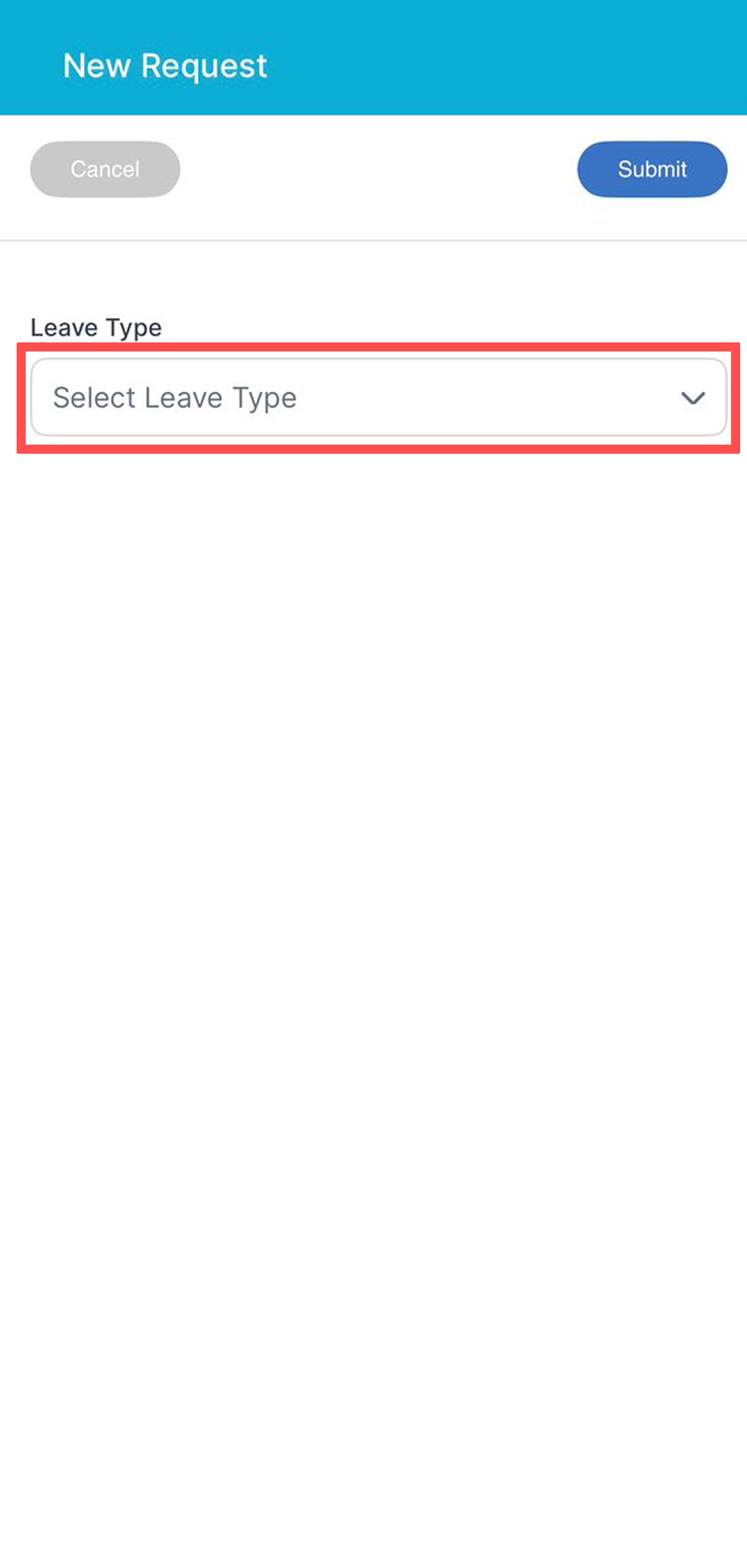
Note: The leave types displayed are those you are currently entitled to. If the leave you need is not listed, please contact your HR or Person-in-Charge (PIC) regarding your leave entitlement.
Step 4
Next, select the date range for your leave.
- The Start Date must be earlier than or the same as the End Date.
- Choose the leave duration by selecting Full Day, First Half of the Day, or Second Half of the Day.
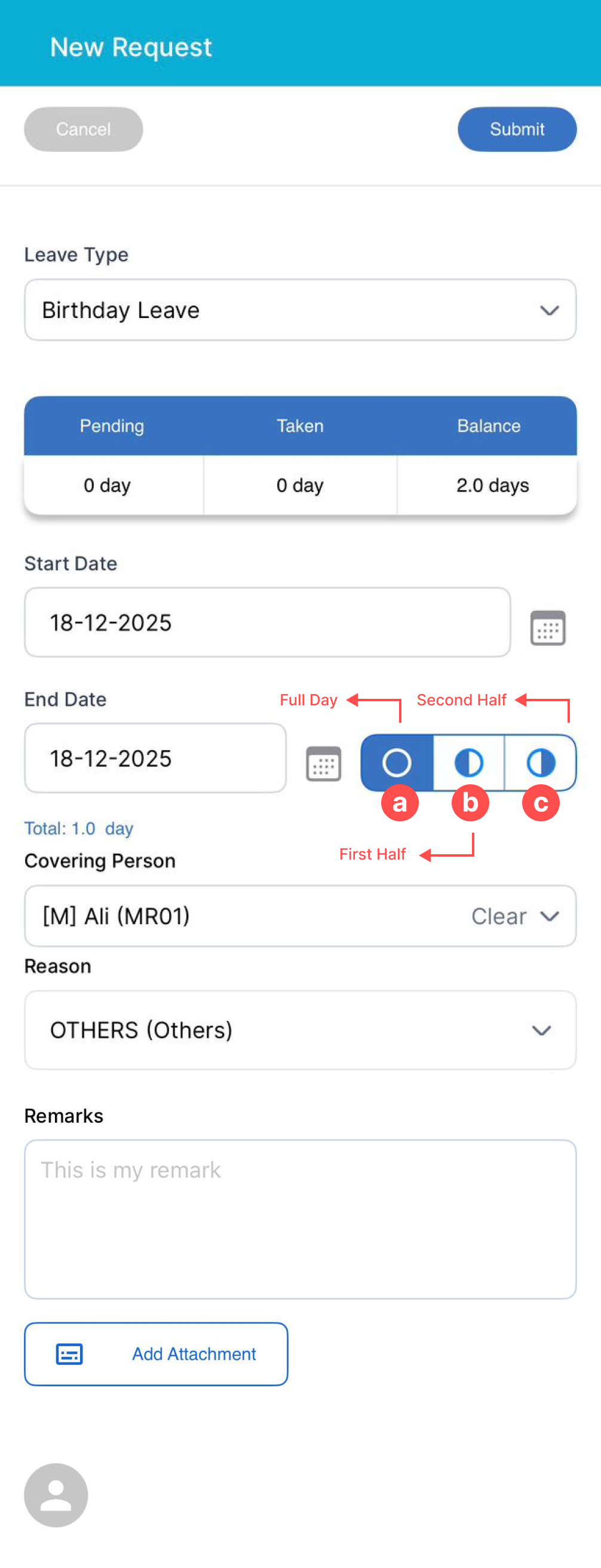
The system will automatically display the total number of days requested.
If a covering person is required, tap Covering Person and select a team member who will cover your duties during your leave.
- The selected covering person will be added to your leave approval workflow and must approve your request before it is escalated to higher-level approvers.
Select a Reason for your leave from the drop-down list.
- If required, upload any supporting documents by tapping Add Attachment.
Lastly, click Submit button at the top right.
Related:
We hope this explanation clarifies the matter. If you require additional assistance, do not hesitate to contact our support team.
Was this article helpful?
That’s Great!
Thank you for your feedback
Sorry! We couldn't be helpful
Thank you for your feedback
Feedback sent
We appreciate your effort and will try to fix the article