A Daily Allowance automatically generates an allowance for employees when their attendance records meet the configured criteria.
Step 1
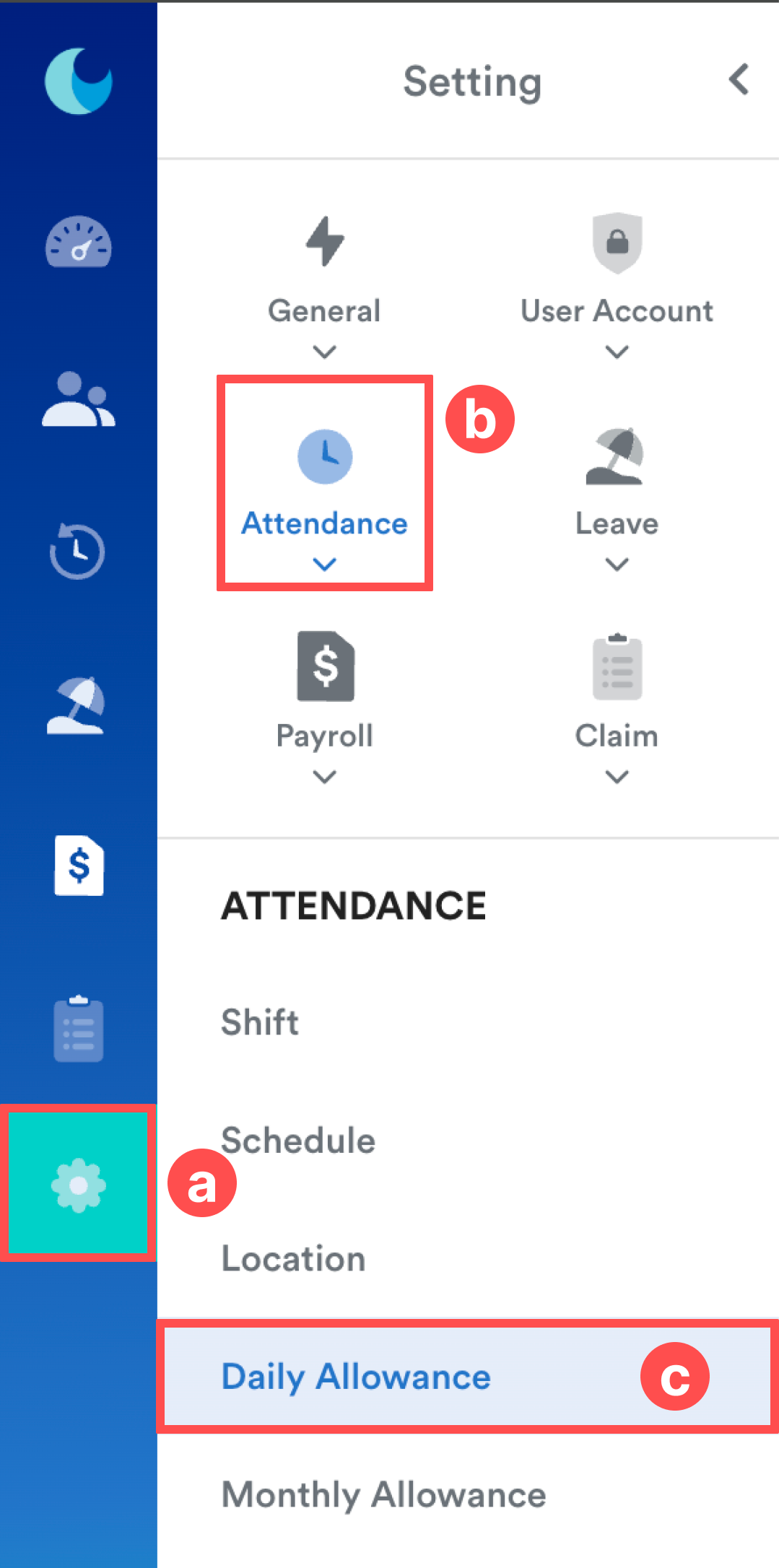
From the left menu, go to Settings (a) > Attendance (b) > Daily Allowance (c).
Step 2
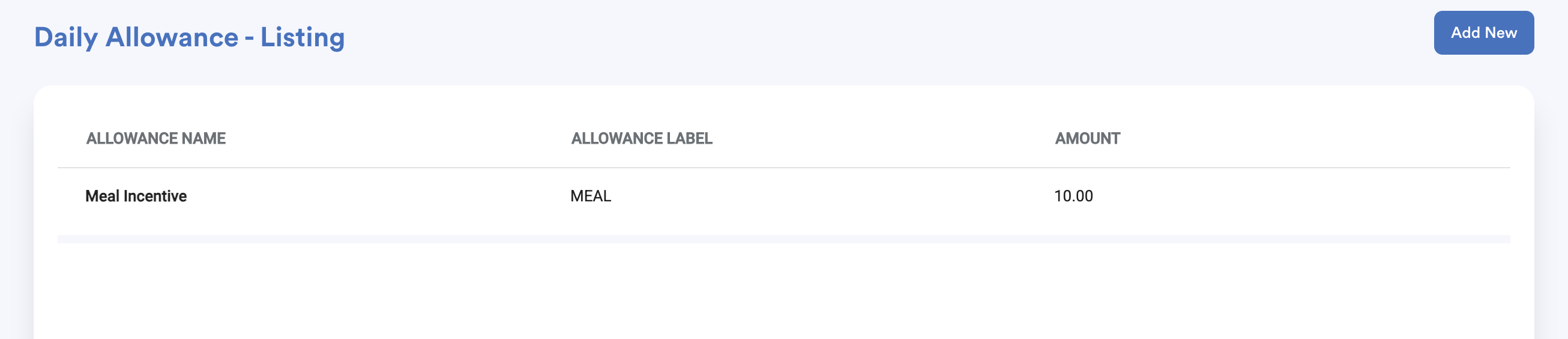
Click Add New to create a new Daily Allowance, or select an existing Daily Allowance to edit.
Step 3
Configure the General settings.
Complete the required fields:
- Allowance Name
- Label
- Amount
- Payroll Item
You may also enter Notes for internal reference.
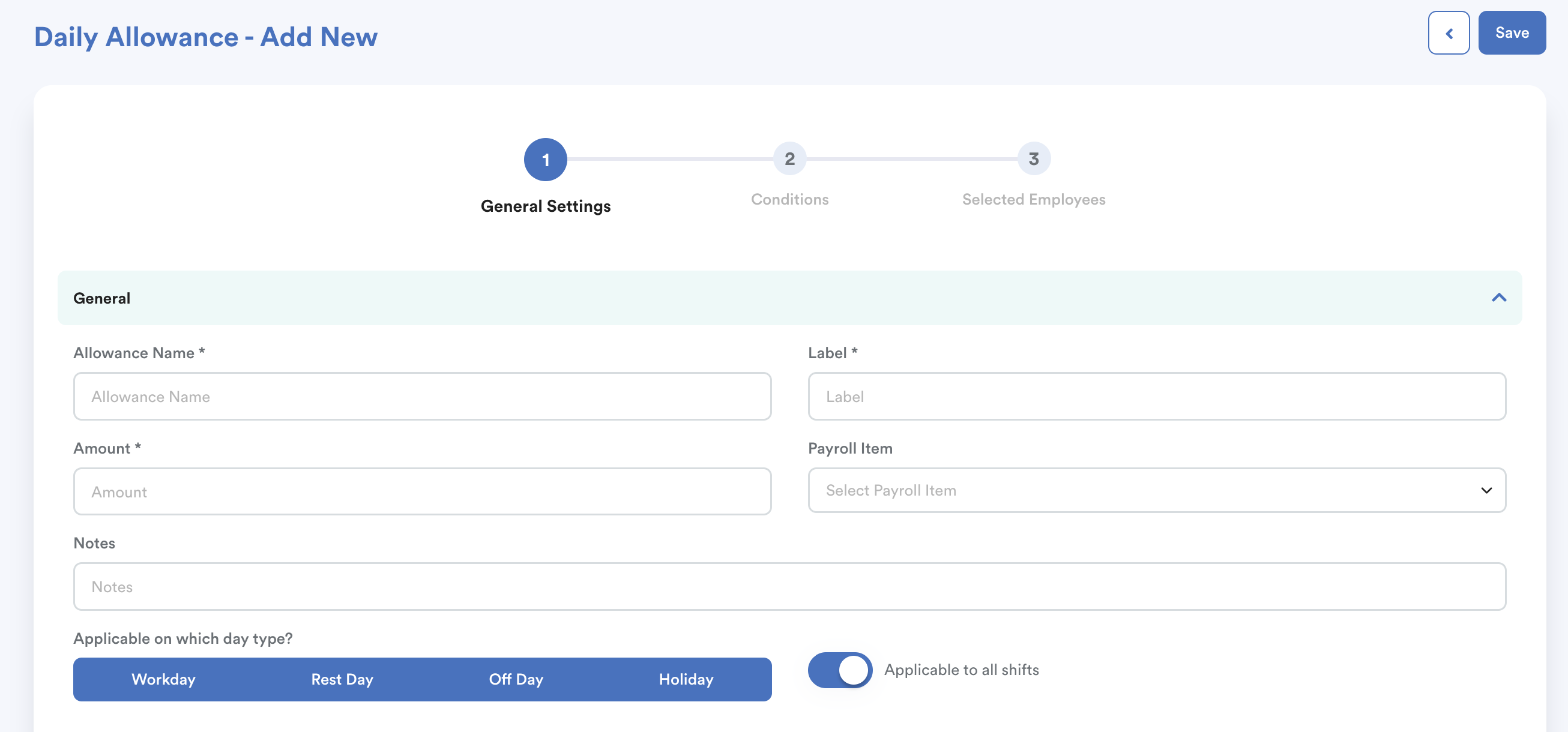
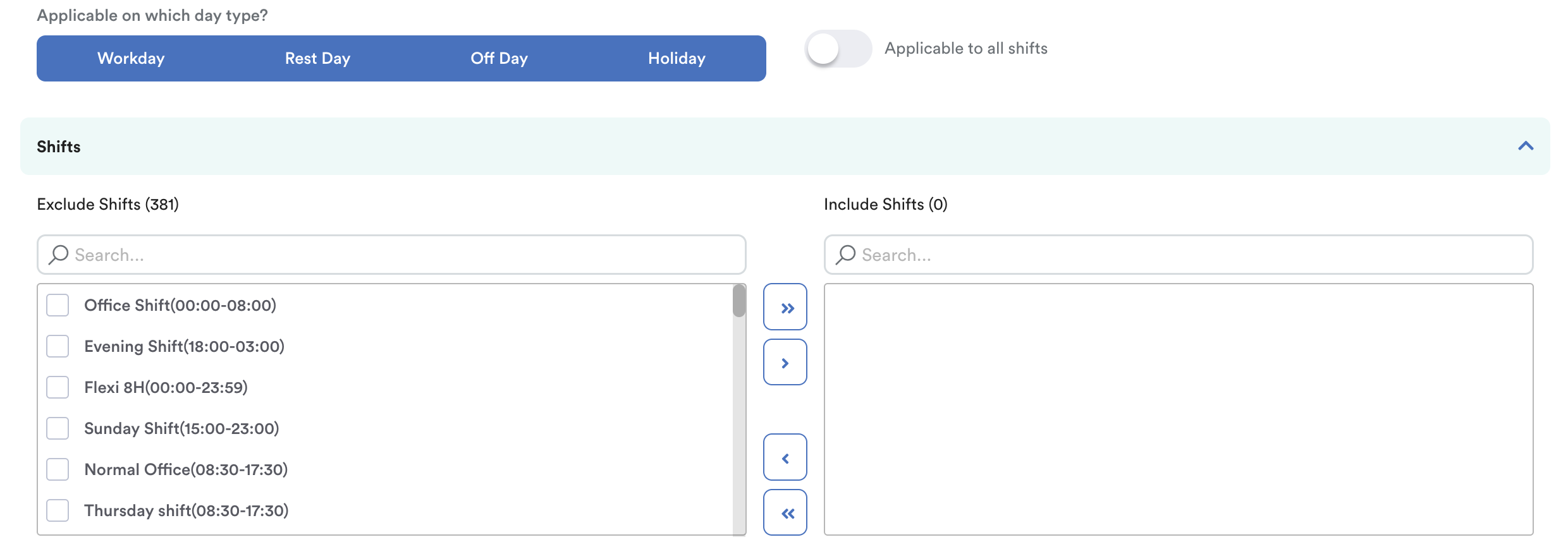
Next, select the applicable Day Types and Shifts for this allowance.

Enable Applicable to All Shifts if the allowance applies to every shift Otherwise, disable the toggle and select the specific shifts that are eligible.
Step 4
Configure the Attendance Criteria.
Click Add Criteria.

Select the appropriate:
- Criteria
- Condition
- Value

Click Add Criteria again to add additional conditions, or click the Delete (dustbin) icon to remove a criterion.
Once you have finished configuring the attendance criteria, proceed to the next tab.
Step 5
Select the employees who are entitled to receive this Daily Allowance.

Click Next to view the selected employees summary and click Save to complete the setup.
If the Daily Allowance Is Not Updated
If an eligible employee does not receive the Daily Allowance, check the following:
1. Verify the employee's attendance record
If the attendance record shows an Incomplete exception, it means either the clock-in or clock-out record is missing.
Since the Daily Allowance criteria require a complete attendance record that meets the configured conditions, employees with incomplete attendance records will not qualify for the allowance.
2. Run Attendance Batch Process
If you have:
- updated the Daily Allowance settings, or
- newly assigned employees to the allowance,
- unassign some employees to the allowance
run an Attendance Batch Process so the system recalculates attendance based on the latest configuration.
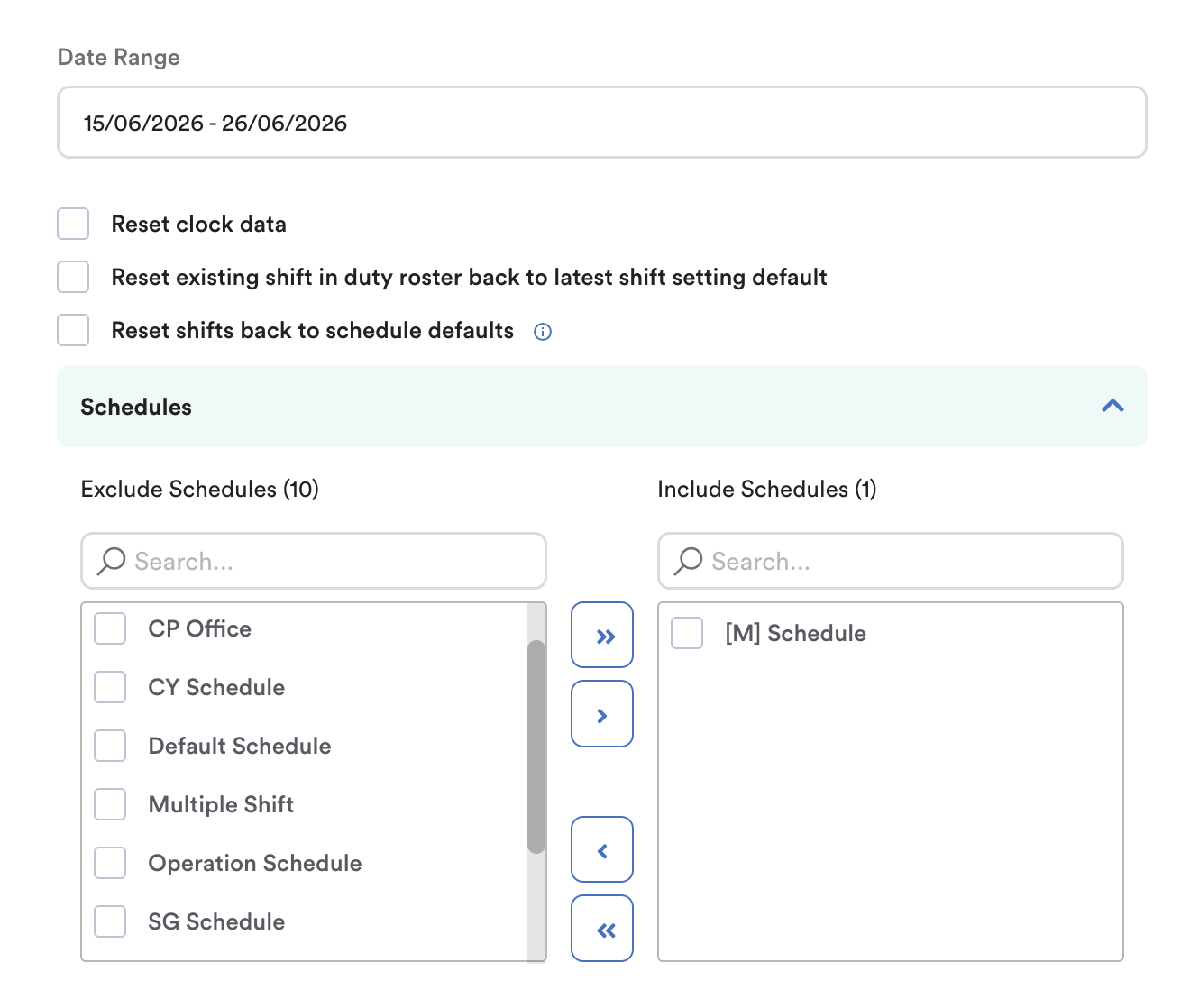
Without ticking any reset options, select only the affected schedule and employees when performing the batch process. Refer to the Batch Process Resetting Attendance to Default Schedule Settings article for detailed instructions.
We hope this explanation clarifies the matter. If you require additional assistance, do not hesitate to contact our support team.
Was this article helpful?
That’s Great!
Thank you for your feedback
Sorry! We couldn't be helpful
Thank you for your feedback
Feedback sent
We appreciate your effort and will try to fix the article