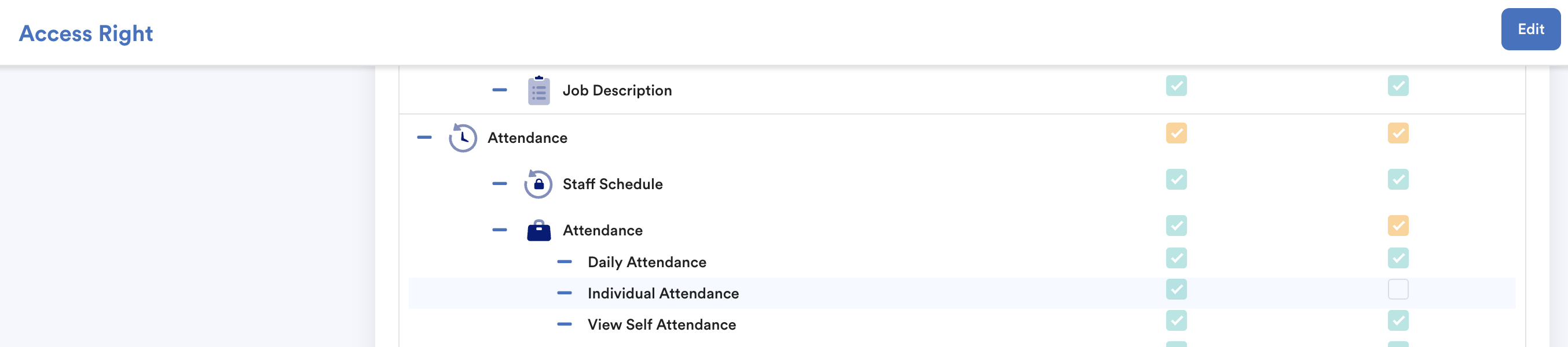
You will need Edit access to perform the steps below.
If you only have View access, the Edit button will not appear because you are not permitted to make changes.
Please contact your Superadmin to grant you the required access.
Quick Links
Method 1 - Unlocking directly from the individual attendance
Method 2 - Unlocking by batch from Individual Attendance
You will see "Unlock" button if your shift is locked. Check status on the last column.
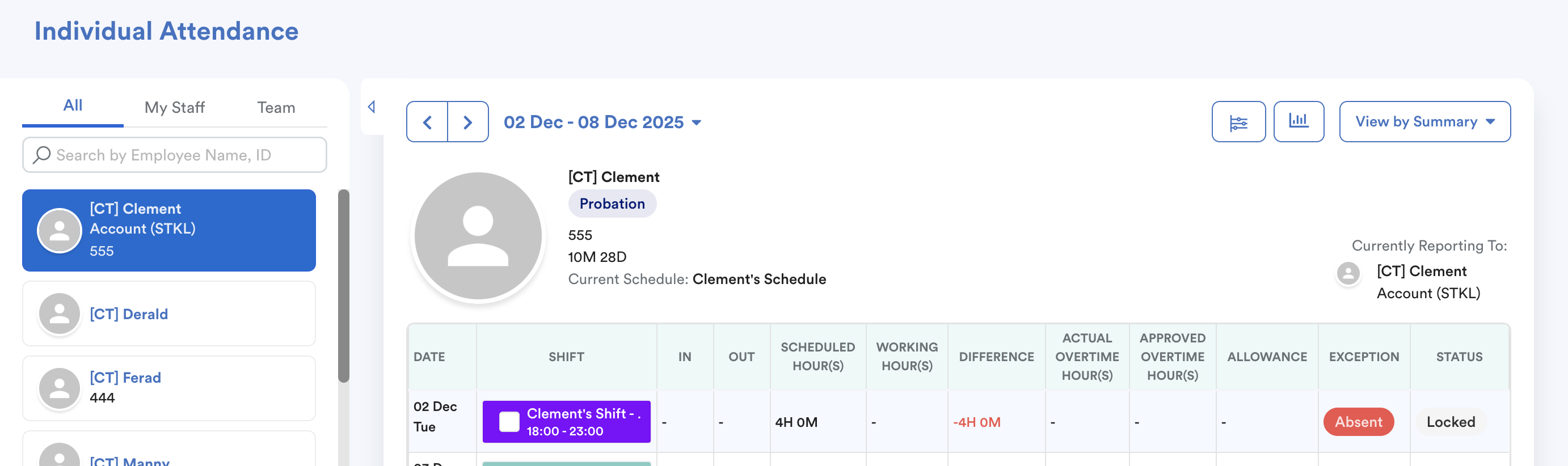
Method 1 - Unlocking directly from the individual attendance
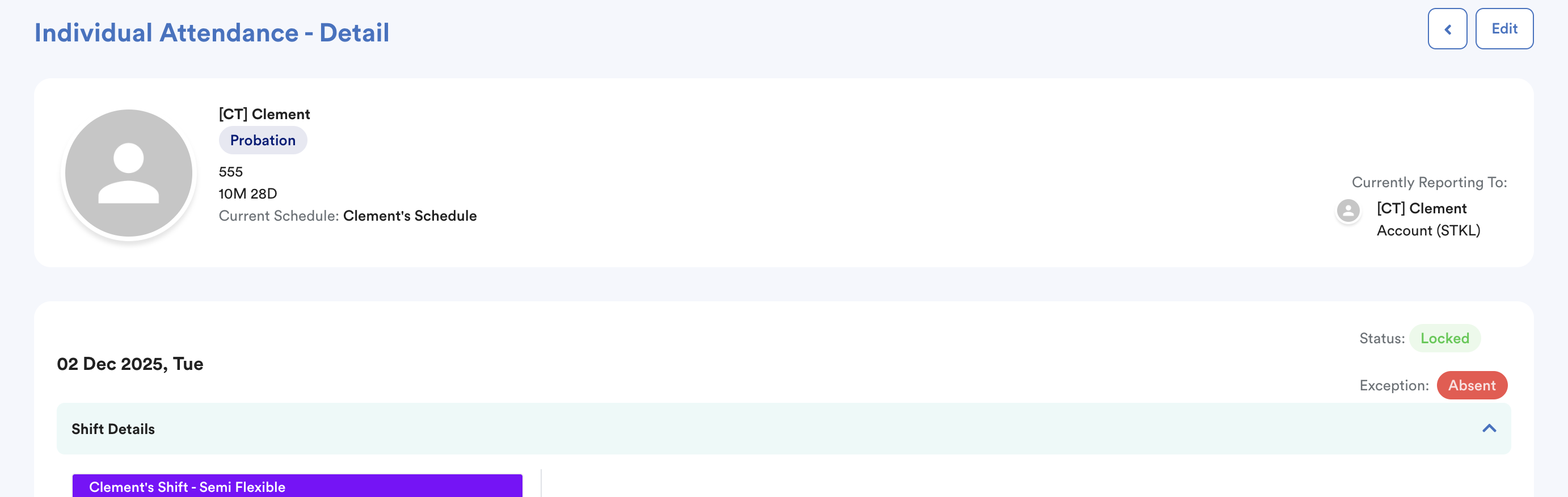
Step 1
Click the day with locked attendance. Click Edit button on the top right corner of the page.
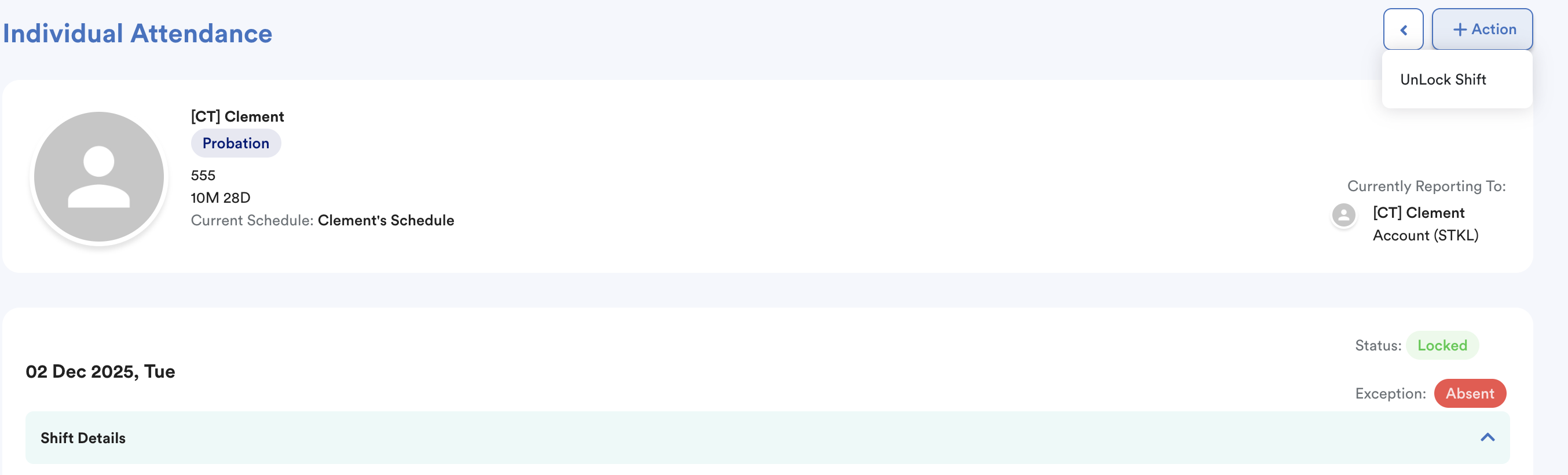
Step 2
The "Action" button will pop up, and you can unlock the shift as shown in the image below.
Method 2 - Unlocking by batch from Individual Attendance
Hover to shift column to see the checkbox.
Once you check the box, "Lock" and "Unlock" button will appear.
Click Unlock to unlock the attendance on 02 Dec 2025.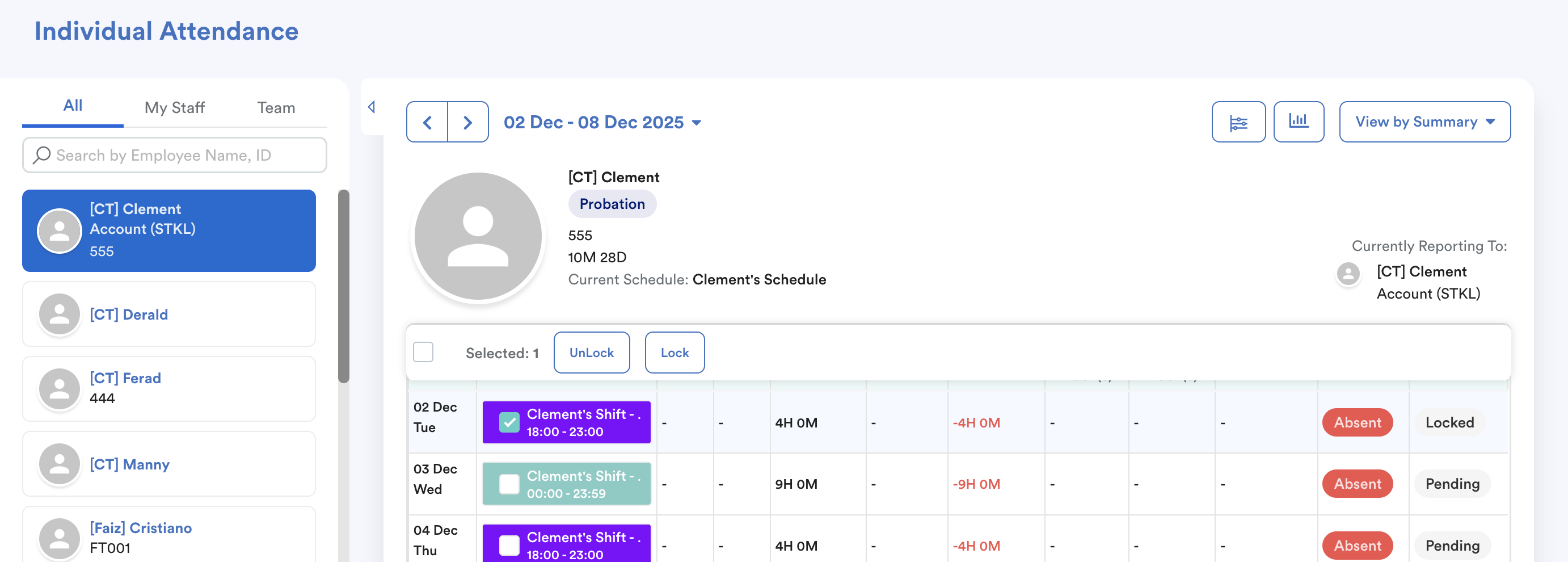
You can also tick the box below to batch Unlock the attendance based on selected date range.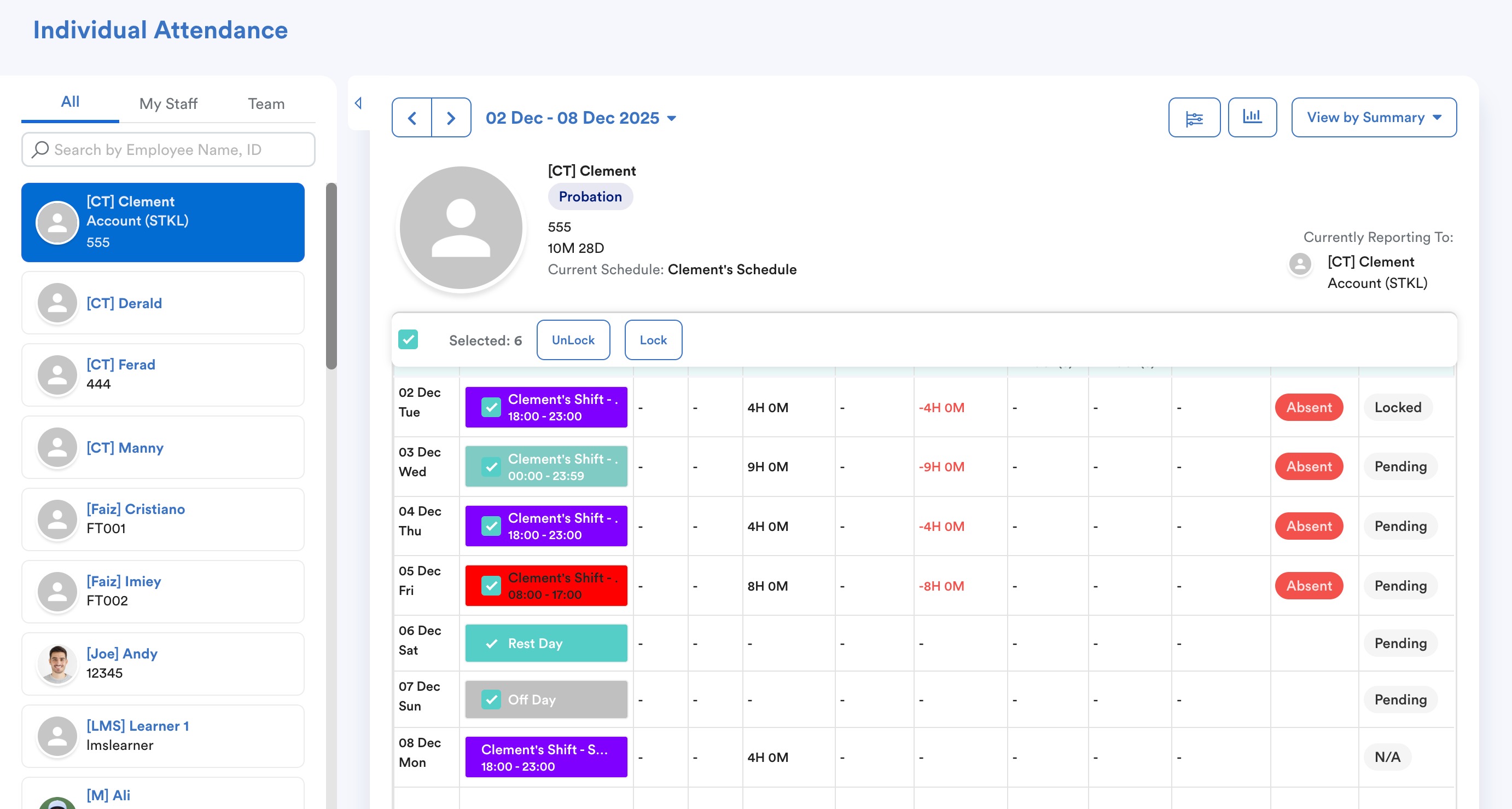
We hope this explanation clarifies the matter. If you require additional assistance, do not hesitate to contact our support team.
Was this article helpful?
That’s Great!
Thank you for your feedback
Sorry! We couldn't be helpful
Thank you for your feedback
Feedback sent
We appreciate your effort and will try to fix the article