Step 1
On the left menu, go to Payroll. Then, click Process to process payroll. 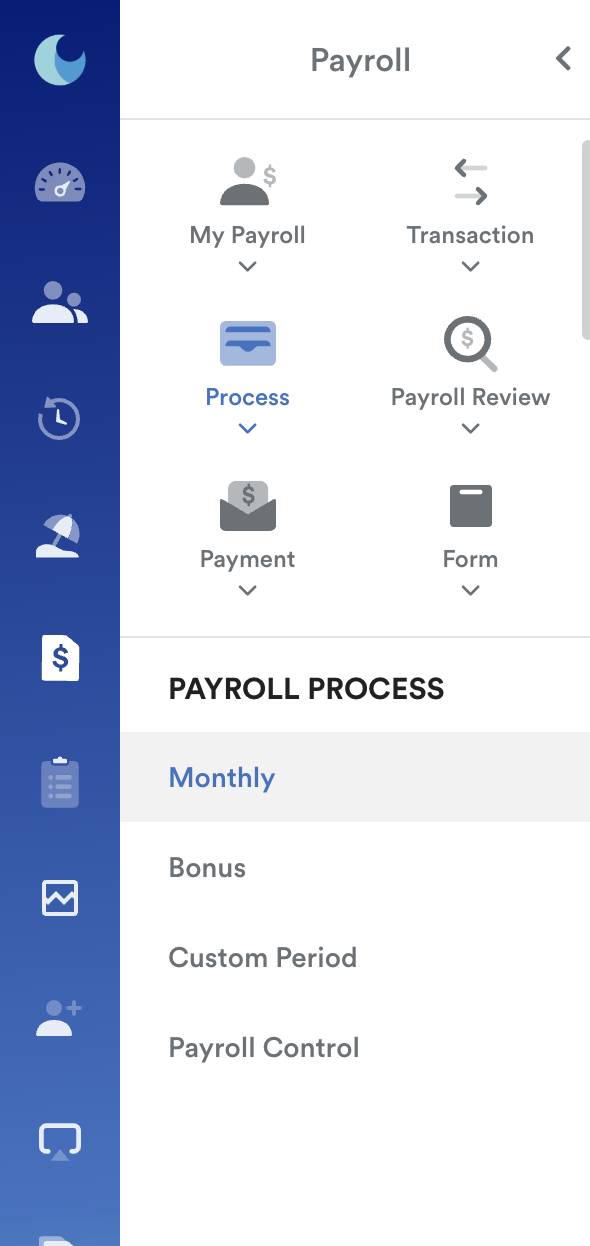
Step 2
Select the Payroll Period Month > Payroll Payment Date > Tick Pull Claim Data.
Then, click Next.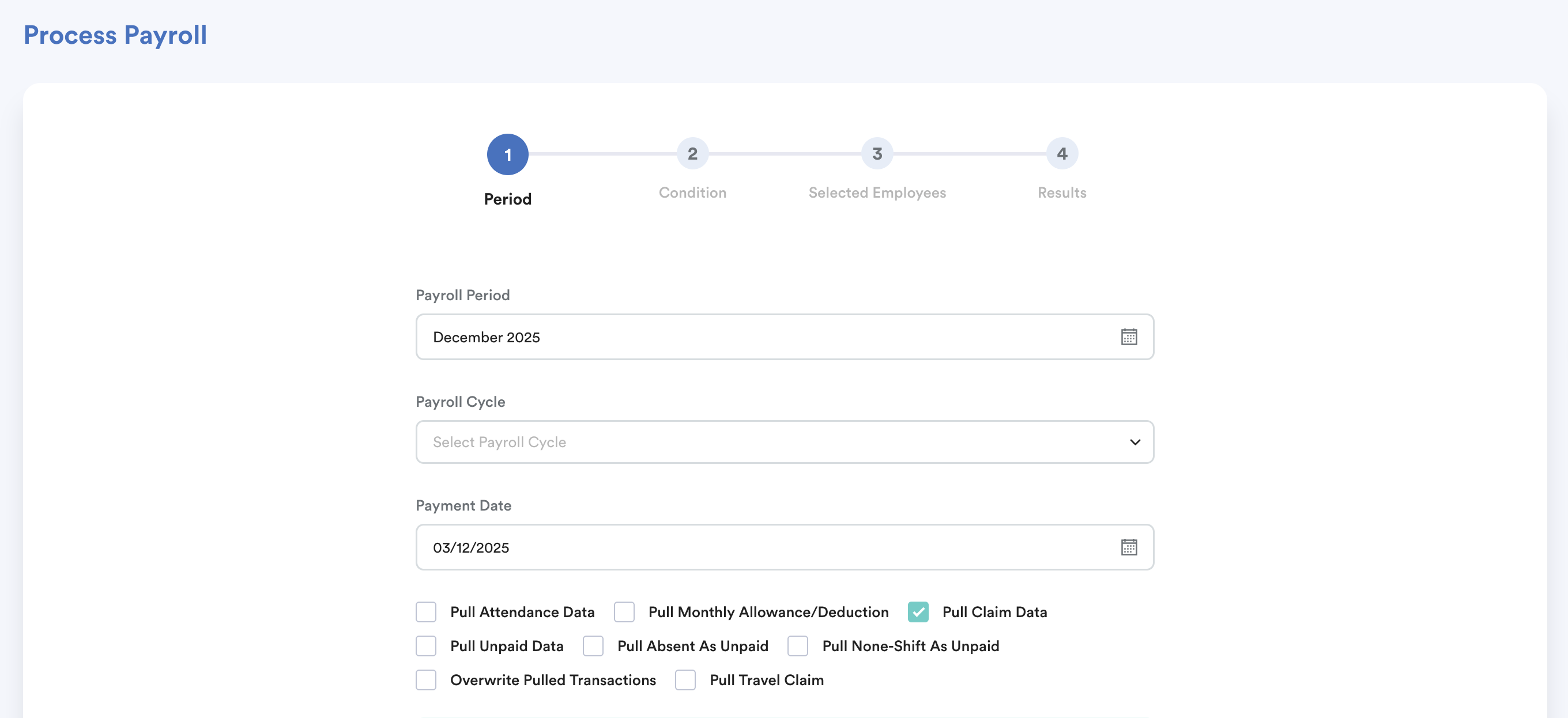
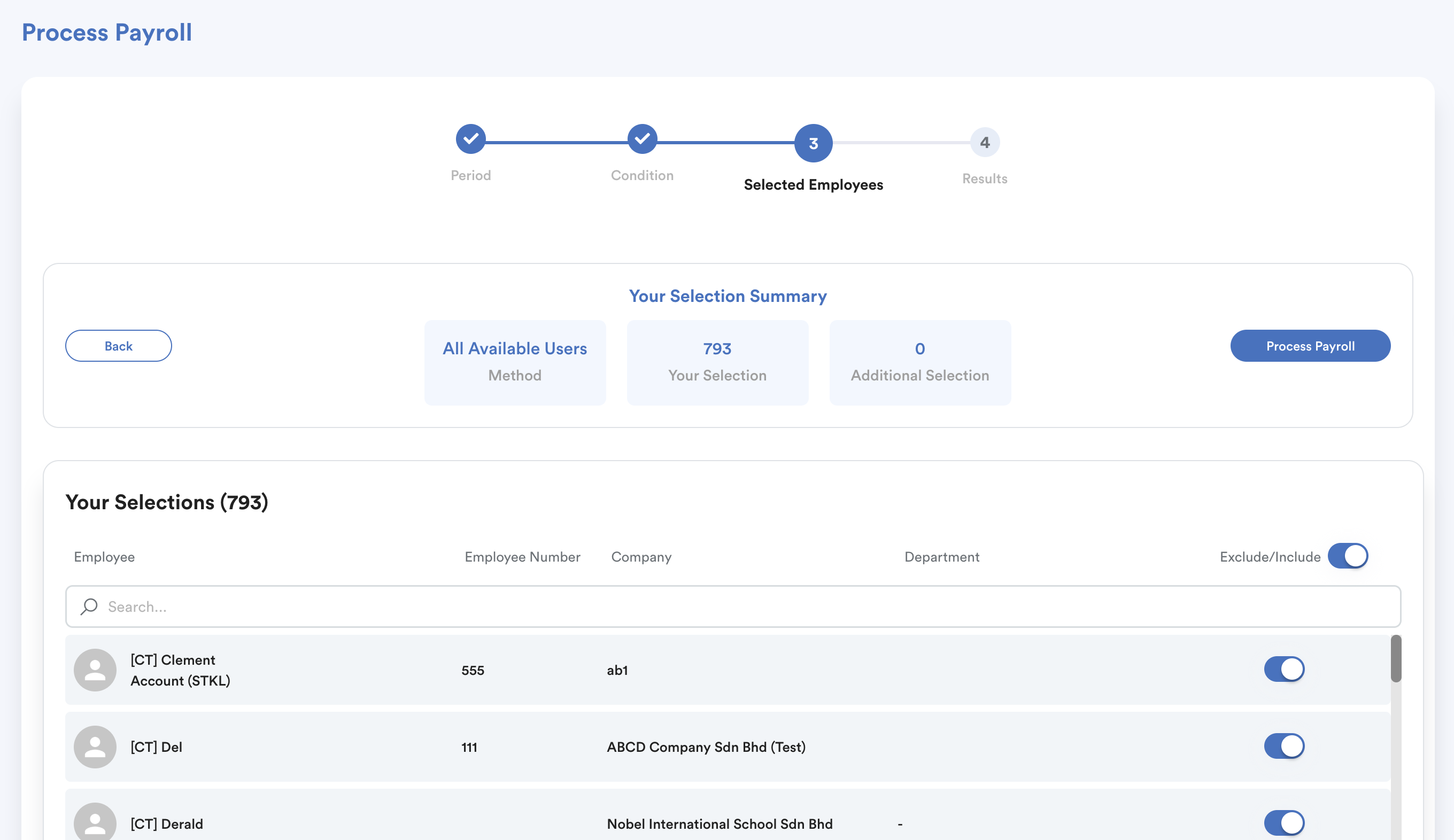
Note: You are able to view all employees. You can also include/exclude any employees here by clicking on the toggle.
Step 3
Upon checking the details from Step 2, scroll down to the page and click Process Payroll. When your payroll is processed successfully, you will see this message come up on the Results page, indicating the number of payslips you have generated.
If you do not see claim item in payslip, please fix this first (Refer: Why Claim is not Appearing in Employee's Payslip)
We hope this explanation clarifies the matter. If you require additional assistance, do not hesitate to contact our support team.
Was this article helpful?
That’s Great!
Thank you for your feedback
Sorry! We couldn't be helpful
Thank you for your feedback
Feedback sent
We appreciate your effort and will try to fix the article