"Form E" primarily refers to a mandatory annual tax declaration form for employers in Malaysia, submitted to the Inland Revenue Board of Malaysia (LHDN). It reports employee numbers and income details.
Worksy generates EA and Form E using data from two sources: Monthly Payroll and Payroll Figures Take On (PFTO). Before generating Form E, ensure that all employees’ payroll data for the year is complete and accurate.
1. Monthly Payroll Records
These are payroll records that you processed each month in Worksy.
2. Payroll Figures Take On (PFTO)
Path: Utility > Import Tool > Payroll > Payroll Figures Take On.
PFTO is required only if you started using Worksy midway through the year. In this case, you must enter the aggregated payroll figures for January–October 2025 via PFTO.
Example:
You started using Worksy in November 2025
Payroll data in the system only covers November–December 2025
EA Form must include January–December 2025
If you have been using Worksy for the whole year, you can skip this step.
Important:
Before submitting Form E, review each employee’s EA Form carefully because:
Form E is an aggregation of all EA Forms
If all EA Forms are correct, Form E will also be correct
Step 1
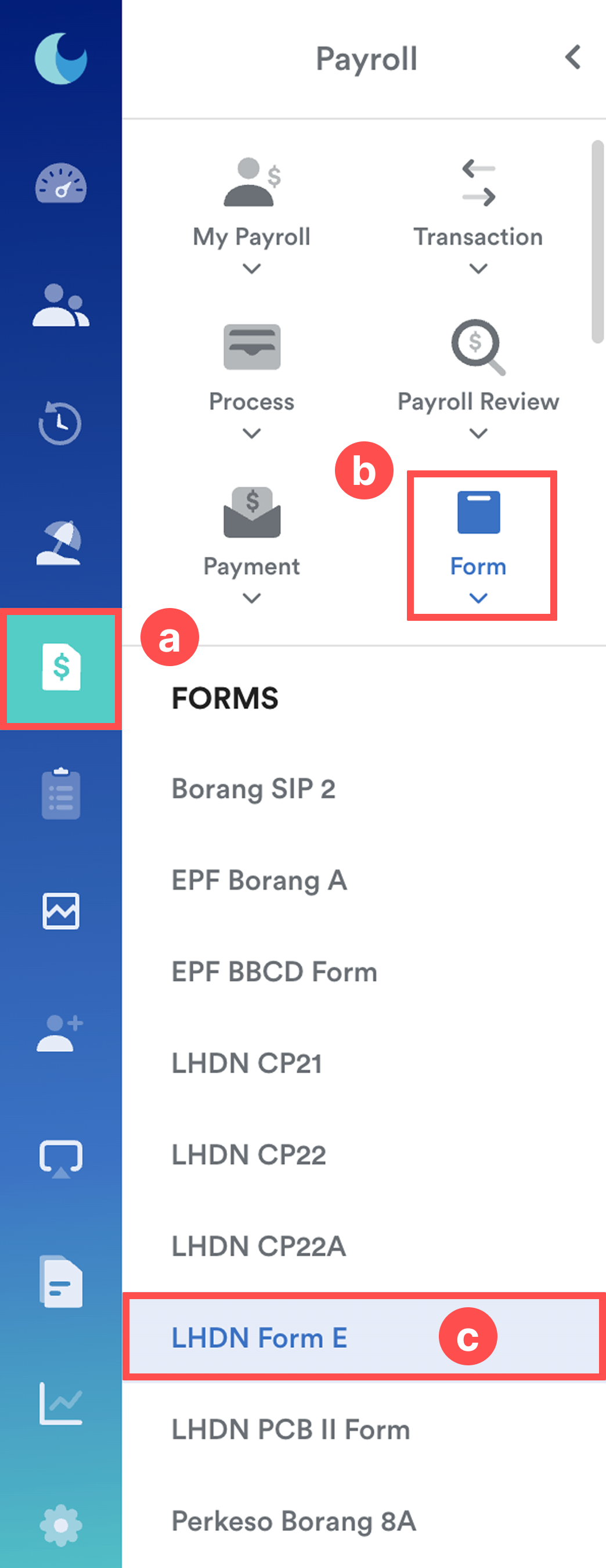
On the left menu, go to Payroll (a) > Form (b) > LHDN Form E (c).
Step 2
Select a company from the list.
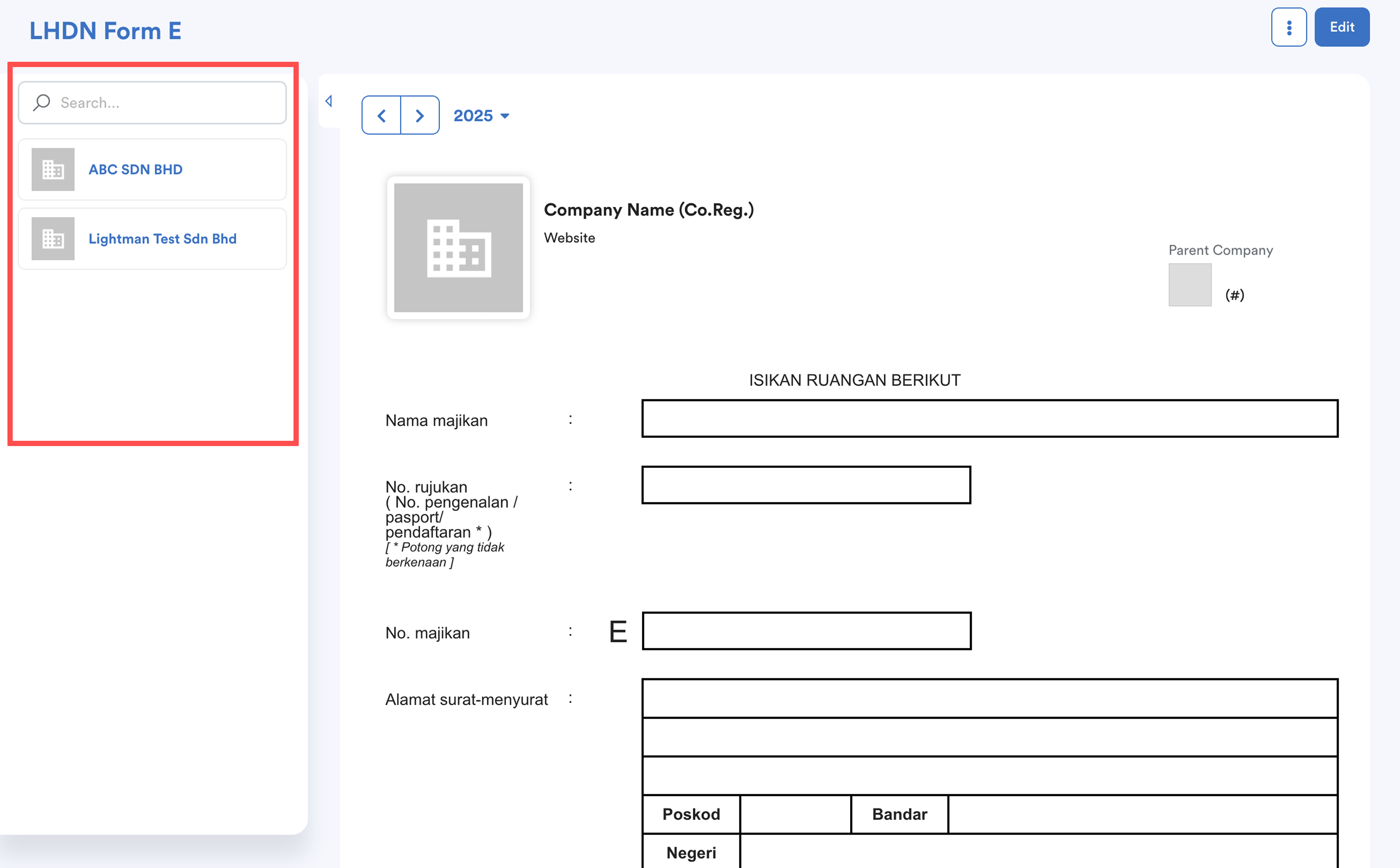
If the company you're looking for is not listed, it may be because you're not part of the Payroll Payment Team.
Refer to this article to grant access: Set Up Payroll Payment TeamStep 3
A Calculation Settings pop-up will appear. This is used to calculate Part A: Information on Number of Employees.
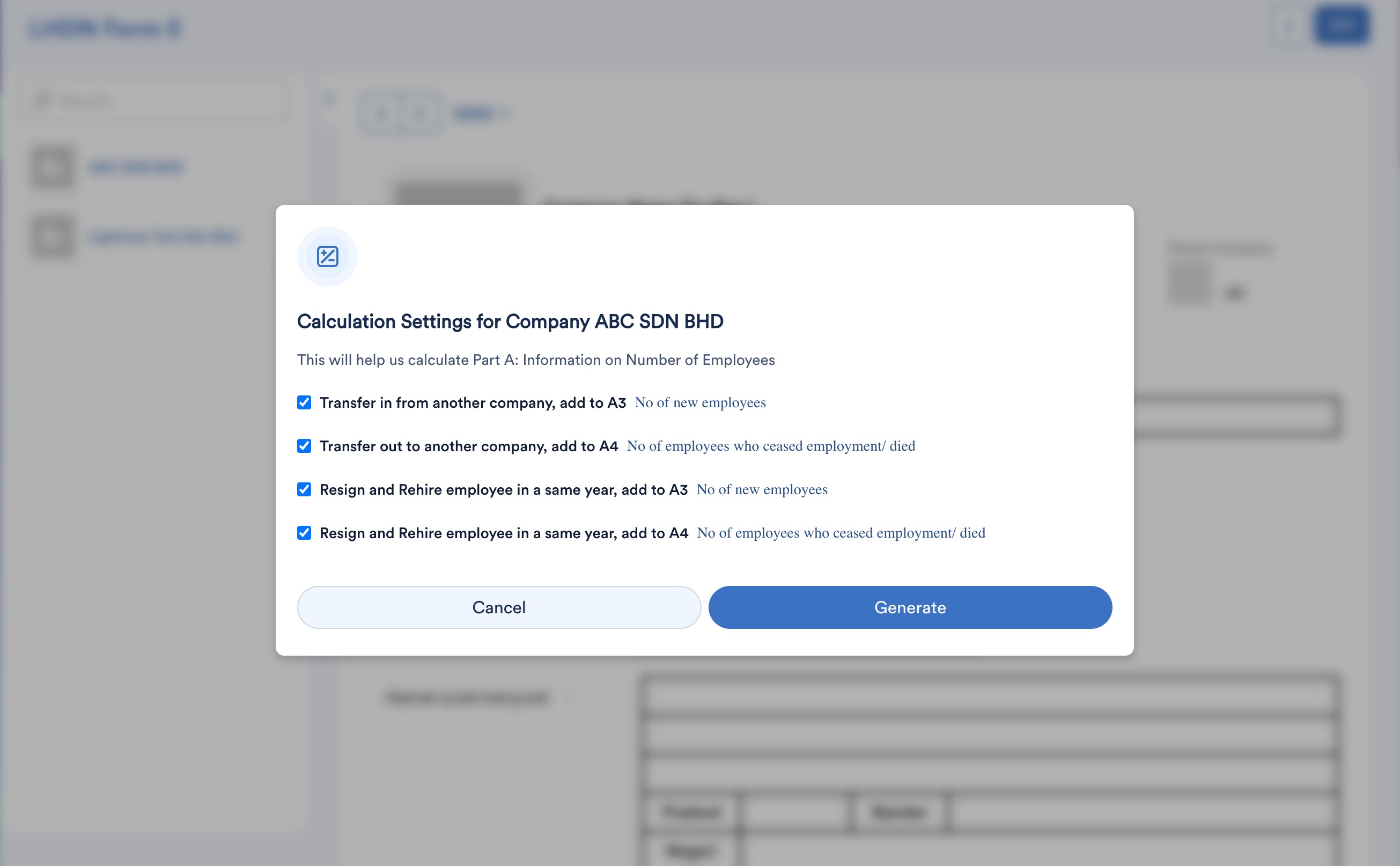
Tick all options that apply to your company:
- Employees transferred into your company → added to A3 (New Employees)
- Employees transferred out of your company → added to A4 (Employees who ceased employment / died)
- Employee resigned and rehired in the same year → add to A3
- Employee resigned and rehired in the same year → add to A4
Once selected, click Generate.
The system will automatically calculate the employee numbers based on your selections.
Step 4
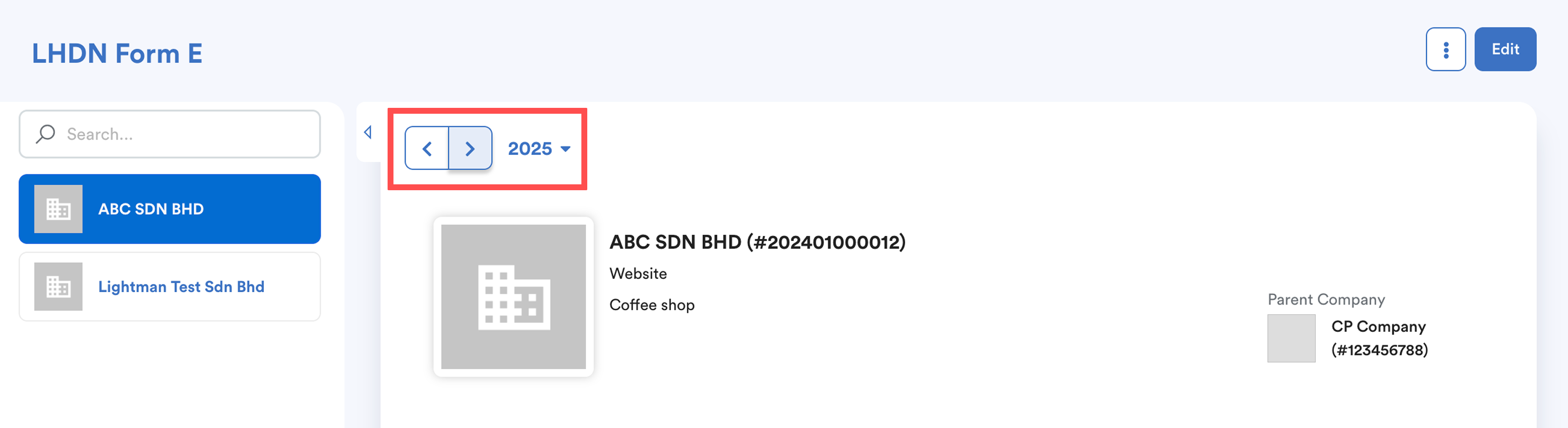
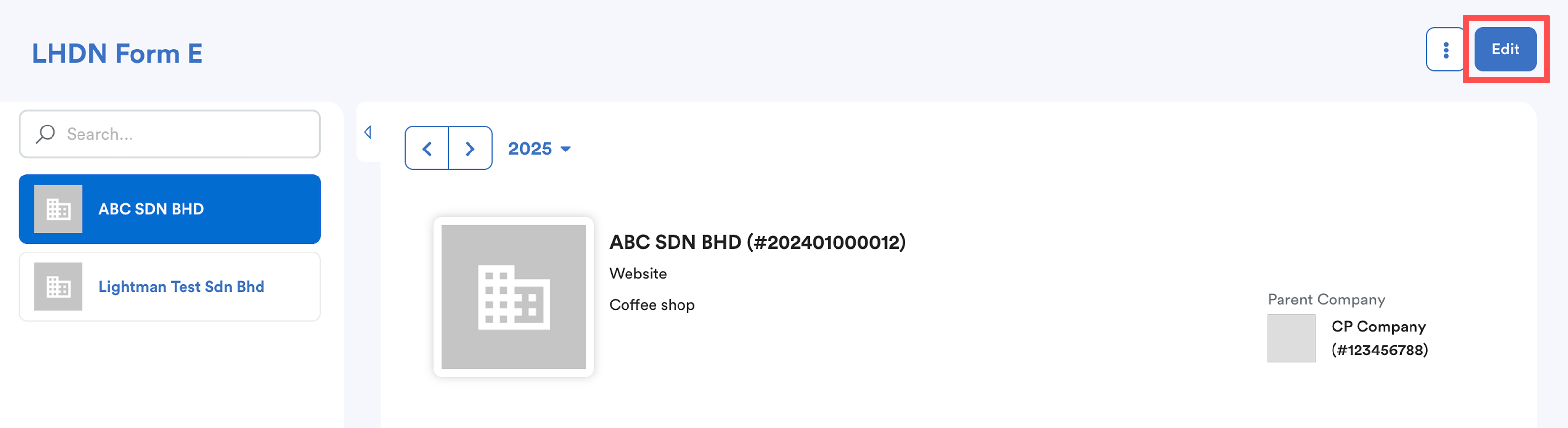
After Form E is generated, select the year by clicking the < > arrows or the calendar.
Step 5
Click the Edit button at the top right of the screen.
In Edit Mode, you may manually update the fields highlighted in red:
Bahagian A: A5 & A6
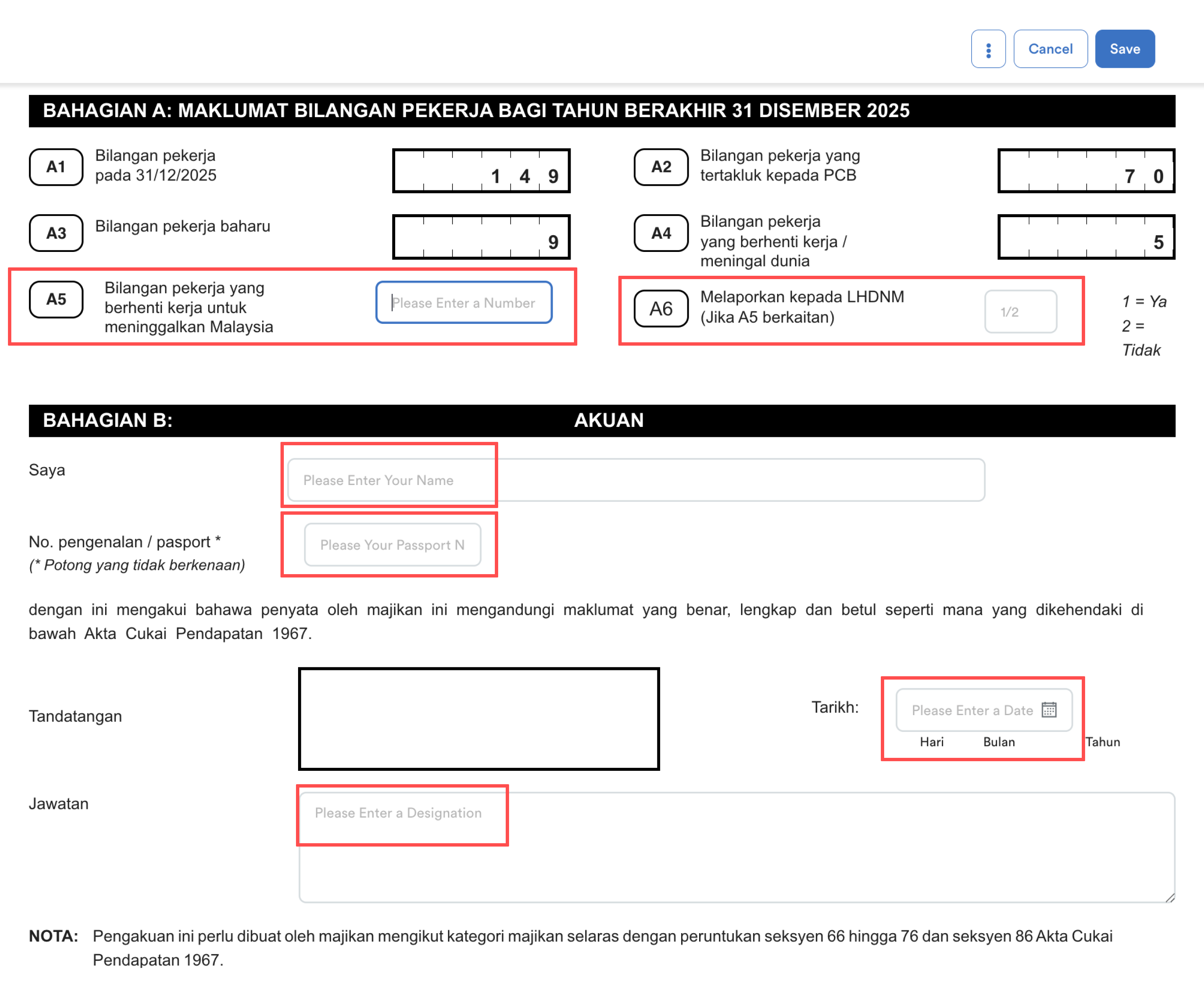
Refer to this article to understand how total of employees are counted for A1-A4: Understanding Bahagian A (A1–A4) in LHDN Form EBahagian B:
- Name of payroll administrator / contact person
- IC number
- Job title
- Date
Click Save once you have filled in the correct information.
Step 6
Click the three-dots (⋮) menu to:
- Print the form
- Download the employee list for Part A1 / A2 / A3 / A4
- Change the Calculation Settings

We hope this explanation clarifies the matter. If you require additional assistance, do not hesitate to contact our support team.
Was this article helpful?
That’s Great!
Thank you for your feedback
Sorry! We couldn't be helpful
Thank you for your feedback
Feedback sent
We appreciate your effort and will try to fix the article