The Project Listing page allows you to manage and organize project-specific data. By defining these projects, you can accurately track employee clocking, assign supervisors, and determine how payroll is assigned for specific projects.
The project setup is divided into three main sections: Project Information, Overtime Pattern, and Skill Set.
Step 1
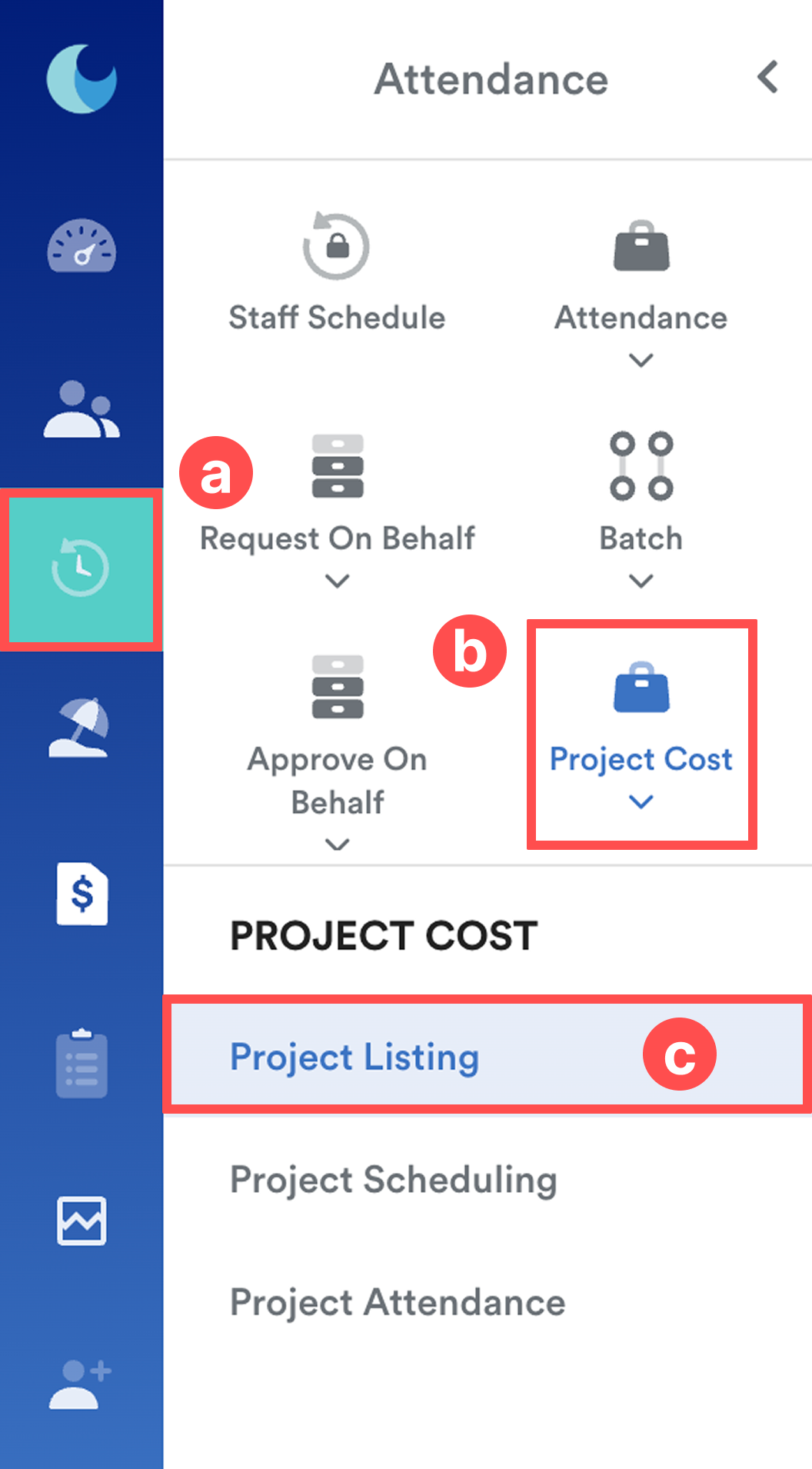
On the left menu, go to Attendance (a) > Project Cost (b) > Project Listing (c).
Step 2
Select existing project from the list to edit or click Create to add a new project.
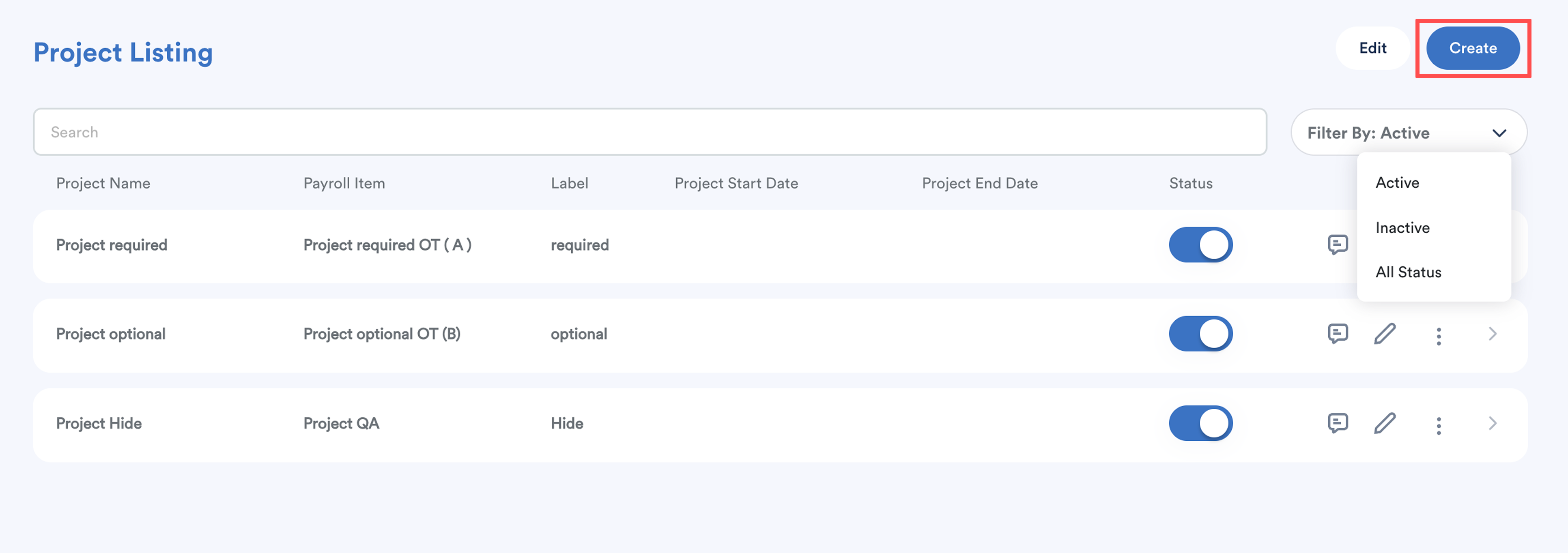
Click Edit to toggle the project status to Active/Inactive.
Step 3
A. Project Information
Complete the following fields to ensure accurate tracking and reporting throughout the project lifecycle:
- Project Title*: Enter the name of the project.
- Label*: Assign a specific label for categorization.
- Company*: Select the company entity this project belongs to.
- Supervisor*: Select the employee entrusted to supervise the staff assigned to this project.
Note: This controls which supervisor will see this project listing. Include all the supervisors if you want them to select this project listing on project scheduling screen.
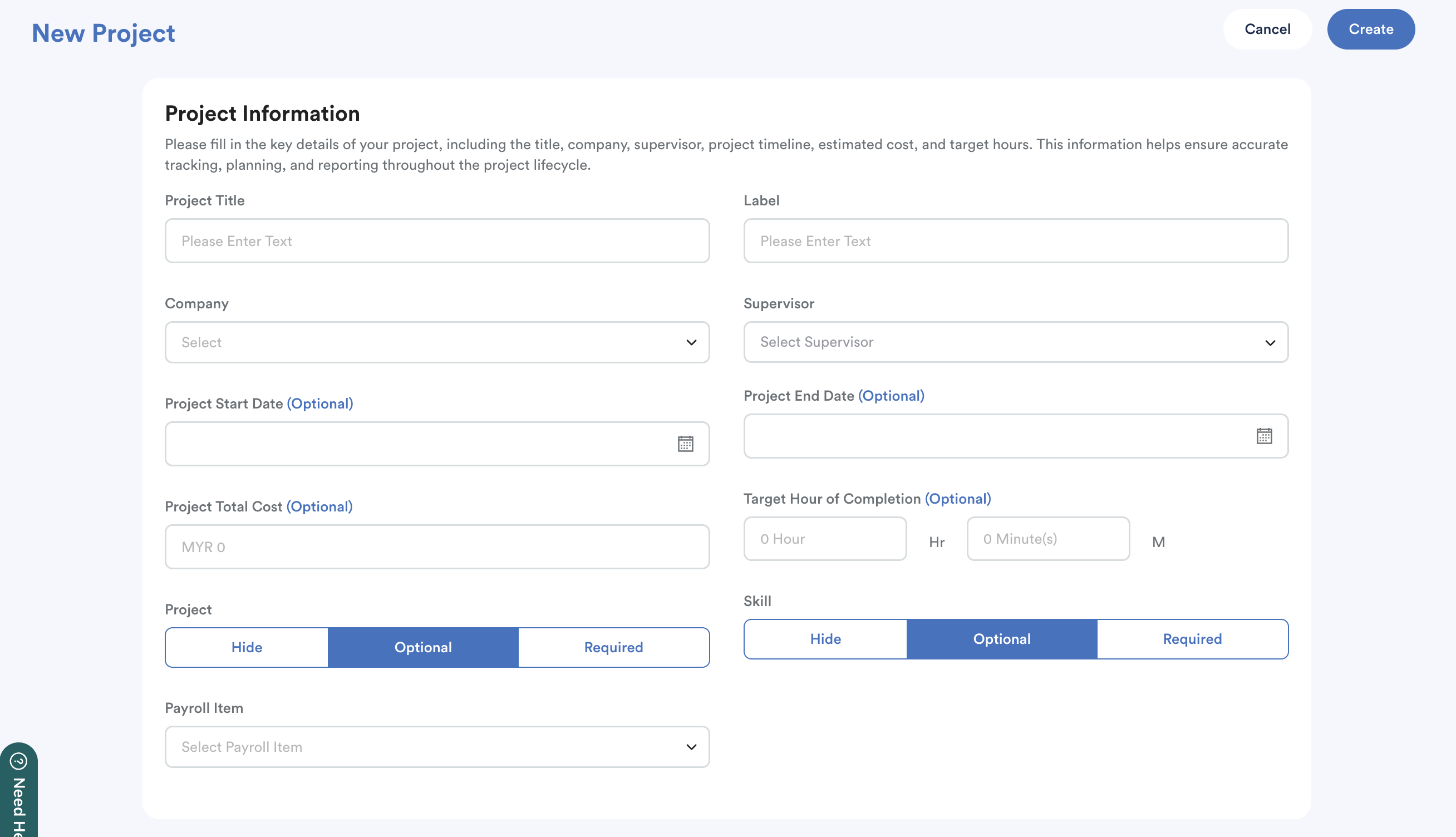
- Project Start/End Date (Optional): Define the project duration.
- Project Total Cost (Optional): Enter the total budget amount for the project.
- Target Hours of Completion (Optional): Input the estimated hours and minutes required to finish the project.
- Project Visibility: Choose between Hide, Optional, or Required to determine if project appear during clocking.
- Required: Employees must select a project when clocking, and this project will be selected as default.
- Optional: Employees can choose to skip the project selection.
- Skill Visibility: Choose between Hide, Optional, or Required to determine if skills appear during clocking.
Note: On the clocking screen, project and skill selections will only be displayed if they were configured as 'required' and 'optional'.
- Payroll Item*: Select the specific item used to calculate compensation for this project.
Note: To create new Payroll Items, navigate to Settings > Payroll > Payroll Items and select Project.
Step 2
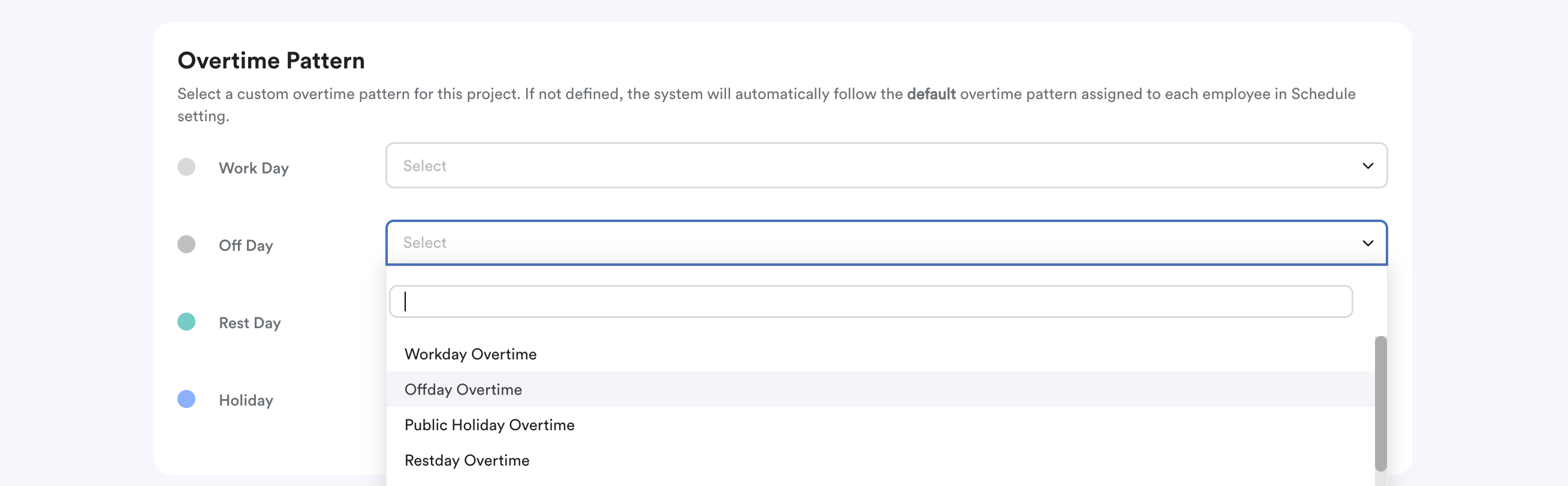
Overtime Pattern
Select a custom overtime pattern for this project. If not defined, the system will automatically follow the default overtime pattern assigned to each employee in Schedule setting.
Step 3 (optional)
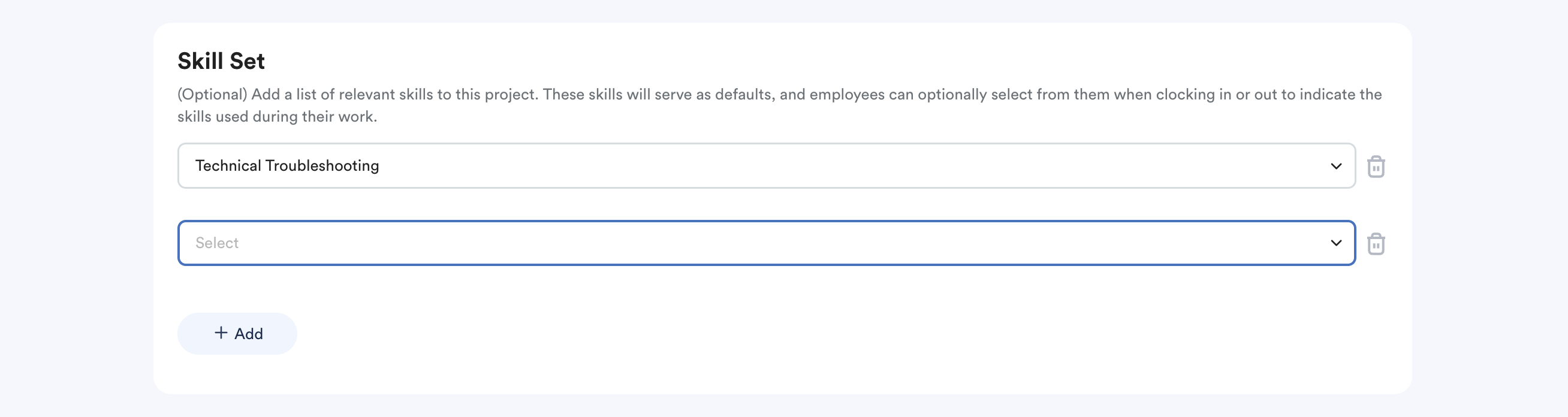
Skill Set
Assign relevant skills to the project. These serve as the default options for employees when they clock in or out. Employees are allowed to update the selected skills during clocking.
To add new skills, go to System Label > Employee > Skills.
To include employees in this project, refer to Assign Project to Employees.
You can create and manage these skills by referring to this article: Managing System Labels
We hope this clarifies the matter. If you require further assistance, do not hesitate to contact our support team.
Was this article helpful?
That’s Great!
Thank you for your feedback
Sorry! We couldn't be helpful
Thank you for your feedback
Feedback sent
We appreciate your effort and will try to fix the article