This function has the same setup concept as the Overtime Pattern screen.
However, this setting applies the overtime rate based on the total overtime hours accumulated within a month, instead of calculating it per day.
The system will:
Accumulate all approved overtime hours for the month.
Determine which overtime tier the employee falls into.
Apply the corresponding overtime rate based on the defined overtime rate (Step 3).
Note:
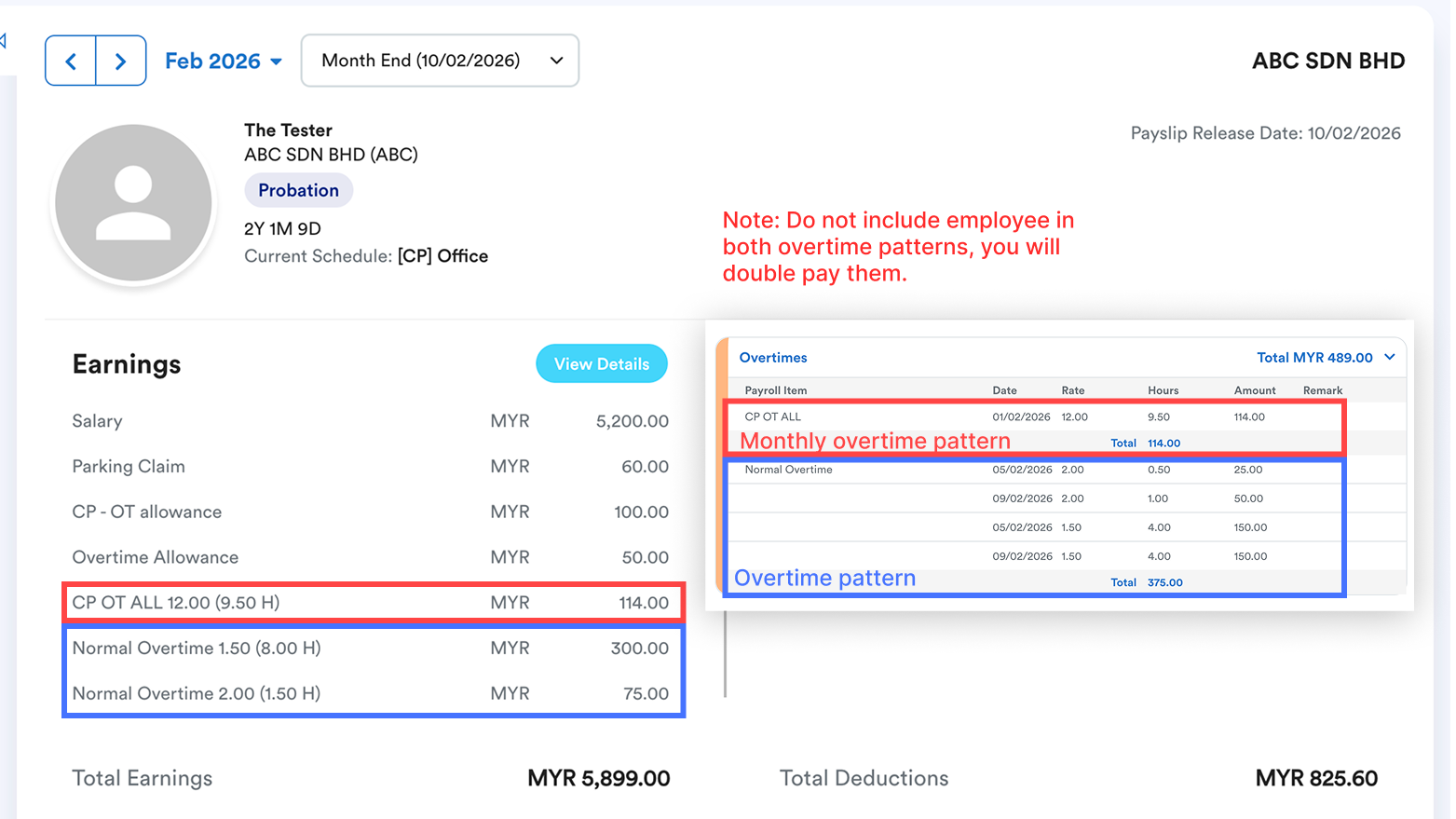
Please don't include the same employee in both the overtime pattern and the monthly overtime pattern, as this will result in double OT pay for that employee.
Quick Links
- Step 1: Turn on Access Right
- Step 2: Go to Attendance > Monthly Overtime
- Step 3: Set Monthly Overtime Pattern
- Step 4: Select Employees
- Step 5: Process Monthly Overtime Pattern
- Result
Step 1: Turn on Access Right
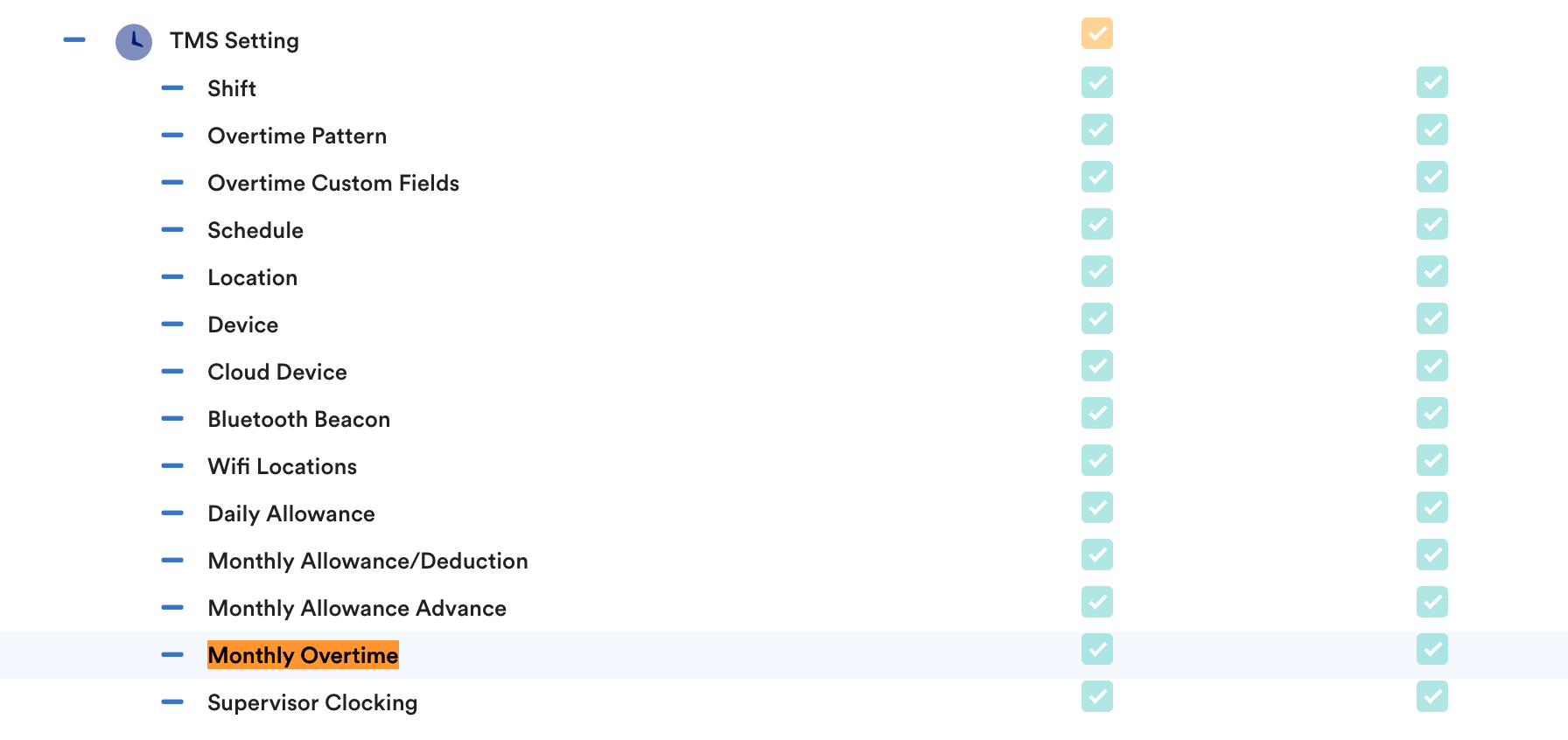
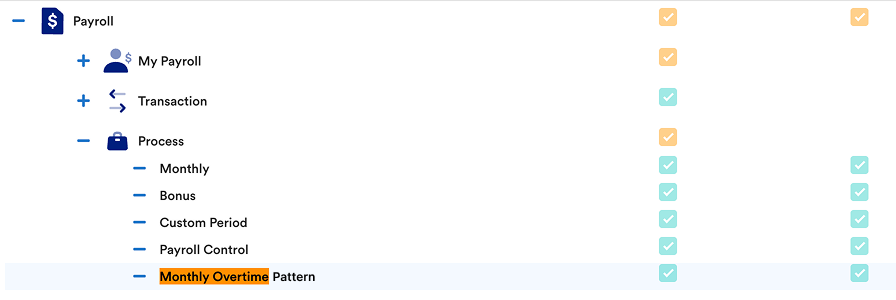
Turn on access rights for user roles that you would like them to access this screen.
TMS Setting > Monthly Overtime Pattern;
Payroll > Process > Monthly Overtime Pattern;
Step 2: Go to Attendance > Monthly Overtime
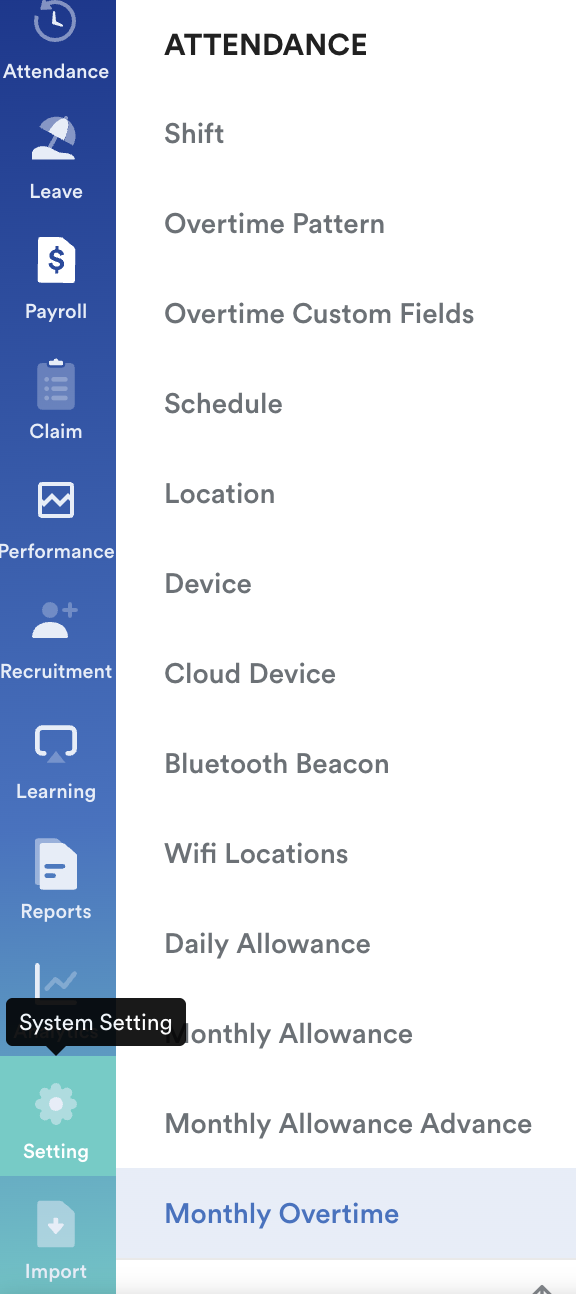
Go to Settings > Attendance > Monthly Overtime.
Step 3: Set Monthly Overtime Pattern
Click Add New to create a new overtime rate or select an existing rate to Edit.
Example Scenario (fixed rate pattern)
0H 0M – 20H 0M → 12.00
20H 1M – 40H 0M → 15.00
40H 1M and above → 20.00
Payroll item is "CP OT ALL".
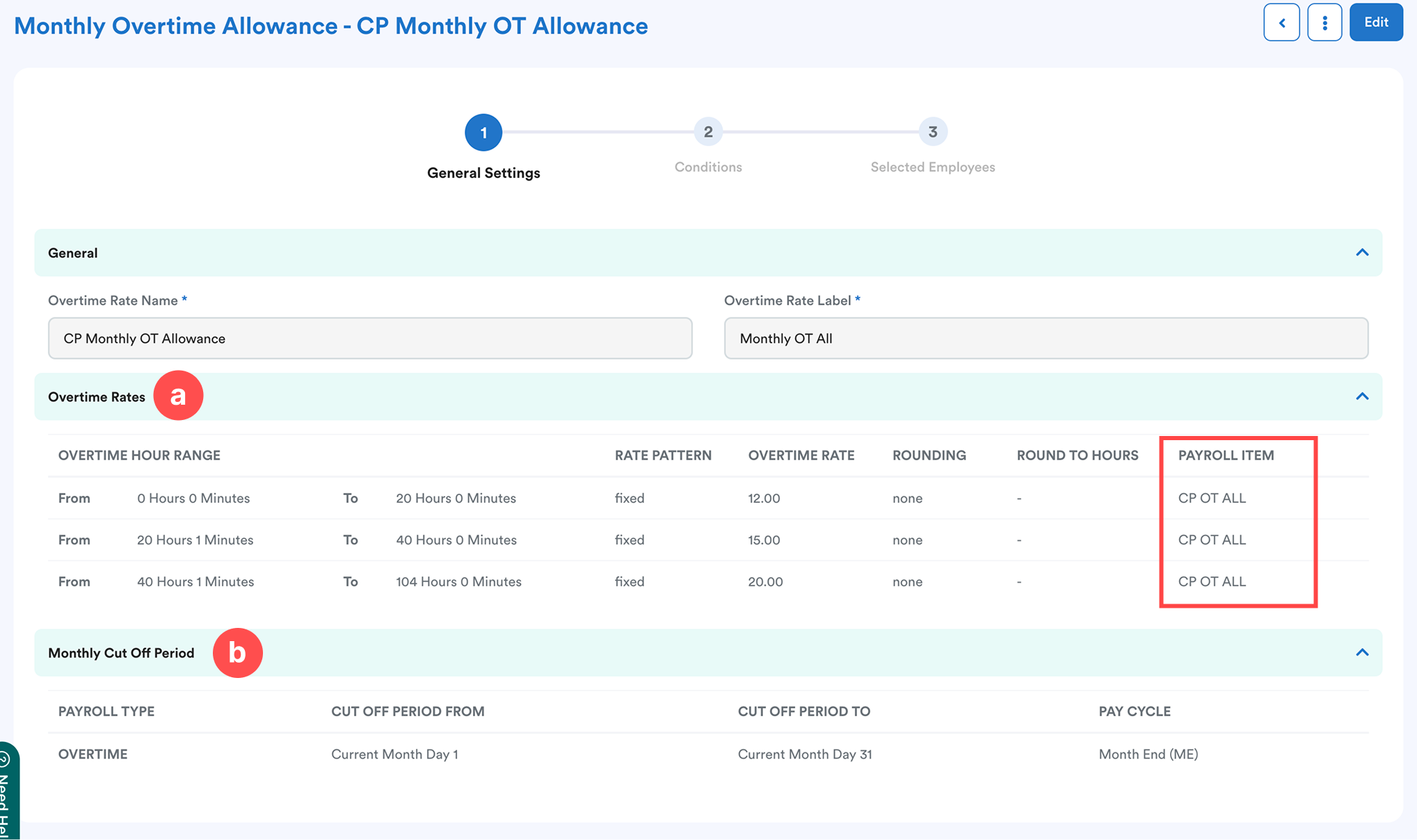
Section a:
| Overtime Hour Range | Define from X hr Xm to X hr Xm |
| Rate Pattern | Fixed / Variable |
| Overtime Rate | Based on Rate Pattern:
|
| Rounding | None / Custom
|
| Round To Hours | Only available if custom rounding is selected |
| Payroll Item | Link to the relevant overtime payroll item |
Click + Add to add a new row or the dustbin icon to delete a row.
Section b:
Define the period used to calculate overtime for payroll:
- Cut-Off Period From – Select: Current Month / Previous Month / Previous 2 Months / Previous 3 Months, then enter the start date (e.g., 1).
- Cut-Off Period To – Same options, then enter the end date (e.g., 31).
- Pay Cycle – Select the relevant pay cycle (e.g., Month End) to align overtime payout with payroll.
Step 4: Select Employees
Select entitled employees using any of the available selection methods.
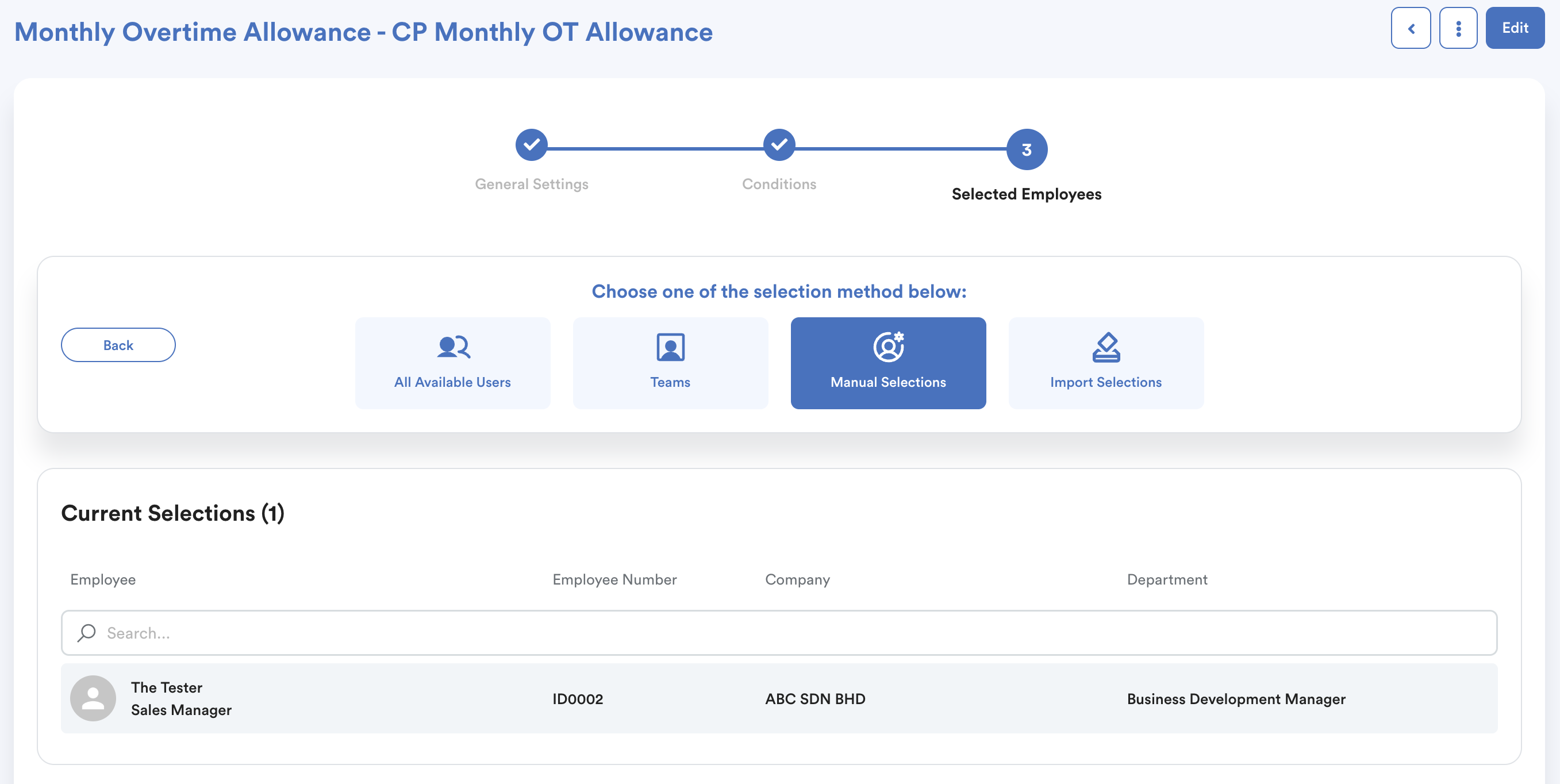
Click Save to apply the configuration.
Step 5: Process Monthly Overtime Pattern
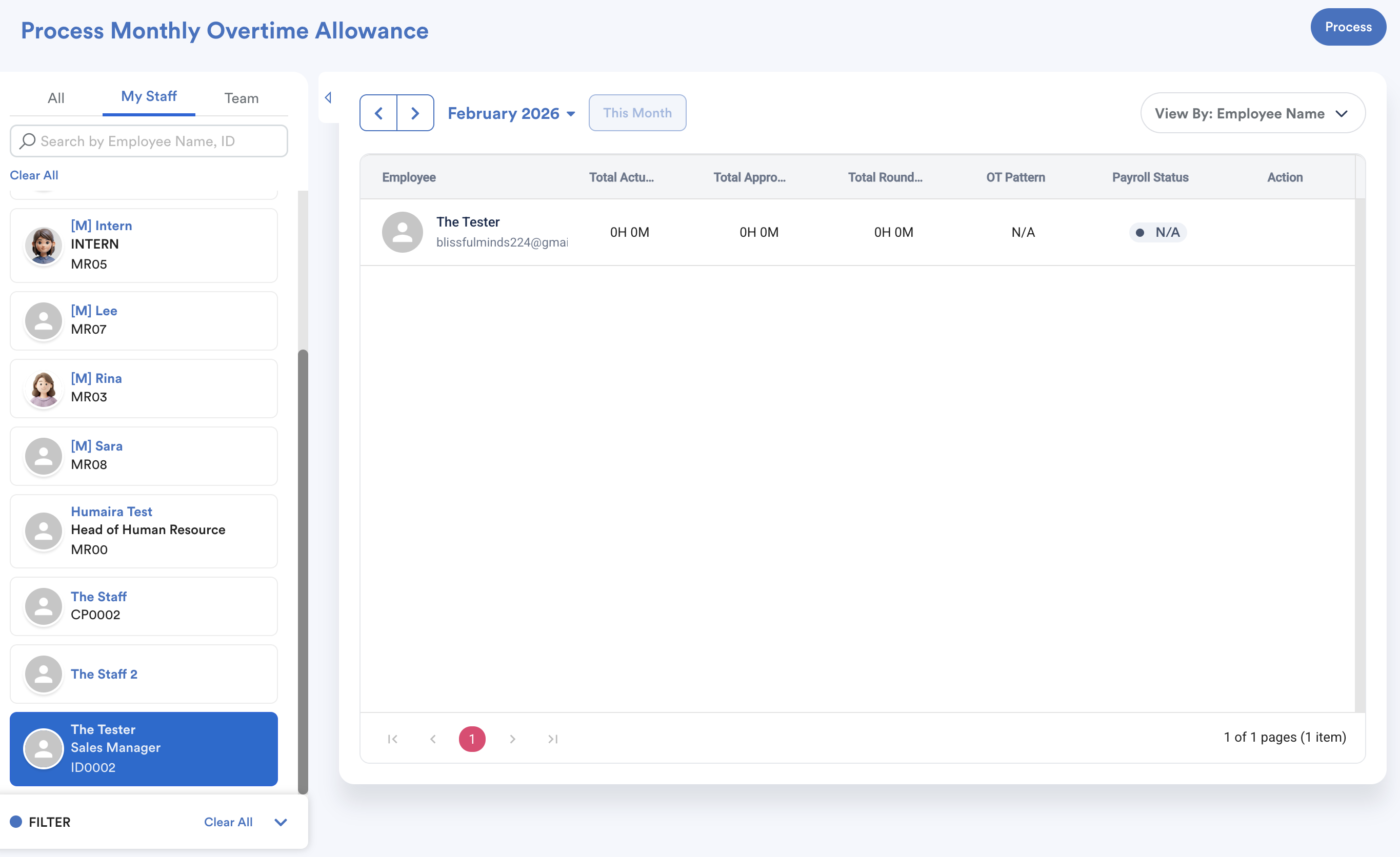
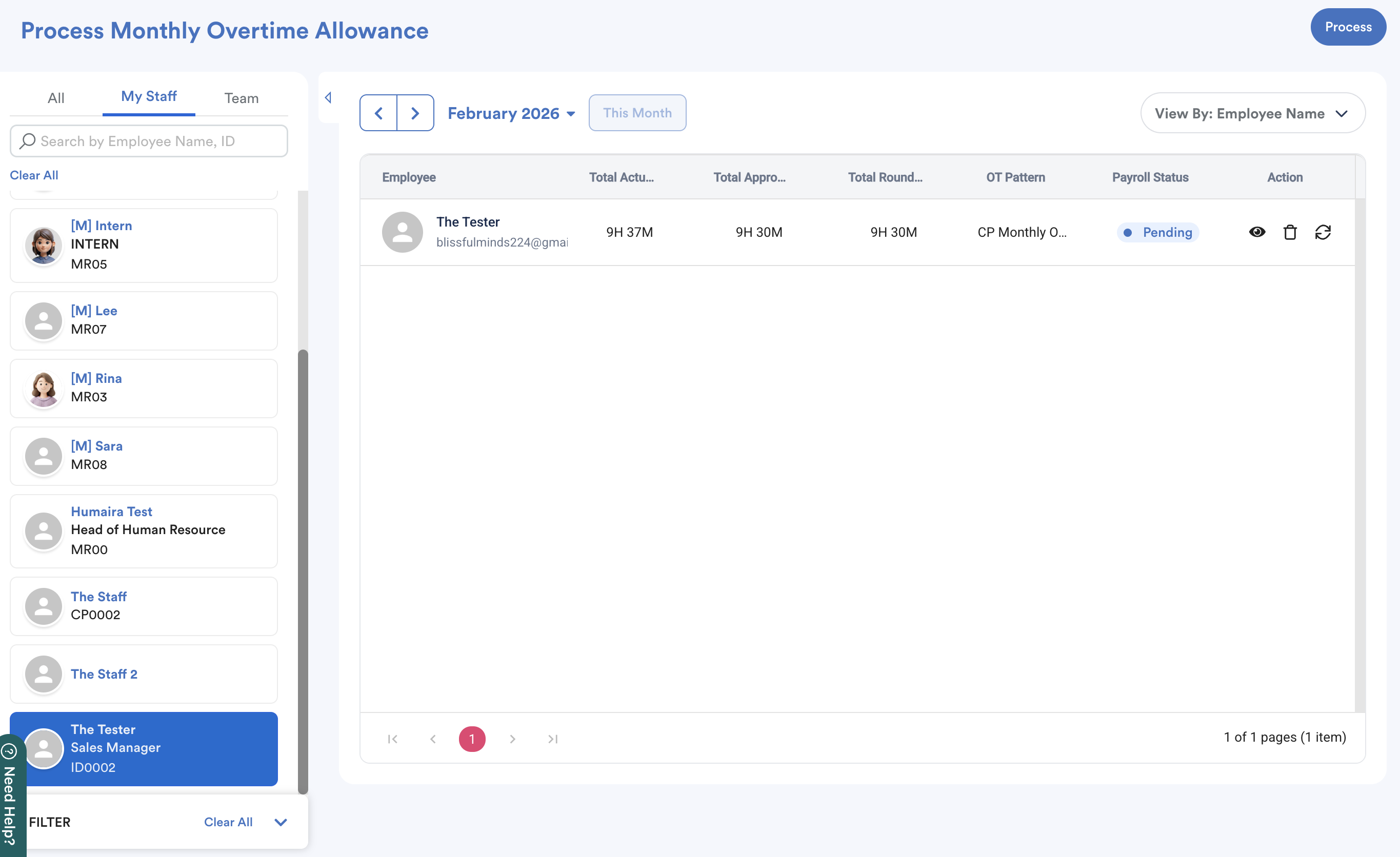
Go to Payroll > Process > Monthly Overtime Pattern. Select the employee and click "Process".
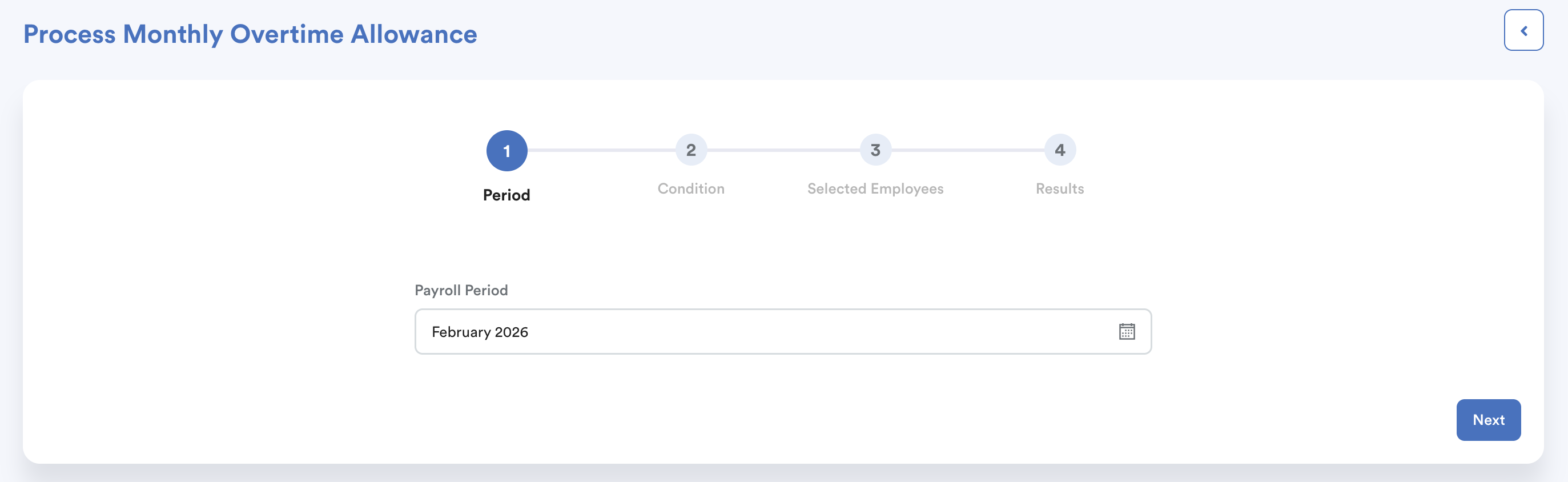
Select payroll period. Click "Next".
Select employees, click "Process Overtime Allowance".
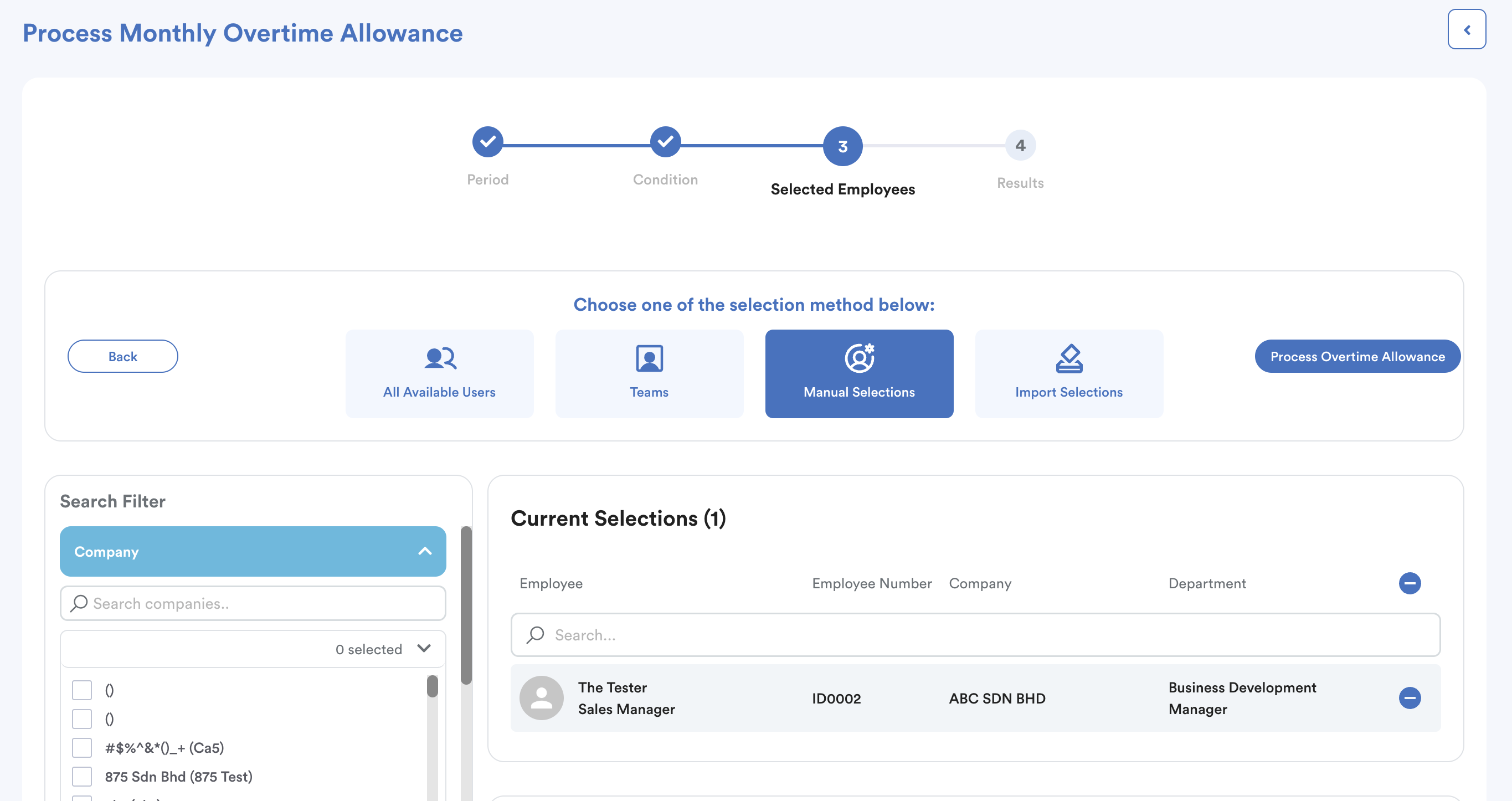
Status will change to "Success". Click "View".
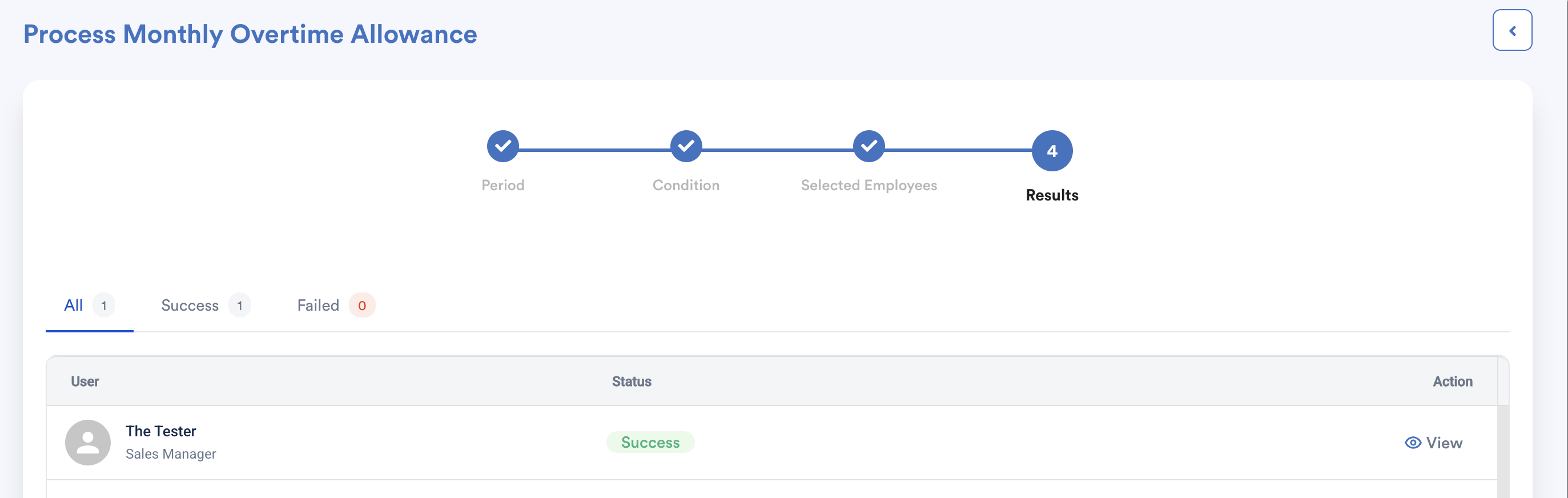
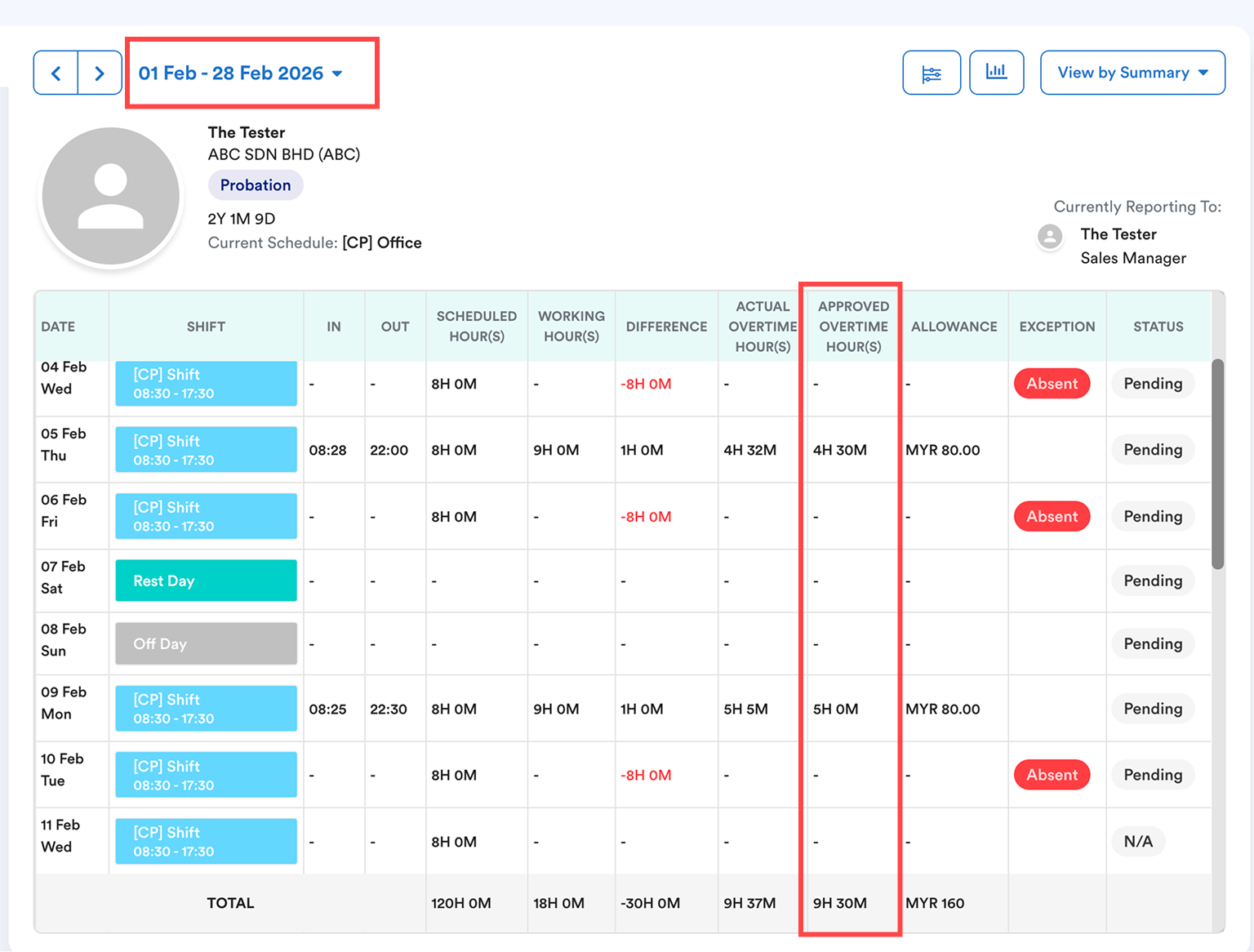
You will see the processed result. Total approved OT hour is from the individual attendance screen.
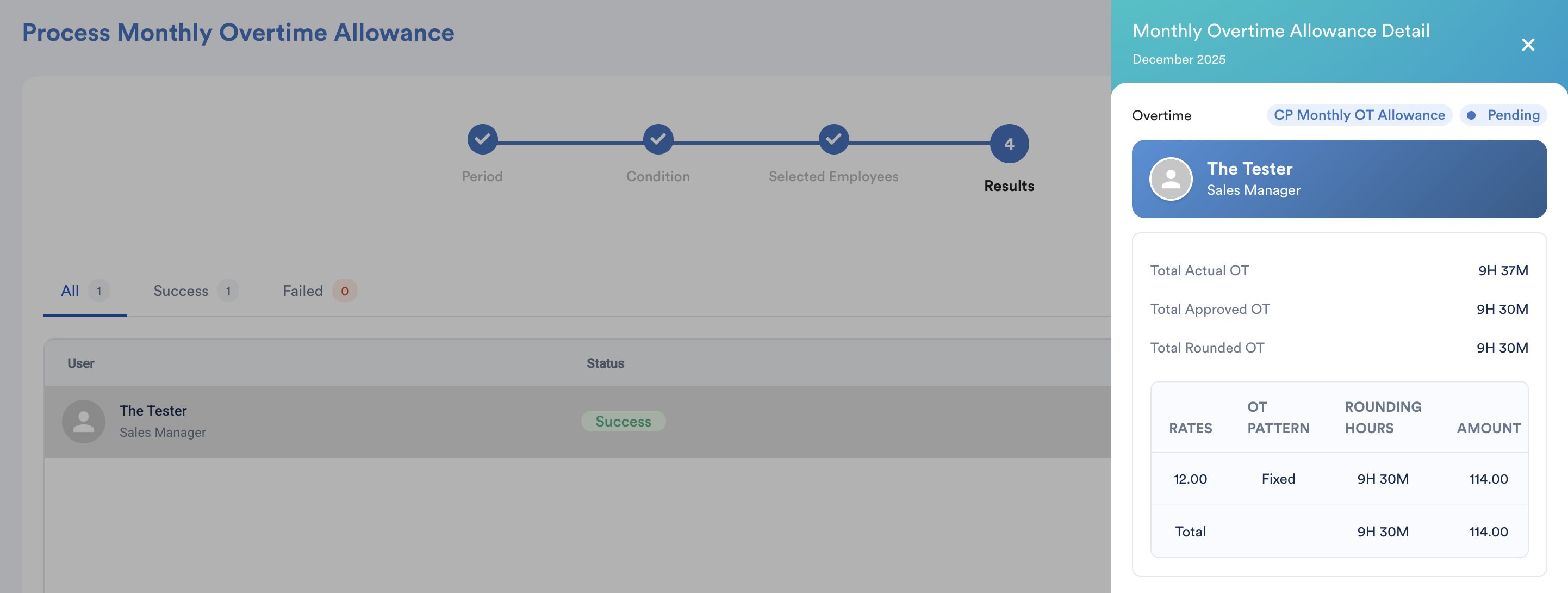
After processing, the status will change to "Pending". You may reprocess if you have updated the monthly overtime pattern setting.
If payslip has been generated, you need to delete the payslip first to reprocess the updated monthly overtime pattern.
Step 6: Process Payroll
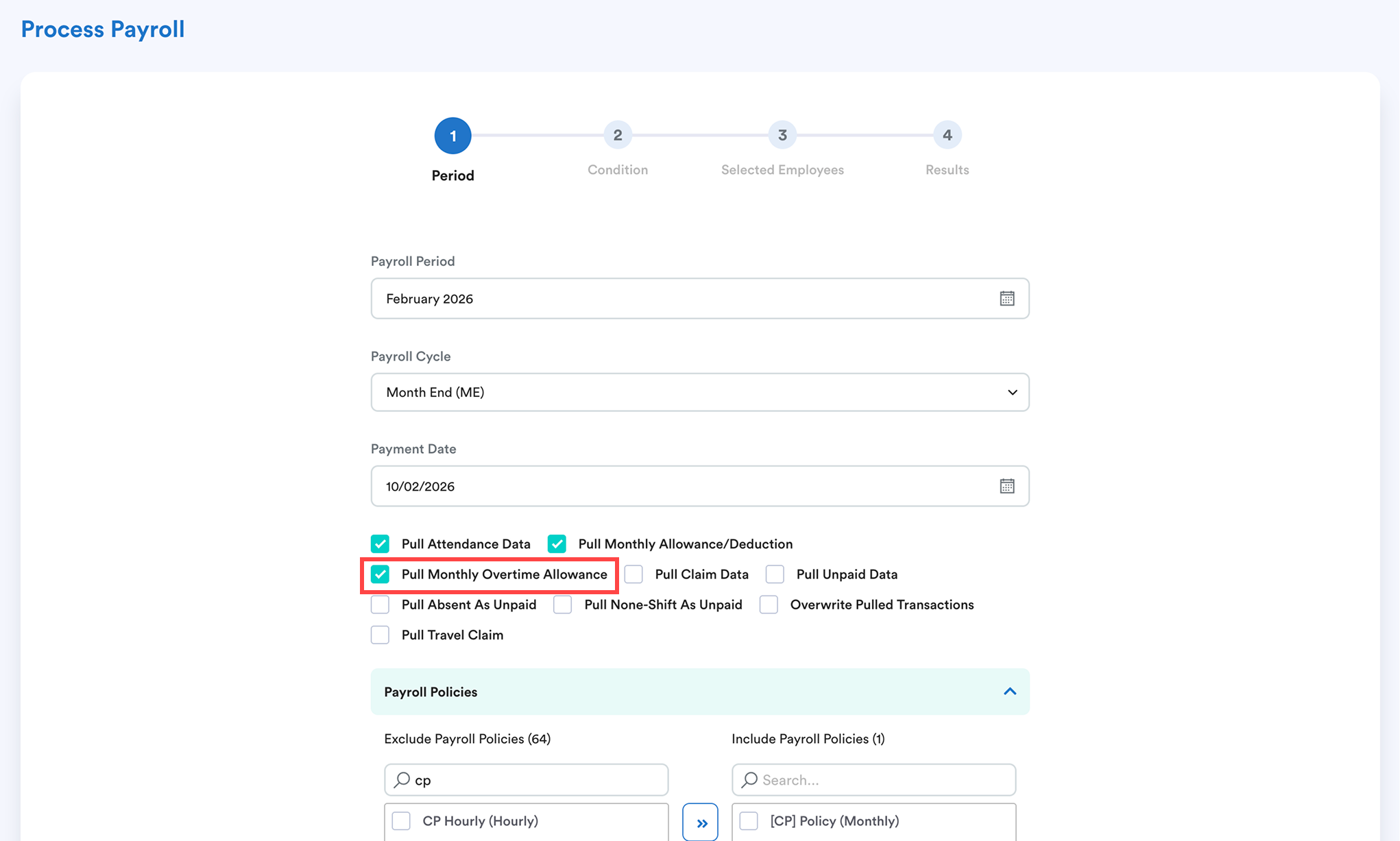
Go to Payroll > Process > Monthly (the tester is a monthly payment term employee). Tick "Pull Monthly Overtime Pattern".
Result
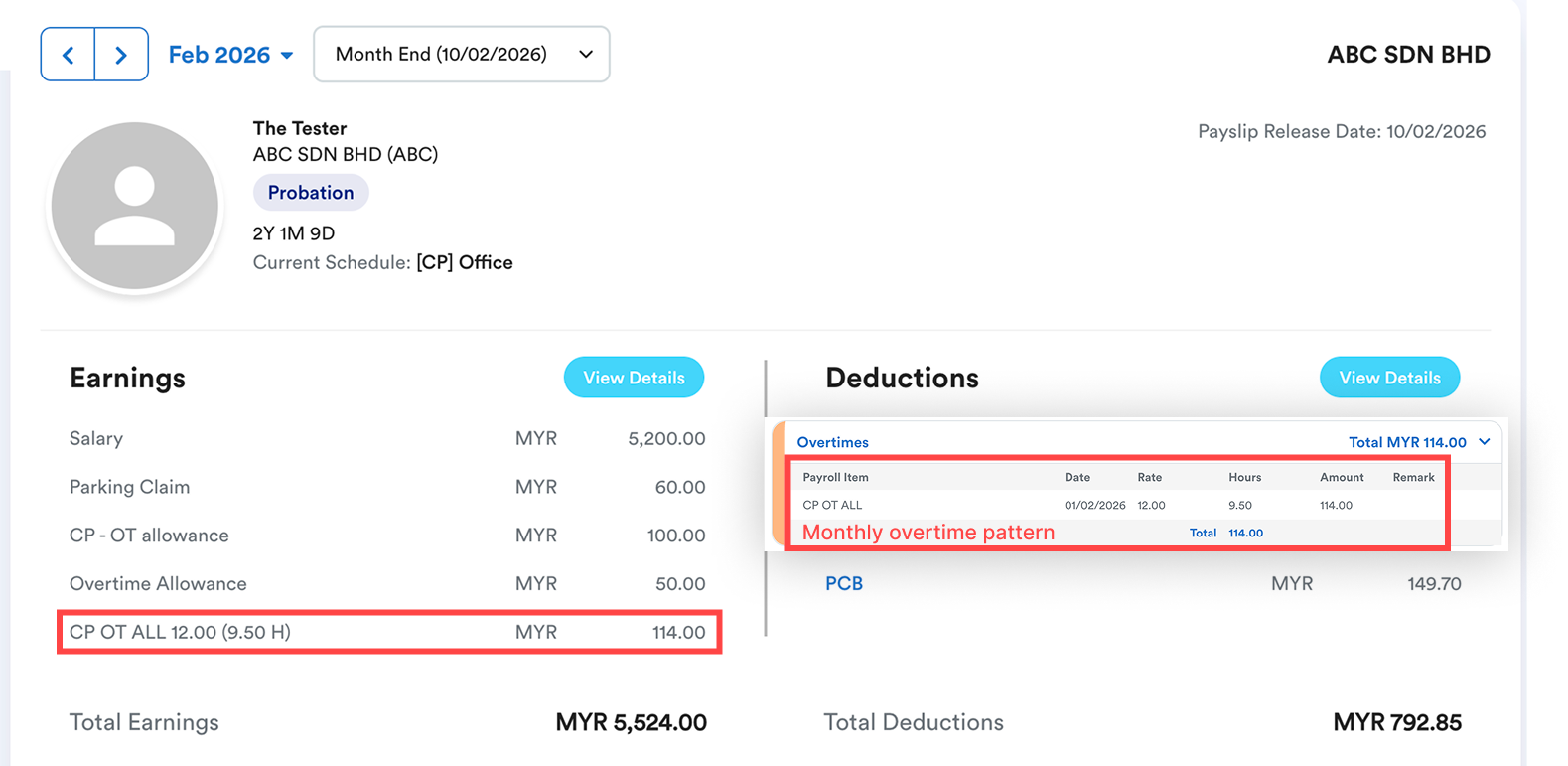
Approved OT hour: 9.5hr (within 1st tier of OT hour range set in Step 3)
OT rate: RM12 per hour
We hope this explanation clarifies the matter. If you require additional assistance, do not hesitate to contact our support team.
Was this article helpful?
That’s Great!
Thank you for your feedback
Sorry! We couldn't be helpful
Thank you for your feedback
Feedback sent
We appreciate your effort and will try to fix the article