In the Learning Management System (LMS), a course functions like a subject under a major.
Both Admin or Author roles can create a new course.
A course in LMS can be created, structured, and delivered through the following steps:
Step 2: Setting - Set up General settings, Access, and Certificate.
Step 3: Content - Build Topics and Activities for the course.
Step 4: Live Session - Add and manage virtual or physical sessions.
Step 5: Class - Define class types, assign instructors, and link live sessions.
Step 6: Learner - Add learners to the class.
Step 7: Grading - Manage assessments and assignments for the class.
Step 8: Result - Export results.
Step 9: Progress - Monitor overall or individual learner progress.
Step 1
From the Learning Dashboard, click on Courses (a) tab.
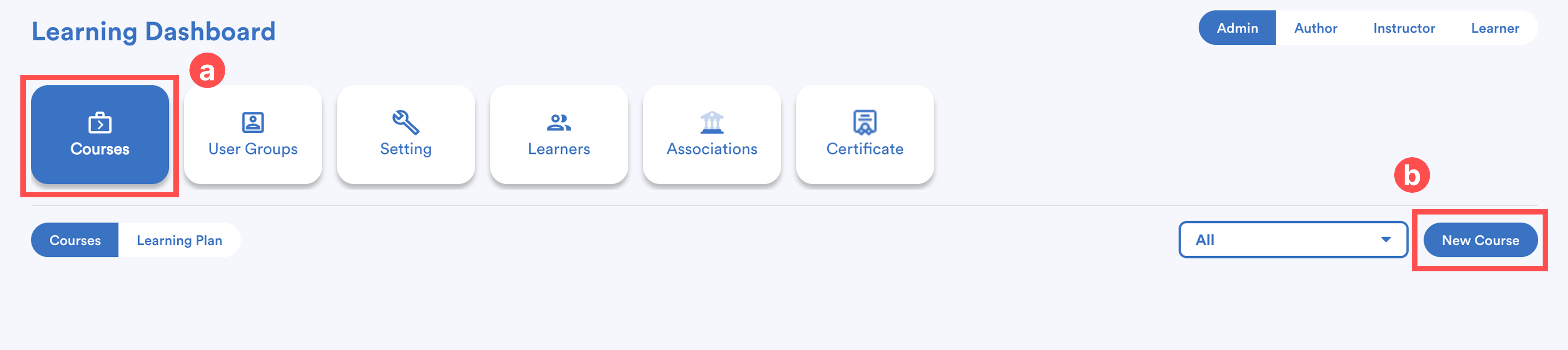
Then, click New Course (b).
Step 2: Setting
You'll be brought to Settings screen, which includes three sections:
- General
- Access
- Certificate
Admin/Author must complete the details and save in the General section before moving to another sections.
2.i. General
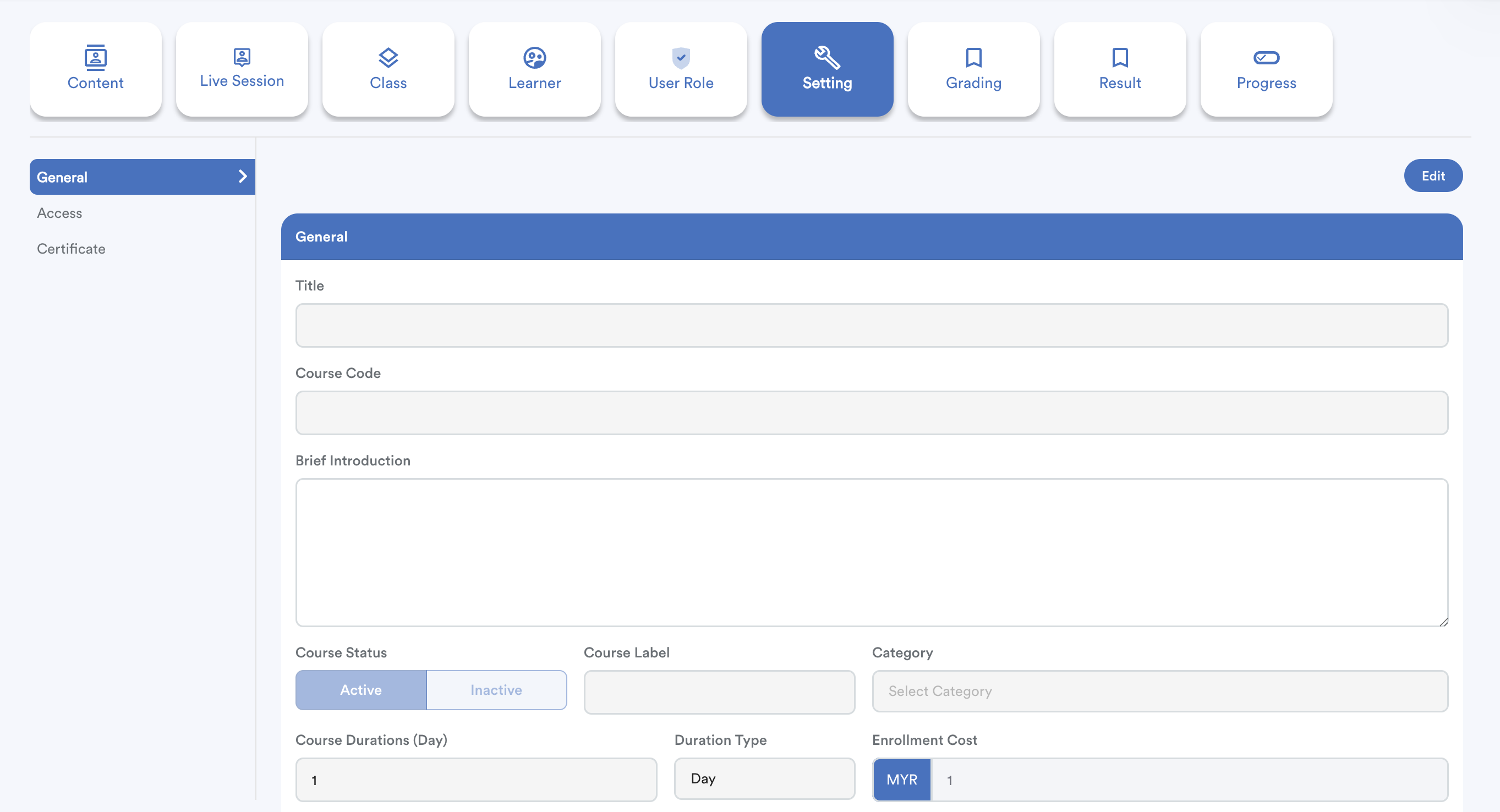
You can:
- Add image for the course.
- Enter the following details:
- Title
- Course Code
- Brief Introduction – general information visible to all users
- Course Status – Active / Inactive
- Course Label – for easy reference
- Category – e.g. Basic, Intermediate, Advanced, etc (based on your created categories)
- Course Duration – enter value according to the selected duration type
- Duration Type – Hour / Day / Week / Month / Year
- Enrollment Cost
For Author role, you may enable Auto Enroll Learner. When enabled, you can select one of four user selection methods.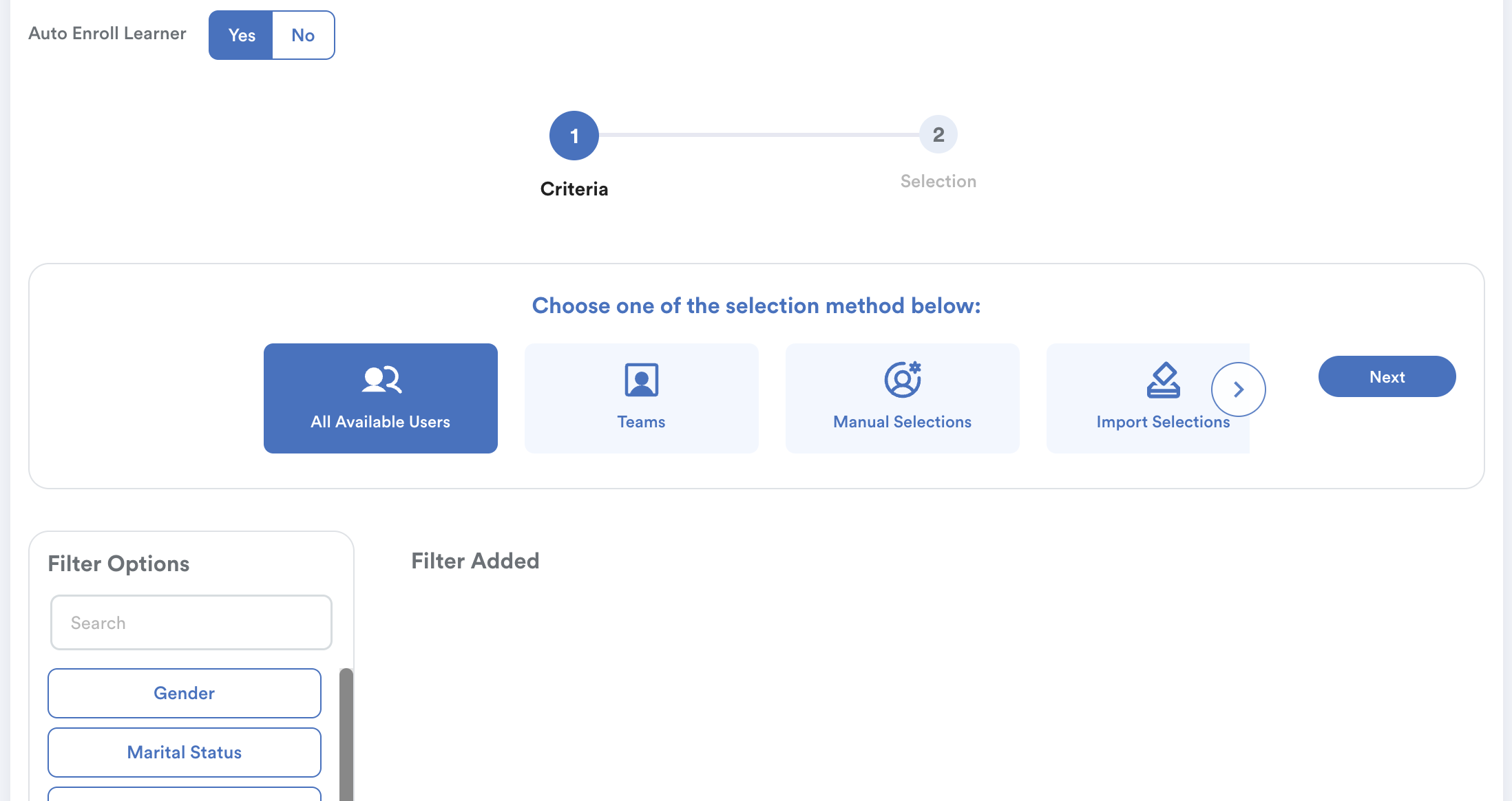
Click Save once all details are filled.
2.ii. Access
On the left side of the screen, go to Access, then click Edit.
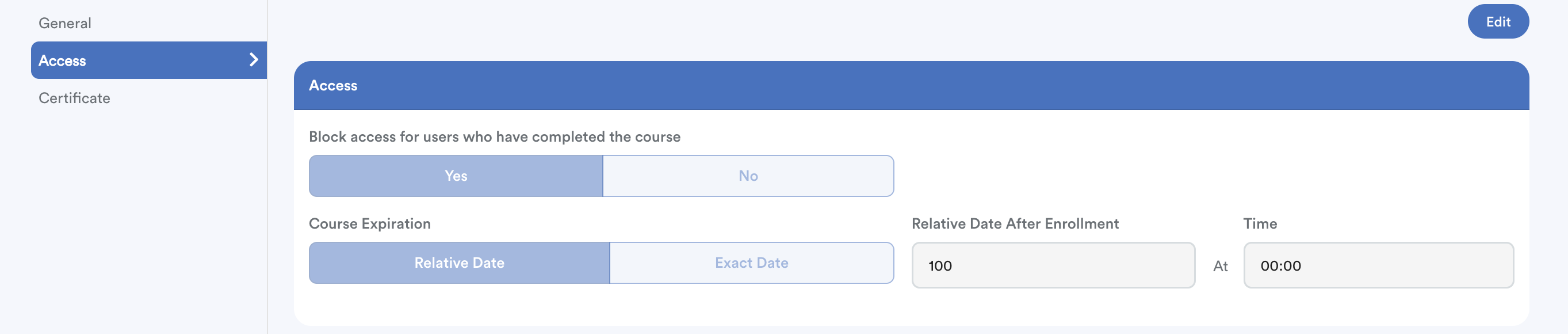
- Choose whether to Block access for users who have completed the course.
- If you select "Yes", you need to Course Expiration whether based on Relative Date or Exact Date.
Save to apply changes.
2.iii. Certificate
On the left side of the screen, go to Certificate. Click Edit.
Select one of the certicate templates. When you click the Edit button next to Preview section, you can edit the template. 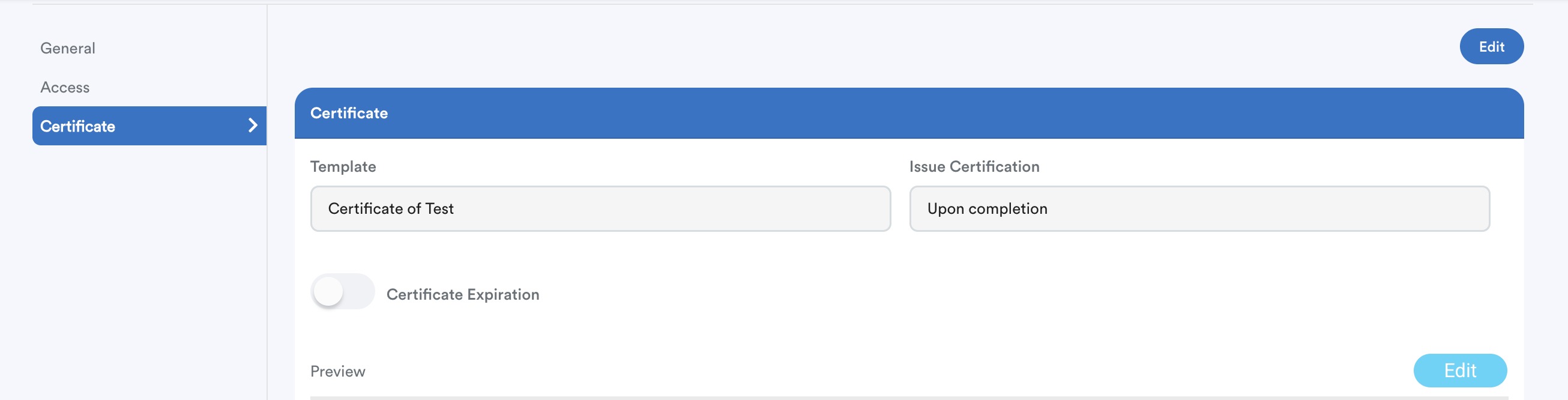
A preview of the certificate editor will appear below. This edit will only affect this course.
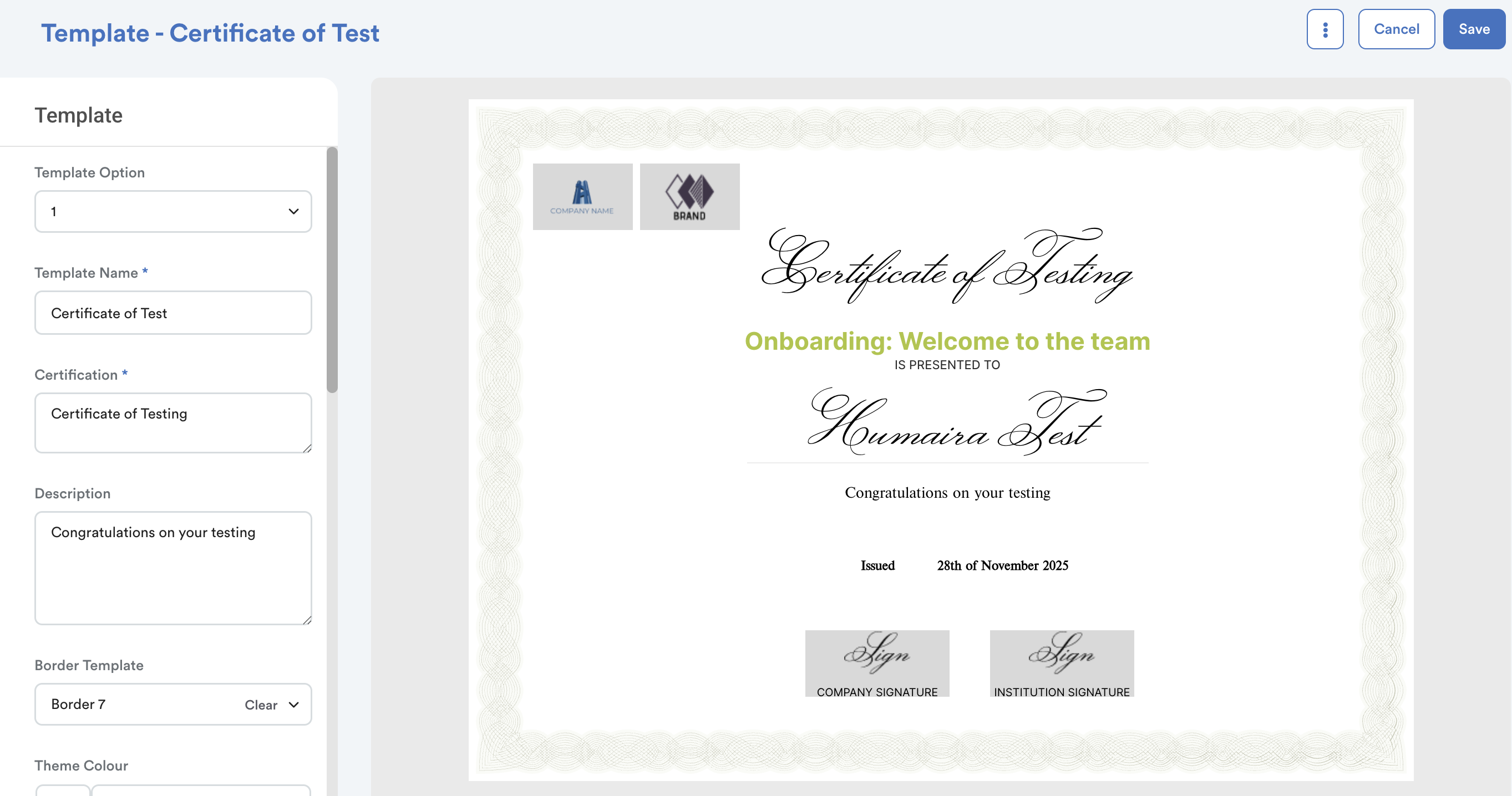
To set certificate validity, toggle on Certificate Expiration and enter the number of month(s) after issue.
Lastly, click Save.
Step 3: Content
Once you’ve configured the settings, your course will appear as example shown below.
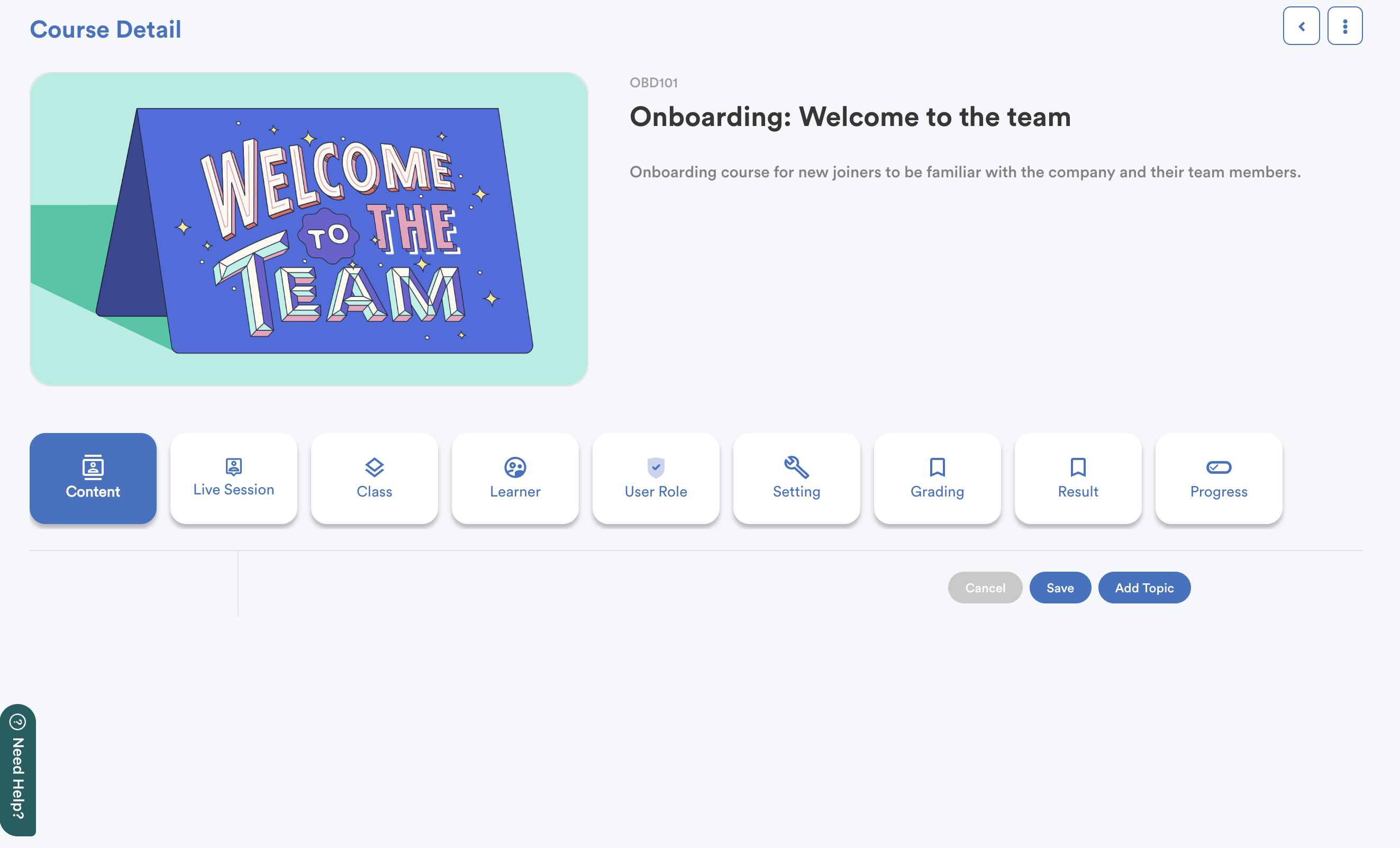
Go to the Content tab to begin building your course. Then, click Add Topic.
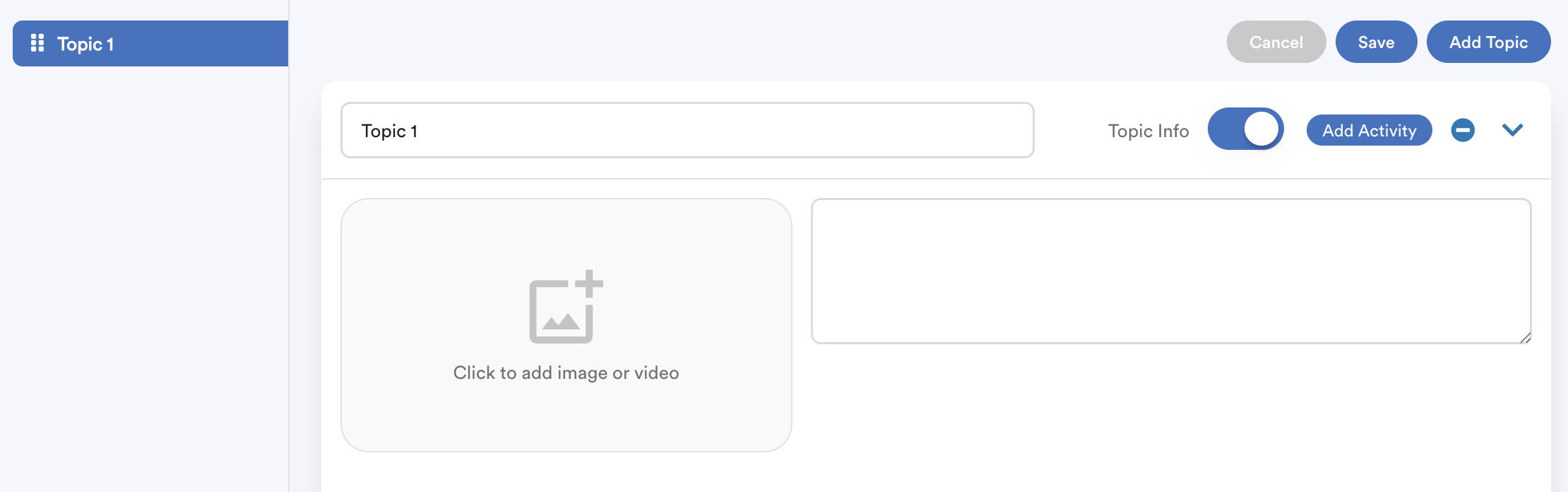
By default, the topic title will appear as Topic 1, but you can rename it as needed.
Next to the title, you’ll see Topic Info:
- ON: you can upload an image (like a book cover banner) and add a short description or overview of the topic.
- OFF: only the topic title will be displayed.
Add activities to each topic by clicking Add Activity.

An activity options will slide in from the right. You can choose:
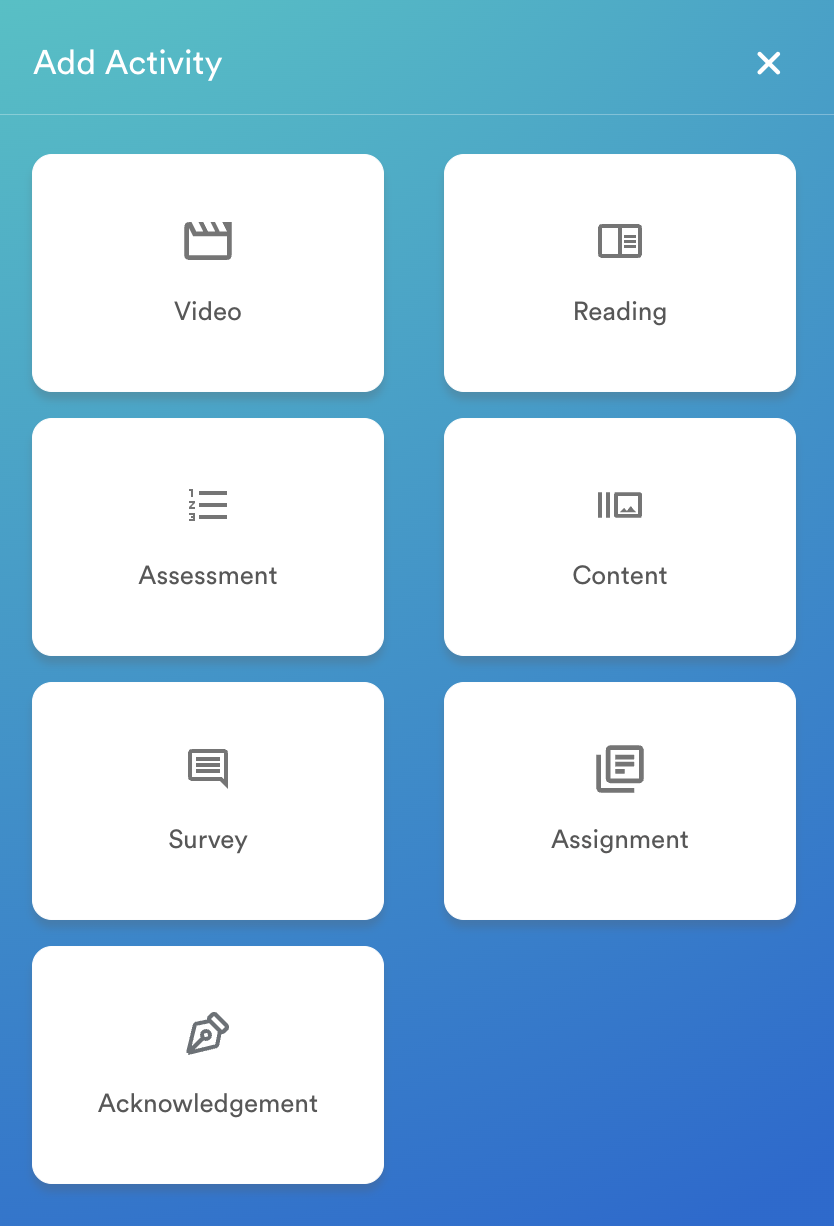
- Video – upload or embed learning videos (YouTube only)
- Reading – text-based lessons (PDF only)
- Assessment – quizzes or tests
- Content – PDFs, slides, images, links
- Survey – collect learner feedback
- Assignment – file uploads or written submissions
- Acknowledgement – require learners to confirm understanding
You may add multiple activities under each topic to create a comprehensive learning flow.
Step 4: Live Session
This step is optional but recommended if you are running physical classes or webinars and need attendance tracking.
Live Sessions allow you to:
- Add virtual sessions or physical class recordings
- Upload supporting materials
- Track attendance

- Click Add Session.
- Enter the Session Name, then click Add.
Click Manage to edit the session details.

- Information - Add session description, date, time, venue, and any relevant instructions.
- Materials - Upload slides, brochures, notes, or session-related documents.
Live Sessions created here will become available when setting up a class.
Note: If you have "Live Session", create this first before creating "Class".
Step 5: Class
A Class determines how the course is delivered (self-paced or time-bound) and allows you to control enrollment, instructors, scheduling, and activity settings.
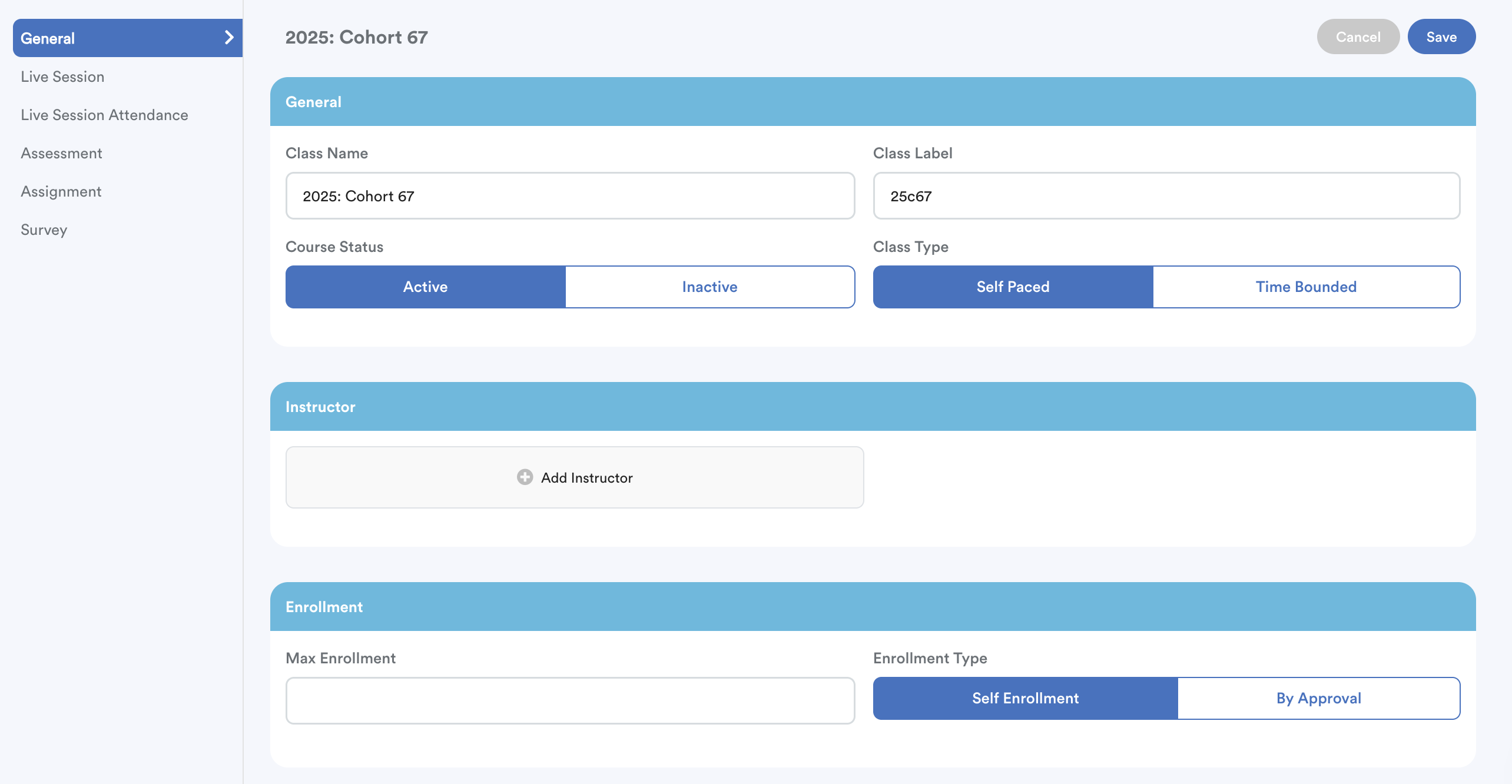
General Settings
- Class Name
- Class Label
- Course Status: Active / Inactive
- Class Type: Self-paced or Time-bound
- Fixed Date: Start/End Date
- Relative Date: Duration in days/weeks/months
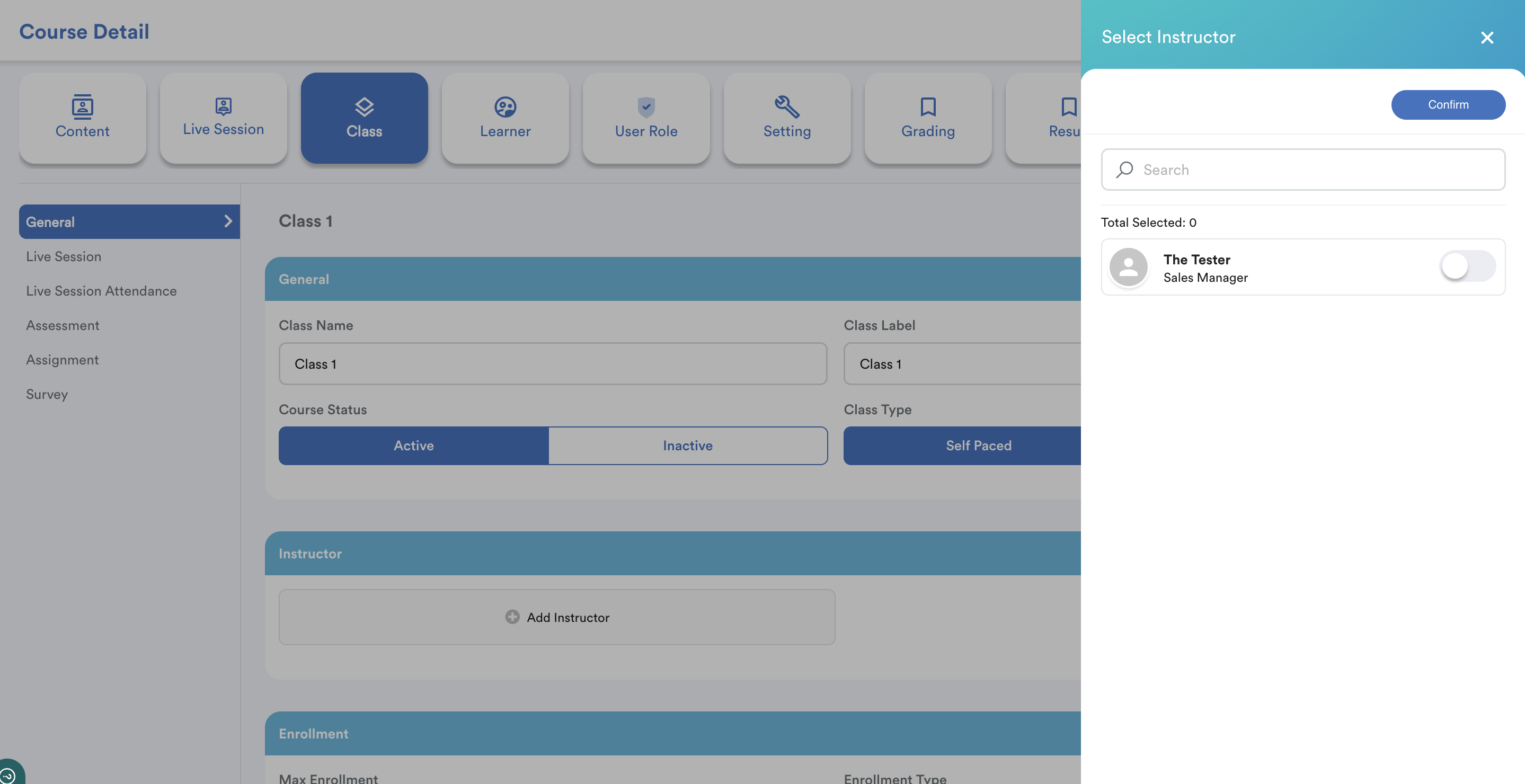
- Add Instructor(s) (provided you have assigned user group to this course, otherwise you will not see the list of instructor)
Live Sessions & Attendance
- If live sessions exist, they will appear here. Attendance is automatically recorded based on linked sessions.
Assessments & Assignments
- Set start/close dates for assessments.
- Set submission/due dates for assignments.
Step 6: Learner
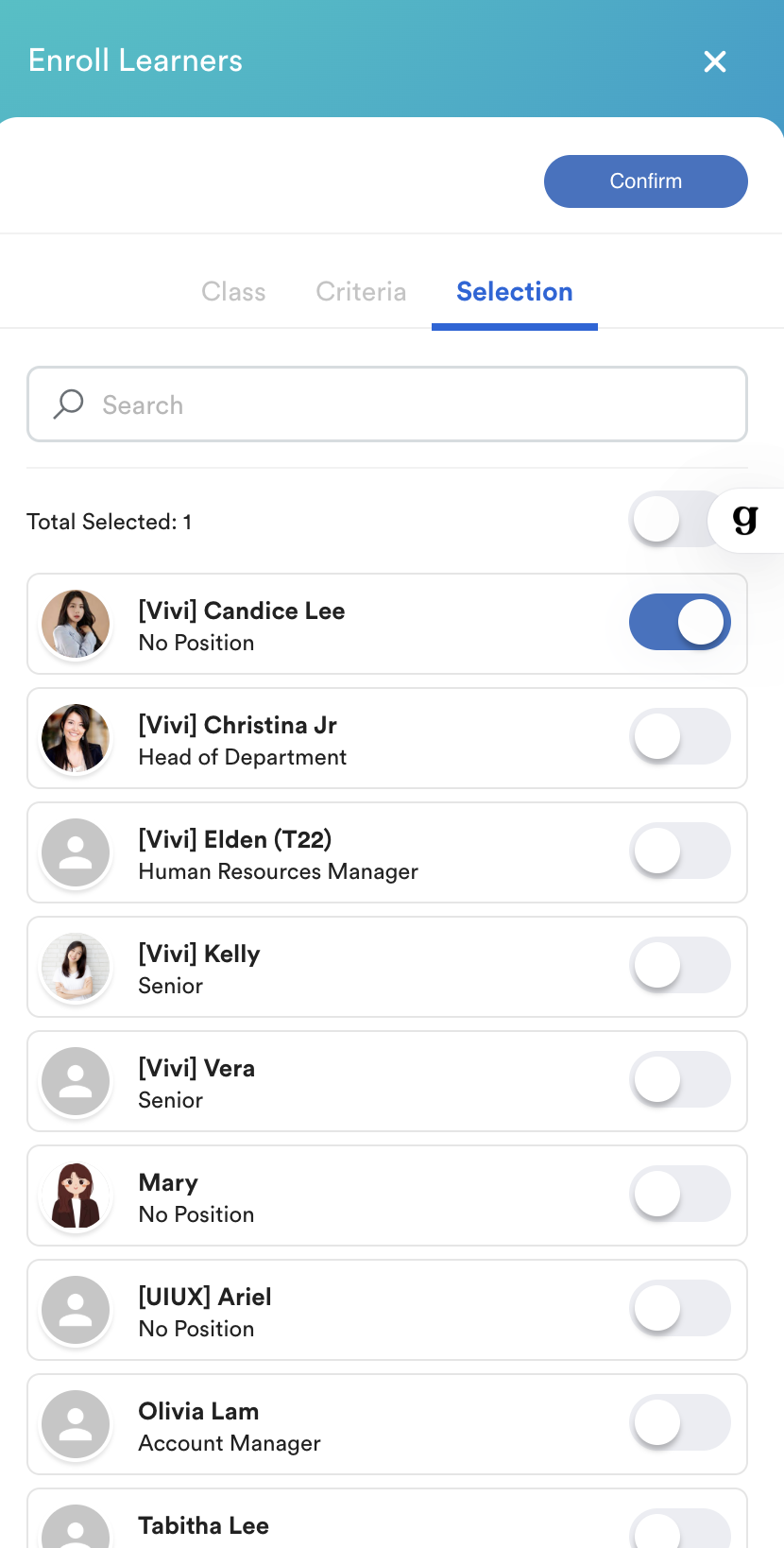
Before adding learners, a Class must be created. Click Enroll Learner to begin the step.
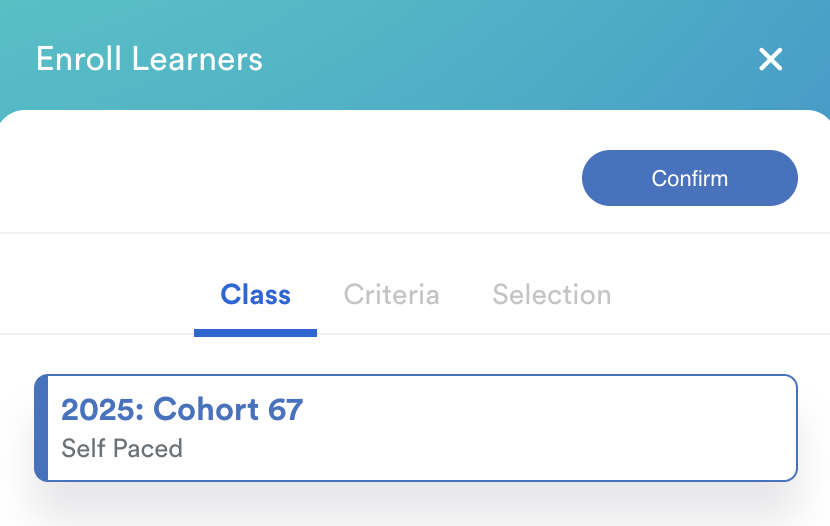
- Choose your class and learners criteria from any of the methods.
- The Selection panel shows the learners who will be enrolled in the class.
(Note: Remember to assign the user group to this course first. Otherwise, you will not see this group of people) - Click Confirm to finalize learner enrollment.
If you have not created a class, you will see this error prompt after clicking "Confirm".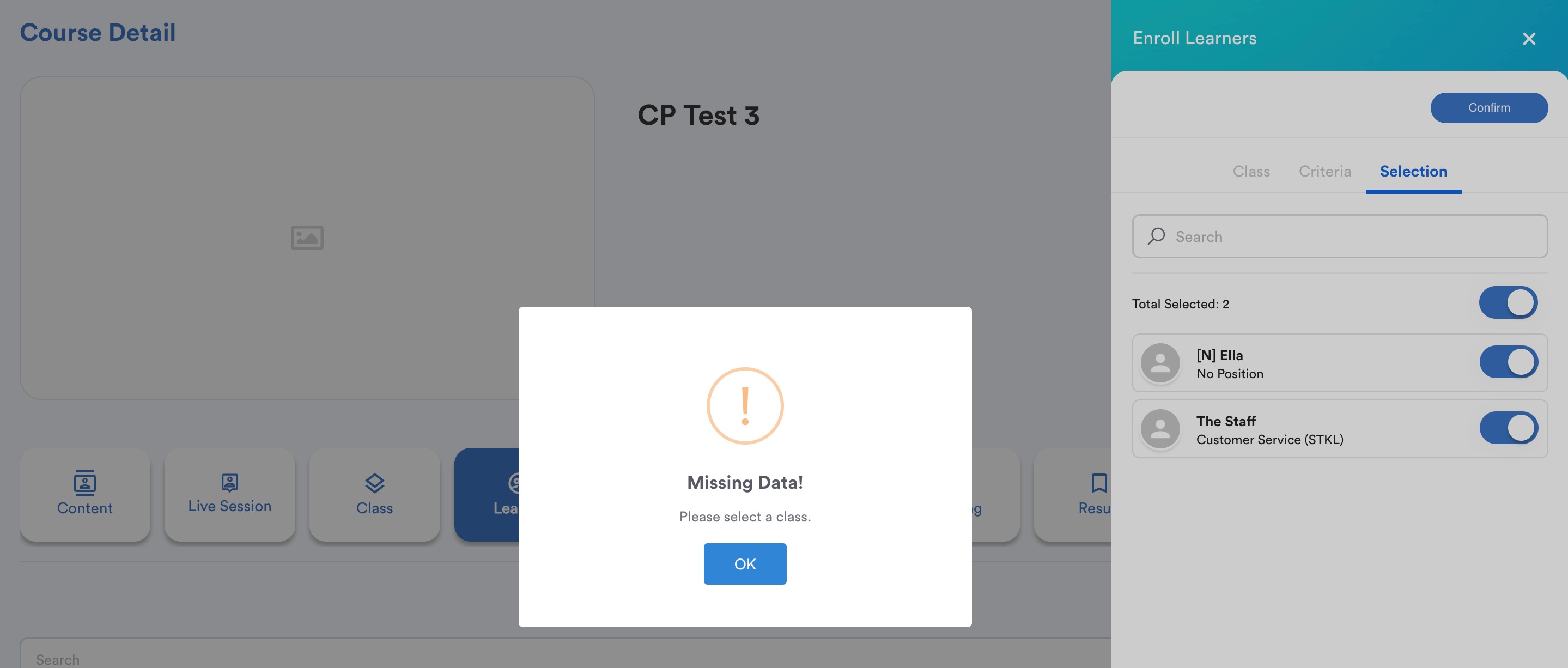
Add course to user group, refer to Assign Learning Plan to User Groups.Step 7: Grading
This tab consolidates all assessments and assignments for the class.
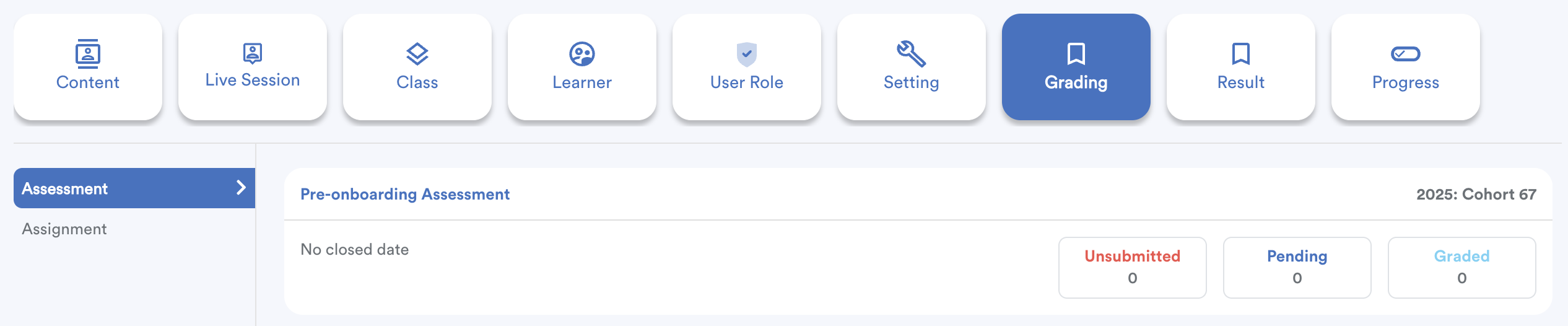
You can view:
- Submitted
- Pending
- Graded
Click each status box to see the list of learners under that category. From here, instructors can grade and update assessment results.
Step 8: Result
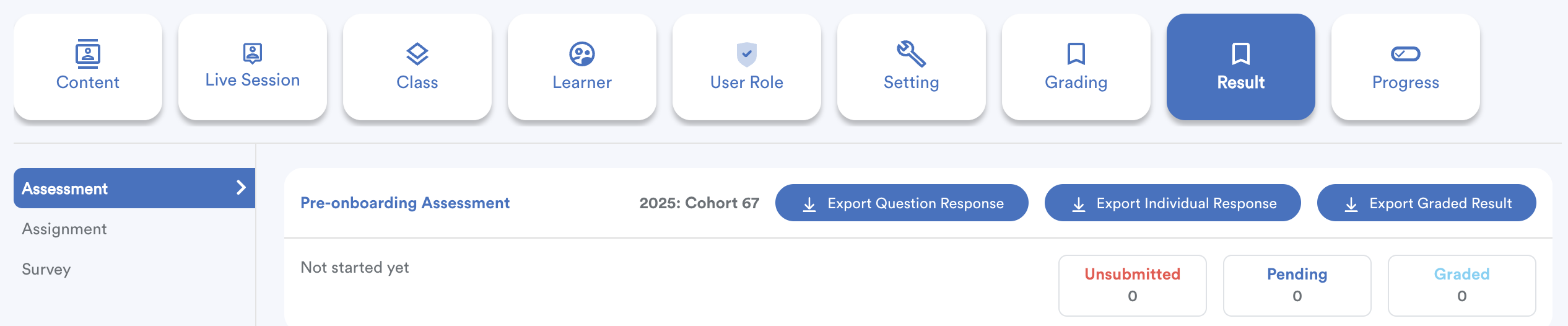
Use this section to view and export results for:
- Assessments
- Assignments
- Surveys
Step 9: Progress
The Progress tab allows you to track learner progress at two levels: Overall / Individual
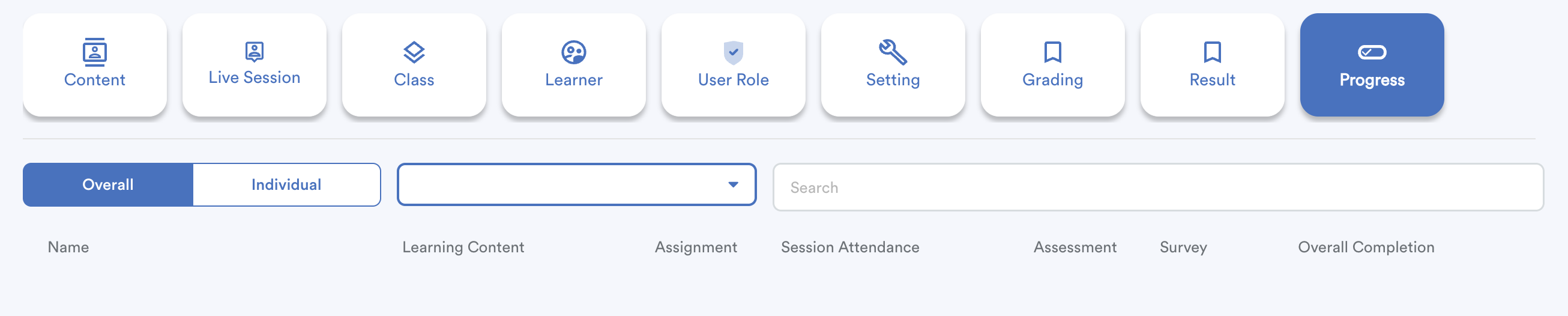
It shows each learner’s status for:
- Name
- Learning Content
- Assignment
- Session Attendance
- Assessment
- Survey
- Overall Completion Percentage
Next Steps
After creating a course, it can be added to a Learning Plan.
Refer to this guide: How to Set Up a Learning PlanWe hope this explanation clarifies the matter. If you require additional assistance, do not hesitate to contact our support team.
Was this article helpful?
That’s Great!
Thank you for your feedback
Sorry! We couldn't be helpful
Thank you for your feedback
Feedback sent
We appreciate your effort and will try to fix the article