If you are encountering issues with updating or editing goals in the appraisal template, the root cause could be one of the following four factors:
2. "Enable Next Year" Toggled ON
3. Due Date for Goal Planning Has Passed
4. Appraisal Progress Report Access Enabled
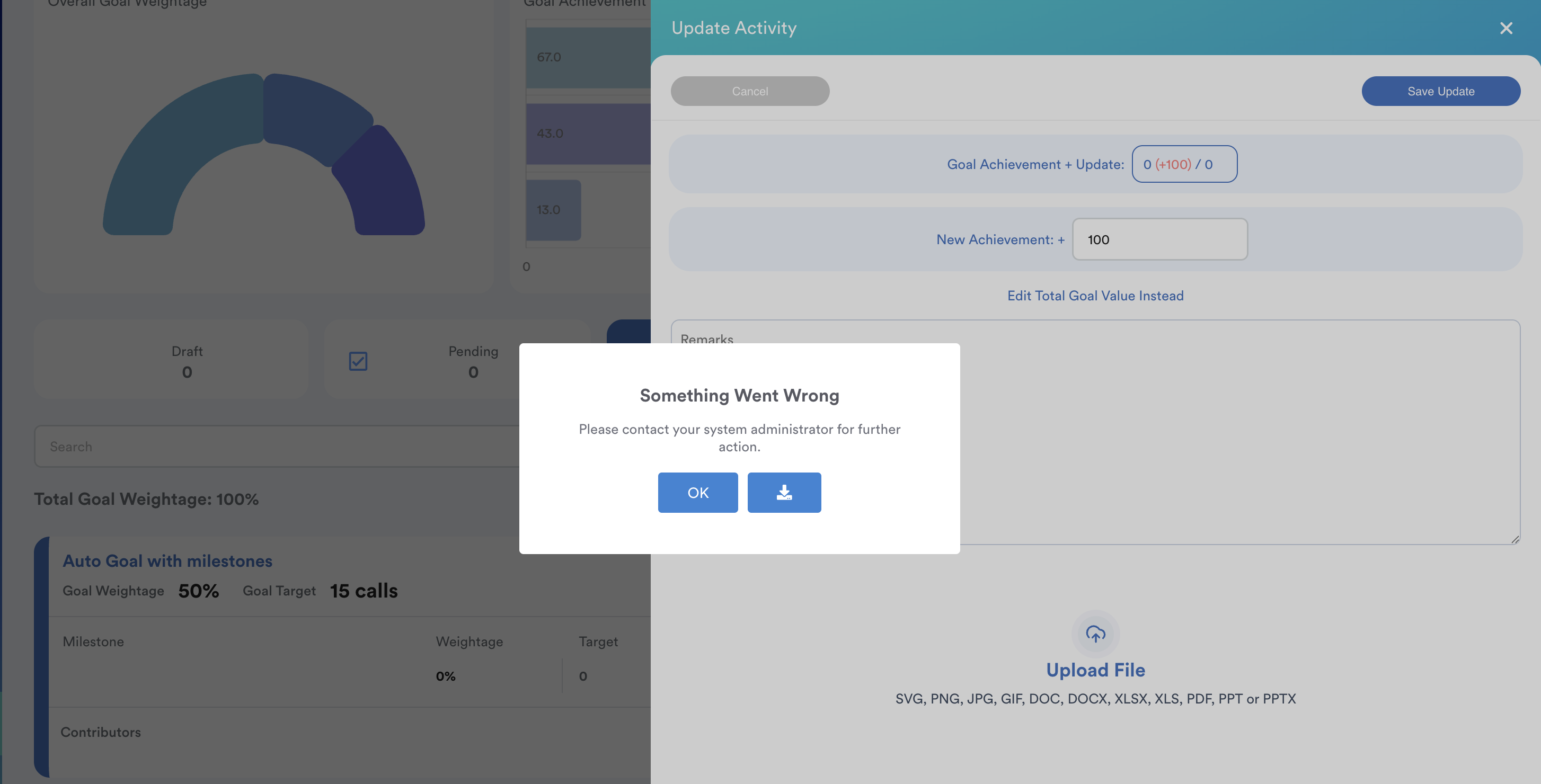
5. Error Prompt when Clicking "Save Update"
Scenarios for Each Root Cause :
1. User Lacks Access

Problem: The Add/Edit and Update permissions are not granted to the user.
Consequences:
- Only the Appraiser can Add/Edit goals and Update goal progress.
- Appraisee and Reviewer do not have these permissions.
Solution: Go to Appraisal Template setting, tick the box and reset the template.
2. Enable Next Year Toggled ON
Problem: When this button is toggled ON, it indicates that the appraisal will take place NEXT YEAR. Users cannot add/edit goals and update goal progress their goals until then
Example:
- If the current year is 2024, enabling the "Next Year" button means the goals can only be updated starting January 2025.

Solution: Go to Appraisal Template setting, disable the box and reset the template.

Solution: Go to Appraisal Template setting, amend the Planning section and reset the template.
4. Appraisal Progress Report Access Enabled
Problem: Enabling this function triggers the Sign Off process, marking the appraisals as completed. Once marked completed, no further actions, including goal updates and ratings, can be performed.


Solution:
- Keep the Report Access toggled OFF until appraisals are fully completed.
How to Troubleshoot and Resolve the above Issues
- Identify the Root Cause: Determine which of the above factors is causing the issue.
- Amend the Settings Accordingly: Make the necessary changes to the settings.
- Reset the Template:
- Exception: For root cause 4 (Report Access Enabled), simply turn off the Report Access without resetting the template.
- For other root causes, reset the template and re-fill it with the correct settings.
Important: After making any changes to the template, reset the template assigned to the appraisee to ensure the new changes are reflected. Otherwise, the old settings will remain in effect.
5. Error Prompt when Clicking Save Update
Problem: If you activate a milestone while creating a goal in the goal library, at least one milestone is required. Otherwise, the appraisee will not be able to "update" goal progress.
Solution: Add at least 1 milestone to the goal. If the appraisee has Add/Edit access, the appraisee can also add a milestone during goal creating. If "Add/Edit" access is not granted, appraiser needs to pen icon to update the goal "Edit".
We hope this explanation clarifies the matter. If you require further assistance, please don't hesitate to contact our support team.
Was this article helpful?
That’s Great!
Thank you for your feedback
Sorry! We couldn't be helpful
Thank you for your feedback
Feedback sent
We appreciate your effort and will try to fix the article