To allow employees to apply for leave in the upcoming year, generate leave entitlements using the Zero Entitlement method.
This method allows employees to apply for leave for the next year by using available brought-forward leave only.
In Worksy, leave taken/deduction priority follows this order:
- BF with expired date
- BF no expired
- earn/adjustment with expired date
- earn/adjustment no expired date
If the employee utilises any 2025 leave entitlement after the entitlement generation for 2026, the Brought Forward Balance will be adjusted accordingly for 2026.
Step 1
Open Setting > Leave > Leave Type > Annual Leave > Entitlements, add New Entitlement Table. Create a new table for Zero Entitlement and apply to All Available Users.
The Entitle Days is set as 0, and Bring Forward Days should be the maximum amount of Bring Forward according to the company's policy, and then put the same amount to the Maximum Balance Days.

Step 2
Go to Priority, move "Zero Entitlement" to Top Priority.

Step 3
Navigate to Leave (a) > Generate Entitlement (b).

Step 4
Kindly choose Year: Next Year and Month: January in the Generate Entitlement to generate the Next Year Calendar. Do NOT tick Re-calculate previous year.
Important: We recommend not selecting the "Re-calculate previous year" feature to avoid potential issues with the already accurate entitlement. This precaution helps prevent unintended balance adjustments or inaccuracies, especially in cases of Annual Leave/Bring Forward leave policy changes.
In this example, we use the current year of 2025; so next Year is 2026.
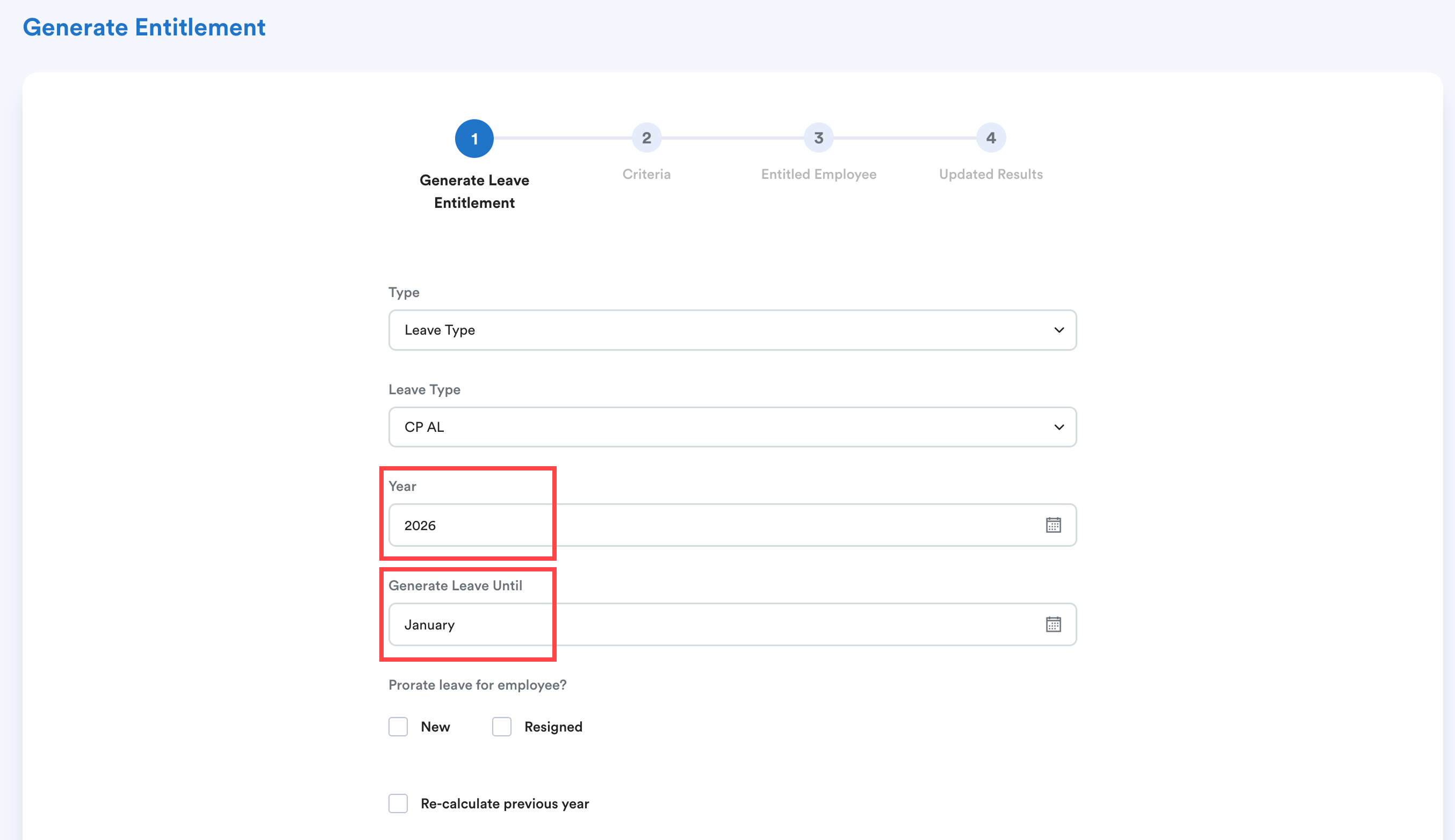
If you are not seeing the “Generate Leave Until” option is possible that the Leave Earning Method for your Annual Leave setting is currently set to “None”. With this setting, the system will not require you to specify the month range for generating the entitlement.
Step 5
Important: Go back to Setting > Leave > Leave Type > Annual Leave > Priority. Move Zero Entitlement Table to Bottom Priority.
This is to avoid the next year's entitlement of zero when the leave scheduler runs in January (based on your scheduler setting), the system recalculates the leave balance based on the currently top-priority Entitlement Table, so this step helps prevent any unintended entitlements.

Step 6
Go to Leave > Leave History.
Click the current year and next year's leave entitlement. You will be able to verify that employees are now able to view BOTH current and next year's leave entitlement.
Example of Result
On 17 Dec 2025, The Tester has 24.62 leave available. Only allow to carry forward a maximum of 8 days.
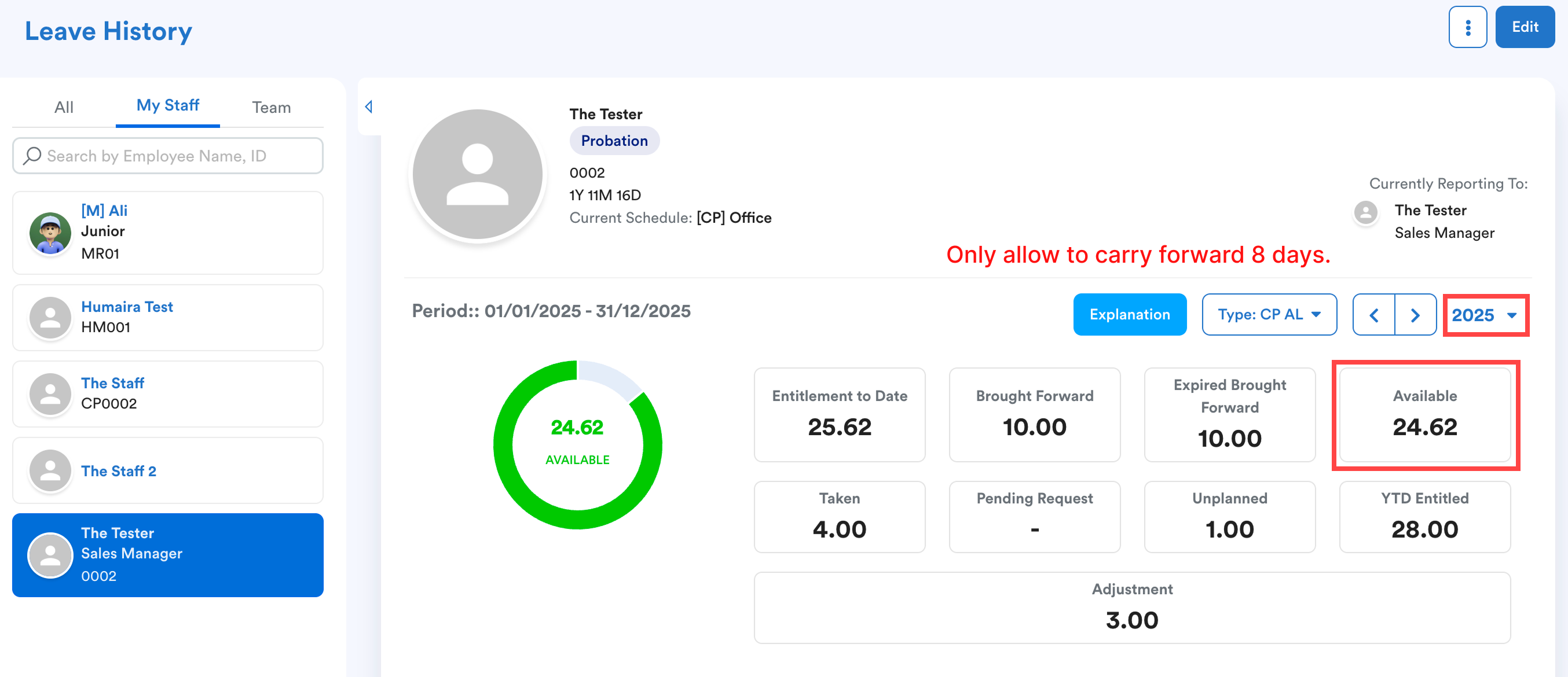
After generating leave on Step 4, you can check the leave balance for next year (eg: 2026) on the leave history for verification.
Entiltement to date = 0; (Intended result)
Brought Forward = 8
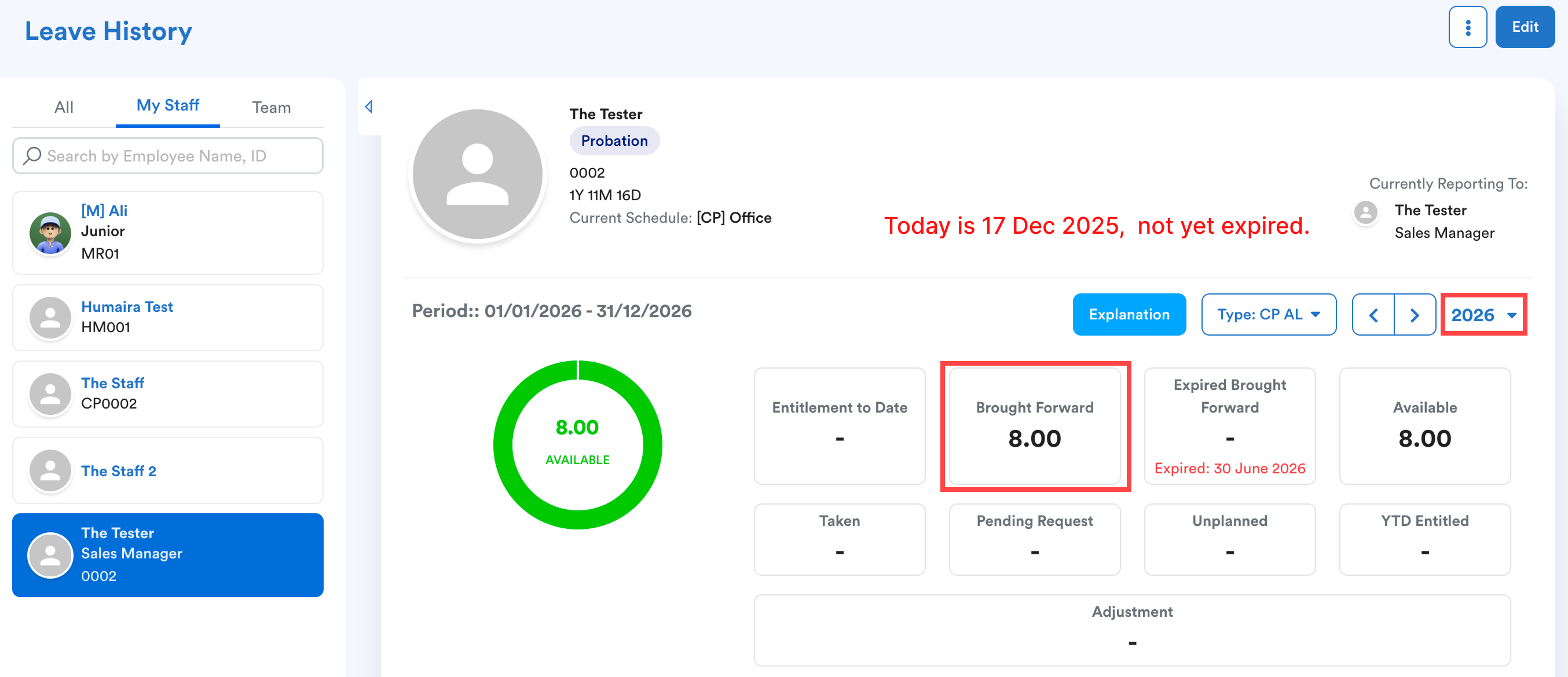
Employees will be able to access next year's entitlement on Employee Self-Service.
We hope this explanation clarifies the matter. If you require additional assistance, do not hesitate to contact our support team.
Was this article helpful?
That’s Great!
Thank you for your feedback
Sorry! We couldn't be helpful
Thank you for your feedback
Feedback sent
We appreciate your effort and will try to fix the article