A Shift Group is used to combine one or more shift patterns into a yearly rotation schedule. Once configured, the system will automatically generate the shift rotation for the selected year based on the defined shift pattern sequence.
Prerequisite
Ensure the user role has access to "Shift Group". Refer to Managing User Role & Access Rights

- Go to Settings > Access Rights > Menu Permissions: Settings > TMS Settings
- Enable Shift Group (View/Edit) permission for the relevant role
- Shift patterns are ready to use. If you do not have one, please create a Shift Pattern.
Step 1
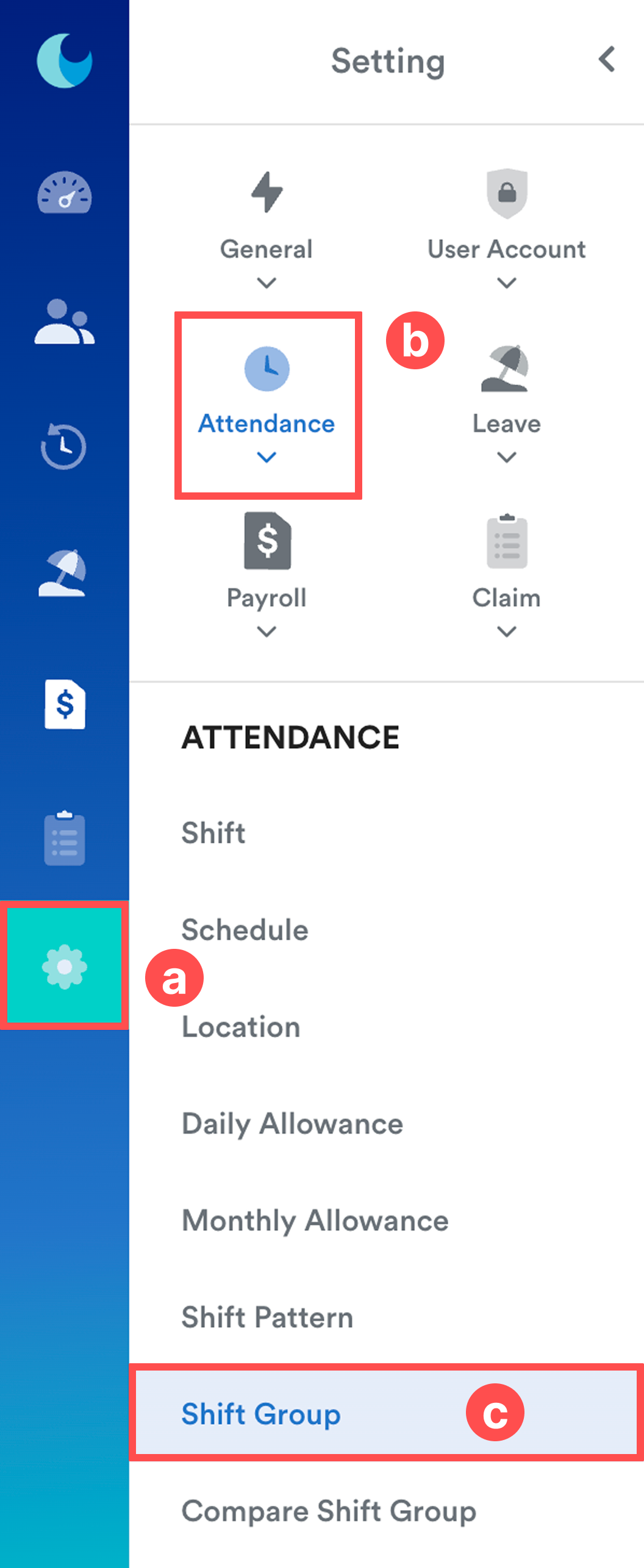
On the left menu, go to Settings (a) > Attendance (b) > Shift Group (c).
Step 2
Click Create New.

Step 3
Enter the shift group details:
- Shift Group Title: Enter a name for the shift pattern.
- Year: Select the year for which the shift rotation will be generated.

Step 4
Under the Shift Pattern Rotation section, define the rotation sequence.
Click Add Shift Pattern to add a new row.
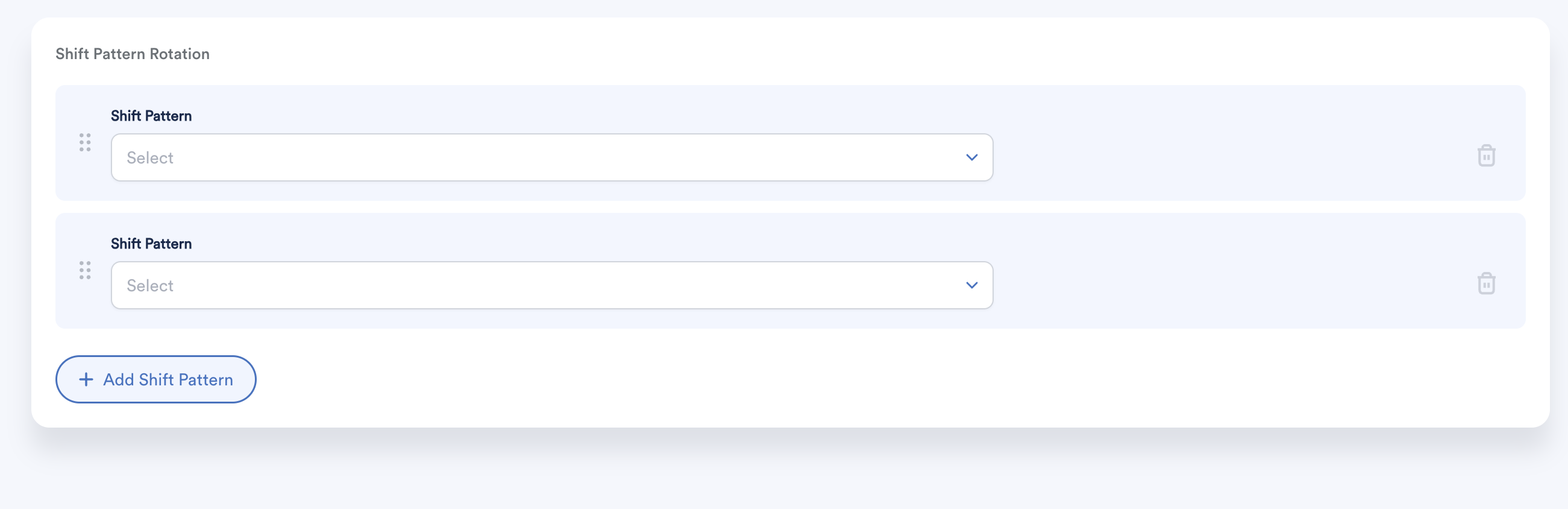
For each row:
- Select a shift pattern.
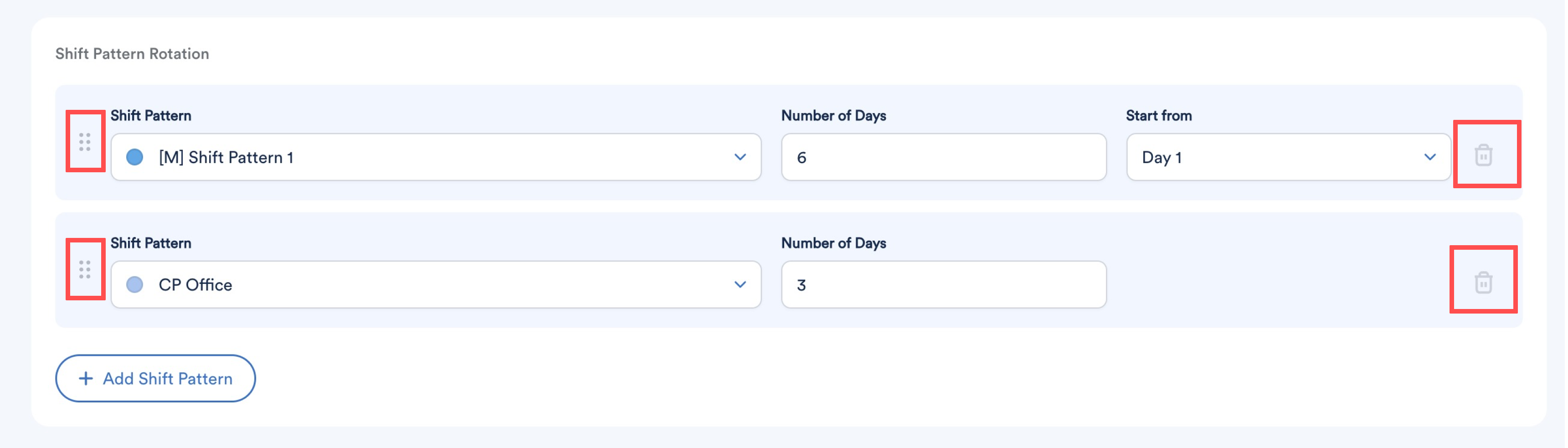
- The system will display the total number of days configured in the selected shift pattern.
You can also:
- Drag and drop rows to rearrange the order of shift patterns.
- Click the dustbin icon to remove a shift pattern from the rotation.
Previewing the Shift Rotation
For the first shift pattern row, you can select which day of the pattern the rotation should start from.
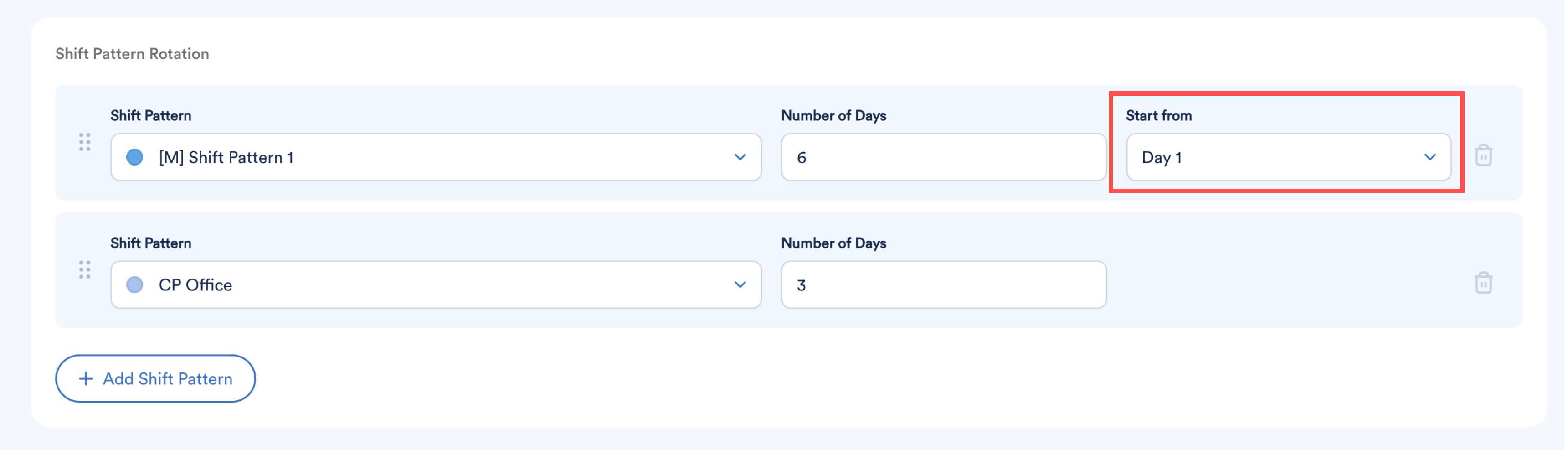
Click Preview at the top right of the screen to view how the shift rotation will be generated throughout the year based on the selected start day and shift pattern sequence.

Example
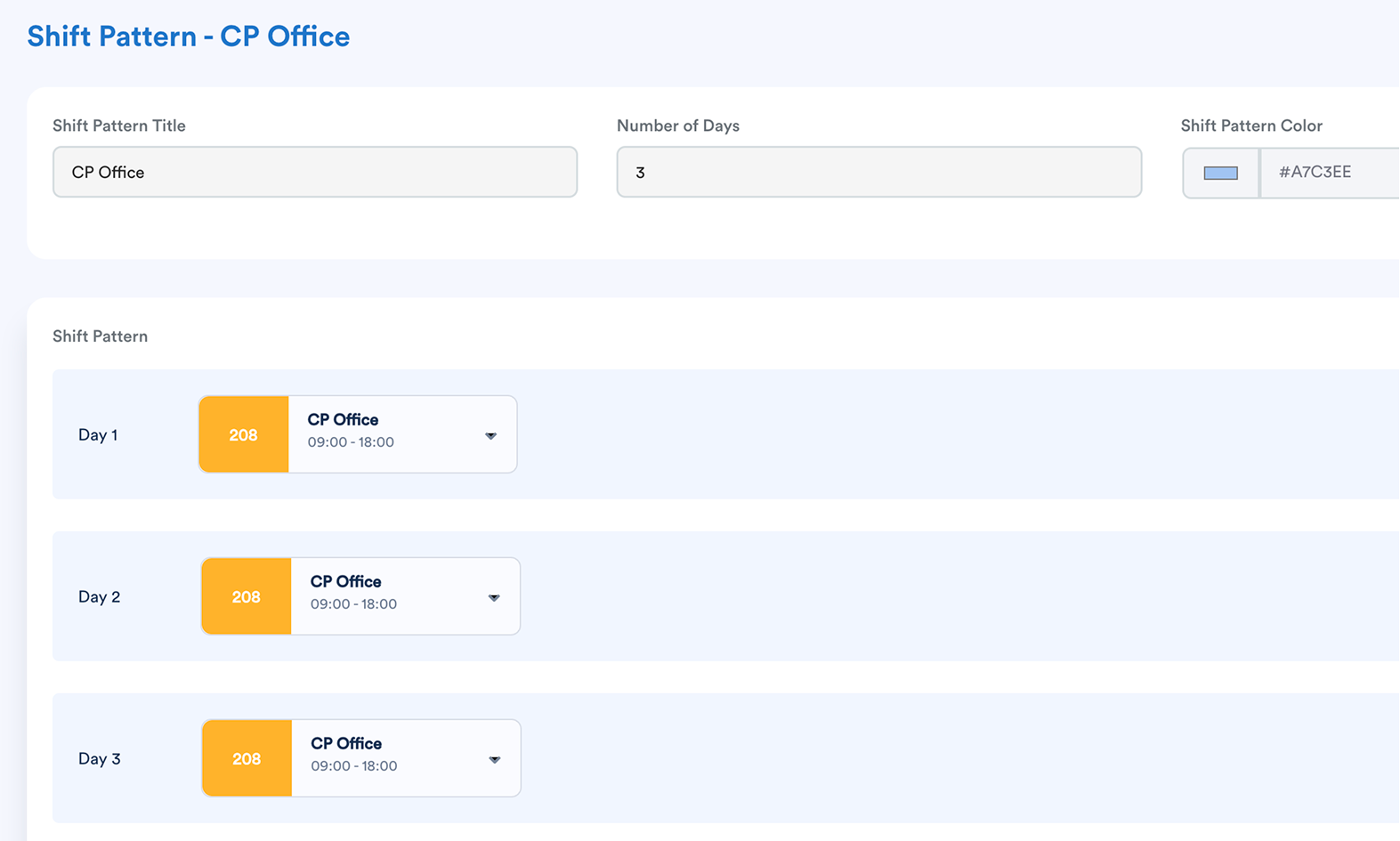
Below is the shift pattern for Shift Pattern 1 and CP Office.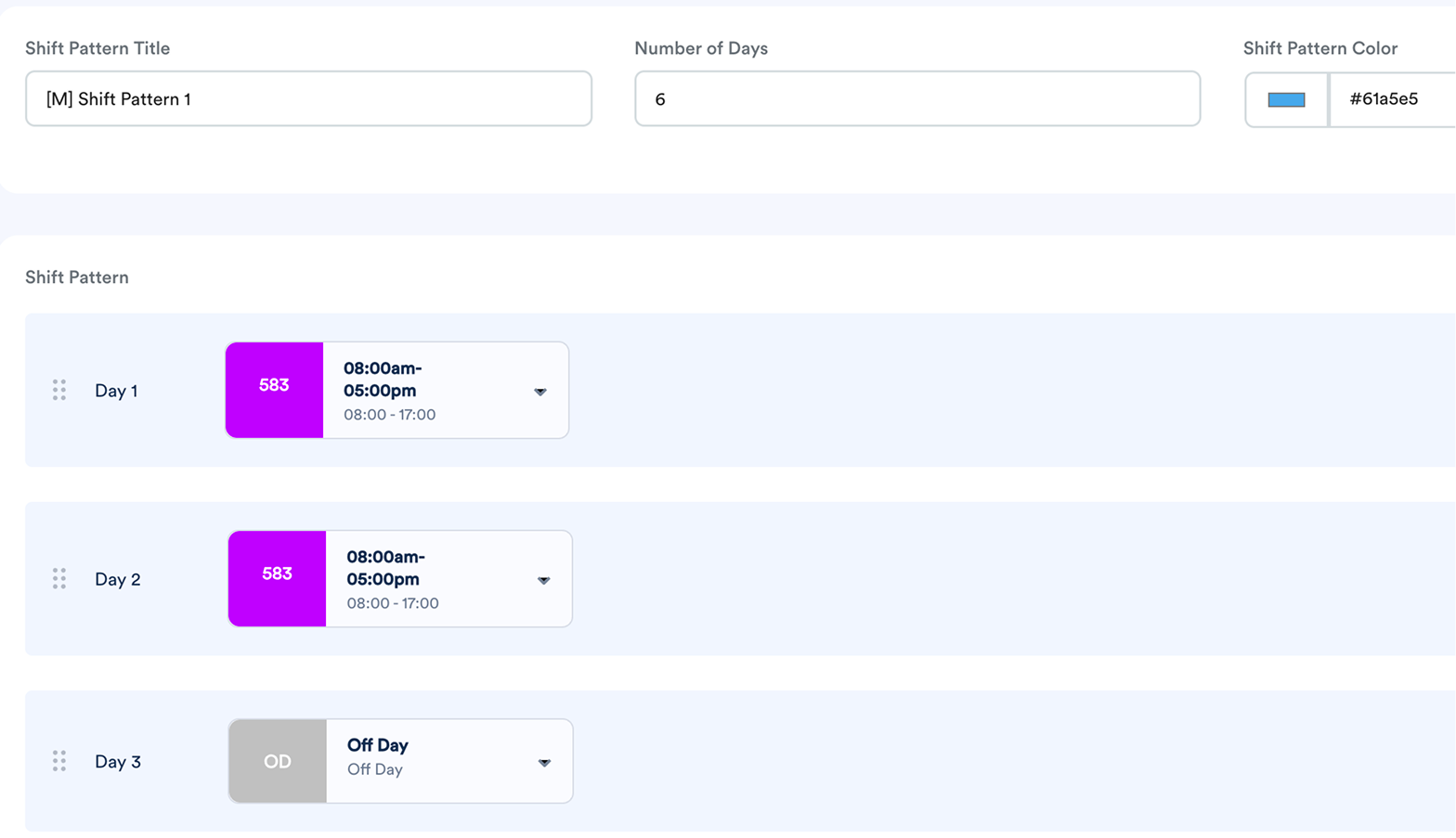
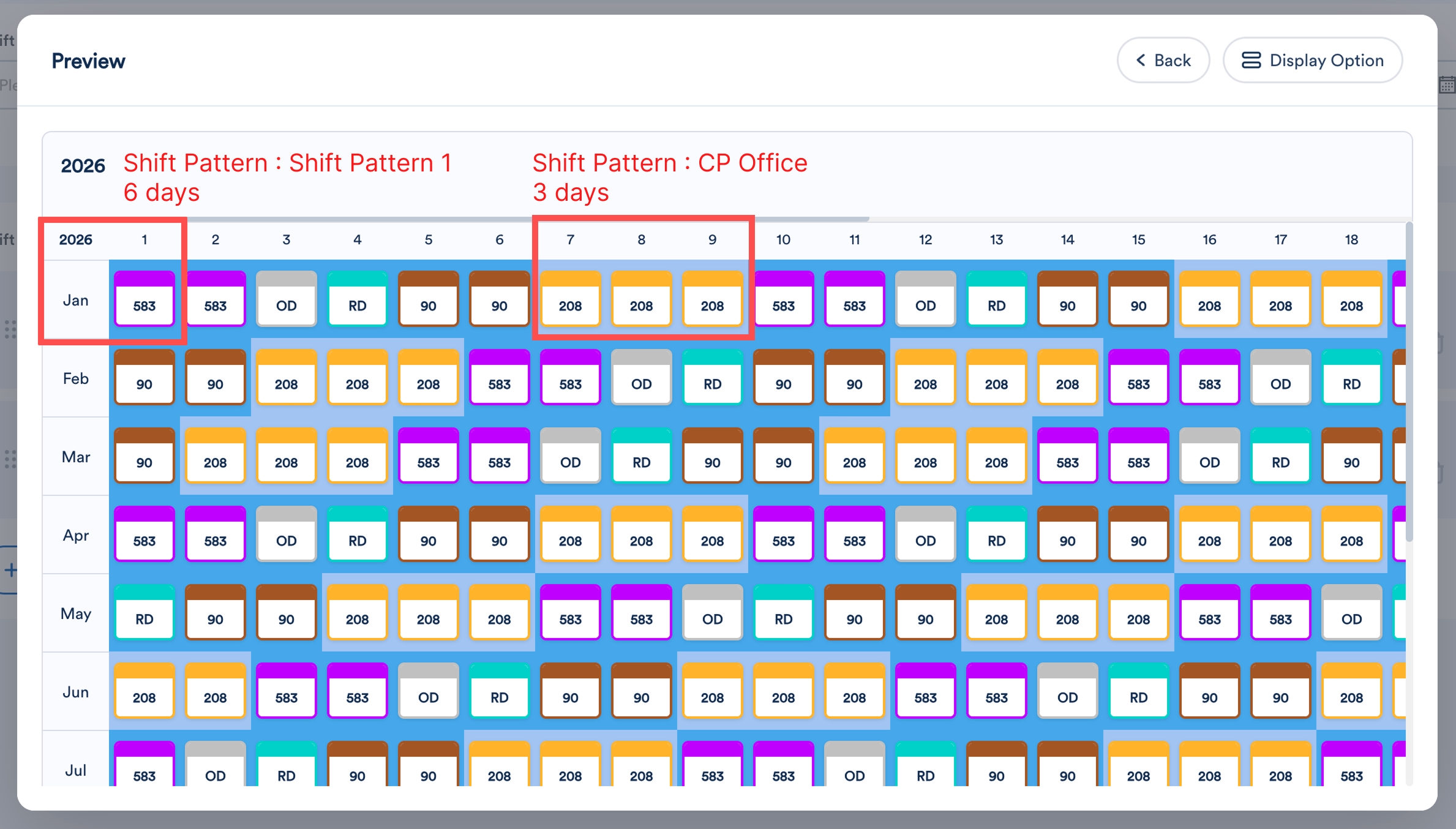
Start from Day 1
- Day 1 of Shift Pattern 1 is assigned to Shift 583, the rotation will begin with Shift 583 on 1 January of the selected year.
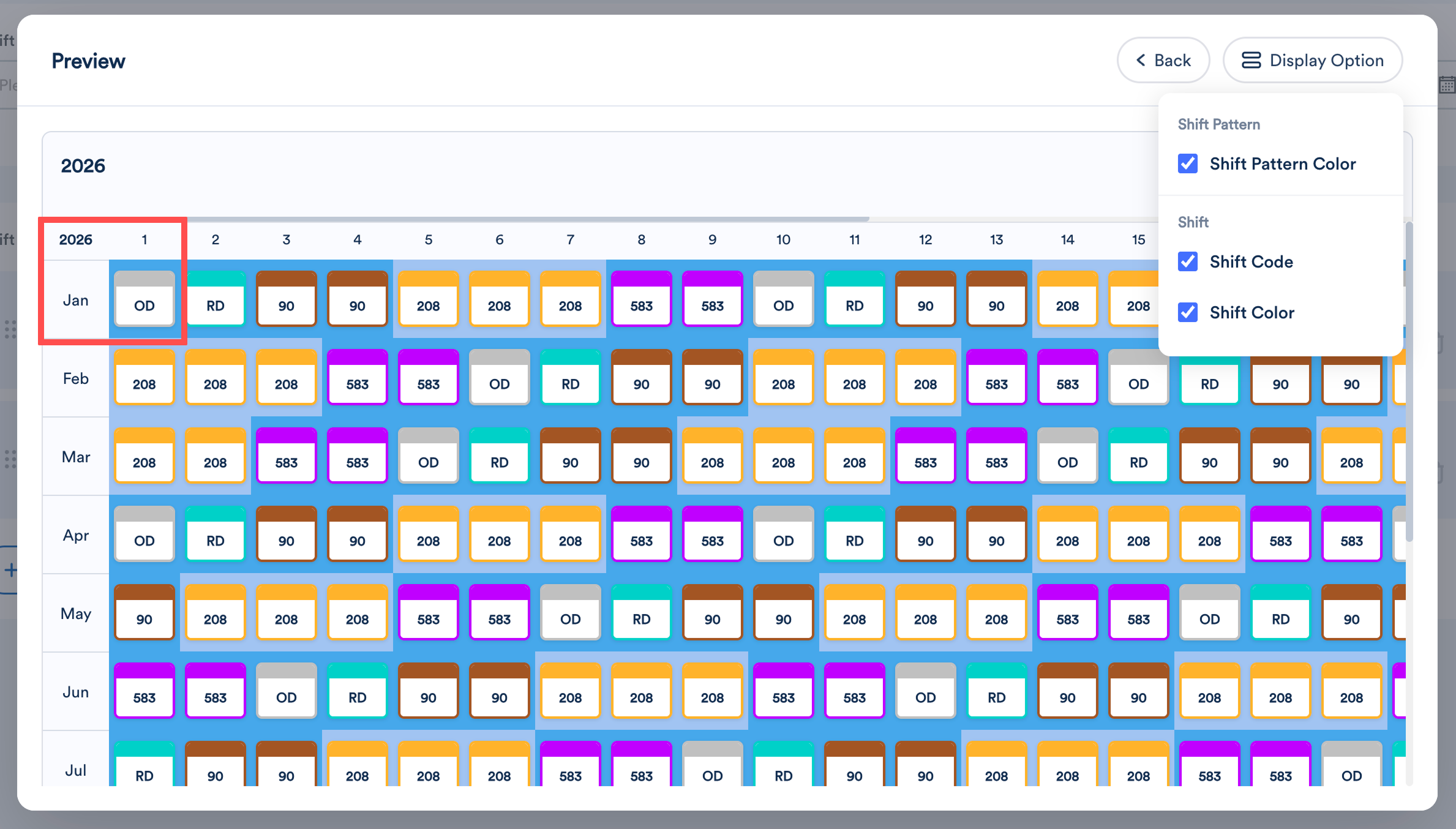
Start from Day 3
- Refer to Shift Pattern 1 on above, Day 3 is configured as an Off Day, the rotation will begin with an Off Day on 1 January of the selected year.
Once you are satisfied with the shift rotation, click Save.
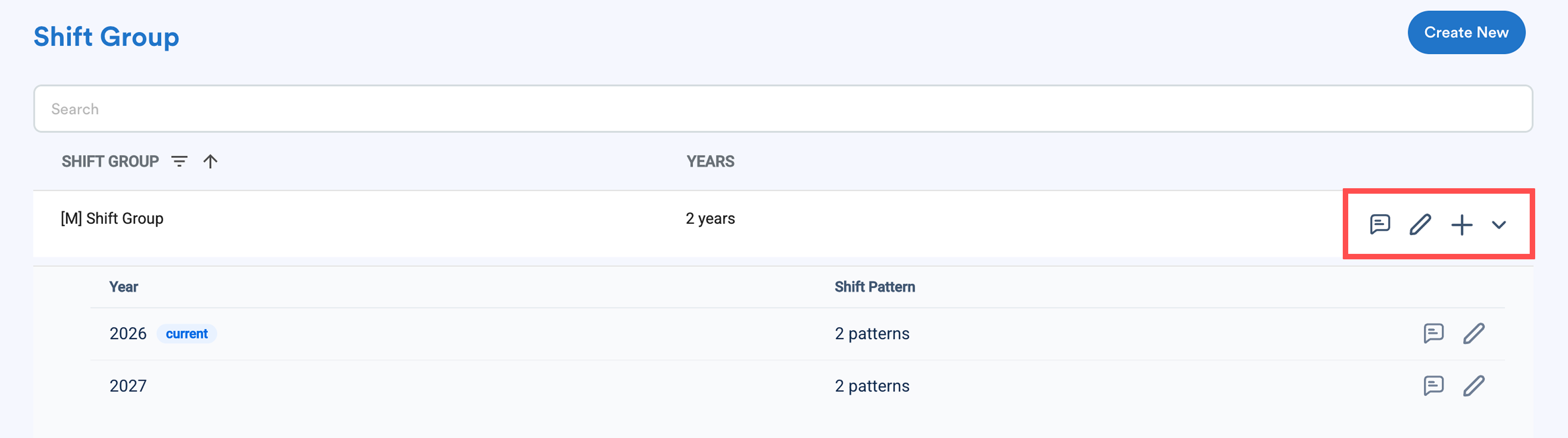
After saving, you will be returned to the Shift Group listing page where all created shift groups are displayed.
For each shift group, you can:
- Click Activity Log to view changes and activities performed on the shift group.
- Click the pencil icon to edit the shift group.
- Click the plus button to create a new rotation for a different year under the same shift group.
To assign a shift group in the schedule, refer to How to Assign Shift Group in Schedule. You can also compare the shift group, refer to Compare Shift Group.
We hope this explanation clarifies the matter. If you require additional assistance, do not hesitate to contact our support team.
Was this article helpful?
That’s Great!
Thank you for your feedback
Sorry! We couldn't be helpful
Thank you for your feedback
Feedback sent
We appreciate your effort and will try to fix the article