Compare Shift group screen allows you to compare multiple shift groups side by side for a selected year. This screen is view-only and cannot be used to edit shift schedules.
Any changes to shift schedules must be made from the Shift Pattern or Shift Group settings.
Prerequisite
Ensure the user role has access to "Compare Shift Group".

- Go to Settings > Access Rights > Menu Permissions: Settings > TMS Settings
- Enable Shift Group (View/Edit) permission for the relevant role
Step 1
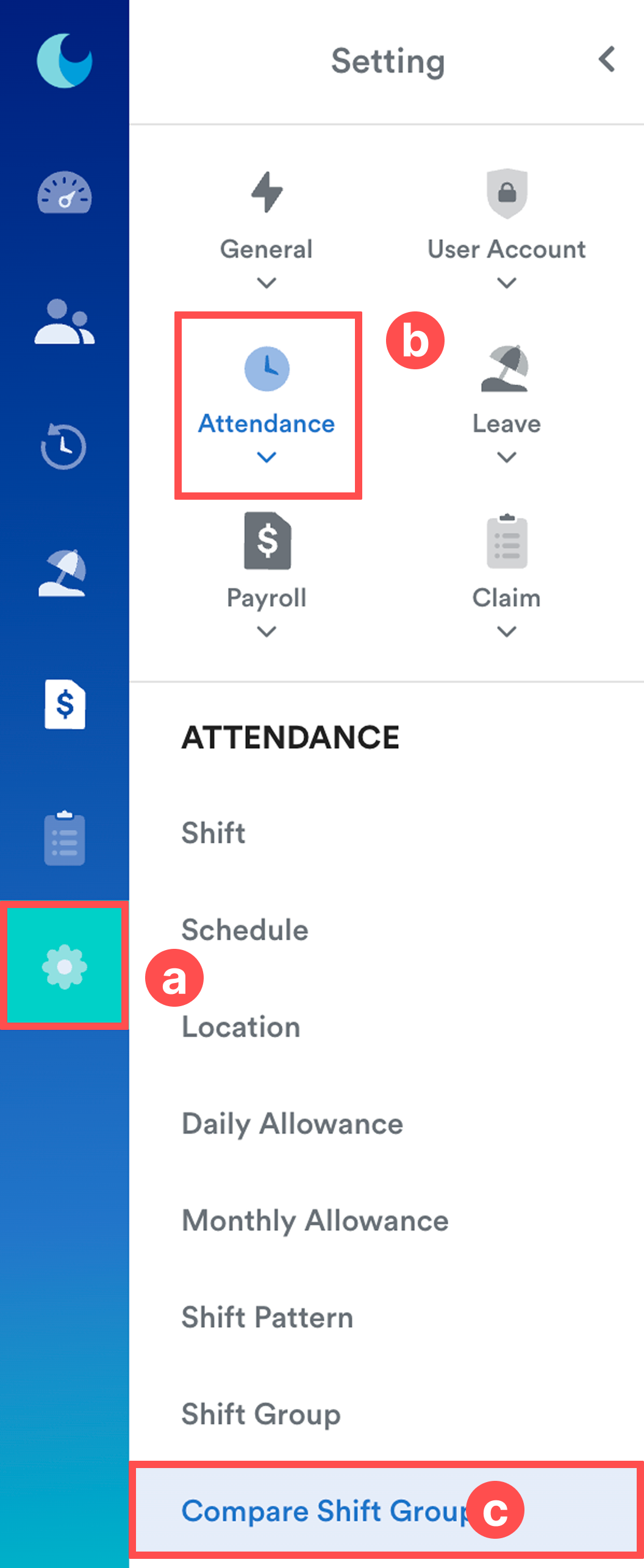
Go to Settings (a) > Attendance (b) > Compare Shift Group (c).
Step 2
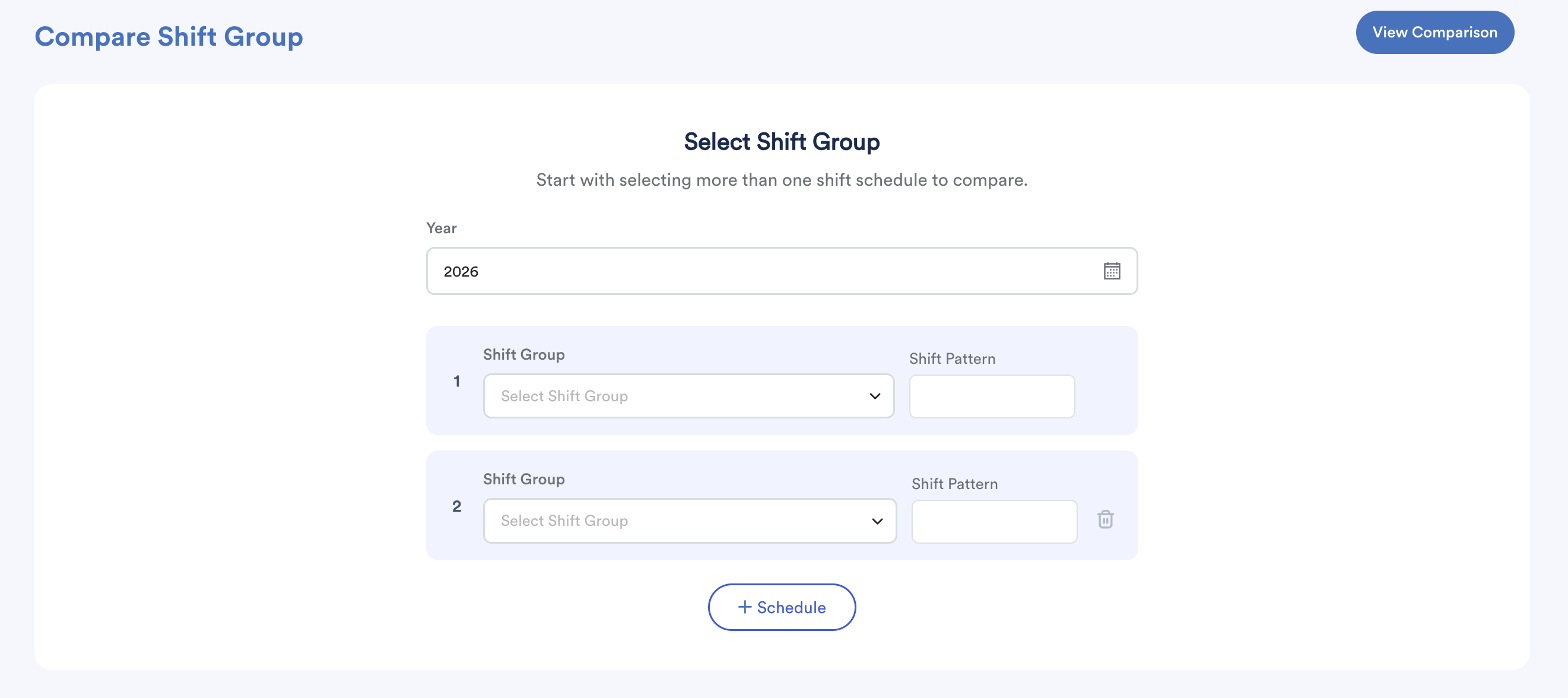
Set the comparison criteria:
- Select the Year.
- Select two shift groups to compare.
- Click + Schedule to add additional shift groups for comparison.
You can compare multiple shift groups simultaneously.
Step 3
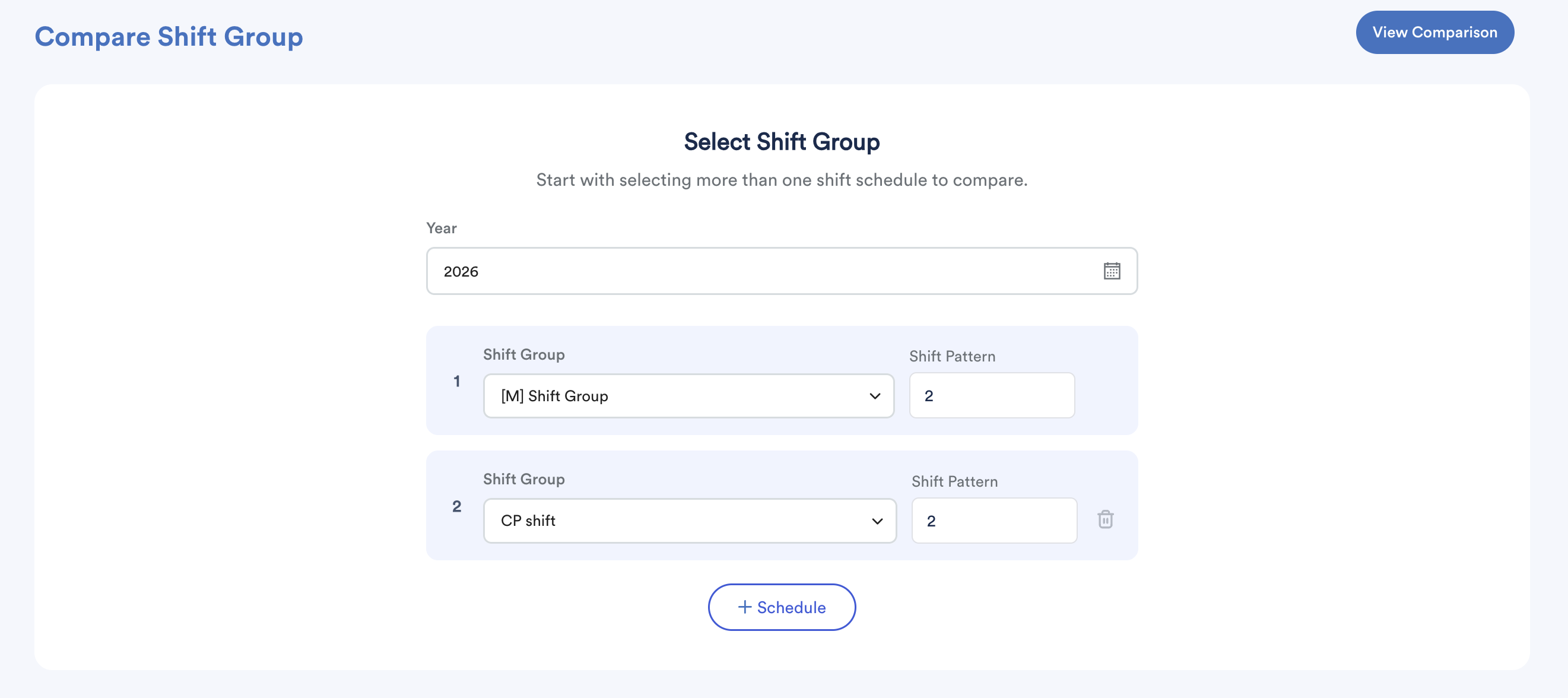
Click View Comparison.
Step 4
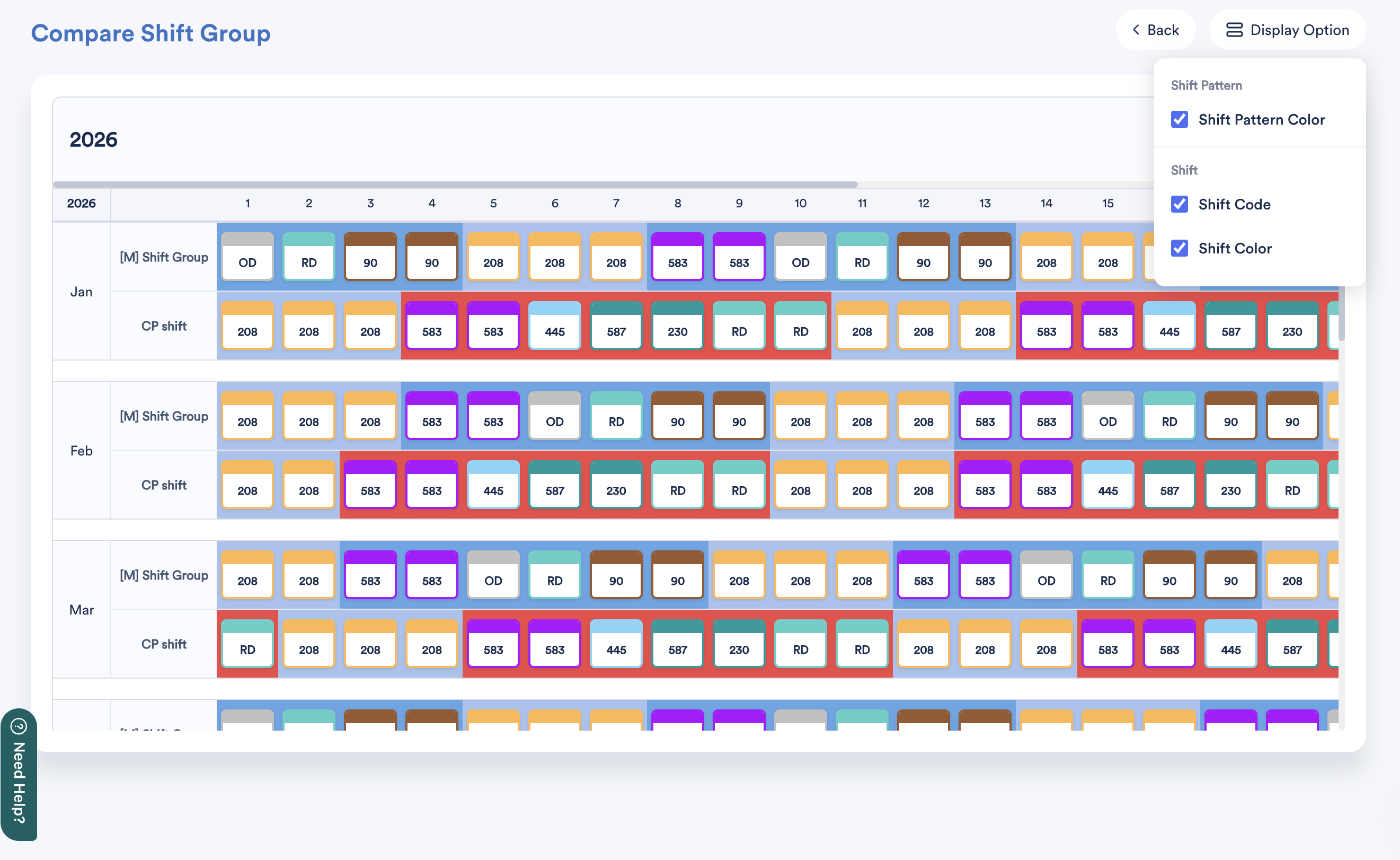
The system will display the selected shift groups side by side for comparison.
The comparison covers the entire selected year, from January to December, allowing you to review and compare shift rotations across different schedules.
To customize the information displayed, click Display Option at the top right of the screen and select your preferred display settings.
We hope this explanation clarifies the matter. If you require additional assistance, do not hesitate to contact our support team.
Was this article helpful?
That’s Great!
Thank you for your feedback
Sorry! We couldn't be helpful
Thank you for your feedback
Feedback sent
We appreciate your effort and will try to fix the article