This article provides a step-by-step guide on how to set up and configure a new company entity within the Worksy system.
Setting up a new company involves configuring core identity details, financial disbursements, and government compliance settings. During this process, you will need to provide:
- Company Identity: Official names, registration numbers, and contact details.
- Financial Data: Bank account details and organization codes for payroll file generation.
- Statutory Records: Registration numbers for LHDN, KWSP, PERKESO, and other bodies.
You will also toggle key system controls, such as payslip visibility, automated employee invitations, resignation access locks, and auto-cancellation rules for pending requests.
Step 1
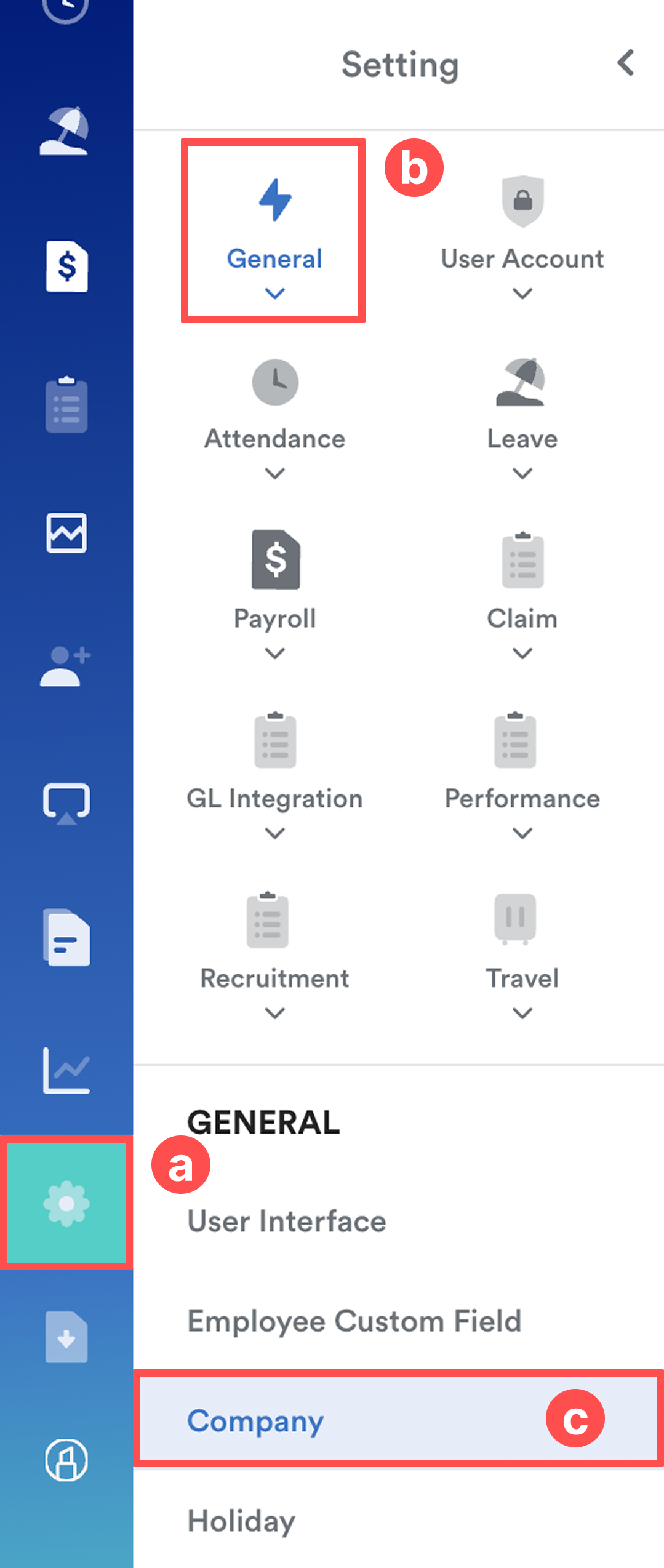
On the left menu, go to Settings (a) > General (b) > Company (c).
Step 2
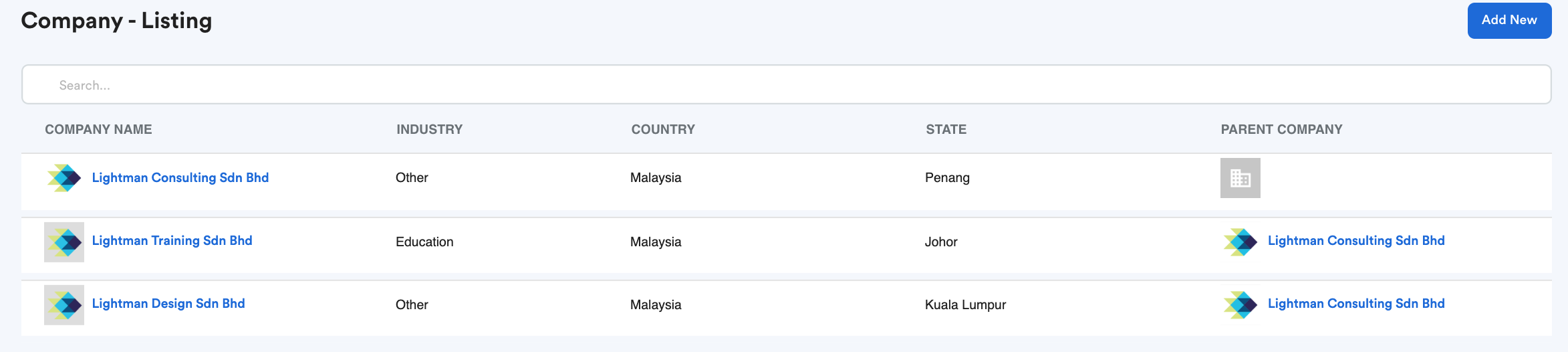
You will be directed to the Company List screen, click Add New to create a new company label.
Step 3
The setup is separated into 3 tabs:
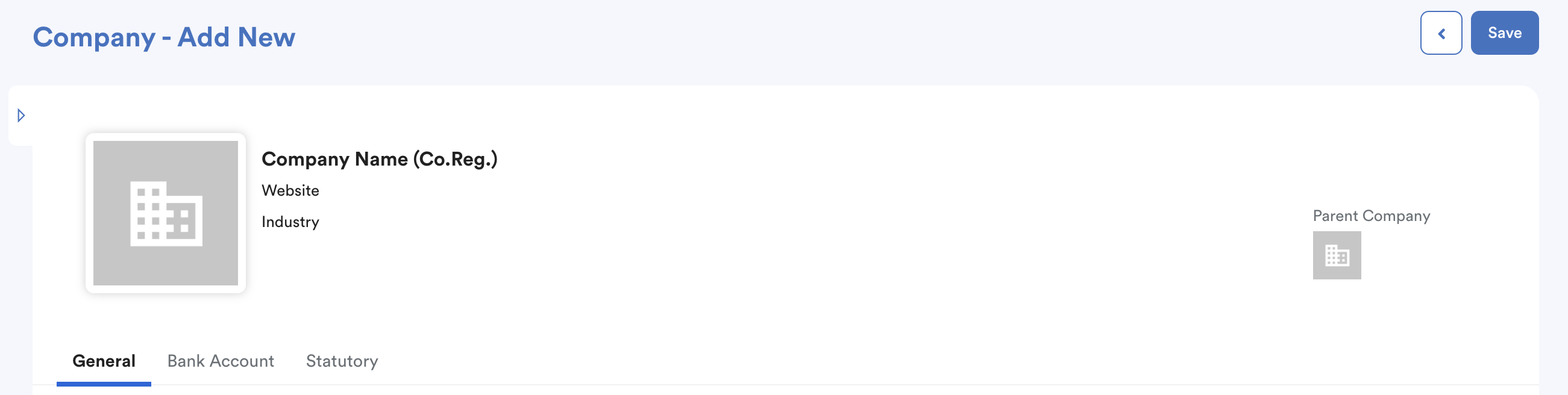
Note: Suggested size for logo is 1:1 ratio, with maximum 4MB
a. General
This tab contains 6 essential sections for company configurations:
1. Company Info
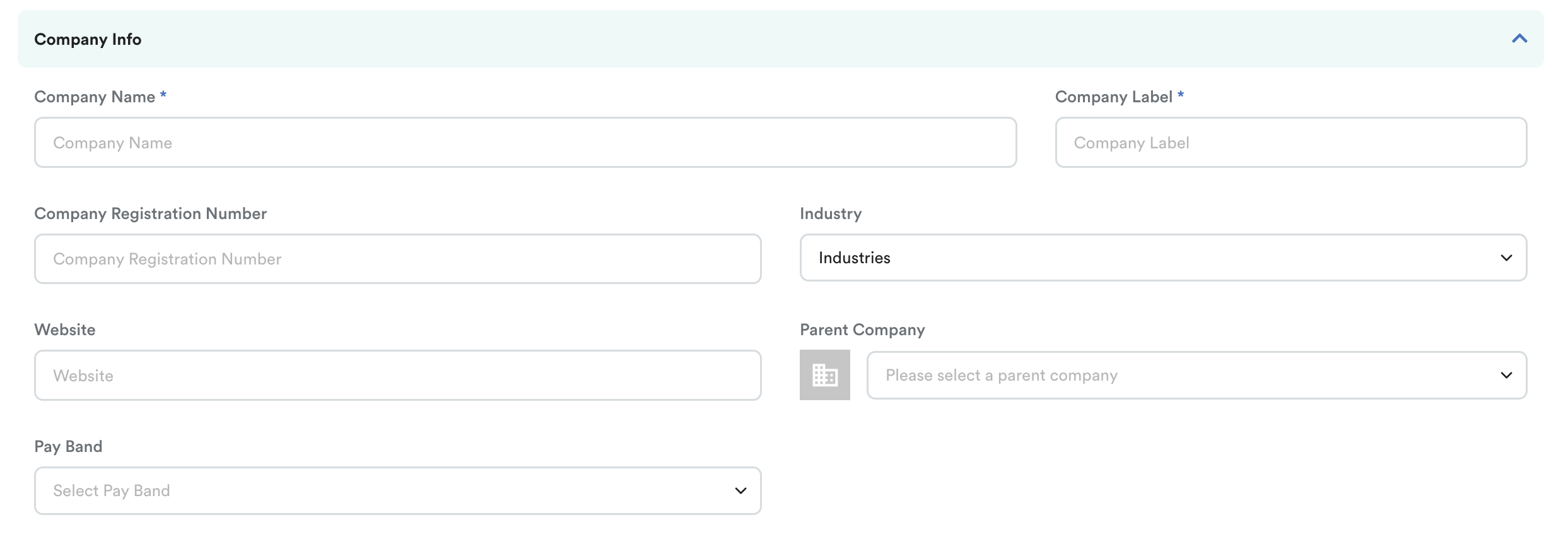
- Company Name* and Company Label*.
- Company Registration Number, Industry, and Website.
- Parent Company: If this company is a subsidiary, select the parent company here (must be created first).
2. Contact
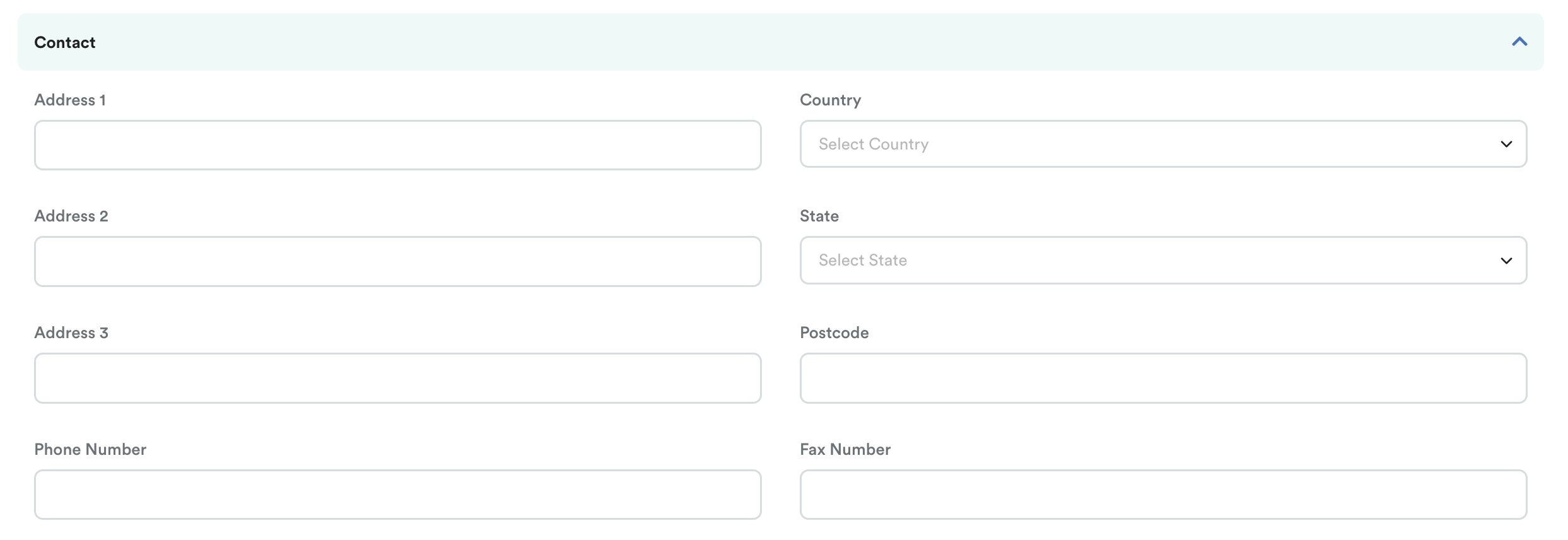
- Enter the company's physical Address and Phone / Fax Number.
3. Payroll
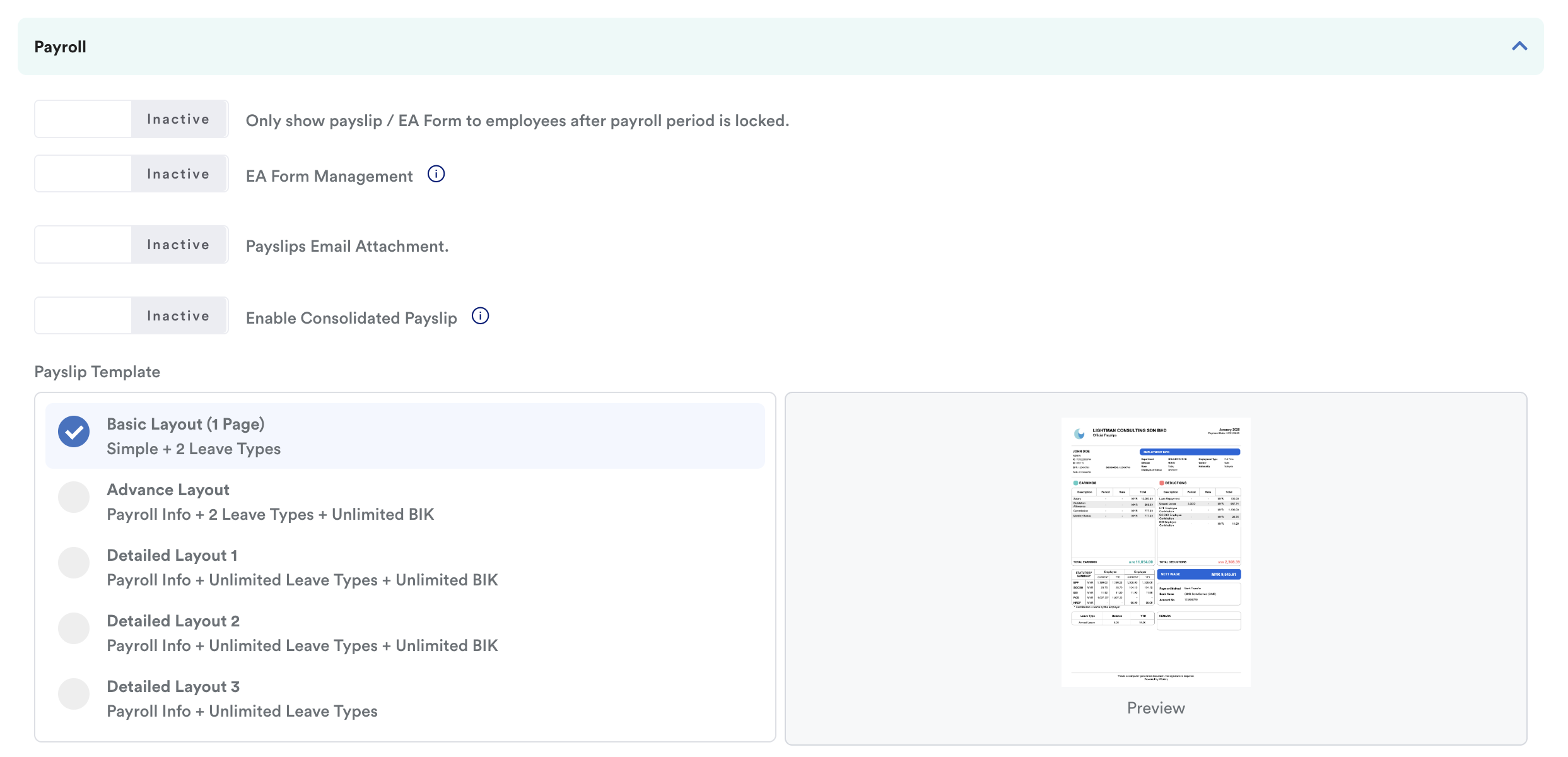
Toggle controls for:
- Only show payslip / EA Form to employees after payroll period is locked.
- EA Form Management: Manage employee access to EA Form by year and control release settings. For detailed explanations, refer: Enable EA Form by Year
- Payslips Email Attachment: Employee will receive Payroll Payslip Reminder email with the payslip attached (password protected). For detailed explanations, refer: Payslip Email Notification & Password
- Enable Consolidated Payslip: When multiple payrolls are processed within a month, a consolidated payslip will be generated combine all figures into one. (e.g. (3 payslip for each cycle processed + 1 consolidated payslip that display all figures from the 3 cycles = 4 payslips)
- Payslip Template: Choose from 4 templates. For detailed explanations, refer: Payslip Templates: Basic, Advanced and Detailed
4. Invitation

- Toggle Auto-send invitation when creating a new employee or updating a work email.
5. Account Activation

- Choose whether to auto-deactivate the user after resignation. Resigned employees will not be able to access their Worksy account after their resignation date.
- For detailed explanations, refer: How to Ensure Resigned Employees Cannot Access Worksy
6. Request

- When activated, you can set auto cancel request if no approval is given within a specific number of days before/after the requested date.
- For detailed explanations, refer: Auto Cancel Pending Request
b. Bank Account
Fill in the company's bank information. Ensure all information keyed in is accurate to avoid errors in bank files during payroll/bank submission.
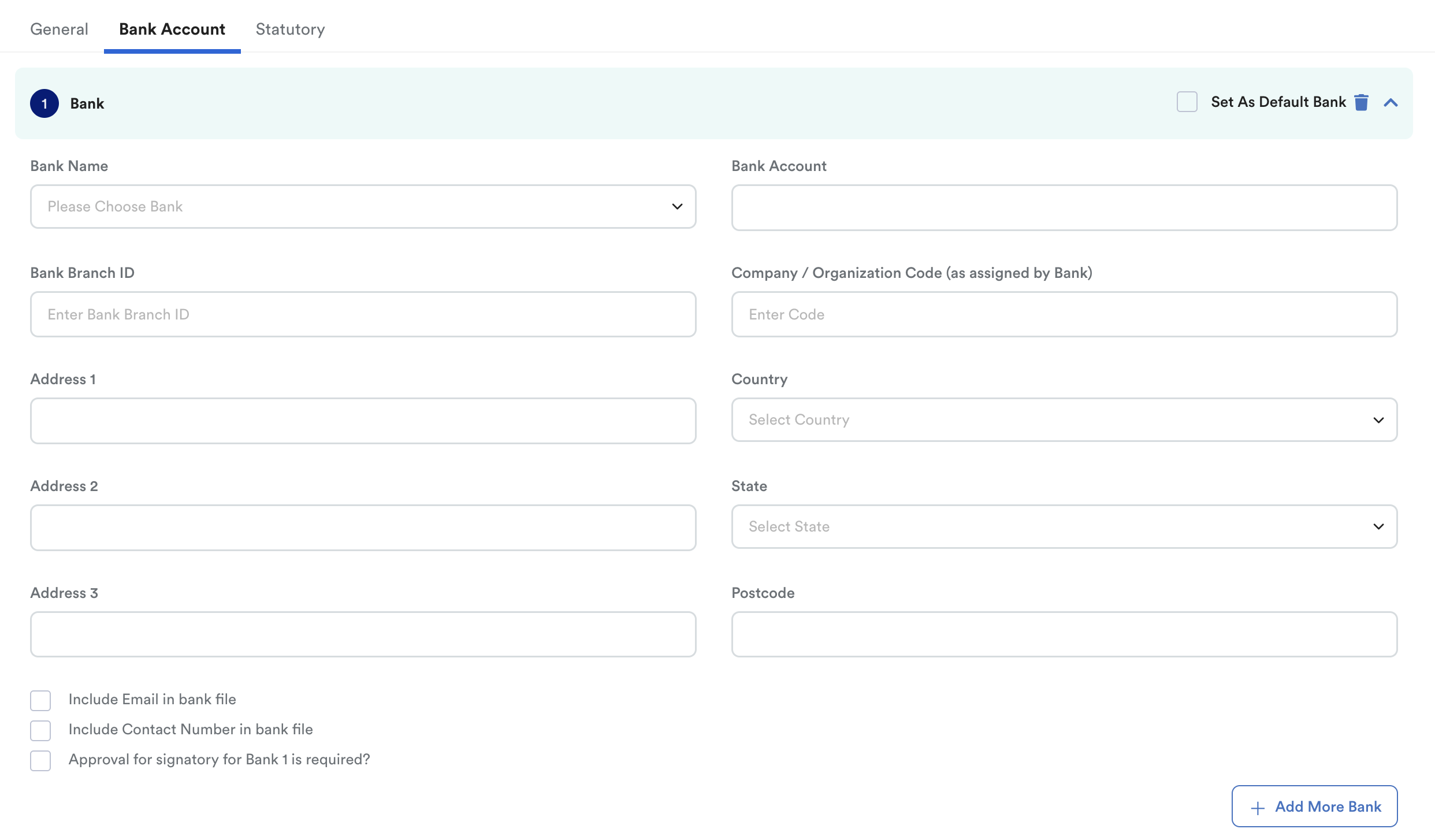
- Details: Bank Name, Bank Account, Bank Branch ID, and Company / Organization Code (as assigned by Bank).
- Click Add More Bank to add additional accounts.
- Set as Default Bank: When adding multiple banks, it is compulsory to choose one default bank. This can be switched later.
Important: Must set your default bank account to ensure you can download the bank payment file after payroll is processed. Without this info, you will see bank Giro file in the disabled button.
c. Statutory
Enter registration details for statutory payments, including LHDN, KWSP, PERKESO, HRDF, PTPTN, ASB, Baitulmal, Tabung Haji, and Zakat.
- Registration Info: Complete the Account Number, Address, and Phone Number for each body your company utilizes. This data will appear on all official documents.
- Signature Name: Select the employee whose name and designation will appear as the authorized signatory on official forms. Refer: Set Officer Name For Government Statutory Forms
- Use Custom Company Name: Tick this box if you need to specify a company name for statutory documents that differs from your default system name.
"EPF Base Calculation For Non Standard Percentage" (Under KWSP Section)
For employees with a Custom % contribution set in their profile, you must choose how the system calculates the base:
- Exact EPF Base Figure: The system multiplies the specific custom percentage by the exact gross salary (e.g., 1767.50×4%=70.70, rounded to 71.00). In this mode, the system does not refer to the standard KWSP contribution table.
- EPF Table Range Max Figure: The system uses the maximum figure within the salary range specified in the official KWSP table to calculate the contribution.
Important:
Ensure all information keyed into the Bank Account and Statutory sections is accurate to prevent errors during payroll submission or official document generation.
Step 4
Click Save to finalize the company creation.
We hope this clarifies the matter. If you require further assistance, do not hesitate to contact our support team.
Was this article helpful?
That’s Great!
Thank you for your feedback
Sorry! We couldn't be helpful
Thank you for your feedback
Feedback sent
We appreciate your effort and will try to fix the article