The article explains the Employee Share Option Scheme (ESOS) and provides a step-by-step guide to processing ESOS payments within payroll.
ESOS is an Employee Share Option Scheme that allows staff to buy company shares at a preset price after meeting eligibility criteria, enhancing retention and aligning interests.
With reference to Public Ruling No. 11/2012 - Employee Share Scheme Benefit (PDF),
- “Perquisites” means benefits that are convertible into money received by an employee from the employer or third parties in respect of having or exercising the employment.
- Perquisite value = (Market value at offer date − Offer price) × Number of options.
- Benefits from the grant of ESOS will arise on the date the option is exercised. For the purpose of tax computation, this benefit will be related back to the basis period for the year in which the option is offered.
Quick Links
Option 1: ESOS Tax NOT Borne by Employer
Option 2: ESOS Tax Borne by Employer
Option 1: ESOS Tax NOT Borne by Employer
Go to Payroll > Transaction > PFTO.
Example:
- Market value at offer date: MYR 5.00
- Offer price: MYR 4.00
- Options: 4,000
- Perquisite value = (5.00 − 4.00) × 4,000 = MYR 4,000
- Taxed in the YA corresponding to the offer date
Perquisite value = (Market value at offer date − Offer price) × Number of options.
Key in "Perquisite Value" under B.1.(e). Click Save.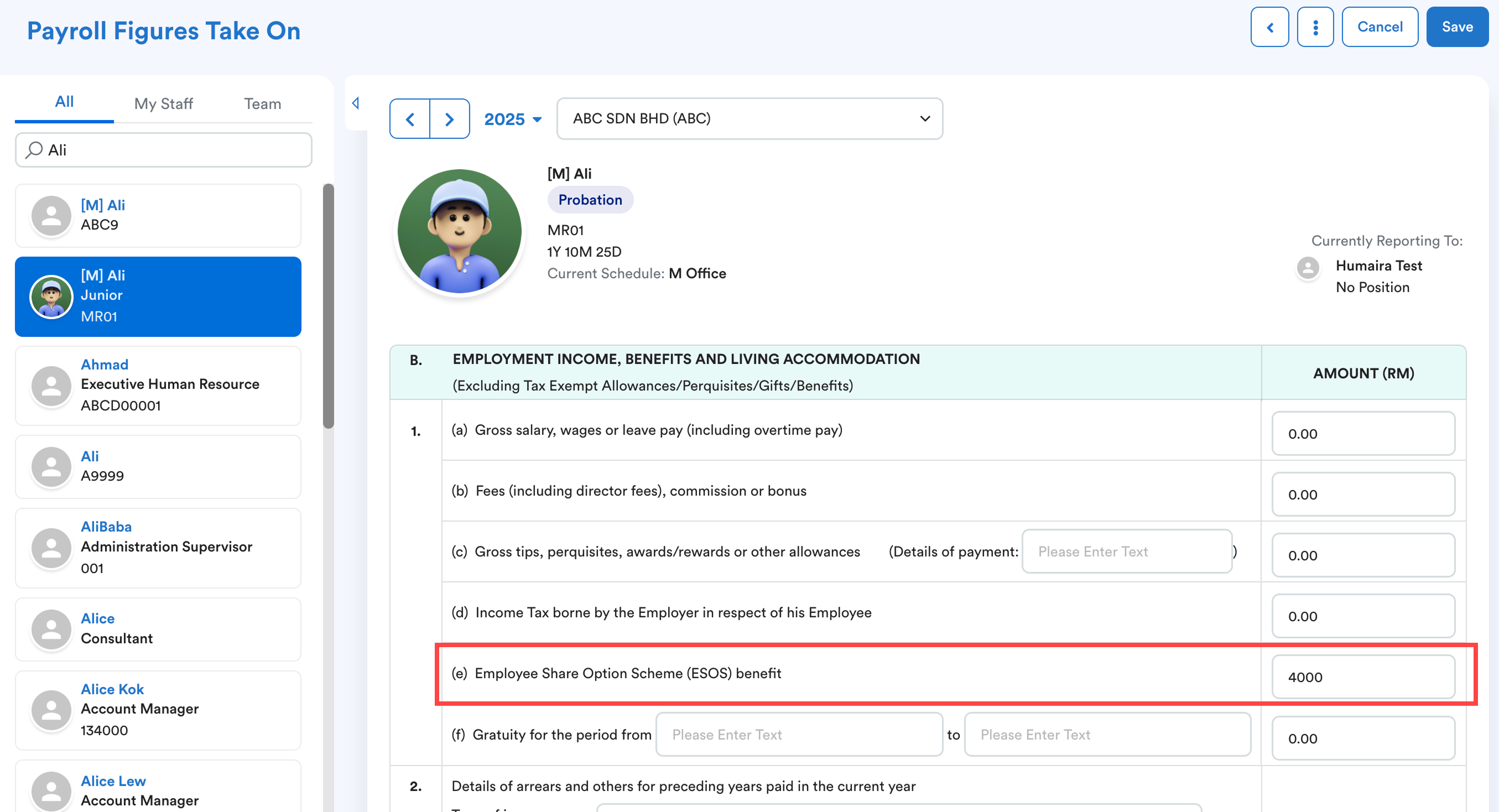
Option 2: ESOS Tax Borne by Employer
Step 1
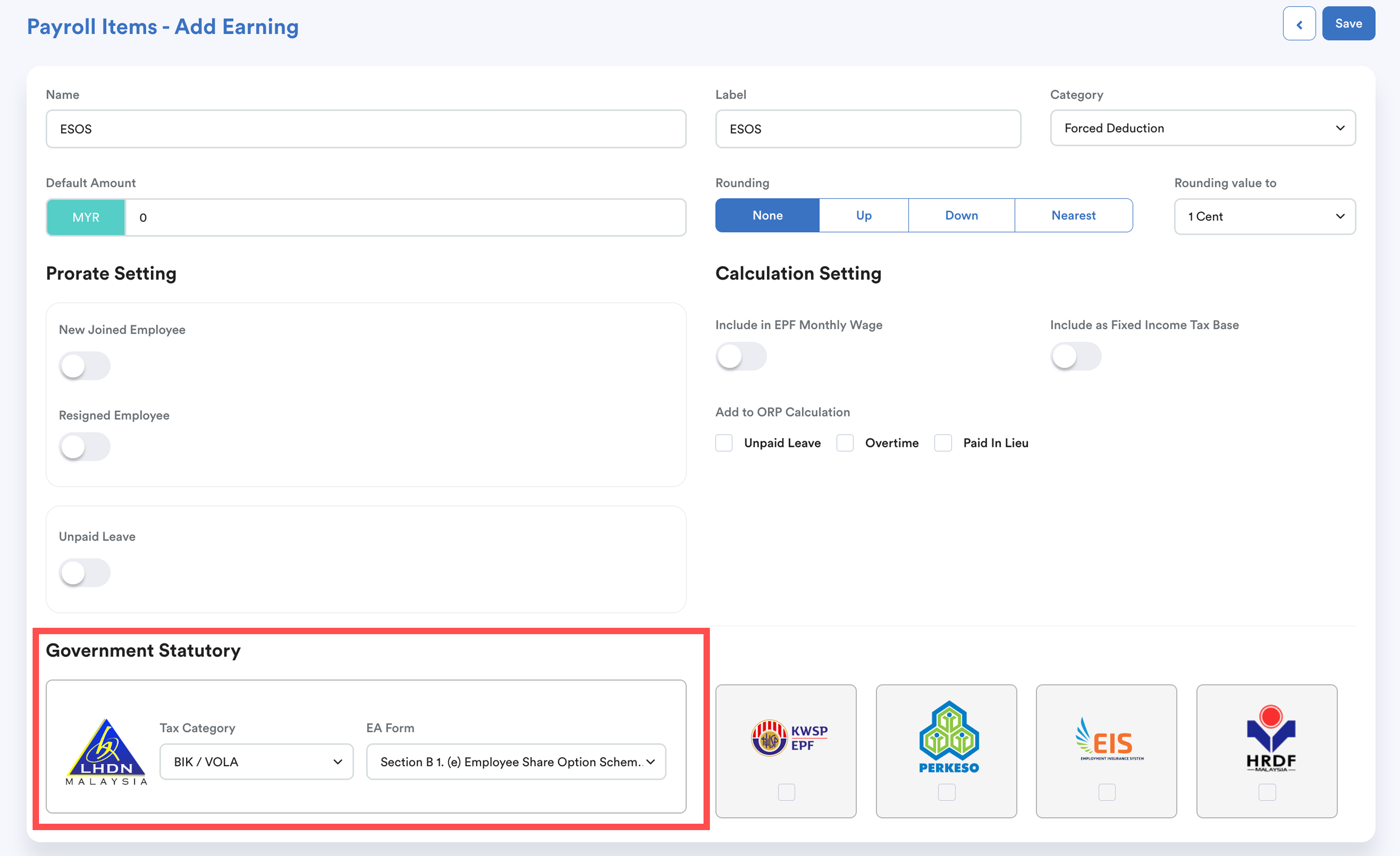
Go to Settings > Payroll > Payroll Items and create a new payroll item.
Set:
Tax Category: BIK/VOLA
EA Form: Section B1.(e) – Employee Share Option Scheme (ESOS)
Ensure EPF, SOCSO, EIS, and HRDF contributions are all unticked.
Step 2
Add ESOS under Individual Transactions.
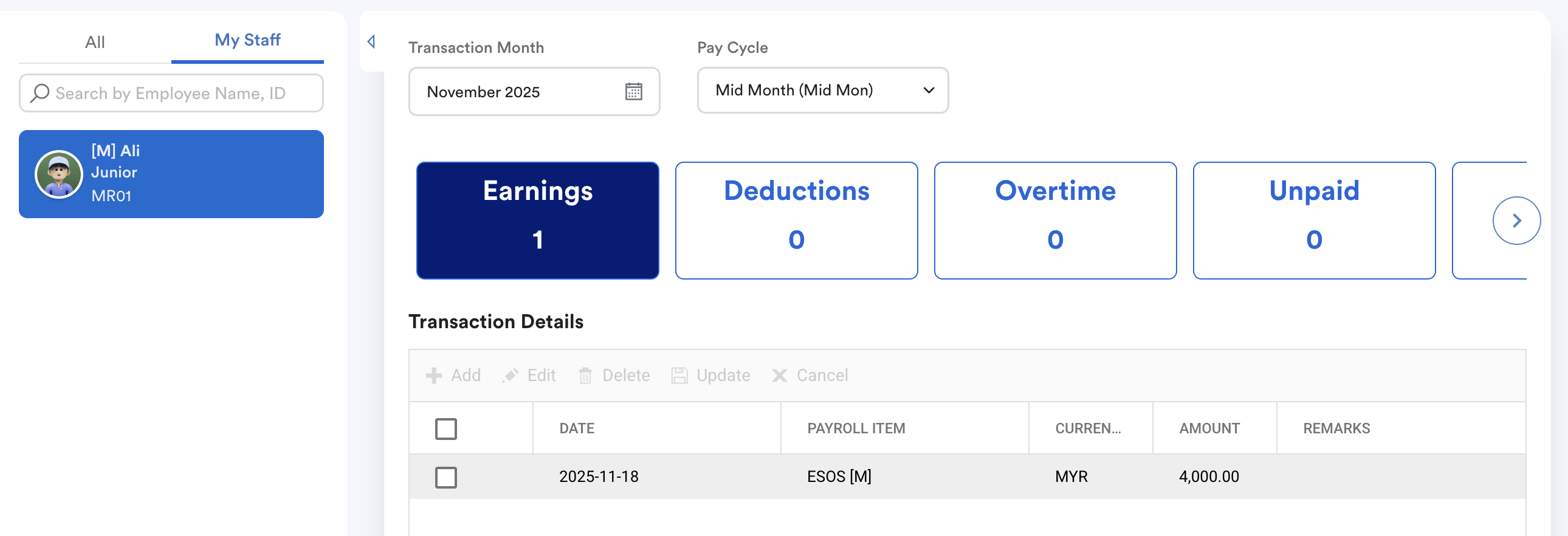
Go to Payroll > Transaction > Individual Transaction.
Select the employee, Transaction Month, and a Pay Cycle different from the main/monthly salary cycle.
Under the Earnings tab, add the ESOS item and fill in the amount.
With the same example as option 1, the amount you key in here is "Perquisite Value".
Step 3
Enable Employer-Borne Tax in employee's profile.
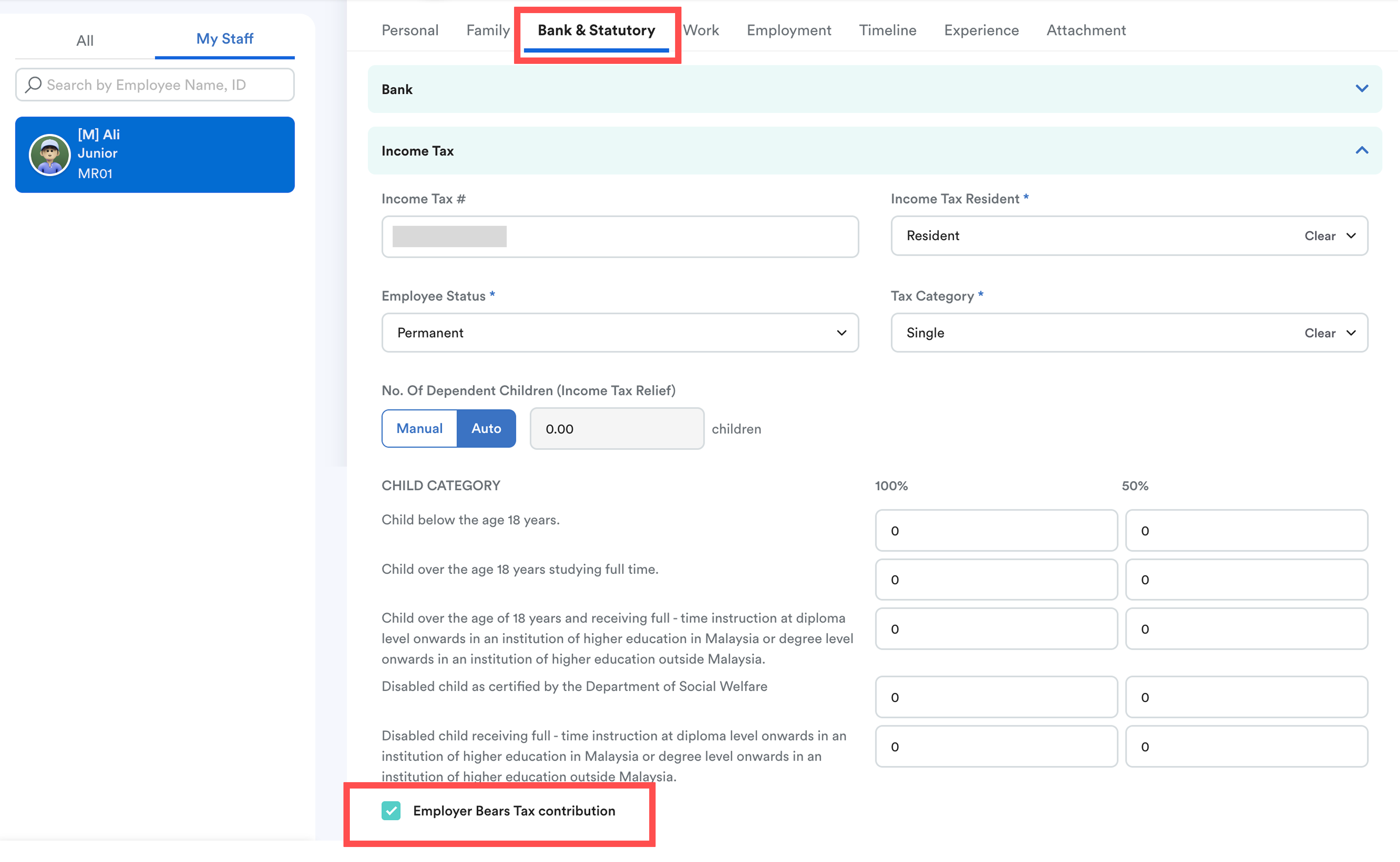
Go to the Employee’s Profile > Bank & Statutory tab.
Under the Income Tax section, tick Employer Bears Tax Contribution.
Click Save.
Step 4
Process the ESOS Payroll in Bonus screen.
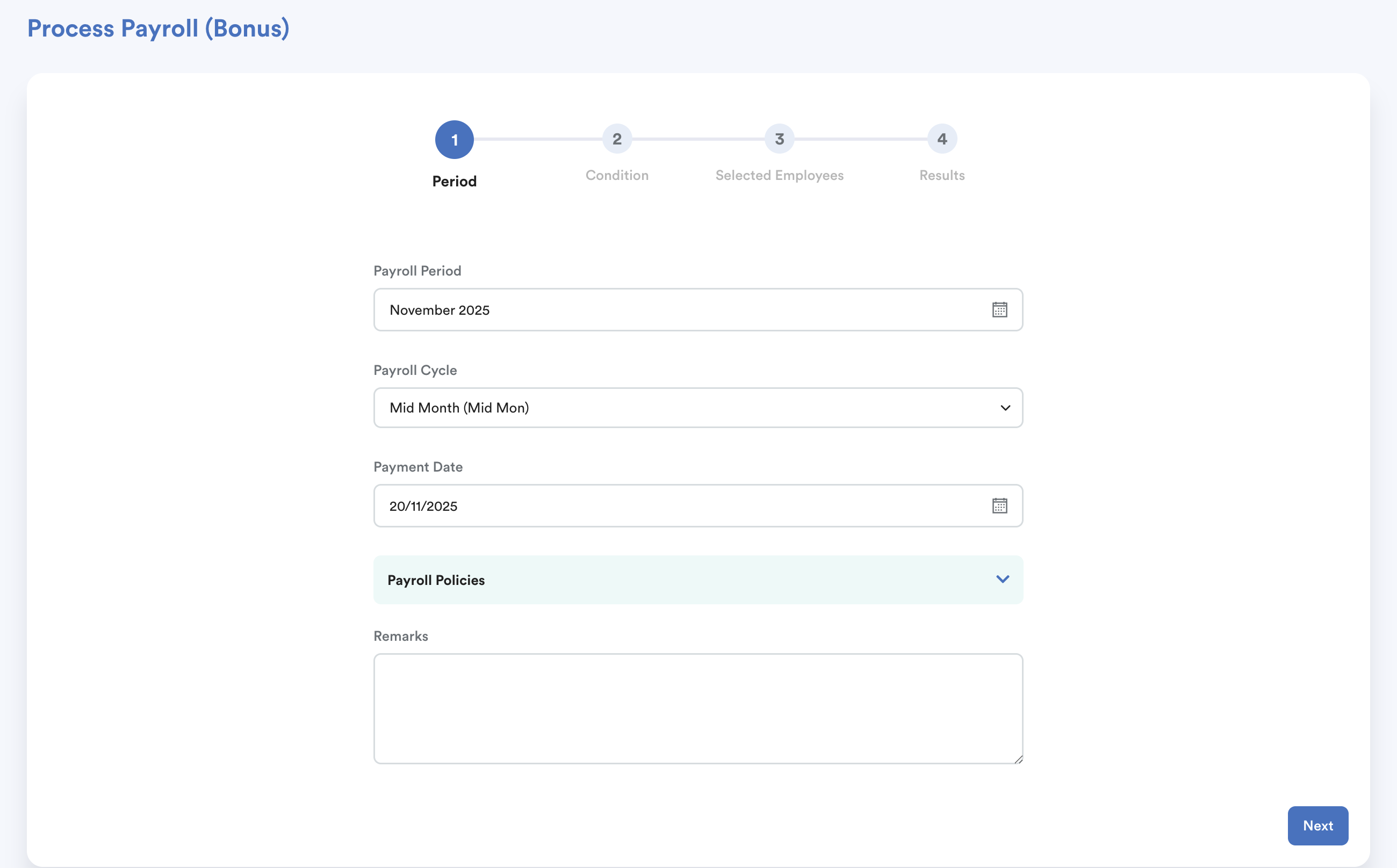
On the left menu, go to Payroll > Bonus.
Select the pay cycle used for the ESOS individual transaction.
Process payroll as usual.
Result
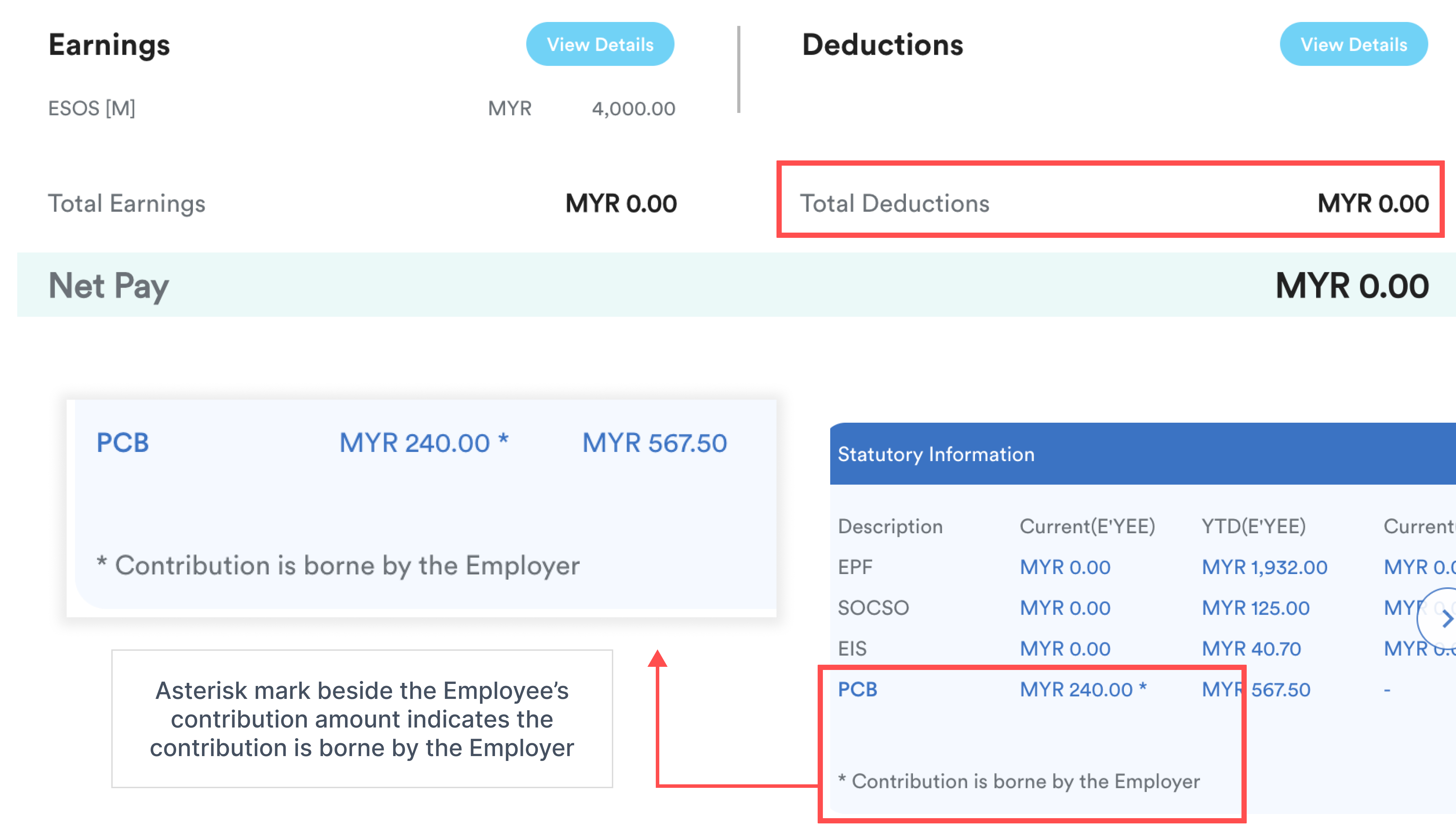
In Payroll Review, the Deductions section should be blank as all government statutory were disabled for ESOS and PCB is borne by the employer.
The Statutory Information will mark the employee’s contribution amount with an asterisk (*) to indicate that the tax is borne by the employer.
Step 5
Important: Disable Employer-Borne Tax in employee profile after completing the ESOS processing. This is to ensure we do not disrupt the other payroll cycle processing.

Return to the employee’s profile.
Untick Employer Bears Tax Contribution.
Make sure to click Save.
Step 6
Process the employee's salary as usu
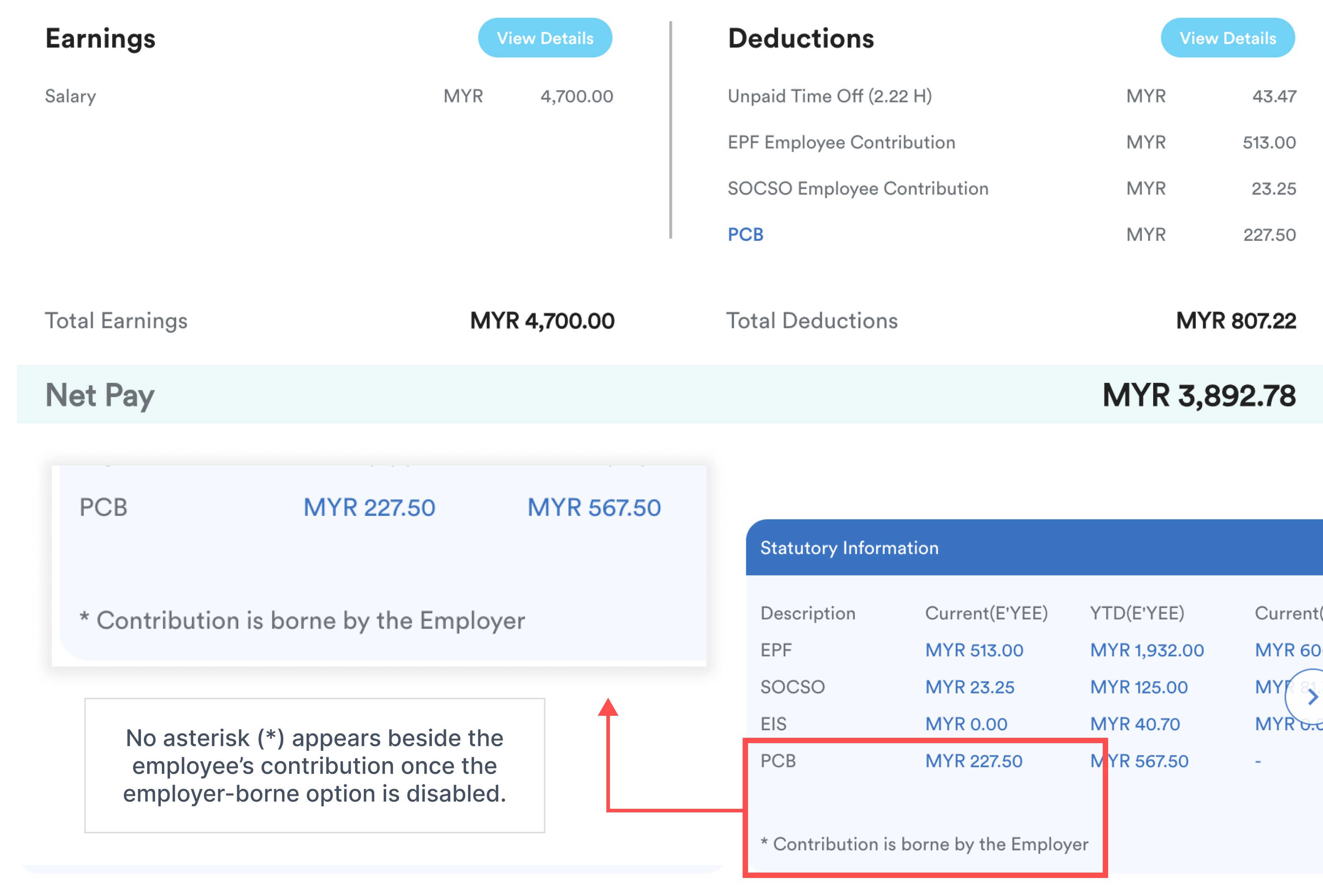
The employee’s statutory contribution should no longer have an asterisk (*) since the “Employer Bears Tax Contribution” option has been disabled.
Final Verification
This step is optional and serves as an additional check to ensure all steps were completed and are working correctly.
Go to Payroll > Payment > Bank/Statutory Submission.
Check that the LHDN Income Tax amount reflects the combined PCB from the ESOS bonus run + the standard payroll run.
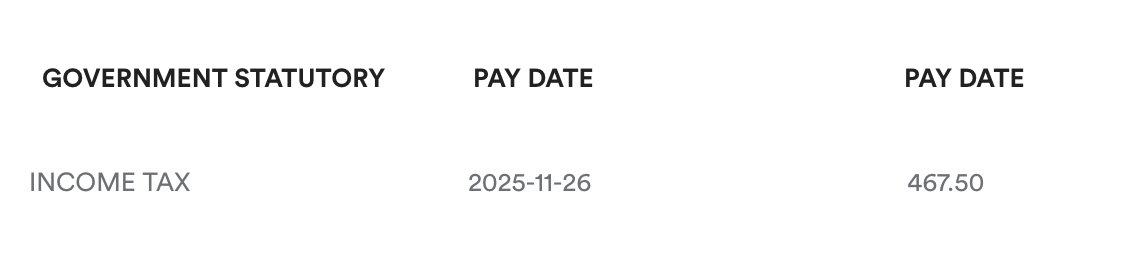
Income Tax = ESOS PCB + Salary PCB
= 240.00 + 227.50
= 467.50
We hope this explanation clarifies the matter. If you require additional assistance, do not hesitate to contact our support team.
Was this article helpful?
That’s Great!
Thank you for your feedback
Sorry! We couldn't be helpful
Thank you for your feedback
Feedback sent
We appreciate your effort and will try to fix the article