Note: This feature is only available on the web app. It is not available on the iOS or Android mobile app.
Step 1
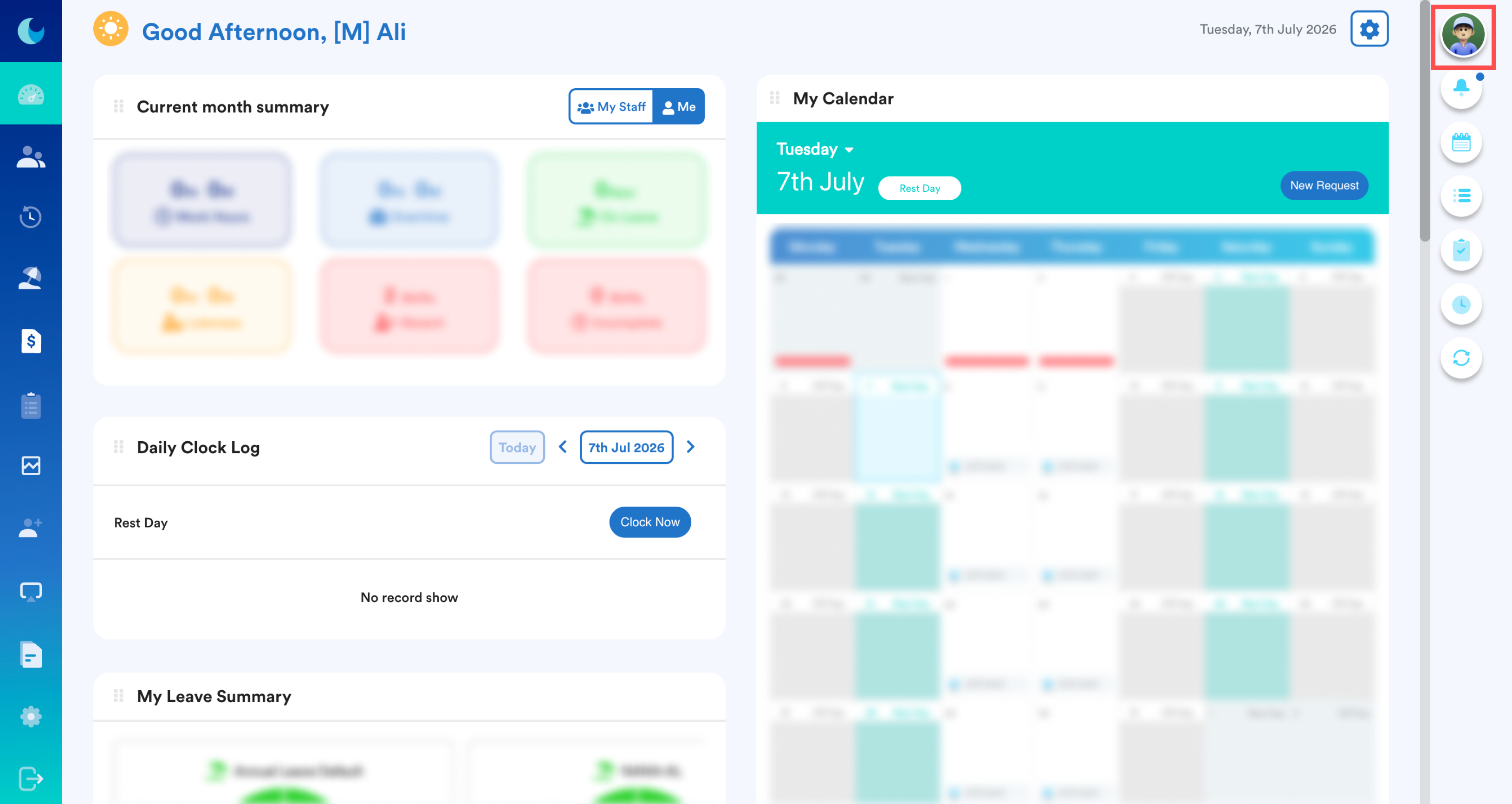
To update your personal profile, click your profile icon in the top-right corner of the screen.
Step 2
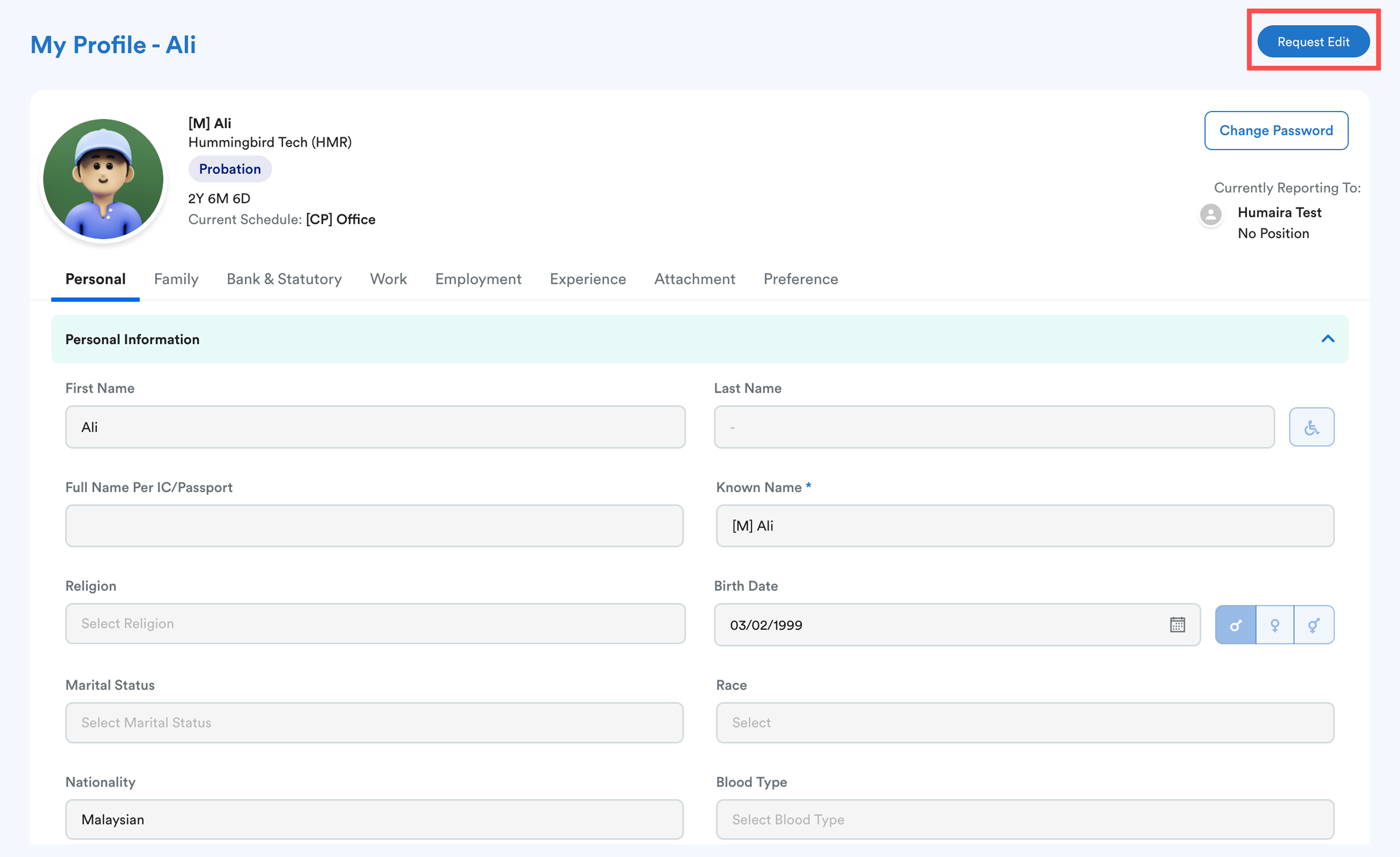
You will be directed to your Worksy profile.
Click Request Edit in the top-right corner of the page.
Step 3
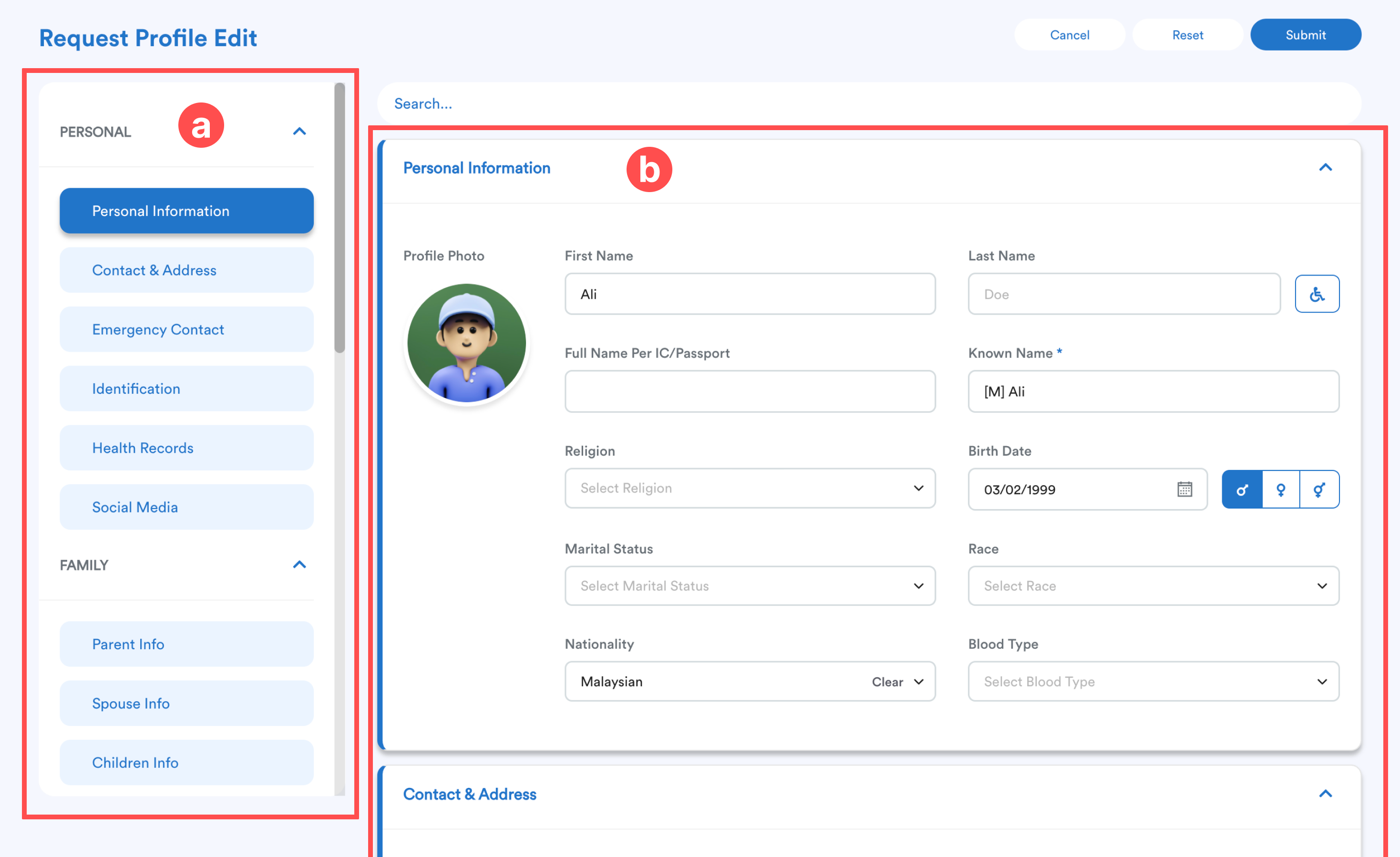
You will be taken to the Request Profile Edit screen, where you can update your profile information.
- Navigation Menu – Use the menu on the left to switch between different profile sections.
- Profile Details – Update the information in the selected section.
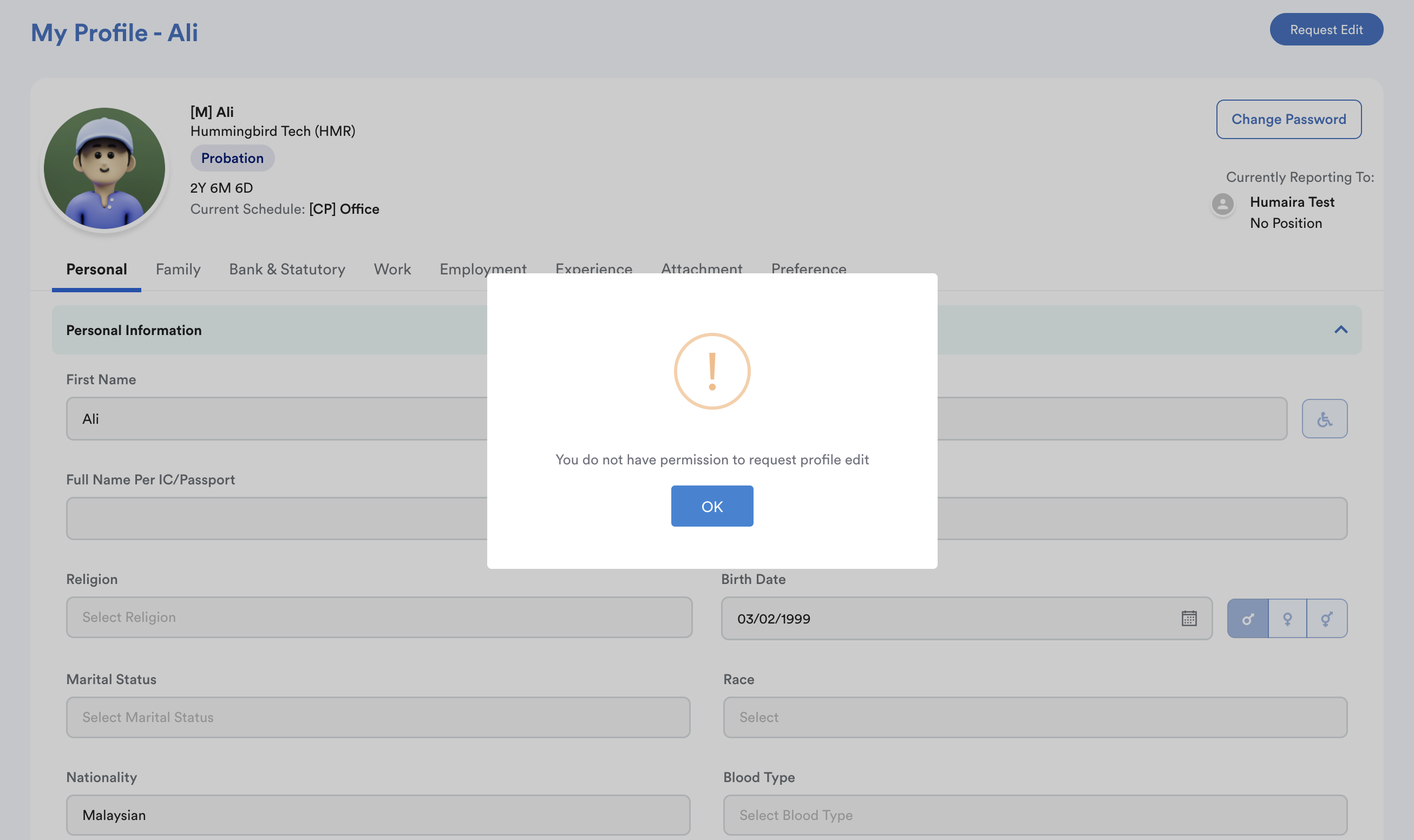
If you receive the error message "You do not have permission to request profile edit", please contact your HR administrator to configure the appropriate Employee Profile Access permissions.
Step 4
As you edit your profile, any modified field will be highlighted with a yellow border, making it easy to identify the changes you have made.
You can also track your changes from the navigation menu on the left. A yellow dot displayed next to a profile section indicates that changes have been made within that section.
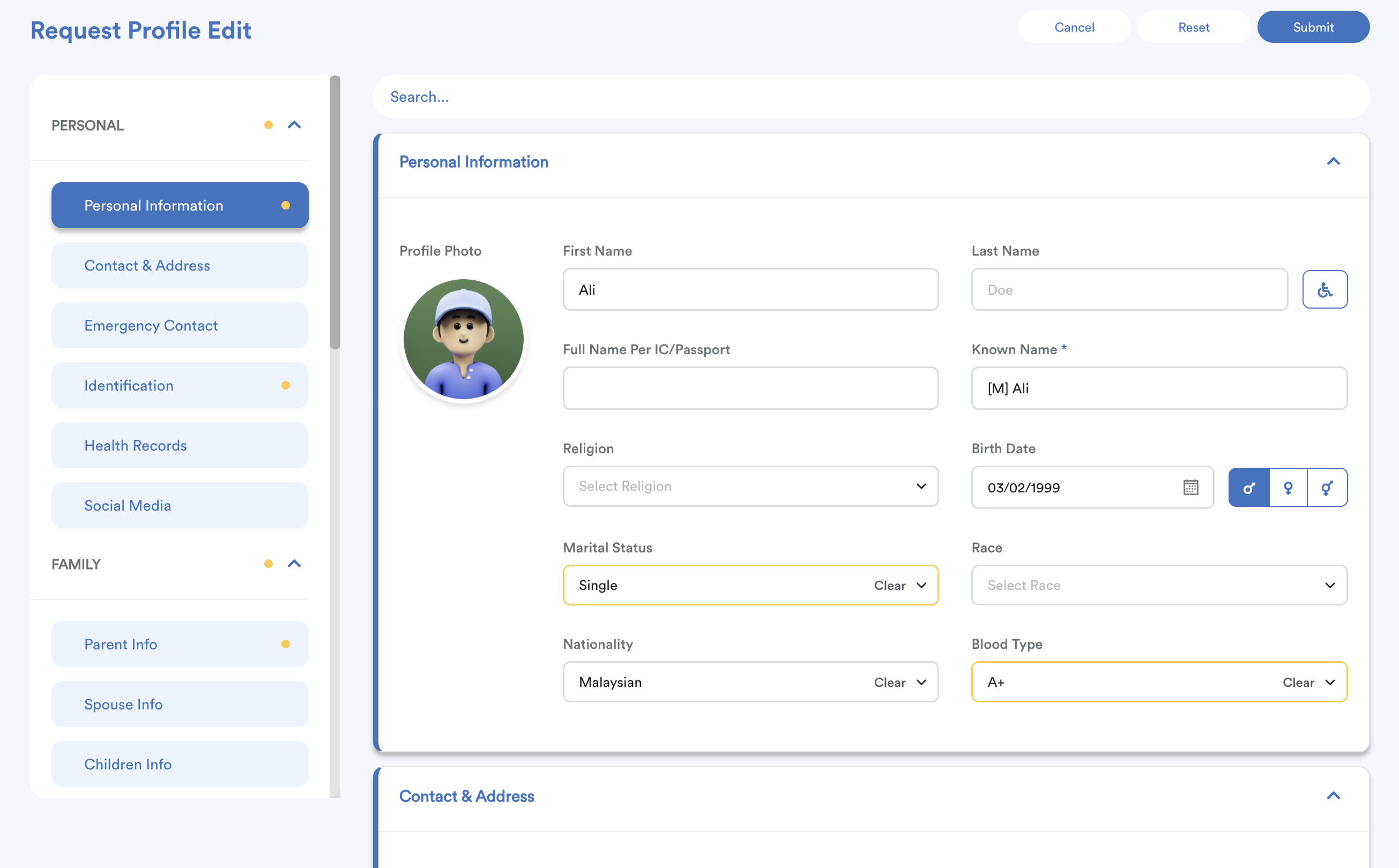
You can also use the following options:
- Reset – Revert all changes made during the current editing session.
- Cancel – Discard the request and exit without saving.
If a profile field cannot be edited or blank screen, please contact your HR administrator to configure the appropriate Employee Profile Access permissions.
Step 5
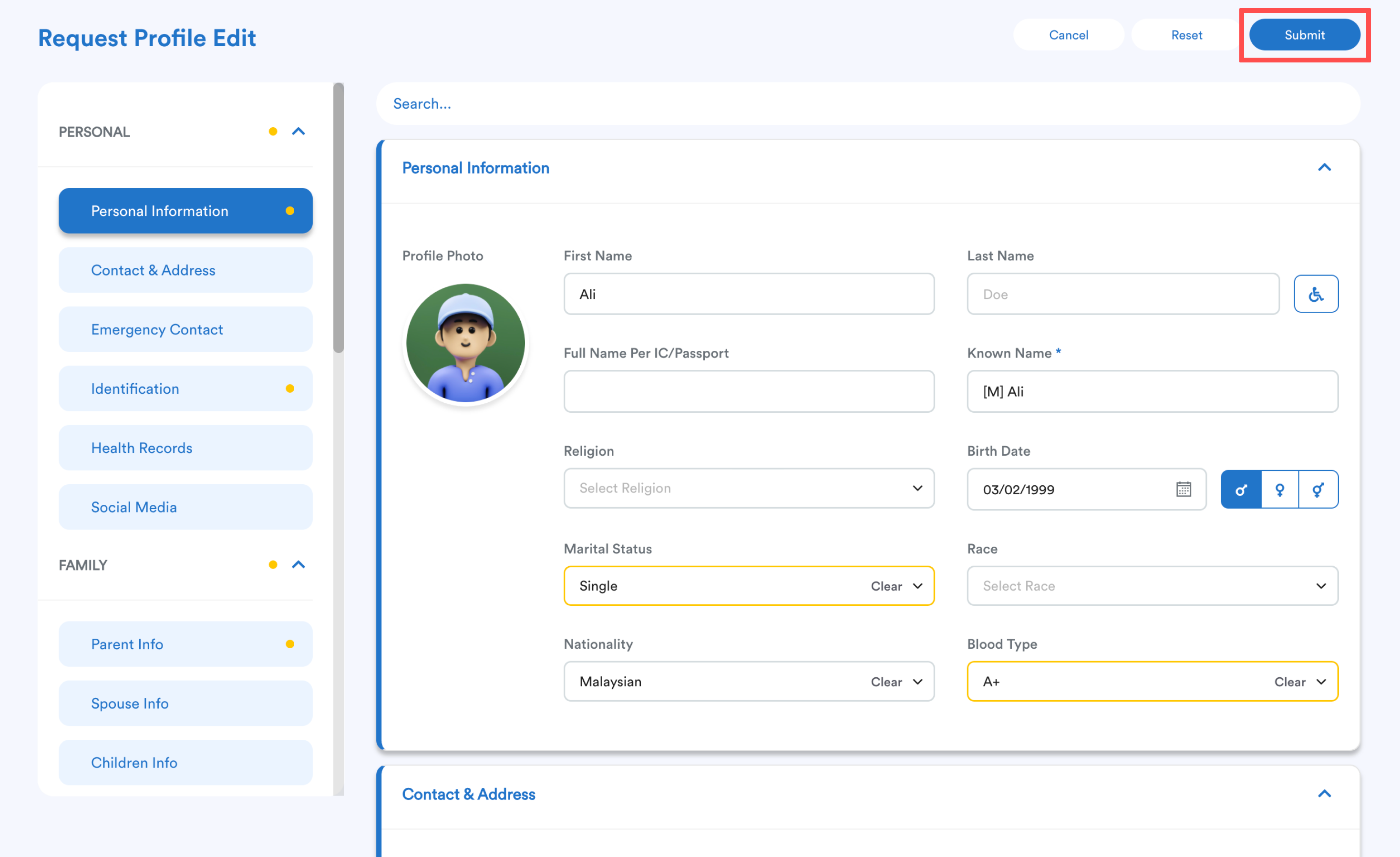
After completing the necessary changes, click Submit in the top-right corner of the page.
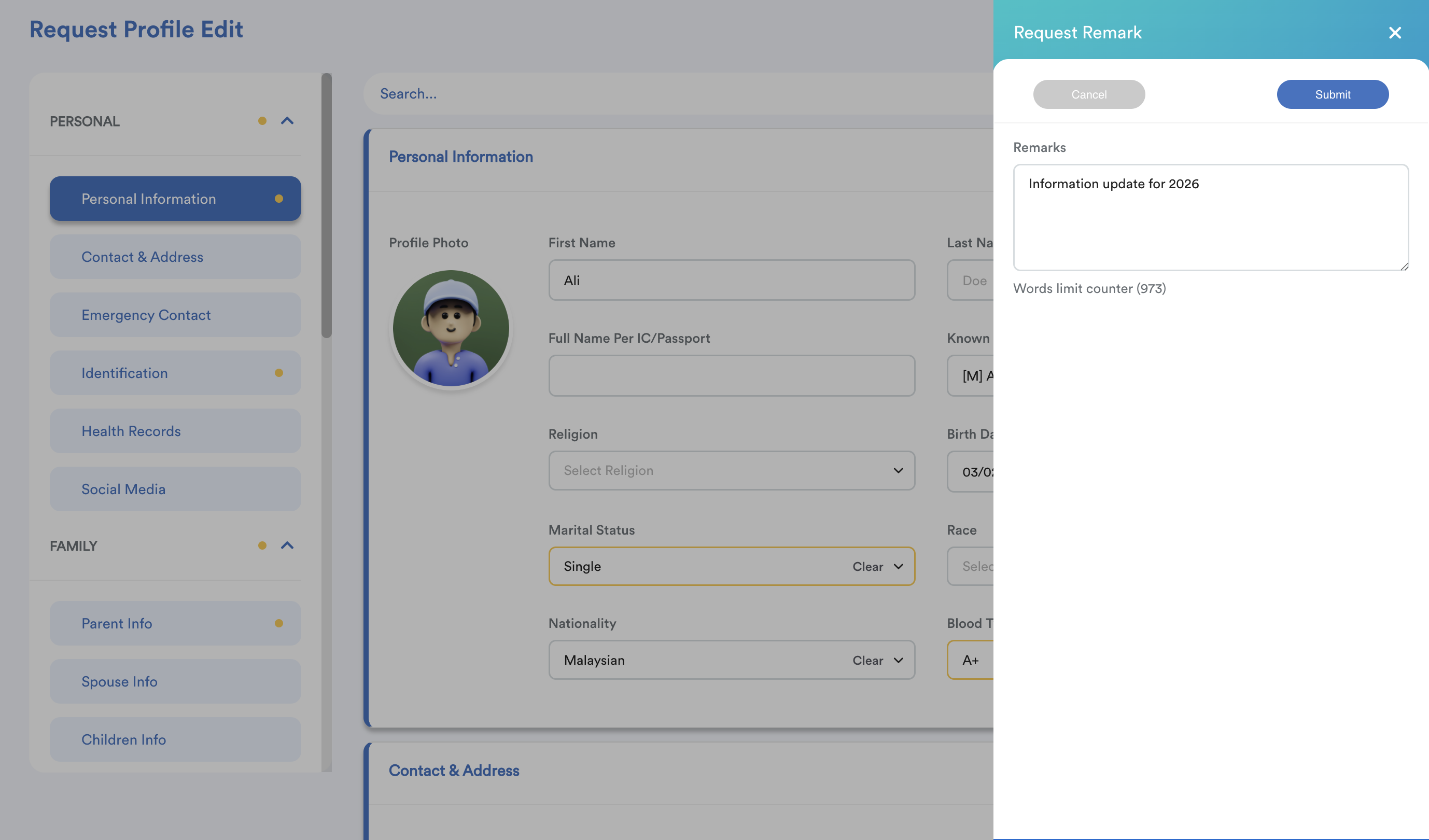
A submission drawer will appear. If required, enter a reason for your changes to help the approver understand the request, then click Submit again.
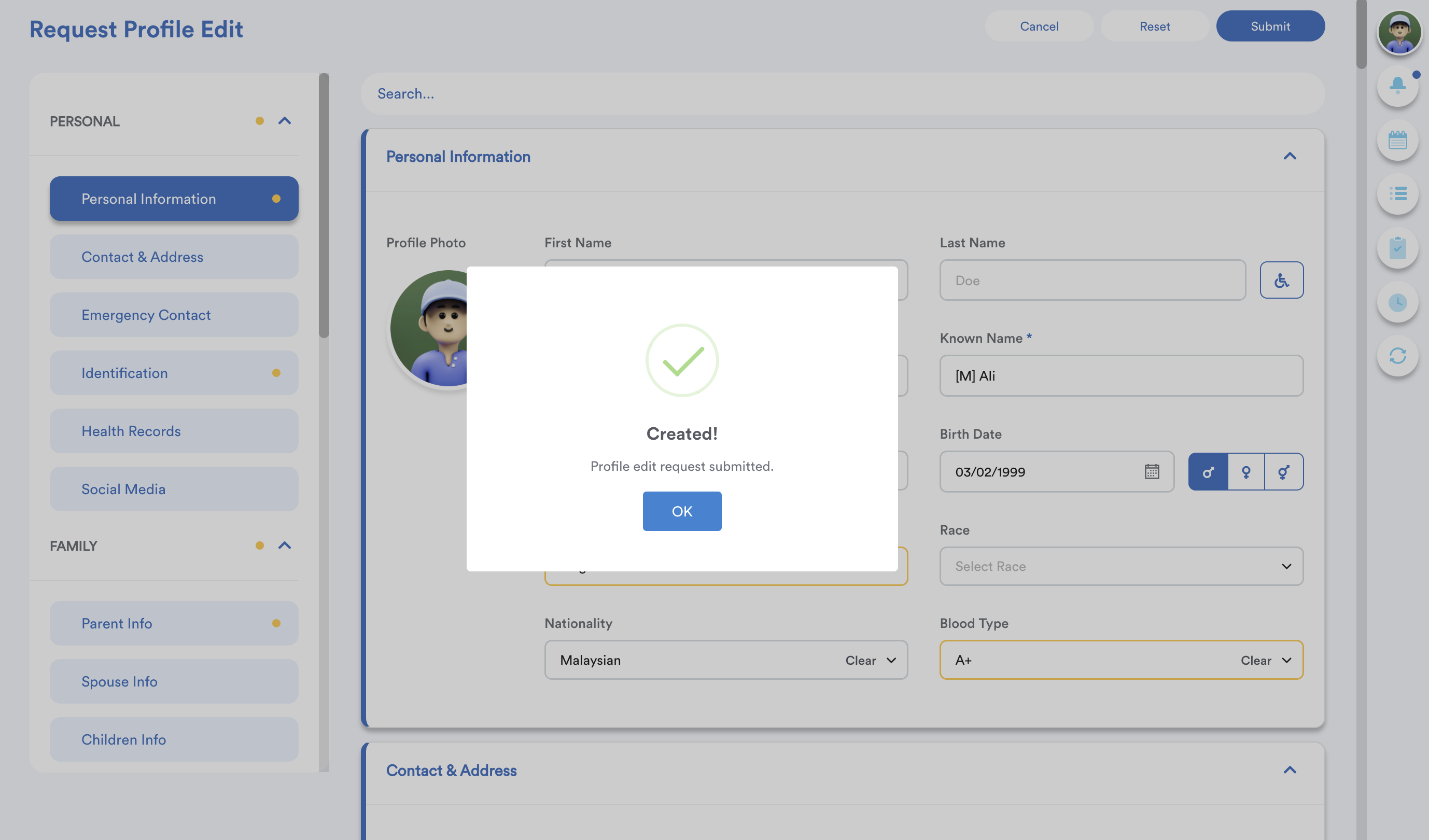
A confirmation pop-up will appear after the request has been submitted successfully.
Error
If you see workflow not found error, please contact your HR or Admin to manage Profile Update approval workflow for you.
Step 6 (Optional)
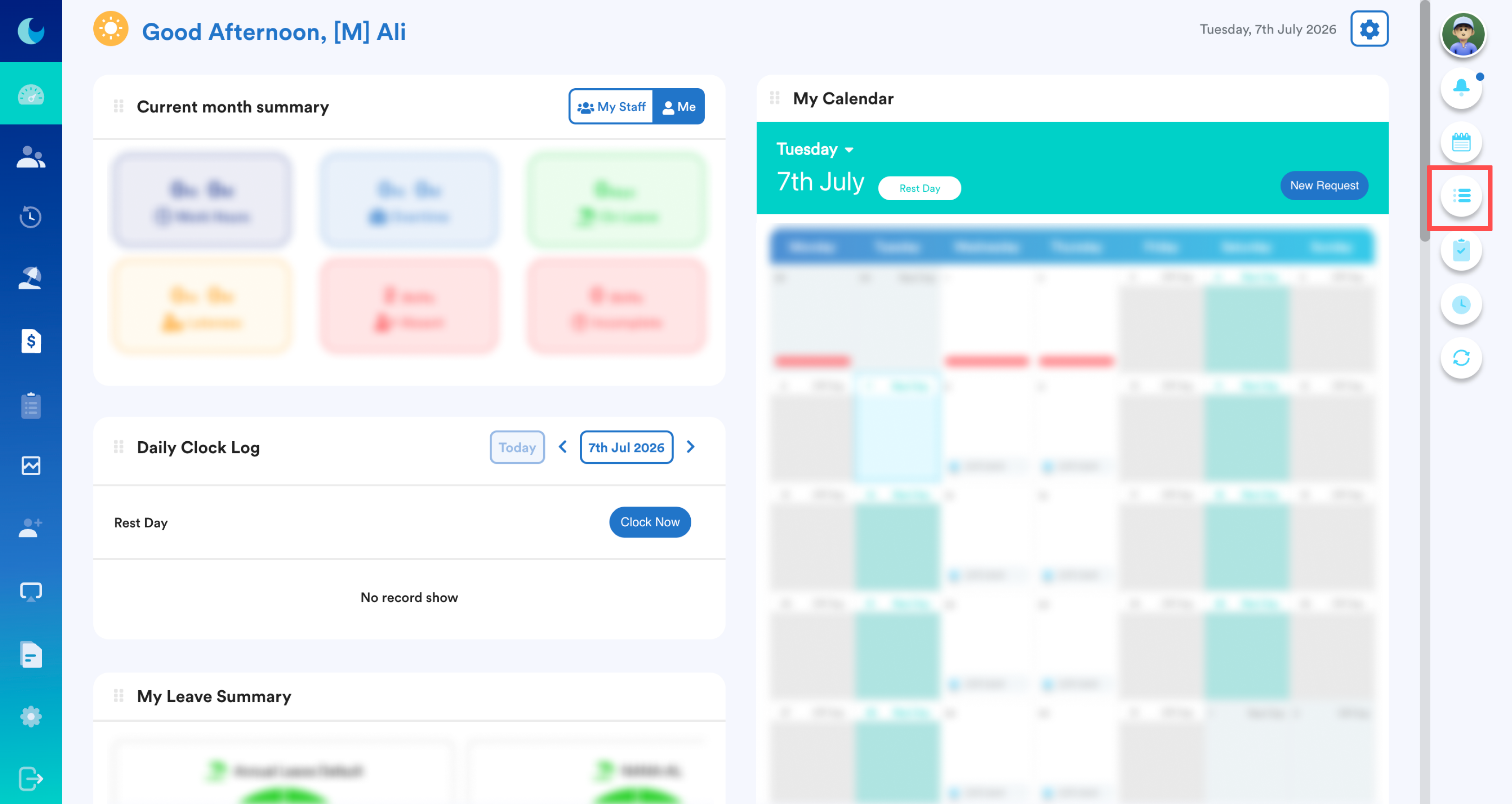
To check the status of your Profile Edit Request, navigate to the top-right corner and select My Request.
Step 7 (Optional)
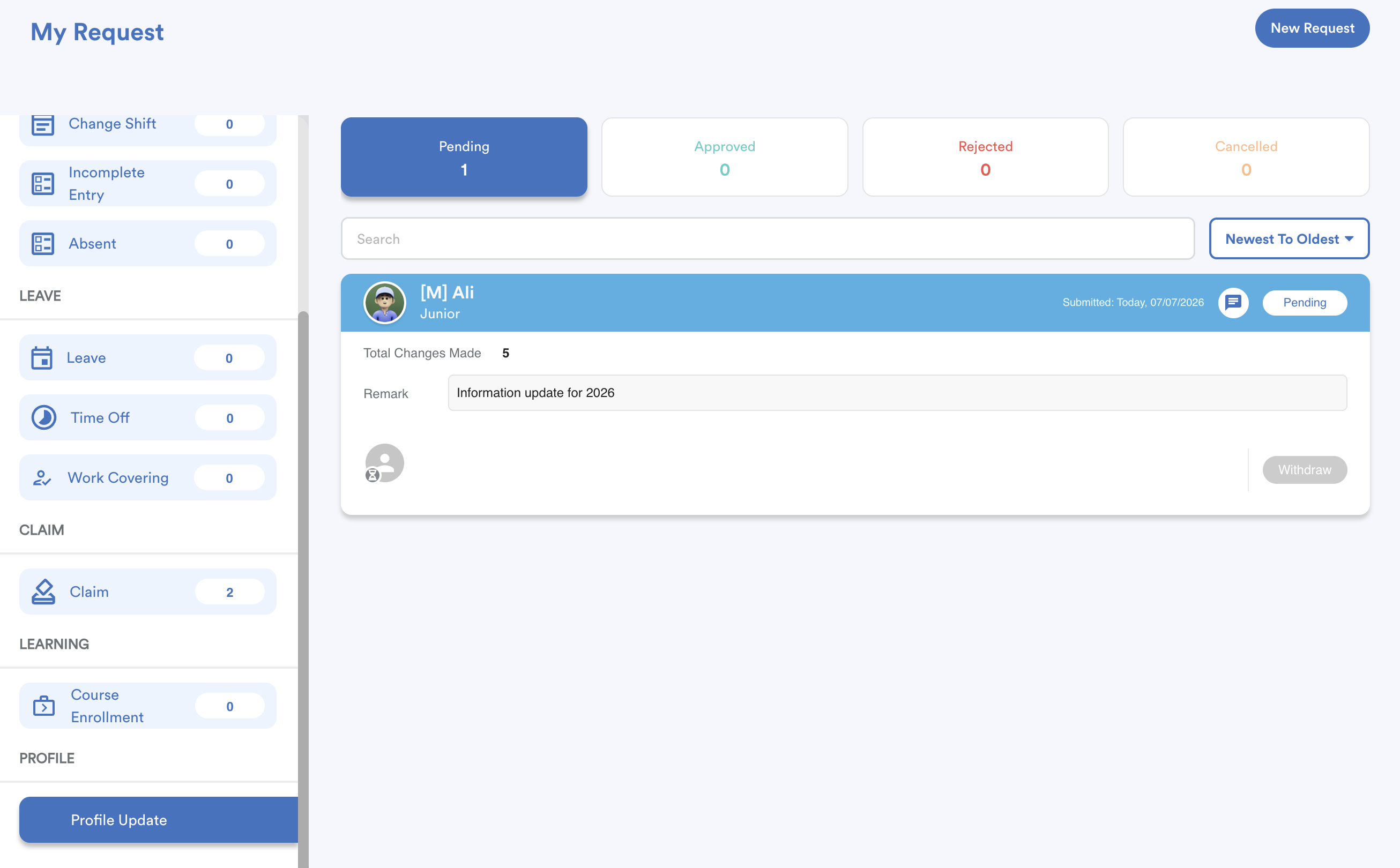
From the left menu, select Profile Update.
Your submitted request will appear under the Pending tab until it has been approved or rejected.
We hope this explanation clarifies the matter. If you require additional assistance, do not hesitate to contact our support team.
Was this article helpful?
That’s Great!
Thank you for your feedback
Sorry! We couldn't be helpful
Thank you for your feedback
Feedback sent
We appreciate your effort and will try to fix the article