If you would like to update the salary by batch, you may refer to Salary Adjustment by Batch.
To change existing timeline details, you may refer to Edit Employment Details in Employee Profile Timeline.
To add a new record: confirmation, resignation, progression, salary update, please update in Employee > Progression tab.
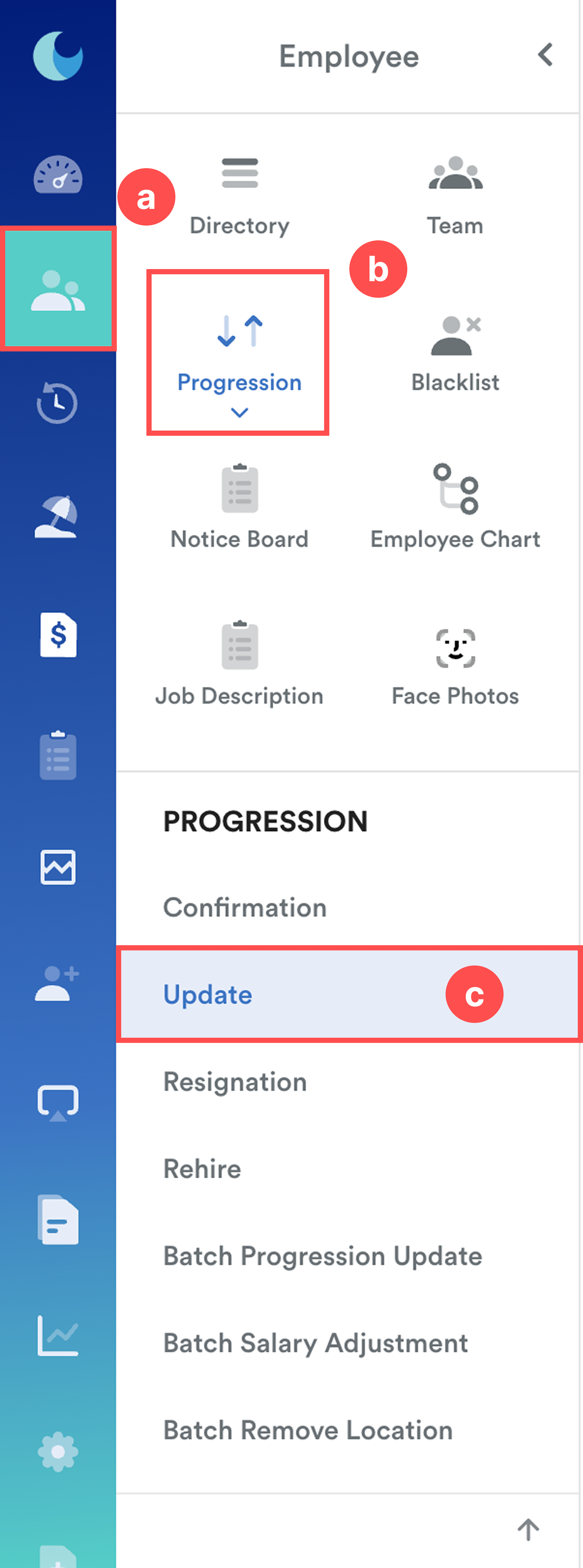
Step 1
On the left menu, go to Employee (a). Under Progression (b), click on Update (c).
Step 2
Once clicked, you will see the individual employee's employment information as shown below:
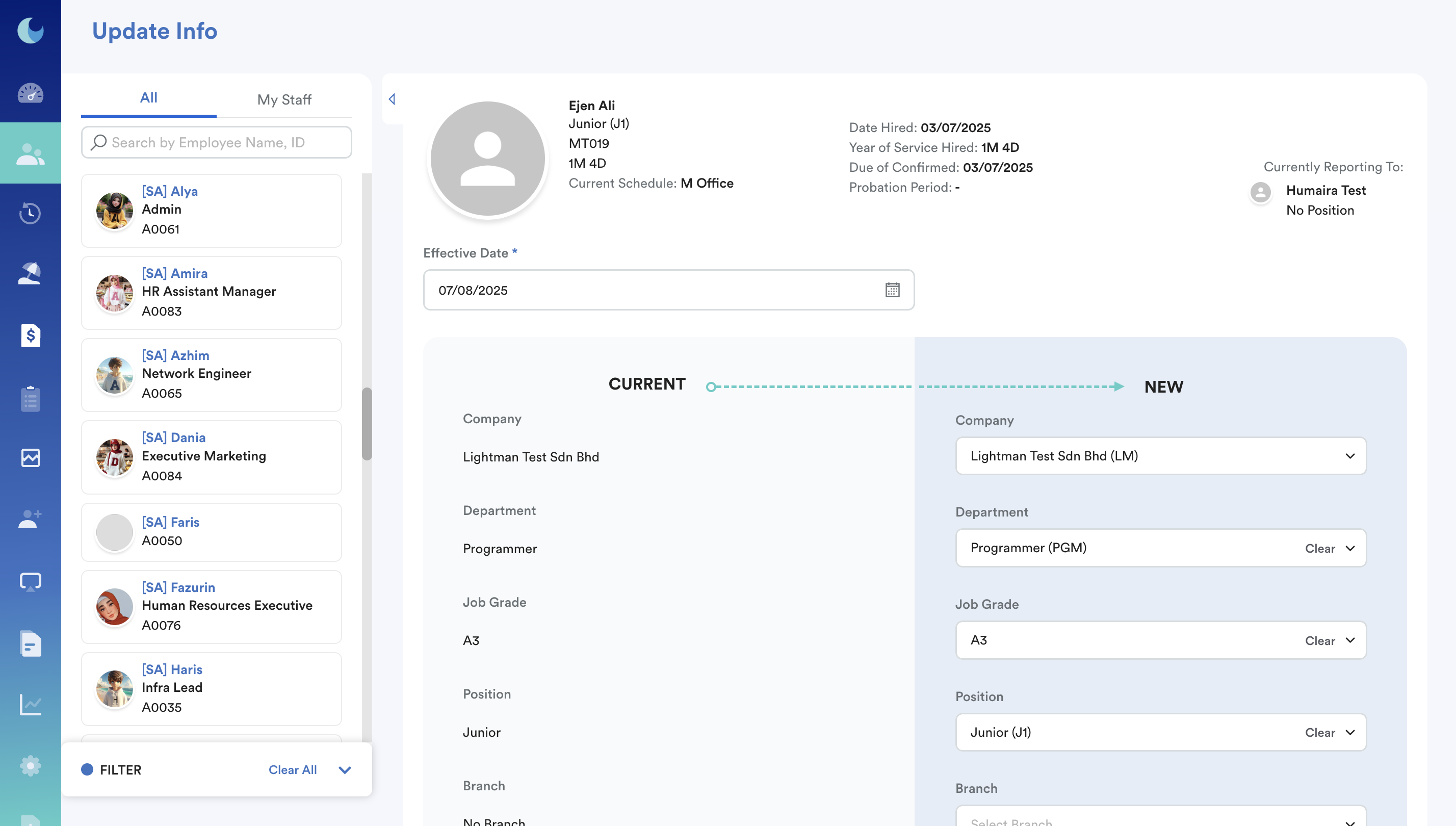
There are two important fields to update for a salary change:
a. Effective Date
Make sure the effective date is accurate, as this is crucial to prorate the salary for the updated period and ensure it is reflected correctly in payroll calculations.
Note: To ensure no salary proration, just key in the 1st day of the effective month.

b. Basic Salary
Enter the correct salary amount and ensure the appropriate pay mode (e.g. monthly rate) is selected.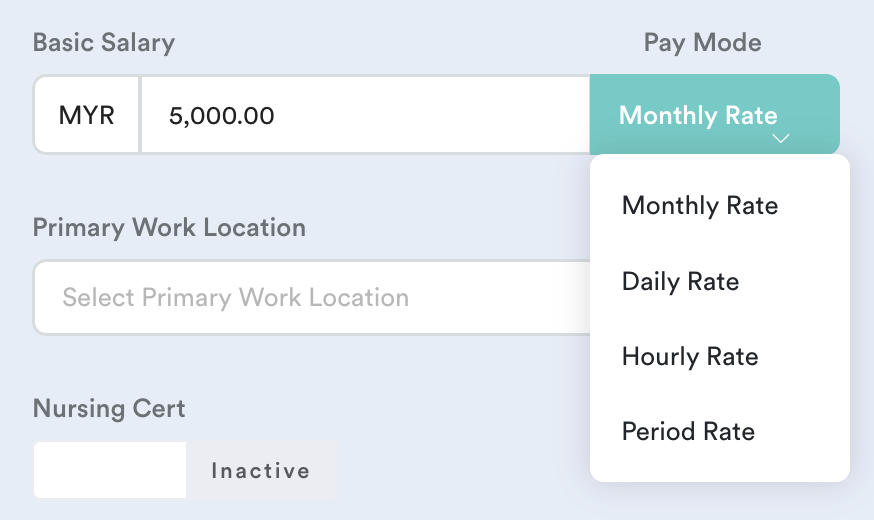
You may also update other employment-related information in the remaining fields, if needed.
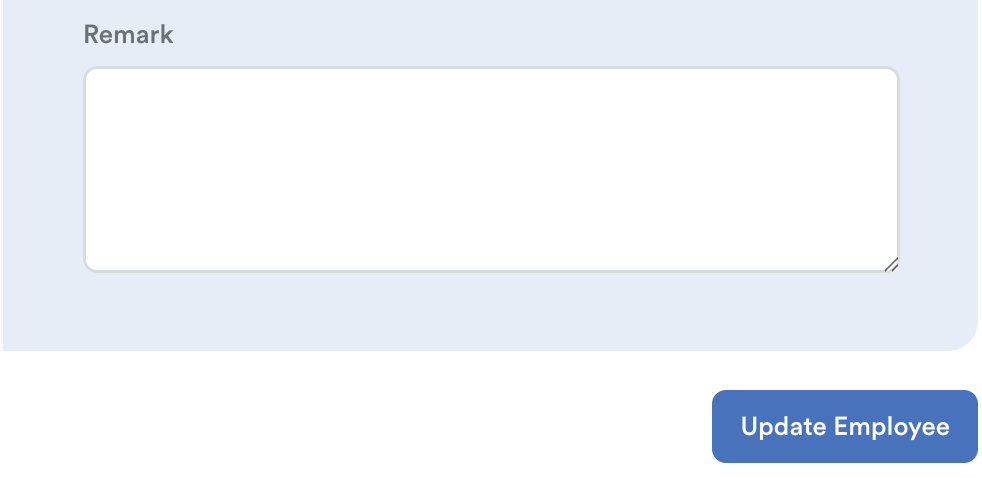
Scroll down and click Update Employee.
Step 3
To check if your update of salary is successful, you can check at the employee’s profile:
- Employment Tab
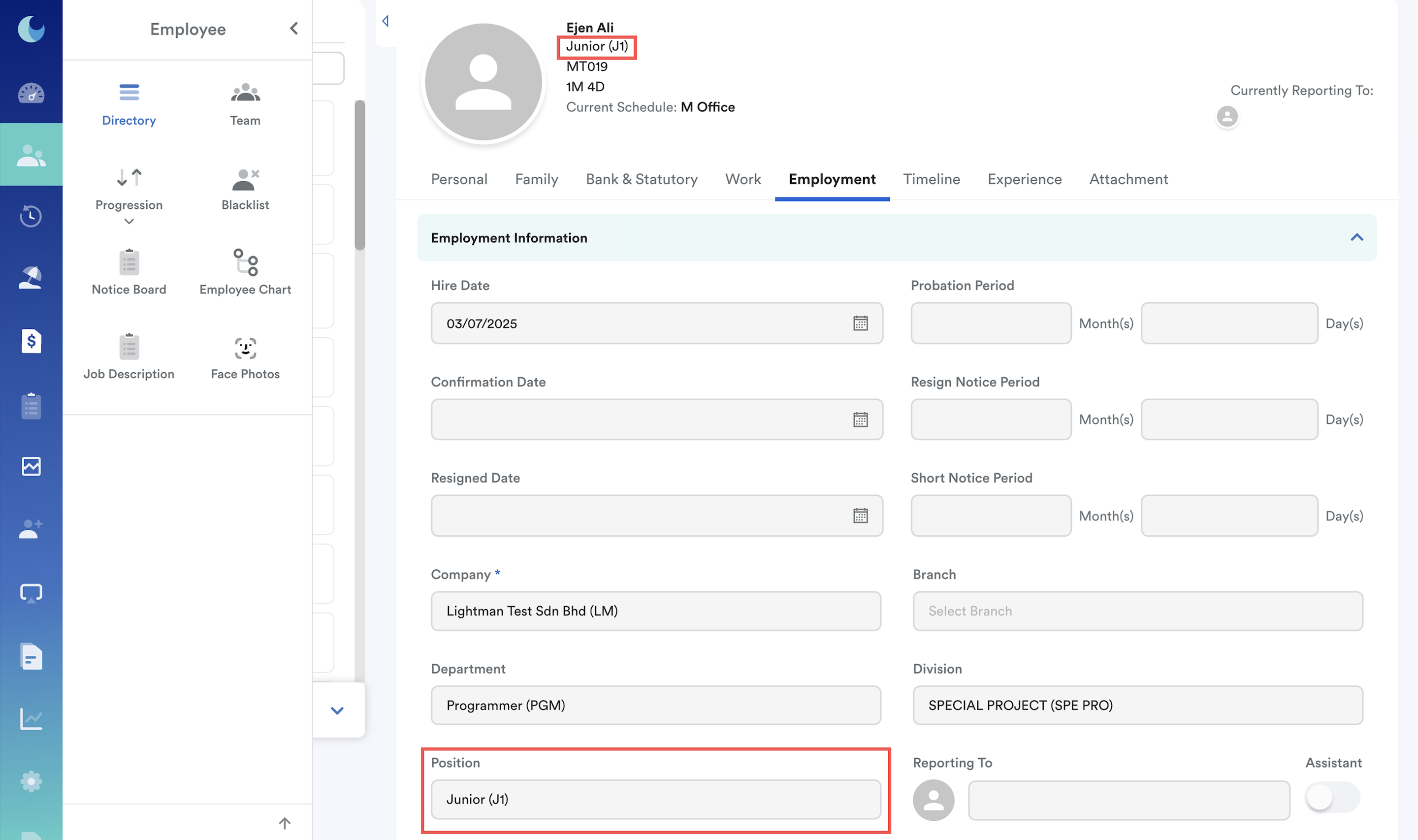
Scroll down slightly to see updated Basic Salary.
Important: We recommend updating salary and employment info from Employee > Progression > Update.
- Timeline Tab:
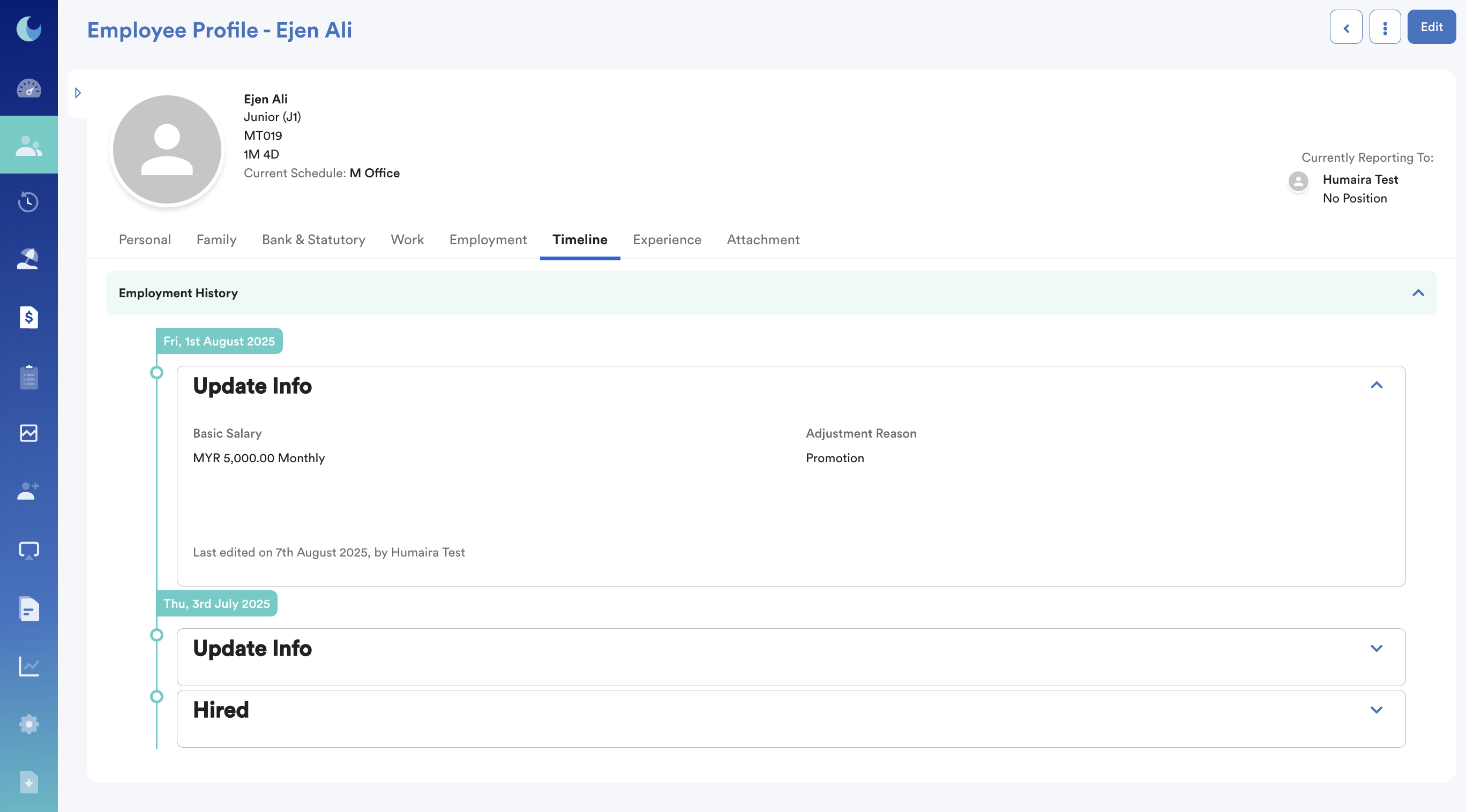
Facing error? This might help you:
- How to Update Employment Details
- Fix Effective Date to Show Correct Employee Info in Payslip
- Fix “Cannot Select a Hire Date That Is After Any Progression Record” Error
We hope this explanation clarifies the matter for you. If you require further assistance, please don't hesitate to contact our support team.
Was this article helpful?
That’s Great!
Thank you for your feedback
Sorry! We couldn't be helpful
Thank you for your feedback
Feedback sent
We appreciate your effort and will try to fix the article