This guide explains how to manually adjust an employee's leave balance.
While you can make changes from the Leave Summary, we strongly recommend using the Individual Leave screen. This method ensures all adjustments include remarks for better audit trails and future reference.
Step 1
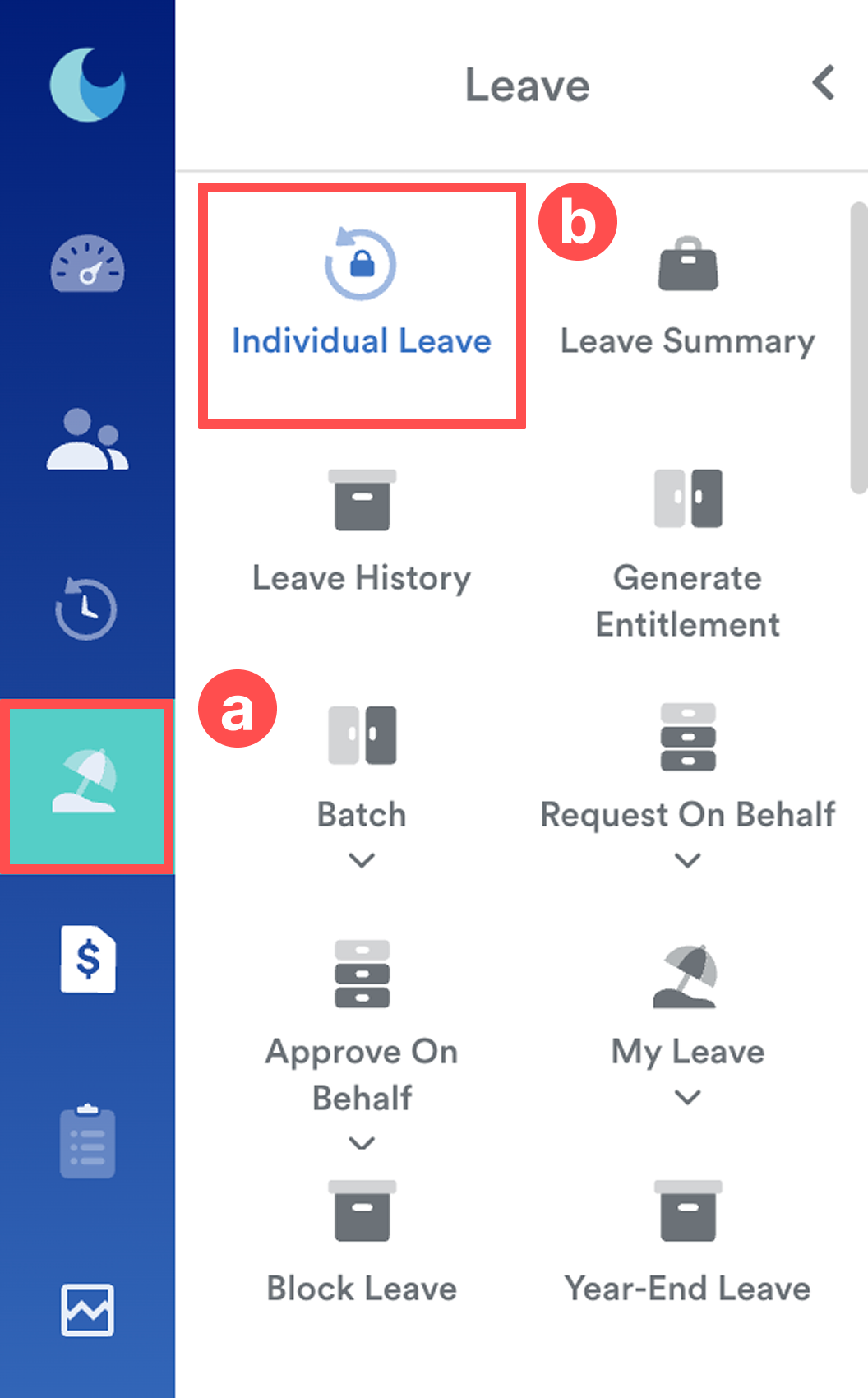
On the left menu, go to to Leave > Individual Leave. Then,
Step 2
Search for the employee’s name. Then, scroll down to the Leave History section.
Ensure you have selected the correct entitlement year.
Step 3
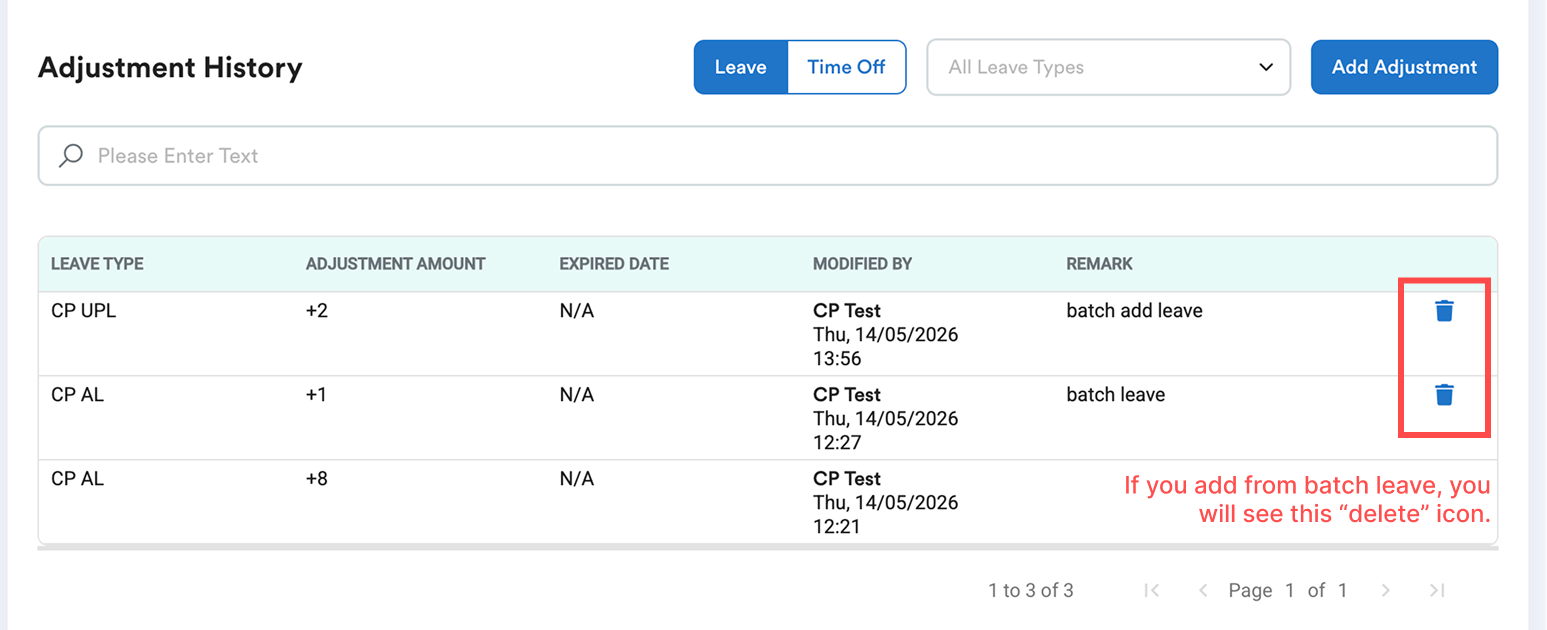
Find the Adjustment History section at the bottom of the page and click the Add Adjustment button to add an adjustment.
You can also delete the adjustment by clicking the delete icon. This "delete" icon will only appear if you add from the batch leave.
Step 4
Enter the adjustment details.
Leave Type: Choose the specific leave category
Amount: Enter the number of days.
- To add leave, enter a positive number (e.g. 2).
- To deduct leave, enter a negative number (e.g. -2).
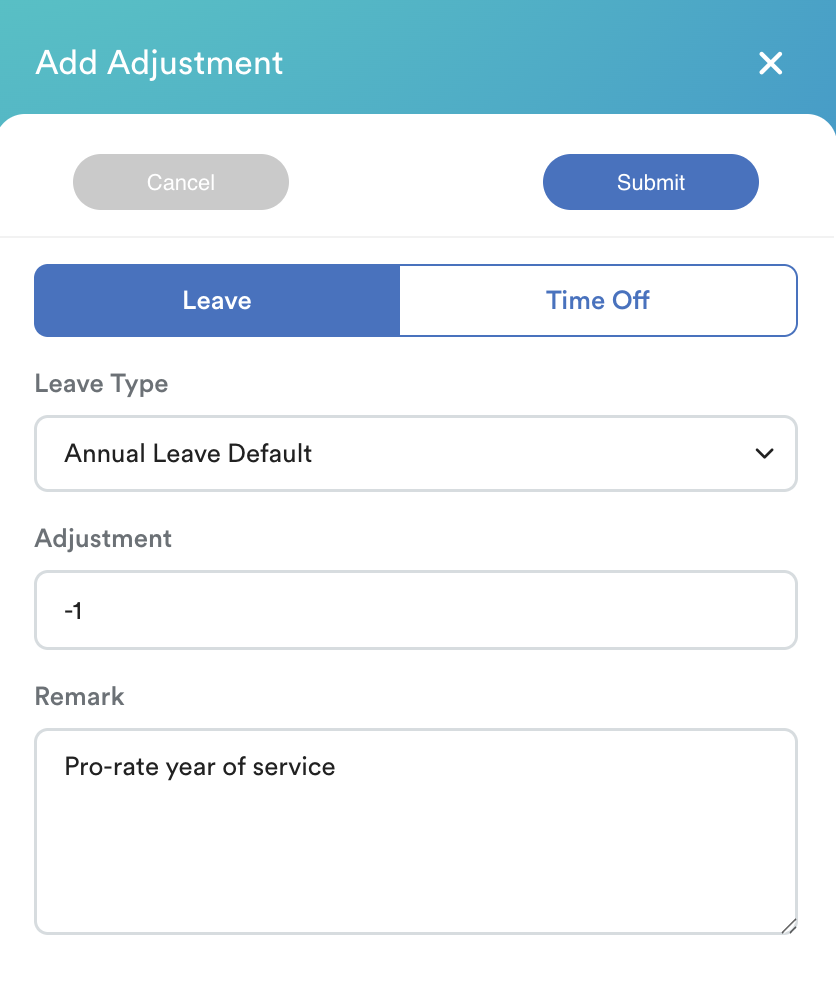
Remarks: Enter a detailed reason for the adjustment for documentation purposes.
Important
Once an adjustment is saved, it cannot be deleted. To fix an error, you would need to create a new adjustment to balance the total.
For example, if an adjustment of "-2" was entered to deduct 2 days from the leave balance, you would need to add another adjustment of "2" days to reverse the previous deduction.
We hope this explanation clarifies your concern. Should you require additional information or further assistance, please do not hesitate to contact our support team.
Was this article helpful?
That’s Great!
Thank you for your feedback
Sorry! We couldn't be helpful
Thank you for your feedback
Feedback sent
We appreciate your effort and will try to fix the article