For desktop version, refer this guide: How to Submit Claim Request via Desktop
Step 1
Open Worksy app on your mobile device.
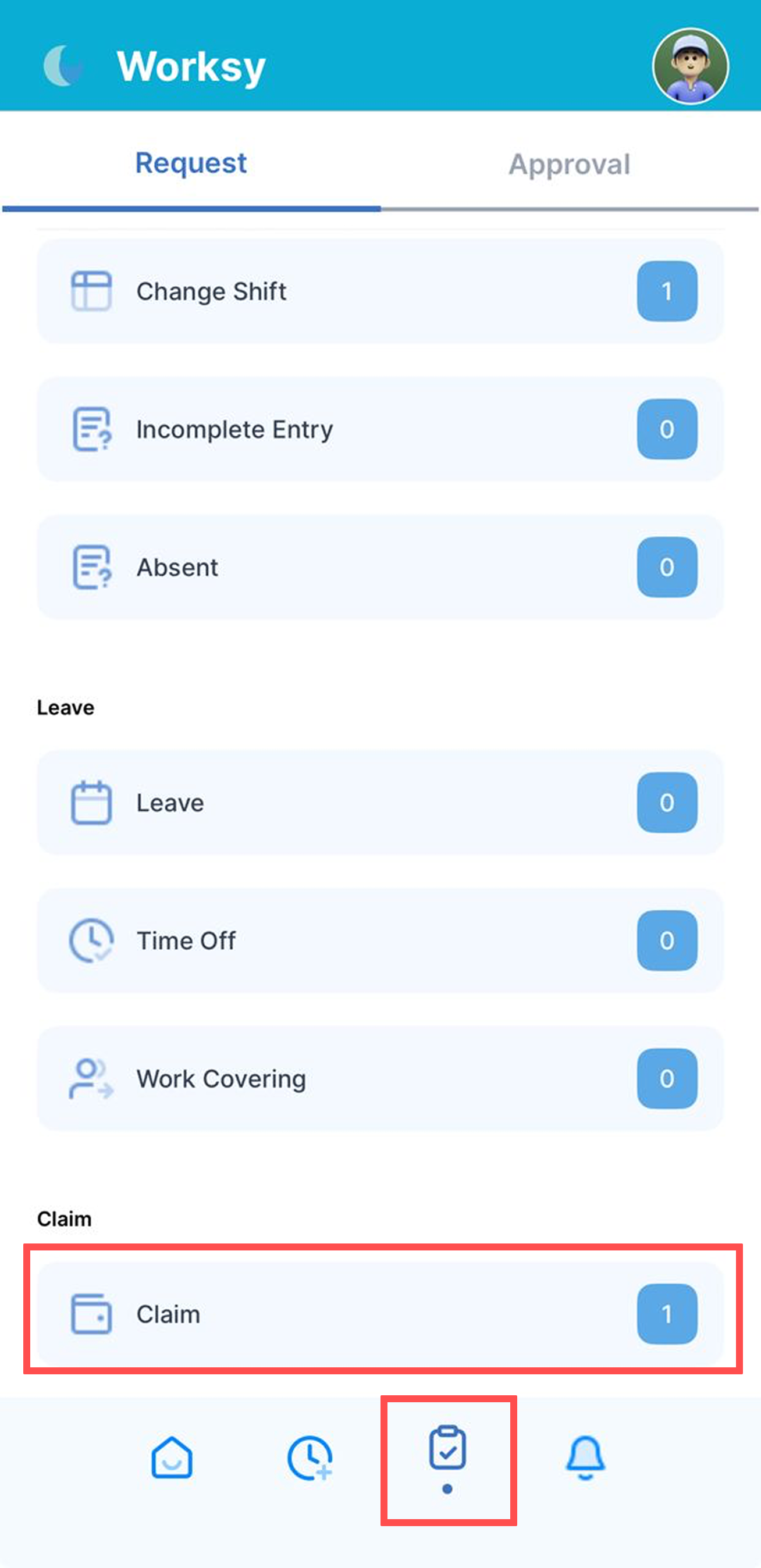
Tap My Request icon at the bottom of the screen, then select Claim.
Step 2
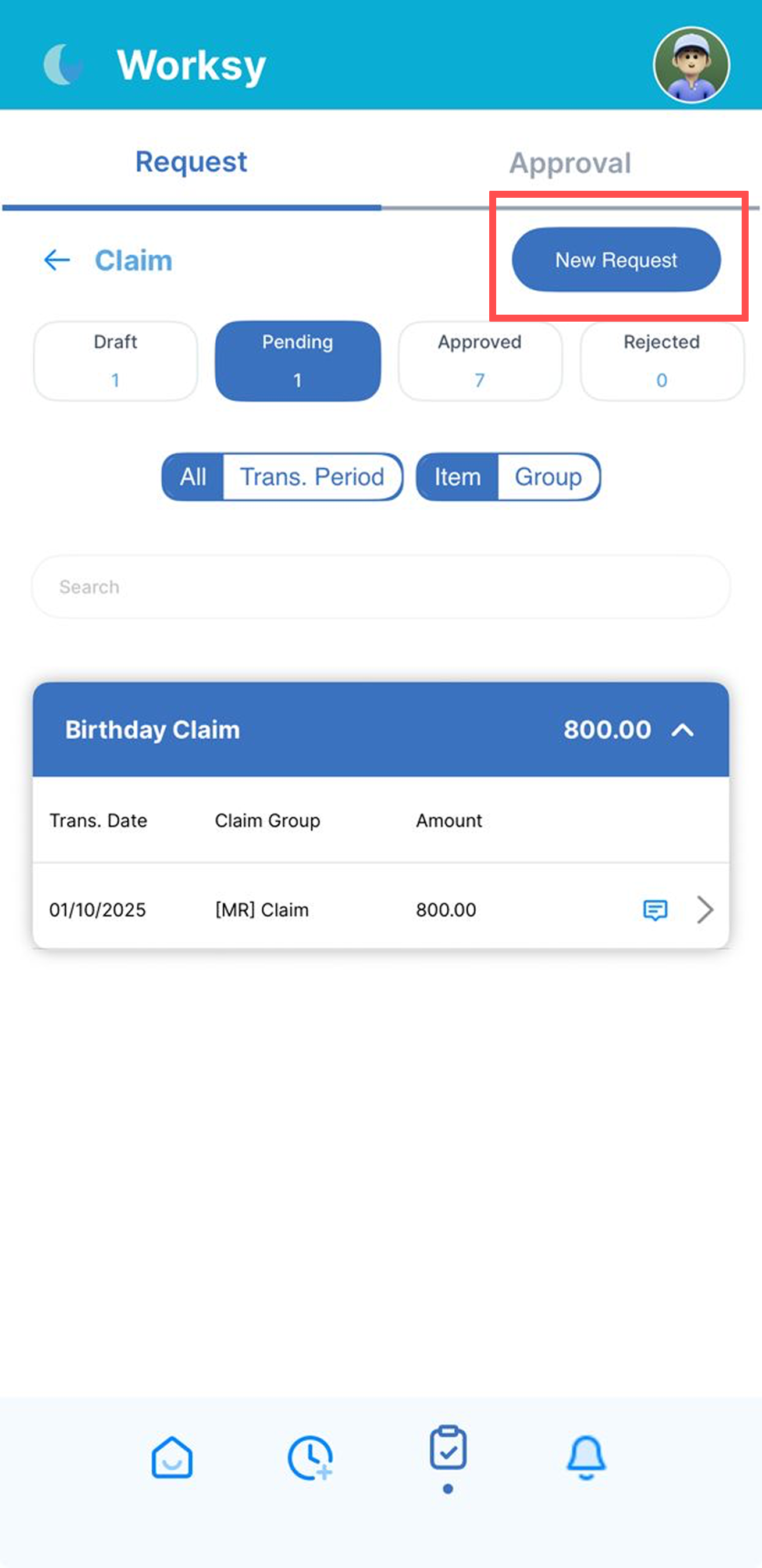
Tap New Request to create a new claim.
Step 3
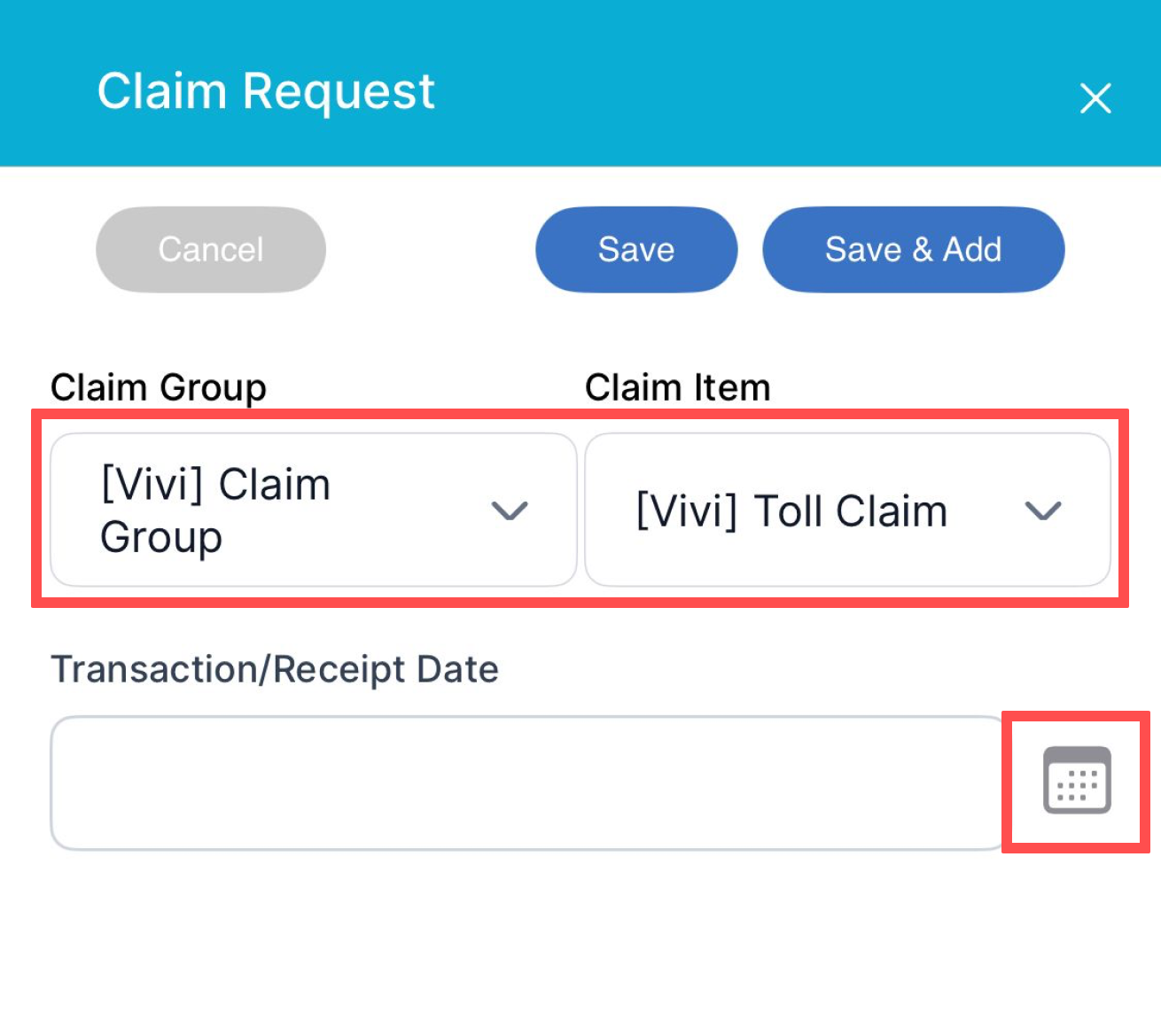
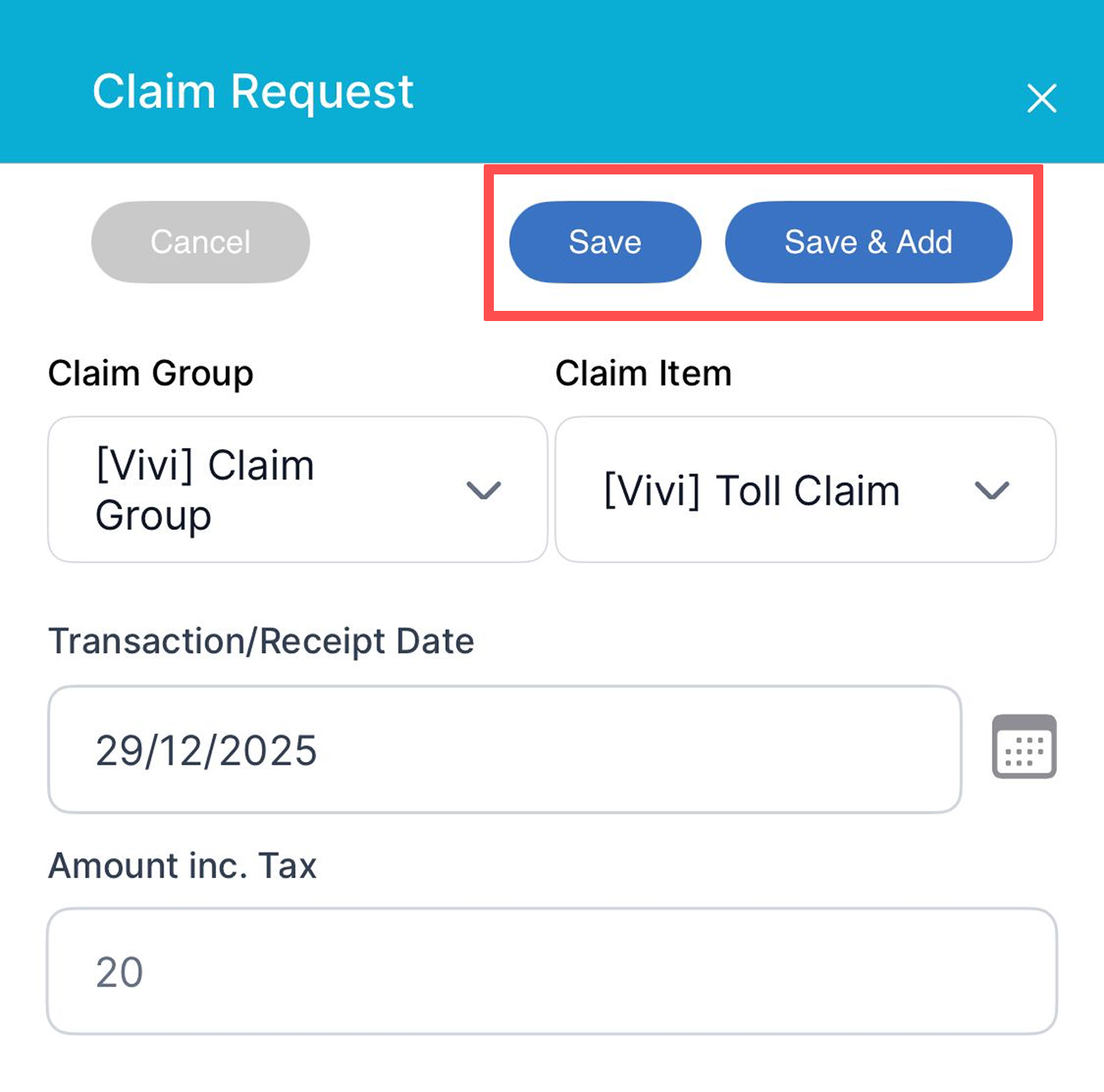
Select the relevant Claim Group and Claim Item from the drop-down menus.
Tap the calendar icon to choose the Transaction / Receipt Date.
Note: Only transaction starting from your hire date is allowed by the system. Transaction date before join date will be blocked.
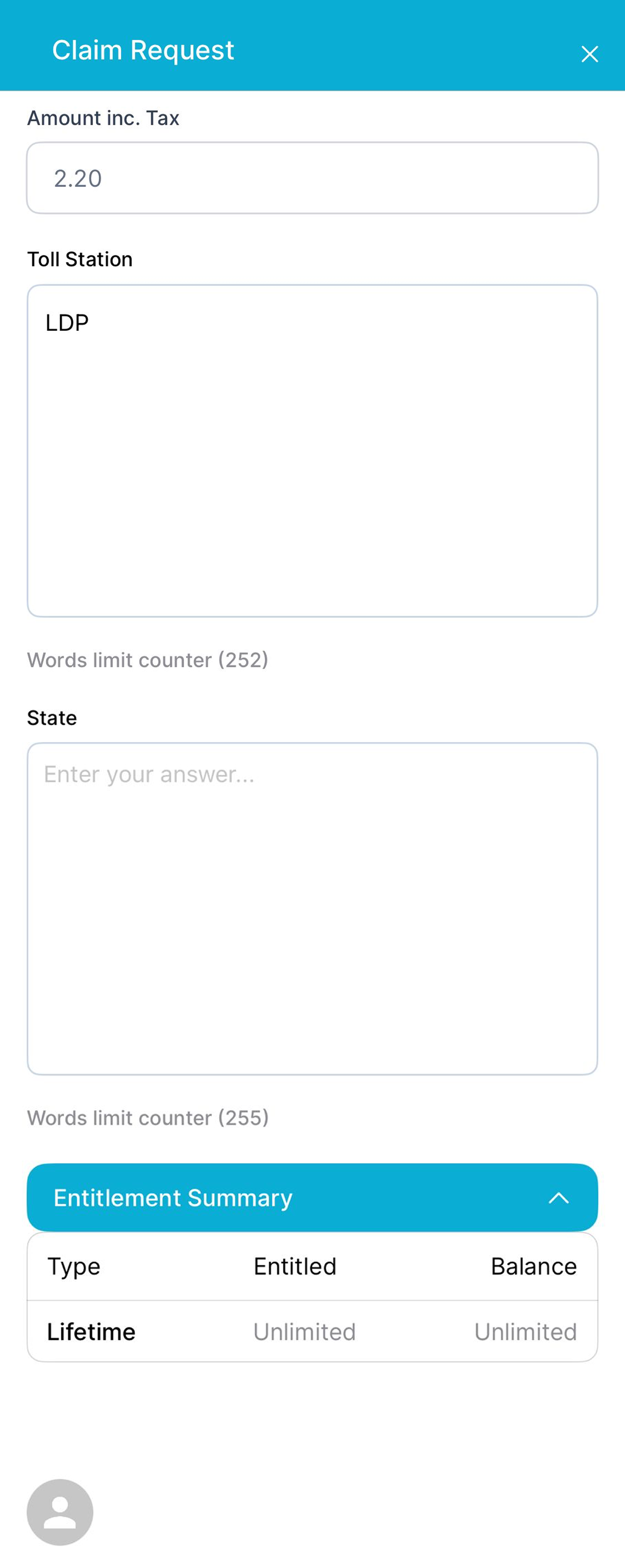
Complete all required fields and upload any supporting documents, if applicable.
Step 4
Once all details are filled in, tap Save or Save & Add in the top-right corner of the screen.
Step 5
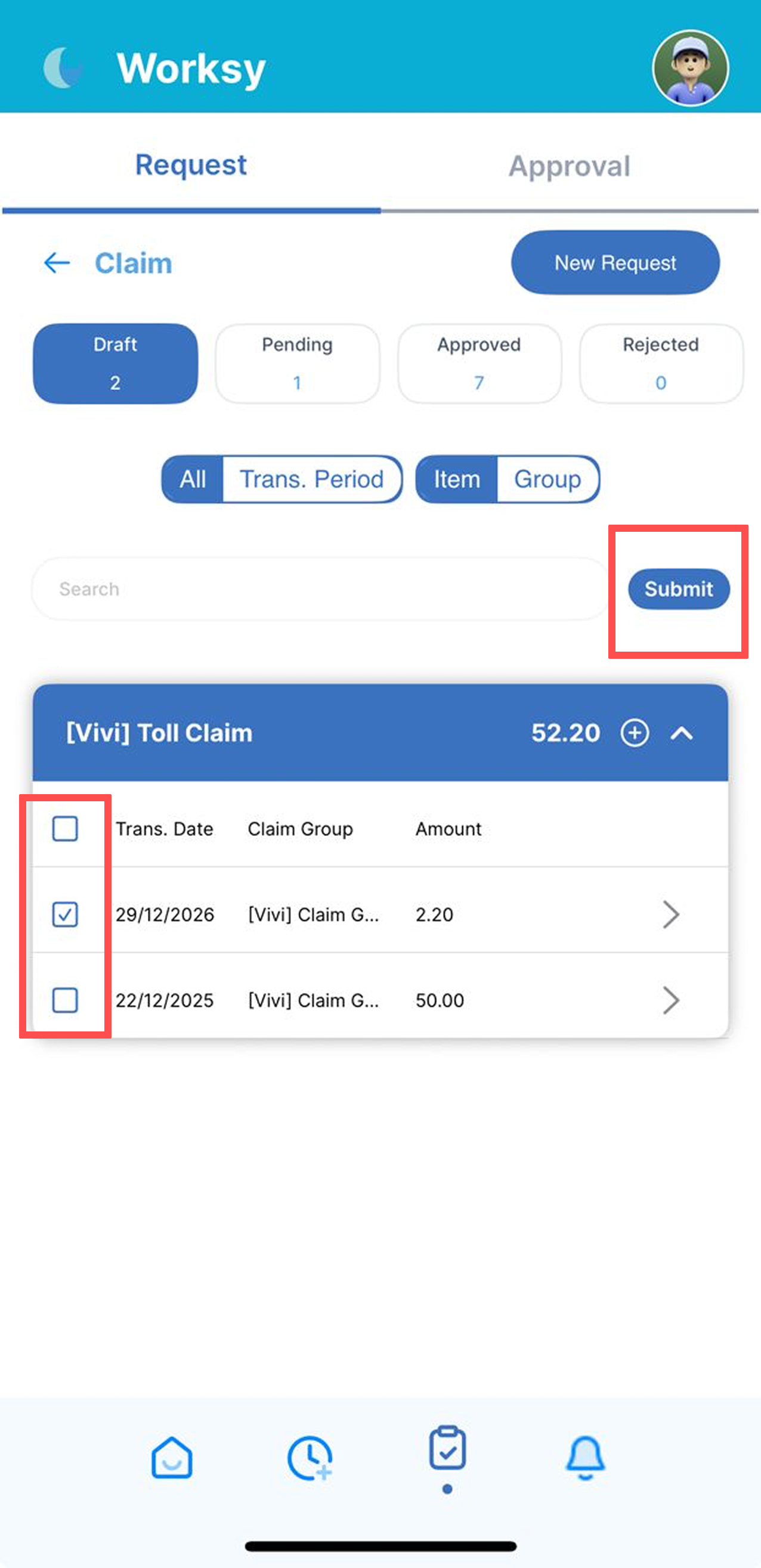
The claim will be saved under the Draft tab.
After reviewing the draft, tick the checkbox and click Submit to send your claim for approval.
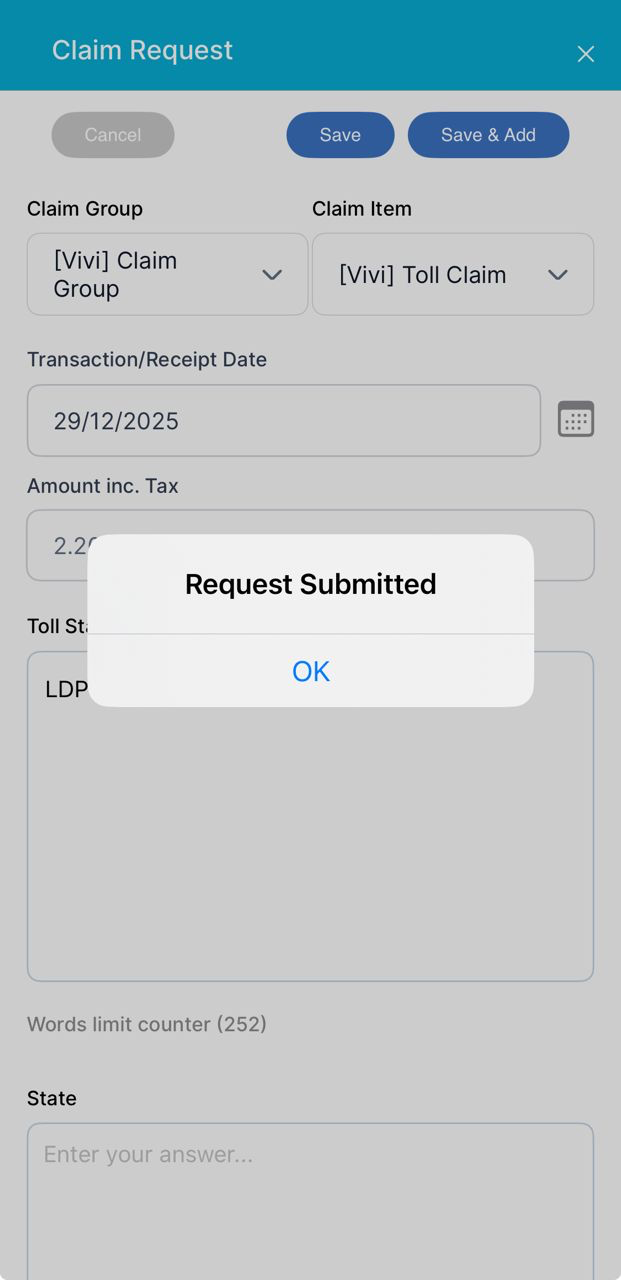
Tap OK to proceed, then tap X to close the claim request screen.
How to Delete a Claim
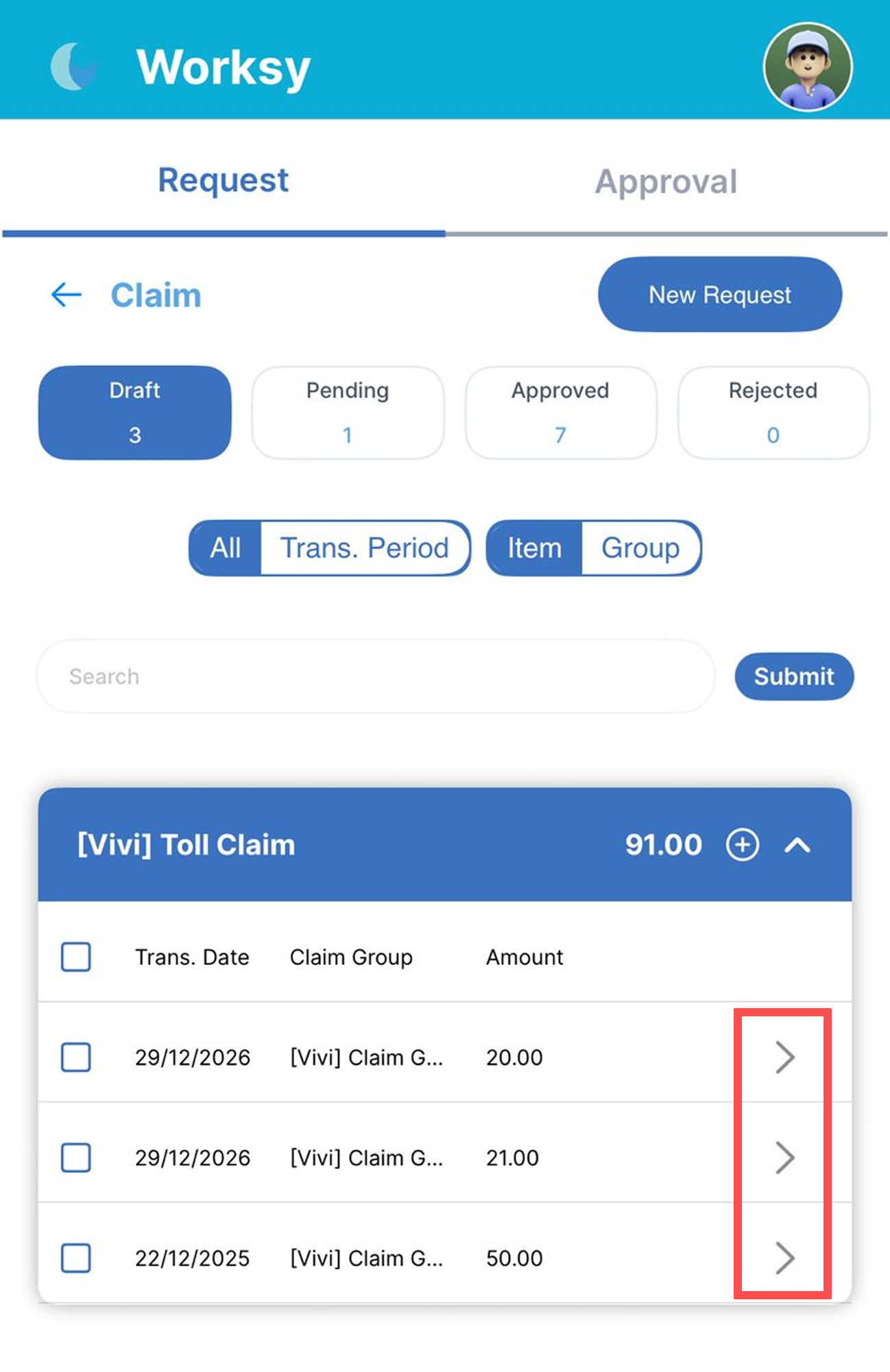
Go to Draft tab. Tap on the arrow next to each claim amount.
Tap Delete.
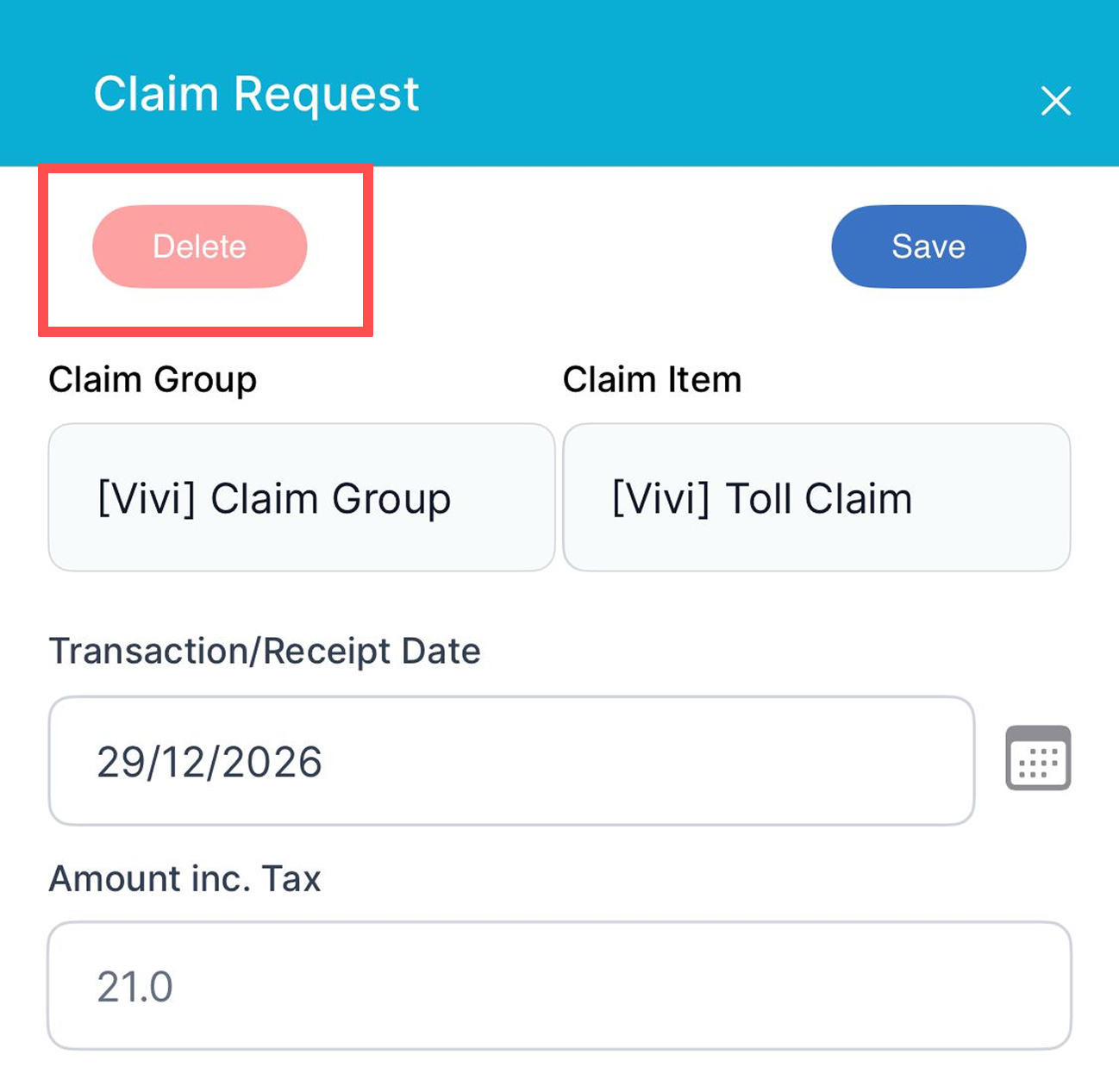
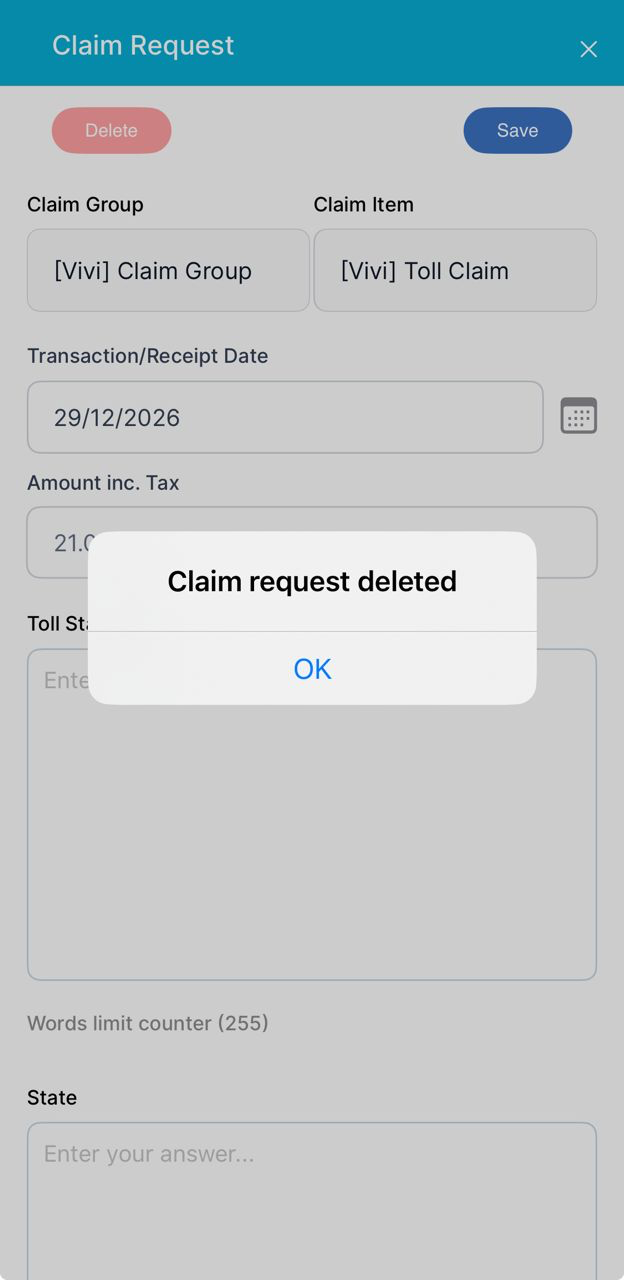
Tap OK to proceed.
We hope this explanation clarifies the matter. If you require additional assistance, do not hesitate to contact our support team.
Was this article helpful?
That’s Great!
Thank you for your feedback
Sorry! We couldn't be helpful
Thank you for your feedback
Feedback sent
We appreciate your effort and will try to fix the article