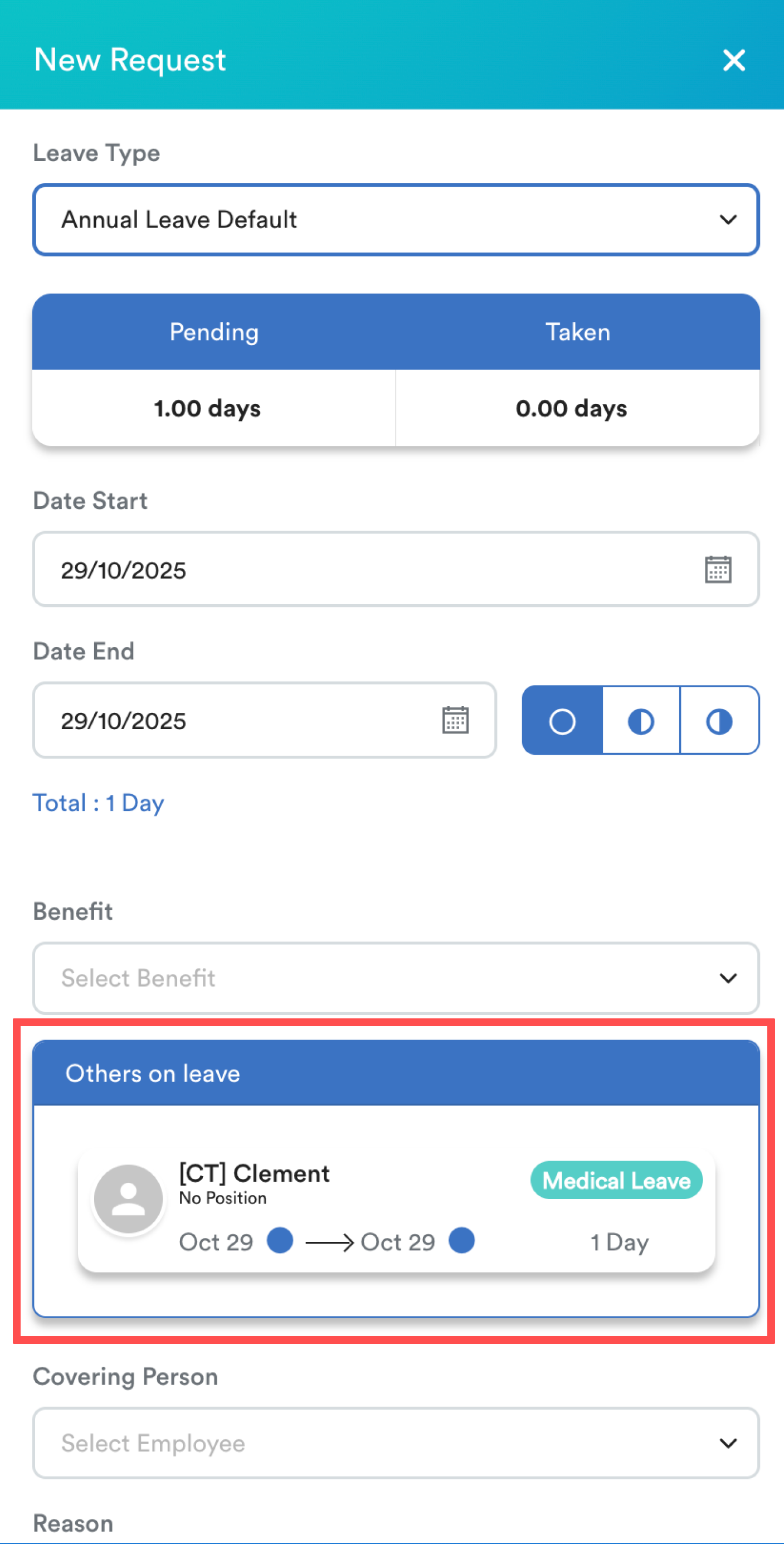
In the Leave Request screen, the Others on Leave column displays employees who have approved leave and are linked to you based on the following relations:
- Reporting to: Your direct supervisor or manager.
- Staff under the same reporting person: Colleagues who report to the same supervisor or manager.
- Subordinates: Employees who report directly to you.
- Team members: Employees who belong to the same team as you.
If any of the above relations exist, the system will display those employees in the Others on Leave list.
Quick Links
Viewing Employees Under a Different Reporting Person
Viewing Employees Under a Different Reporting Person
If you’d like to see an employee who reports to a different manager in your Others on Leave list, you can create a Team and add that employee as a member.
Refer to this guide for step-by-step: Creating Team in Worksy
This will establish a team relation, allowing their approved leave to appear in the Others on Leave column. Refer sample below:
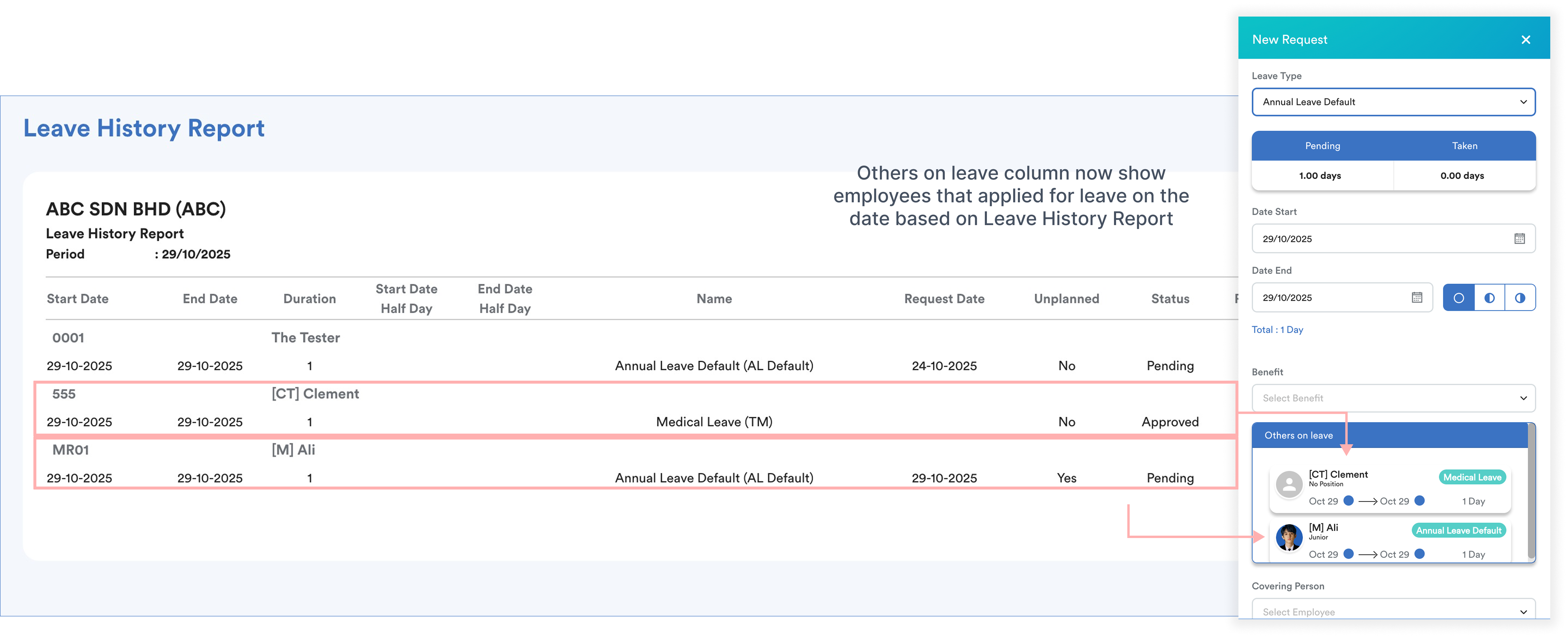
Example
I set "CP Team" with "The Tester" as an admin. I have 4 team members, with the access turned on for Leave Info.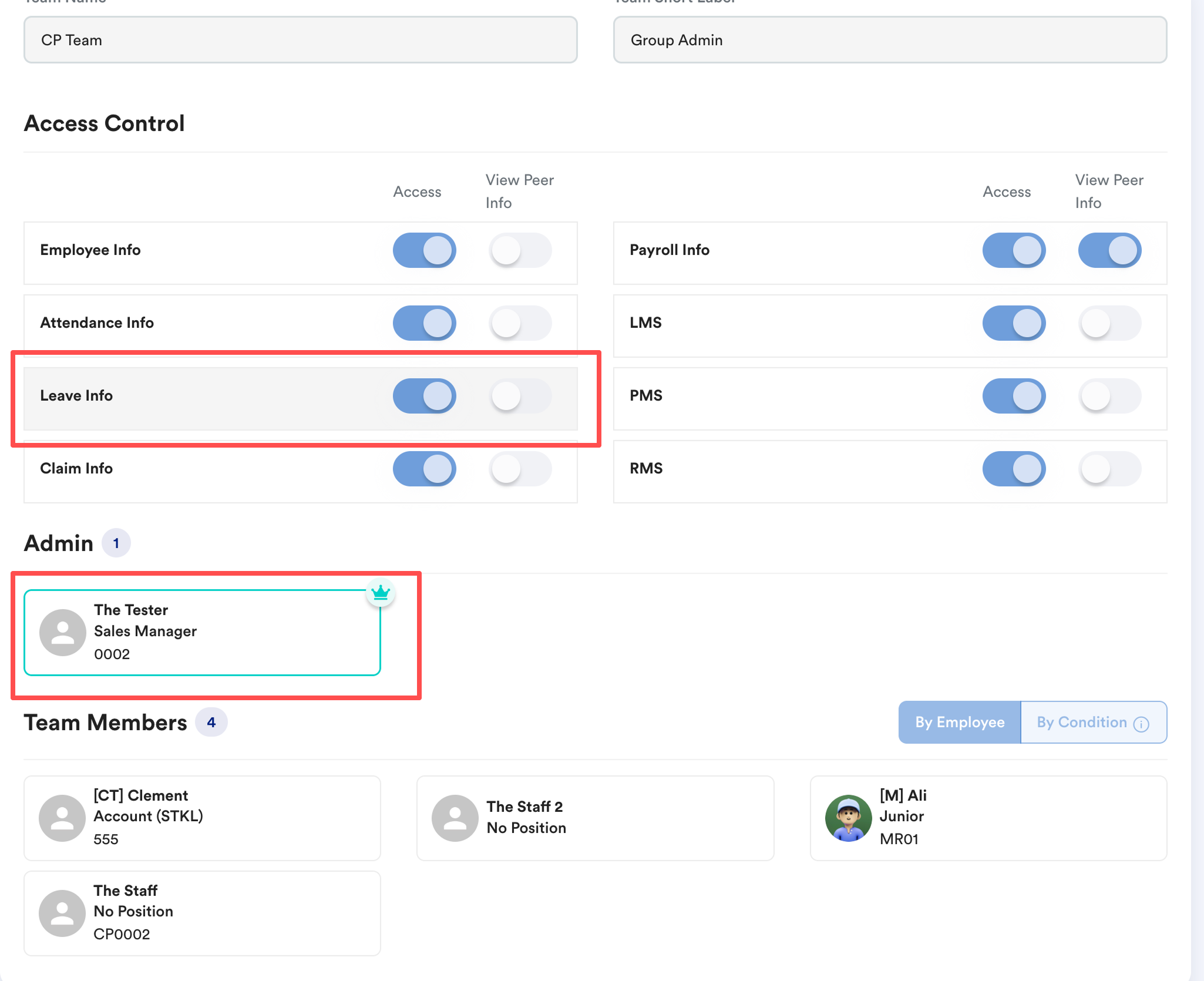
Leave(s) on 24 Dec 2025 are approved for The Staff 2, The Staff and [CT] Clement.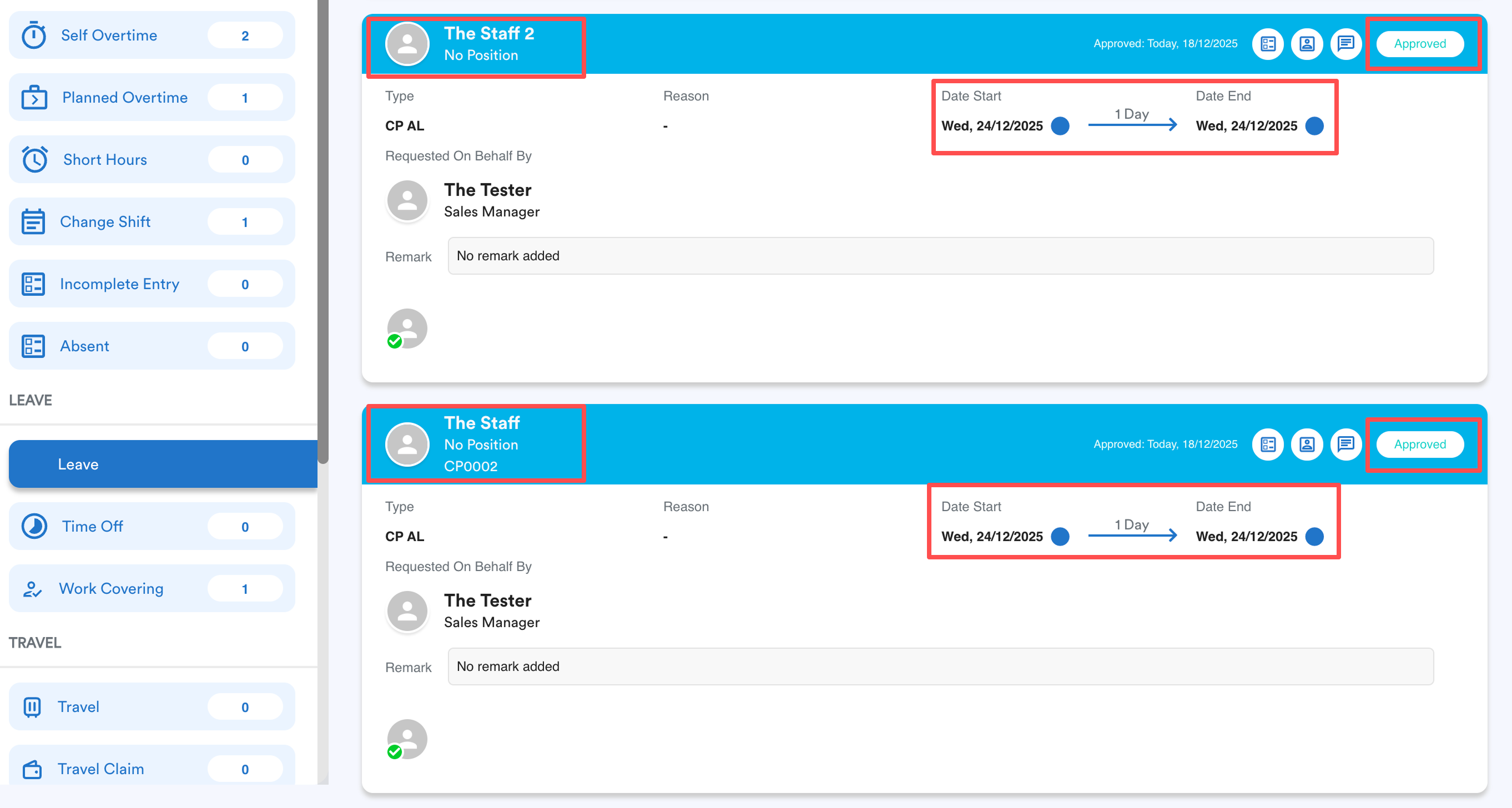
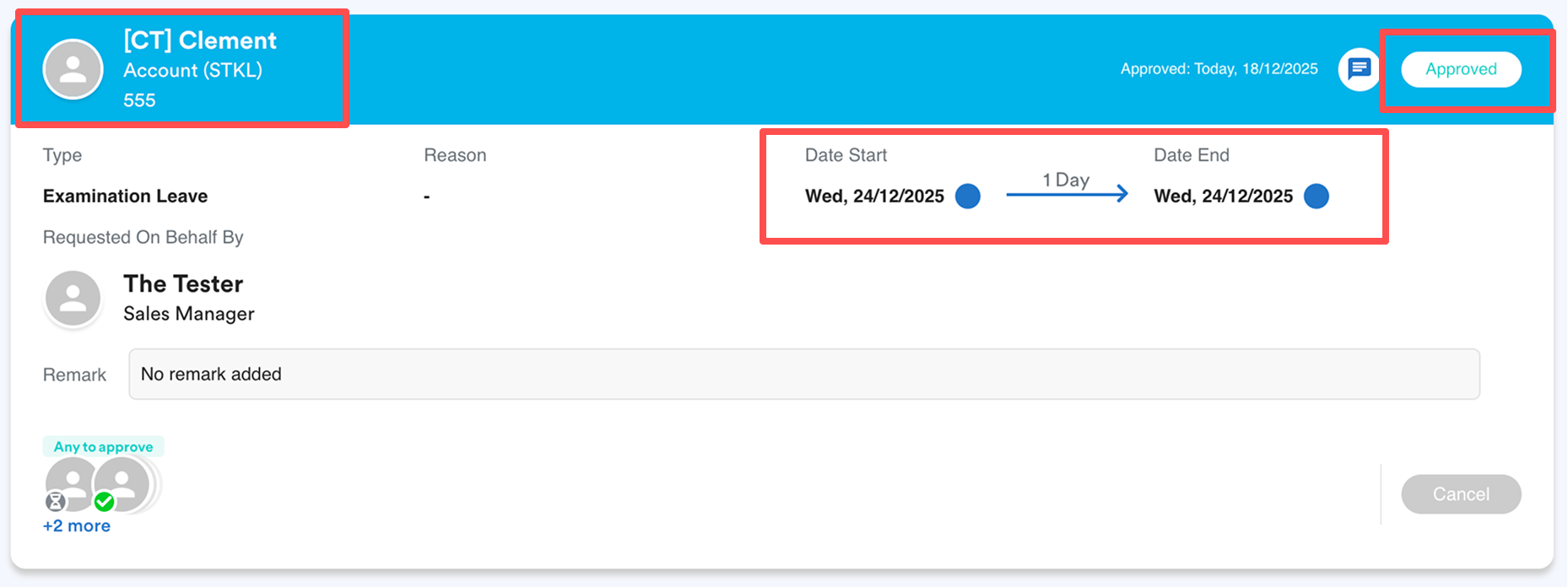
With the above Team Setting and Approved Leave, The Tester (Team Admin) shall be able to see the staff's leave info. If you have other teams, you can select the dropdown and change your team to see different team members' info.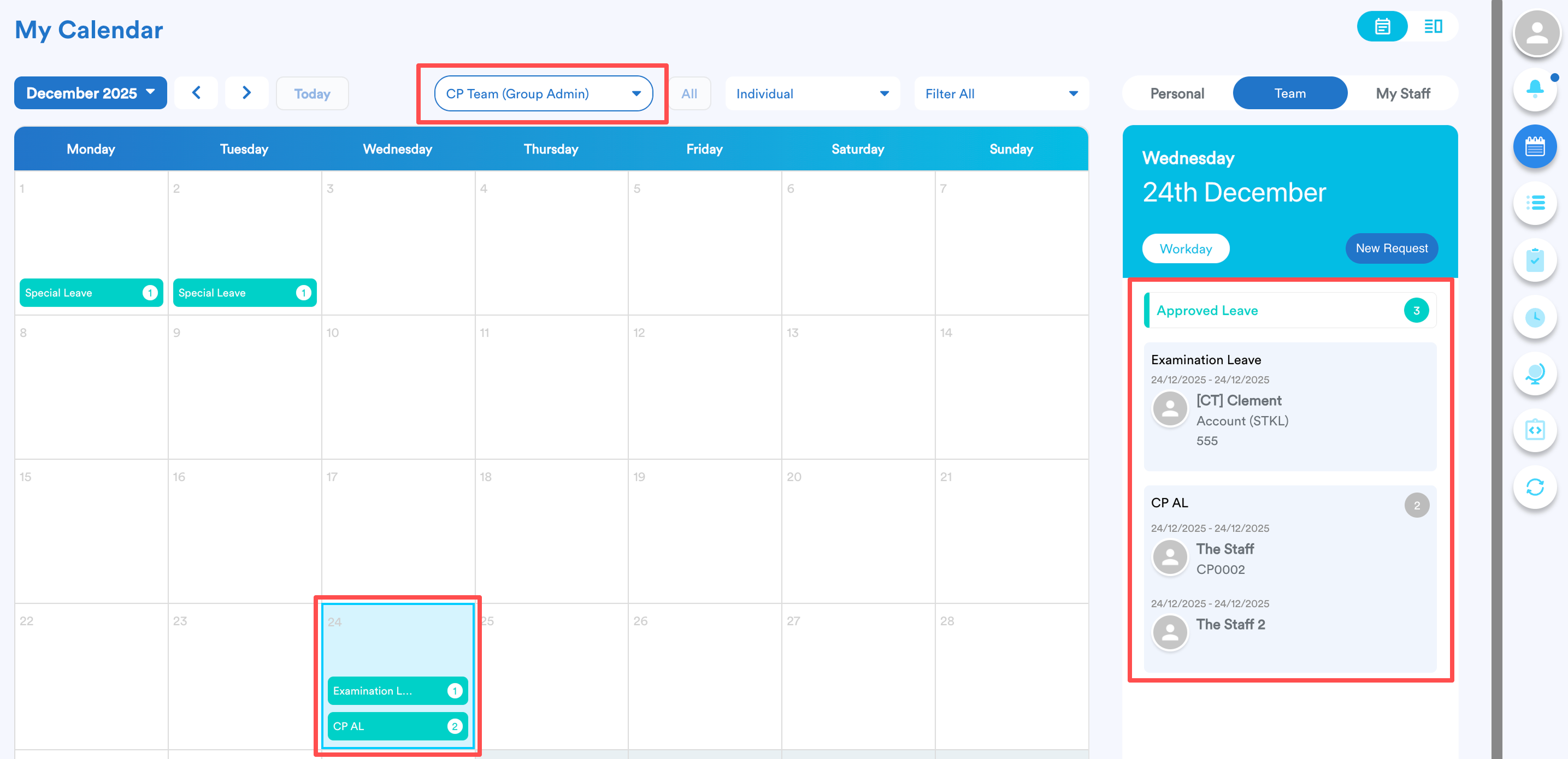
Tips
You can create a company-wide team and enable “View Peer Info” so everyone’s leave appears on the dashboard calendar, allowing the whole company to see who's on leave. Refer Creating Team in Worksy for step-by-step guide.
Was this article helpful?
That’s Great!
Thank you for your feedback
Sorry! We couldn't be helpful
Thank you for your feedback
Feedback sent
We appreciate your effort and will try to fix the article