Payroll items are used to define additional earnings, deductions, overtime, bonuses, unpaid leave, and advances that can be applied during payroll processing.
Step 1
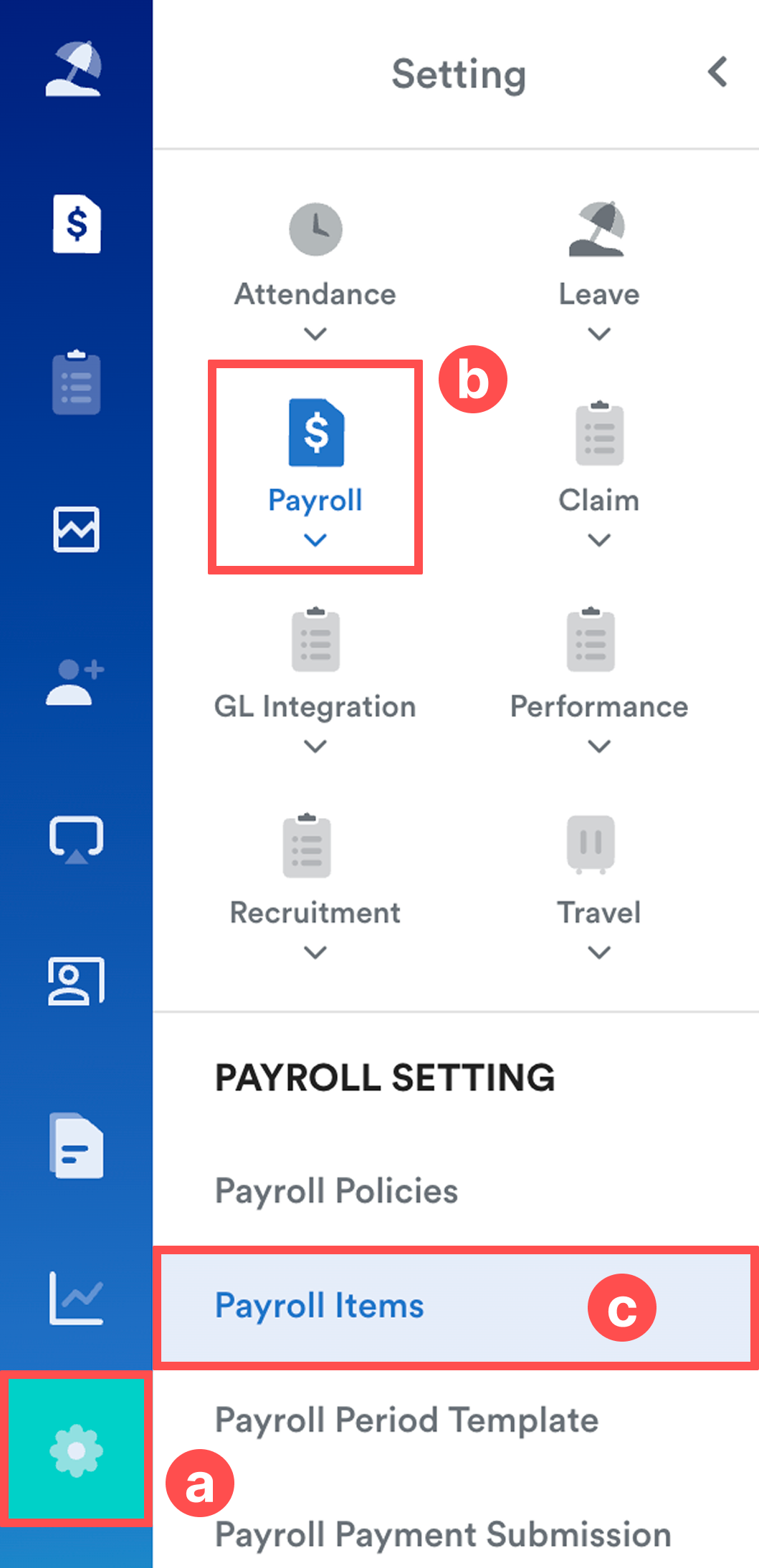
On the left menu, go to Settings (a) > Payroll (b) > Payroll Items (c).
Step 2
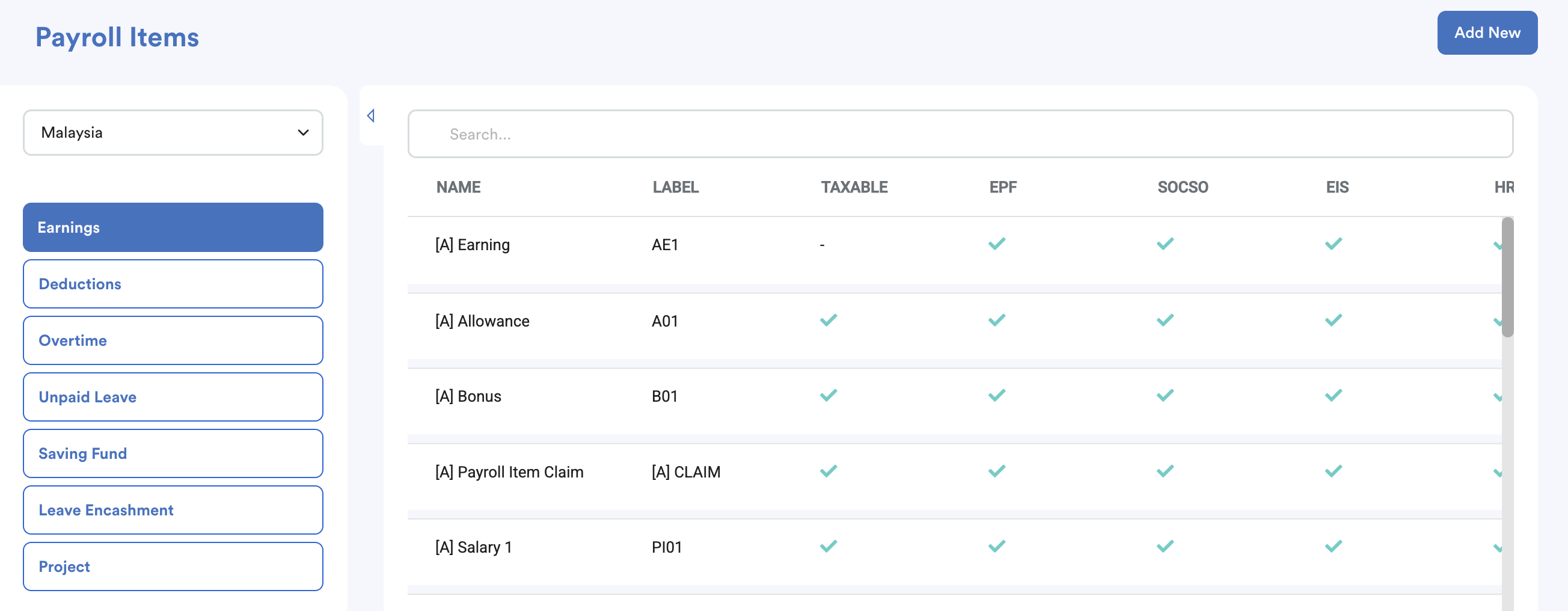
On the left panel, select the payroll item type you want to create:
- Earnings
- Deductions
- Overtime
- Unpaid Leave
- Saving Fund
- Leave Encashment
- Project
Then, click Add New.
Step 3
Complete the payroll item details.
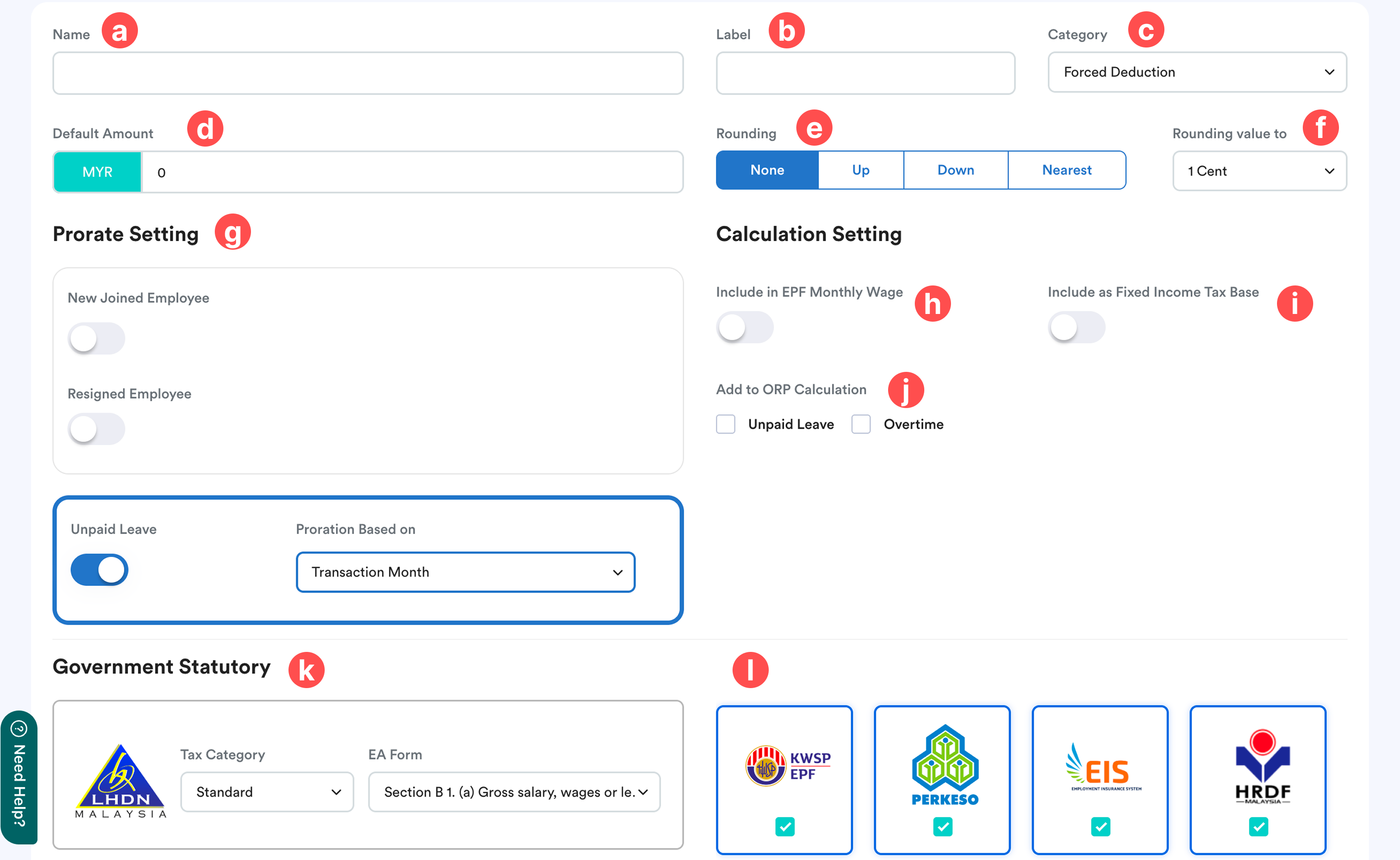
a) Name – Enter the name of the payroll item.
b) Label – Enter a label for the payroll item.
c) Category – Assign a category to help organise payroll items in payroll reports.
d) Default Amount – Enter the default amount when this payroll item is added during payroll processing.
e) Rounding – Choose how the amount should be rounded: None, Up, Down, Nearest
f) Rounding Value to – Select the rounding increment, ranging from 1 cent up to 1 dollar.
g) Prorate Setting – Enable the applicable prorate options if this payroll item should be prorated for:
- New Join
- Resigned
- Unpaid Leave
After enabling, select the prorate calculation method:
- Calendar Month – Based on the actual number of calendar days in the payroll month.
- Custom – Based on the number of days you specify.
- Working Day – Based on the employee's scheduled working days.
- Transaction Month – Based on the unpaid leave transaction month.
h) Include in EPF Monthly Wage – This toggle is to decide your monthly wage that will determine if employer EPF contribution is 12 or 13%. If your monthly wage exceeds 5k (excludes bonus amount), employer contribution is 12%.
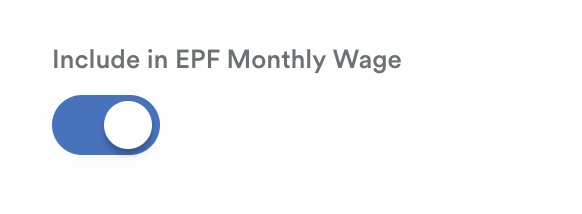
This setting only determines the employer's EPF contribution rate. The actual EPF contribution amount is still calculated based on the EPF base amount.
Example
- Basic Salary: RM4,500
- Allowance: RM300 (Include in EPF Monthly Wage enabled)
- Bonus: RM5,000
EPF Monthly Wage
RM4,500 + RM300 = RM4,800
Since the monthly wage is below RM5,000, the employer contribution rate is 13%.
EPF Base
RM4,500 + RM300 + RM5,000 = RM9,800
Employer EPF Contribution
RM9,800 × 13%

To understand more, refer to What does "Include in EPF Wage" mean?
i) Include as Fixed Income Tax Base – Enable this option to include the payroll item in the Fixed Income Tax Base when calculating PCB.
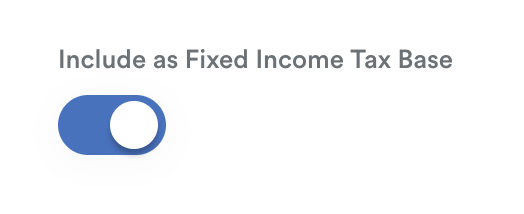
You can review the amount under Fixed Income Tax Base during payroll review. Example:

To understand fixed and additional income tax, refer to Fixed and Additional Income Tax Base.
j) Add to ORP Calculation – Enable this option if the payroll item should be included when calculating:
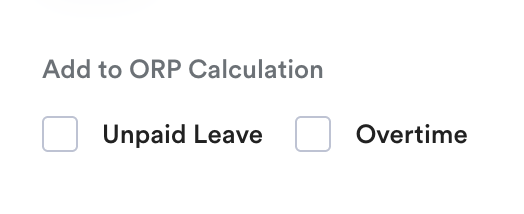
- Unpaid Leave (UPL)
- Overtime (OT)
Example :
- Earning ( allowance) = RM 300
- Add to ORP Calculation is enabled for UPL
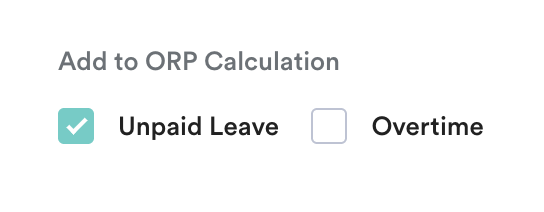
The unpaid leave calculation becomes:
(Basic Salary + RM300) ÷ 31 × Number of Unpaid Leave Days
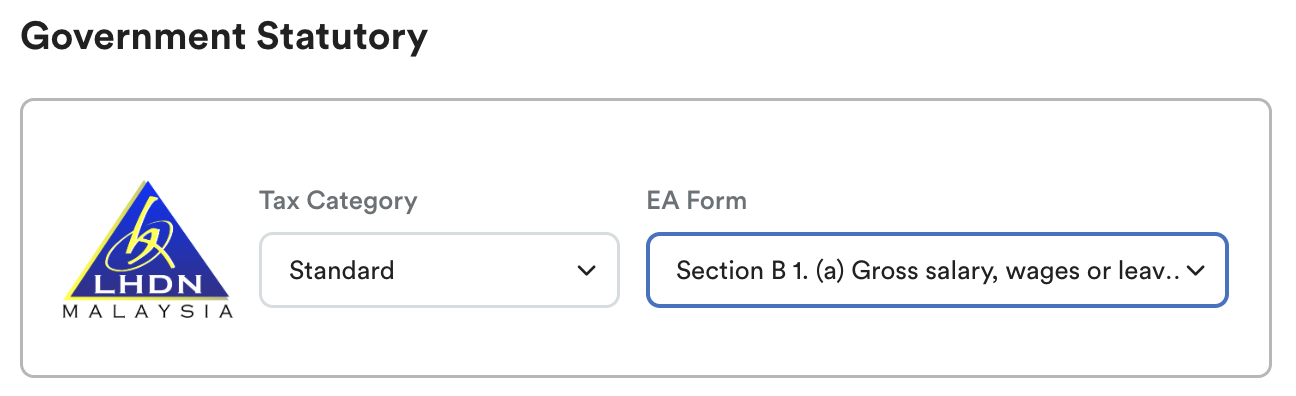
k) Government Statutory – Specify whether this payroll item is subject to income tax and select the appropriate statutory category for reporting purposes (for example, Benefit-in-Kind on the EA Form).
l) Statutory Flagging – Select the statutory contributions that should include this payroll item in their calculation base, such as: EPF base, SOCSO base, EIS base.

Example :
- Earning ( allowance) = RM 300
- EPF is selected
The EPF contribution base will be calculated as:
Basic Salary + RM300
Step 4
Click Save to create the payroll item.

We hope this explanation clarifies the matter. If you require further assistance, please don't hesitate to contact our support team.
Was this article helpful?
That’s Great!
Thank you for your feedback
Sorry! We couldn't be helpful
Thank you for your feedback
Feedback sent
We appreciate your effort and will try to fix the article